

Printer offline or not printing
Start in Settings → Devices and printers. A problem banner at the top names the printer and the fix, and each printer shows its status: Ready, Paper low, Paper out, Cover open, Printer error, Not responding or Offline.
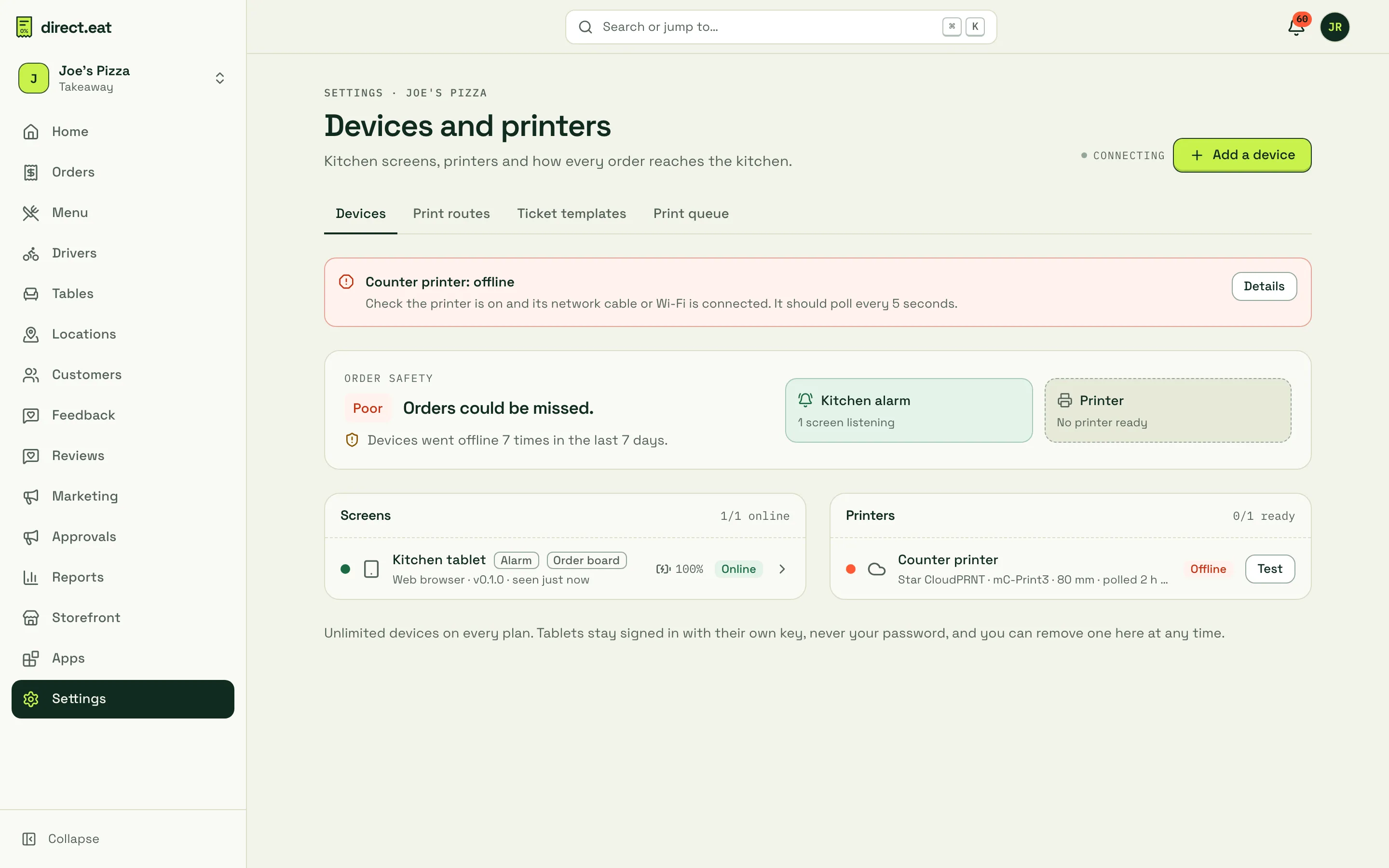
While a printer is down, orders still arrive on your kitchen tablets and the dashboard board. Accept them from there. Tickets that couldn’t print wait and print when the printer is back.
The printer says Offline
Section titled “The printer says Offline”Cloud printer (Star CloudPRNT or Epson): it hasn’t polled direct.eat for a while. It should poll every 5 seconds.
-
Check it’s switched on, has no red error light, and the network cable is plugged into the router (or it’s on the right Wi-Fi).
-
Turn it off for 10 seconds and back on. Watch the devices page: it should change to Ready once it polls again.
-
Still offline? Check the internet in the shop works: open a website on a phone on the same Wi-Fi.
-
Still offline? Print a self-test (hold the feed button while switching on) to get its IP address. Open the printer’s settings page and check CloudPRNT (Star) or Server Direct Print (Epson) is on, the poll interval is 5 seconds and the server URL is the one shown on the printer’s page in the dashboard.
-
If your router gave the printer a new IP address, that’s fine for direct.eat, but give it a fixed one (a DHCP reservation) so its settings page doesn’t move.
Printer attached to a tablet (USB, Bluetooth or browser print): it prints through the tablet, so the tablet must be on with the kitchen app open.
- Open the kitchen app on that tablet and check the header isn’t showing the printer in red.
- Unplug and replug the USB cable, or switch Bluetooth off and on. Then This screen → Printers and send a test.
- Bluetooth printers drop out when the tablet sleeps. Keep the tablet plugged in. See tablet sleeping.
Online but nothing prints
Section titled “Online but nothing prints”| Cause | Fix |
|---|---|
| No print route for that ticket | Settings → Devices and printers → Print routes. You need a route such as Kitchen ticket → this printer → On accept → All orders. A first printer gets one automatically; a replaced printer may not. |
| The route prints On accept and nobody has accepted yet | Accept the order. Or add an On arrival route if you want paper before accepting. |
| The route only covers some order types or stations | Edit the route, or leave Order types and Stations empty to print everything. |
| Print new orders automatically is off for that printer | Turn it on on the printer’s page. |
| Scheduled order | Pre-orders print at their fire time (slot minus prep time) if the route says At fire time. |
Use Test print on the printer’s page to check the printer itself works.
Tickets stuck or held
Section titled “Tickets stuck or held”Settings → Devices and printers → Print queue shows every ticket. Waiting means the printer hasn’t collected or confirmed it yet. Didn’t print means it failed or waited 20 minutes.
Tickets wait while the printer is out of paper, has its cover open or is offline, and print as soon as it’s back. After 20 minutes they’re held instead, so a pile of old tickets doesn’t suddenly print in the middle of service. When it’s back, check with the kitchen, then press Print N held tickets now (or Print them now on the kitchen tablet).
Garbled or wrong characters
Section titled “Garbled or wrong characters”- £ prints as a strange symbol: on the printer’s page, set Character set to Windows-1252 (recommended).
- Text runs off the edge or is tiny: the paper width is wrong. Set 80 mm or 58 mm to match the roll.
- Boxes or question marks in item names: non-Latin scripts don’t print yet. Give those items an English kitchen name.
Paper out, cover open
Section titled “Paper out, cover open”The printer’s status shows it and, during opening hours, you get a Printer problem notification. Change the roll (shiny side towards the print head on most printers), close the cover firmly and the held tickets print.
Related
Section titled “Related”Was this page helpful?