

Set up your kitchen tablet and printer
This is the step that stops you missing orders. New orders ring on a kitchen screen with a loud alarm until someone accepts them. A printer gives you a second path, so an order still reaches the kitchen if the tablet is flat or in someone’s pocket.
Time: roughly 5 minutes for a tablet, plus about 10 minutes for a cloud printer.
Before you start
Section titled “Before you start”- You need to be the owner, an admin or a manager to add devices.
- Devices are unlimited on every plan.
- A tablet or phone with a modern browser (Chrome on Android, or Safari on an iPad). Any screen you can mount by the pass works. A spare phone is fine to start with.
- A charger and a spot near a socket. The kitchen screen should stay plugged in all service.
- Optional: a cloud printer (Star CloudPRNT or Epson with Server Direct Print). See supported hardware.
1. Pair the tablet
Section titled “1. Pair the tablet”The tablet never gets your password. It pairs with a one-time code and gets its own key, which you can remove at any time.
-
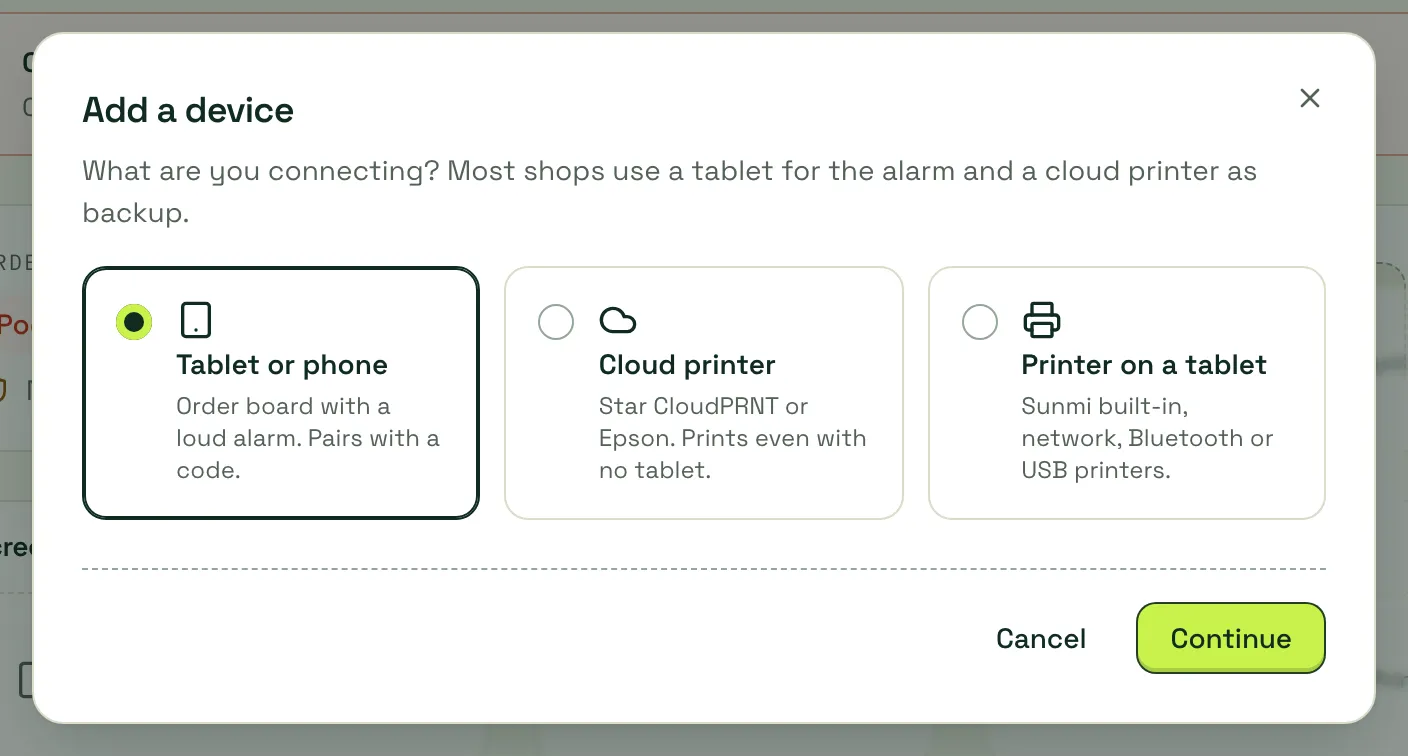
In the dashboard, go to Settings → Devices and printers and click Add a device.
-
Choose Tablet or phone and click Continue. You get an 8-character code and a QR code.
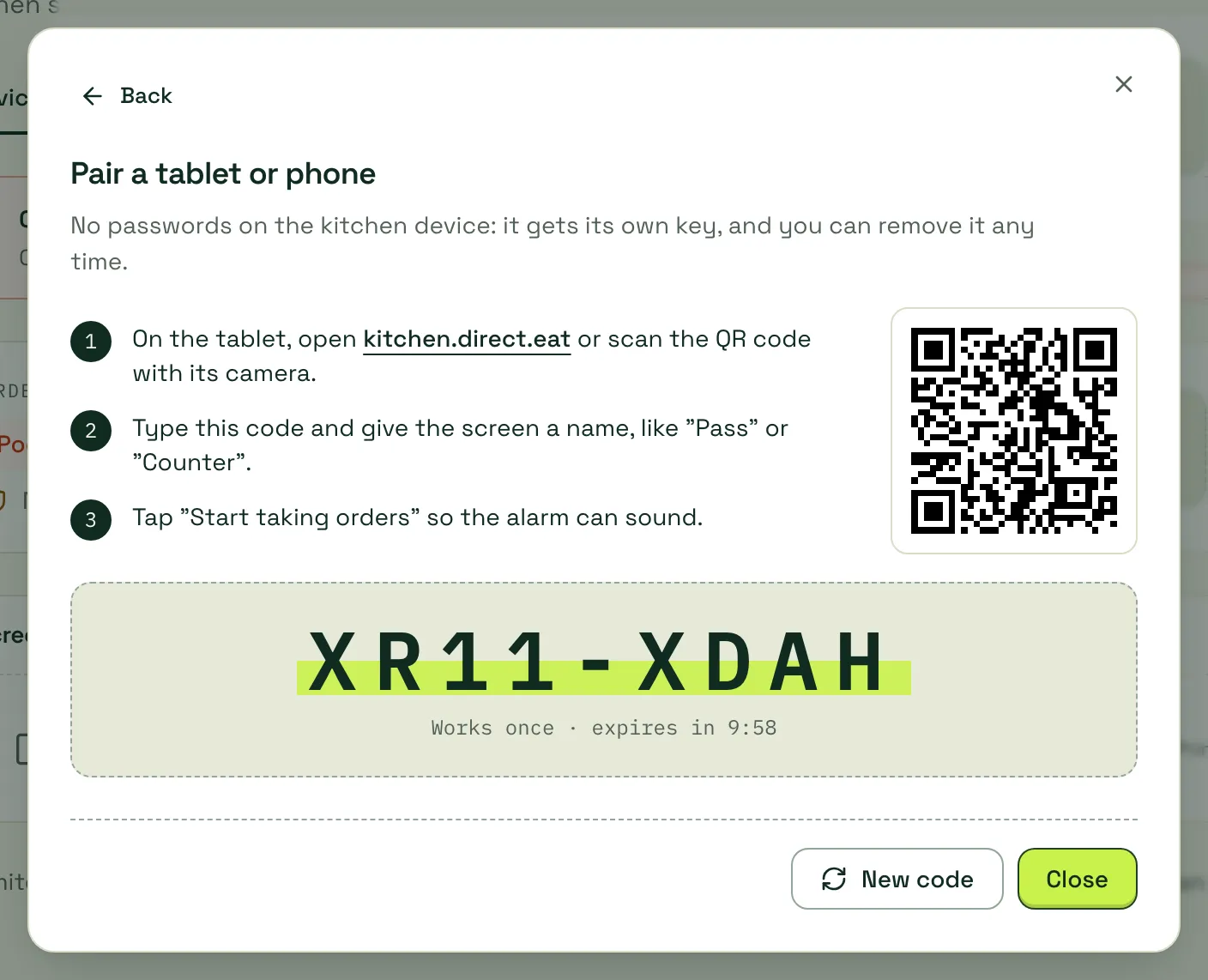
The code works once and expires after 10 minutes. Click New code if it runs out.
-
On the tablet, open kitchen.direct.eat, or scan the QR code with the tablet’s camera (that fills the code in for you).
-
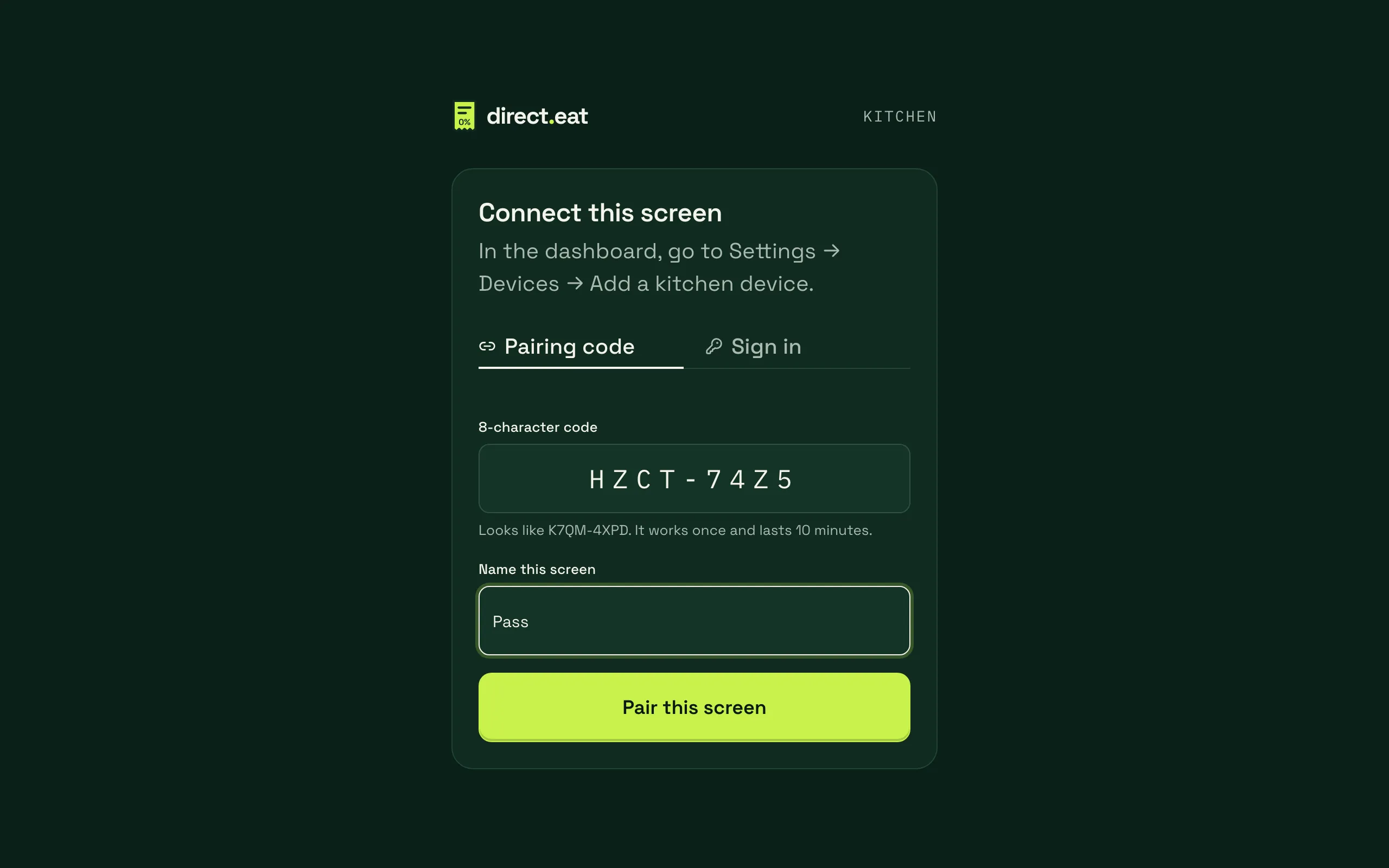
Type the code under Pairing code, give the screen a name such as “Pass” or “Counter”, and tap Pair this screen.
-
The dialog in the dashboard changes to Screen paired and the tablet opens the order board.
2. Turn the sound on
Section titled “2. Turn the sound on”Browsers won’t play sound until someone touches the screen. Until then the header shows a red Tap to turn on sound button.
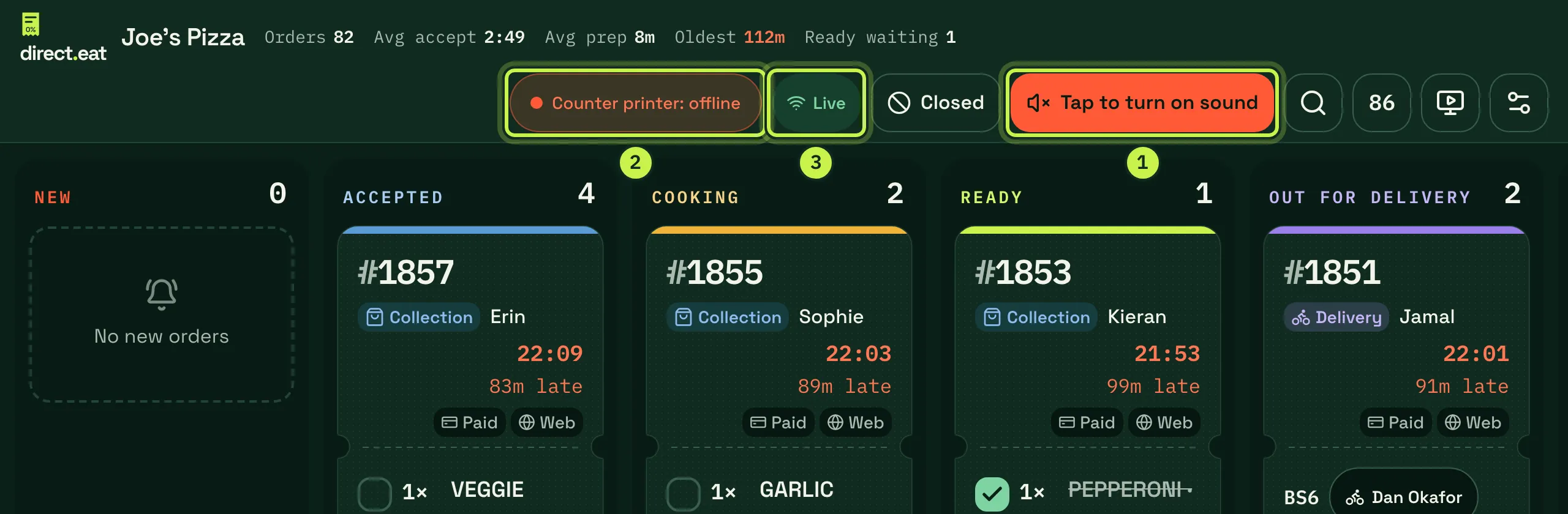
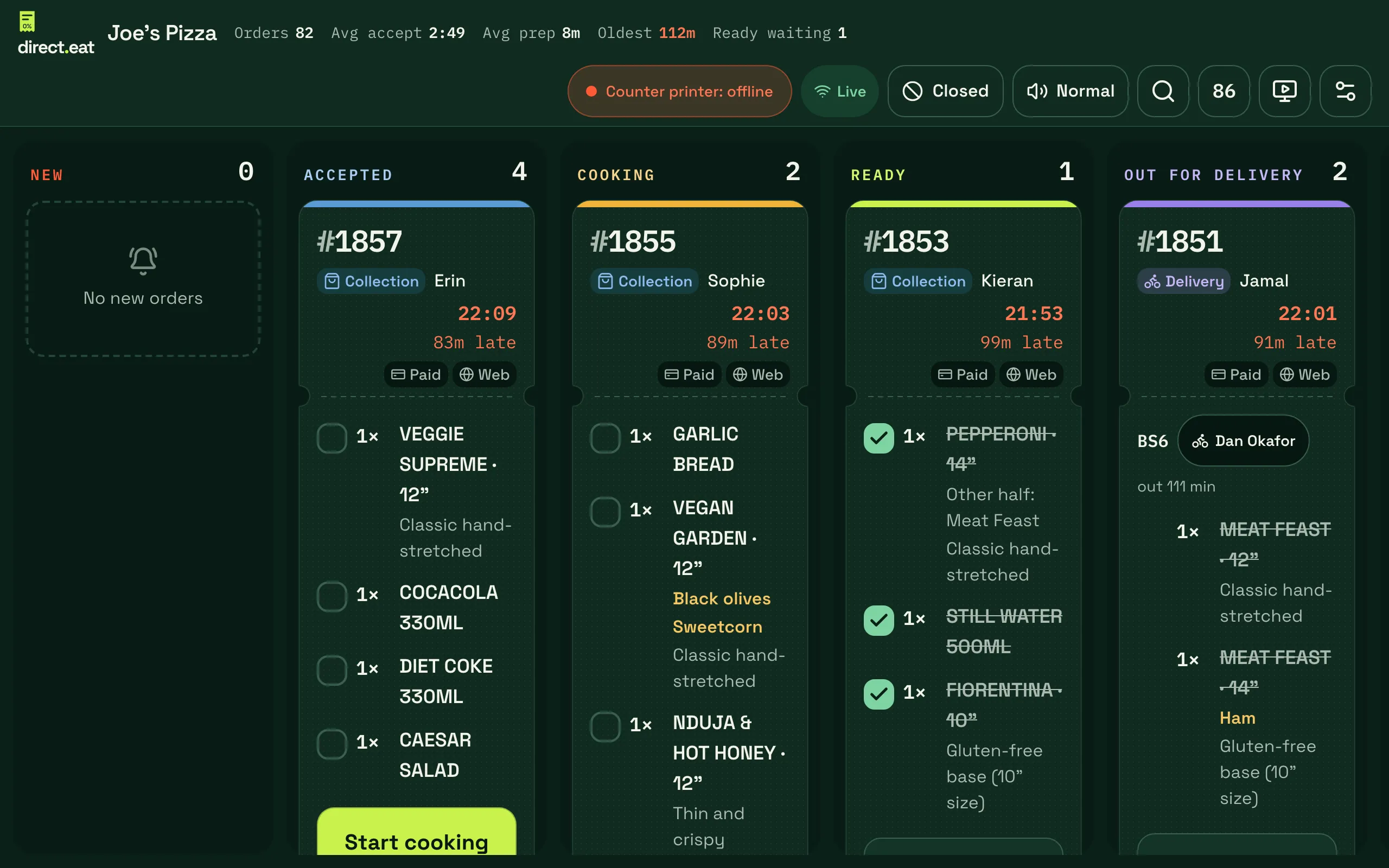
- Tap to turn on sound: tap it once at the start of every service. It then shows the alarm volume profile in use, such as Normal.
- Device and printer status: shows if a printer is offline. Tap it for details.
- Live: the tablet is connected. If it loses connection it shows Offline and queues your taps until it’s back.
Tap the device and printer status to see every screen and printer for your shop, and to set up Printers on this screen:
Choose how loud the alarm is in the screen settings (the sliders icon, top right): Quiet café, Normal or Busy takeaway. Tap the play button next to each to hear it. Do this with the extractor fans on.
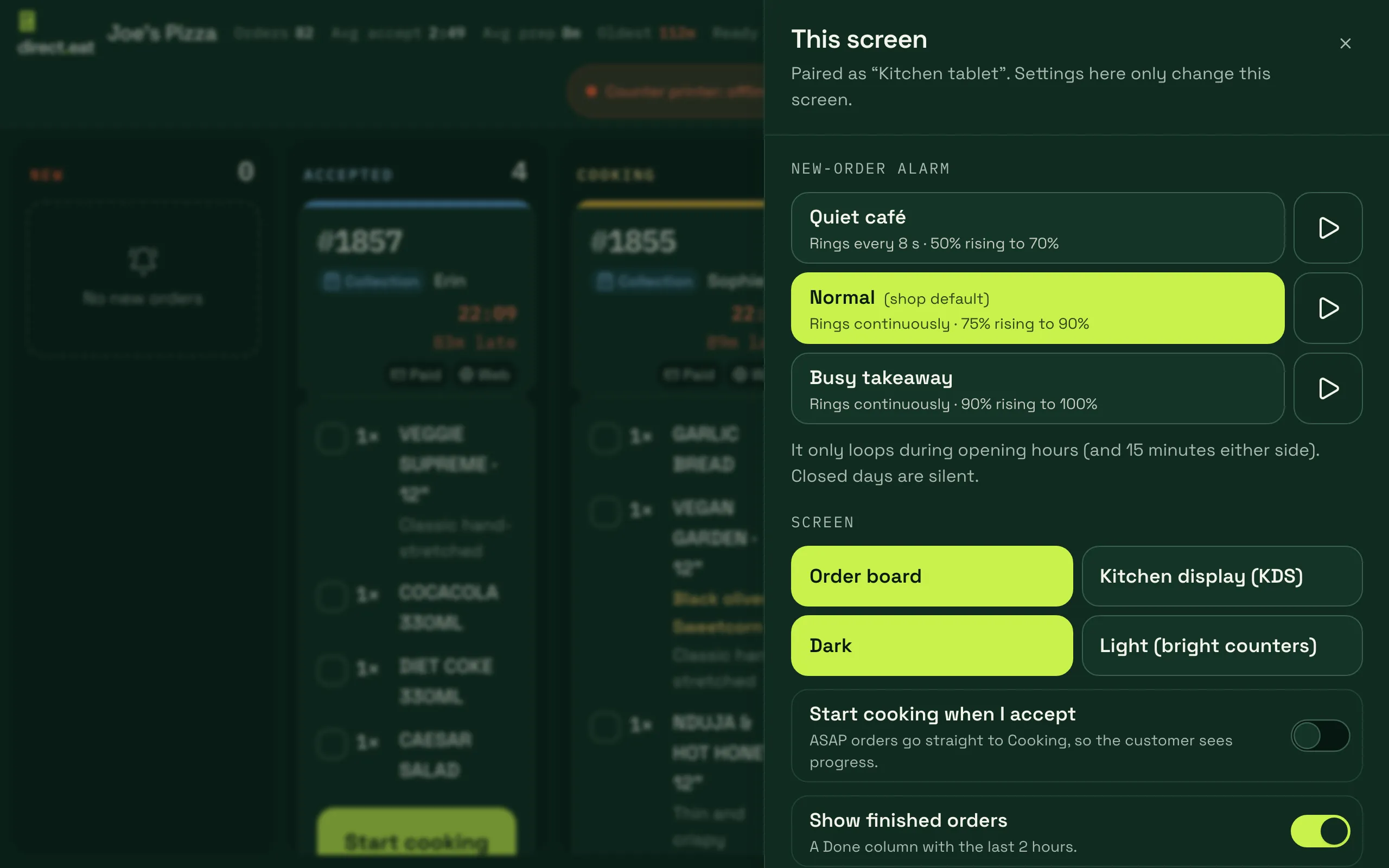
The alarm only loops during your opening hours (and 15 minutes either side). On closed days it stays silent.
3. Keep it awake and plugged in
Section titled “3. Keep it awake and plugged in”- Leave it plugged in. The board asks the screen to stay on while the app is open, but a flat battery still stops everything. The dashboard shows each device’s battery level.
- Turn off auto-lock in the tablet’s own settings if it still dims, and turn off battery saver.
- Set the tablet’s own volume to full and switch off Do Not Disturb.
- Keep the app in front. If someone opens YouTube on the kitchen tablet, the alarm can’t ring.
If the screen keeps going to sleep, see Tablet keeps sleeping.
4. Add a printer (recommended)
Section titled “4. Add a printer (recommended)”A printer is your backup alarm path. If nobody accepts an order, a cloud printer prints it with a NOT YET ACCEPTED banner, even when no tablet is online.
Star CloudPRNT and Epson Server Direct Print printers talk to direct.eat over your shop’s internet. No tablet, IP addresses or apps needed.
-
Plug the printer into your router with a network cable and turn it on.
-
In Settings → Devices and printers, click Add a device, choose Cloud printer, then Continue.
-
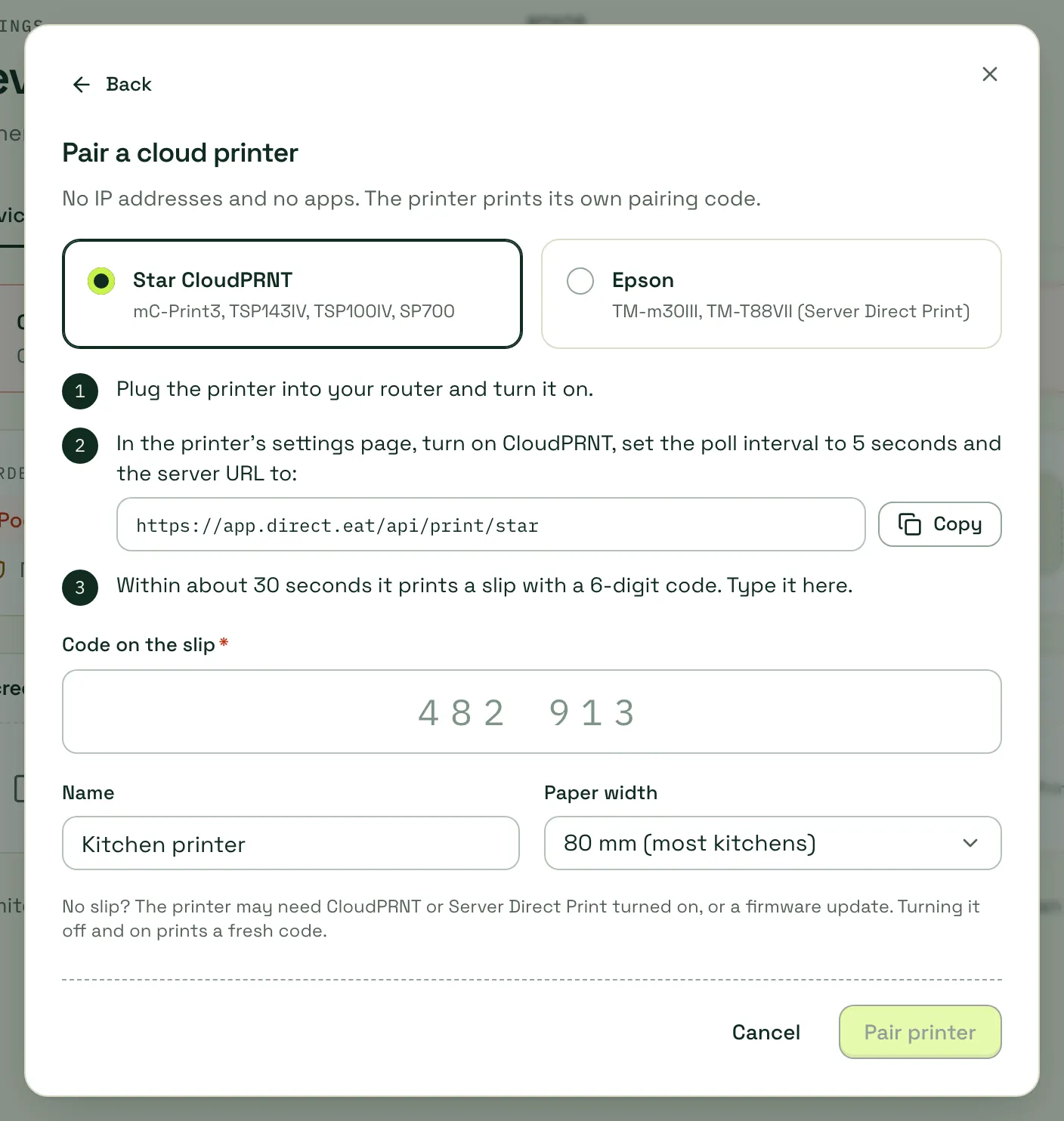
Pick Star CloudPRNT or Epson. Copy the server URL shown.
-
Open the printer’s own settings page, turn on CloudPRNT (Star) or Server Direct Print (Epson), set the poll interval to 5 seconds and paste the server URL.
-
Within about 30 seconds the printer prints a slip with a 6-digit code. Type it in Code on the slip, check the name and paper width, and click Pair printer.
No slip? The printer may need CloudPRNT or Server Direct Print turned on, or a firmware update. Turning it off and on prints a fresh code. More help: Printer offline.
Choose Printer on a tablet to print through the kitchen tablet instead. Options include network printers (ESC/POS or Star), Bluetooth, USB and Browser print (any printer the tablet’s browser can use).
From a web browser, USB printers work in Chrome and Bluetooth needs a printer that supports Bluetooth Low Energy. Finish the set-up on the tablet: tap the printer pill in the header, then Printers on this screen.
5. Print a test
Section titled “5. Print a test”On the device’s page (Settings → Devices and printers, then click the printer) click Test print. You should get a test ticket. If nothing prints, the page tells you when the printer last checked in and what to check.
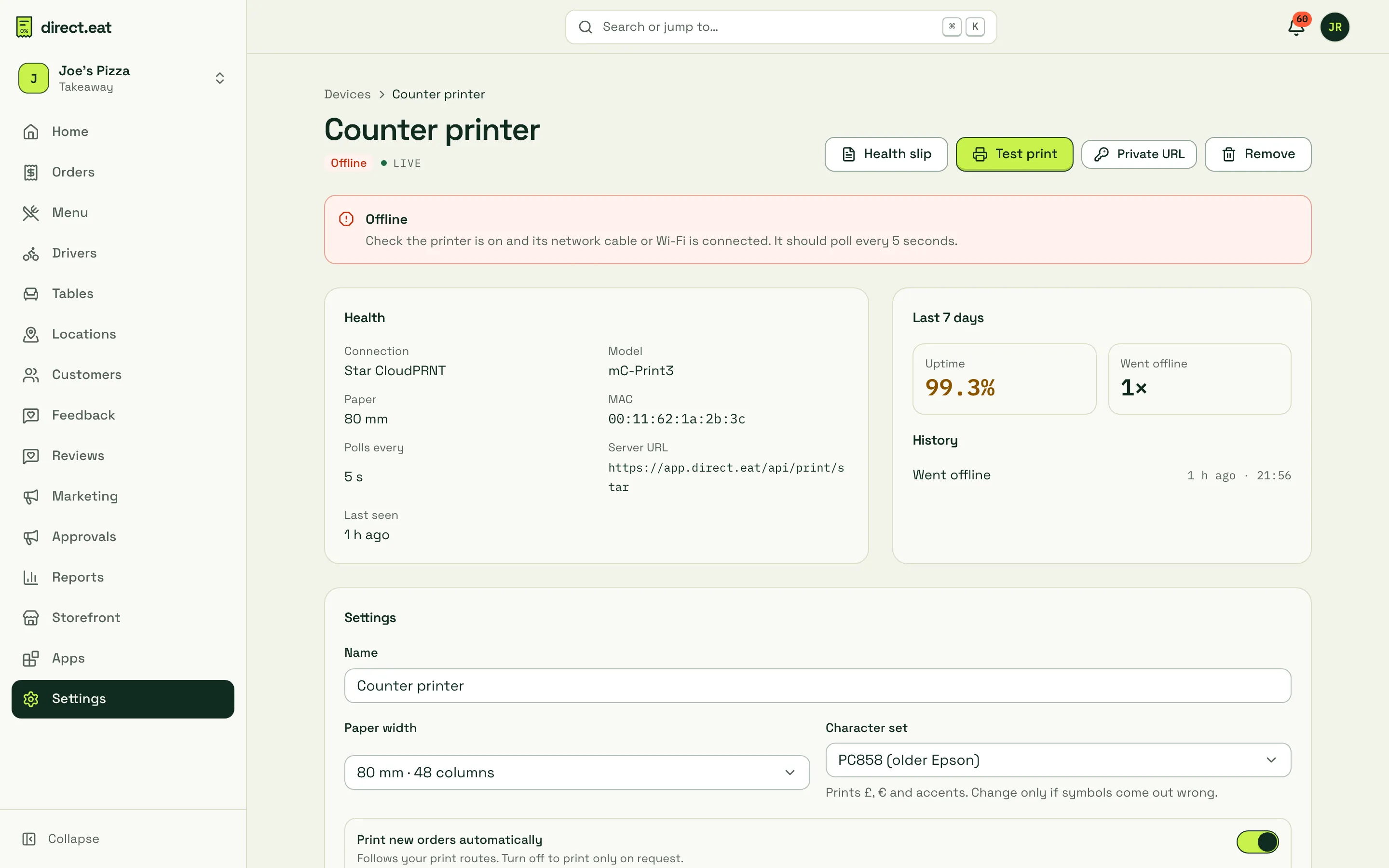
By default the first printer prints a kitchen ticket when an order is accepted. You can change what prints where in Print routes and Ticket templates: see Print routing and templates.
6. Check order safety
Section titled “6. Check order safety”Back on Settings → Devices and printers, the Order safety panel rates how safe you are from missed orders.
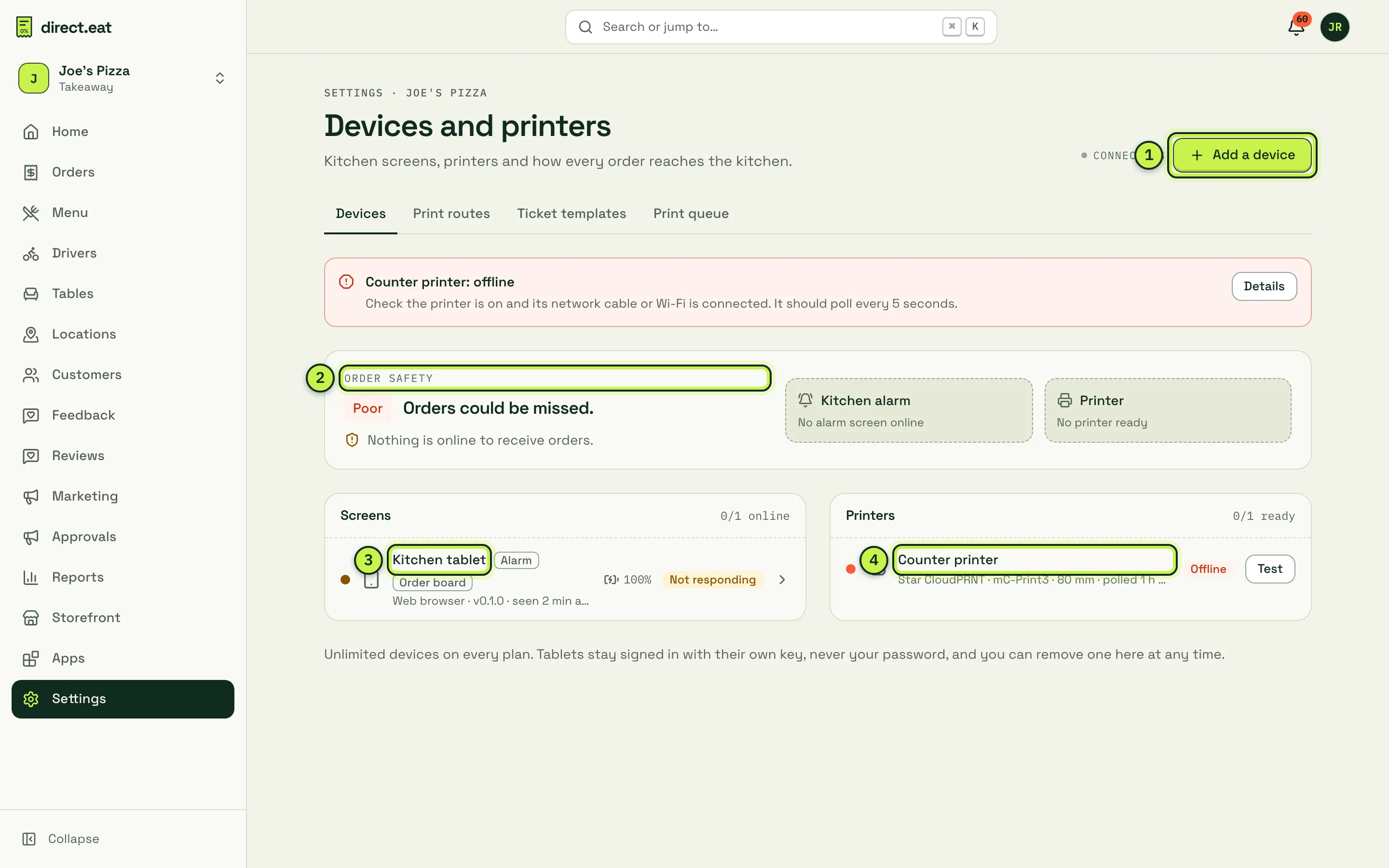
- Add a device: pair more tablets or printers.
- Order safety: Good, Fair or Poor, with what’s missing. Aim for a kitchen alarm screen and a printer.
- Screens: each tablet with its last check-in, battery and whether its sound is on.
- Printers: each printer’s status and a Test button.
Every device sends a heartbeat. If every path goes dark while you’re open, direct.eat pushes and texts you and, after 5 minutes, pauses online ordering so diners aren’t left waiting. See Alerts and escalation.
Removing a device
Section titled “Removing a device”Lost a tablet or replacing one? Open the device and click Remove. It’s signed out straight away and its local data is wiped the next time it connects. If you paired a test device while trying things out, remove it the same way.
Next step
Section titled “Next step”10. Staff and roles: give your team their own logins.
Related
Section titled “Related”Was this page helpful?