

Reviews and replies
Your storefront shows reviews from verified customers only: people who placed and received an order from you. Every genuine review is published, good or bad, with your star average and count. You can reply in public. You can’t hide a review for being negative: only for breaking a short list of rules, and every hide is logged.
This is how UK consumer law (the DMCC Act 2024 and the CMA’s fake reviews guidance) expects reviews to work, and it’s why diners trust them. The full rules are in our review policy.
Before you start
Section titled “Before you start”- Owners, admins and managers can reply to reviews, publish held reviews and hide reviews for a policy breach.
- Owners and admins can change how and when customers are asked.
- Staff don’t see reviews.
How customers are asked
Section titled “How customers are asked”After an order is collected, or the driver marks it delivered, the customer is asked how it was: on the order tracking page and by email. Everyone is asked the same way, whatever happened with their order. Prompts that would land between 21:30 and 09:00 wait until 10:00.
The customer rates the order (and optionally food and collection or delivery separately), can write a title and a review, and chooses how their name shows: first name and initial (the default, “Sophie T.”), first name only, or “Verified customer”. They can edit their review for 48 hours and remove it at any time.
A low rating also opens a private issue for you, so you can put things right. The review is still published. See Feedback and issues.
The reviews page
Section titled “The reviews page”Go to Reviews in the sidebar (or Feedback → Public reviews).
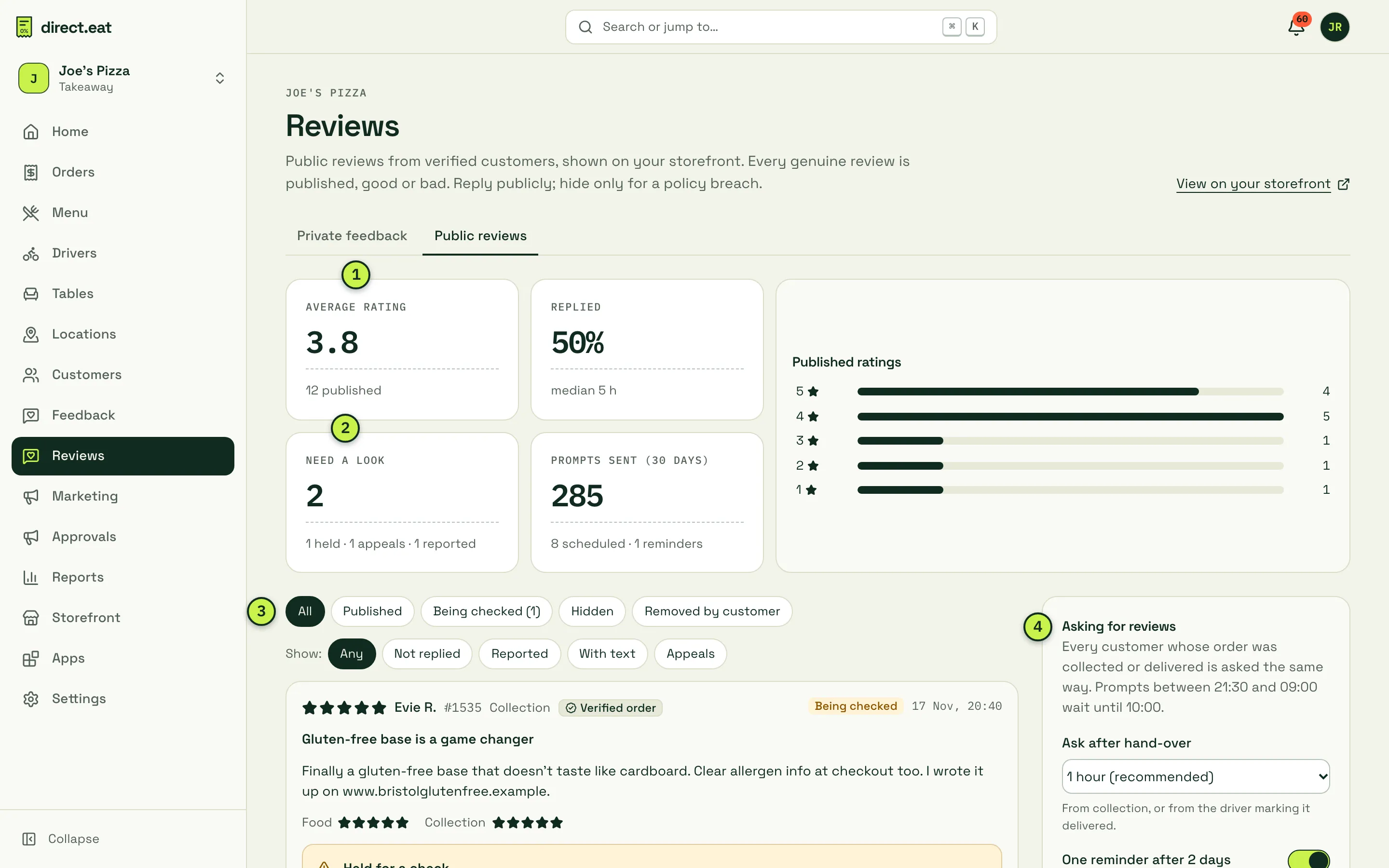
- Average rating and how many reviews are published. Next to it: Replied (share of reviews with a reply, and how quickly), and Prompts sent (30 days).
- Need a look: reviews held for a check, customer appeals, and reviews visitors have reported.
- Status chips (All, Published, Being checked, Hidden, Removed by customer) and Show filters (Not replied, Reported, With text, Appeals). Click a bar in Published ratings to filter by stars.
- Asking for reviews: the settings (below), and a short summary of the rules.
View on your storefront opens your public reviews page.
Reply in public
Section titled “Reply in public”A reply is shown under the review on your storefront as “Reply from” followed by your shop’s name.
- Click Reply publicly on a review.
- Write your reply, or choose a tone (Warm, Brief, Formal), optionally say what you did (“refunded the garlic bread”) and click Draft with AI.
- Read it. It’s public and posted as the restaurant.
- Click Post reply.
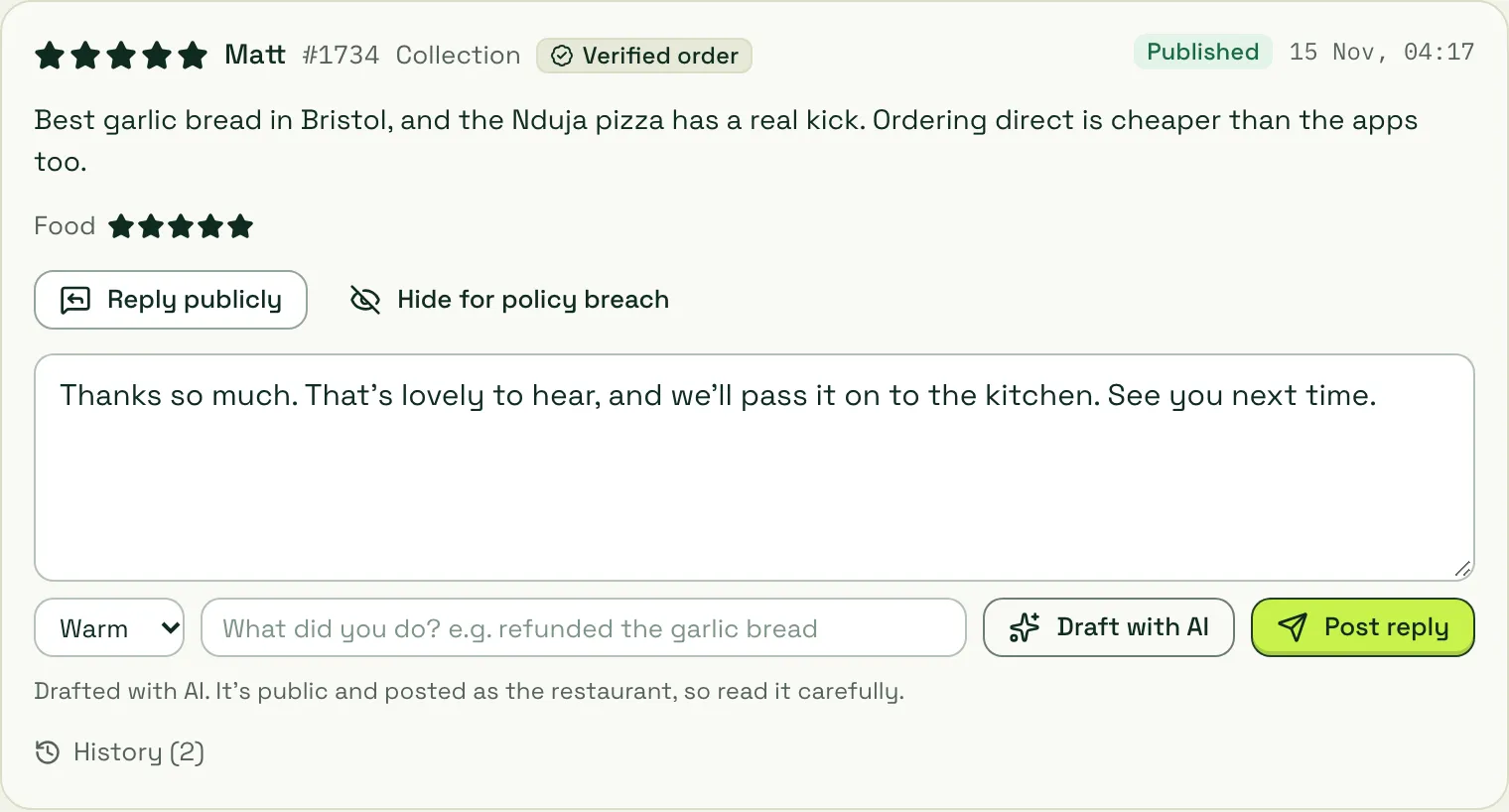
You can Edit reply or Remove reply later. Replies drafted with AI are marked “AI-assisted” in your dashboard history.
How to reply well:
- Thank people for good reviews in a line. Don’t copy and paste the same reply everywhere.
- For a bad review, apologise for the specific thing, say what you’ve changed, and offer to talk privately. Don’t argue, and never share the customer’s personal details or order contents.
- If a review mentions an allergy or illness, the AI won’t draft a reply: handle it personally.
Reviews held for a check
Section titled “Reviews held for a check”Reviews are checked automatically the same way whatever the rating. A review is held if it contains contact details, a link or strong language. Nothing is held for being negative.
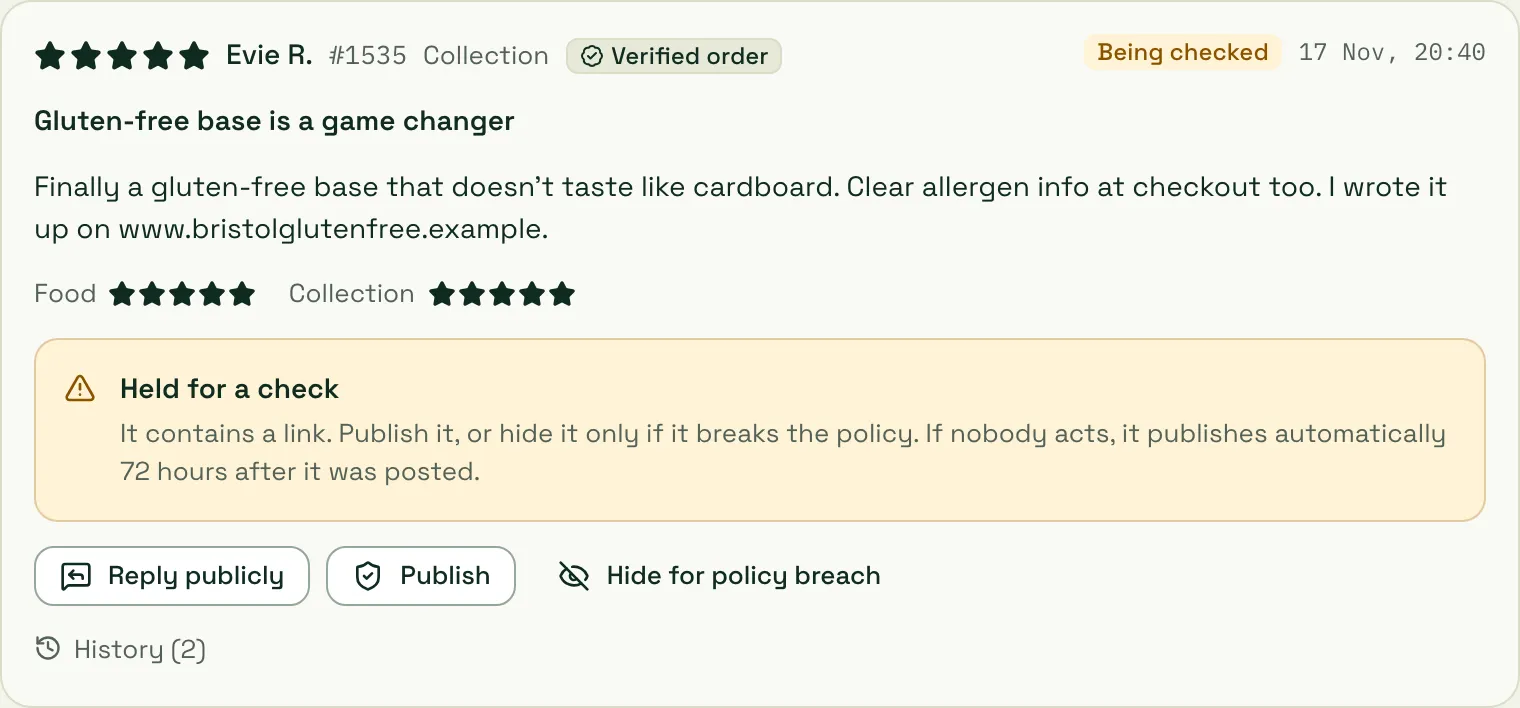
Click Publish if it’s fine, or hide it only if it breaks the policy. If nobody acts, it publishes automatically 72 hours after it was posted.
Hiding a review for a policy breach
Section titled “Hiding a review for a policy breach”You can hide a review only if it breaks one of these rules:
| Reason | When it applies |
|---|---|
| Personal information | Contact details or other personal information about someone |
| Offensive or discriminatory | Hate speech, threats, harassment or obscene language |
| Not about the order | Spam, adverts, or about something other than this order |
| Conflict of interest | Written by you, your staff, a competitor or someone connected |
| Fake or incentivised | Evidence it isn’t genuine or was rewarded |
| Unlawful | Unlawful to publish, for example defamatory on legal advice |
- Click Hide for policy breach.
- Choose Which rule does it break?
- Explain What exactly breaks it? (at least 10 characters). This is logged and shown to the customer.
- Click Hide review.
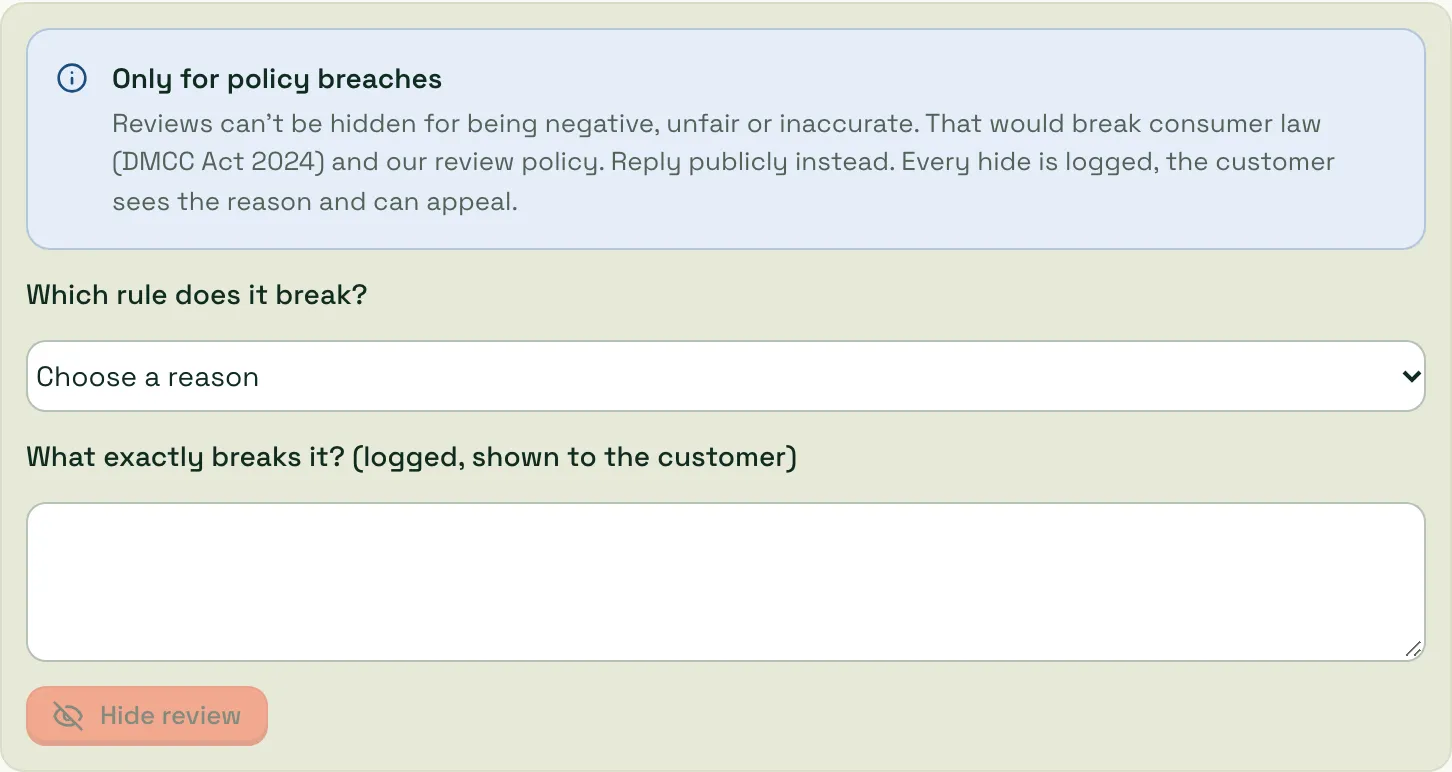
The customer is told why and can appeal or edit the review. Appeals are decided by direct.eat, not by you. Each appeal gets a reference (RVA-…) and the customer is emailed the outcome within 10 working days. While it’s open, the appeal appears under Appeals, with the reason and the customer’s note:
- You can Restore the review at any time. That closes the appeal, and the customer is told.
- You can’t turn an appeal down. Our team checks the hide against the review policy and decides.
- If we uphold the appeal, the review goes back up and can’t be hidden again. If we don’t, it stays hidden. Either way, owners and admins get an email with our reasons.
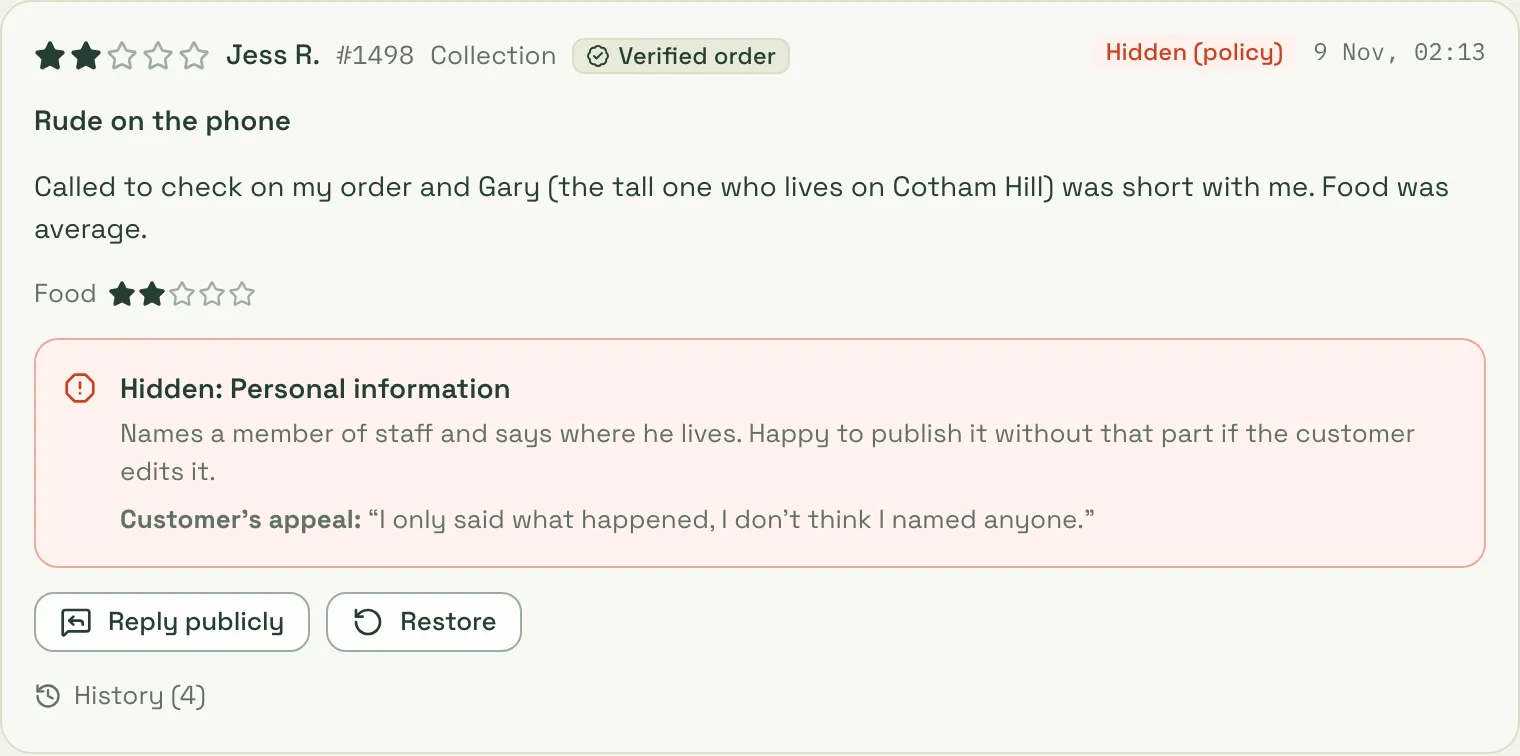
Every action (published, held, hidden, restored, reply posted, reported, appealed) is in the review’s History, with who did it and when.
Asking for reviews: settings
Section titled “Asking for reviews: settings”In the Asking for reviews card (owners and admins):
- Ask after hand-over: from 15 minutes to the next day. 1 hour is recommended. Timed from collection, or from the driver marking the order delivered.
- One reminder after 2 days: only if they haven’t replied. Never more than one.
- Also ask by text message: only customers who agreed to texts from you. Uses SMS credit.
Click Save. The prompt itself is the same for every customer and can’t be customised to filter out unhappy ones.
What diners see
Section titled “What diners see”Your storefront has a reviews page at https://{your-slug}.direct.eat/reviews, with the average, the breakdown by stars, filters and sorting.
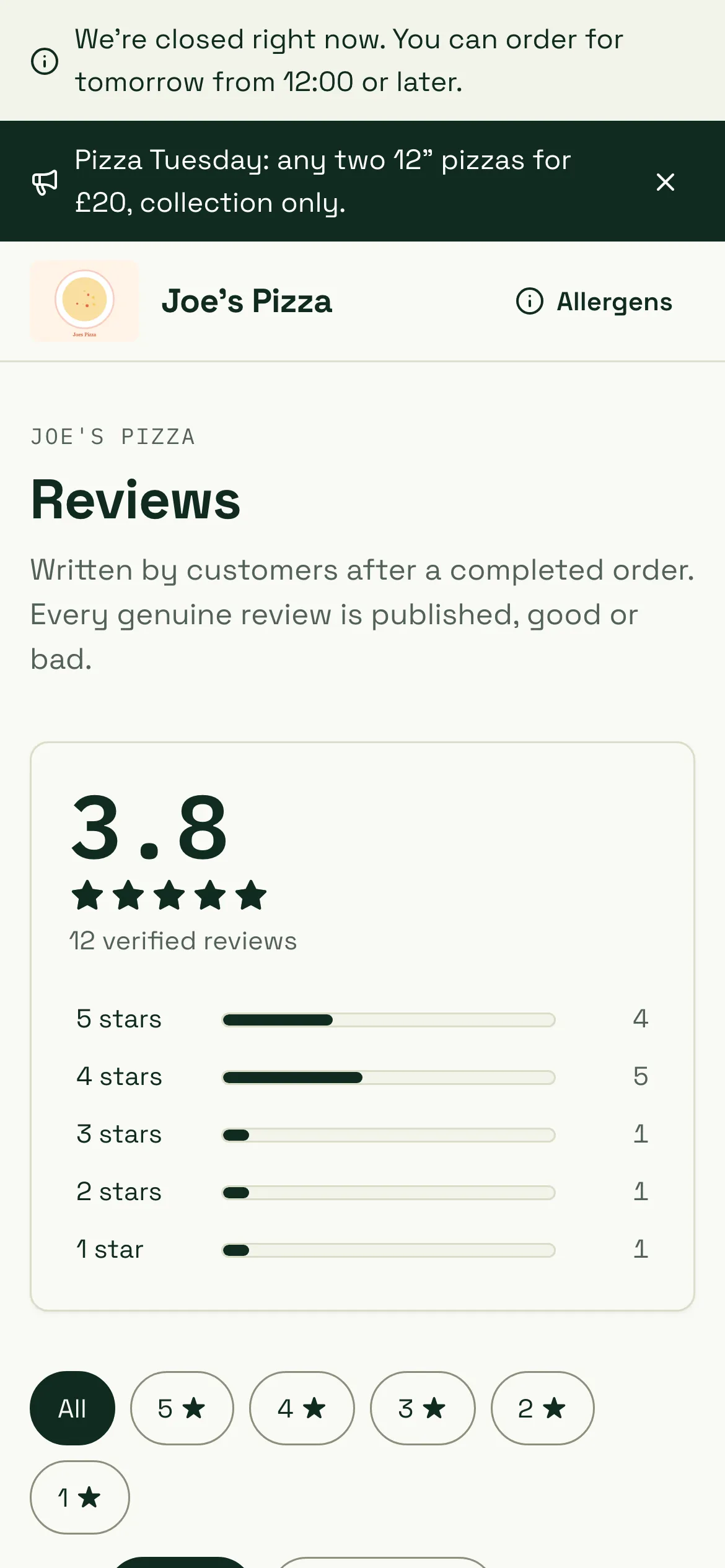
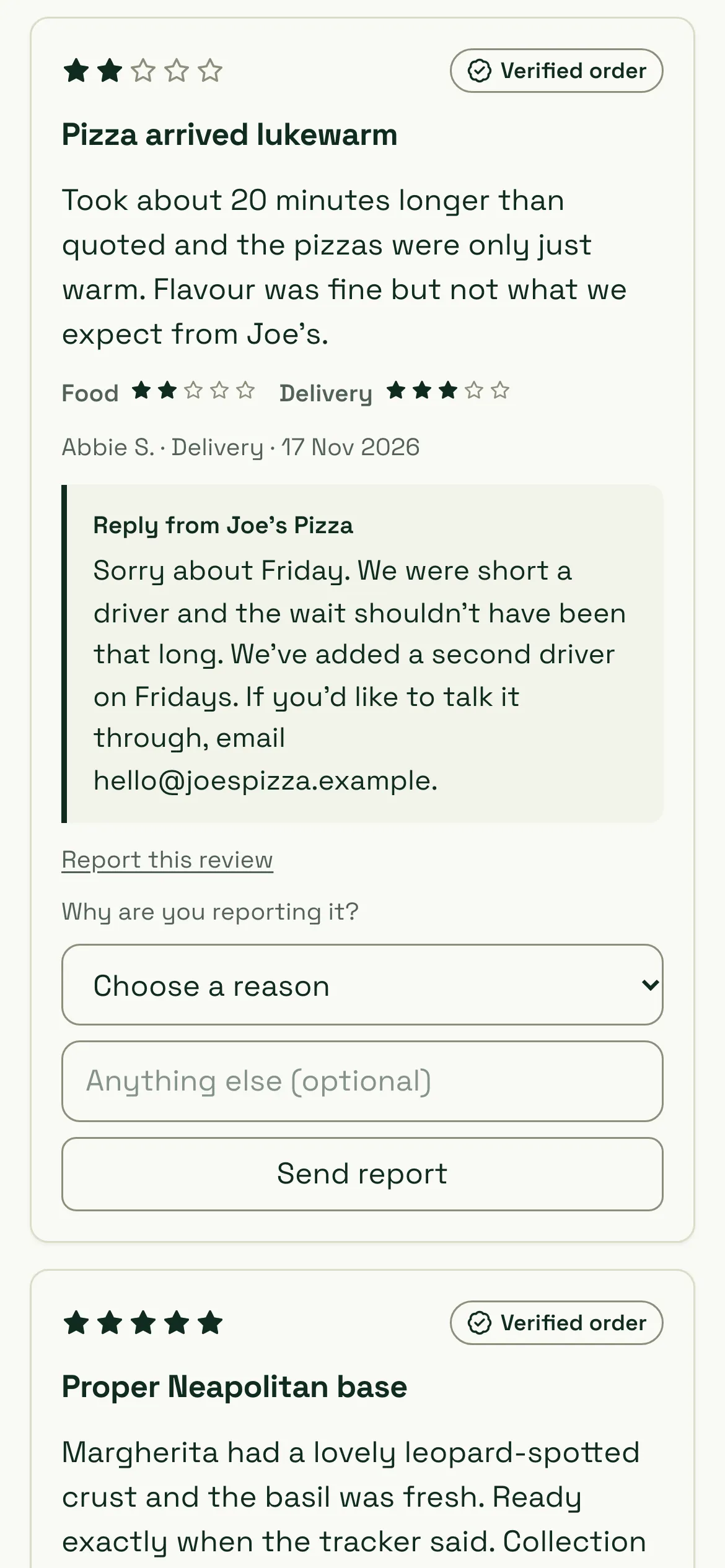
Each review has a Verified order badge, the customer’s display name, whether it was collection or delivery, the date, and your reply. Anyone can Report this review. A report goes to you and never hides the review by itself.
At the bottom, About these reviews explains the rules to diners in plain English.
Your Google review link
Section titled “Your Google review link”You can also send happy and unhappy customers alike to Google. Go to Feedback → Set-up, paste your Google Place ID or the review link from “Ask for reviews” in your Business Profile, and click Save. Use Test your review link to check it.
Everyone who leaves feedback then sees a Leave a Google review button with the same prominence, whatever their rating. Showing it only to happy customers (“review gating”) breaks Google’s rules and UK consumer law, so it isn’t offered.
Related
Section titled “Related”Was this page helpful?