

Hours, prep times and slots
Diners can only order when you say you’re open, and they’re told a ready time based on how long your food takes. Get these right and you get fewer “where’s my order?” calls and fewer orders arriving after the fryer’s off.
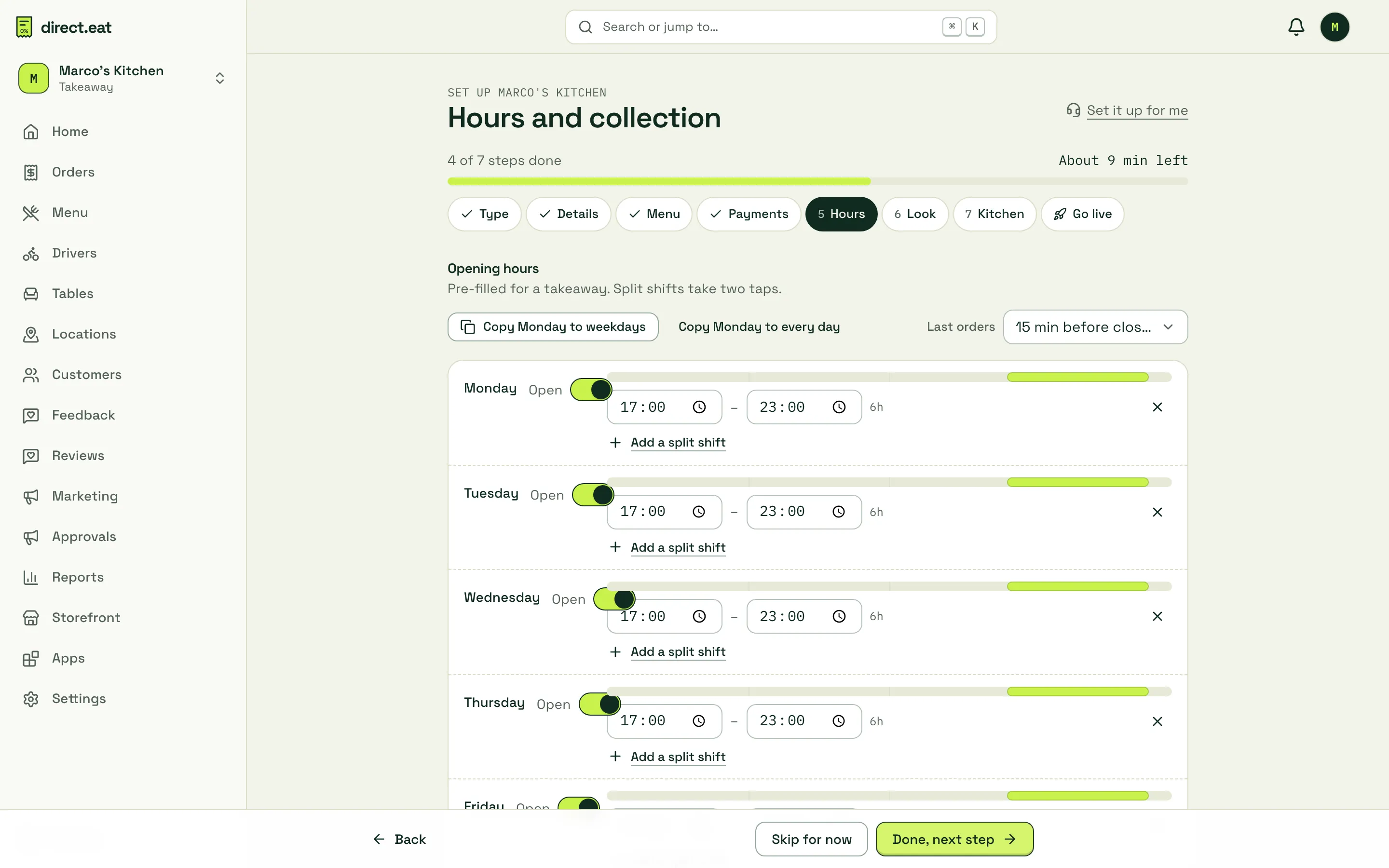
Your business type already filled in a starting point (a takeaway starts at every day 17:00 to 23:00, 20 minutes prep, slots every 15 minutes). This step is about making it match your real week.
Rough time: 5 to 10 minutes. Who can do this: the owner, admins and managers. Staff can use busy mode and pause, but can’t change hours.
In the wizard
Section titled “In the wizard”The wizard’s Hours step puts the essentials on one page: your week, the ASAP orders and Pre-orders switches, prep time and the main slot settings. Everything here also lives in Settings, with more options, which is what the rest of this page uses.
Opening hours
Section titled “Opening hours”Go to Settings → Opening hours.
-
Set each day’s open and close times. Switch a day off to close all day.
-
Need a lunch shift and an evening shift? Press Add a split shift under that day. You can have up to four sessions a day.
-
A session that closes after midnight belongs to the day it opens: “Friday 17:00 to 02:00” covers early Saturday.
-
Use Copy Monday to weekdays or Copy Monday to every day to save typing.
-
Set Last orders: how long before closing you stop taking orders (15 minutes before closing by default).
-
Press Save hours in the bar at the bottom.
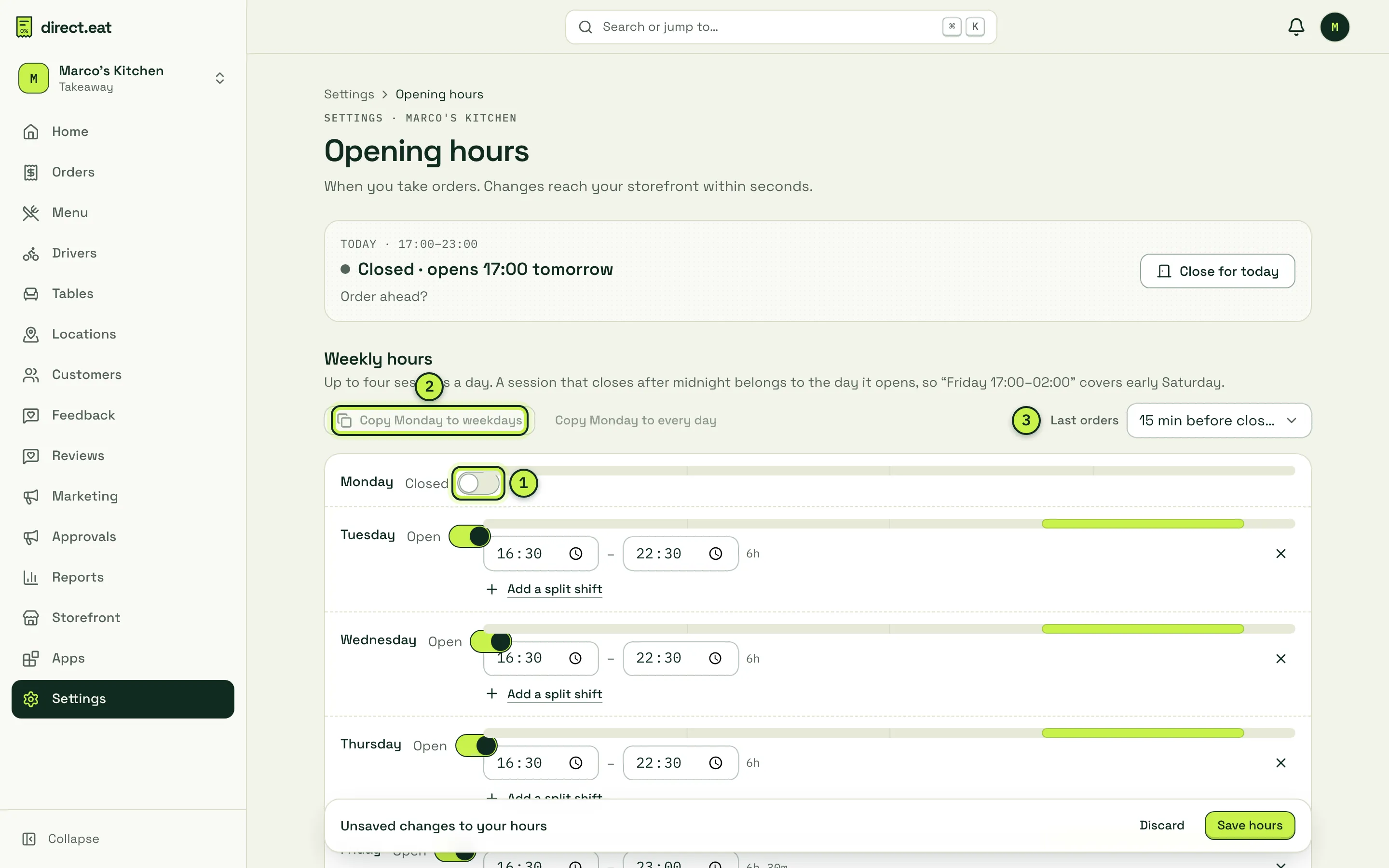
- Open or closed for the day. Marco’s Kitchen is closed on Mondays.
- Copy Monday to weekdays: greyed out here because Monday is closed.
- Last orders: applies to every session.
Each day has a 24-hour bar showing when you’re open, so a mistake like 4:30 in the morning instead of 16:30 stands out.
Today, and closing early
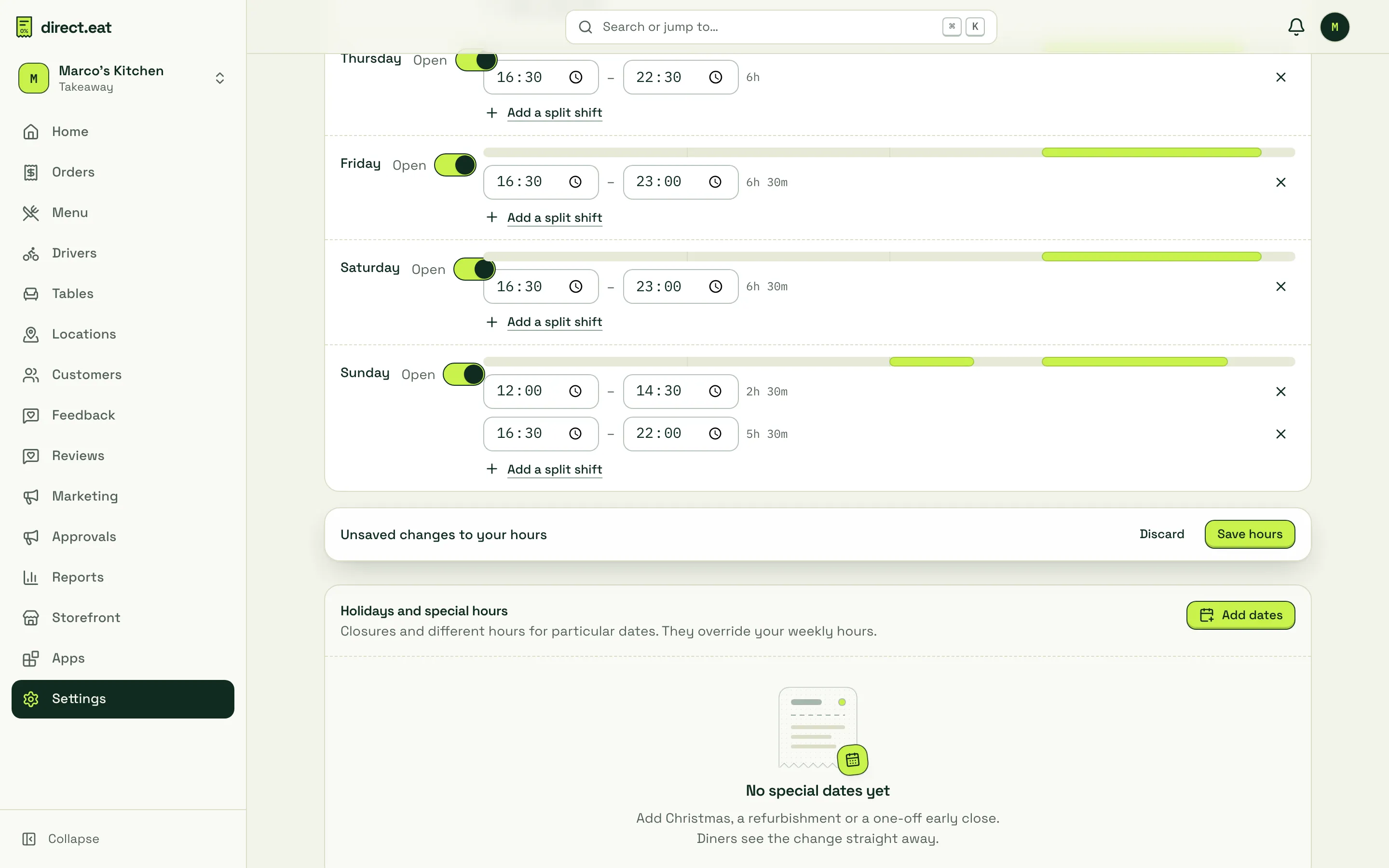
Section titled “Today, and closing early”The card at the top of Opening hours shows today’s hours and exactly what diners see right now, for example “Closed · opens 16:30 tomorrow”.

Press Close for today if you need to shut early (a broken oven, a staff no-show), add a message for diners, and press Reopen if things recover. For short breaks during service, use busy mode or pause instead: see Busy mode and pausing.
Holidays and special hours
Section titled “Holidays and special hours”Add closures and one-off hours before they happen, so diners never place an order you can’t cook.
-
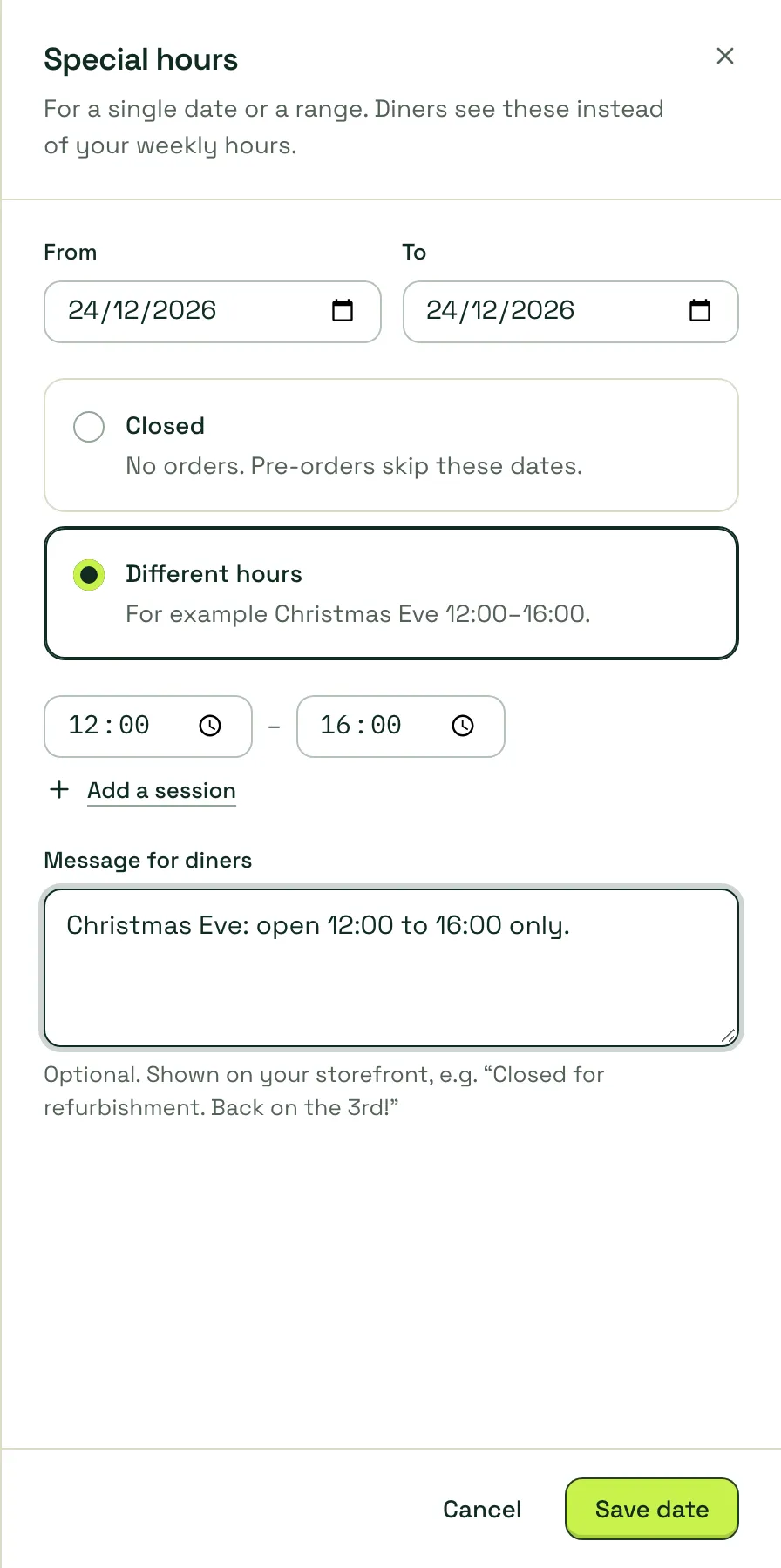
Under Holidays and special hours, press Add dates.
-
Choose the From and To dates.
-
Pick Closed (no orders; pre-orders skip these dates) or Different hours (for example Christmas Eve 12:00 to 16:00). Use Add a session for more than one.
-
Optional: add a Message for diners, shown on your storefront, for example “Closed for Christmas. Back on Sunday 27th.”
-
Press Save date (or Save 2 dates for a range).
Saved dates are listed with an Edit button and a bin to remove them:

Festive hours and bank holidays
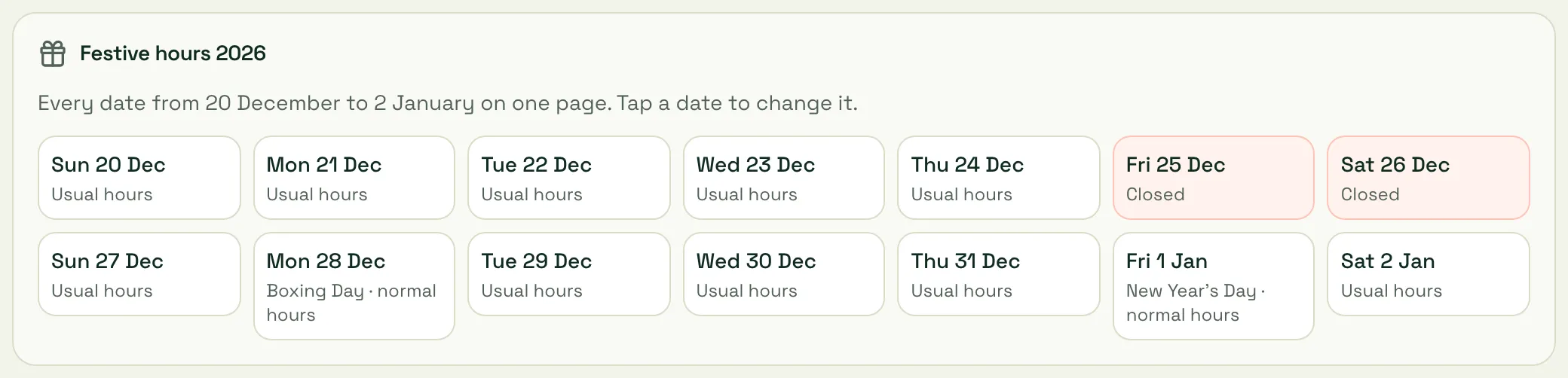
Section titled “Festive hours and bank holidays”Festive hours shows every date from 20 December to 2 January on one page, each marked “Usual hours”, “Christmas Day · normal hours” and so on. Tap a date to change it.
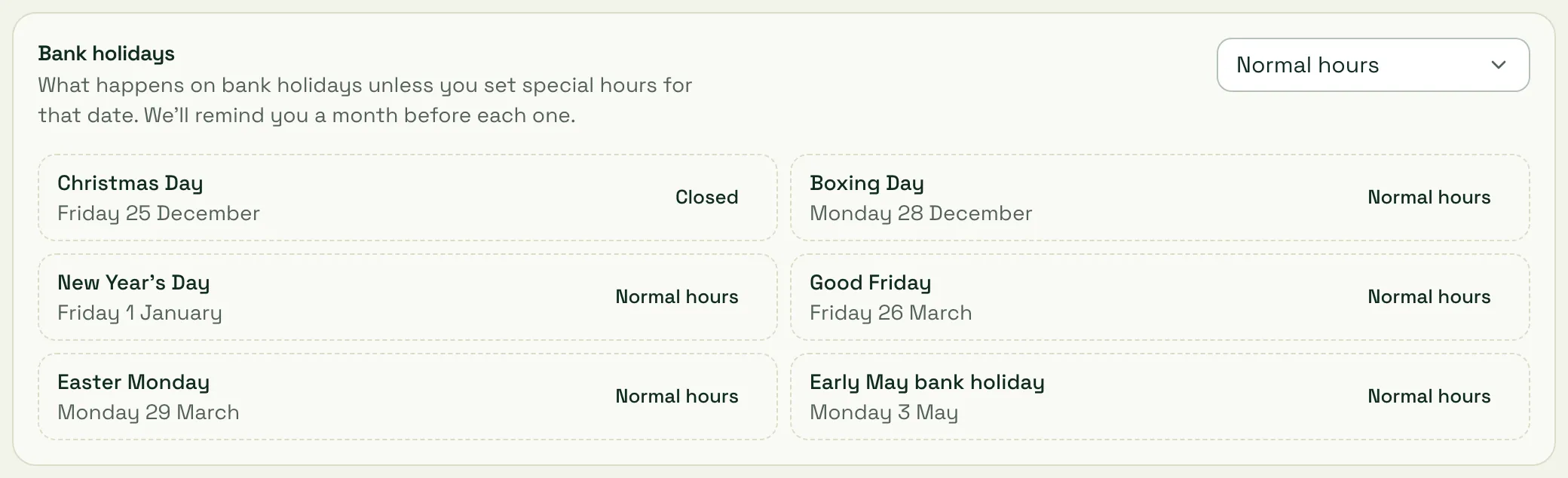
Bank holidays sets what happens on bank holidays unless you add special hours for that date: Normal hours, Closed or Use Sunday hours. Your nation (from your address in step 2) decides which bank holidays apply. The next six are listed underneath.
Prep time, pre-orders and slots
Section titled “Prep time, pre-orders and slots”Go to Settings → Ordering and collection. If you deliver, there are separate Collection and Delivery tabs.
ASAP and pre-orders
Section titled “ASAP and pre-orders”At the top, switch ASAP orders (ready as soon as the kitchen can make it) and Pre-orders (diners pick a collection slot) on or off. Pre-orders land on your order board straight away as Upcoming and are sent to the kitchen at the slot time minus your prep time.
Prep time
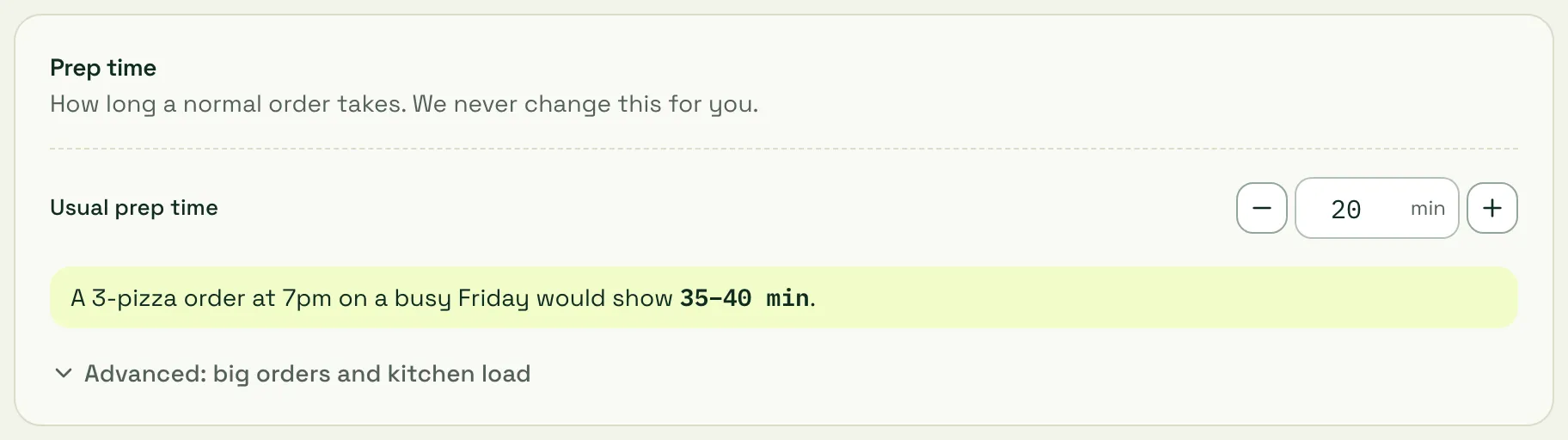
Section titled “Prep time”Usual prep time is how long a normal order takes. We never change it for you. The line underneath shows what a diner would see, for example “A 3-pizza order at 7pm on a busy Friday would show 35–40 min”, because the ready time diners see also allows for busy mode, extra prep on big items and how full the kitchen is. Advanced: big orders and kitchen load fine-tunes that.
Pre-orders and slots
Section titled “Pre-orders and slots”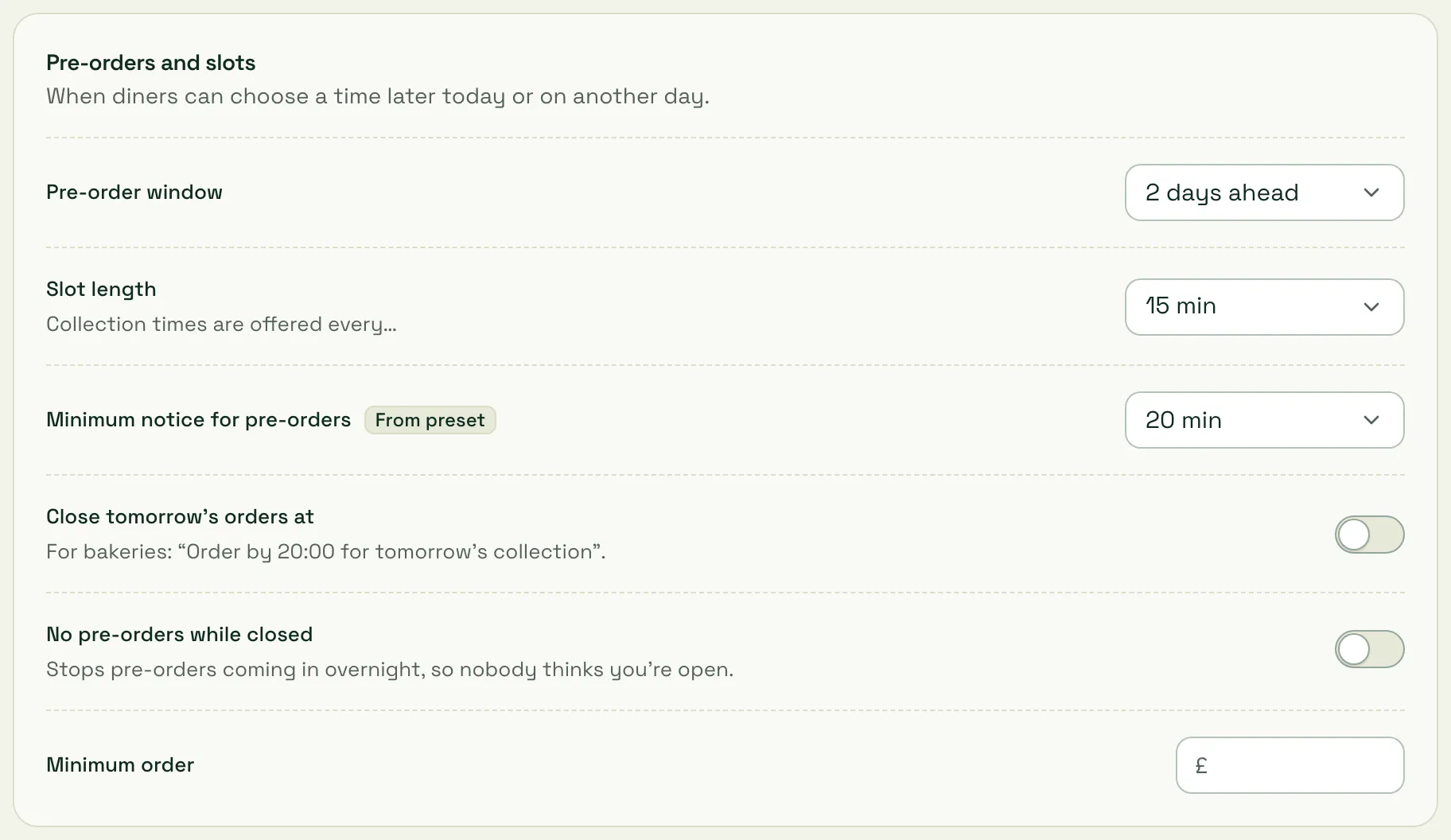
- Pre-order window: how far ahead diners can order (2 days ahead for a takeaway).
- Slot length: collection times are offered every 15 minutes, for example.
- Minimum notice for pre-orders: the soonest slot a diner can book.
- Close tomorrow’s orders at: for bakeries, “Order by 20:00 for tomorrow’s collection”.
- No pre-orders while closed: stops pre-orders coming in overnight, so nobody thinks you’re open.
- Minimum order: leave blank for none.
A From preset badge means the value came from your business type; once you change it, it’s marked as yours.
Capacity
Section titled “Capacity”Stop your busiest slots overbooking. Leave a box blank for no limit.
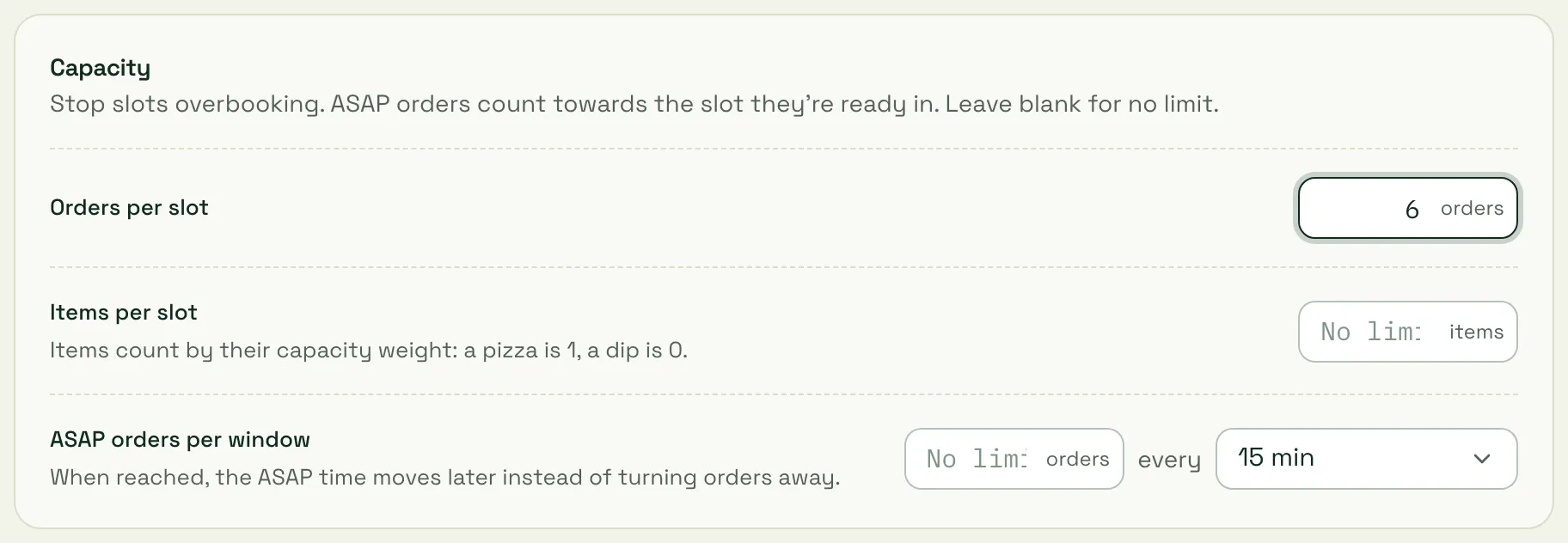
- Orders per slot: for example 6. A full slot shows as “Full” to diners. ASAP orders count towards the slot they’re ready in.
- Items per slot: counts items by their capacity weight (a pizza is 1, a dip is 0).
- ASAP orders per window: when reached, the ASAP time moves later instead of turning orders away.
Further down, Today’s slots shows each slot booked against capacity during opening hours. Block a slot when you can’t take collections, for example while you prepare a big catering order.
Kitchen safety
Section titled “Kitchen safety”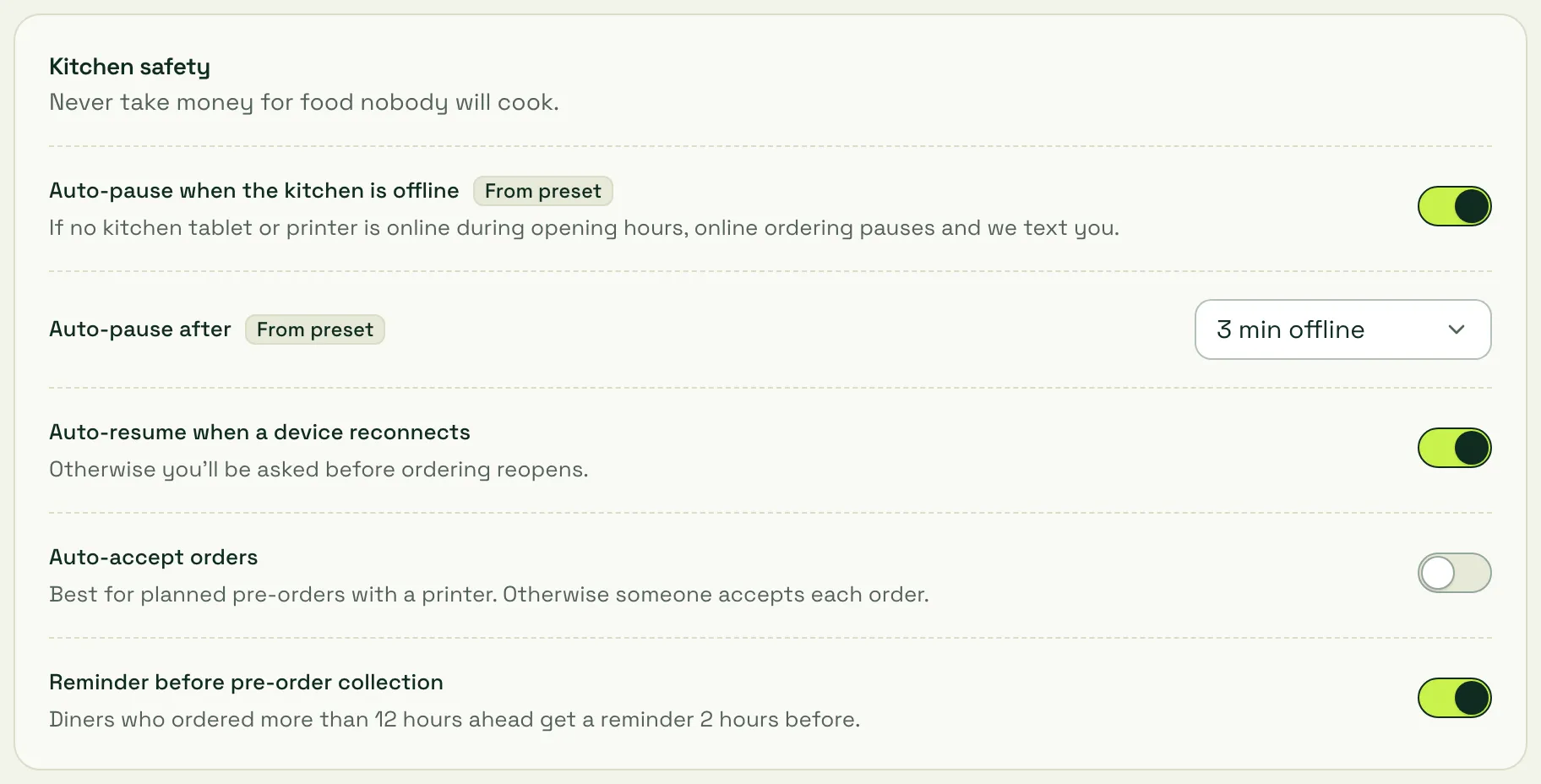
- Auto-pause when the kitchen is offline: if no kitchen tablet or printer is online during opening hours, online ordering pauses so you never take money for food nobody will cook. Only the owner can switch this off.
- Auto-pause after: 3 minutes offline by default.
- Auto-resume when a device reconnects: otherwise you’re asked before ordering reopens.
- Auto-accept orders: off by default, so someone accepts each order. When it’s on, orders that match your auto-accept rules are accepted automatically, but only while a kitchen screen or cloud printer is online.
- Reminder before pre-order collection: diners who ordered more than 12 hours ahead get a reminder 2 hours before.
Press Save changes when you’re done.
- Set last orders honestly. If the fryer goes off at 22:15, last orders are 22:15, not 22:30.
- Start with a modest capacity on Friday and Saturday and raise it once you’ve seen a busy night.
- Add Christmas now. Diners pre-order days ahead; closures added late may already have orders booked.
Related
Section titled “Related”- Busy mode and pausing
- Accept and reject orders: including scheduled orders
- Kitchen tablet and printer: needed for auto-pause to stay off
Next step
Section titled “Next step”If you deliver with your own drivers: 8. Delivery. If you only do collection: 9. Kitchen tablet and printer.
Was this page helpful?