

The kitchen app
The kitchen app runs on a tablet at the pass. It shows the same orders as the dashboard board, with big buttons for greasy fingers and a loud alarm for every new order. Each screen can be an order board (accept, cook, hand over) or a kitchen display (KDS) that splits tickets by station.
It’s a web app at https://kitchen.direct.eat. Open it in Chrome on an Android tablet, or in Safari on an iPad and add it to the home screen. See supported hardware.
Before you start
Section titled “Before you start”- Pair the tablet once with a code from the dashboard. The tablet gets its own key and never needs your password. Step by step: kitchen tablet and printer and devices and printers.
- Screens are free and unlimited on every plan.
- Plug the tablet in. The app keeps the screen awake while it’s open, but a tablet on battery will still go to sleep eventually. See tablet sleeping.
Turn the sound on
Section titled “Turn the sound on”Browsers don’t let a page make noise until someone touches it. When the header says Tap to turn on sound, tap anywhere once. Do this every time the app is reopened. The dashboard’s device list shows sound off for a screen that hasn’t been tapped, so you can spot it from the office.
The order board
Section titled “The order board”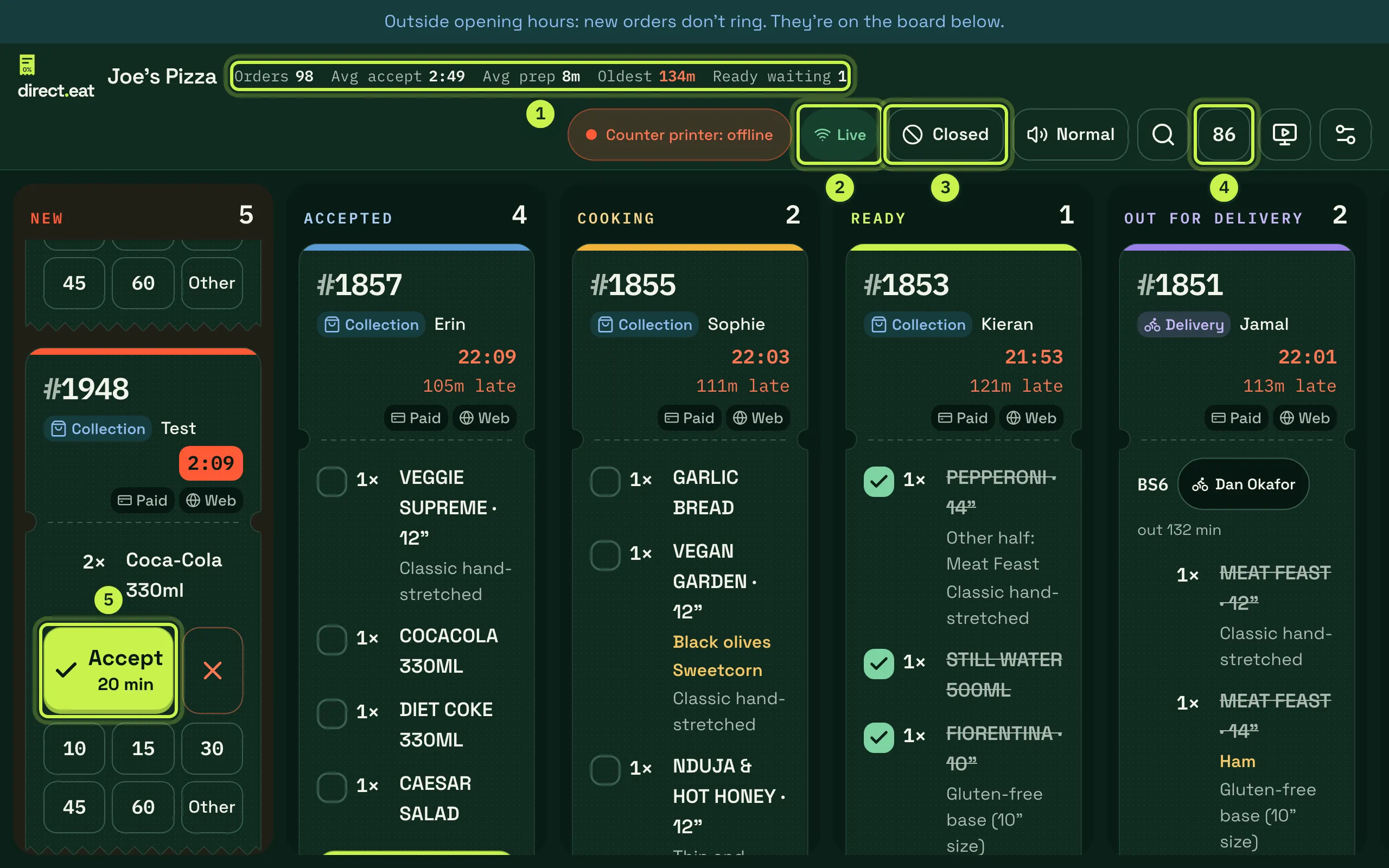
- Tonight strip: Orders, Avg accept, Avg prep, Oldest and Ready waiting. Takings are hidden on kitchen screens.
- Connection: Live when connected. If the tablet loses its connection it shows Offline and how many actions are waiting to sync. Taps you make offline are kept and sent in order when it reconnects.
- Shop state: Open, Closed, Busy +10 or Paused. Tap it to turn on busy mode or pause new orders. See busy mode and pausing.
- 86: the sold-out sheet. See 86 from the kitchen.
- Accept: one tap accepts the order with your default prep time and tells the customer when it’ll be ready.
The other header buttons are the printer status (it turns red if a printer is offline), the alarm profile (Normal here), Find an order (/), the switch between board and kitchen display, and This screen settings.
The columns are New, Accepted, Cooking, Ready, Out (when you deliver) and Done (the last 2 hours, if switched on in settings). Above 15 open tickets the board switches to a compact layout so more fit on screen.
A ticket, top to bottom
Section titled “A ticket, top to bottom”Each order looks like a printed ticket:
- the order number, big, with badges: Paid or cash, where it came from (Web), for 12:30 for scheduled orders, Delayed if you’ve added time
- a waiting clock for new orders, or the due time and how late it is
- Collection, Delivery or the table line (“Table 12 · Round 2”), and the customer’s first name
- for delivery: the postcode district and a driver chip. Tap the chip to assign a driver.
- an Allergy block in full whenever the customer declared one. Allergy notes are never shortened.
- the items. Removals (“NO onion”) are red and extras are amber. Tap an item to tick it off as done.
- the action buttons for its status
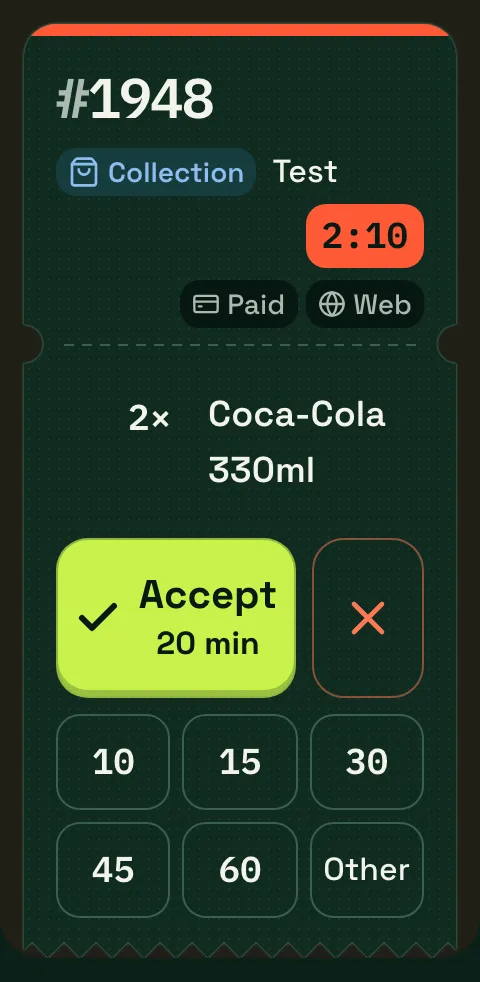
On a new order: Accept · 20 min (your default prep time plus any busy-mode minutes), quick chips for 10, 15, 30, 45, 60 minutes, Other for any time, and ✕ to reject.
On an accepted order: Start cooking and Ready, +5 to add five minutes, and ⋯ for the order sheet. Then Ready (or Packed · ready for delivery), then Collected, Handed to driver or Delivered.
The new-order alarm
Section titled “The new-order alarm”When a new order arrives during opening hours, a full-screen card covers the board and the alarm sounds.
- Accept · 20 min accepts it and stops the alarm on every screen.
- Other time opens the ready-time picker.
- Seen pauses the alarm for 3 minutes, once per order. It also tells direct.eat someone has seen it, which holds back the escalation for those 3 minutes.
- 60 s silences the alarm for a minute without accepting.
- Reject opens the reject sheet.
If more orders are waiting, the card says “+3 more waiting” and shows them one after another. After a minute without an answer the alarm gets louder. The full ladder of what happens next (printer ticket, push, phone calls, texts) is in alerts and escalation.
The order sheet
Section titled “The order sheet”Tap the order number, or ⋯, to open the order sheet. It has two tabs: Order and Messages.
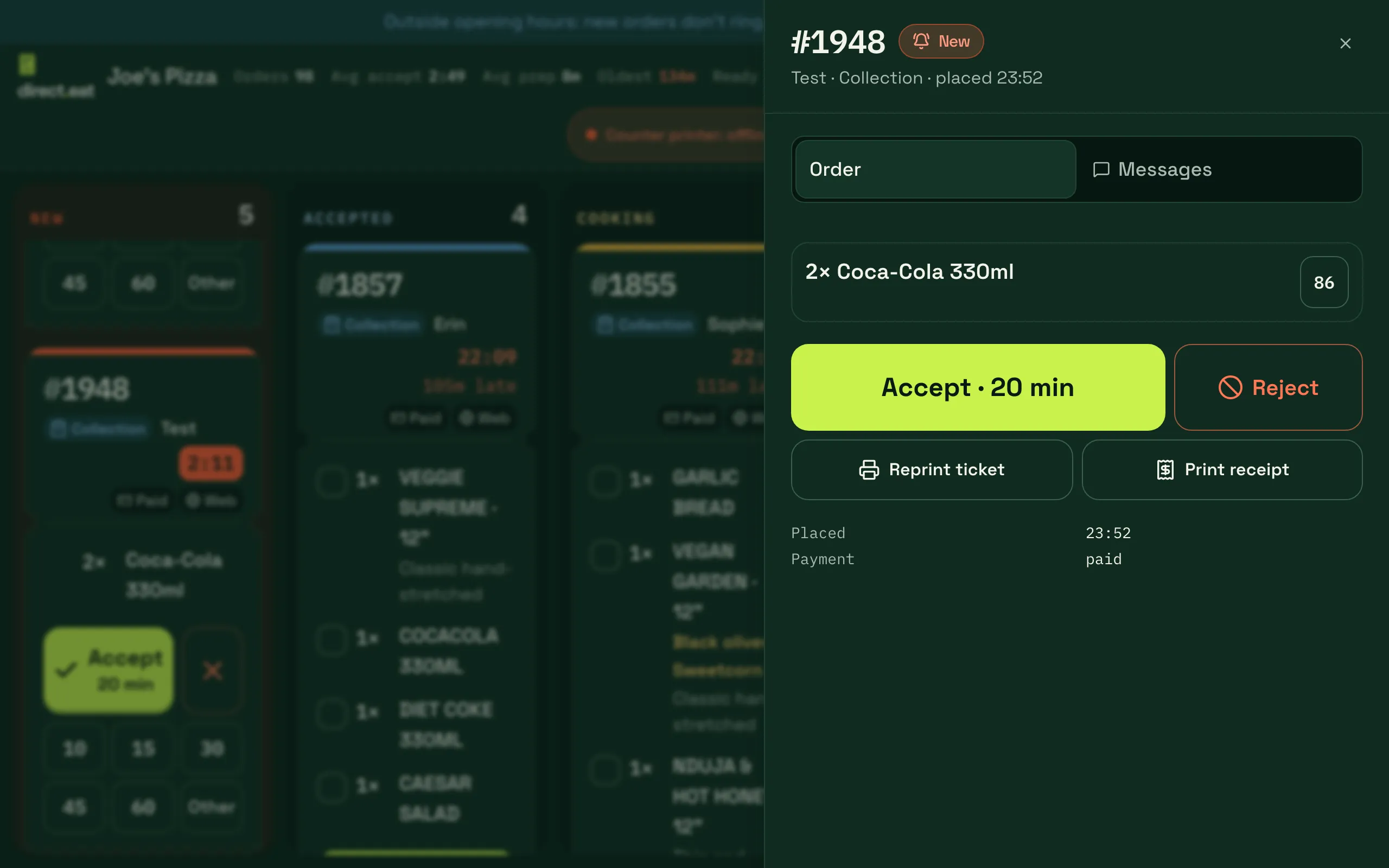
The Order tab lists every item with its allergens and an 86 button to mark it sold out, the main action, +5, +10, +15 and Time… once accepted, Reprint ticket, Print receipt and (for delivery) Bag labels. Reprints go to the printer for that ticket type and are marked REPRINT. The Messages tab is the conversation with the customer: see messaging customers.
Change an order
Section titled “Change an order”Until an order is ready you can change it: tap Change order on the order sheet.
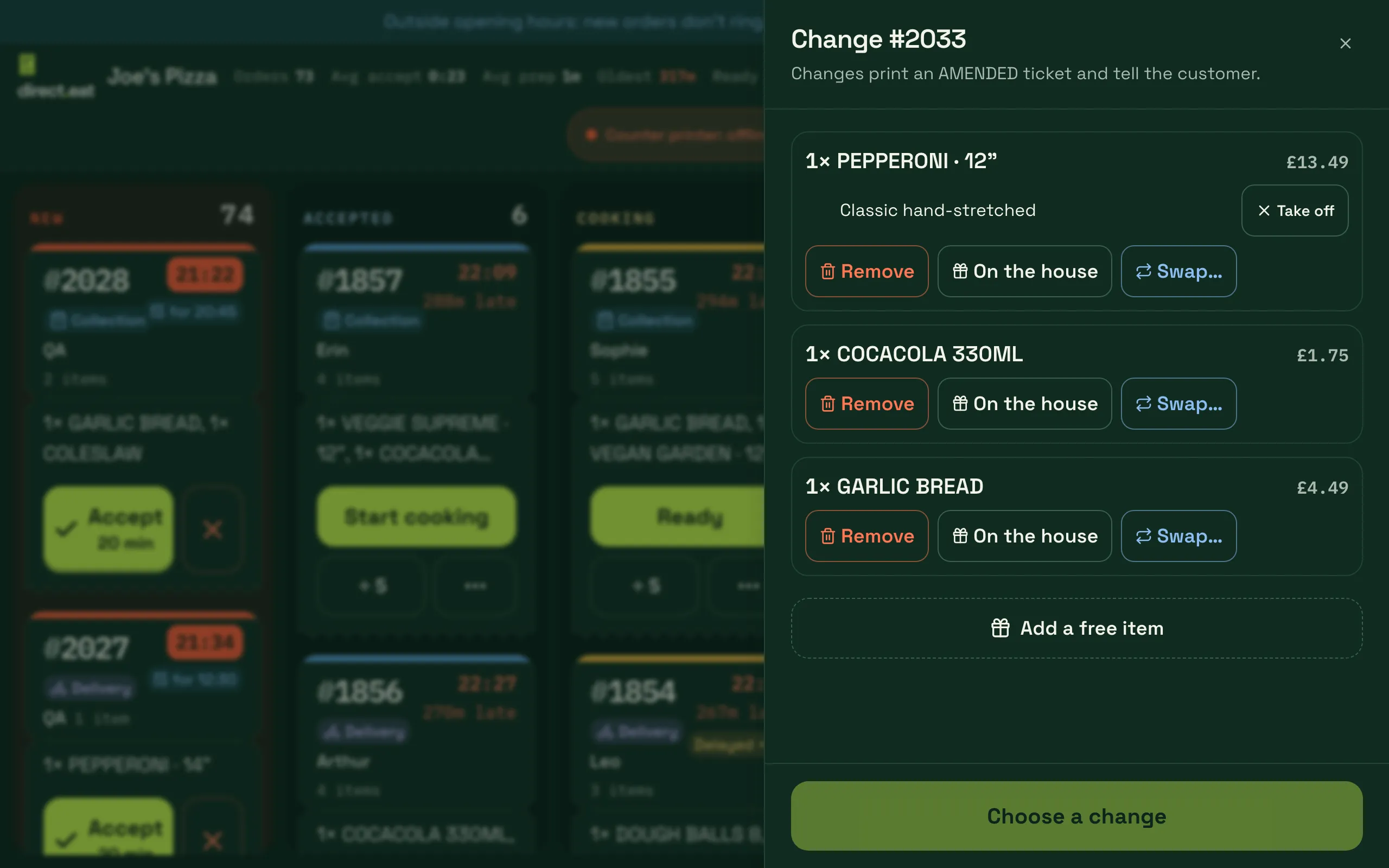
- Remove a line (or, when there are several, One fewer), On the house (free of charge), Take off a priced option, or Add a free item. The sheet shows the refund before you confirm.
- Swap… asks the customer whether they’d like something else instead: see ask about a swap.
- Every change prints an AMENDED ticket on the kitchen printers, adds a line to the customer’s message thread (“Order updated: … · Refund £4.50 issued”, or the new total for cash orders), and marks the order AMENDED on every screen for 10 minutes with its own tone.
- Card orders are refunded the exact value removed, straight away. Changes can’t be made once the order is ready.
- On a kitchen screen, a change always asks for a staff PIN, so it’s recorded against a named person. On the dashboard, use Change the order on the order page (needs permission to edit orders).
Packing before Ready
Section titled “Packing before Ready”If you turn on Packing checklist for deliveries (and optionally Collection orders too) in Orders → Kitchen rules, Ready opens a packing sheet: tick every item, count the bags and tap All packed · Ready. Tickets show “Pack before Ready · 2/3 in the bag”, and the kitchen display’s Expo or Packing screen shows Pack #n.
86 from the kitchen
Section titled “86 from the kitchen”Tap 86 in the header to see what’s off the menu and to take more off.
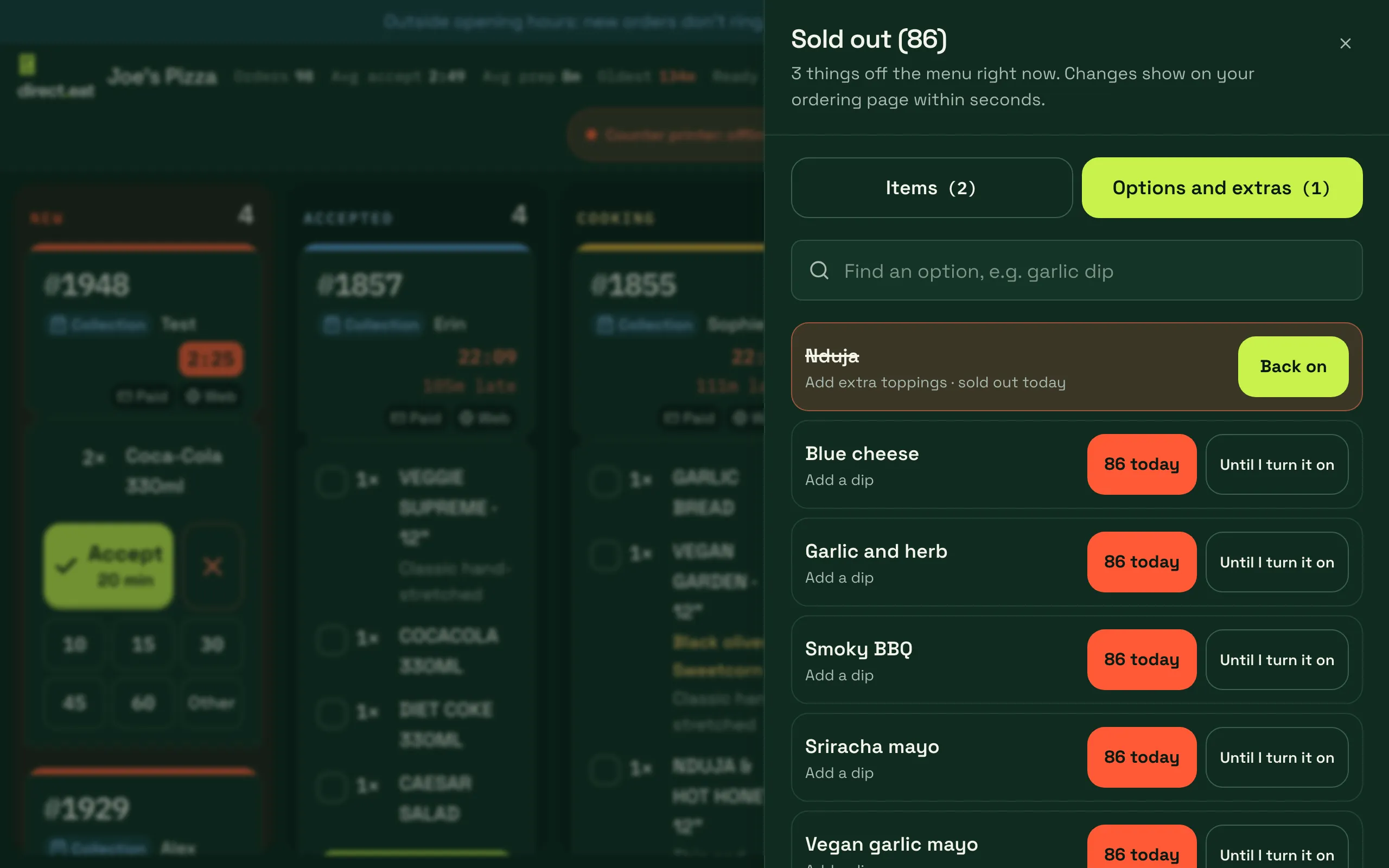
- Items and Options and extras tabs. Options are modifiers such as dips, toppings and bases.
- 86 today takes it off until the end of today’s service. Until I turn it on keeps it off until someone presses Back on.
- Items you 86 show as sold out on your ordering page, so nobody can order them.
You can also 86 straight from an order (the 86 button next to each item), by pressing and holding any line on a ticket (choose 86 today or until I turn it back on for the item or one of its options), or while rejecting an order as Item sold out. Menu-side availability, schedules and stock are in 86 and stock.
Find an order
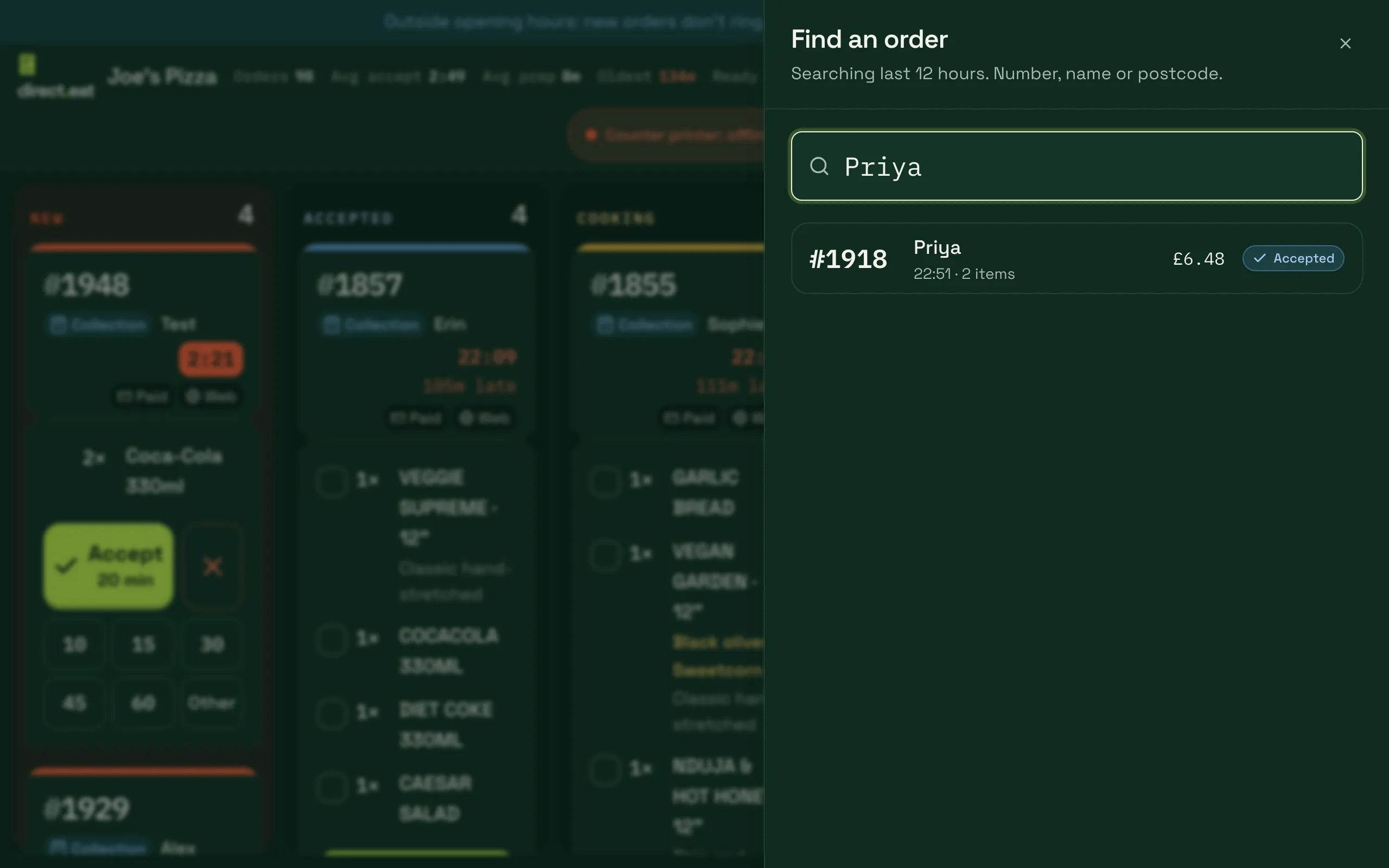
Section titled “Find an order”Tap the magnifier or press /. The kitchen app searches the last 12 hours by number, name or postcode. Tap a result to open its sheet. For anything older, use order history in the dashboard.
The kitchen display (KDS)
Section titled “The kitchen display (KDS)”Switch a screen to the kitchen display with the screen button in the header, or in This screen settings. Instead of orders, the KDS shows tickets per station: the pizza oven sees pizzas, the fryer sees fries.
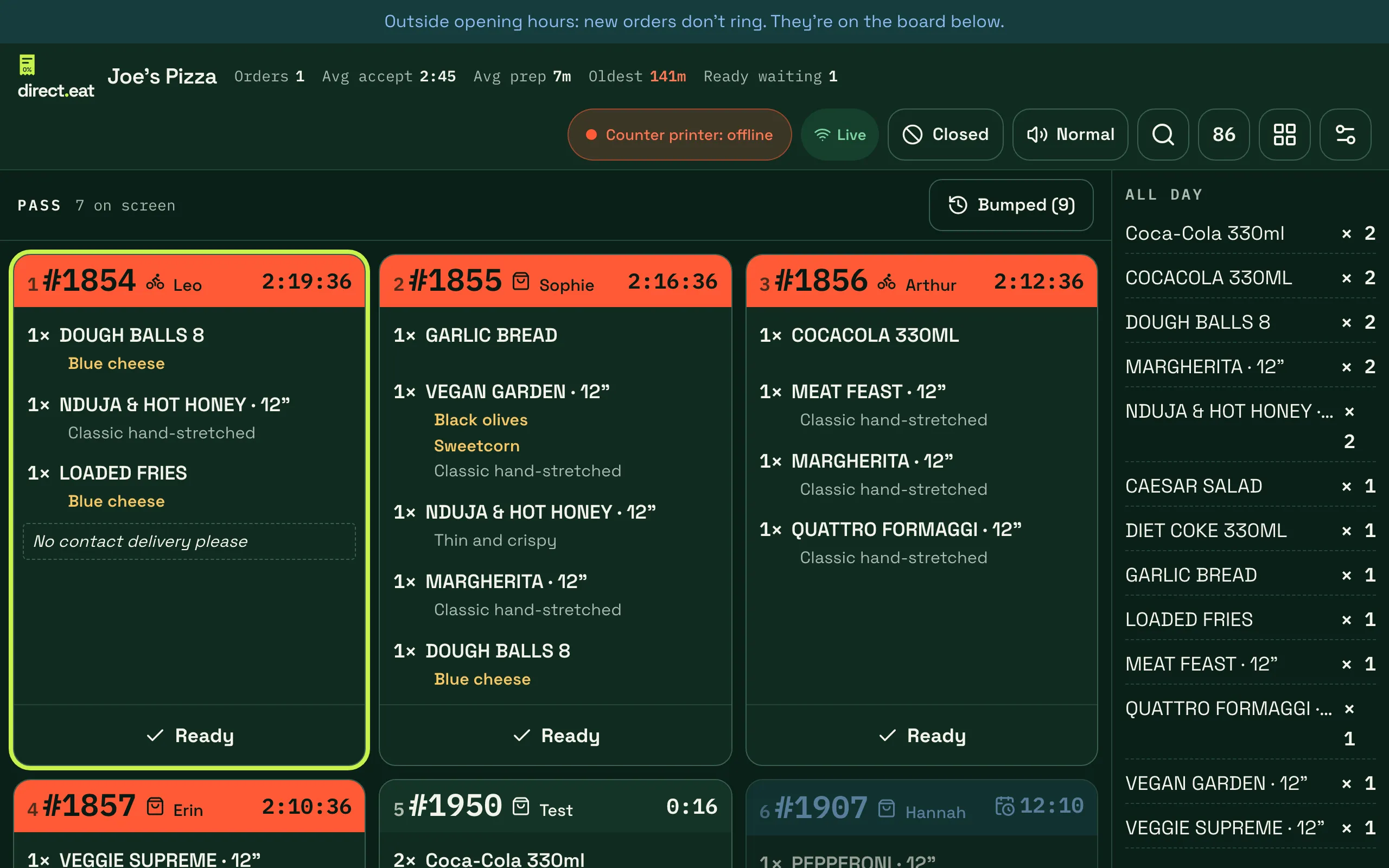
- Tiles: one per ticket, numbered 1, 2, 3… so a bump bar or keyboard can pick them. The header shows the order number, driver or customer and a timer from when the ticket fired. It turns amber, then red, after the minutes set for that station (8 and 12 minutes by default).
- Tap an item to strike it through. Tap the tile’s button to bump it. You have 5 seconds to undo.
- Bumped: the last 2 hours (up to 50 tickets). Recall one to put it back.
- All day: totals of each item across open tickets, so the oven knows it needs 6 Margheritas.
- Scheduled orders appear when they fire (slot time minus prep time) and count down until then.
- A cancelled order turns its tile red with CANCELLED for 10 seconds, then removes it. If the ticket had printed, a VOID ticket prints too.
How bumps move the order: the first bump at any station marks the order Cooking. When every station has bumped, or the Expo (pass) screen bumps it, the order is Ready and the customer is told.
Set up stations
Section titled “Set up stations”Stations are set in the dashboard under Orders → Kitchen stations. You can have up to 12 stations plus Expo, which sees everything. For each station set the type (Prep, Packing, Bar or Expo (sees all)) and when tickets turn amber and red. Then route each menu category to a station, with item overrides where one item goes somewhere else. Anything without a rule goes to the default station.
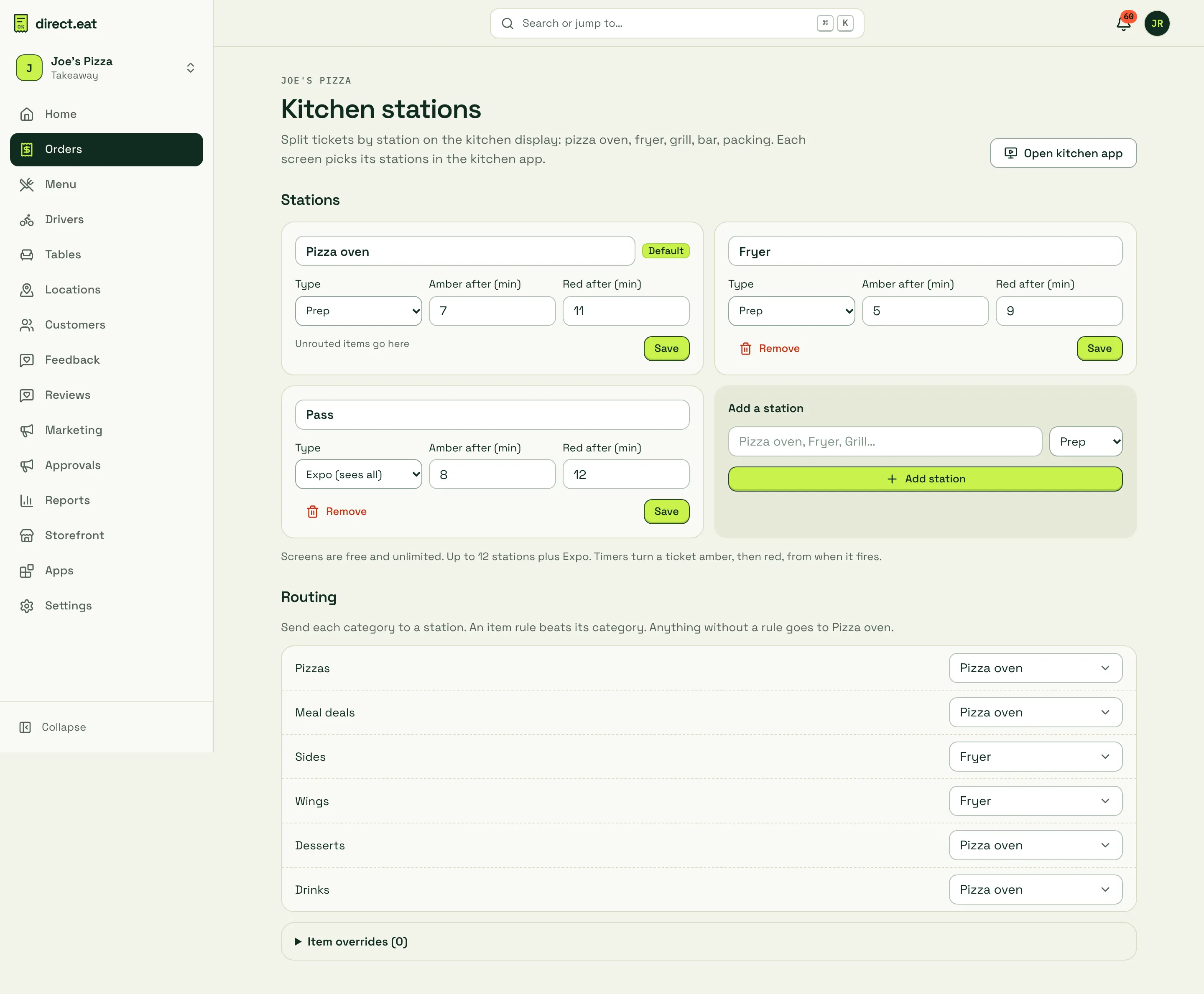
Then on each KDS screen, open This screen and choose KDS stations on this screen. Print routing for paper tickets is separate: see print routing and templates.
This screen settings
Section titled “This screen settings”Tap the sliders button at the top right. Settings here only change this tablet.
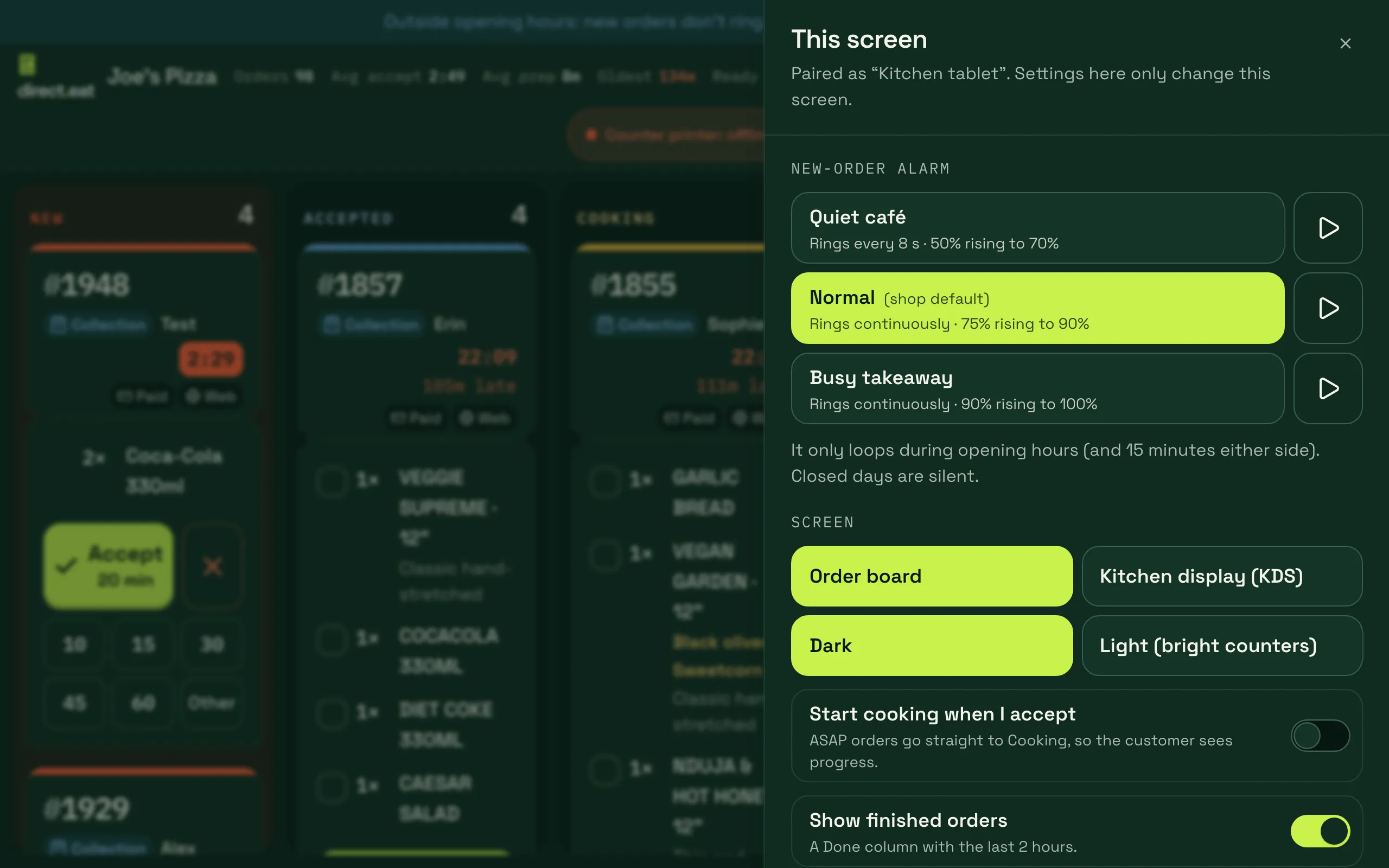
- New-order alarm: Quiet café (rings every 8 s, 50% rising to 70%), Normal (continuous, 75% rising to 90%) or Busy takeaway (continuous klaxon, 90% rising to 100%). Press play to hear it. The shop default comes from alert settings.
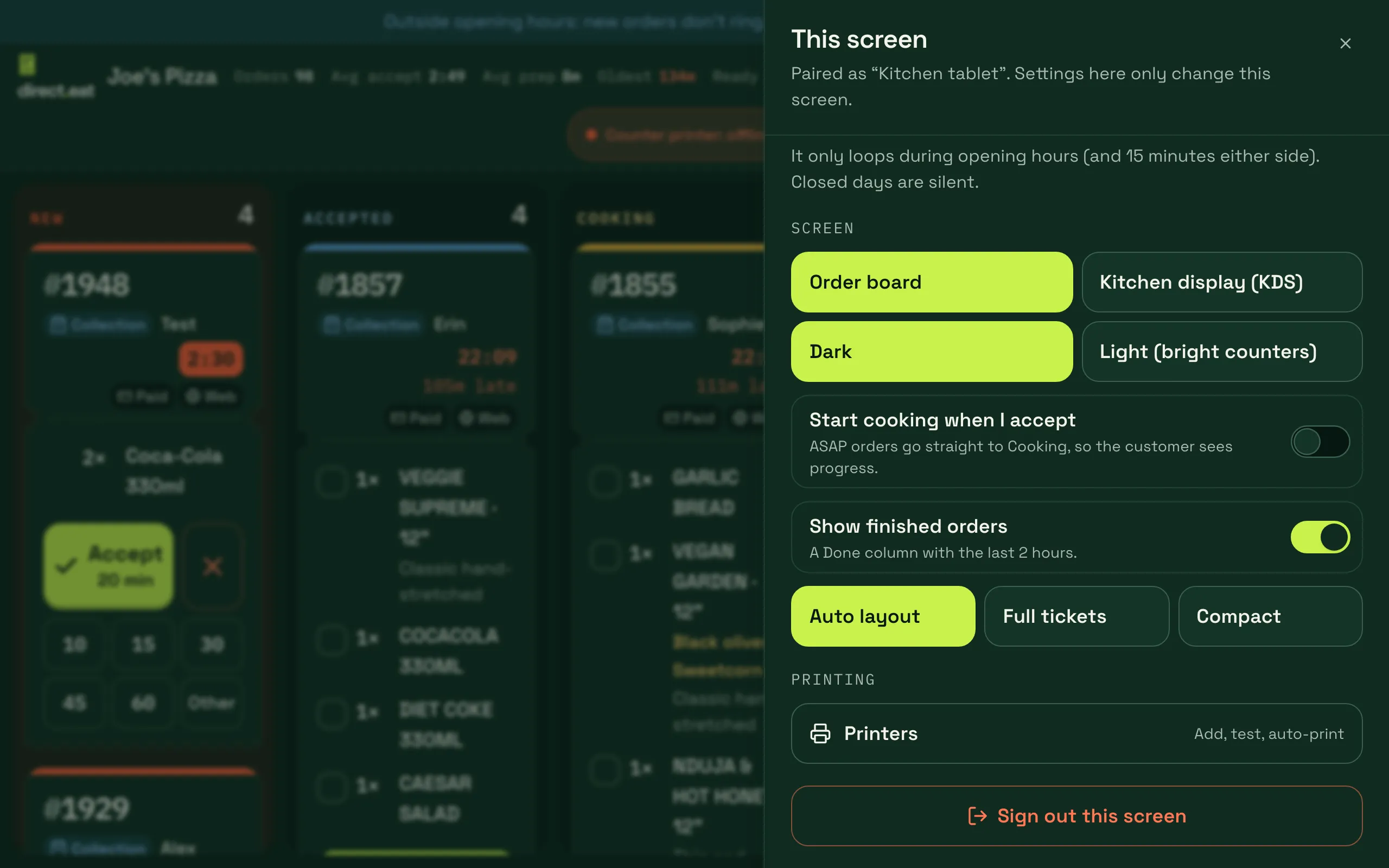
- Screen: Order board or Kitchen display (KDS), and Dark or Light (bright counters).
- Start cooking when I accept: ASAP orders go straight to Cooking, so the customer sees progress.
- Show finished orders: a Done column with the last 2 hours.
- Layout: Auto layout, Full tickets or Compact.
- In KDS mode: the stations on this screen, text size (S to XL), the All-day panel and Bump completes everywhere (expo style).
- Printers: add, test and auto-print on printers connected to this tablet.
- Staff PIN: shown when your shop has staff PIN profiles. See below.
- Sign out this screen.
Staff PIN on shared tablets
Section titled “Staff PIN on shared tablets”If you’ve set up staff PIN profiles (Settings → Team), the kitchen app can ask for a 4-digit PIN before someone rejects an order, 86es an item until I turn it on, or opens printer settings. Turn it on under This screen → Ask for a staff PIN. It’s on by default for shops with more than 3 PIN profiles. A correct PIN is remembered for 15 minutes. After too many wrong tries the pad locks for 5 minutes. See team and permissions.
Changing an order always asks for a PIN. While a PIN is active (15 minutes, or until Sign out on the PIN chip), every action from that screen is recorded against that PIN profile.
The Ready screen
Section titled “The Ready screen”Turn a spare tablet or a TV by the counter into a collection display: Preparing and Ready to collect columns with order numbers, refreshed every 5 seconds, with newly ready orders highlighted.
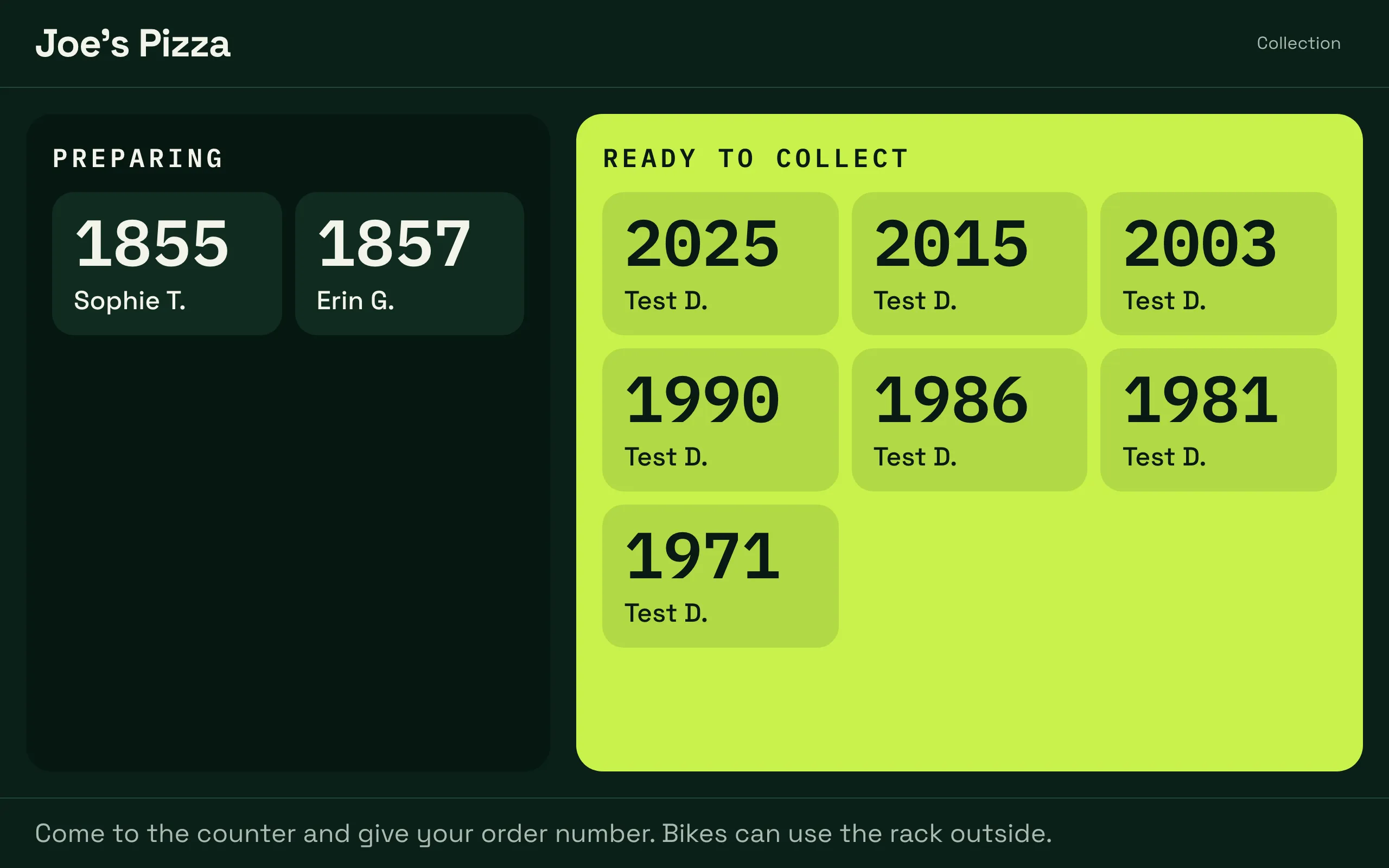
- Open it from This screen → Use as the Ready screen on a kitchen tablet, or Orders → Kitchen rules → Open the Ready screen on the dashboard (it opens
kitchen.direct.eat/ready-screen). Double-tap Collection to leave. - Names show as first name and initial (“Sam T.”). Turn off Show first names on the Ready screen in Orders → Kitchen rules to show numbers only.
- The Ready screen keeps itself awake but never plays the new-order alarm and doesn’t count as a kitchen screen for alerts or auto-accept.
Waiter calls
Section titled “Waiter calls”If you take table orders, a strip under the header shows tables calling for staff, allergy calls first in the allergen colour. Tap On my way (the guest sees it on their phone) and Done when sorted. Each call chimes once and reminds you once after 3 minutes if nobody’s on the way. It never loops.
If the board hits a problem
Section titled “If the board hits a problem”If something goes wrong on the screen, the kitchen app shows a banner, “The board hit a problem”, with Try again now. It also retries on its own every 15 seconds. While the banner is showing, the dashboard treats that screen as not listening, so the missed-order ladder and the printer keep orders covered. If it keeps happening, reload the page and tell support.
- Run two screens if you can: an order board at the pass and a KDS on the line, or a second tablet as a backup. A cloud printer is the best backup of all because it prints with no tablet.
- If the header shows “n tickets didn’t print · Print them now”, a printer was offline. Tap it once the printer is back.
- What you do on one screen shows on every other screen and on the dashboard board. Two people can’t accept the same order twice: the second gets “already accepted by Kitchen tablet”.
Related
Section titled “Related”Was this page helpful?