

Order history, search and receipts
Every order is kept. Order history finds any order from the last 24 months, and each order has its own page with everything that happened to it: who accepted it, what the customer was told, what printed, what was refunded.
Before you start
Section titled “Before you start”How far back you can search depends on your role:
| Role | Can see |
|---|---|
| Owner, admin, manager | The last 24 months |
| Staff | Today’s orders |
| Kitchen tablet | The last 12 hours (in the kitchen app’s Find an order) |
Searching by phone number or email needs permission to see customer contact details (owners, admins and managers have it). Orders older than 24 months are kept for 6 years and are available by export.
Search for an order
Section titled “Search for an order”Go to Orders → History, or click History on the live board.
-
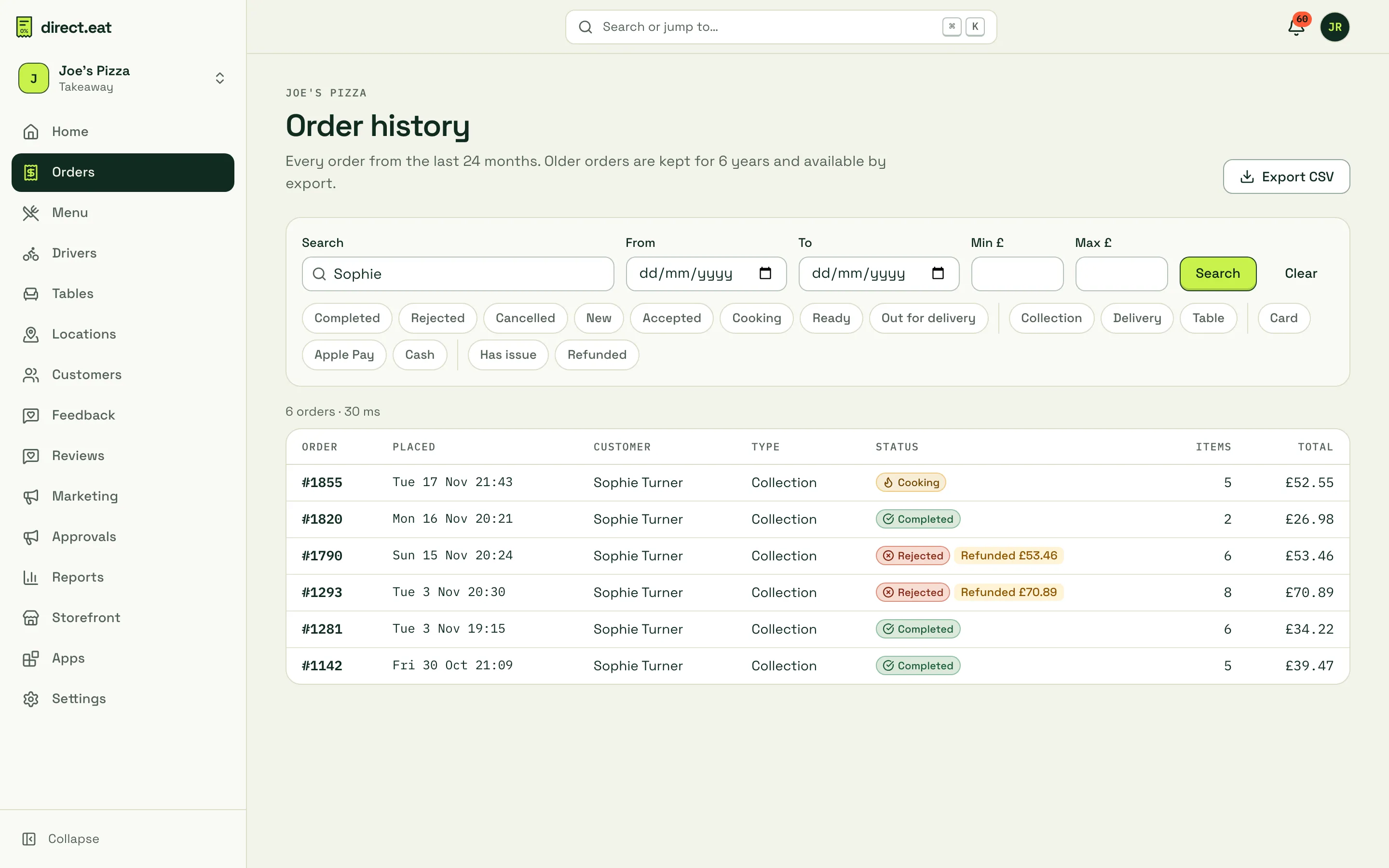
Type in Search. You can search by:
- order number (
1042or#1042) - customer name (spelling doesn’t have to be perfect)
- the last 4 digits of a phone number, or an email address
- a postcode
- an amount, such as
£23.98
- order number (
-
Narrow it down with From and To dates and Min £ / Max £.
-
Click chips to filter: status (Completed, Rejected, Cancelled, New, Accepted, Cooking, Ready, Out for delivery), fulfilment (Collection, Delivery, Table), payment (Card, Apple Pay, Cash), Has issue and Refunded.
-
Click Search. Clear resets everything.
The results show the number of orders found, then each order with when it was placed, the customer, type, status, any refund, the number of items and the total. Click an order number to open it.
The order page
Section titled “The order page”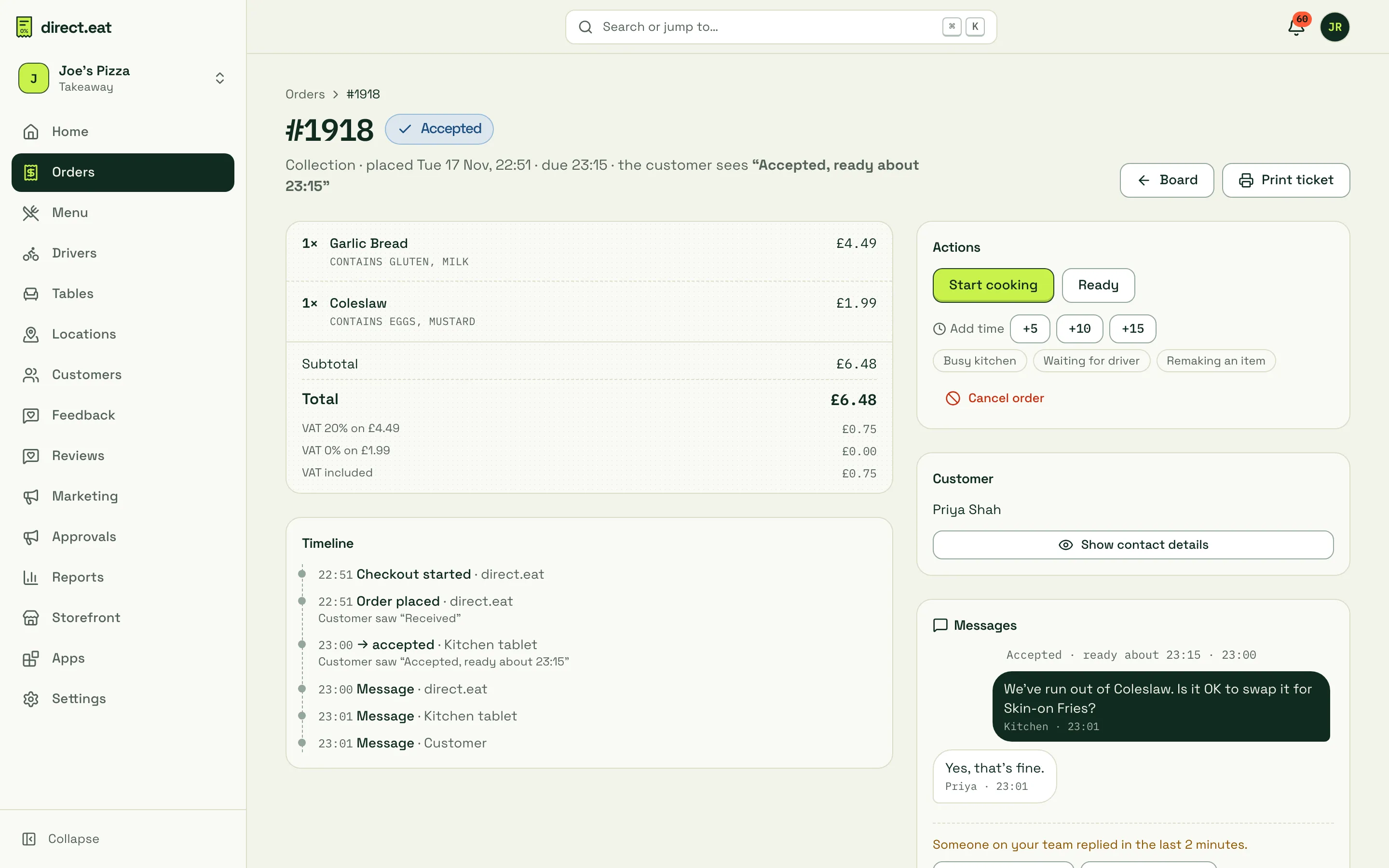
- Header: status, fulfilment, when it was placed and when it’s due, and exactly what the customer sees on their tracking page right now, in quotes.
- Items: with modifiers, allergens and any allergy note in full, then the subtotal, discounts, delivery fee, tip and total, with VAT by rate (for example “VAT 20% on £4.49” and “VAT 0% on £1.99”).
- Timeline: every step with the time and who did it: “Kitchen tablet”, a team member’s name, “Customer” or “direct.eat” for automatic steps. Status changes show what the customer saw at that moment (“Customer saw “Accepted, ready about 23:15”“). Ready-time changes, contact reveals and messages are listed too, followed by the print jobs and notifications sent for the order.
- Actions: move the order on, add time, cancel. See delays, cancellations and refunds.
- Customer: the name, and Show contact details to see the phone number and email. Each reveal is logged on the order, so customers’ details are only looked at when needed.
- Messages: the message thread.
- Payment: the card payment, any refunds with credit note numbers, and the refund panel.
- For delivery orders, the driver and delivery status.
Staff can only open today’s orders.
Reprint a ticket or receipt
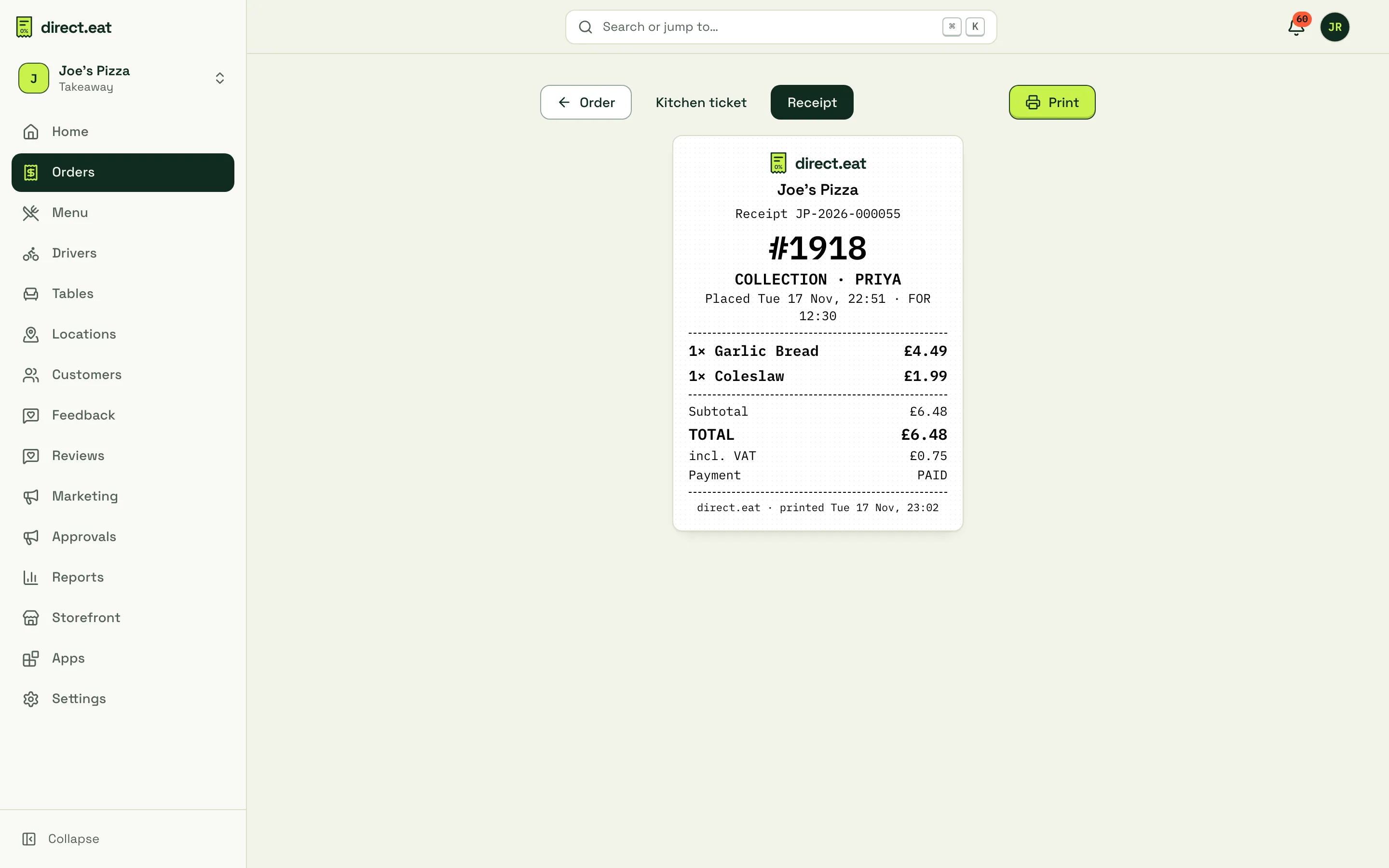
Section titled “Reprint a ticket or receipt”From the order page click Print ticket. The print page has two tabs:
- Kitchen ticket: the 80 mm kitchen ticket.
- Receipt: a customer receipt with the receipt number, items, total and VAT.
Click Print to print it from your computer’s printer, or use the browser’s print dialog. The dashboard menus are hidden when printing.
To send a ticket to a kitchen printer instead, use Reprint ticket or Print receipt in the kitchen app’s order sheet. It goes to the printer chosen by your print routes and is marked REPRINT. Bag labels reprints delivery labels.
Customer receipts
Section titled “Customer receipts”Customers don’t need to ask you for a receipt. Their tracking page has a VAT receipt link with a simplified VAT receipt: your trading name, address and VAT number, each item, VAT per rate, any tip, and credit notes for refunds. They can print or save it as a PDF.
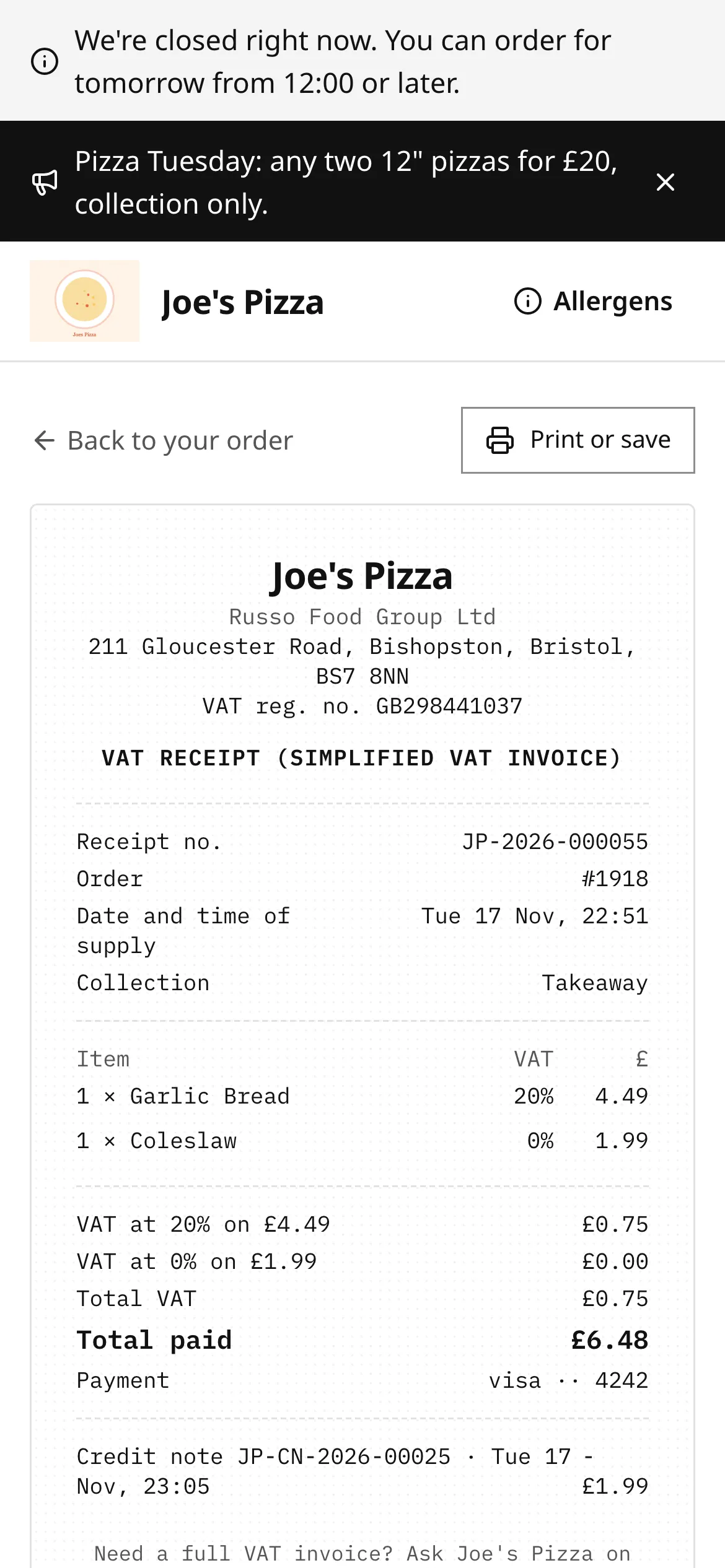
HMRC accepts a simplified VAT receipt for sales up to £250 including VAT. The receipt tells customers who need a full VAT invoice (with their business name and address) to ask you. direct.eat doesn’t produce full VAT invoices yet, so you’d issue one from your own accounts software.
Export to CSV
Section titled “Export to CSV”Click Export CSV on the history page. The file uses your current search and filters (up to 5,000 orders at a time) and opens straight in Excel or Google Sheets. Each row is an order with:
order number, trading date, placed time, status, fulfilment, channel, customer name, postcode district, number of items, total (£), refunded (£), payment status and method, accepted, ready and completed times, and whether it has an open issue.
There are no phone numbers or email addresses in the file. For sales, VAT and payout figures use reports and exports instead.
Related
Section titled “Related”Was this page helpful?