

Delays, cancellations and refunds
Things go wrong on a busy night. This page covers the three tools for it: add time so the customer knows the new ready time, cancel an order you’ve already accepted, and refund all or part of an order.
Before you start
Section titled “Before you start”| What | Who can do it |
|---|---|
| Add time | Owner, admin, manager, staff and kitchen tablets |
| Cancel an accepted order | Owner, admin and manager, from the dashboard |
| Refund | Owner and admin, any amount. Managers up to £75 per refund and £300 a day. Staff can request a refund for approval. |
Owners can change the manager refund limit in Settings → Payments. See roles and permissions.
Add time to an order
Section titled “Add time to an order”If an accepted order is going to be late, add time. The customer’s tracking page changes to Delayed with the new time, and the board shows a Delayed +10 badge.
In the kitchen app: tap +5 on the ticket, or open the order sheet and tap +5, +10, +15 or Time…. Time… lets you pick more minutes or an exact time, with a reason.
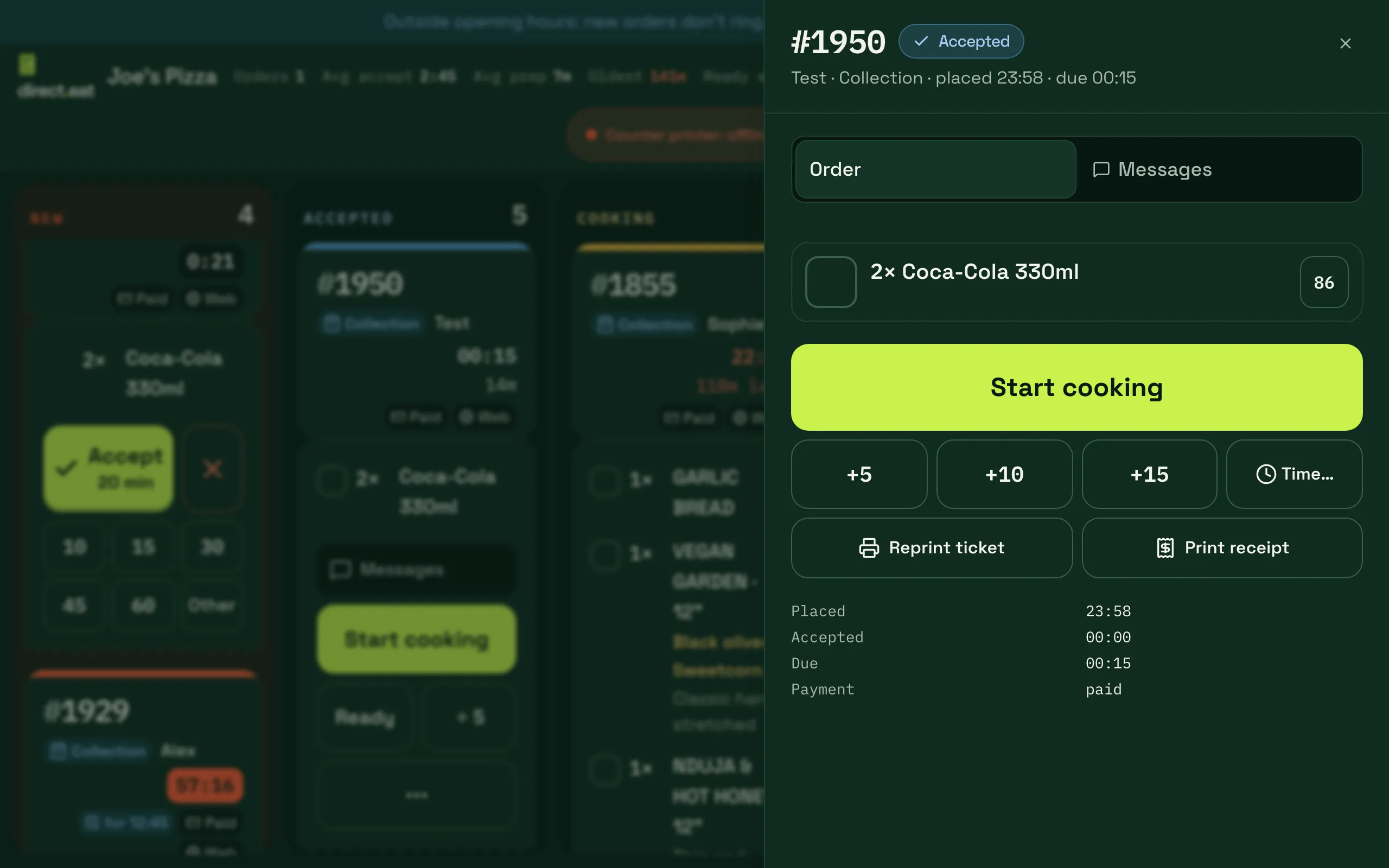
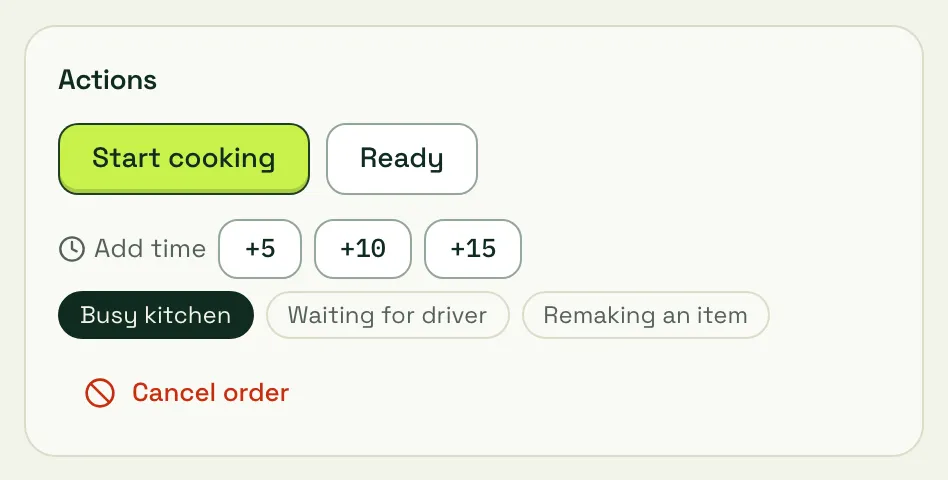
On the dashboard: open the order, pick a reason (Busy kitchen, Waiting for driver or Remaking an item), then click +5, +10 or +15 next to Add time. Or select the card on the board and press + for 5 minutes.
What the customer sees:
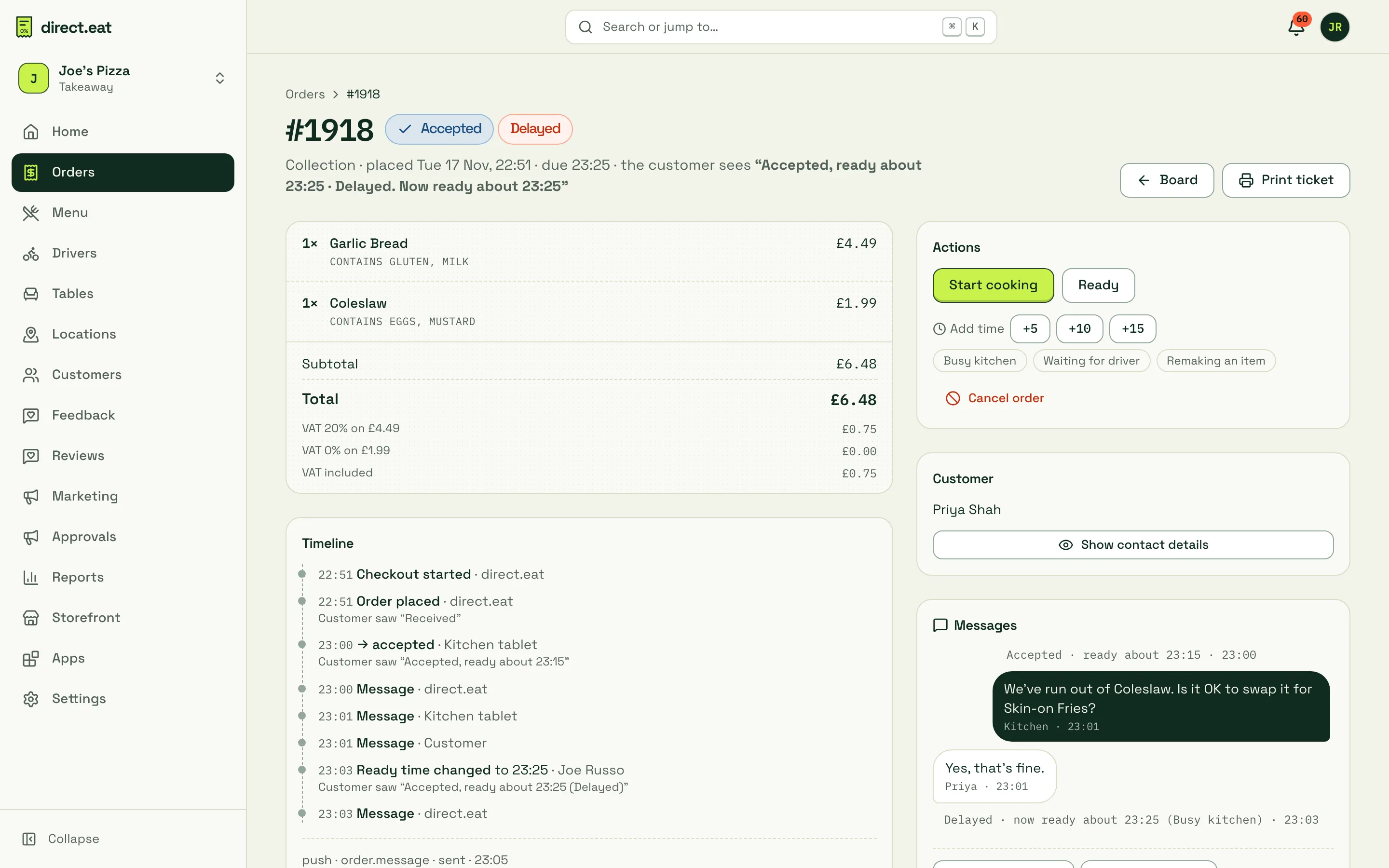
- Their tracking page says “Accepted, ready about 23:25 · Delayed. Now ready about 23:25”.
- A line in the message thread: “Delayed · now ready about 23:25 (Busy kitchen)”.
- An email, when the time moves by 5 minutes or more. They’re emailed at most 3 times per order, so adding a minute here and there won’t flood them.
Cancel an accepted order
Section titled “Cancel an accepted order”Use Cancel for an order you’ve already accepted but can’t finish: the customer rang to cancel, an item ran out mid-cook, or it’s a duplicate. If only part of the order is affected, change the order instead: remove or swap a line and refund just that. Before accepting, use Reject instead.
-
Open the order on the dashboard (the board’s side sheet or the order page).
-
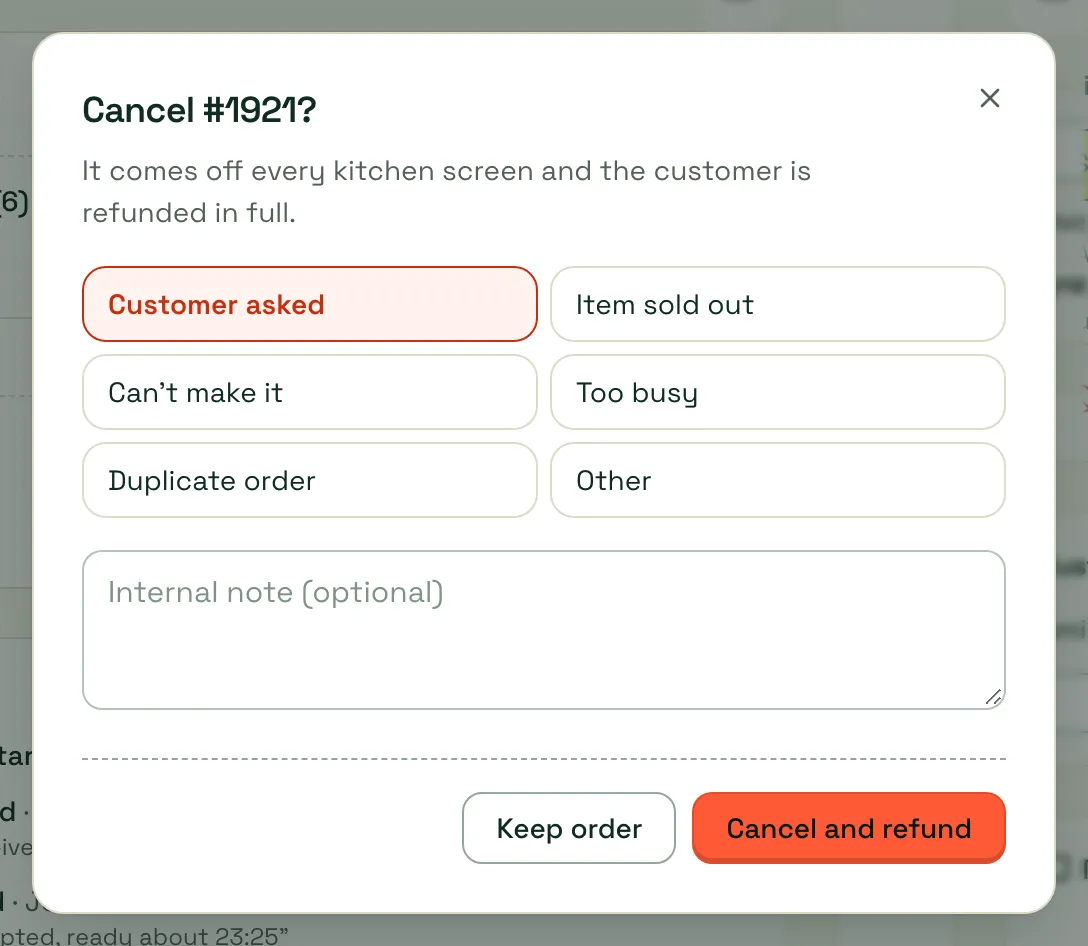
Click Cancel order.
-
Pick a reason: Customer asked, Item sold out, Can’t make it, Too busy, Duplicate order or Other. Add an Internal note if you like. The customer doesn’t see it.
-
Click Cancel and refund. Keep order closes the dialog.
What happens:
- The order comes off every kitchen screen. On the kitchen display its tiles flash CANCELLED for 10 seconds.
- If the kitchen ticket already printed, a VOID ticket prints so nobody cooks it.
- The customer is refunded in full automatically. Their tracking page shows Cancelled and the refund, and they get an email.
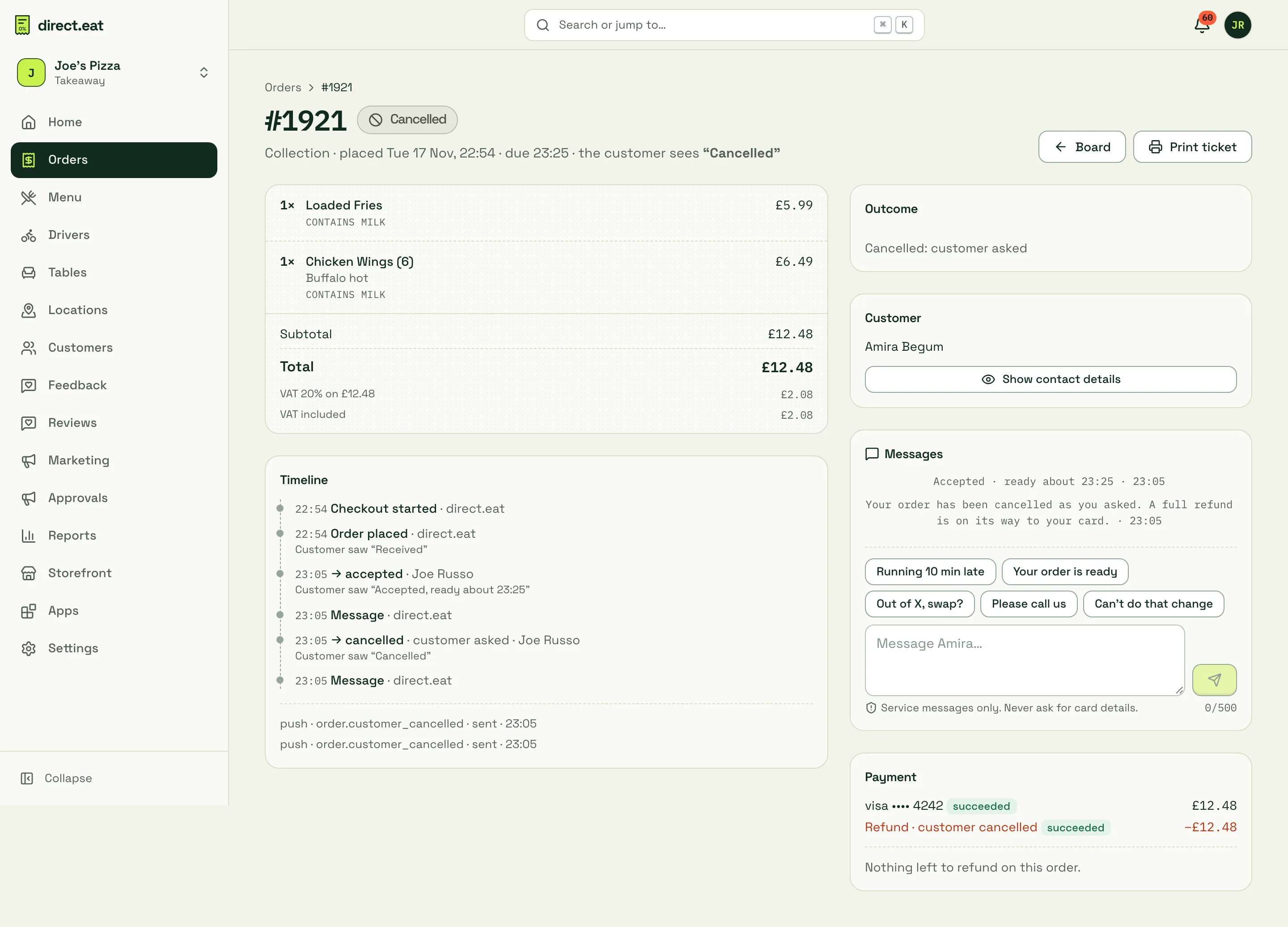
The kitchen app doesn’t have a cancel button. Staff who need an order cancelled should ask a manager, or reject it while it’s still New.
When the customer cancels
Section titled “When the customer cancels”Customers can’t cancel from their tracking page once an order is placed. If they ring or message you, cancel it with the reason Customer asked. It’s recorded as cancelled by the shop at the customer’s request (in the refund reason and the order history), and your team isn’t told the customer cancelled it themselves. The one exception is a missed order: if nobody accepts an order, the customer is offered the choice to keep waiting or cancel for a full refund. See alerts and escalation.
Refund part or all of an order
Section titled “Refund part or all of an order”Refunds are done from the order page. Find the order on the board or in order history, then scroll to the Payment card.
-
Choose the refund type:
- By item: use + and – next to each item to choose how many to refund.
- Amount: type an amount, for example £2.00 as a goodwill gesture.
- Full: everything left on the order.
-
Pick a reason: Missing item, Wrong item, Quality, Late, Goodwill or Other, and add a note if you like.
-
Check the total next to Refund, then click Issue refund.
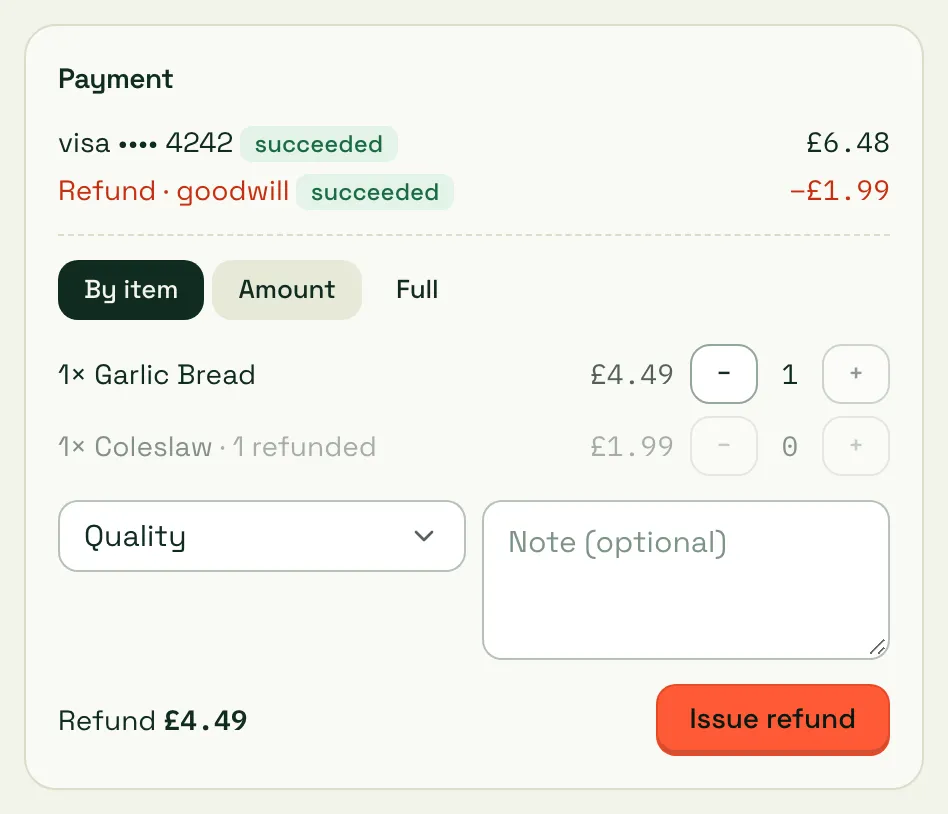
- Items already refunded are greyed out (“1 refunded”) so you can’t refund them twice.
- Each refund gets a credit note number, for example JP-CN-2026-00024, and shows under the payment with its status.
- The customer gets an email saying a refund is on its way, and the refund shows on their tracking page and receipt.
- When nothing is left to refund, the card says “Nothing left to refund on this order.”
If the refund is over your limit (or you’re staff), the button says Request refund instead. The request goes to the owner and admins for approval and you see “Refund of £8.50 sent to the owner for approval”.
You can also refund from Settings → Payments, where every recent payment has a Refund action.
The refunds page
Section titled “The refunds page”Orders → Refunds shows every refund and anything waiting for approval.
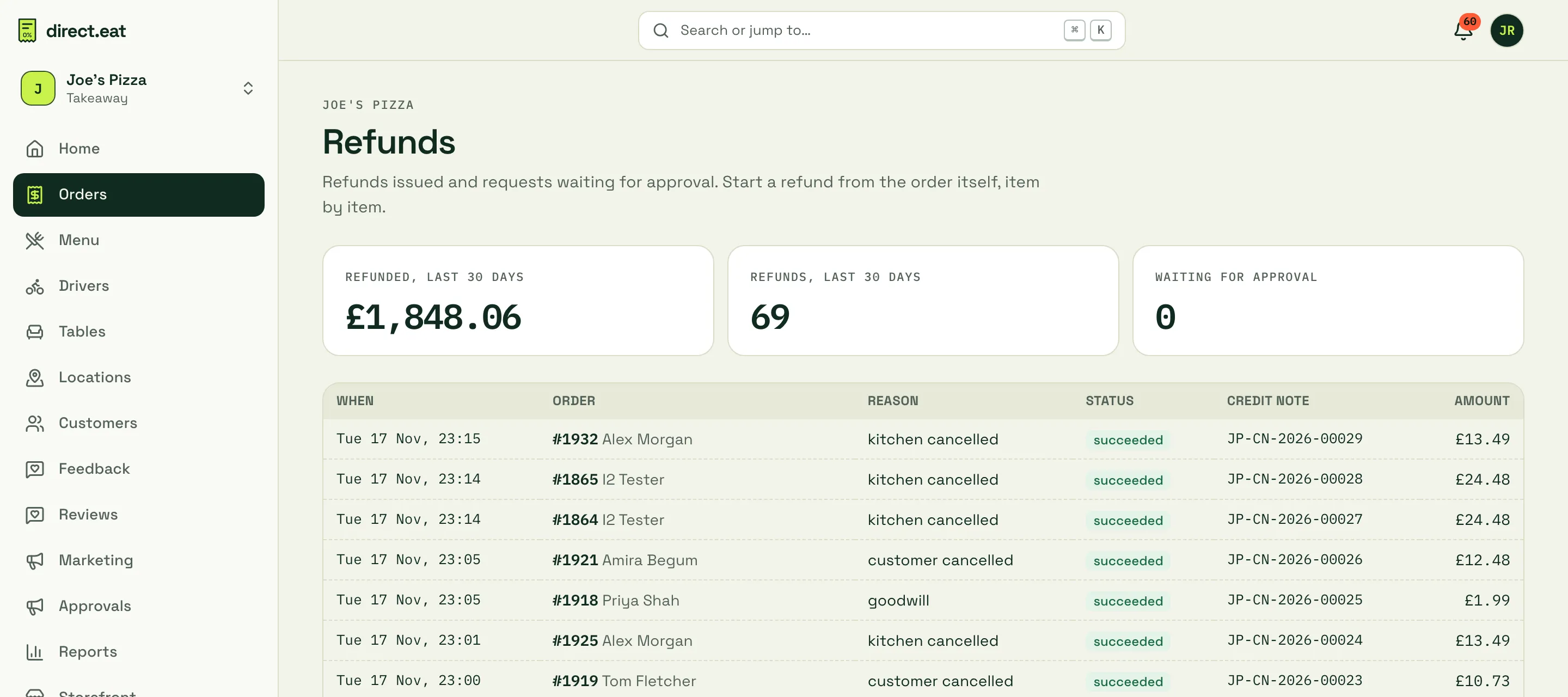
- Refunded, last 30 days, Refunds, last 30 days and Waiting for approval.
- The table lists each refund with the order, reason, status, credit note number and amount.
- Owners and admins approve or decline requests here. Approved requests are issued straight away.
Refunds also appear in reports (payouts and VAT) and in the CSV export.
Related
Section titled “Related”Was this page helpful?