

Integrations
Integrations connect direct.eat to the systems you already use: your till, your accounts and Google. Every integration is included in your plan, with no add-on fees.
Before you start
Section titled “Before you start”- Owners and admins connect and disconnect integrations. Managers can see them and their health.
- POS integrations (Square, Deliverect) and accounting integrations need the Growth plan and above.
- The Google ordering link works on every plan.
The integrations page
Section titled “The integrations page”Go to Settings → Integrations.
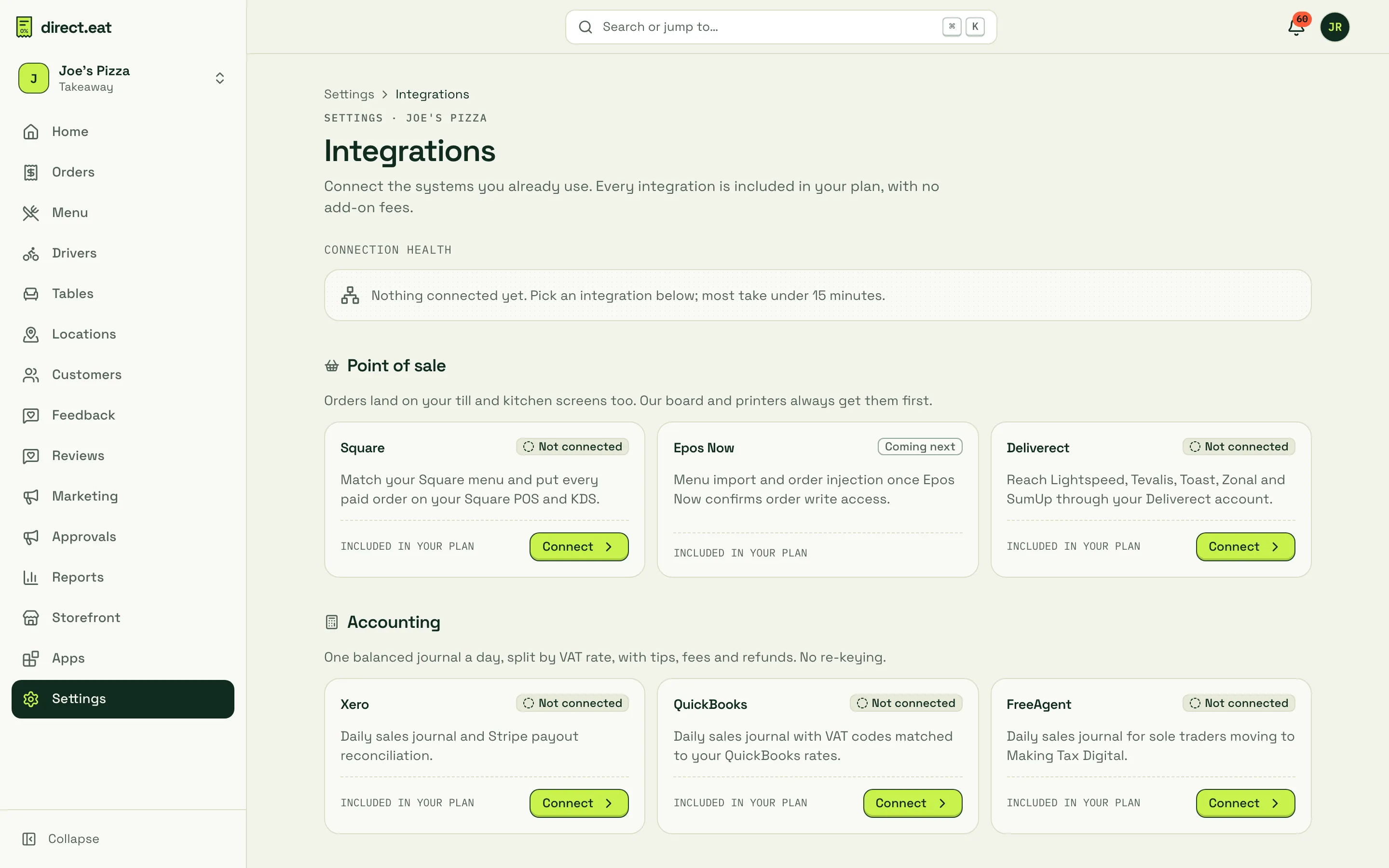
At the top, Connection health shows each connected integration as Connected, Degraded or Broken, with a plain-English fix. Below it, integrations are grouped:
| Group | Integrations |
|---|---|
| Point of sale | Square, Deliverect. Epos Now is “Coming next” |
| Accounting | Xero, QuickBooks, FreeAgent |
| Ordering channels | Google ordering link |
| Automation | Zapier, Make (through webhooks) |
| Developers | API keys, webhooks and API docs |
Square
Section titled “Square”Match your Square menu once, then every paid direct.eat order also appears on your Square POS and kitchen display. direct.eat’s own board and printers always get the order first, so a till problem never stops an order reaching your kitchen.
Click Connect on Square. The set-up has 5 steps:
-
Connect: sign in to Square and approve the permissions. The screen lists each one and why we need it.
-
Location: pick the Square location for this shop.
-
Menu: choose which way menus go: Square is the source (prices and items come from Square; photos, descriptions and allergens stay on direct.eat), direct.eat is the source (we create and update your items in Square), or Just match them (keep both menus and only link items).
-
Match items: we suggest a Square item for each direct.eat item with a confidence score. Accept all ≥ 90% handles the obvious ones; check the rest.
-
Test order: send a test order and check it lands on Square.
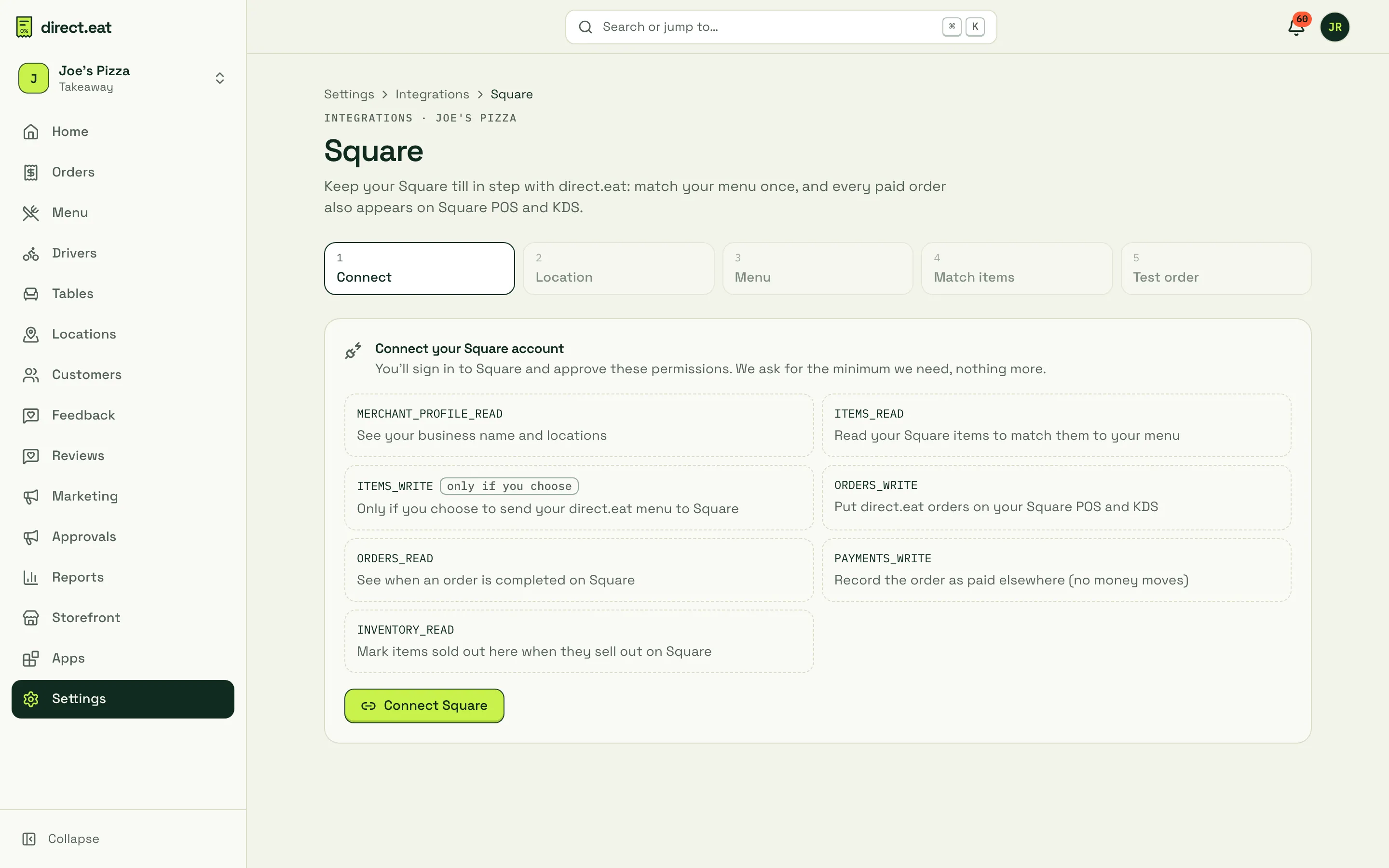
Permissions we ask for:
| Square permission | Why |
|---|---|
MERCHANT_PROFILE_READ |
See your business name and locations |
ITEMS_READ |
Read your Square items to match them to your menu |
ITEMS_WRITE (only if you choose) |
Send your direct.eat menu to Square |
ORDERS_WRITE |
Put direct.eat orders on your Square POS and KDS |
ORDERS_READ |
See when an order is completed on Square |
PAYMENTS_WRITE |
Record the order as paid elsewhere (no money moves) |
INVENTORY_READ |
Mark items sold out here when they sell out on Square |
Orders are sent to Square when you accept them. Each attempt is logged; failed ones retry automatically, and the Square page shows the injection log.
Deliverect
Section titled “Deliverect”Use your Deliverect account to get direct.eat orders onto tills we don’t connect to directly: Lightspeed K-Series, Tevalis, Toast, Zonal, SumUp POS and Clover.
direct.eat becomes an ordering channel in Deliverect. Deliverect routes our orders into your POS, sends status updates back, and can push your POS menu to us. Items imported that way arrive with allergens marked “unknown” until you confirm them.
You pay Deliverect directly under your own subscription; direct.eat charges nothing extra. To connect you need your Deliverect account ID.

Accounting: Xero, QuickBooks and FreeAgent
Section titled “Accounting: Xero, QuickBooks and FreeAgent”Instead of re-keying takings, direct.eat posts one balanced journal per shop per trading day, split by VAT rate, with tips, fees, refunds and payouts. It’s built for Making Tax Digital. Journals hold totals only, never customer details.
Click Connect on Xero, QuickBooks or FreeAgent:
-
Sign in to your accounting software and allow direct.eat to post journals.
-
Pick your trading-day cut-off (default 04:00, so late-night sales stay on the right day).
-
Check the suggested UK accounts and VAT codes.
-
Preview yesterday’s journal, then switch on daily posting.
One connection covers every shop. Each shop posts under its own tracking category.
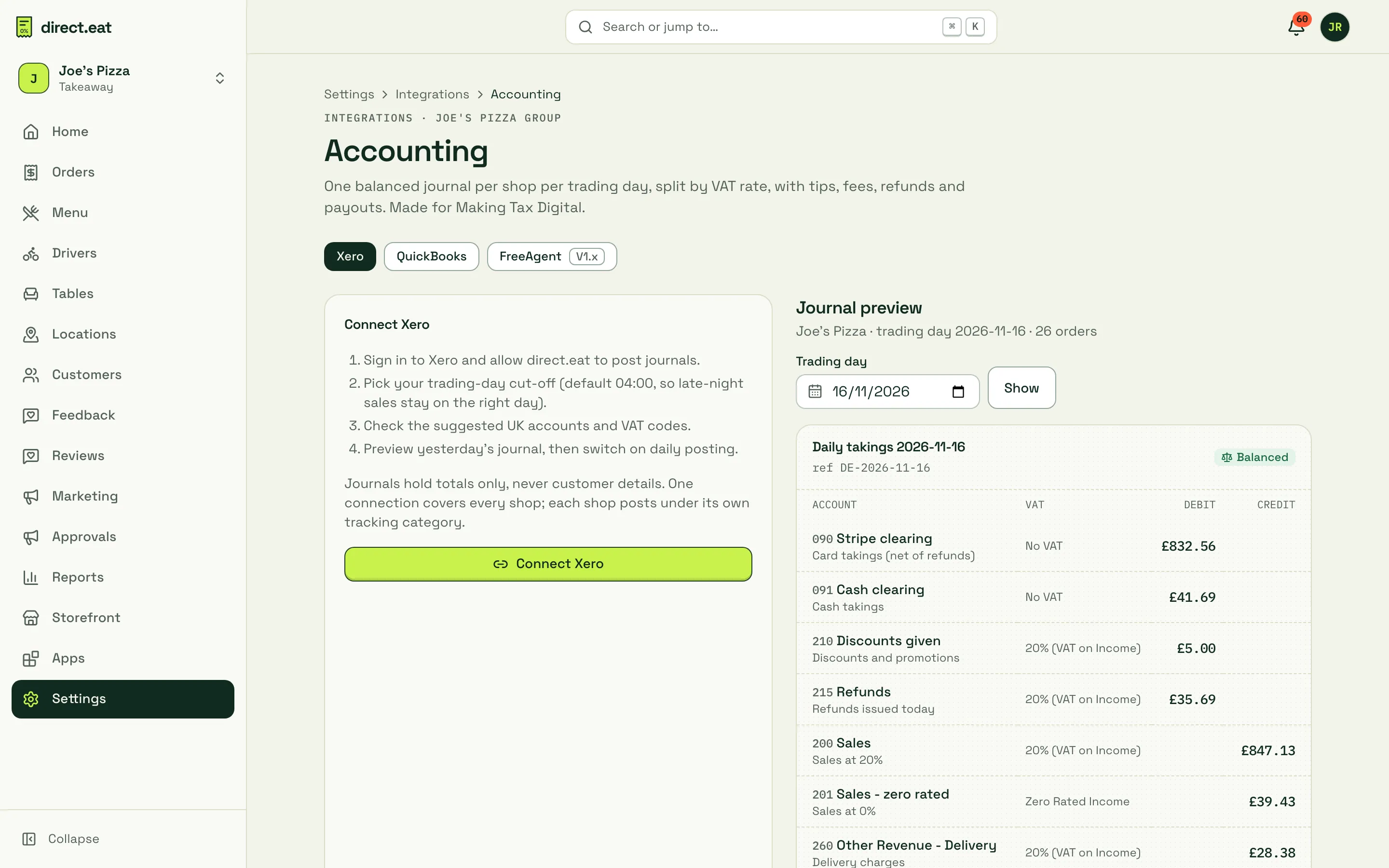
How the journal works:
- Daily takings: card takings (net of refunds) to Stripe clearing, cash to cash clearing, discounts and refunds as debits; sales by VAT rate and delivery charges as credits. It always balances.
- Stripe fees: a separate journal from Stripe clearing to bank fees.
- Refunds post on the day they’re issued, never by editing an earlier journal.
- Payouts: when Stripe pays out, a transfer from Stripe clearing to your bank posts, so your bank feed matches.
- Per-order invoices aren’t sent (too noisy). Your accountant can export order detail from Reports → Exports.
You can use the journal preview today to check the numbers against your own records.
Google ordering link
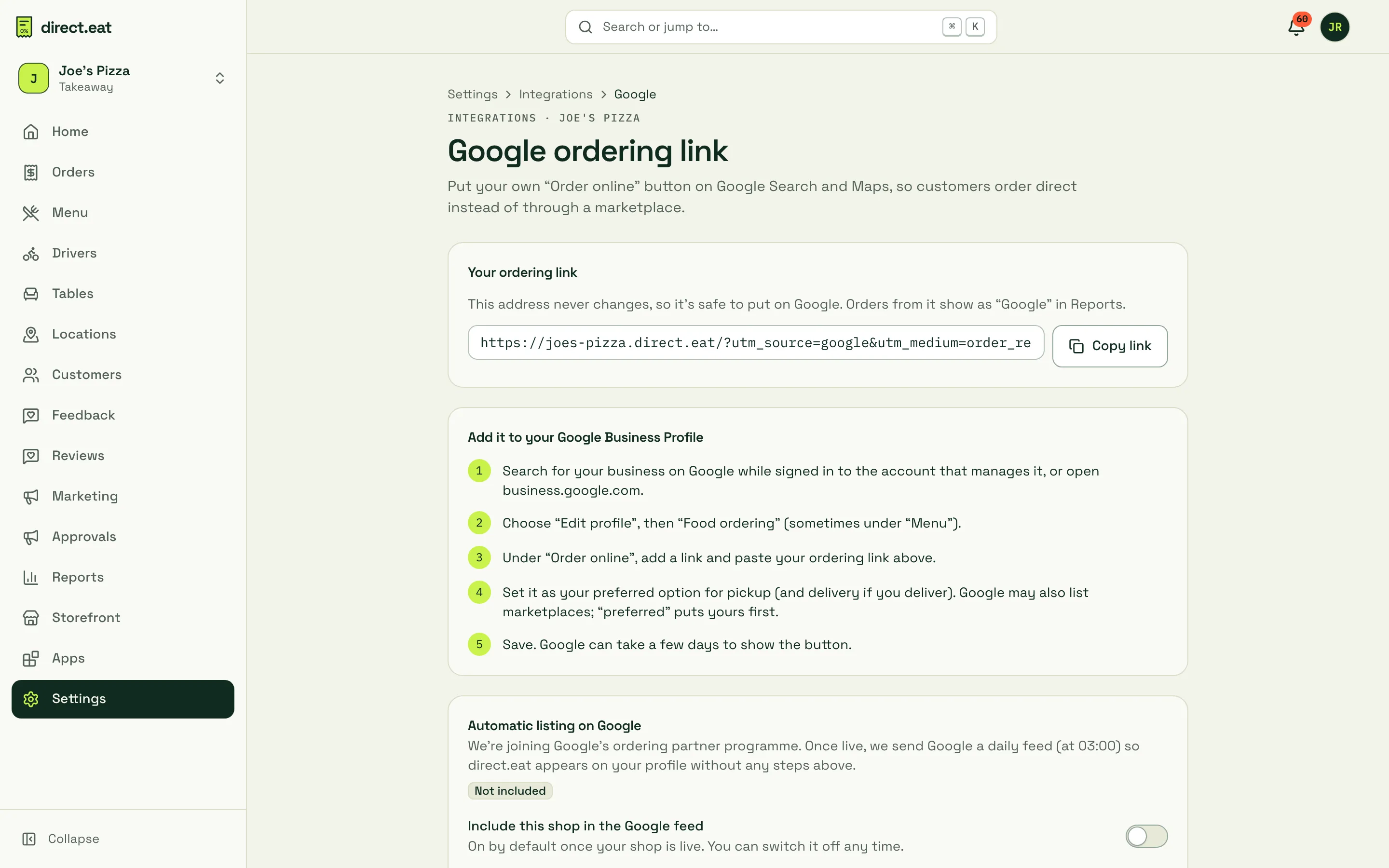
Section titled “Google ordering link”Put your own Order online button on Google Search and Maps, so customers order direct instead of through a marketplace.
-
Click Copy link under Your ordering link. This address never changes, so it’s safe to put on Google. Orders from it show as “Google” in Reports.
-
Search for your business on Google while signed in to the account that manages it, or open business.google.com.
-
Choose Edit profile, then Food ordering (sometimes under Menu).
-
Under Order online, add a link and paste your ordering link.
-
Set it as your preferred option for pickup (and delivery if you deliver), then save. Google can take a few days to show the button.
More detail in Go live.
Zapier and Make
Section titled “Zapier and Make”Install the Zapier and Make app from Apps: paste a Zapier “Catch Hook” (or a Make webhook) URL and it creates a signed webhook for you. You can also do it by hand in Settings → API and webhooks → Add endpoint and pick your events. For example: new order → Google Sheet, big order → Slack, item sold out → staff WhatsApp. Webhooks need the Growth plan and above.
Disconnecting
Section titled “Disconnecting”Open the integration and click Disconnect (on Square, Disconnect Square). Orders keep arriving on direct.eat as normal; they just stop appearing on your till. Disconnecting accounting software doesn’t change anything already posted.
Related
Section titled “Related”Was this page helpful?