

Offers and promotions
Offers covers discount codes, first-order deals, happy hours, free items, free delivery and meal deals. Every offer has hard caps, and nothing that costs you money goes live until an owner or admin approves it with the worst-case cost in front of them.
Before you start
Section titled “Before you start”- Offers are included on every plan.
- Owners and admins can build an offer and Approve and turn on in one go.
- Managers can build offers and Send for approval. An owner or admin then approves or sends it back from Approvals.
- direct.eat support can draft an offer for you, but can never approve one.
The offers list
Section titled “The offers list”Go to Marketing → Offers.
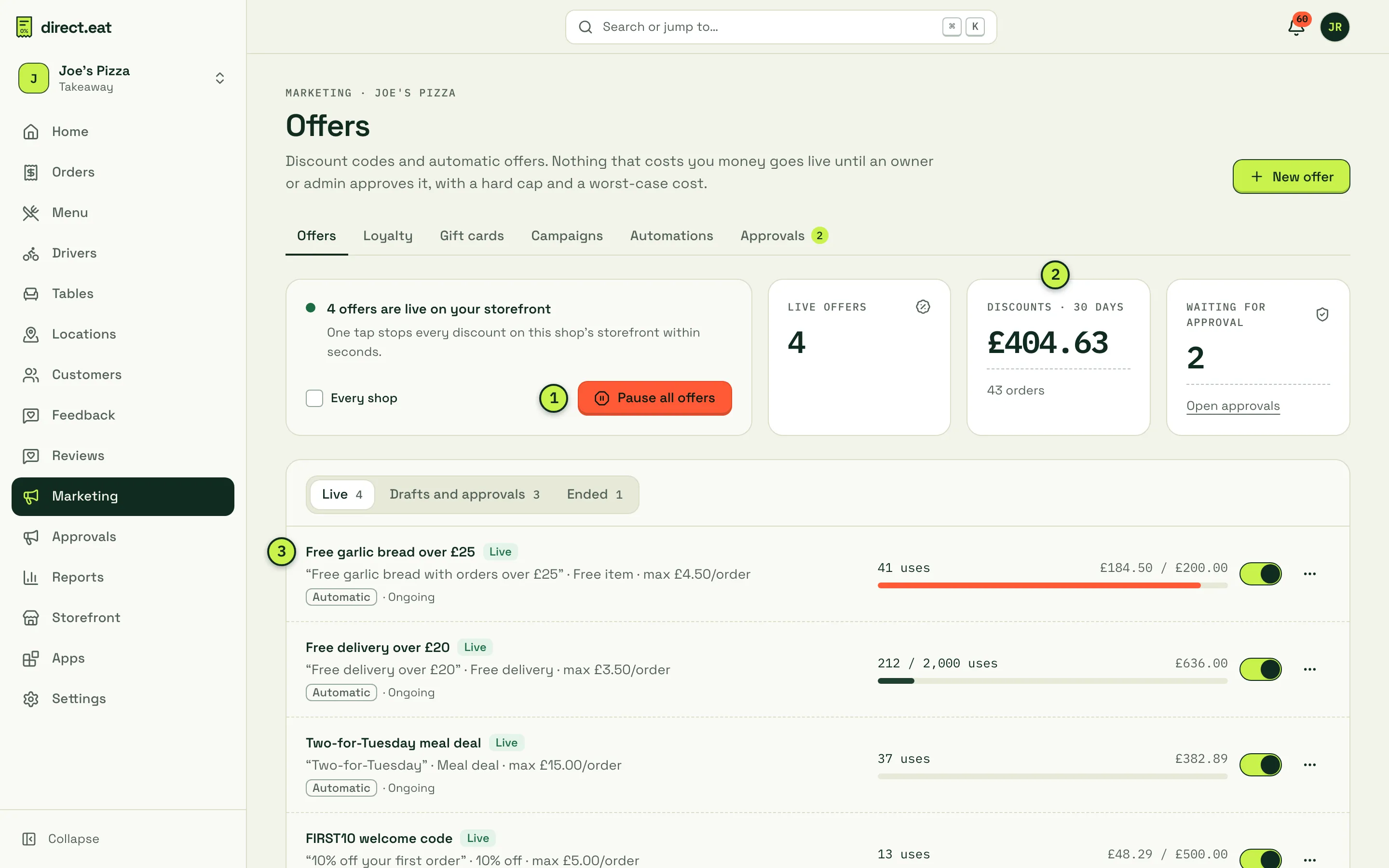
- Pause all offers: one tap stops every discount on this shop’s storefront straight away. Tick Every shop to pause all shops in your organisation. Use it if a code leaks or an offer is costing more than you expected.
- Discounts · 30 days: what offers have cost you in the last 30 days and on how many orders.
- Each offer shows the wording customers see, the type, the most it can take off one order, how it’s applied (Automatic or a code), uses and spend against its budget. The switch on the right pauses or resumes it. Tabs split Live, Drafts and approvals and Ended.
Create an offer
Section titled “Create an offer”- Click New offer.
- Start from a template (First order 10% off, Free delivery over £20, Happy hour 15% off, 2-for-1 pizzas Tuesday, Bag-insert flyer code, Free item over £25) or pick a type under What kind of offer?
- Set The deal (for example 15% off) and How customers get it: Automatic (applies to every basket that qualifies) or With a code (customers type it at checkout). Tick New customers only for a first-order offer.
- Write the Customer wording. Customers see exactly this, so put the condition in the same line: “Free garlic bread with orders over £25”.
- Fill in the Hard caps (see below).
- Set When and Where, then check the worst case on the right.
- Click Approve and turn on (owners and admins), Send for approval, or Save draft.
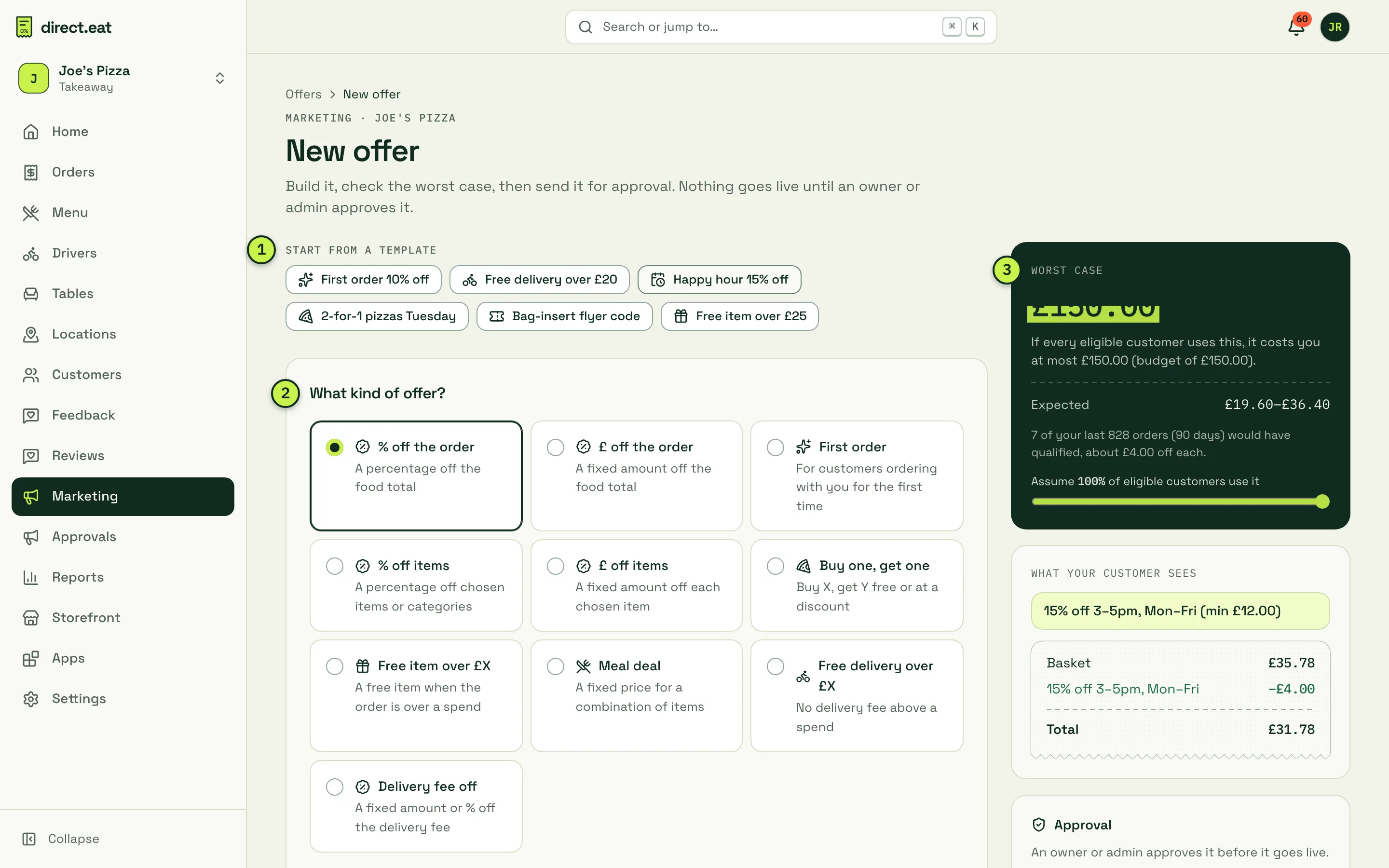
- Templates: a quick start with sensible caps already filled in.
- Offer types: % off the order, £ off the order, First order, % off items, £ off items, Buy one get one, Free item over £X, Meal deal, Free delivery over £X and Delivery fee off.
- Worst case: the most this offer can cost you if every eligible customer uses it, plus an Expected range worked out by replaying your last 90 days of orders. Drag the slider to change how many eligible customers you assume will use it. What your customer sees below it previews the wording and a sample basket.
Hard caps
Section titled “Hard caps”Caps are required. They limit the worst case before anything goes live.
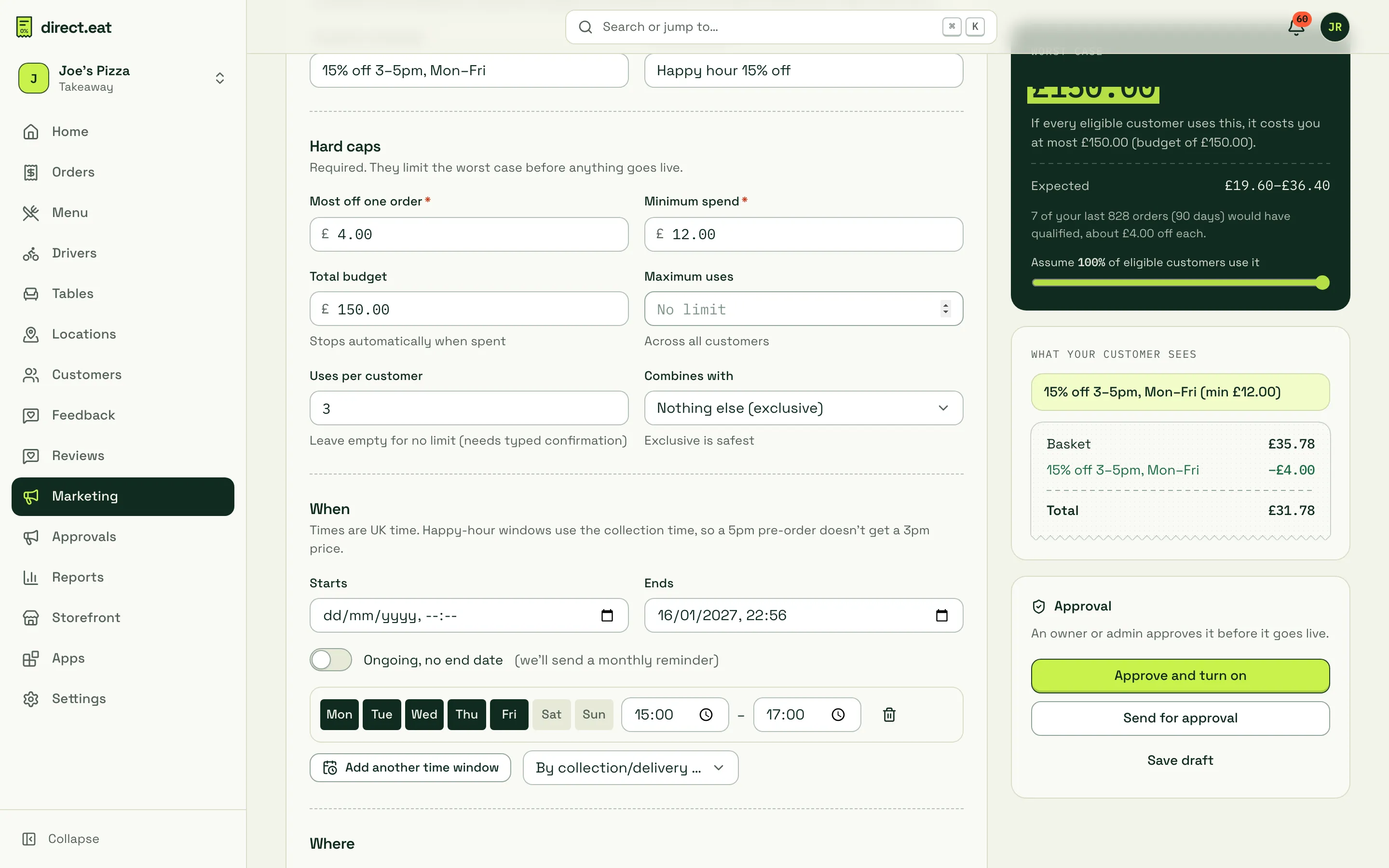
| Cap | What it does |
|---|---|
| Most off one order (required) | The most one order can save, in £ |
| Minimum spend (required) | The basket must be at least this much |
| Total budget | The offer stops automatically when this much has been spent |
| Maximum uses | Across all customers |
| Uses per customer | Leave empty for no limit (you’ll need to type a confirmation to approve it) |
| Combines with | Nothing else (exclusive) is the default and the safest. You can allow it to stack with automatic offers or with everything |
A customer can use one code per order. When two automatic offers could both apply, the customer gets the better one and sees “We’ve applied the better offer”. Your organisation also has a ceiling of 50% off any single order.
When and where
Section titled “When and where”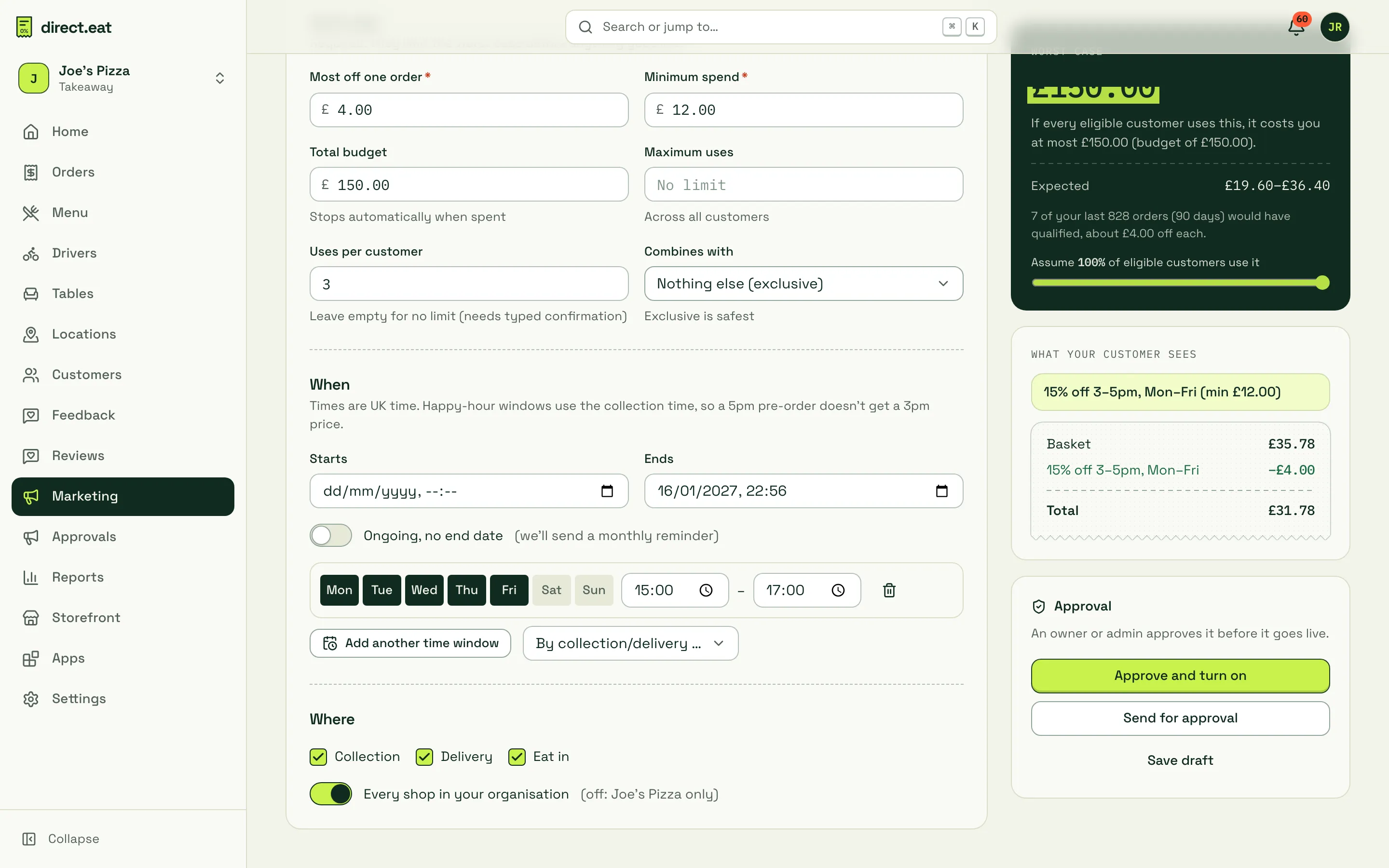
- Starts and Ends, or switch on Ongoing, no end date (you’ll get a monthly reminder that it’s still running).
- Time windows for happy hours: pick days and times. Times are UK time and use the collection time, so a customer who orders at 3pm for a 7pm collection doesn’t get a 3–5pm price.
- Where: collection, delivery and eat in, and whether it applies to every shop in your organisation or this shop only.
Approval
Section titled “Approval”Anything with a cost goes to Approvals. The approver sees the worst case, the expected range, the exact customer wording and every cap.
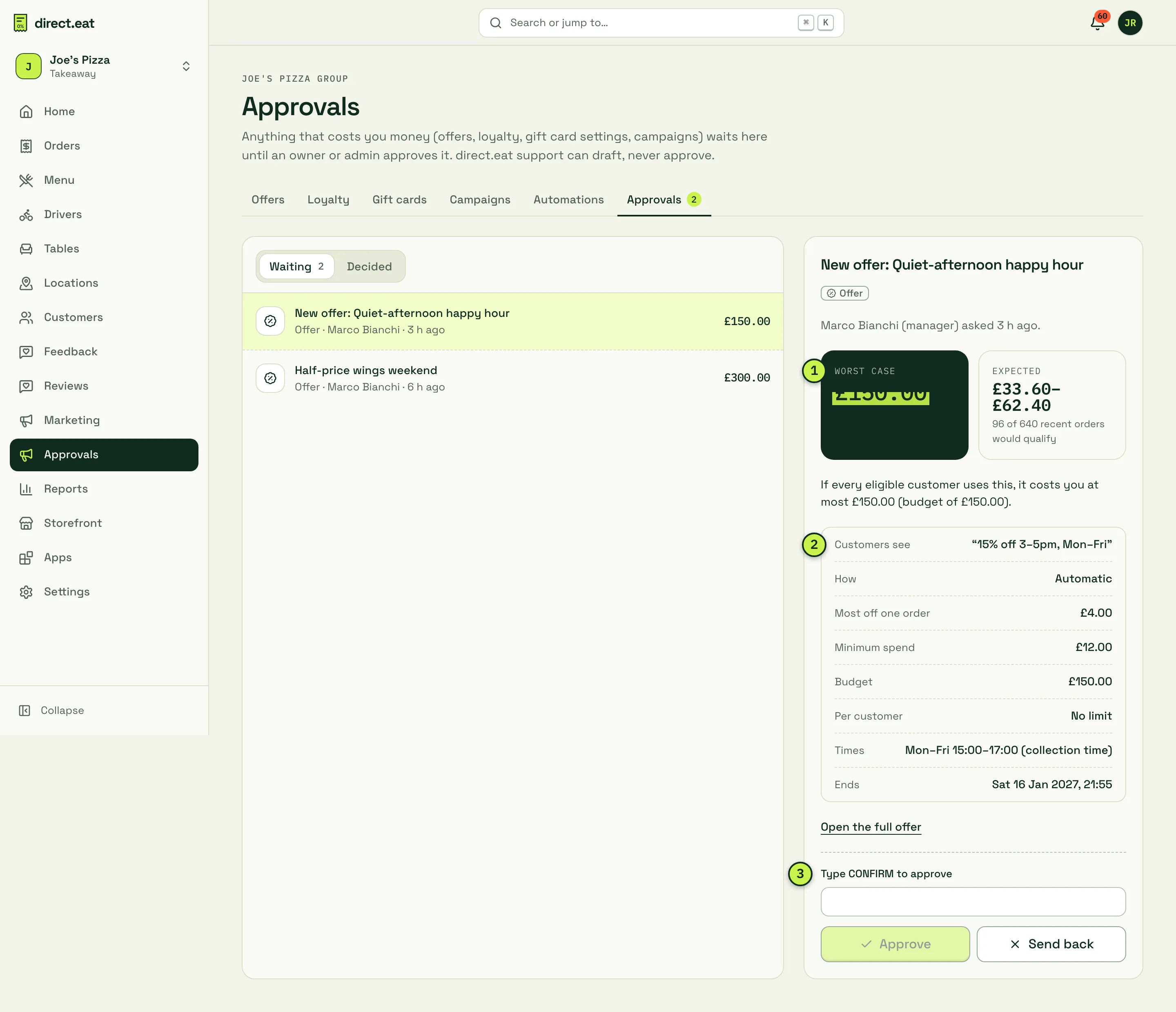
- Worst case and Expected cost side by side.
- Customers see: the wording, plus how it’s applied, caps and times.
- Risky offers (for example no per-customer limit) need the approver to Type CONFIRM to approve. Offers with a worst case above £500 can only be approved by the owner.
Click Send back to return it to the person who drafted it with a note.
See how an offer is doing
Section titled “See how an offer is doing”Click an offer to see its report.
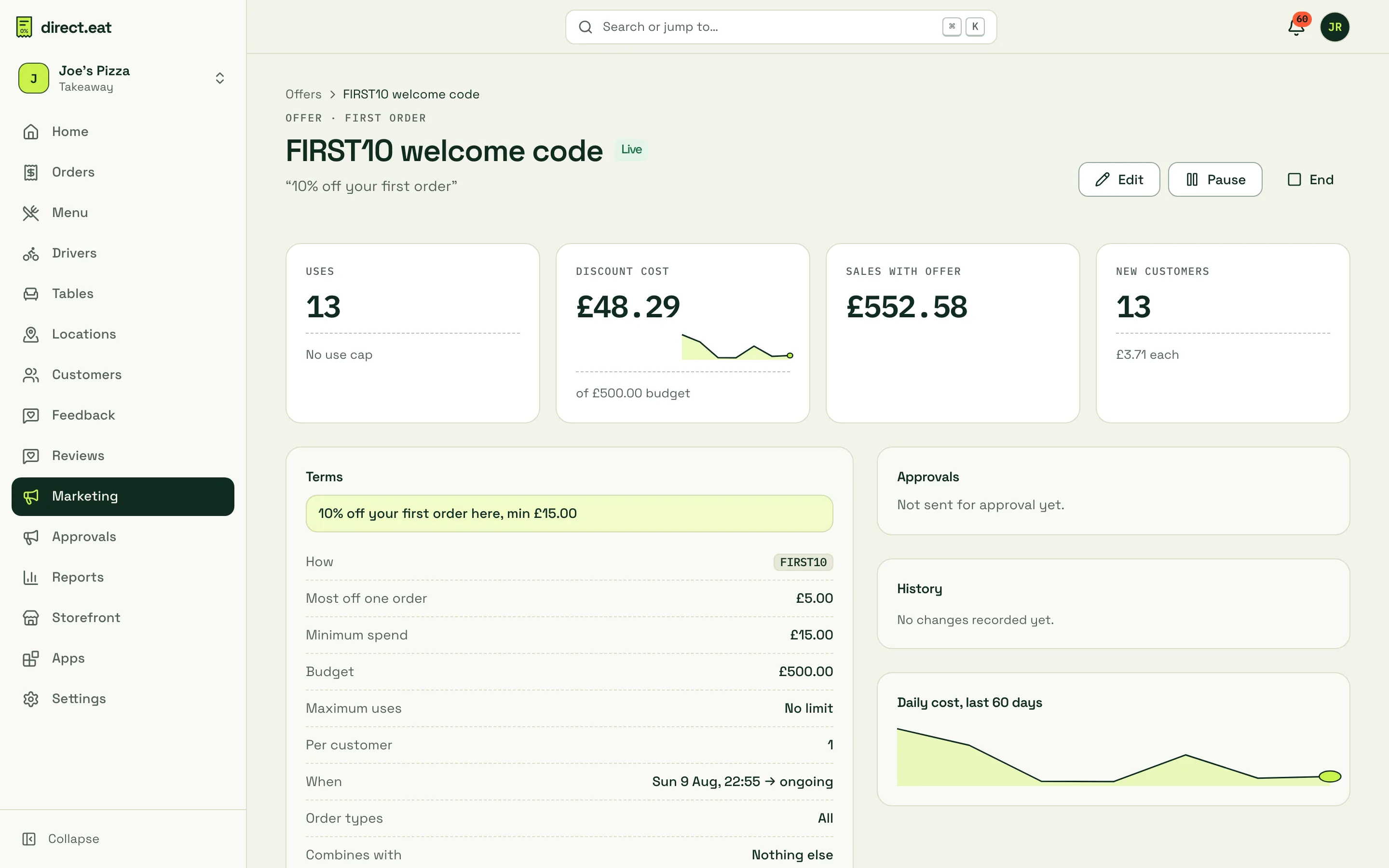
You get uses, discount cost against the budget, sales with the offer, new customers it brought in and the cost per new customer, a 60-day daily cost chart, the full terms, and the approval and change history. Use Edit, Pause or End at the top right.
For a code offer you can also generate a batch of single-use codes (up to 50,000), download them as CSV, or print an A4 sheet of QR codes.
Budgets and alerts
Section titled “Budgets and alerts”When an offer has a budget, its usage bar on the offers list shows how much is spent. At 100% the offer stops automatically and shows as exhausted, so it can never run past the budget you approved.
Meal deals
Section titled “Meal deals”- Start with the First order 10% off template on a code like FIRST10 and put the code on your bag inserts. It gives marketplace customers a reason to try ordering from you directly, with a capped cost.
- Keep offers exclusive unless you have a reason to stack them.
- Never offer a discount, points or a freebie in exchange for a review. See the review policy.
Related
Section titled “Related”- Approvals
- Loyalty
- Campaigns and consent (link an offer to a campaign)
- Reports (discount cost in Sales and Customers)
Was this page helpful?