

Campaigns and consent
A campaign is a one-off email or text to customers who said yes to hearing from you: a new dish, a weekend offer, your Christmas hours. Every campaign is test-sent, approved by an owner or admin, and consent-checked again for each customer at the moment it sends.
Before you start
Section titled “Before you start”- Campaigns are part of the Growth and Pro plans (and the free trial). Growth includes 5,000 campaign emails a month, Pro 20,000 emails and 200 texts. Texts cost 5p each, and extra email and SMS packs are on the billing page. See Plan limits.
- Owners, admins and managers can write campaigns and send them for approval. Only an owner or admin can approve one.
- You need customers who can be emailed or texted. Check the counts on Customers.
Write a campaign
Section titled “Write a campaign”Go to Marketing → Campaigns and click New campaign (or Message them on a segment card). The composer has four steps, a live email preview, and a summary on the right.
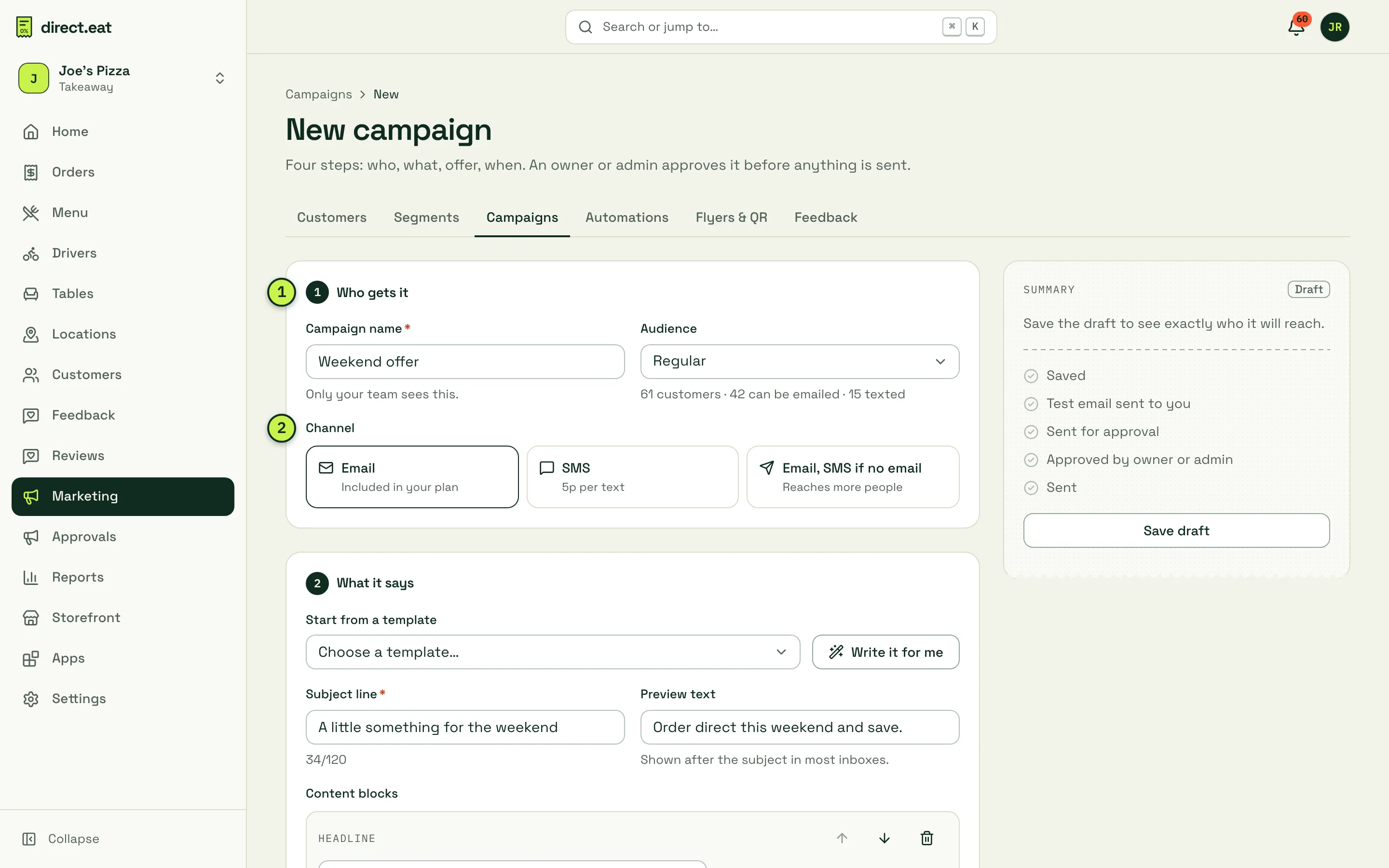
- Who gets it (callout 1): give the campaign a name (only your team sees it) and pick an Audience segment. Under the audience you’ll see how many customers it has and how many can be emailed and texted.
- Channel (callout 2): Email (included in your plan), SMS (5p per text) or Email, SMS if no email (reaches more people).
- What it says: pick one of 12 starter templates (New dish, Weekend offer, Back in season, Closed for holidays, Order direct reminder, Birthday treat, We miss you, Thank you regulars, New opening hours, Now delivering, Loyalty reminder, Blank), or click Write it for me for an AI draft. Then edit the Subject line (up to 120 characters), Preview text and content blocks.
- Offer (optional): link one of your live offers. Its full conditions show on your storefront, and its worst-case cost is shown at approval.
- When: As soon as it’s approved (you press Send now after approval) or Schedule for a date and time.
- Click Save draft. The summary then shows exactly who it will reach.
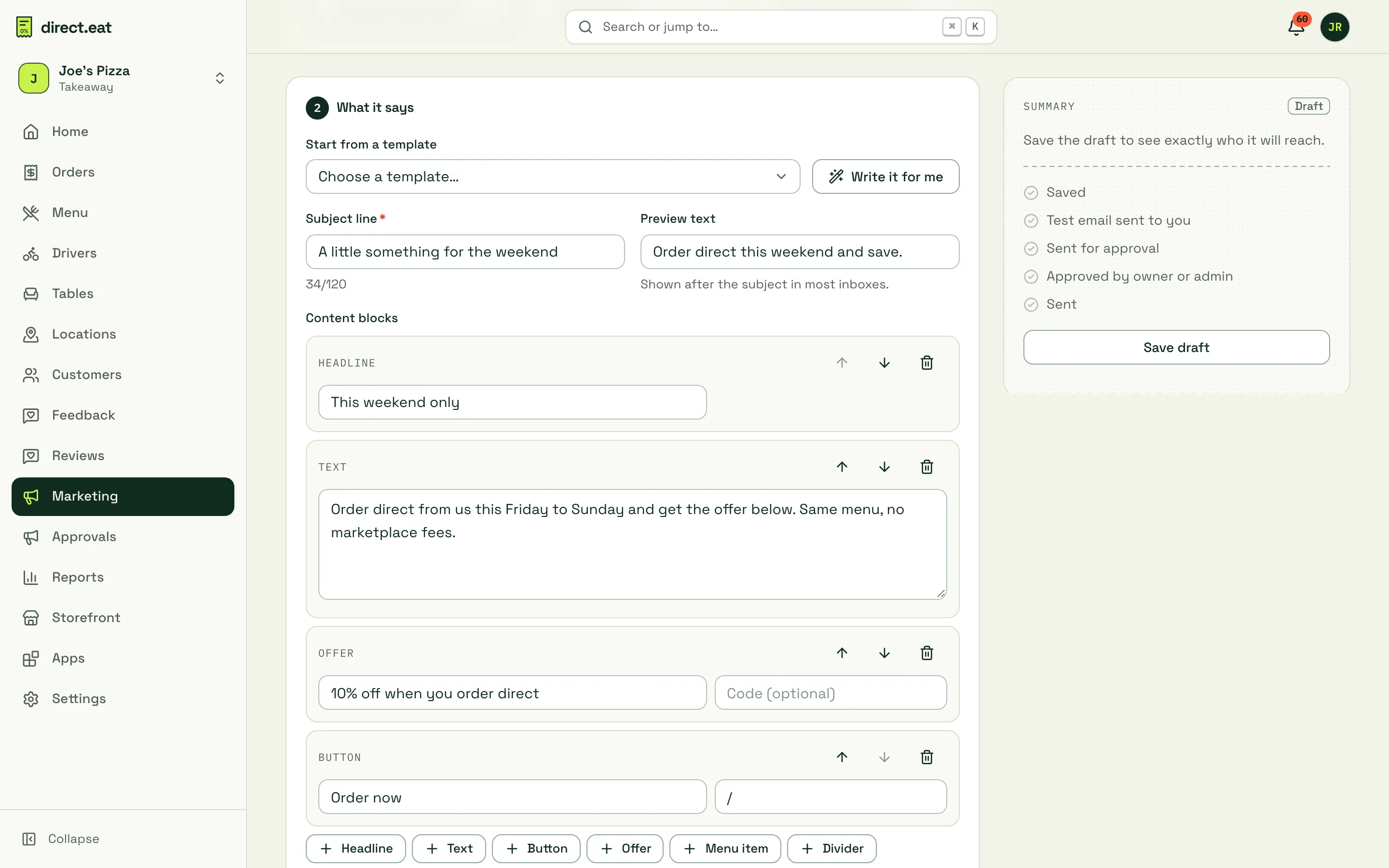
Content blocks are Headline, Text, Button, Offer, Menu item (fill from your menu) and Divider. Use {first_name} to greet people by name. Links starting with / go to your storefront.
Preview, hold-back and the summary
Section titled “Preview, hold-back and the summary”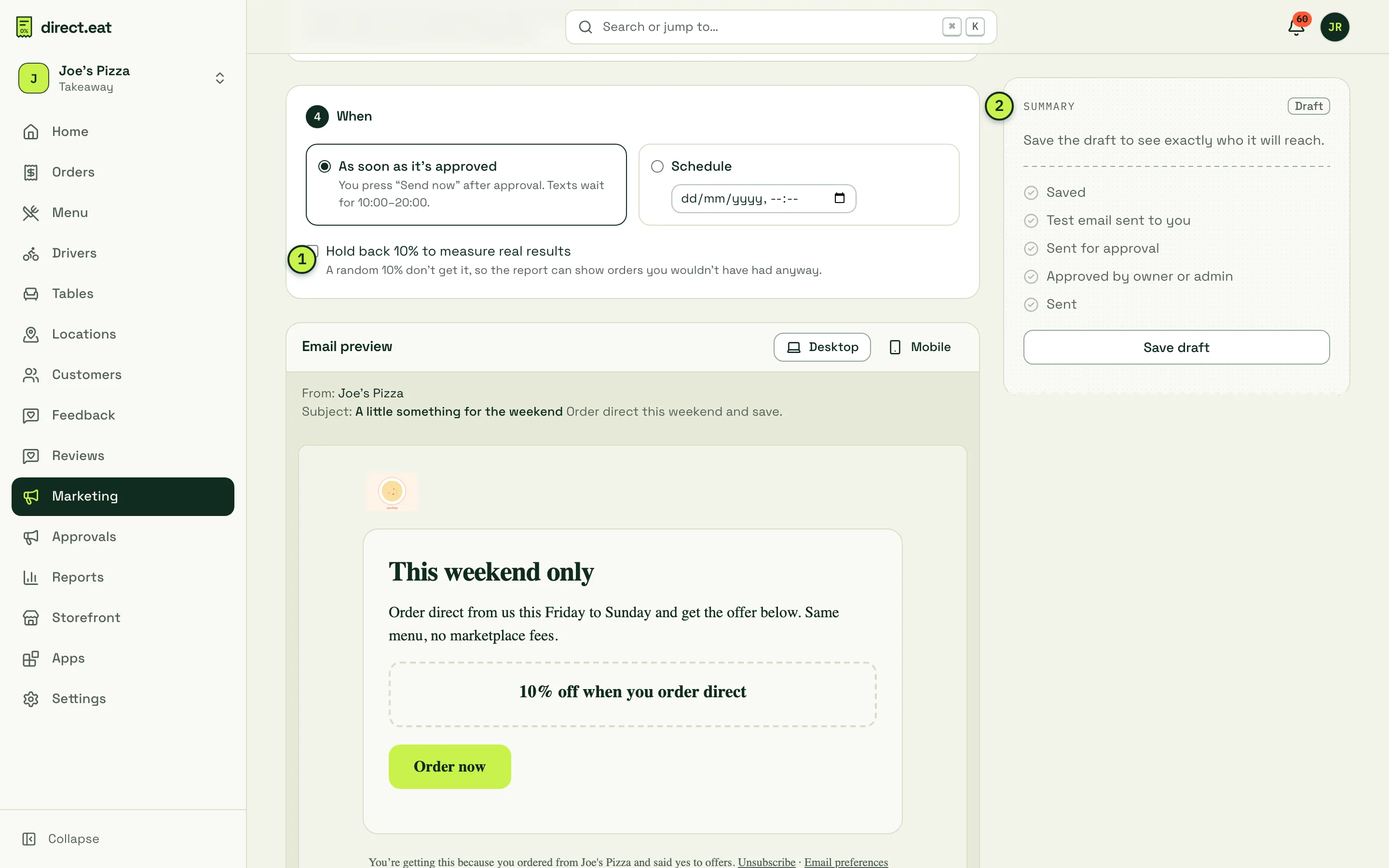
- Hold back 10% to measure real results: a random 10% of the audience don’t get it, so the results can show orders you wouldn’t have had anyway.
- Summary: the checklist to sending: Saved, Test email sent to you, Sent for approval, Approved by owner or admin, Sent. After you save, it also shows recipients, who’s excluded and why, the SMS cost and the worst case of any linked offer.
The Email preview shows the email in your shop’s theme on Desktop or Mobile, with the footer every marketing email carries: why the customer is getting it, Unsubscribe and Email preferences. For texts, an SMS preview counts characters and warns you when an emoji or special character makes the message cost more.
Test, approve, send
Section titled “Test, approve, send”- Click Send test to me. A test is required for every version. If you change anything afterwards, you need a new test.
- Click Send for approval. Owners and admins see it in Approvals with the recipients, exclusions, SMS cost and offer worst case.
- Once approved, press Send now (or wait for the scheduled time).
Editing a campaign after approval cancels the approval: the new version needs a fresh test and approval. You can cancel a scheduled campaign from its page at any time before it sends.
Who gets excluded, and why
Section titled “Who gets excluded, and why”When the campaign sends, every recipient is checked again. A customer is left out if any of these apply:
| Reason shown | What it means |
|---|---|
| Deleted at their request | Their data was erased |
| No email or phone for this channel | Nothing to send to |
| Never agreed | They never ticked the box |
| Unsubscribed | They said no, or used an unsubscribe link |
| No lawful basis | For example imported without evidence of permission |
| Soft opt-in lapsed | No order in 24 months |
| Bounced, complained or blocked | Their address is suppressed |
| Already had enough messages | Frequency limit reached (below) |
If the audience has grown by more than 20% between approval and sending, the send pauses so someone can take another look.
The rules (and why they exist)
Section titled “The rules (and why they exist)”These are built in and can’t be switched off. They follow UK law (PECR and UK GDPR) and keep your sending reputation healthy.
- Only customers who said yes. At checkout the boxes to receive offers by email and by text are unticked. Only the customer can opt in; you can record an opt-out for them, never an opt-in.
- Soft opt-in. Where a customer bought from you and was offered a clear opt-out they didn’t take, you may market your own similar products to them. It lapses after 24 months without an order.
- Frequency limits. At most 2 marketing emails in 7 days and 4 in 30 days per customer, and 1 text in 7 days and 3 in 30 days. This covers campaigns and automations together.
- Quiet hours for texts. Texts only go out 10:00–20:00 Monday to Saturday and 11:00–18:00 on Sunday (UK time). Texts approved outside those hours wait.
- Unsubscribe in one click. Every marketing email has an unsubscribe link and a one-click unsubscribe header that mail apps like Gmail show next to your name. Every text ends with “Reply STOP to opt out” (handling STOP replies automatically arrives with live texts).
- Marketing and service messages are kept apart. Order updates, receipts and review requests are never mixed with offers.
What the customer sees when they unsubscribe
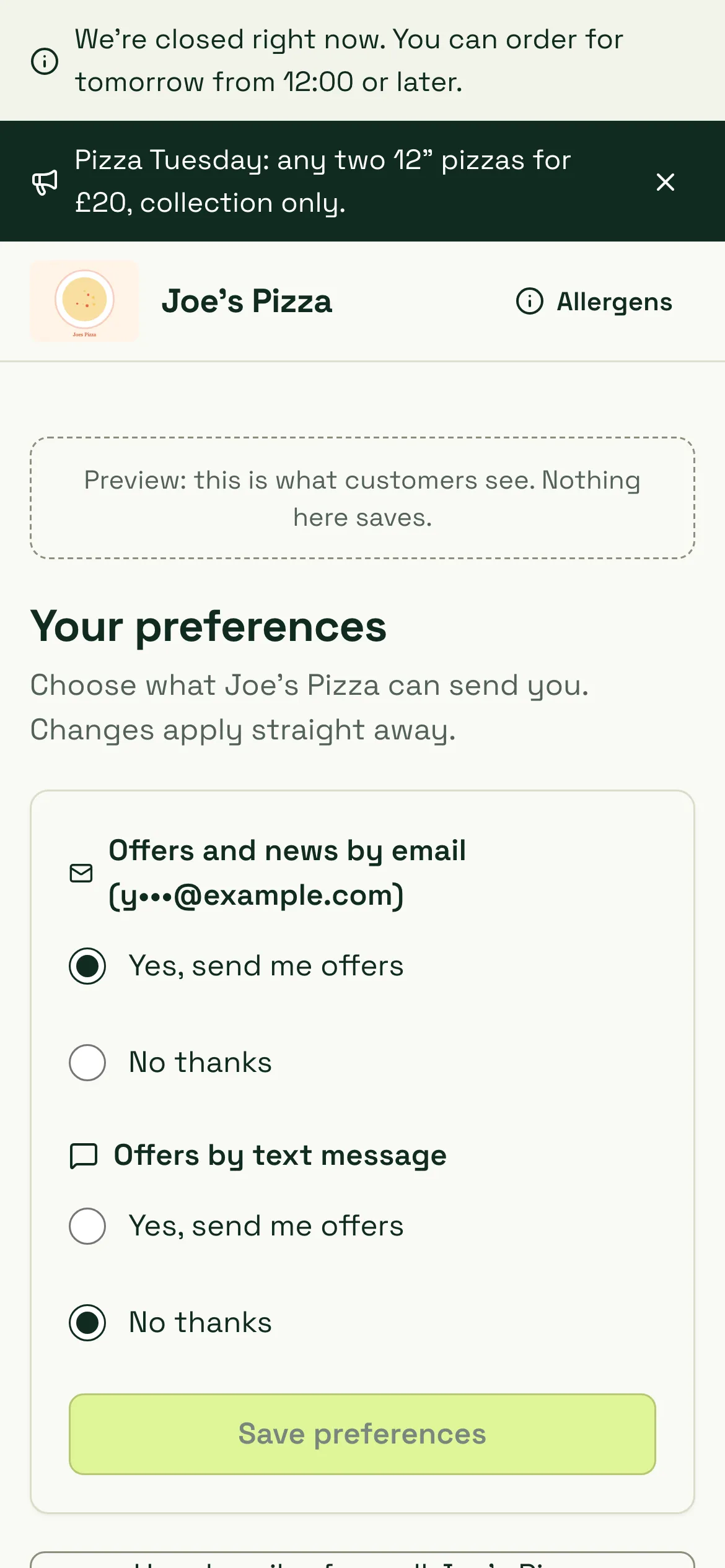
Section titled “What the customer sees when they unsubscribe”The links take them to a preferences page on your storefront, in your branding, where they can change email and text separately or Unsubscribe from all of your marketing. Changes apply straight away. Opening the page never changes anything by itself.
Results
Section titled “Results”Open a sent campaign to see what it did. Orders are counted when someone clicks a link in the message and orders within 3 days. With the 10% hold-back on, the report compares the people who got it with those who didn’t, so you see orders you wouldn’t otherwise have had (it warns you when numbers are too small to mean much). You also see costs and net revenue.
We don’t show open rates: Apple Mail opens emails automatically, which makes open rates unreliable.
- Pick a segment, not “everyone”. At risk and Lapsed customers are worth a nudge; Regular customers don’t need a discount to come back.
- Keep emails short: a headline, two lines and one button.
- Link an offer with a budget so you know the most it can cost.
Related
Section titled “Related”Was this page helpful?