

Themes and the storefront editor
Your storefront is your ordering site at https://your-slug.direct.eat (or your own domain). It carries your name, logo and colours, not ours. This page covers how it looks: the theme, the visual editor, your own pages and announcement bars.
Before you start: owners and admins can change the design. Managers and staff can look at it but not change it (“You can look, but only owners and admins can change the design”).
The storefront hub
Section titled “The storefront hub”Storefront in the left-hand navigation is the overview: where your shop lives and the way into each part of the design.
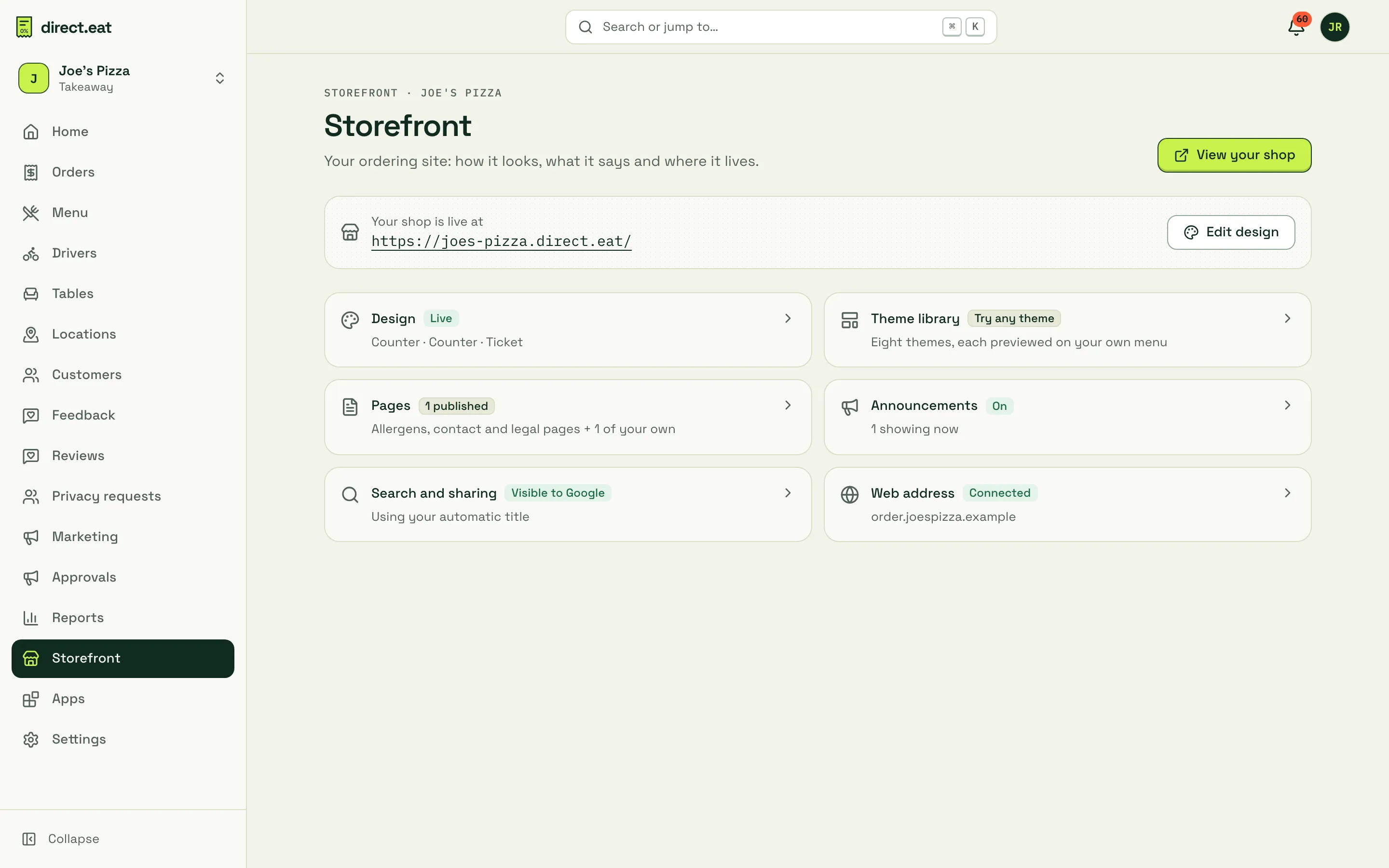
Edit design opens the editor on your live theme. Each card shows the current state: the live theme, the theme library, how many pages you’ve published, whether an announcement is showing, whether Google can see your shop, and your web address.
The theme library
Section titled “The theme library”Open Storefront → Themes (app.direct.eat/s/your-shop/storefront/themes). Every theme is a complete design with its own home page layout, page templates and sections, and every one shows your real menu, photos and opening hours. You can try any of them without changing your live shop.
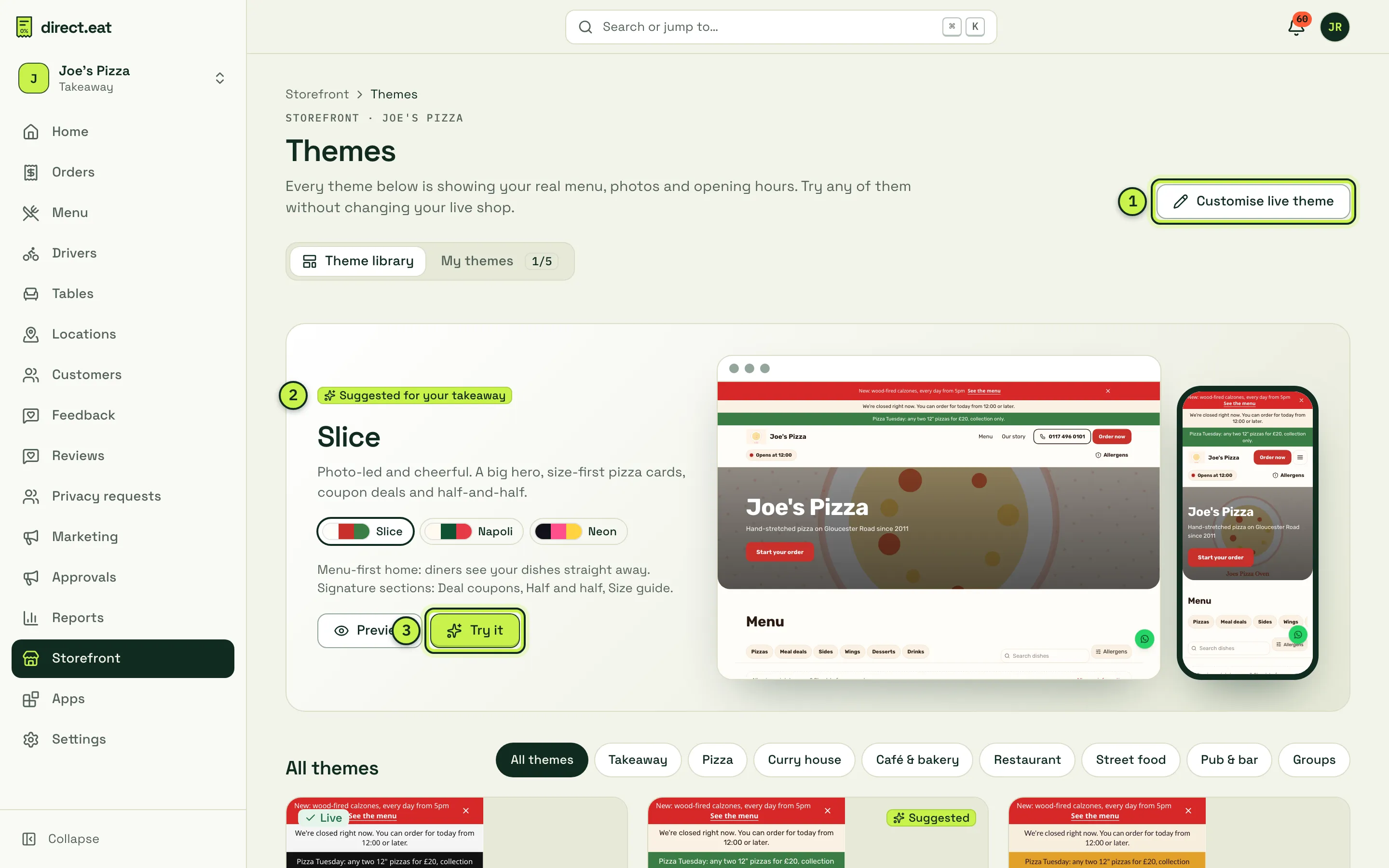
- Customise live theme: opens the editor on the theme your customers see now.
- Suggested: the theme that suits your business type.
- Try it: adds the theme to My themes as a draft you can customise. Your live shop doesn’t change until you publish it. Preview shows it first.
| Theme | Home page | Styles | Best for |
|---|---|---|---|
| Counter | Menu first | Counter, Chippy, Noodle, Ticket | Takeaways, kebab and chicken shops, chippies, noodle bars |
| Slice | Menu first | Slice, Napoli, Neon | Pizza |
| Spice | Menu first | Spice, Masala, Mezze | Indian, Bangladeshi, Nepalese, Turkish |
| Street | Menu first | Street, Smash, Taco | Food trucks, burgers, street food |
| Bakehouse | Landing | Bakehouse, Brunch, Fresh | Bakeries, cafés, pre-orders |
| Tasting | Landing | Tasting, Bistro, Linen | Fine dining, restaurants, set menus |
| Pub | Landing | Pub, Taproom, Inn | Pubs, gastropubs, inns |
| Hub | Landing | Harbour, Mono, Ember | Groups with several shops |
A style swaps the whole colour and type palette of a theme in one click. Filter the library with Takeaway, Pizza, Curry house, Café & bakery, Restaurant, Street food, Pub & bar and Groups.
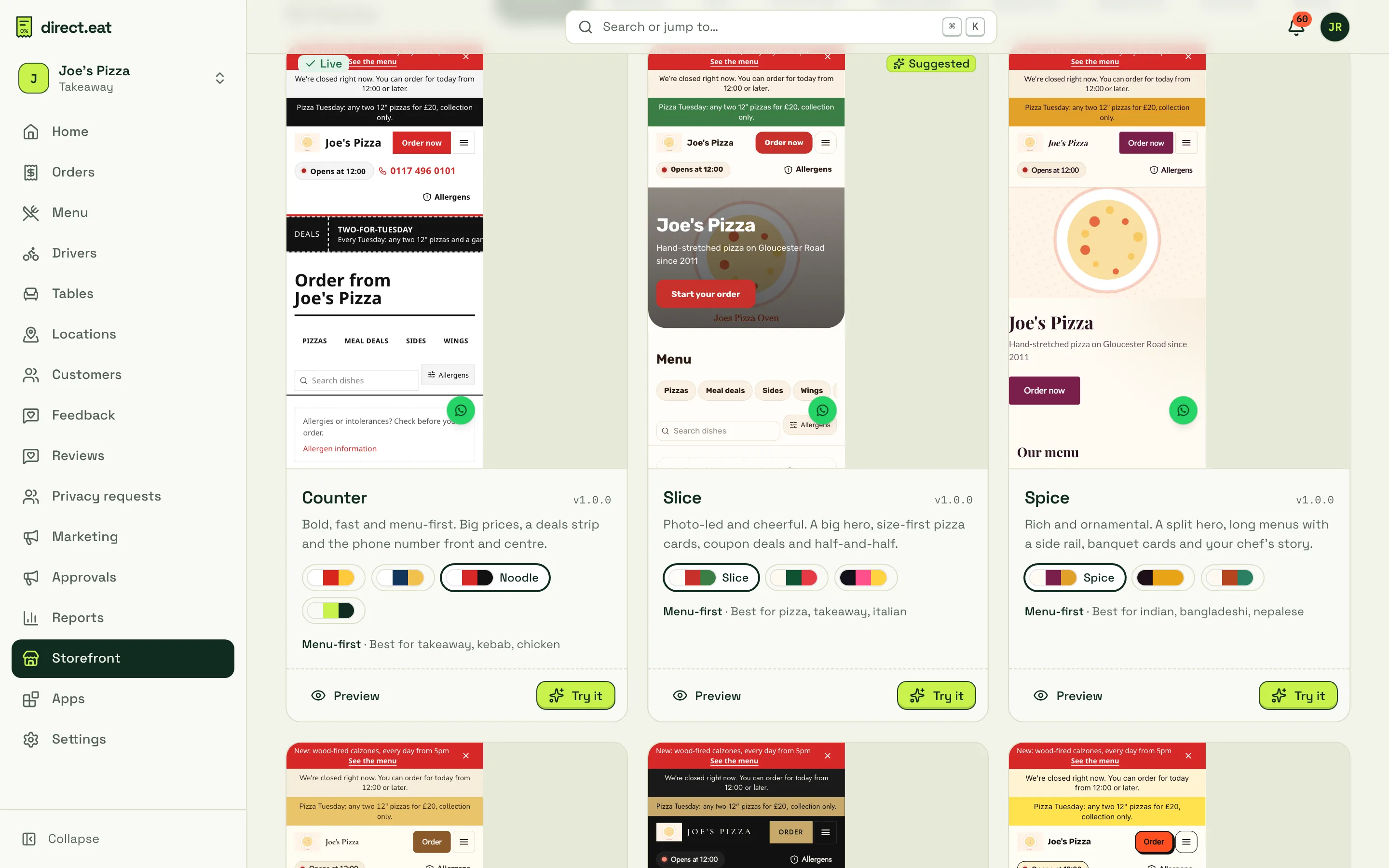
Menu-first or landing home pages
Section titled “Menu-first or landing home pages”- Menu first (Counter, Slice, Spice, Street): your home page is the menu, so diners see dishes straight away.
- Landing (Bakehouse, Tasting, Pub, Hub): a home page with a hero, your story and highlights, for cafés, restaurants, pubs and groups. The full menu is one tap away, and an Order button must be visible without scrolling on every device: the editor won’t let you publish a landing page that hides it.
My themes
Section titled “My themes”My themes holds the themes you’ve tried, with the one that’s live marked Live. Click Customise to edit one, or the ⋯ menu to rename, duplicate, delete or make it live. You can keep 2 themes on Starter, 5 on Growth and 20 on Pro. The live theme can’t be deleted.
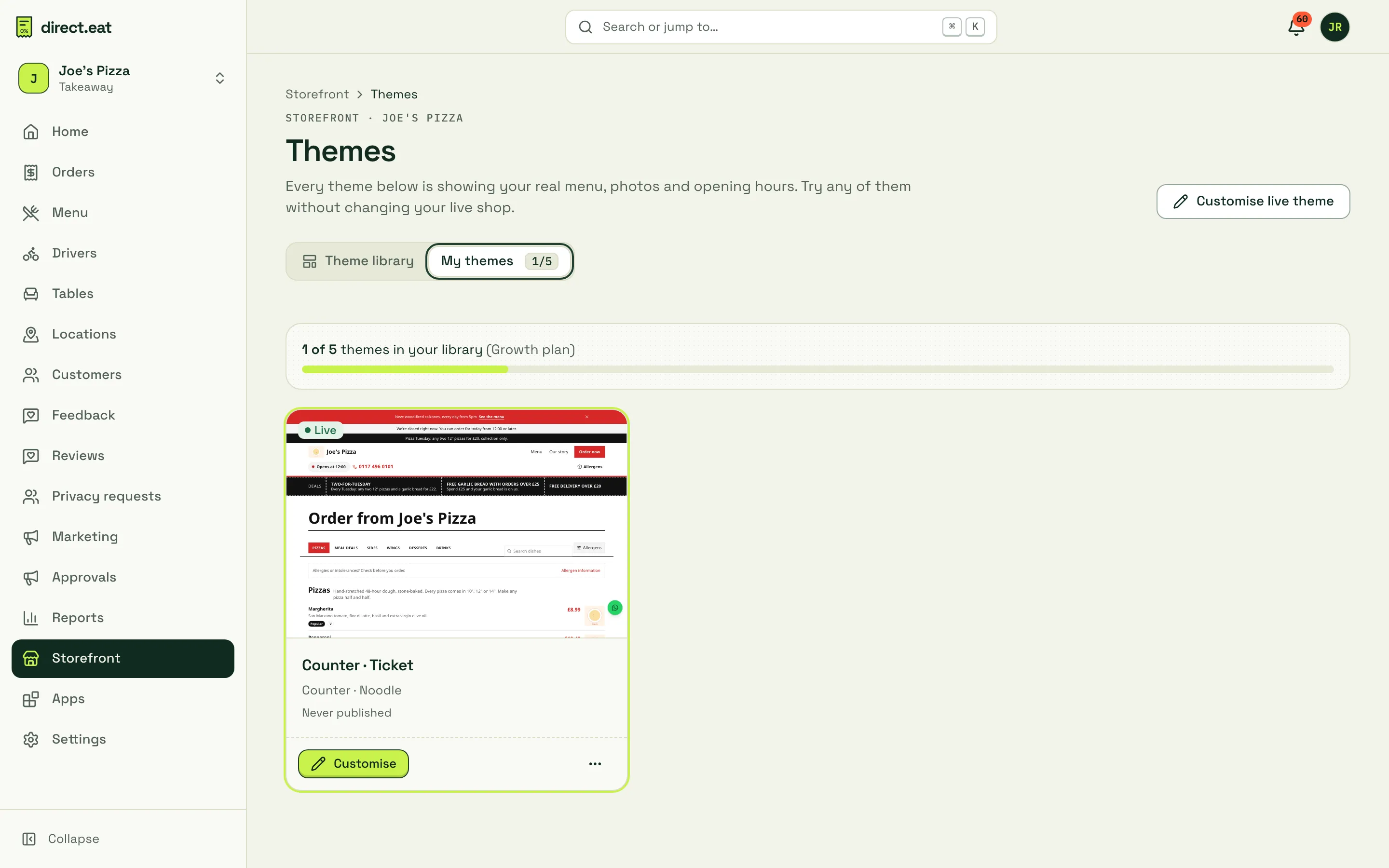
When you switch themes, your logo, cover photo and colour choices carry over where the new theme allows. Anything that won’t carry over is listed before you confirm.
Preview and Try it
Section titled “Preview and Try it”Preview opens a theme full screen on your own menu, with its styles, a page menu (home, menu, a dish, contact and more), Phone, Tablet and Desktop widths, and Try it. Nothing on your live shop changes.
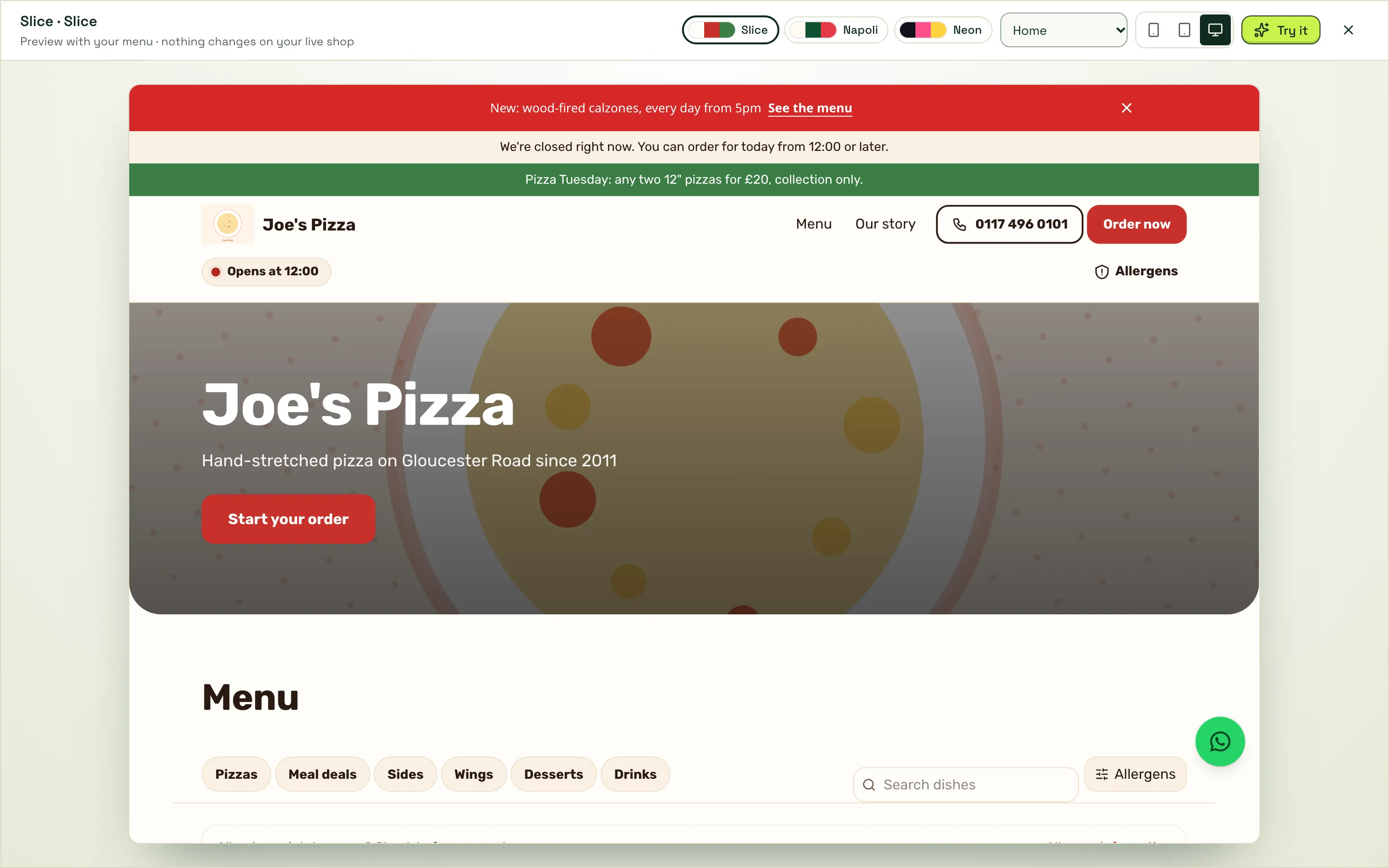
Try it adds an unpublished copy to My themes and opens it in the editor. The dialog lists what carries over and what won’t:
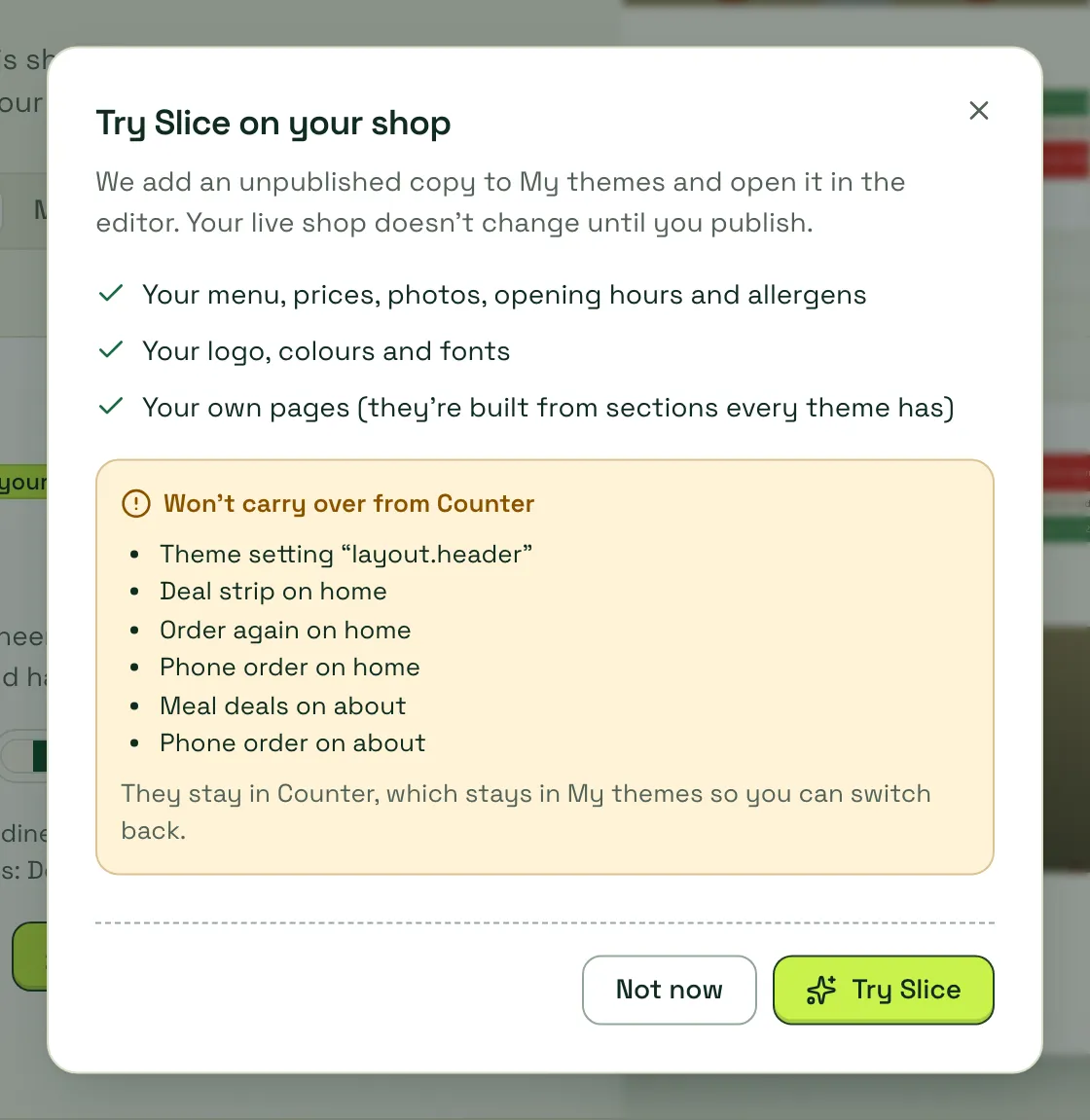
Sections the new theme doesn’t have stay in the old theme, which stays in My themes, so you can switch back.
The visual editor
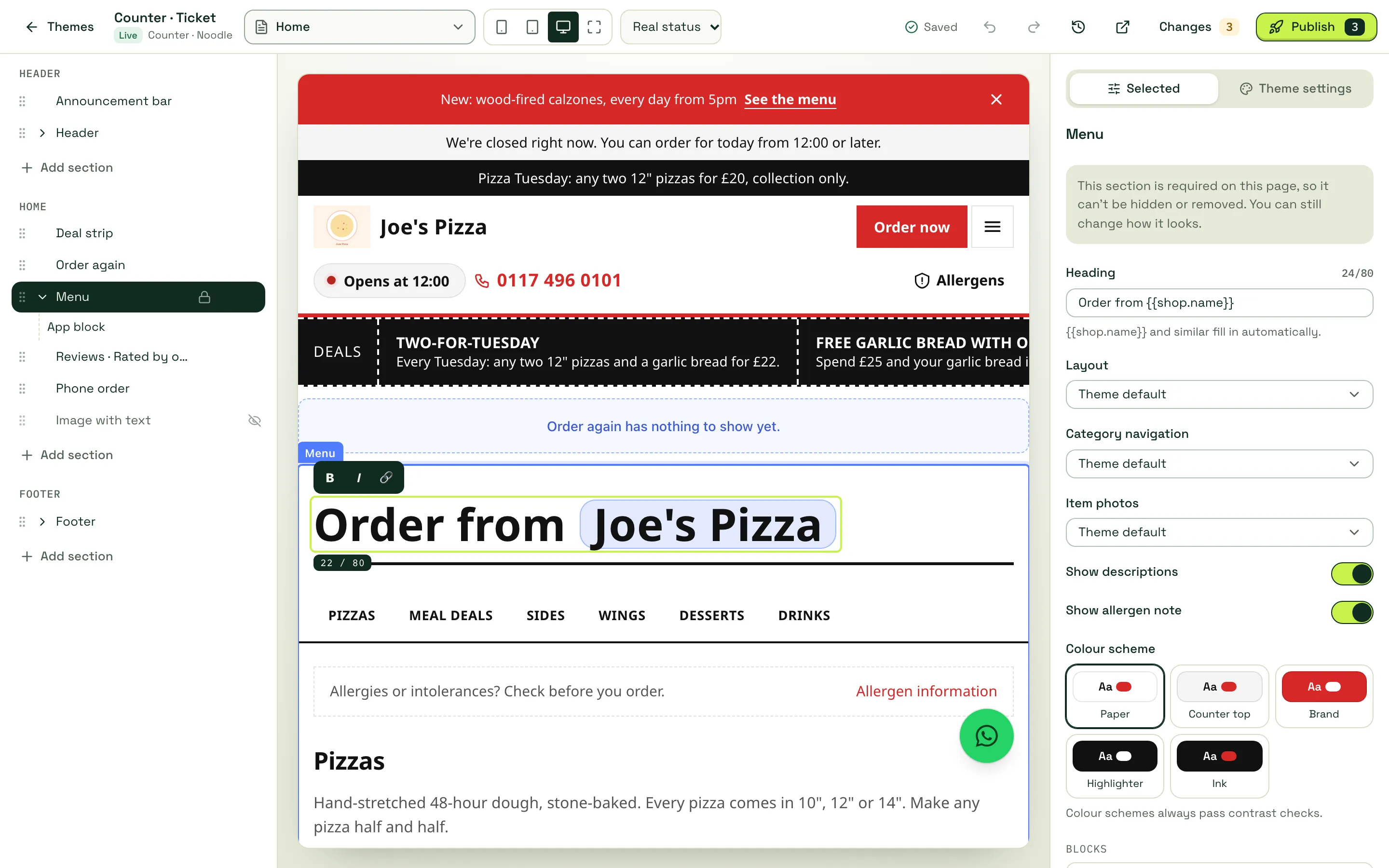
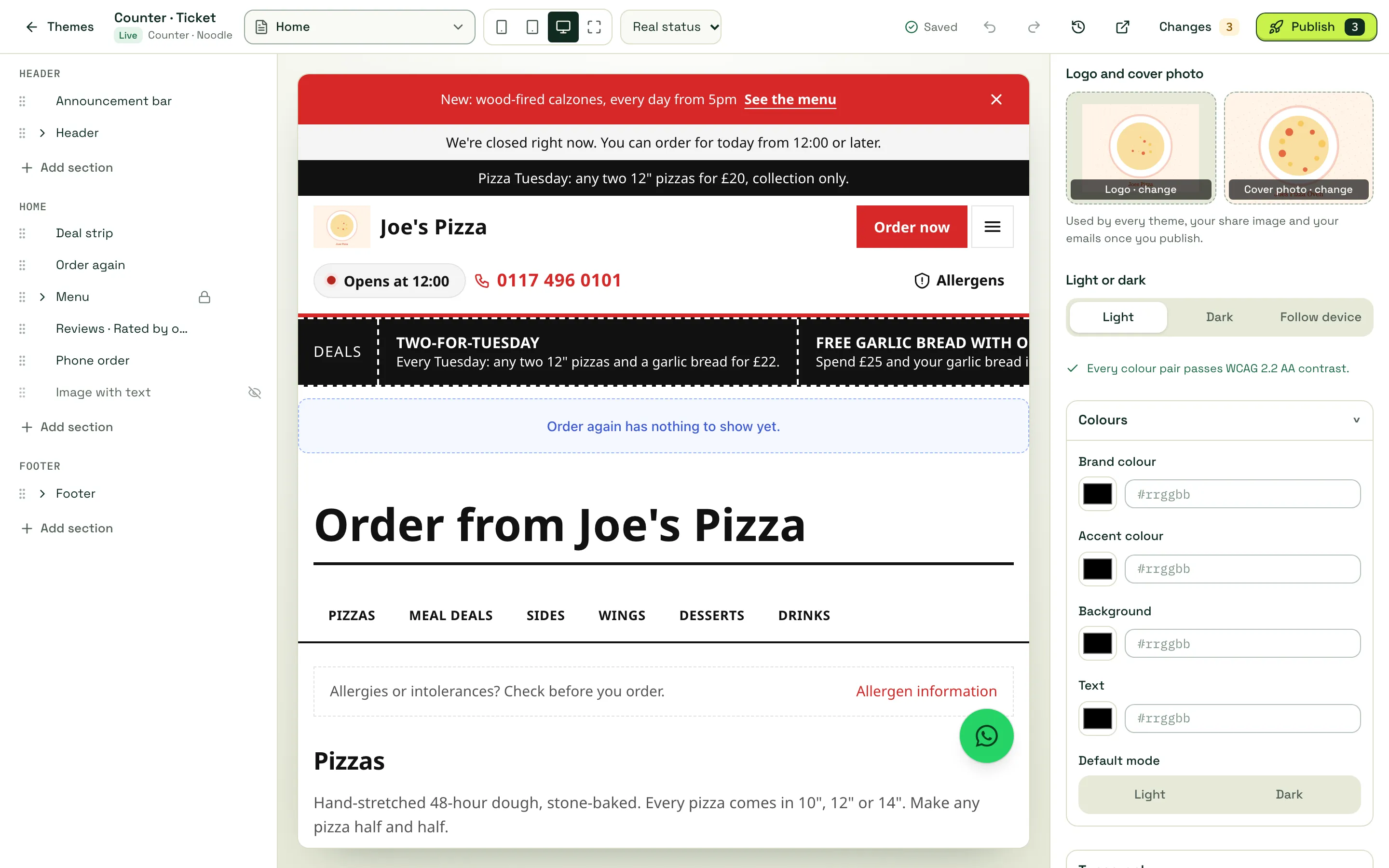
Section titled “The visual editor”Click Customise (or Customise live theme) to open the editor. Your shop is in the middle, the page outline on the left and settings on the right.
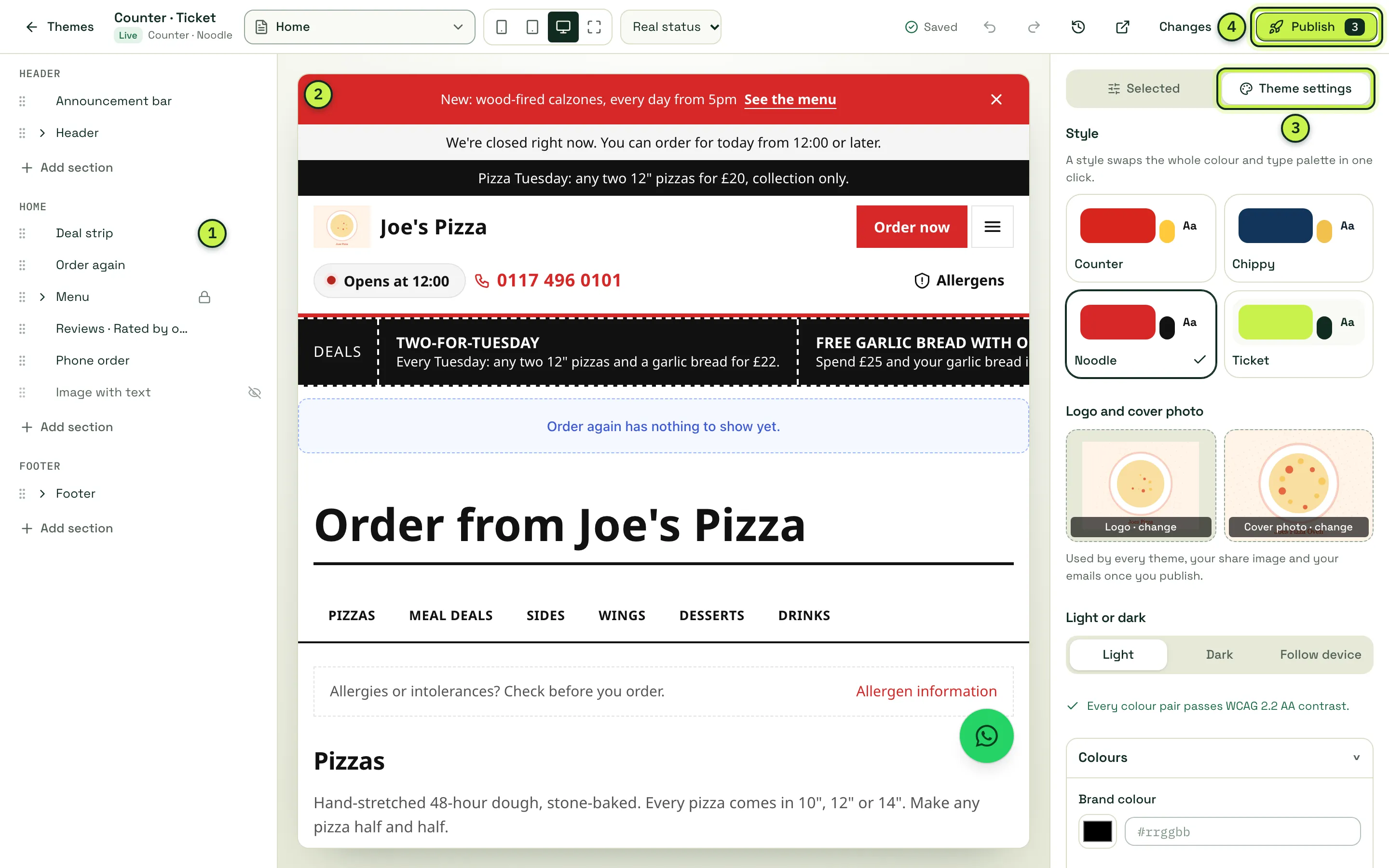
- Page outline: every section on this page, grouped Header, the page itself and Footer. Drag the handle to reorder (or Alt + ↑/↓). A lock means the section is required; a crossed-out eye means it’s hidden.
- Your shop: click any section, heading or photo to select it. Double-click text to type straight onto it.
- Selected and Theme settings: settings for what you clicked, or for the whole theme.
- Changes and Publish: what’s not live yet, and the button to put it live.
Along the top: Themes (back to the library), the page you’re editing, Phone, Tablet, Desktop and Fit to window widths, and a Real status menu to preview your shop as Open, Busy, Paused or Closed. Then undo (Ctrl+Z), redo (Shift+Ctrl+Z), Versions and sharing, and Open the preview in a new tab. Everything saves as you go (“Saved”).
Edit a section
Section titled “Edit a section”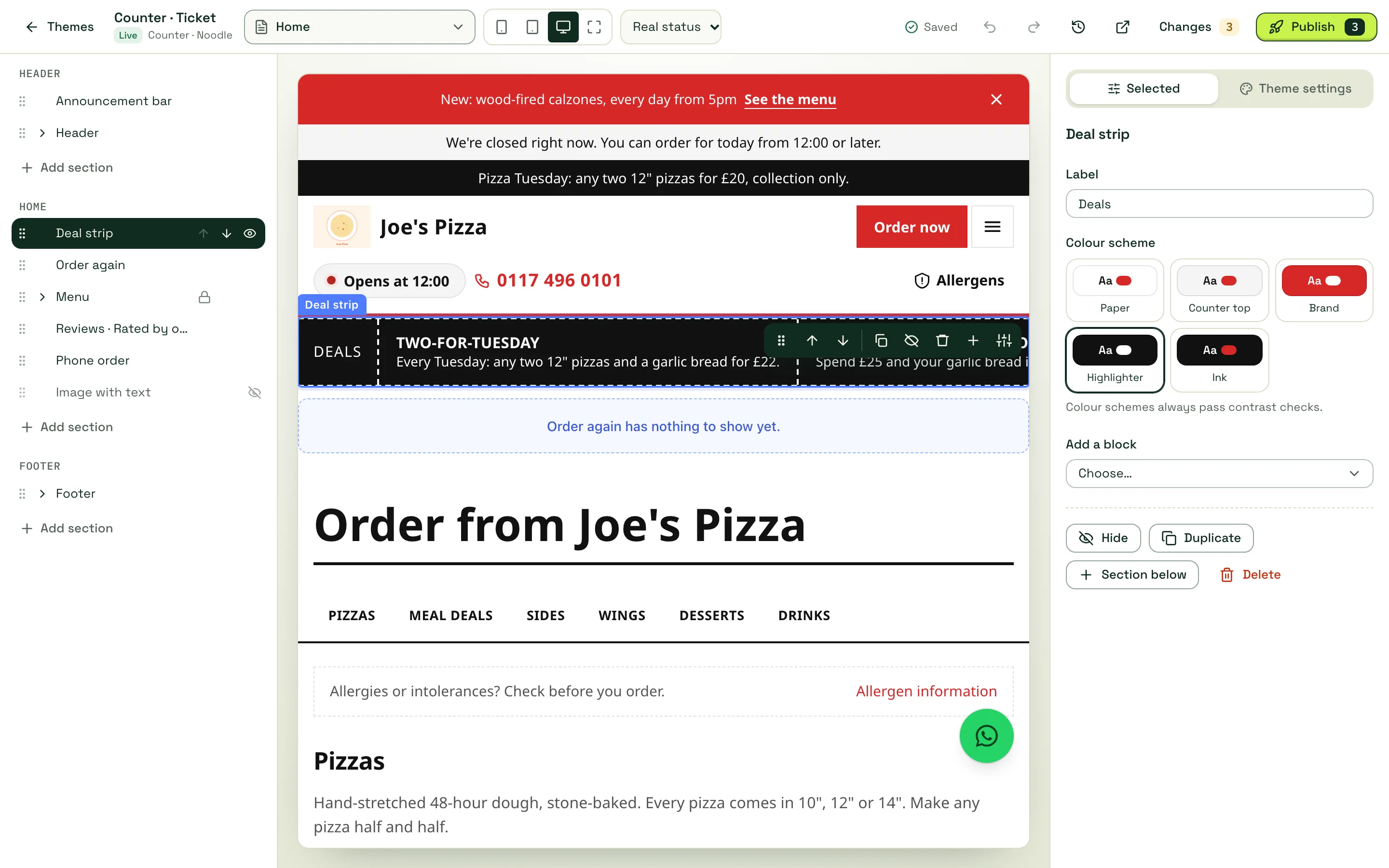
When a section is selected:
- A toolbar on the section moves it up or down, duplicates, hides, deletes or adds a section below.
- The Selected panel shows its settings: text, photos, layout and a Colour scheme (colour schemes always pass contrast checks). Add a block adds a button, image, rating or other block inside the section.
- Text fields can use
{{shop.name}}and similar, which fill in automatically.
Edit text and photos in place
Section titled “Edit text and photos in place”Double-click text on the canvas (or select it and press Enter) to type straight onto your storefront. What you can do depends on the field: headings and short text are plain text; longer text allows bold, italic and links, plus lists and sub-headings in rich text. Pasted text loses its formatting, and a counter shows the limit.
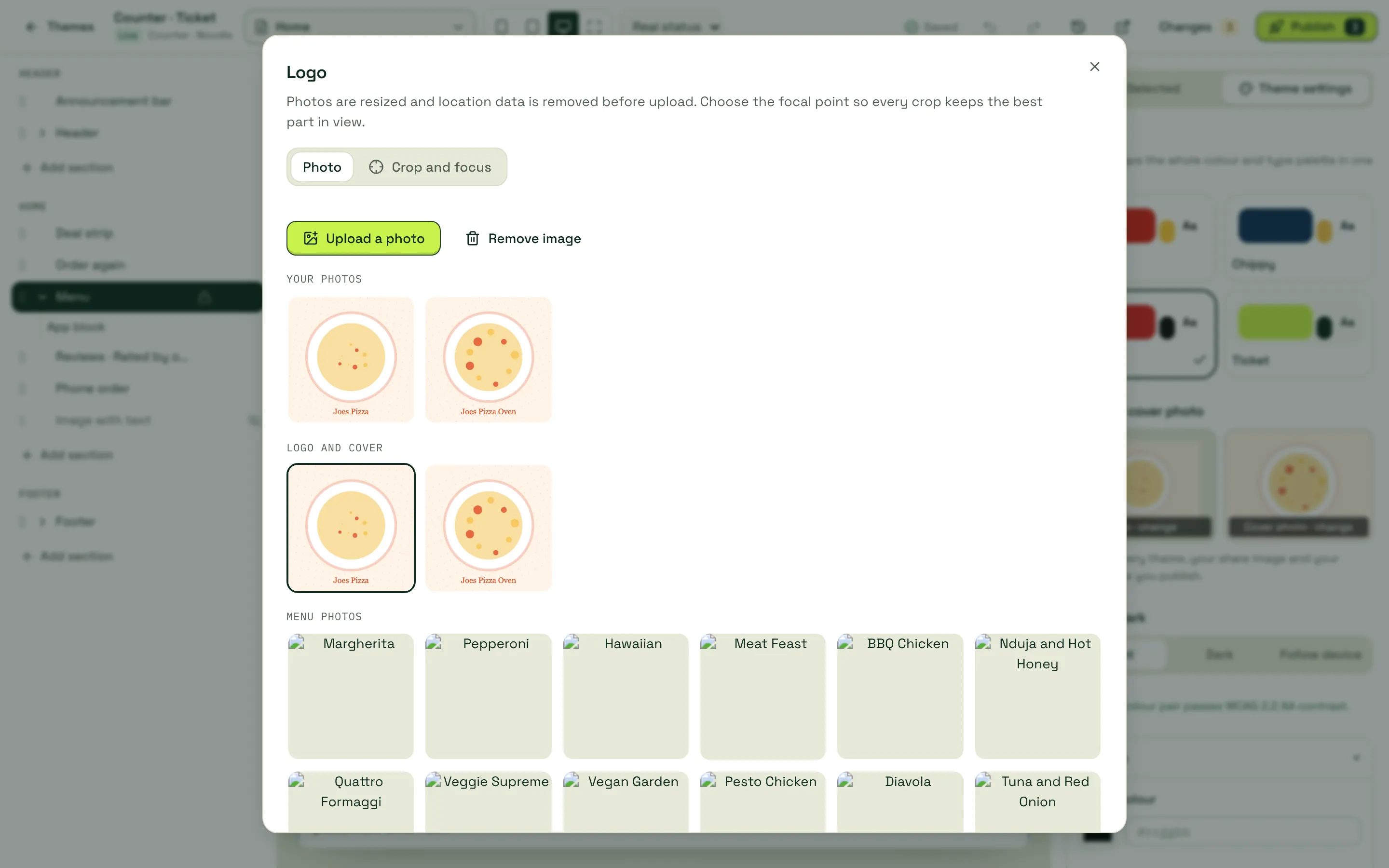
Select a photo and choose Replace on its toolbar, or use Logo · change and Cover photo · change in Theme settings. The image dialog lets you upload, reuse Your photos, your Logo and cover or Menu photos, set the focal point on Crop and focus (with a separate phone crop), and add a Description for screen readers (needed to publish; Suggest offers one) or mark the photo as decorative. Photos are resized, converted to WebP and stripped of location data; SVG files aren’t accepted.
Drag sections
Section titled “Drag sections”Drag a section by the grip on its toolbar, on the canvas or in the outline; a line shows where it will land, and it can only land where that section is allowed. Without a mouse, use the move buttons or Alt + ↑/↓ in the outline. Blocks inside a section are moved in the outline.
Add a section
Section titled “Add a section”Click Add section in the outline (or + on the toolbar). Sections fill themselves from your shop: menu, photos, hours and reviews.
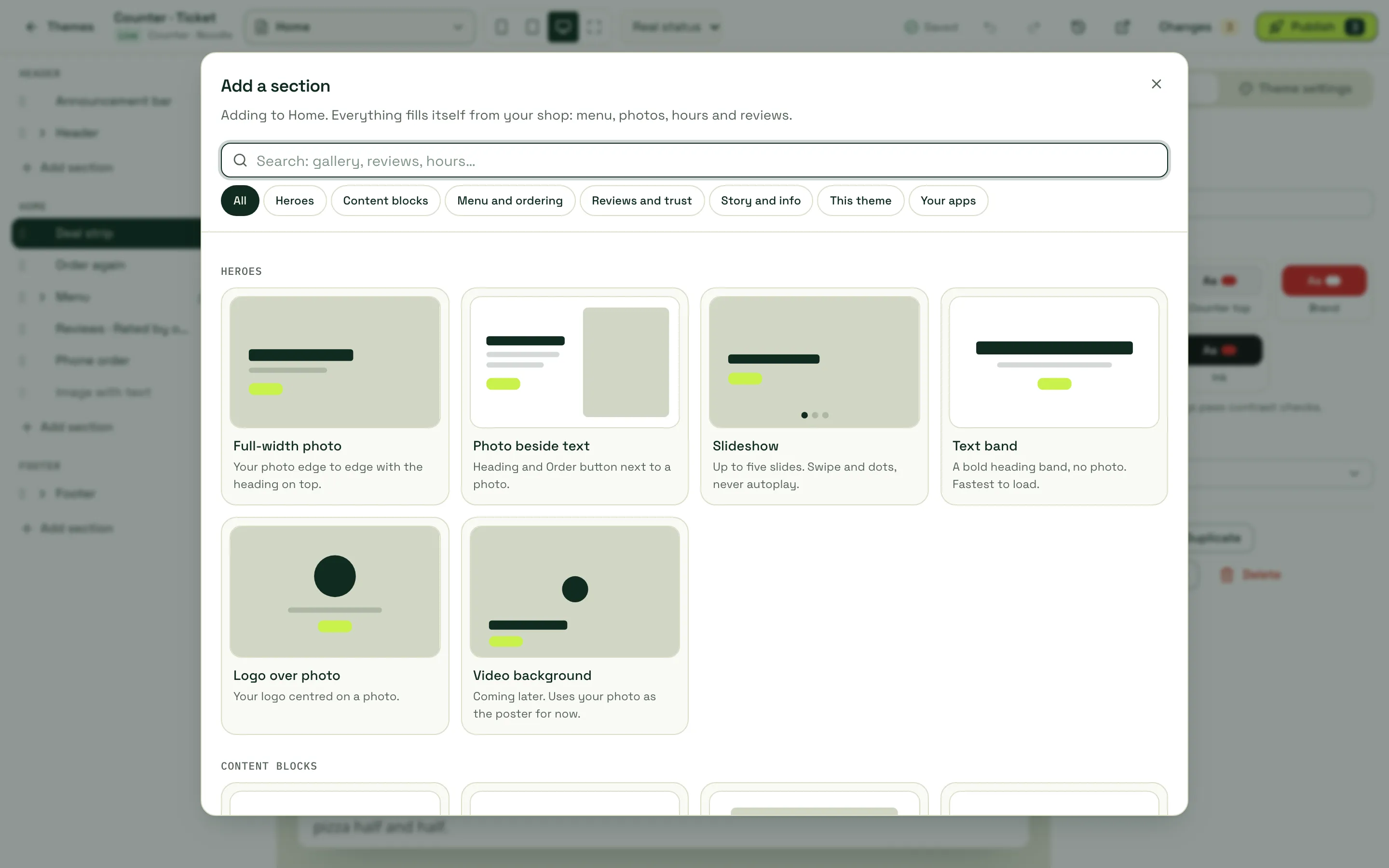
- Heroes: Full-width photo, Photo beside text, Slideshow (up to five slides, no autoplay), Text band and Logo over photo.
- Content blocks: headings, text, images, photo beside text, galleries, buttons, quotes, opening hours, maps, questions and answers, dividers and featured dishes.
- Menu and ordering, Reviews and trust, Story and info, and This theme (the theme’s own signature sections, such as Slice’s deal coupons or Pub’s Sunday roast pre-order).
A page can have up to 25 sections. Sections with nothing to show (no reviews yet, for example) hide themselves on your shop; the editor shows a hint instead.
Sections you can’t remove
Section titled “Sections you can’t remove”Some sections and blocks are required by law or by direct.eat, and are marked Required:
- The menu, with an allergen summary on every item.
- Allergen information one tap away.
- Your trader details: who you are and how to contact you.
- Legal links: privacy, terms, allergens and accessibility.
- The “Powered by direct.eat” badge in the footer, set by your plan.
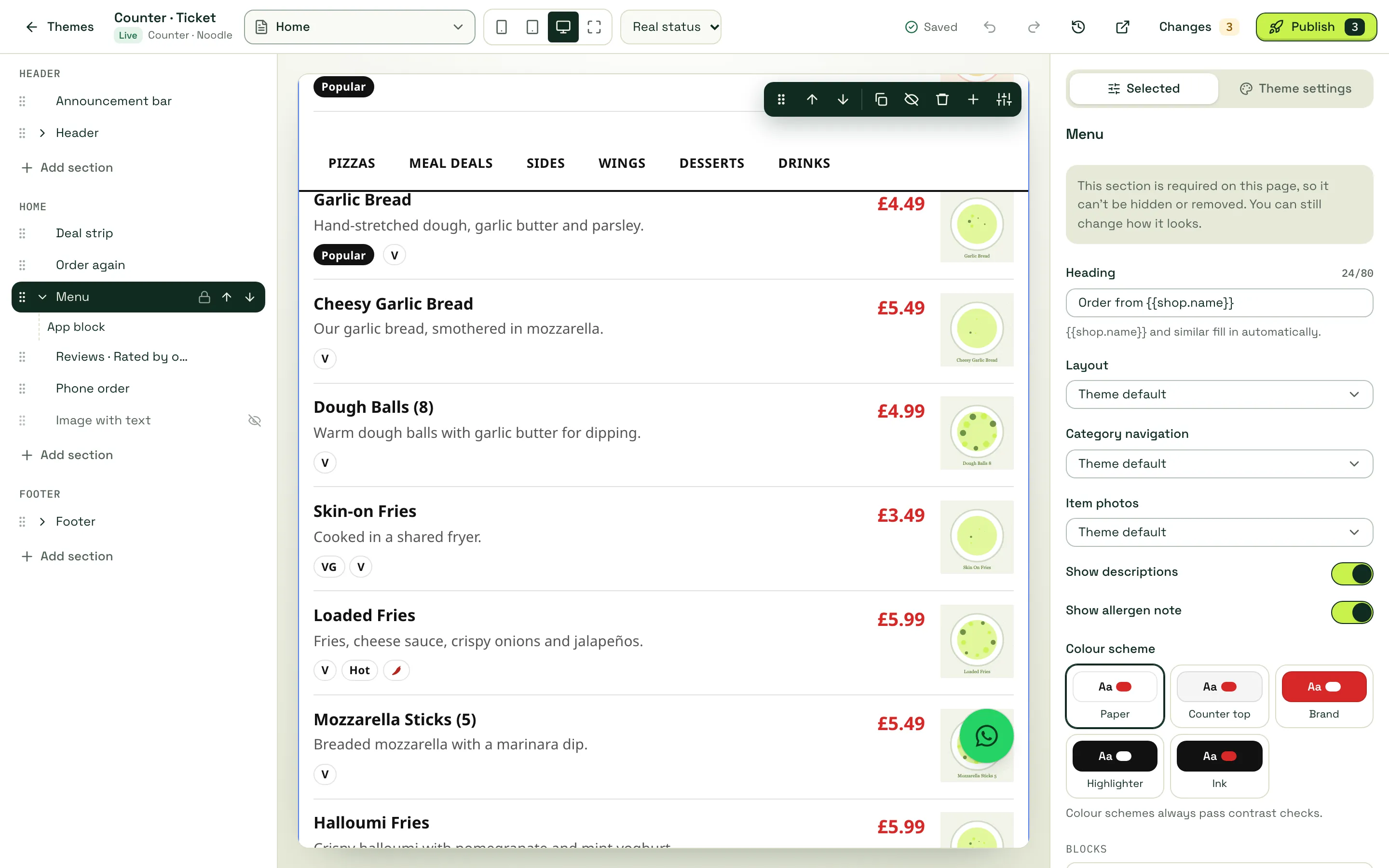
You can still change how a required section looks.
Pages in the editor
Section titled “Pages in the editor”The page menu at the top lets you edit every page type: Home, Menu, a category, a dish, Contact, Allergens, Page not found (404) and your own pages, plus + New page…. The basket and checkout use your colours but their layout is fixed.
Theme settings
Section titled “Theme settings”Theme settings apply to every page: Style, Logo and cover photo, Light or dark (Light, Dark or Follow device), Colours (brand, accent, background, text), Typography, Shape, Layout, Header and the “Powered by direct.eat” badge. Every colour pair is checked against WCAG 2.2 AA contrast as you change it (“Every colour pair passes WCAG 2.2 AA contrast”).
Publish
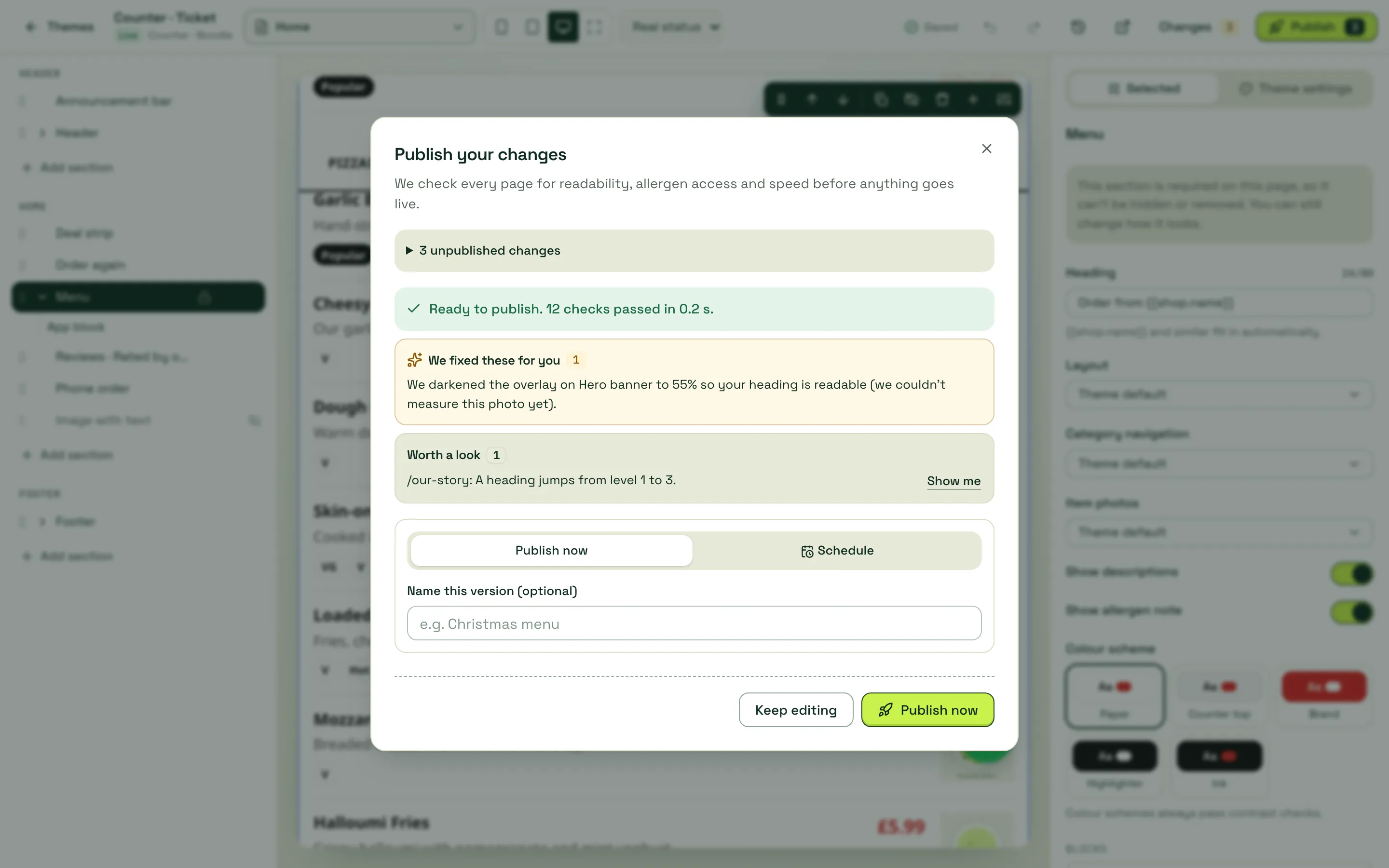
Section titled “Publish”Click Changes to see what’s not live yet. Click Publish and Publish your changes checks every page for readability, allergen access and speed before anything goes live. The results are grouped:
- Must fix: you can’t publish until it’s fixed. Show me takes you to it.
- We fixed these for you: for example a photo overlay darkened so text stays readable.
- Worth a look: suggestions.
Then Publish now, with an optional name in Name this version. “Published. Your shop has its new look.” On Growth and Pro you can Schedule the publish instead: the checks run when you schedule, and the checked version goes live at the time you chose. A scheduled publish shows on the theme in My themes, where you can cancel it.
Versions and sharing
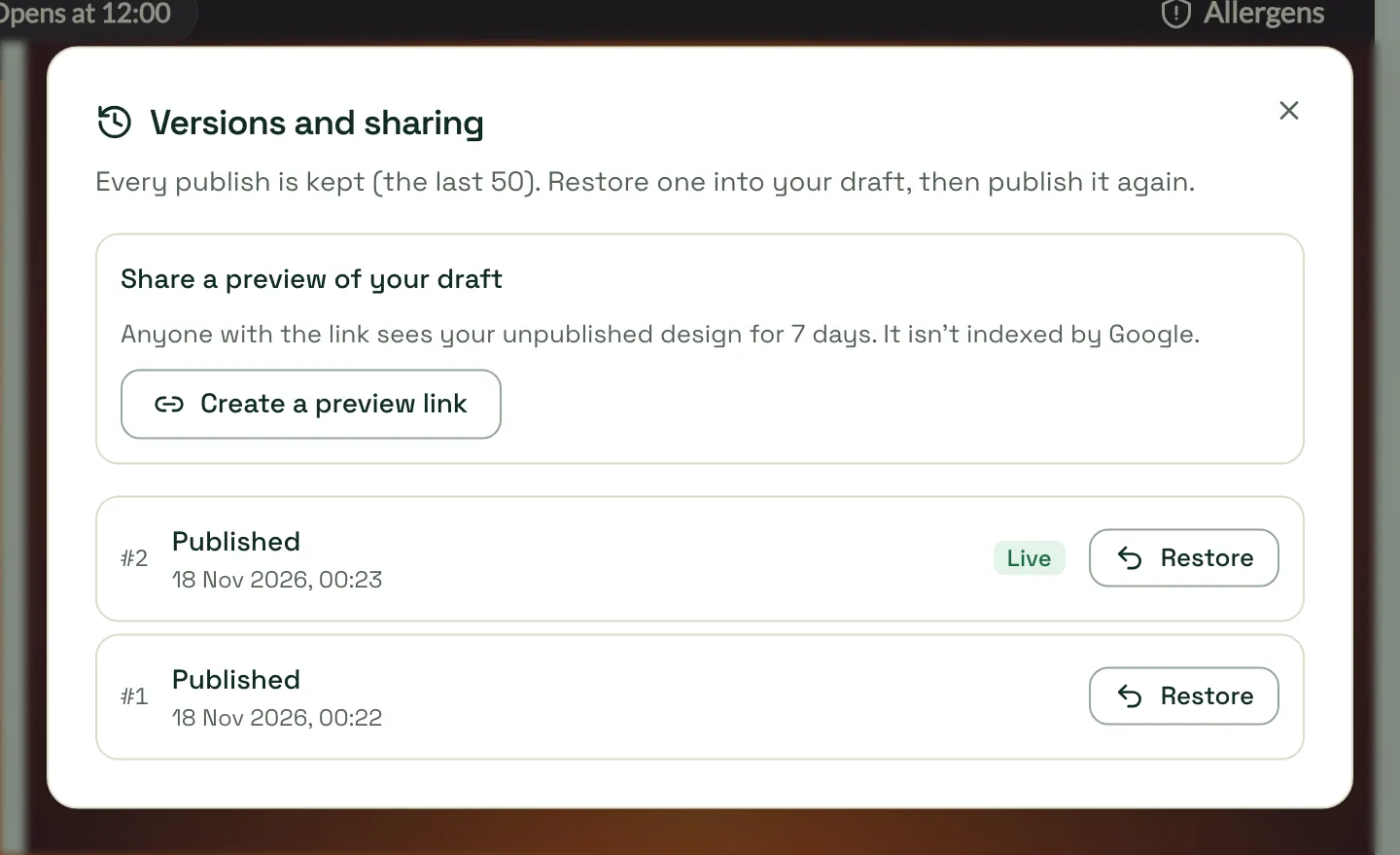
Section titled “Versions and sharing”The clock button in the top bar opens Versions and sharing. Every publish is kept (the last 50). Restore puts a version into your draft; nothing goes live until you publish. Create a preview link makes a private link to your draft for someone else: no login needed, hidden from Google, valid for 7 days.
Settings → Storefront design
Section titled “Settings → Storefront design”Settings → Storefront design shows your Live theme with Theme library and Customise, and three tabs for the parts that aren’t edited on the canvas: Pages and menus, Announcements, and Search and hygiene rating.
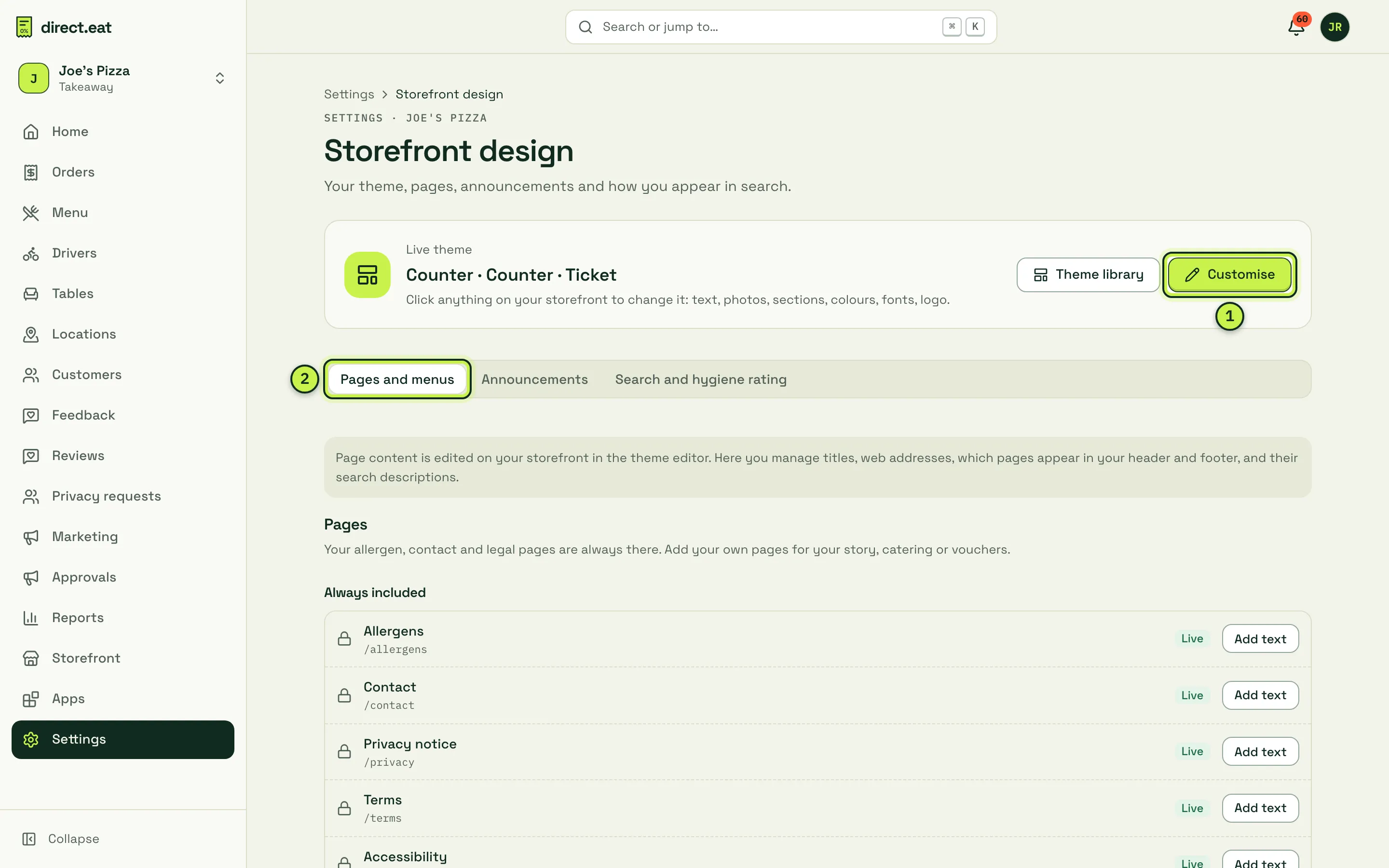
- Customise: opens the editor on the live theme.
- Tabs for pages and menus, announcements, and search.
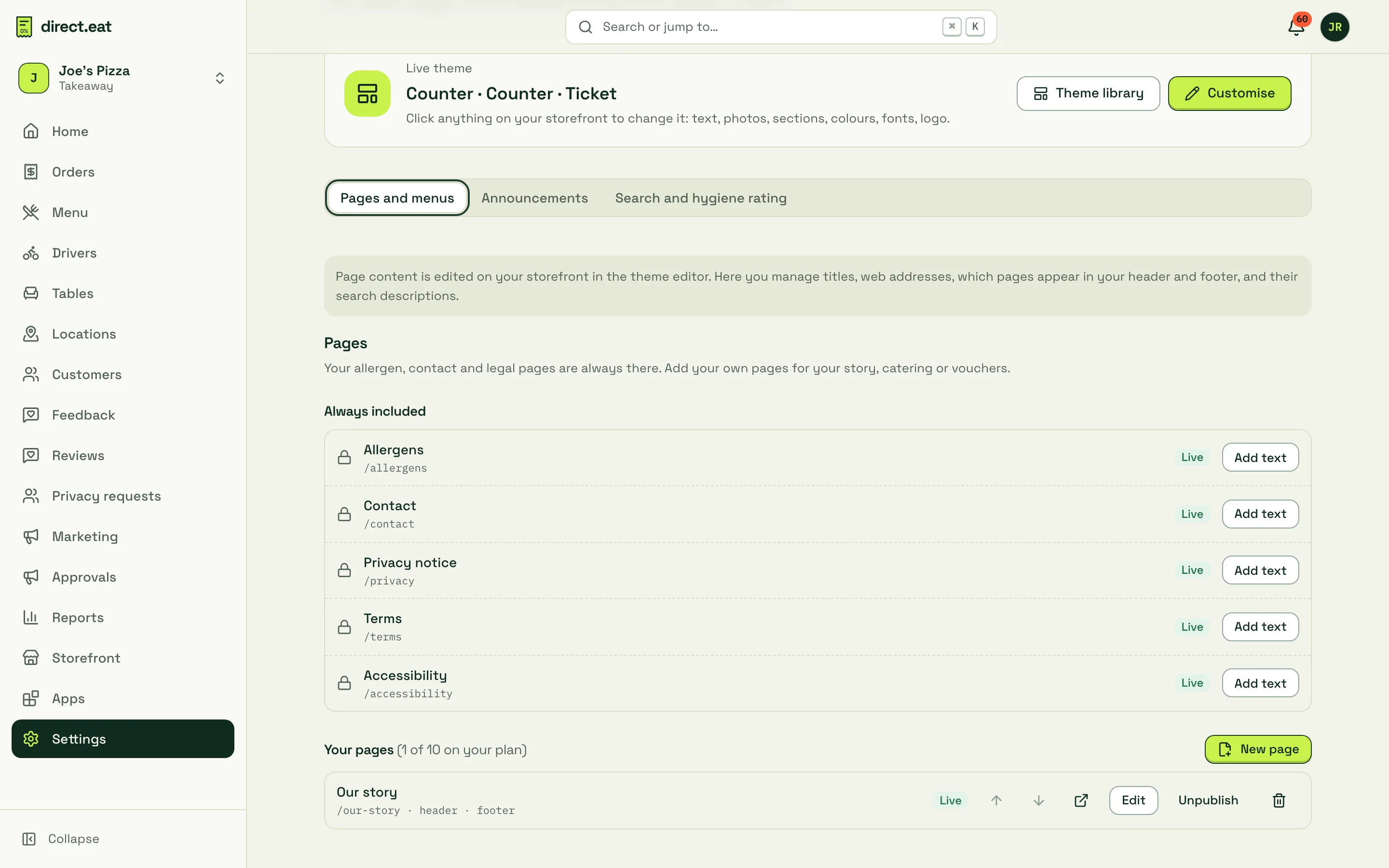
Your storefront always has an Allergens, Contact, Privacy notice, Terms and Accessibility page. You can add your own text to them (Add text), but you can’t delete them: the legal content and the allergen table are always there.
Settings → Storefront design → Pages and menus manages titles, web addresses, which pages appear in your header and footer, and their search descriptions. In the editor, + New page in the page menu creates a page you build from sections on the canvas, like your home page.
Add your own page
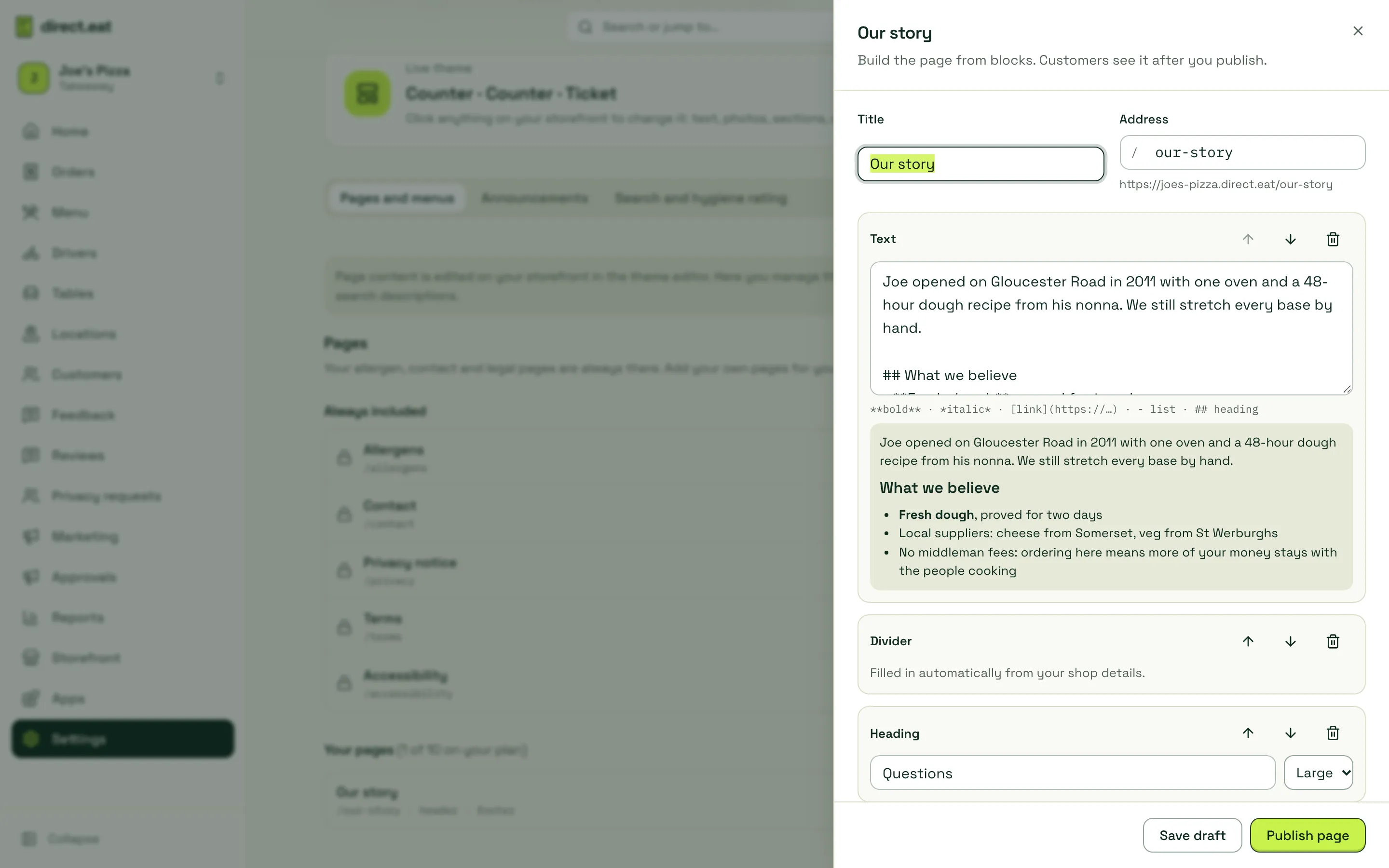
Section titled “Add your own page”- Click New page. Give it a Title; the Address is filled in for you (for example
/our-story). - Add a block: Heading, Text, Image, Button, Opening hours, Questions and answers, Allergen table, Contact details or Divider. Opening hours and contact details fill in from your shop details.
- Move blocks up and down with the arrows. Text supports simple formatting:
**bold**,*italic*, links, lists and## headings, with a formatted preview underneath. - Tick Show in the header menu (up to 5 pages) and Show in the footer if you want it there, and fill in Search engines (optional) for the Google title and description.
- Save draft to come back later, or Publish page.
How many of your own pages you can have depends on your plan: 3 on Starter, 10 on Growth and 50 on Pro. Unpublish takes a page down without deleting it.
Announcements
Section titled “Announcements”A bar above your shop for news and offers. Up to 3 can show at once, each with an optional start and end date and time (UK time). Customers can close info and offer bars.
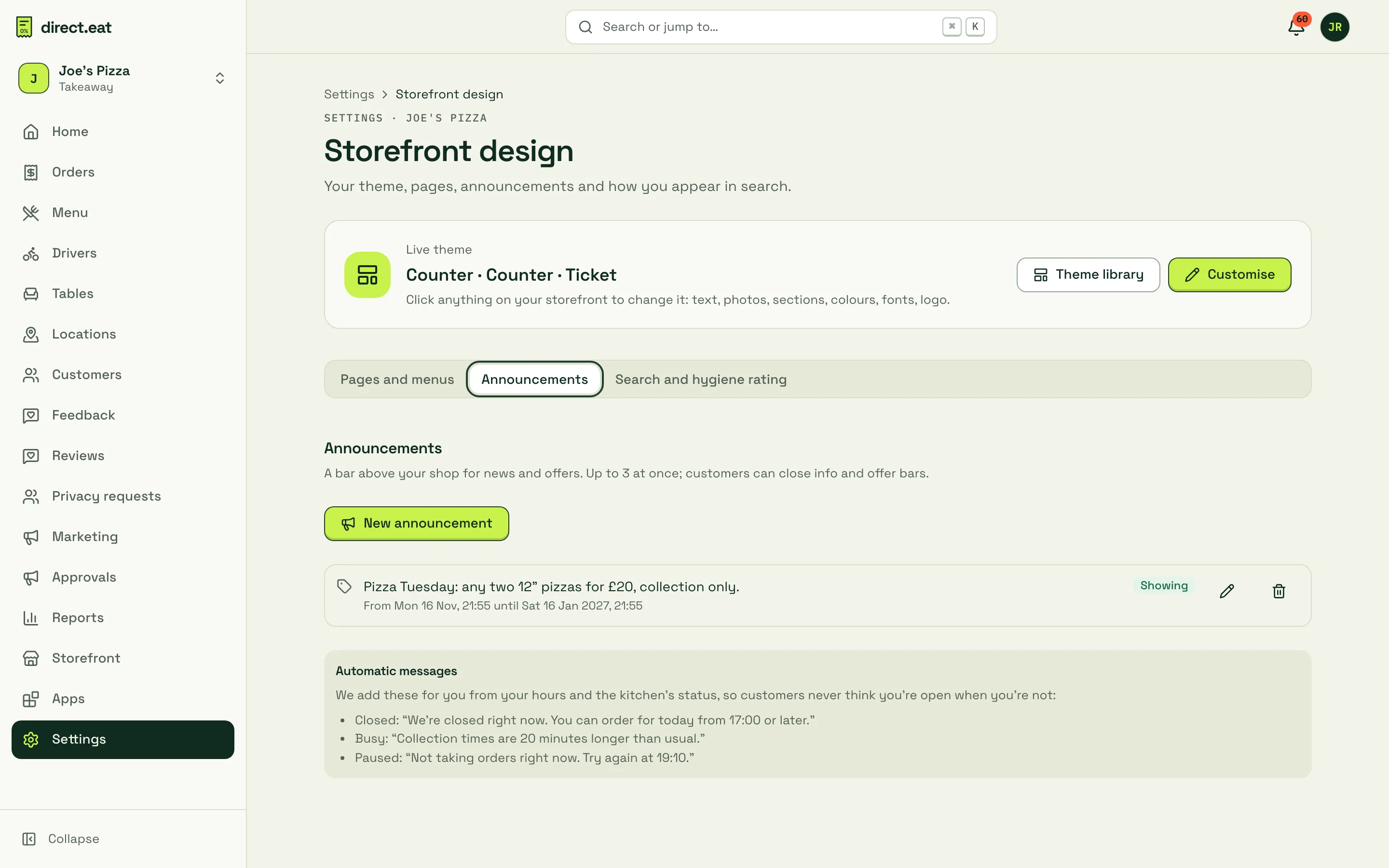
Automatic messages are added for you from your hours and the kitchen’s status, so customers never think you’re open when you’re not:
- Closed: “We’re closed right now. You can order for today from 17:00 or later.”
- Busy: “Collection times are 20 minutes longer than usual.”
- Paused: “Not taking orders right now. Try again at 19:10.”
You can’t edit or remove these. On checkout, only warnings show, and nothing ever covers the Pay button.
Footer and the “Powered by” badge
Section titled “Footer and the “Powered by” badge”Choose the badge in the editor under Theme settings → “Powered by direct.eat”.
Your shop is always branded as yours. Our badge only ever appears small, in the footer, and never in your header, menu, item pages or checkout.
| Plan | Badge choices |
|---|---|
| Starter | Ordering by direct.eat (small badge with our logo) |
| Growth | Also Minimal text link |
| Pro | Also No badge |
Your privacy notice always says that direct.eat processes order data on your behalf. That’s a legal requirement, not branding, so it stays on every plan.
Search
Section titled “Search”Search and hygiene rating sets how your shop looks on Google and when shared, and whether your food hygiene rating shows. It’s covered in Storefront settings. Design history is in the editor: see Versions and sharing.
Guardrails
Section titled “Guardrails”Some things no theme or setting can change, to keep every storefront safe and legal:
- No custom code. There’s no custom CSS, HTML, scripts or embeds anywhere. Text is formatted text only, and links can only go to web pages, email, phone or your own site.
- Checkout and payment pages are controlled by direct.eat, for card security. They use your colours.
- Allergen information is always one tap away: in the header, on every item and at checkout.
- Readable colours (WCAG 2.2 AA contrast), visible focus outlines for keyboard users, and support for reduced motion.
- Badge rules per plan, as above.
What customers see
Section titled “What customers see”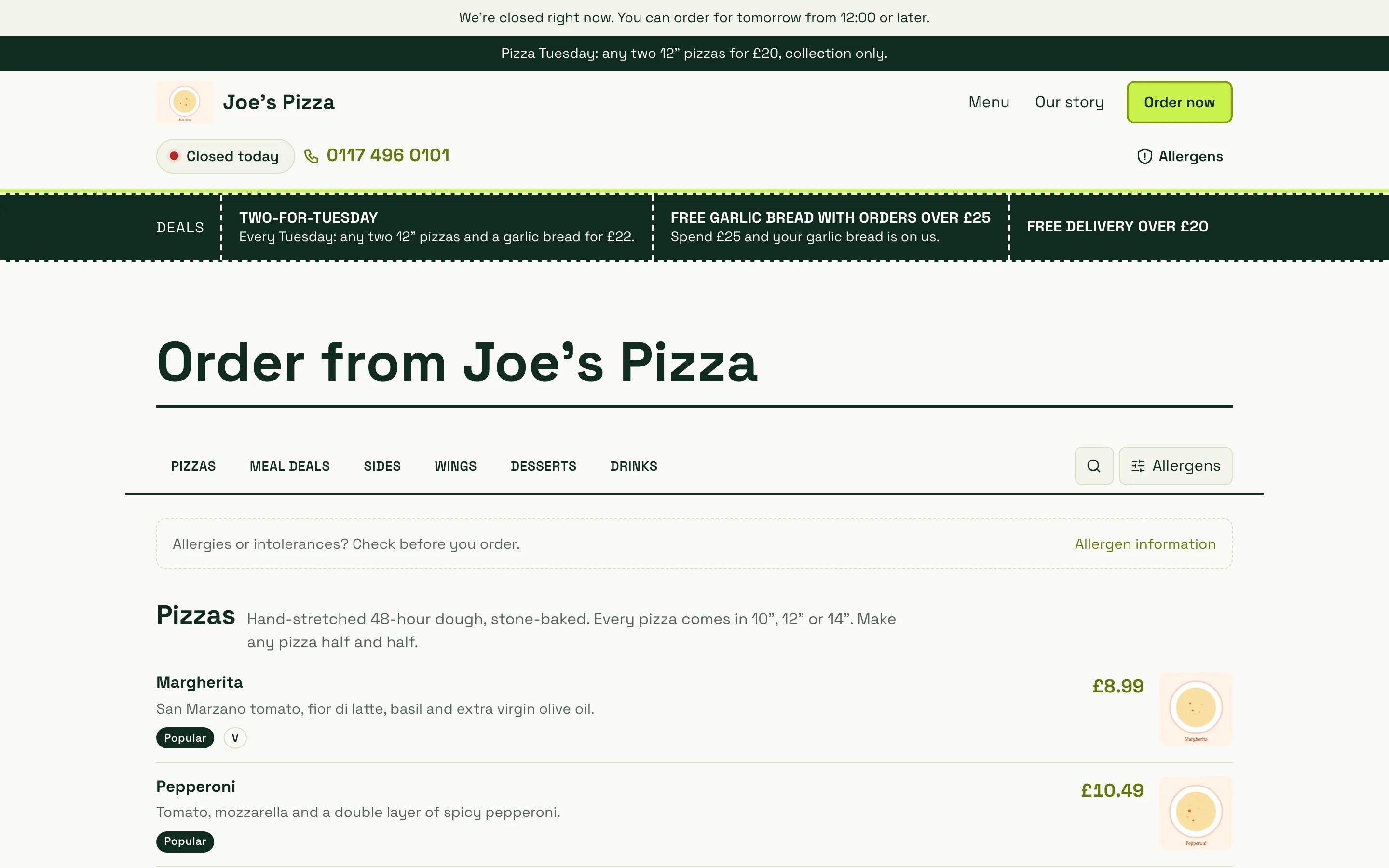
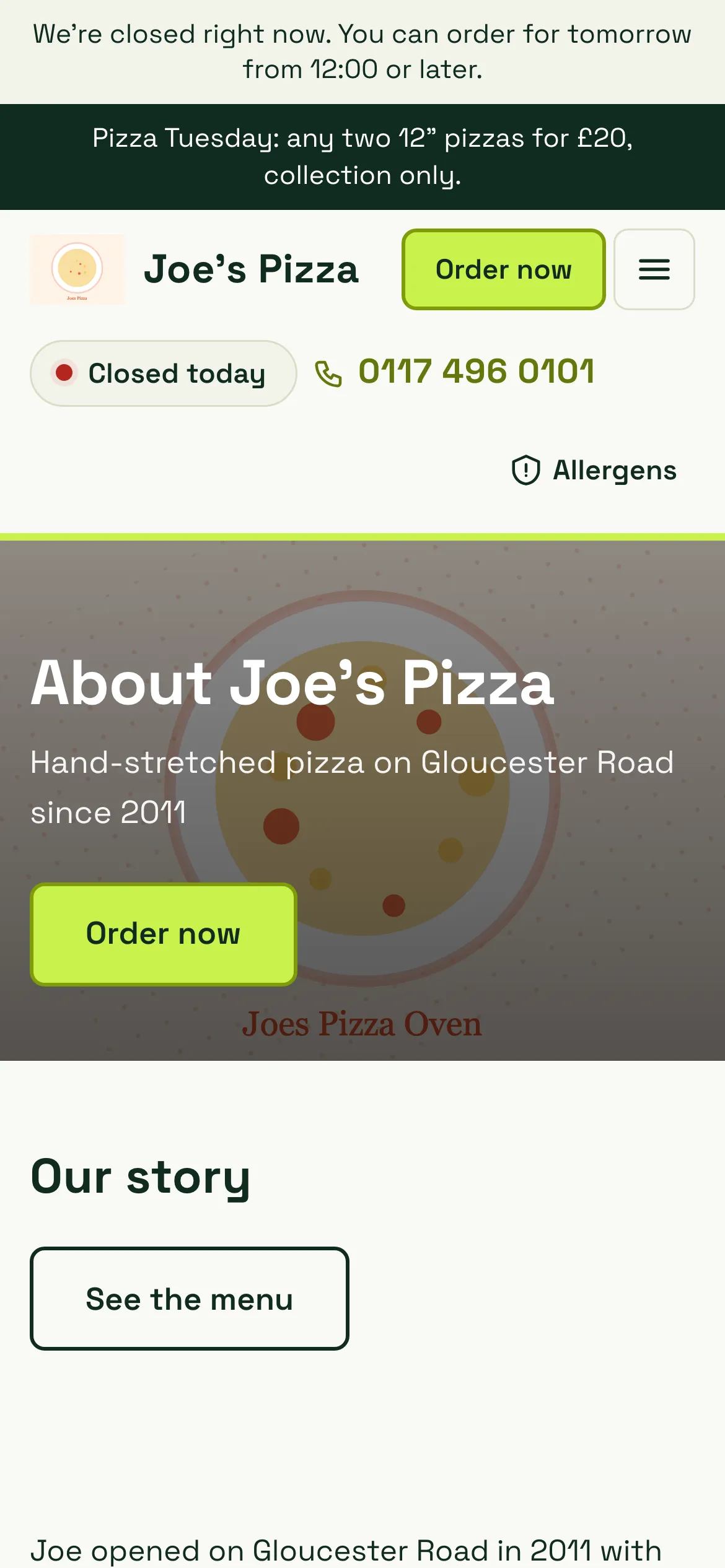
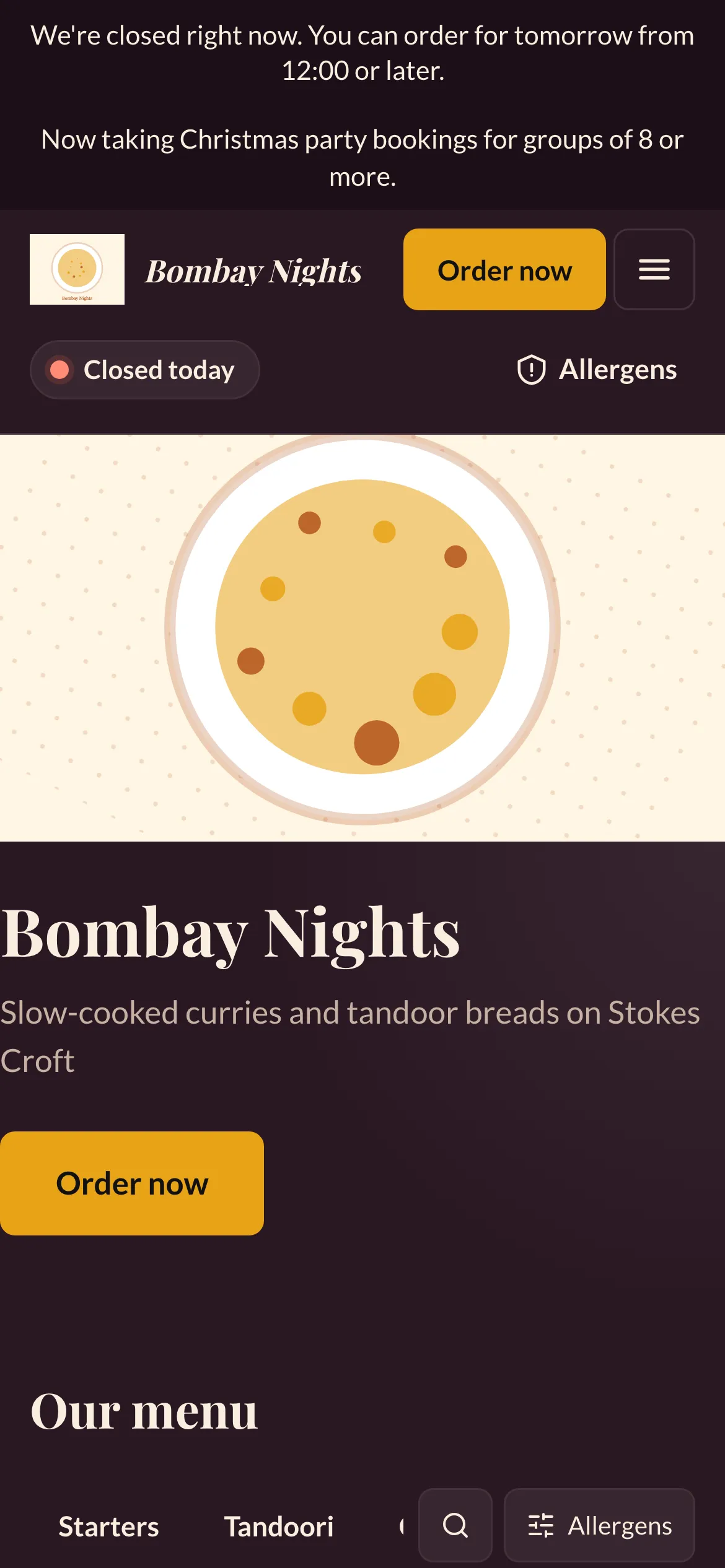
Two shops on the same platform: Joe’s Pizza uses Counter with the Ticket style and a deals strip; Bombay Nights uses Spice with a dark style and a big photo hero.
Related
Section titled “Related”Was this page helpful?