

Feedback and issues
Feedback is the private side of reviews. After each order the customer can rate it and tell you what went well or wrong. Problems come to you first, privately, as issues, so you can put things right quickly. Public reviews are separate: see Reviews and replies.
Before you start
Section titled “Before you start”| Role | What they can do |
|---|---|
| Owner, admin | Everything, including the Google review link |
| Manager | See all feedback and issues, reply to customers, refund, resolve and close issues, see a customer’s past claims |
| Staff | See Issues only and add internal notes. They can’t reply, refund or close |
The feedback page
Section titled “The feedback page”Go to Feedback in the sidebar.
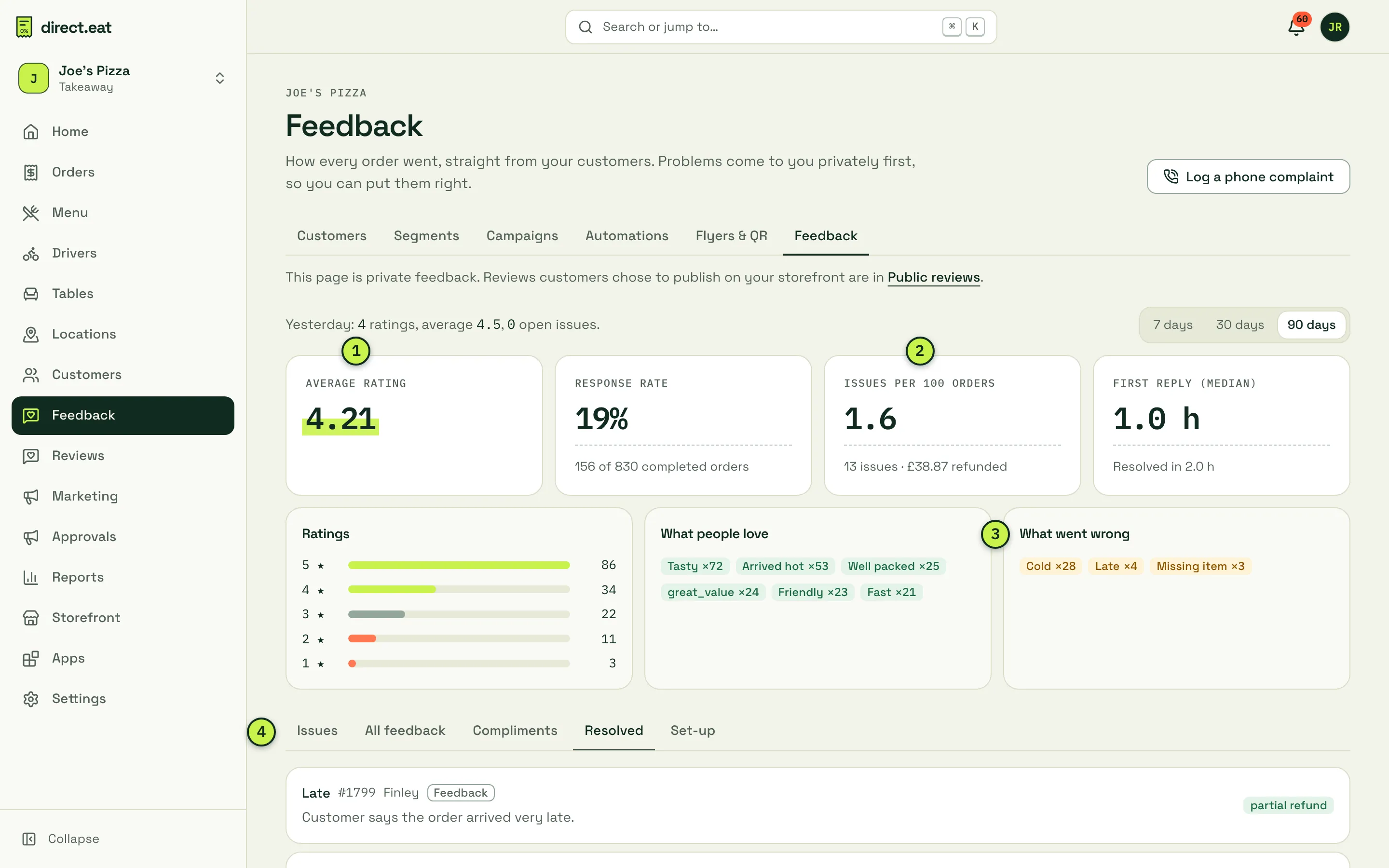
- Average rating for the period (7, 30 or 90 days), and the Response rate (how many completed orders got a rating).
- Issues per 100 orders, with how many issues and how much you refunded. Next to it, the median time to your First reply and to resolve.
- What people love and What went wrong: the tags customers tapped, with counts.
- Tabs: Issues (open, most urgent first), All feedback, Compliments, Resolved and Set-up.
A line at the top sums up yesterday, for example “Yesterday: 4 ratings, average 4.5, 0 open issues.”
All feedback and compliments
Section titled “All feedback and compliments”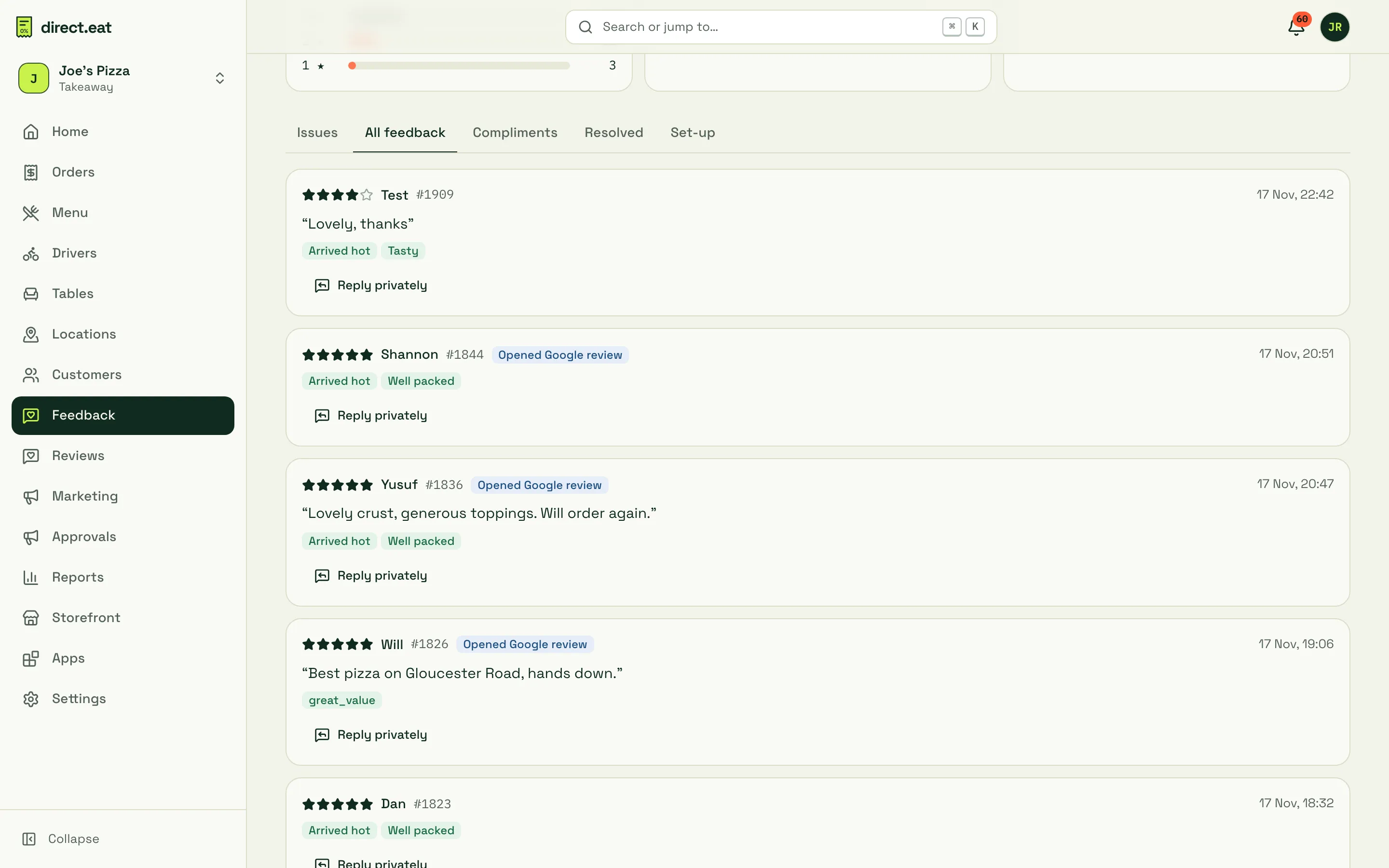
Each response shows the stars, comment, tags, order number and whether the customer went on to open your Google review link. Click Reply privately to email the customer (with an optional AI draft). Private replies are never public.
How an issue is opened
Section titled “How an issue is opened”An issue is opened when:
- a customer rates an order 3 stars or fewer, or
- a customer reports a problem from the feedback page, or
- you click Log a phone complaint to record one that came in by phone or at the counter.
There’s one open issue per order. Issue types are Late, Cold, Quality, Missing item, Wrong item, Packaging / spill, Allergy concern and Other. Allergy concerns always go to the top of the list and alert the owner and managers straight away.
Work an issue
Section titled “Work an issue”Click an issue to open it.
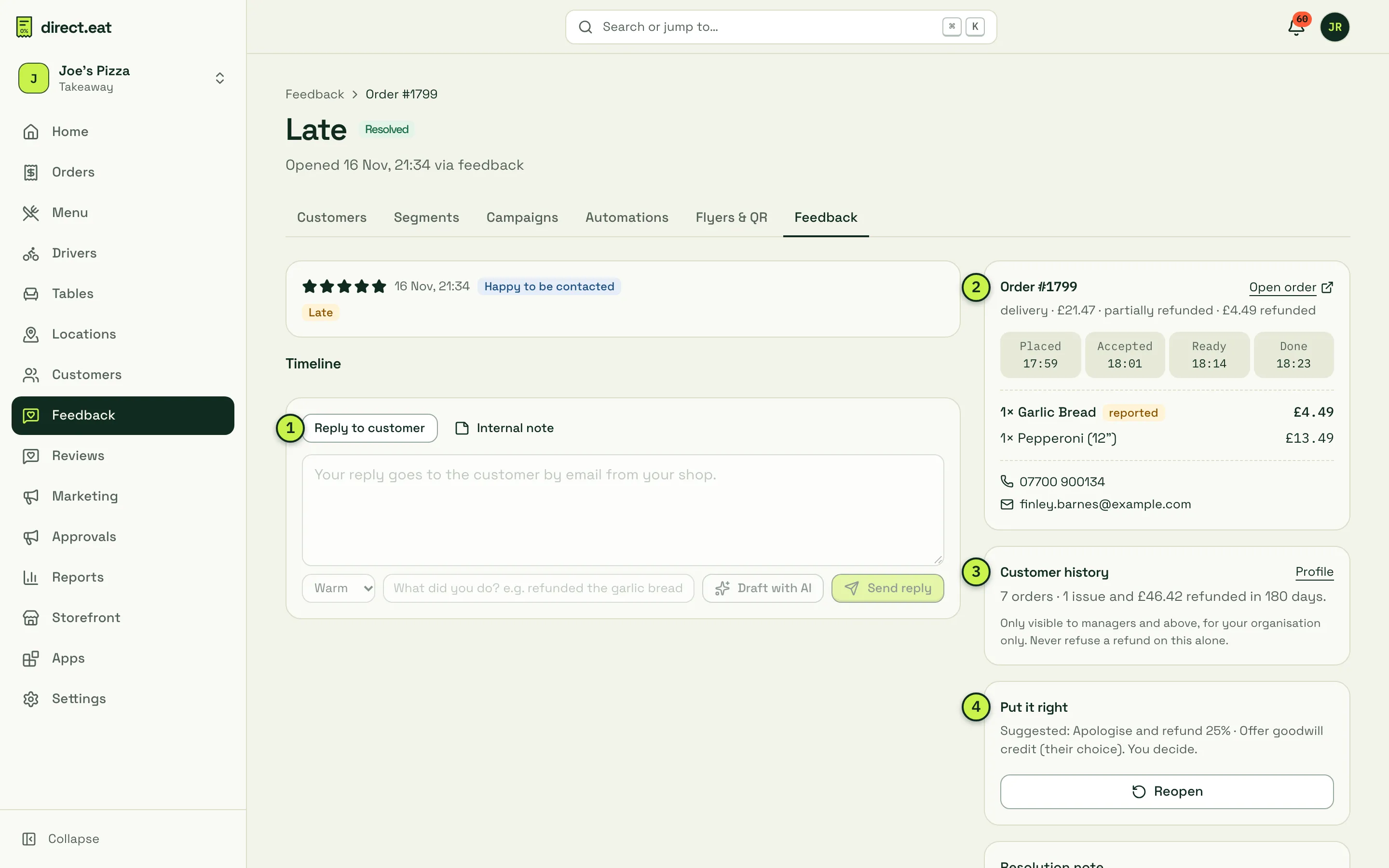
- Reply to customer or Internal note. A reply is emailed to the customer from your shop, and replies from the customer come back to your shop’s email address. Notes are for your team only, for example “Remade and sent with driver at 19:40”. Choose a tone and click Draft with AI for a starting point; for sensitive topics (allergies, illness) you’ll see Handle personally instead of a draft.
- The order: type, total, refunds so far, the times it was placed, accepted, ready and done, and the items, with the ones the customer reported marked. The customer’s phone and email are here if you’d rather call.
- Customer history: orders, issues and refunds in the last 180 days. Managers and above only. Never refuse a refund on this alone.
- Put it right: a suggestion for this type of issue (for example “Apologise and refund 25% · Offer goodwill credit (their choice)”). You decide.
Refund from an issue
Section titled “Refund from an issue”In Put it right, under Refund to card:
- Choose Items (the reported items are pre-selected), Part (a percentage of the order) or Full.
- Check the amount and click Refund.
The refund goes back to the customer’s card through your Stripe account and is linked to the issue, so your reports can show refund cost by reason. If you’d rather offer credit, issue a goodwill gift card instead. The customer should always be able to choose a refund to their card.
For refunds outside an issue, see Delays and refunds.
Resolve or close
Section titled “Resolve or close”Under How was it resolved? choose Refunded in full, Partly refunded, Remade or sent the item, Customer chose credit, Apologised or No action needed, add a note, and click Mark resolved. Resolved issues move to Resolved, and you can Reopen one if the customer comes back.
Allergy concerns need an Incident note (what happened, who you spoke to and what you did) before they can be resolved.
Log a phone complaint
Section titled “Log a phone complaint”Click Log a phone complaint on the feedback page, pick the order, the type of problem and what the customer said (for example “Customer rang: no chips in the bag”). It becomes an issue like any other.
Set-up
Section titled “Set-up”The Set-up tab has:
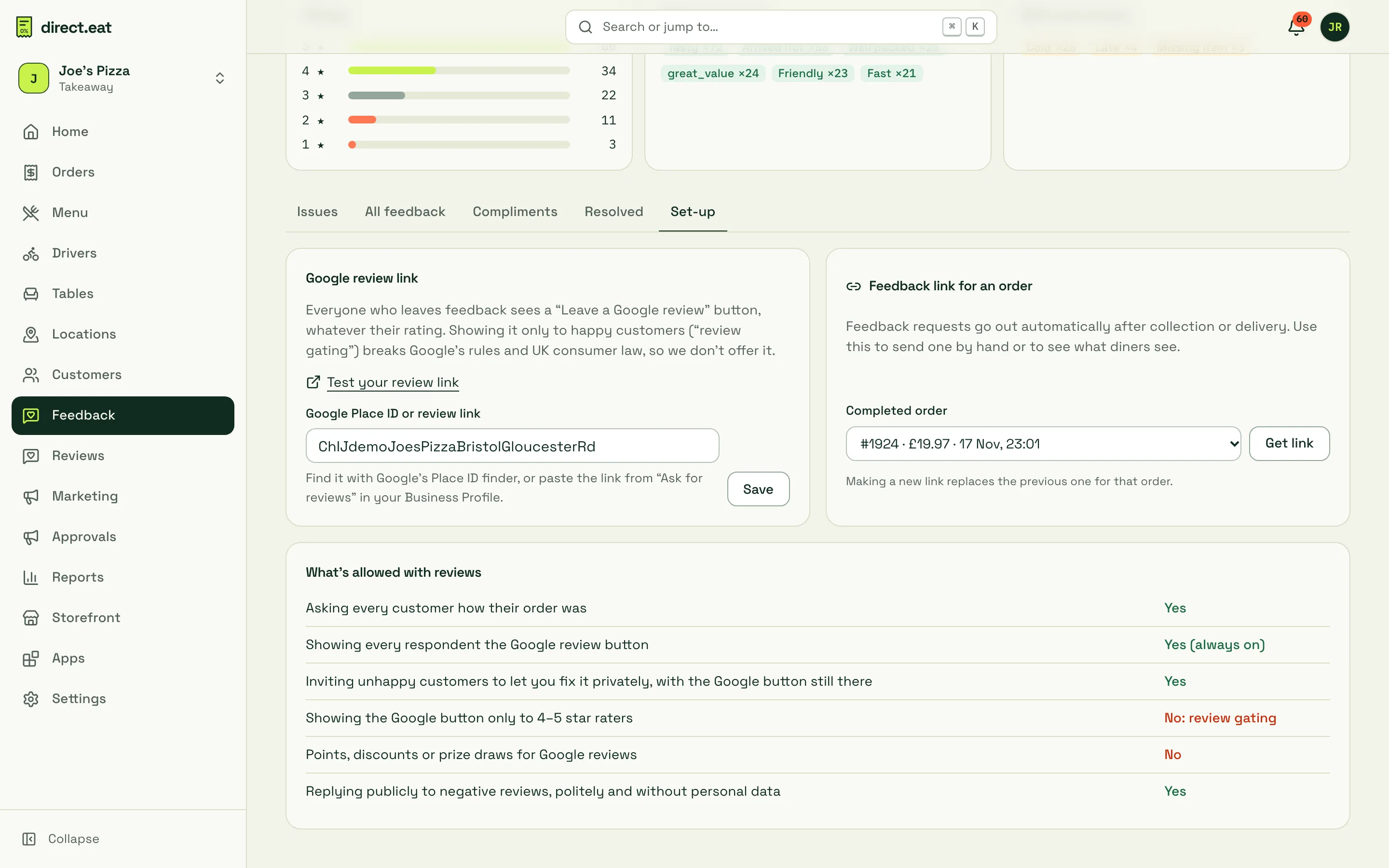
- Google review link: paste your Google Place ID or review link so every respondent sees a Leave a Google review button. See Your Google review link.
- Feedback link for an order: feedback requests go out automatically after collection or delivery. Use this to send one by hand, or to see what diners see: pick a completed order and click Get link.
- What’s allowed with reviews: a quick yes/no table of what UK law and Google allow.
- Reply to issues within the hour if you can. A quick, specific apology shows the customer you’ve taken it seriously.
- Use Internal note to tell the next shift what you did, so nobody contacts the customer twice.
- Look at What went wrong each week. If “Cold” keeps coming up on delivery, look at packaging or delivery times in Reports.
Related
Section titled “Related”Was this page helpful?