

Order food
You order on the restaurant’s own site, in your phone or computer’s web browser. There’s nothing to download and you don’t need an account. The screenshots below are from Joe’s Pizza, a demo takeaway: the restaurant you’re ordering from will have its own colours and menu, but the steps are the same.
1. Browse the menu
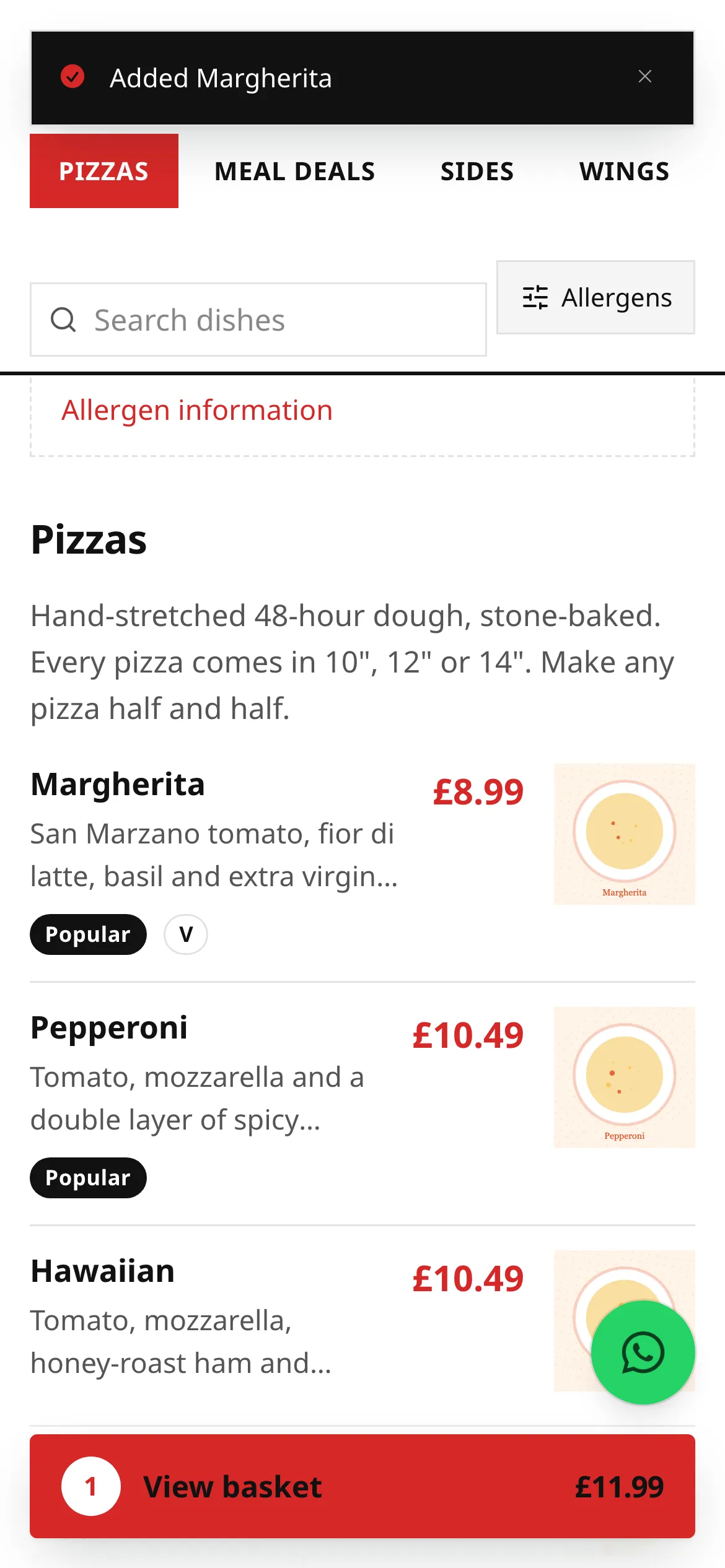
Section titled “1. Browse the menu”The restaurant’s home page is the menu. At the top you’ll see whether they’re open, how long collection and delivery take right now, today’s opening hours and, where the restaurant shows it, their food hygiene rating.
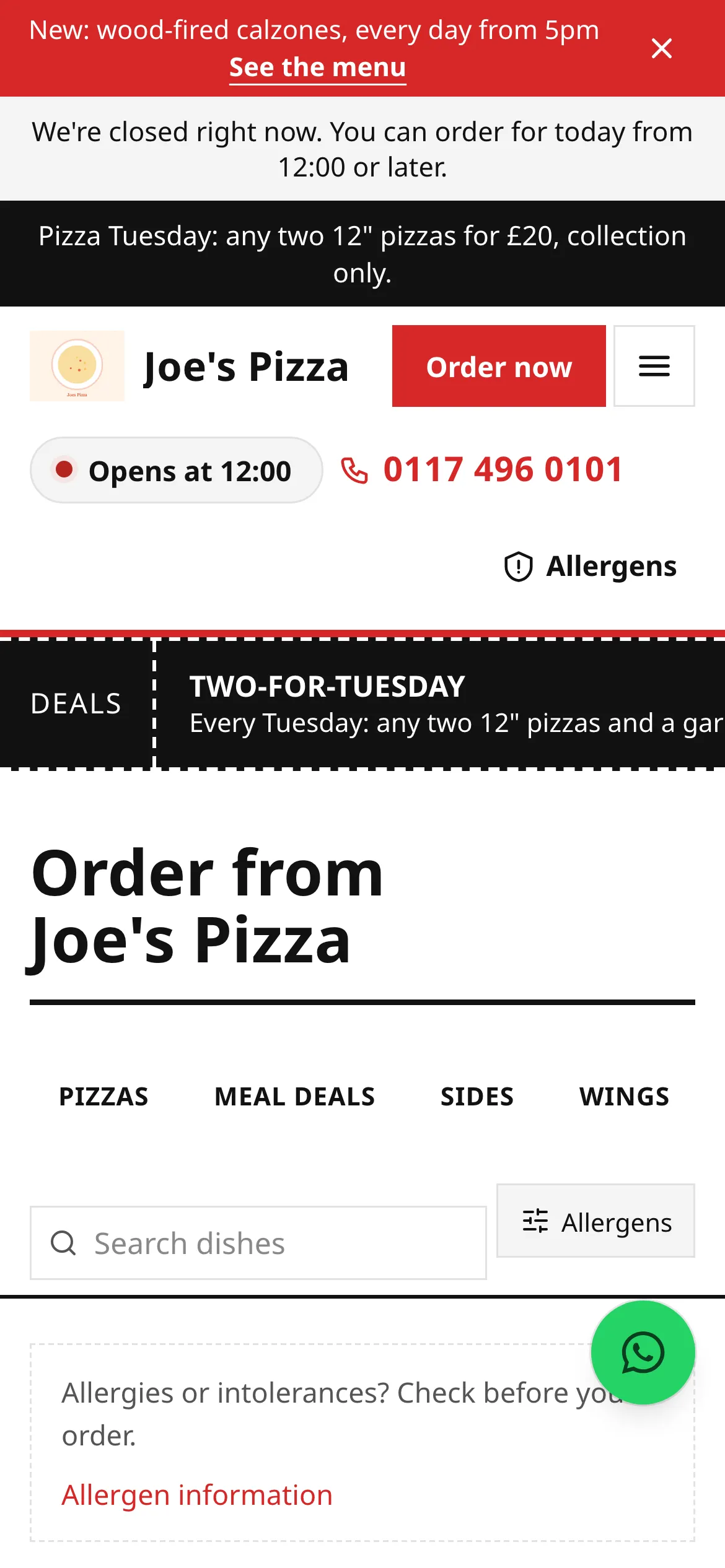
- Status: open, busy, paused or closed, with the current wait. If the restaurant is closed, a notice says when you can order for.
- Collection: how long until your order is ready to pick up.
- Delivery: shown only if the restaurant delivers, with the lowest delivery fee.
Each restaurant chooses its own design, so these may sit in a slightly different place on the site you’re using.
Below that are the menu sections. Tap a section name to jump to it, use the magnifying glass to search (it copes with typos), or tap Allergens to hide dishes containing allergens you need to avoid. See Allergies before relying on the filter.
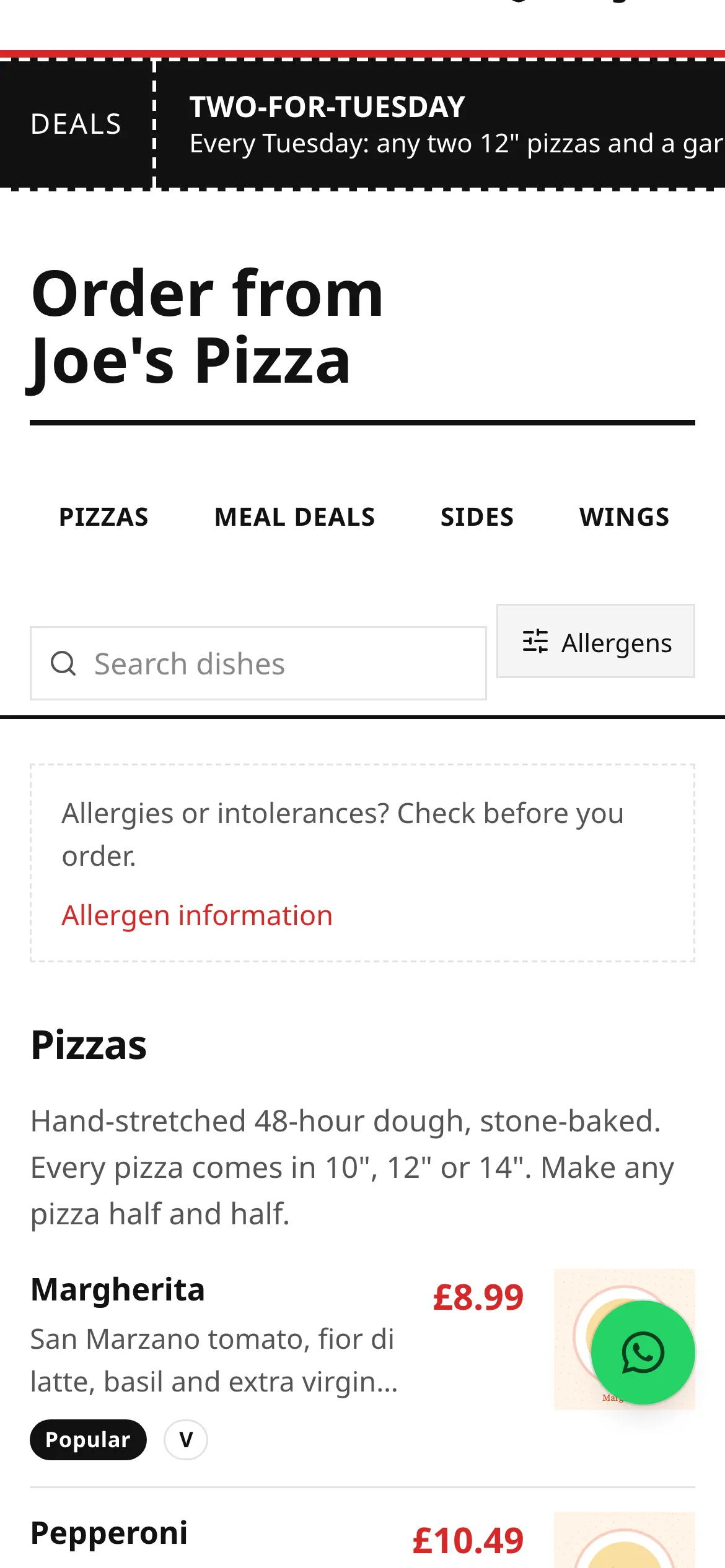
If a dish says Sold out today, the kitchen has run out. It comes back when they restock.
2. Choose your options and add to the basket
Section titled “2. Choose your options and add to the basket”Tap a dish to open it. You’ll see the full description, a short allergen summary, and any choices such as size, crust or extra toppings.
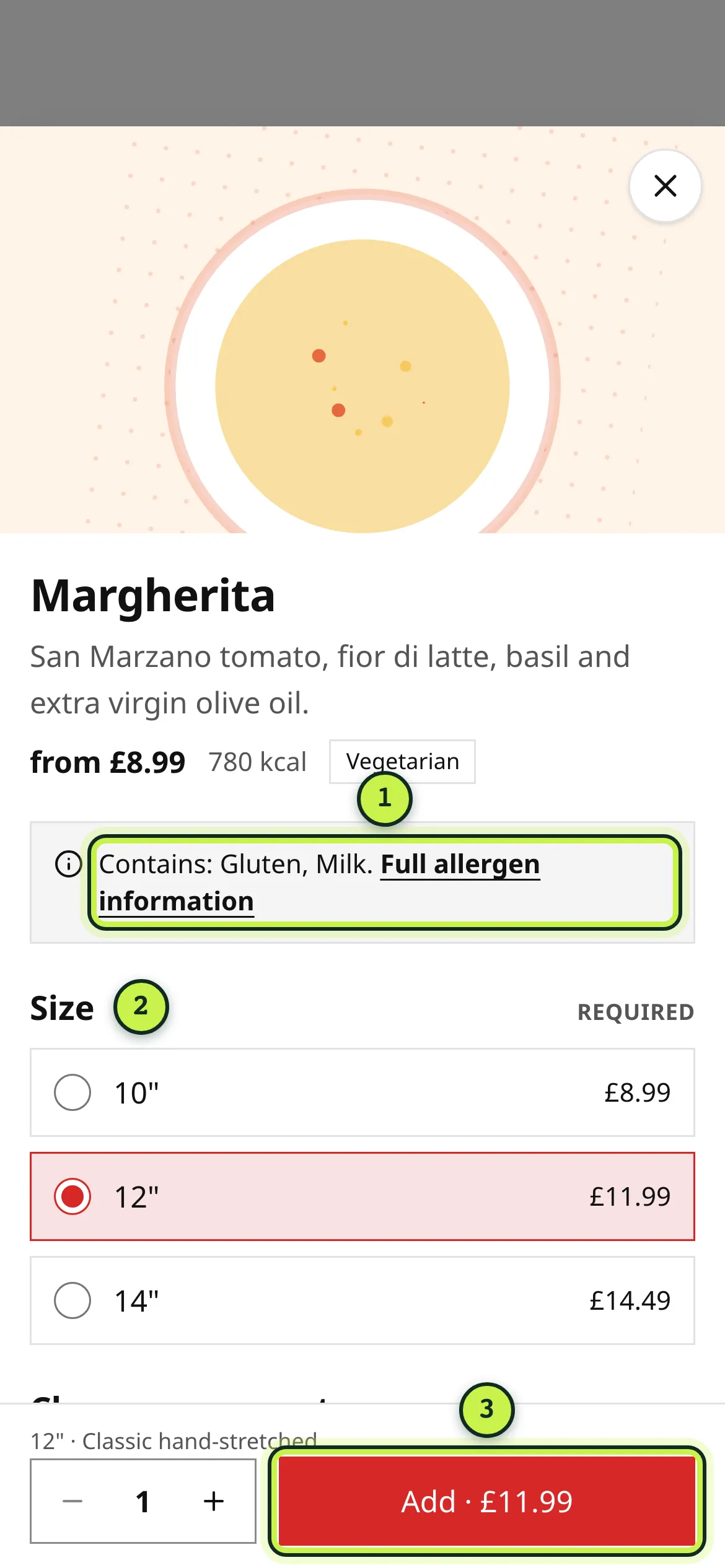
- Allergen summary: the allergens in the dish, with a link to the full table.
- Choices: Required groups need an answer before you can add the dish. Optional groups say how many you can pick.
- Add: shows the price with your choices. Use − and + to change the quantity.
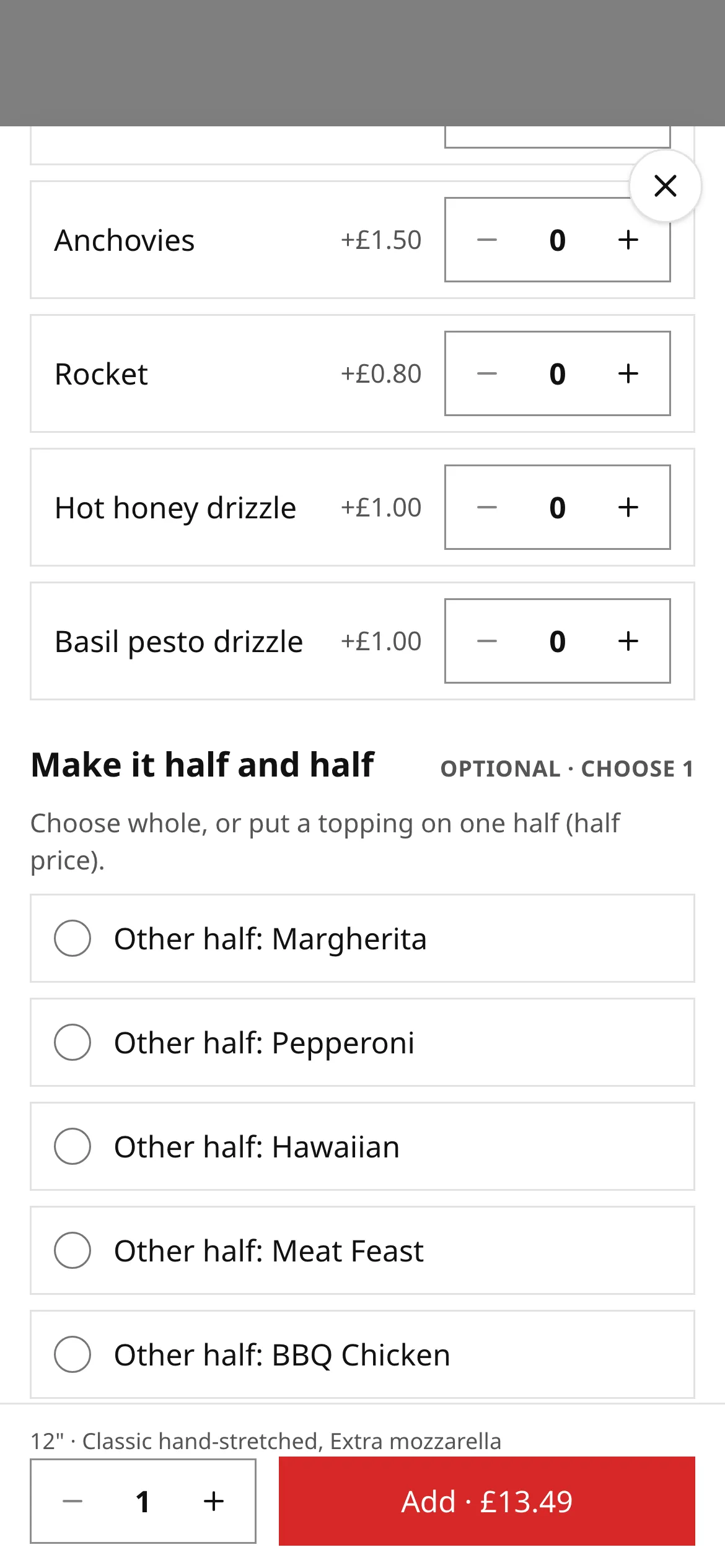
Extras show their price next to them. Some pizzas can be made half and half. There’s also a box for short notes to the kitchen (up to 140 characters). Don’t use it for allergies: there’s a proper allergy question at checkout.
When you add a dish, a bar appears at the bottom of the screen with your item count and total. Tap View basket when you’re ready.
3. Check your basket
Section titled “3. Check your basket”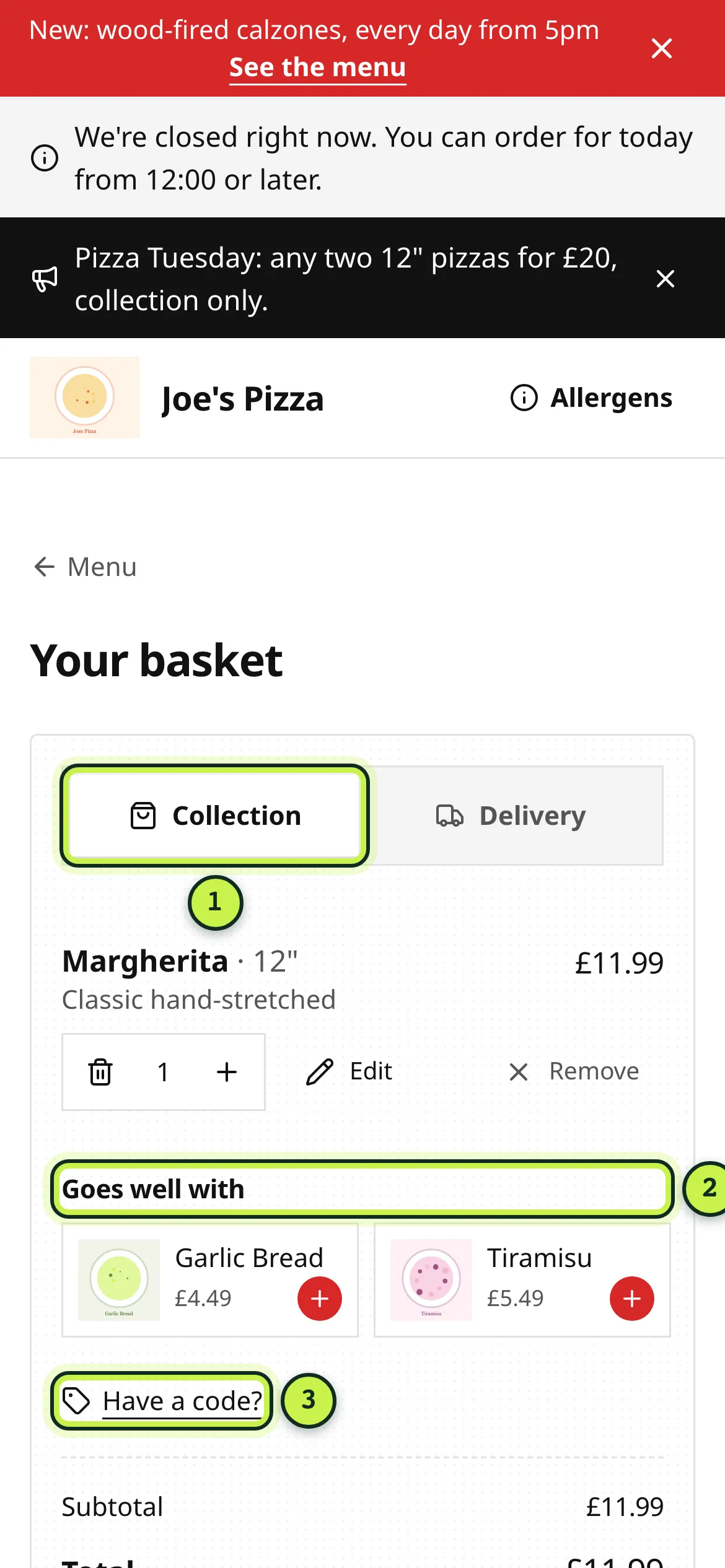
- Collection or Delivery: switch here or at checkout.
- Goes well with: a few suggestions from the restaurant. Ignore them if you like.
- Have a code?: enter a promo code.
You can change quantities, Edit a dish’s options or Remove it (there’s a short undo). The basket shows a full breakdown, and the restaurant can’t add hidden fees. If there’s a minimum order for delivery, the basket tells you how much more to add. Some restaurants run automatic offers, such as free garlic bread over £25; the basket tells you how close you are.
Your basket is kept on your device for 24 hours, so you can come back to it. Prices and availability are checked again when you return.
Promo codes
Section titled “Promo codes”Tap Have a code?, type the code and press Apply. If it works you’ll see the discount in the total. If not, the basket tells you why in plain words, for example a minimum spend or a code for first orders only.
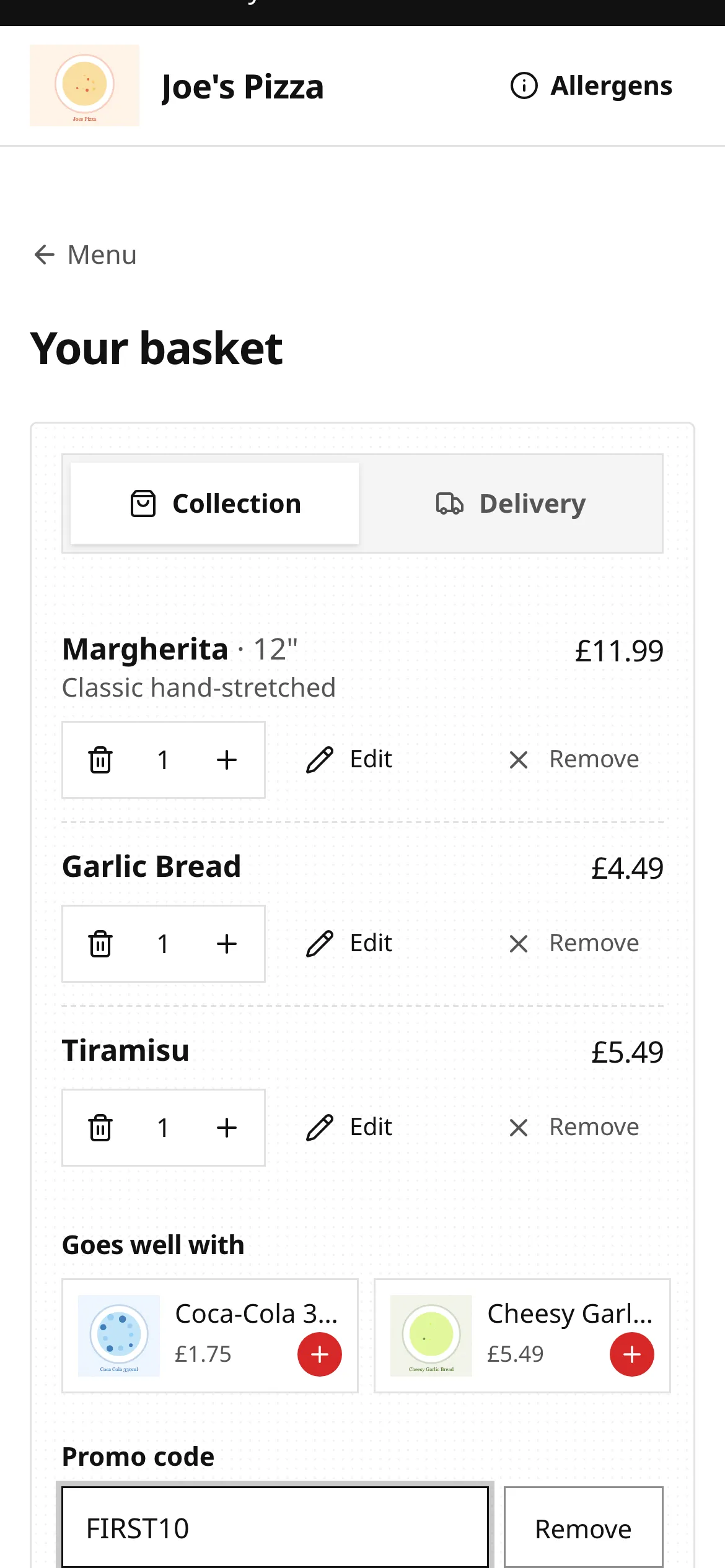
You can use one code per order. Codes are set by each restaurant and only work on that restaurant’s site.
4. Checkout
Section titled “4. Checkout”Checkout is a single page. Work down it from top to bottom.
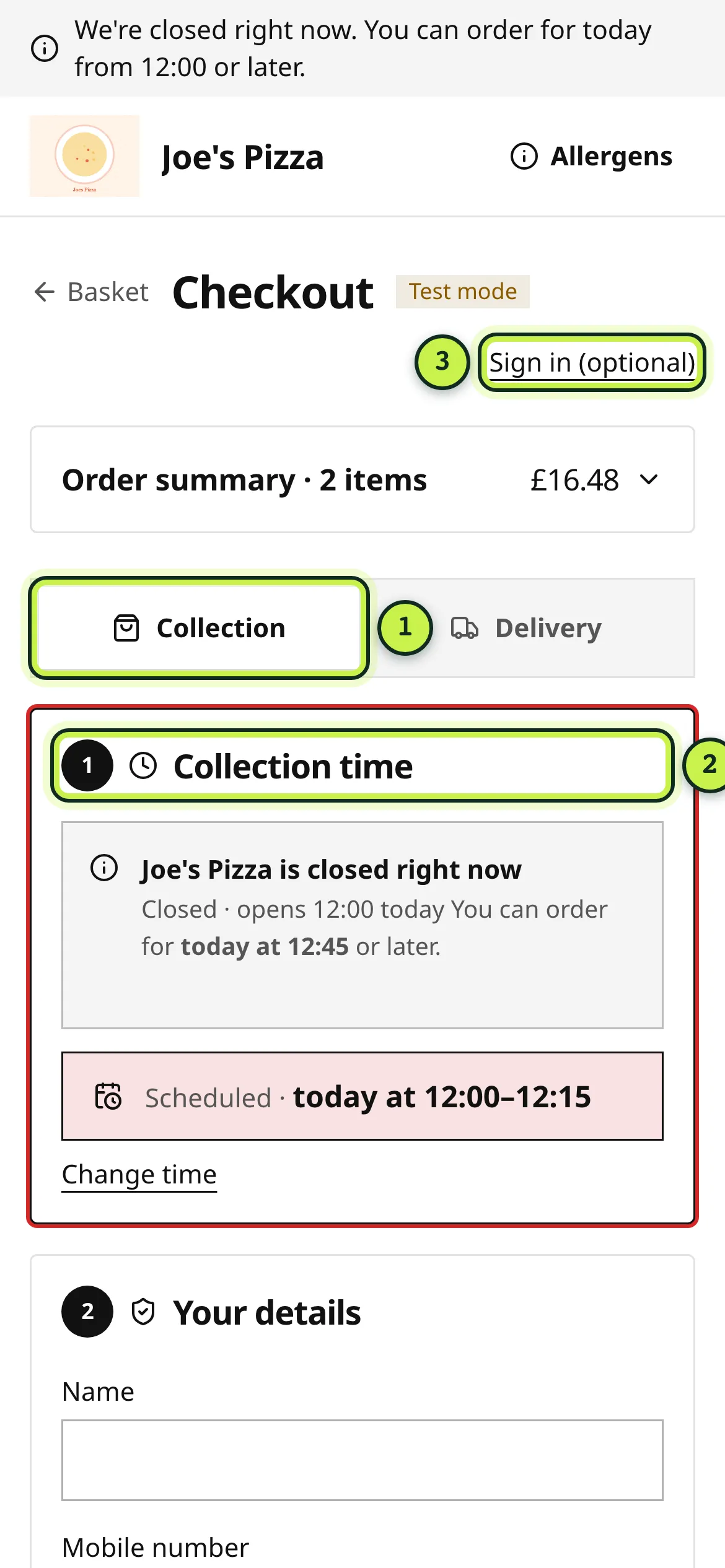
- Collection or Delivery.
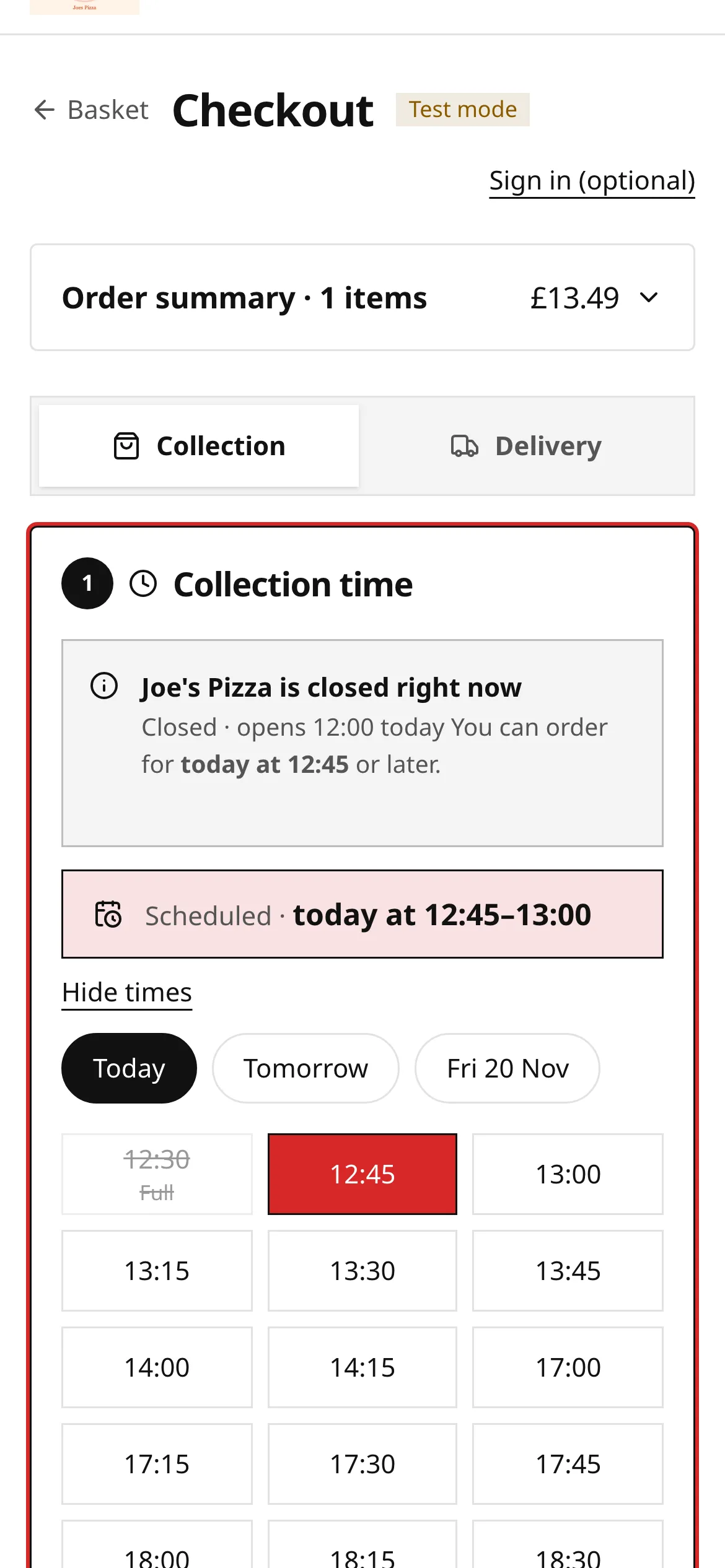
- Time: as soon as possible, or a time you choose.
- Sign in (optional): only if you want to use saved details or loyalty rewards.
Collection, delivery or table
Section titled “Collection, delivery or table”- Collection: you pick the order up from the restaurant. The tracking page shows the address and a Directions button.
- Delivery: the restaurant’s own driver brings it to you. Only available if the restaurant delivers to your postcode.
- At a table: if you’re sitting in the restaurant, scan the QR code on your table instead. See Ordering at a table.
Choosing a time
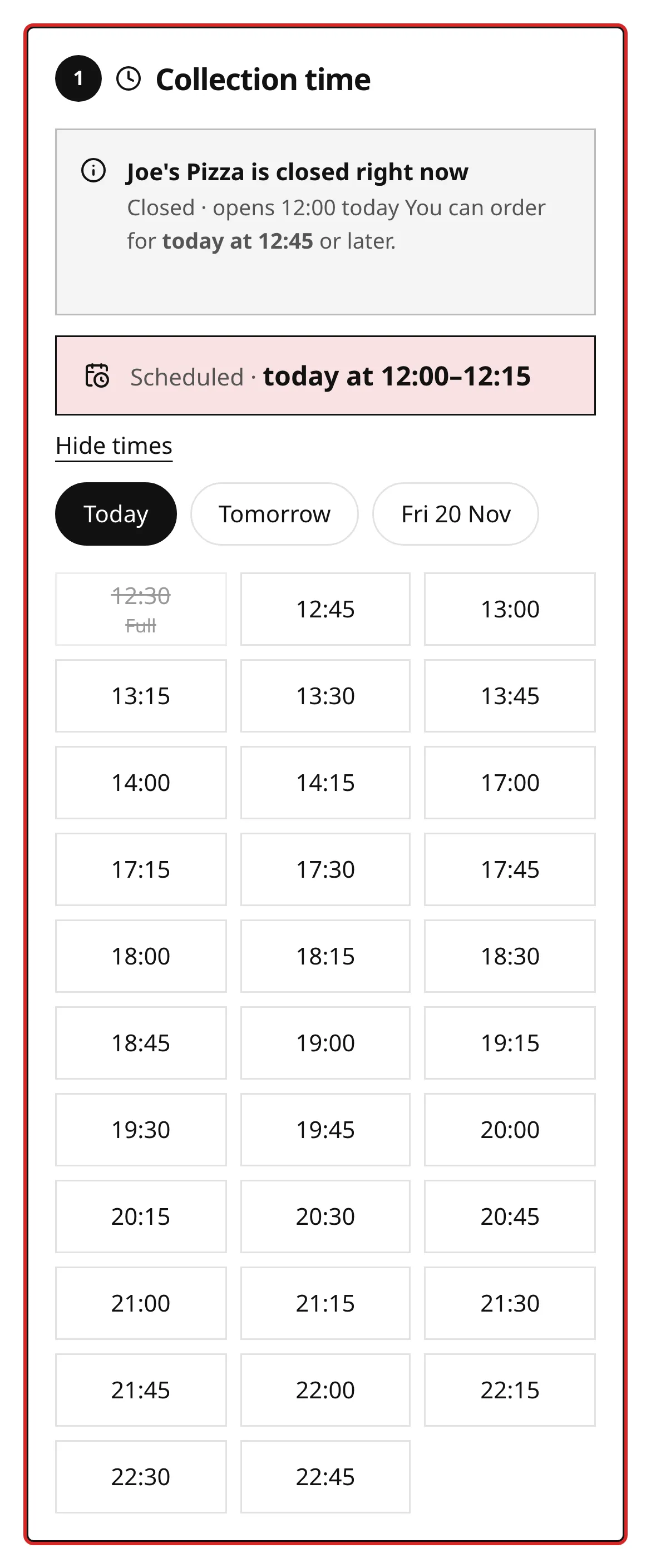
Section titled “Choosing a time”If the restaurant is open, you can order for as soon as possible. Tap Schedule for later to pick a day and a time slot instead. Slots that are full are crossed out and marked Full.
If the restaurant is closed, checkout tells you, and you can pre-order for the next time they’re open.
Delivery address
Section titled “Delivery address”Choose Delivery, type your postcode and tap Find address. Pick your address from the list, then add anything the driver needs to know.
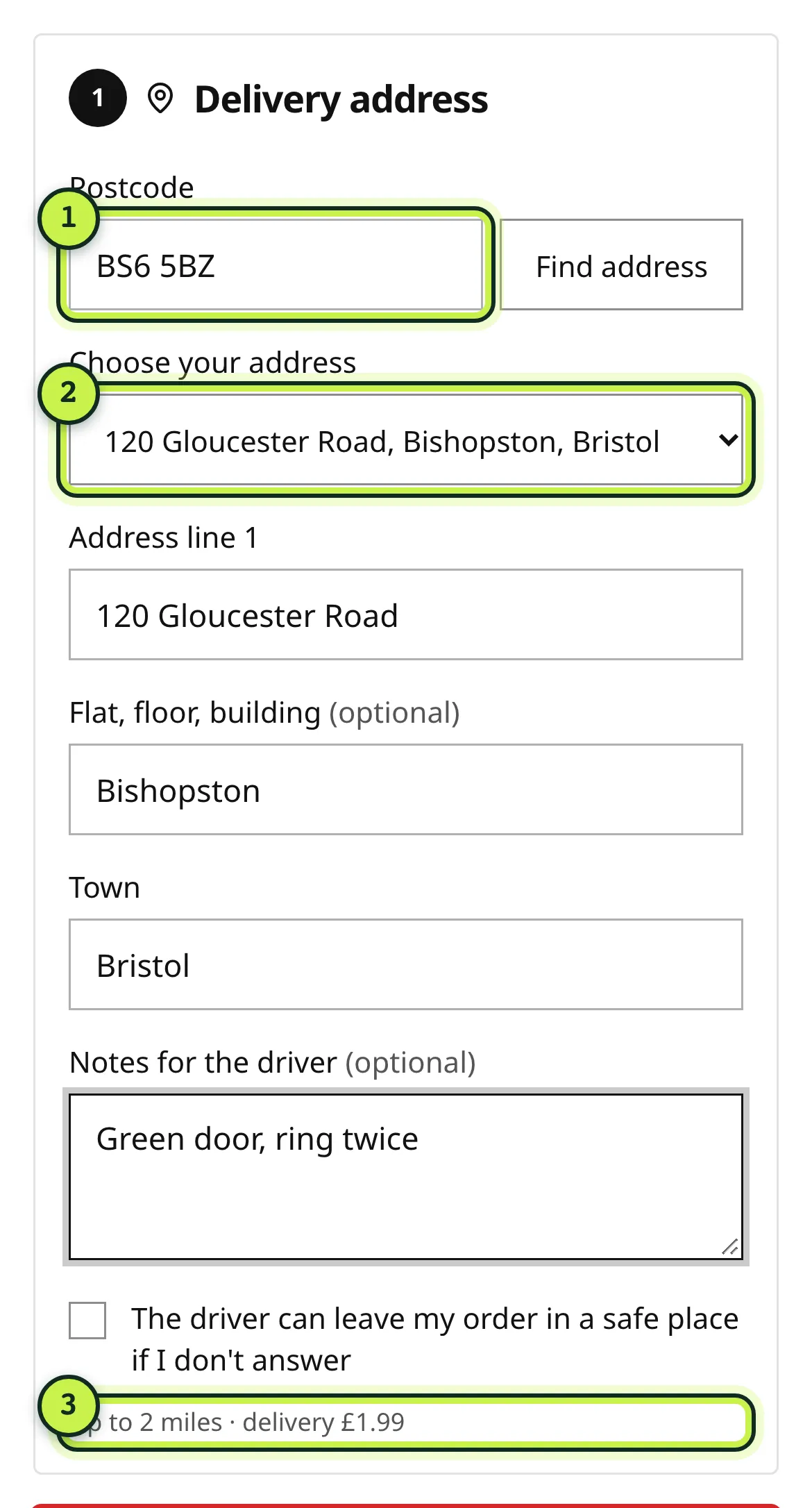
- Postcode: this decides whether the restaurant delivers to you and what it costs.
- Choose your address: pick from the addresses at that postcode.
- Delivery zone and fee: the fee for your area, and the free-delivery threshold if there is one.
Each restaurant sets its own delivery areas, by distance or by postcode district, with a fee and minimum order for each area. Tick The driver can leave my order in a safe place if I don’t answer only if you’re happy for that.
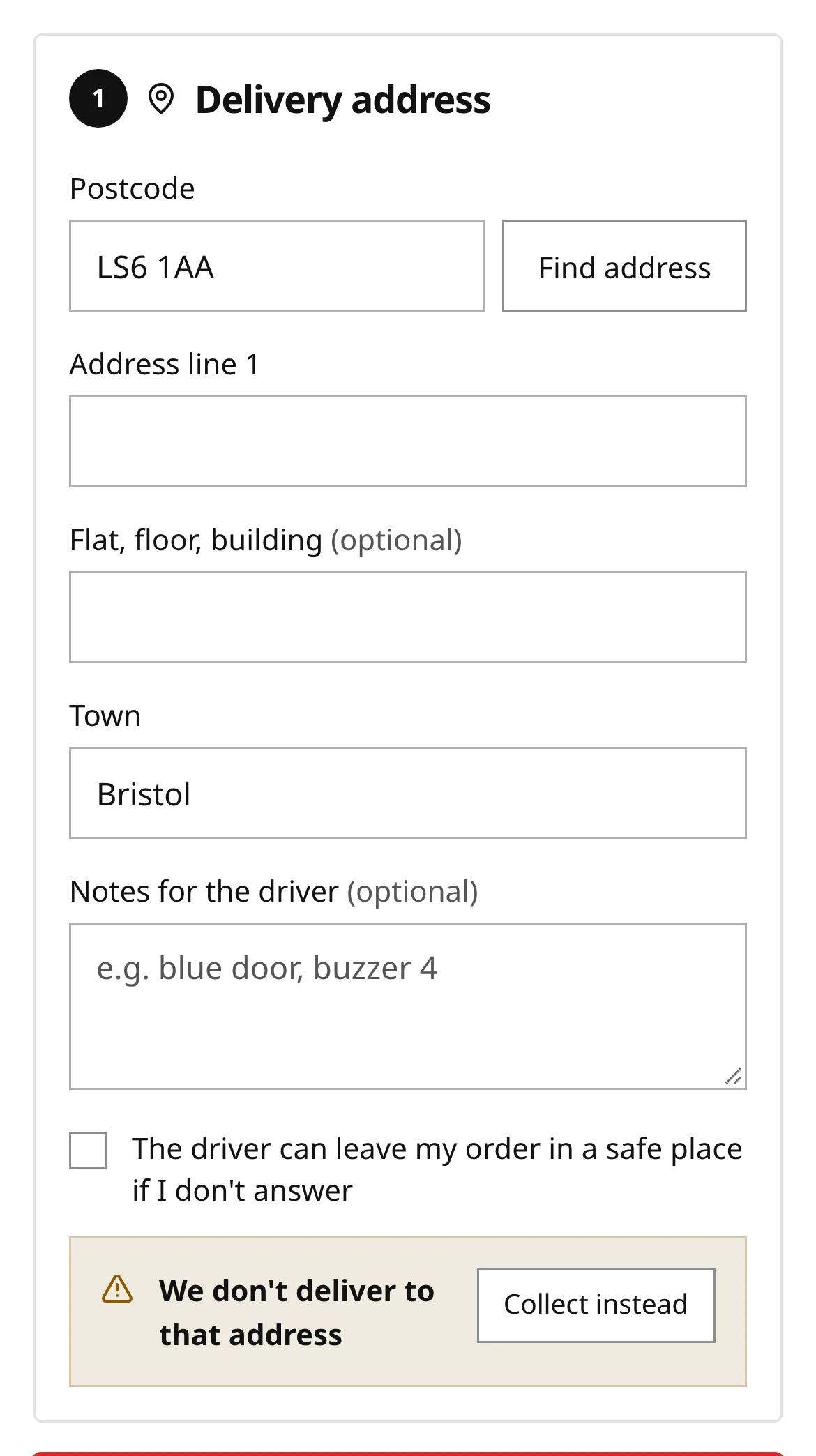
If the restaurant doesn’t deliver to your address, you’ll see We don’t deliver to that address. Tap Collect instead to switch to collection.
Your details and the allergy question
Section titled “Your details and the allergy question”Enter your name, mobile number and email. The restaurant uses your number only to reach you about this order, and your email for the receipt and order updates. Checkout spots common email typos and asks “Did you mean…?”.
Then answer Does anyone in your order have a food allergy or intolerance? If you answer Yes, a box appears for you to tell the kitchen which allergens to avoid. Read Allergies for what happens next.
You may also see an unticked box to get offers from the restaurant by email or text. Leave it unticked if you don’t want them. Order updates are sent either way.
Some restaurants offer an optional tip at checkout. It’s never pre-selected. If the restaurant has confirmed that tips go to the team, checkout says so. Tips are shown as a separate line on your receipt.
5. Pay
Section titled “5. Pay”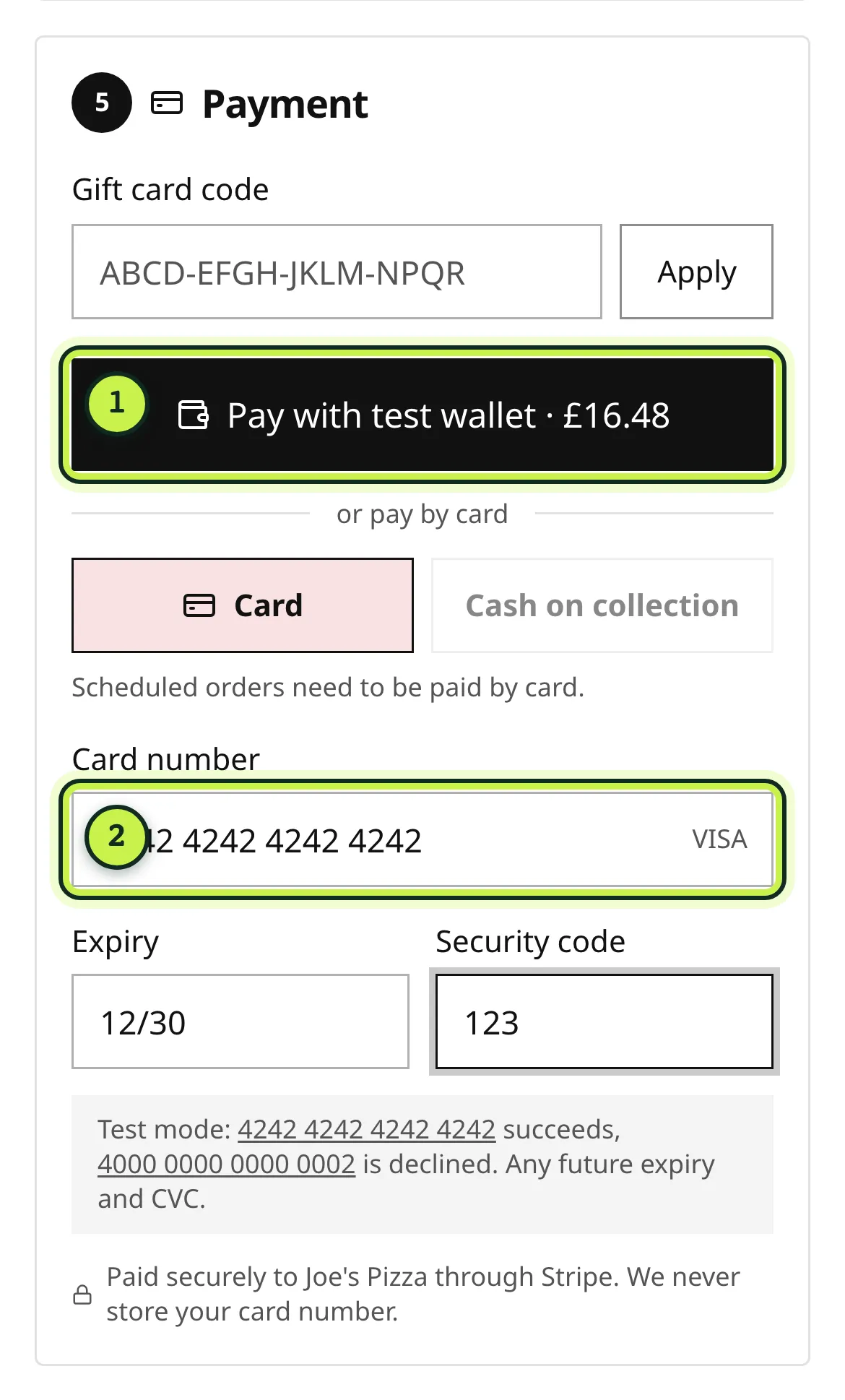
- Wallet button: Apple Pay or Google Pay, where your phone supports it.
- Card: pay by debit or credit card.
Some restaurants also accept Cash on collection or Cash on delivery. Pre-orders for a later time usually need to be paid by card, and a restaurant can set a top limit for cash orders.
Tap the green button at the bottom, for example Place order and pay £16.48 (or Place pre-order and pay for a later time). Your card is charged by the restaurant, and the card statement shows the restaurant’s name.
If your bank declines the payment, you’ll see Payment didn’t go through and you haven’t been charged. Check the card details or try another card.
Gift cards
Section titled “Gift cards”Tap Pay with a gift card, type the 16-character code and tap Apply. Checkout shows how much comes off and what’s left on the card. If the gift card covers the whole order, you don’t need to pay anything else. A gift card can’t be combined with cash.
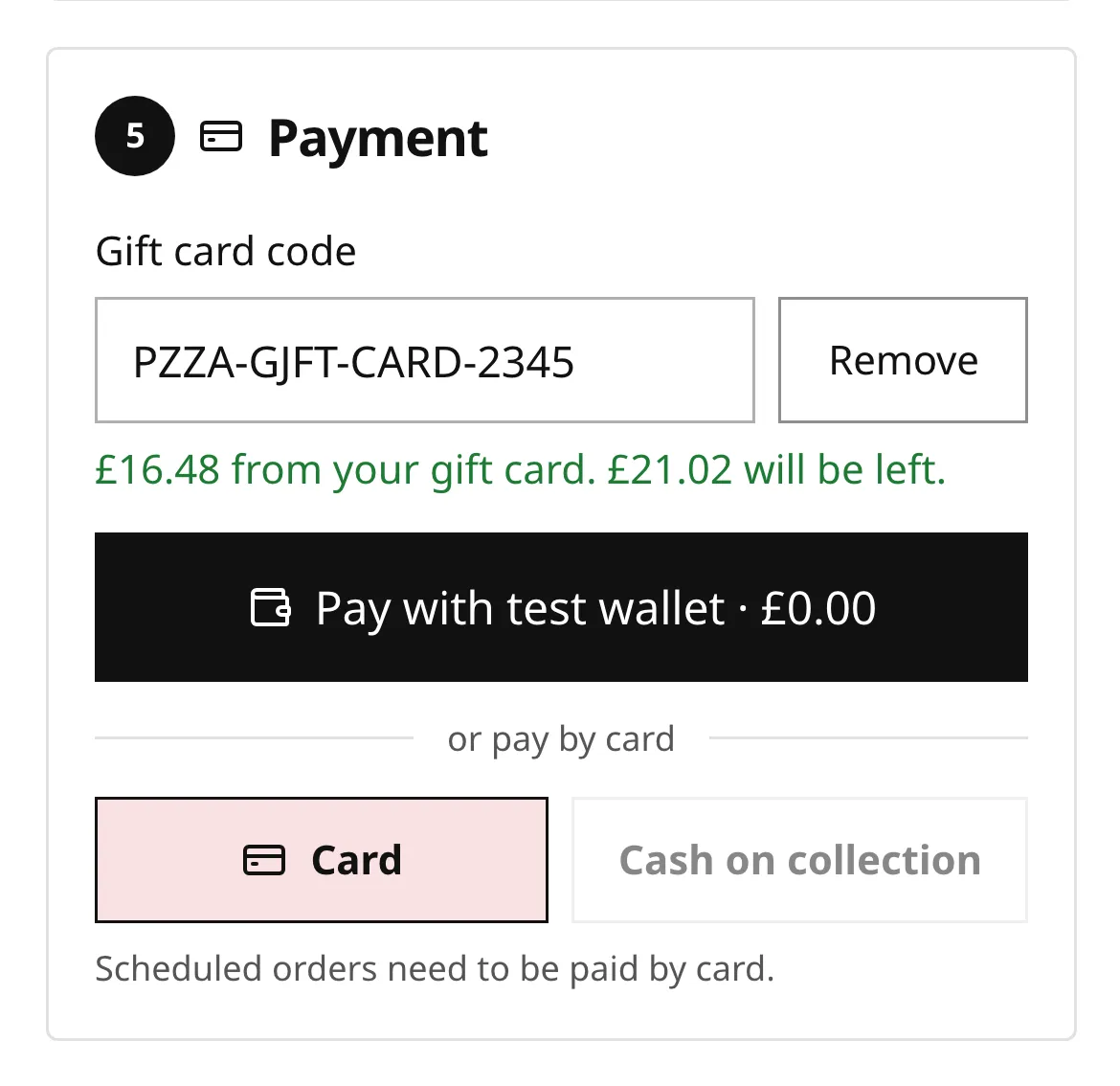
To check a gift card balance without ordering, go to the restaurant’s Gift cards page (/gift-cards on their site). See Gift cards.
Loyalty rewards
Section titled “Loyalty rewards”If the restaurant runs a loyalty card, checkout has a box to join and earn from this order. To spend a reward you need to be signed in, so the reward is matched to your own card. See Loyalty cards.
6. After you order
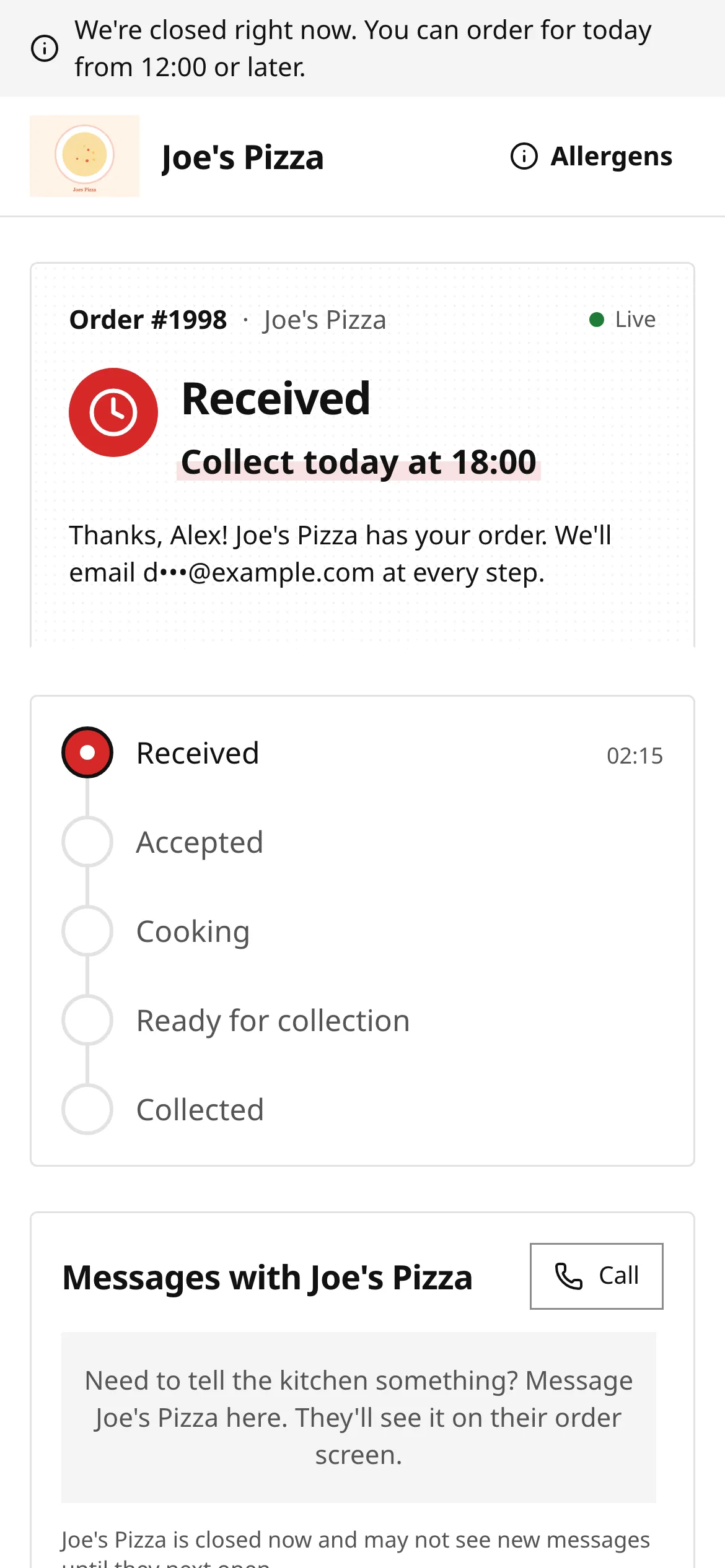
Section titled “6. After you order”You land on your order’s tracking page straight away, and you get an email with the same link. See Track your order.
Related
Section titled “Related”Was this page helpful?