

Your first week checklist
You’re live. The first week is about watching what actually happens and making small fixes, not about adding every feature. Tick these off as you go.
Every day (5 minutes)
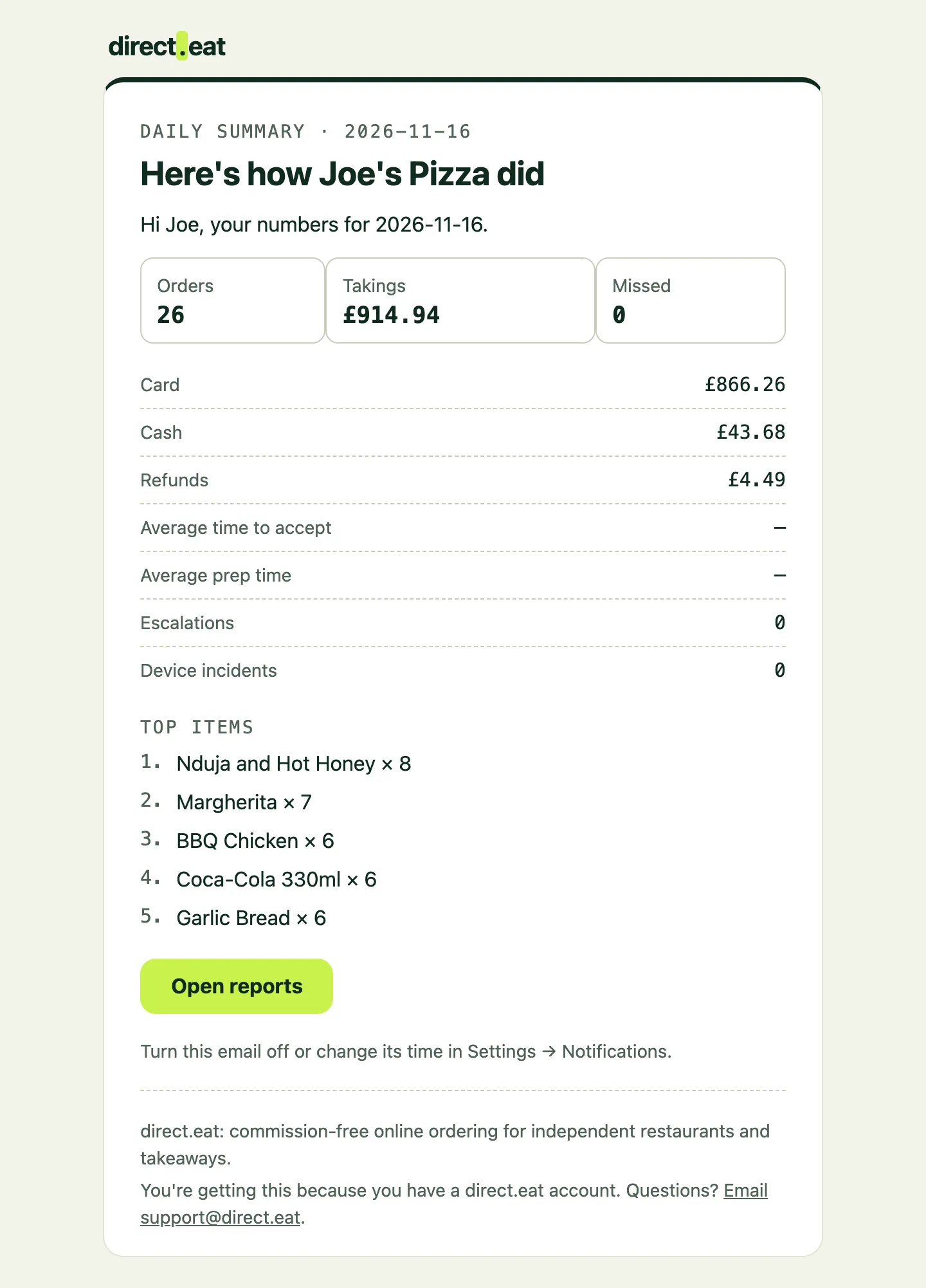
Section titled “Every day (5 minutes)”- Read the end-of-day summary email. It arrives after you close, with orders, takings, card and cash, refunds, missed orders, escalations and your top 5 items. Change its time or turn it off in Settings → Notifications.
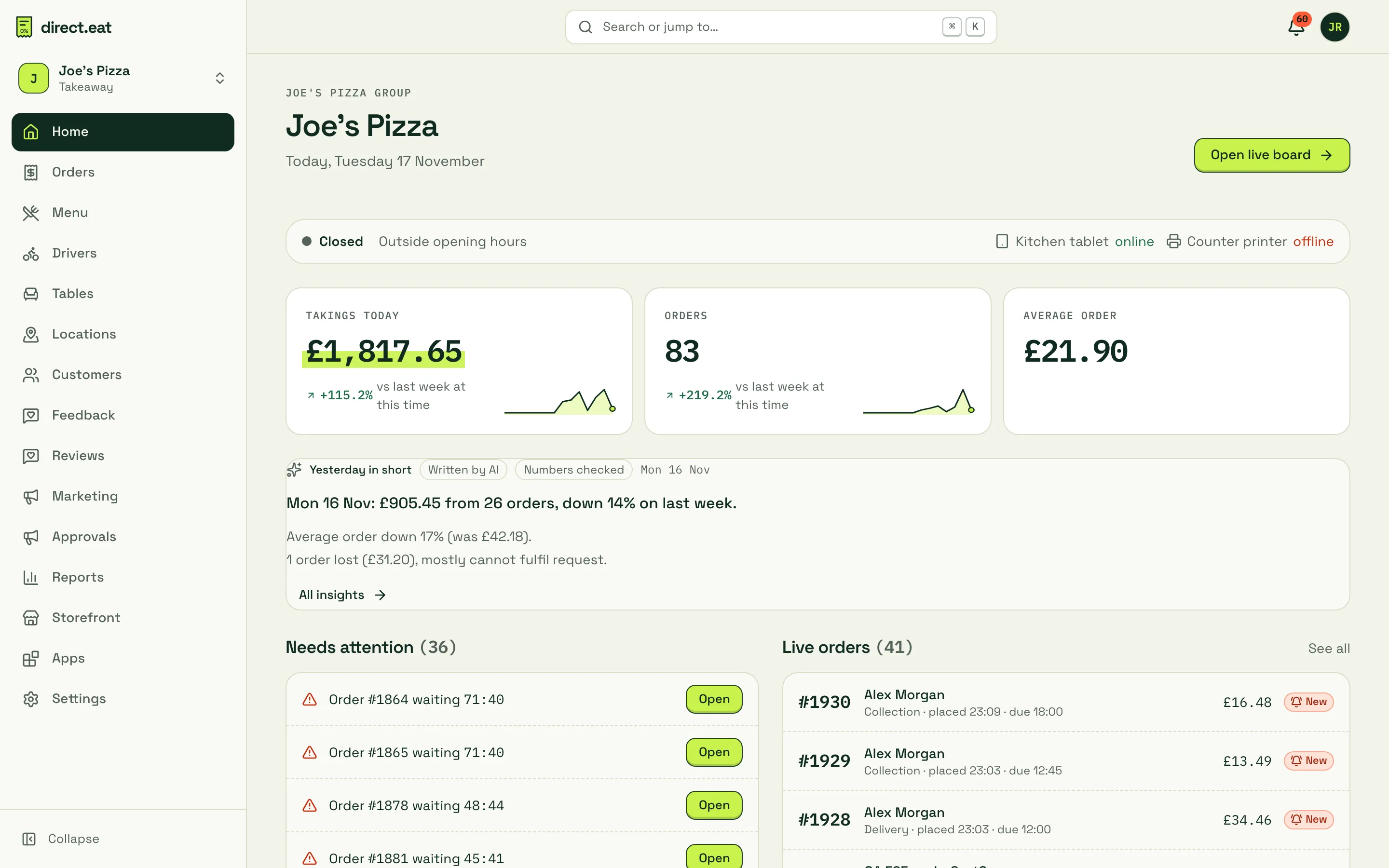
- Glance at Home in the dashboard. Yesterday in short gives you yesterday’s numbers in two or three lines, marked Written by AI and Numbers checked. Needs attention lists anything waiting on you.
- Check missed orders in Reports → Missed orders. Every one is money lost. If they were “nobody accepted in time”, look at your kitchen set-up; if “too busy”, use busy mode earlier.
- Answer unread messages from diners on any open orders.
Day 1 to 2: fix the obvious
Section titled “Day 1 to 2: fix the obvious”- Prep time right? If orders were often late or diners waited at the counter, change your default prep time in Settings → Ordering and collection. The page shows an example of what a diner would see.
- Hours right? Check last orders and any days you close early in Settings → Opening hours. Add bank holidays and special dates while you’re there.
- Anything keep selling out? Mark it sold out for the day with 86 rather than rejecting orders. See 86 and stock.
- Rejected for “item unavailable”? Reports → Missed orders lists the items. Switch them off before diners order them.
- Delivery zones and minimums (if you deliver): any complaints about fees or orders from just outside your area? Adjust in Settings → Delivery.
Day 3: reviews and feedback
Section titled “Day 3: reviews and feedback”direct.eat asks diners for a review after their order is collected or delivered. Reviews from verified orders show on your storefront.
- Read and reply to reviews in Reviews. Replies are public. Every genuine review is published, good or bad; you can only hide one that breaks the review policy.
- Check private feedback in Feedback. Low ratings also open a private issue, so you can put things right: reply to the customer, add a note, or refund.
- Add your Google review link in Feedback → Set-up, so happy diners can review you on Google too.
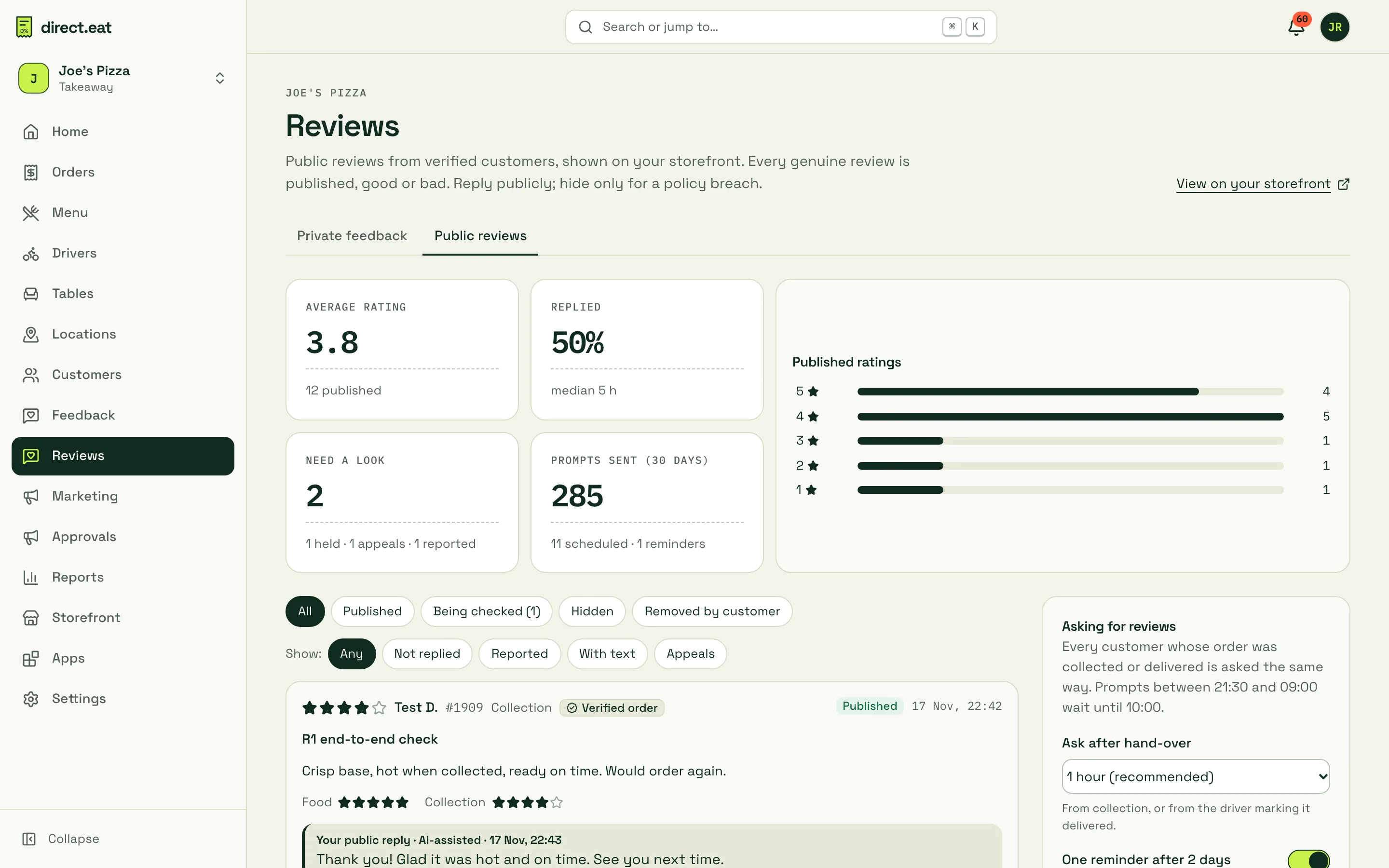
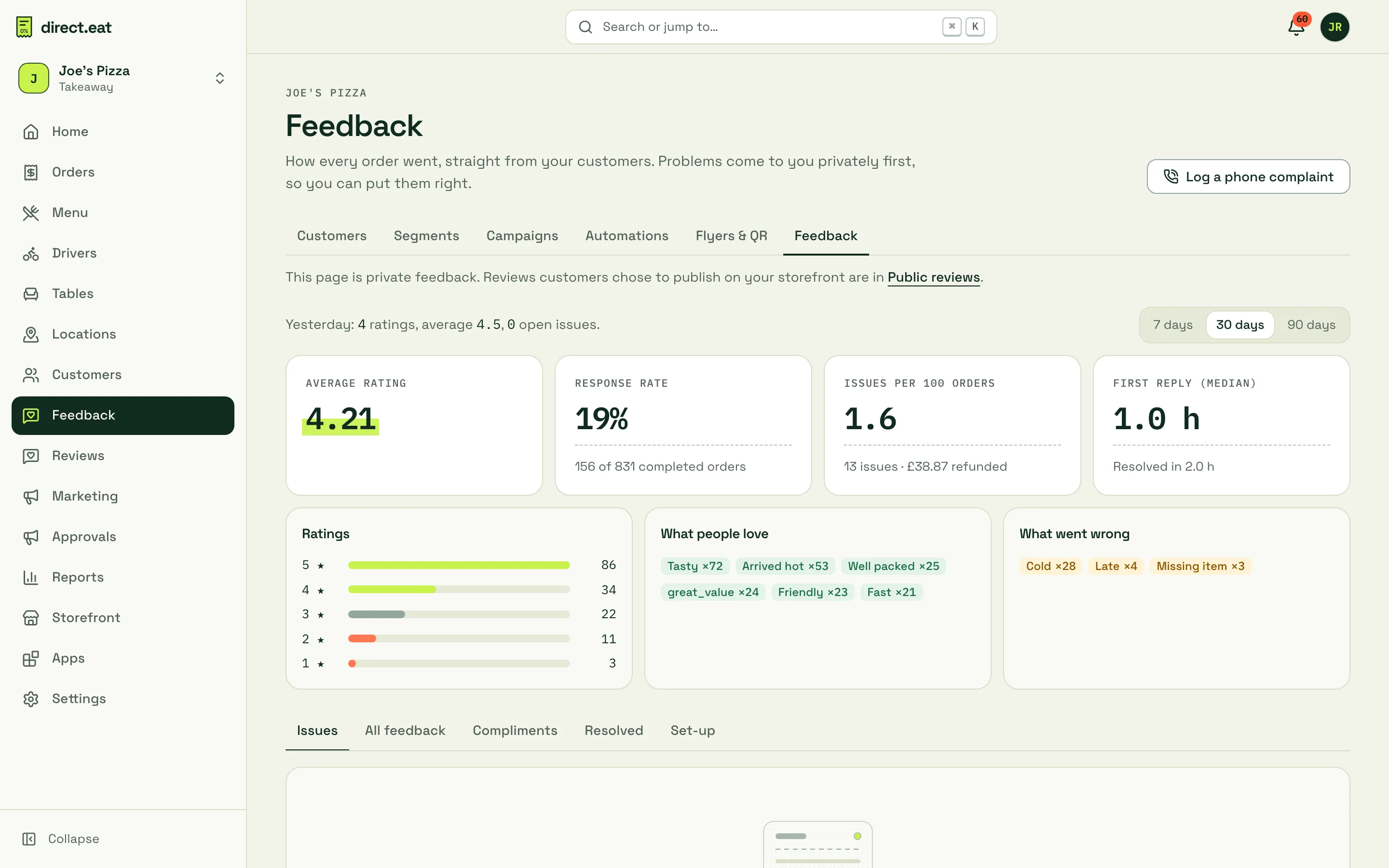
See Reviews and replies and Feedback and issues.
Day 4: spread the word again
Section titled “Day 4: spread the word again”- Google “Order online” link added? If not, do it now: step 12. In Reports, orders from that link show as “Google”.
- Bag inserts in every marketplace bag? Growth plan and above Marketing → Flyers & QR shows scans and first direct orders per batch.
- Link in your social bios and a post telling followers they can order direct.
Day 5 to 7: first look at the numbers
Section titled “Day 5 to 7: first look at the numbers”-
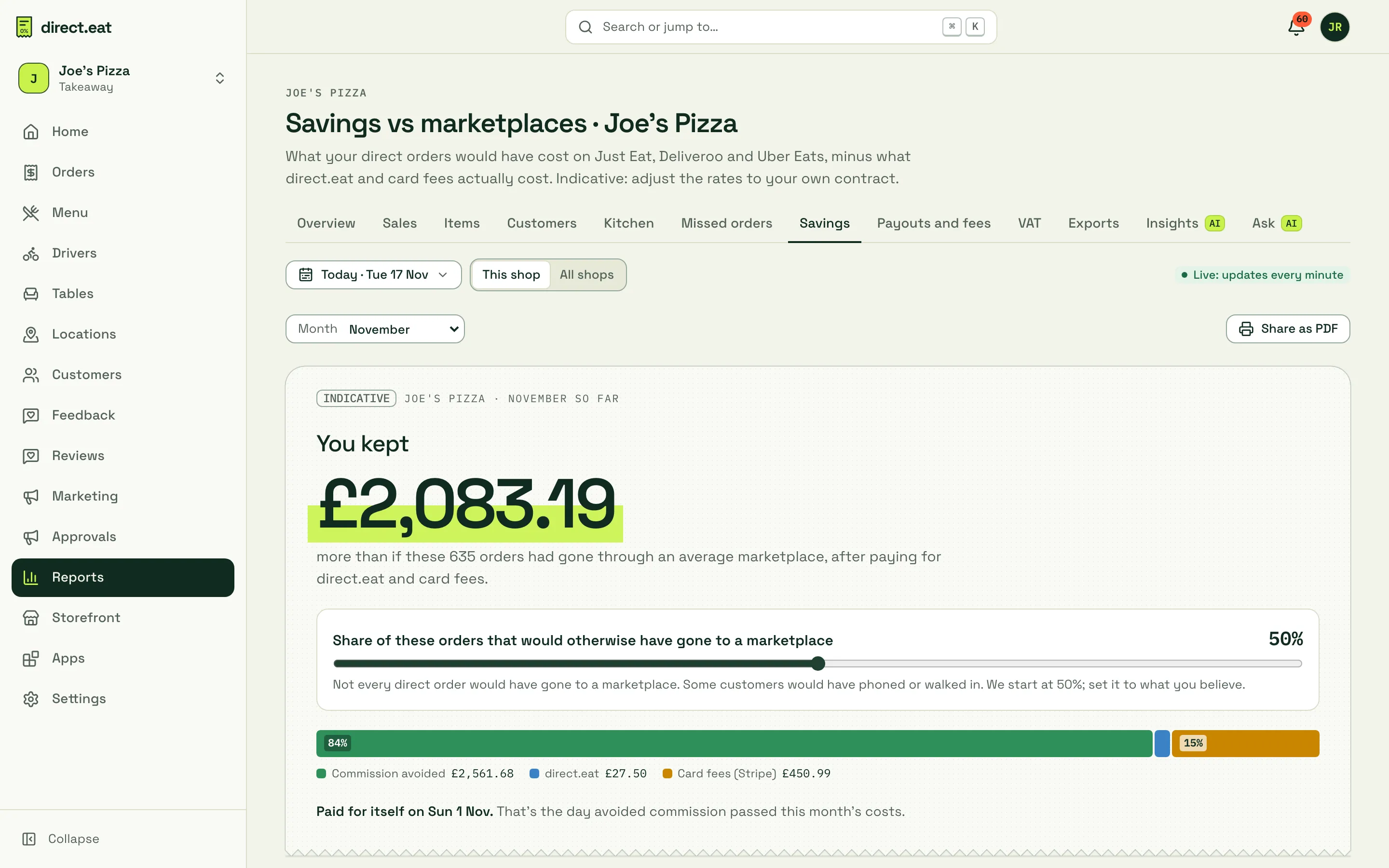
Savings report. Reports → Savings shows what your direct orders would have cost on Just Eat, Deliveroo and Uber Eats, minus what direct.eat and card fees cost. It’s indicative: put in your own marketplace rates and the share of orders you think would really have gone to a marketplace. You can save it as a PDF.
-
Best sellers and quiet times. Reports → Items and Reports → Sales (net sales by hour) show what sells and when.
-
Kitchen times. Reports → Kitchen shows typical prep time and how many orders were on time.
-
Ask a question. Reports → Ask answers plain-English questions about your numbers. See AI insights and assistant.
End of week 1: bring customers back
Section titled “End of week 1: bring customers back”Only once the basics run smoothly. All of these live under Marketing:
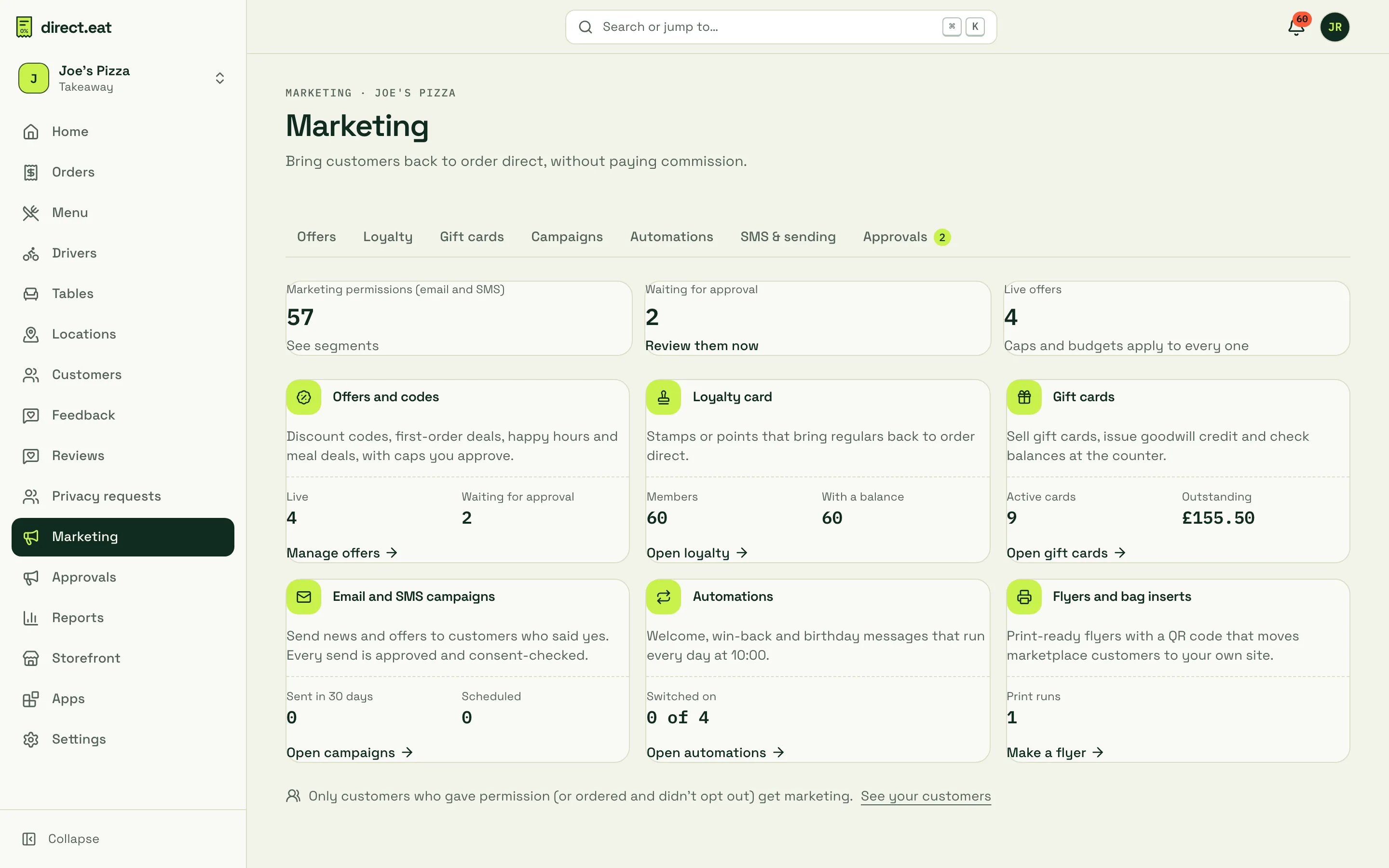
- A first-order offer to win marketplace customers over, such as 10% off with a code. See Offers and promotions.
- A loyalty card Growth plan and above: stamps or points so regulars come back direct. See Loyalty.
- Automations Growth plan and above: welcome, win-back, birthday and order-again messages that run by themselves once approved. See Automations.
- Your first campaign Growth plan and above: an email to customers who said yes to marketing, for example a new dish or a quiet-night offer. Every send is checked for consent and needs a test send first. See Campaigns and consent.
Also worth doing this week
Section titled “Also worth doing this week”- Invite the rest of your team, so nobody shares your login: step 10.
- Add a second alert path (a printer or second tablet) if you haven’t: step 9.
- Add on-call contacts in Settings → Alerts, so someone is reached if an order isn’t accepted.
- Check your plan in Settings → Plan and billing. See Billing and plans.
- Connect your own domain if you have one: Connect your domain.
Related
Section titled “Related”Was this page helpful?