

Message customers about an order
Every order has its own message thread between your shop and the customer. Use it to say you’re running late, ask whether a swap is OK, or answer a question about an allergy, without anyone picking up the phone. The thread is the same everywhere: on the kitchen tablet, on the dashboard and on the customer’s tracking page.
The thread is for service messages about that order only. It isn’t for marketing.
Before you start
Section titled “Before you start”- Reading and sending messages needs the Read and send order messages permission. Owners, admins, managers, staff and kitchen tablets have it.
- Customers write from their order tracking page. They don’t need an account.
Where the thread appears
Section titled “Where the thread appears”| Where | How to open it |
|---|---|
| Kitchen app | Tap the order number or ⋯ on a ticket, then the Messages tab. Tickets with unread messages show “2 new messages from Hannah”. |
| Dashboard board | Click the card. The thread is in the side sheet under Messages with Priya. Cards with unread messages show a speech-bubble badge with the count. |
| Order page | Orders → the order. The Messages card is on the right. |
| Customer’s tracking page | Messages with Joe’s Pizza, under the order progress. |
The thread also shows status lines such as “Accepted · ready about 23:15” and “Delayed · now ready about 23:25 (Busy kitchen)”, so everyone can see what the customer was told and when.
Send a message from the kitchen
Section titled “Send a message from the kitchen”-
Open the order and tap Messages.
-
Tap a quick reply, or type in Message Priya… (up to 500 characters) and tap send.
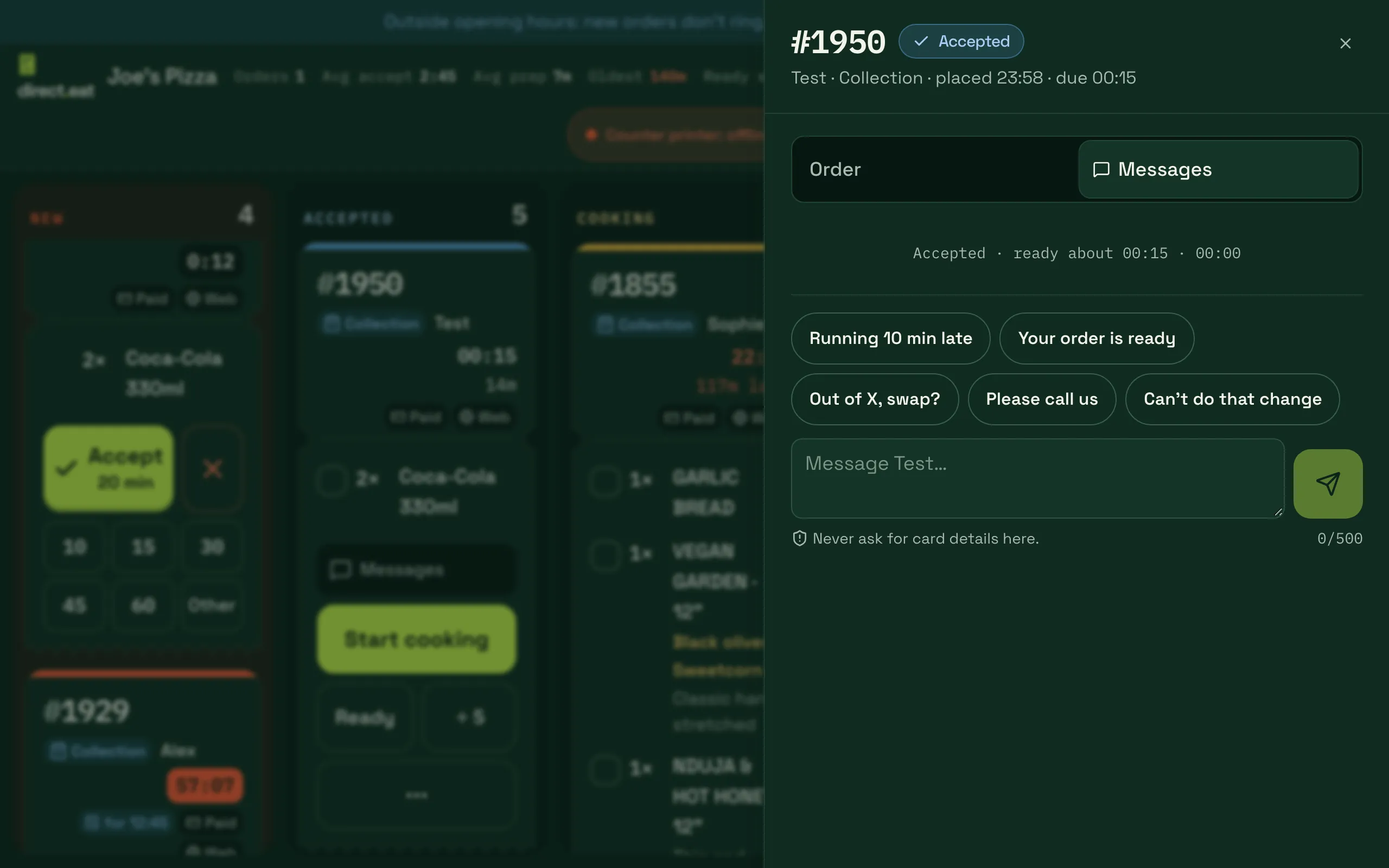
The quick replies are:
| Button | What the customer gets |
|---|---|
| Running 10 min late | “Running about 10 minutes late, sorry.” |
| Your order is ready | “Your order is ready.” |
| Out of X, swap? | “We’ve run out of Coleslaw. Is it OK to swap it for Skin-on Fries?” with Yes, swap it, No thanks and Call me buttons |
| Please call us | “Please call us about your order.” |
| Can’t do that change | “We can’t do that change, sorry.” |
| Driver 5 min away (delivery only) | “Your driver is 5 minutes away.” |
Ask about a swap
Section titled “Ask about a swap”-
Tap Out of X, swap?.
-
Under Out of… tap the item you’ve run out of.
-
Under OK to swap for… type what you’d like to give them instead.
-
Tap Ask Priya.
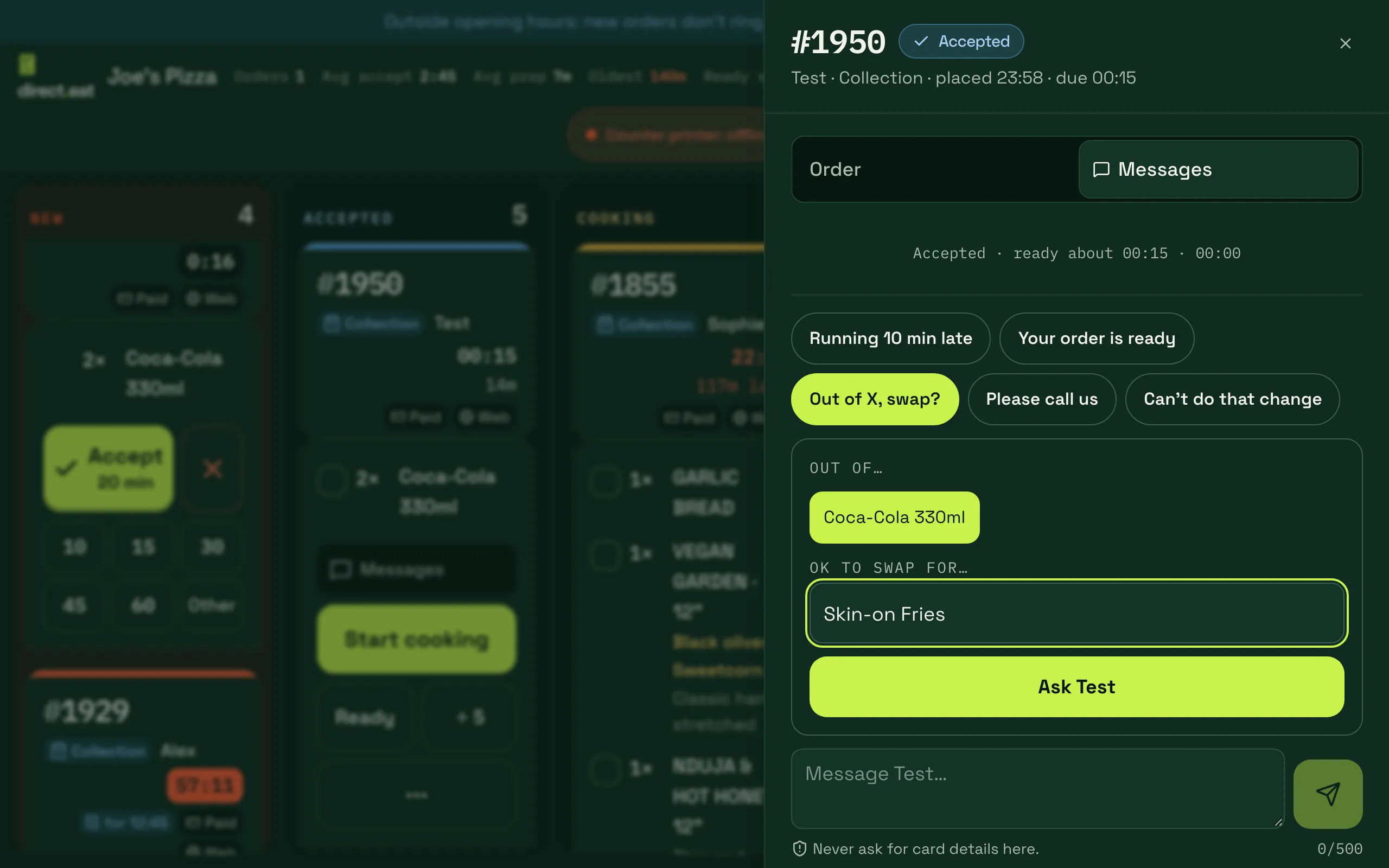
The customer sees the question with three buttons. Their answer comes back into the thread.
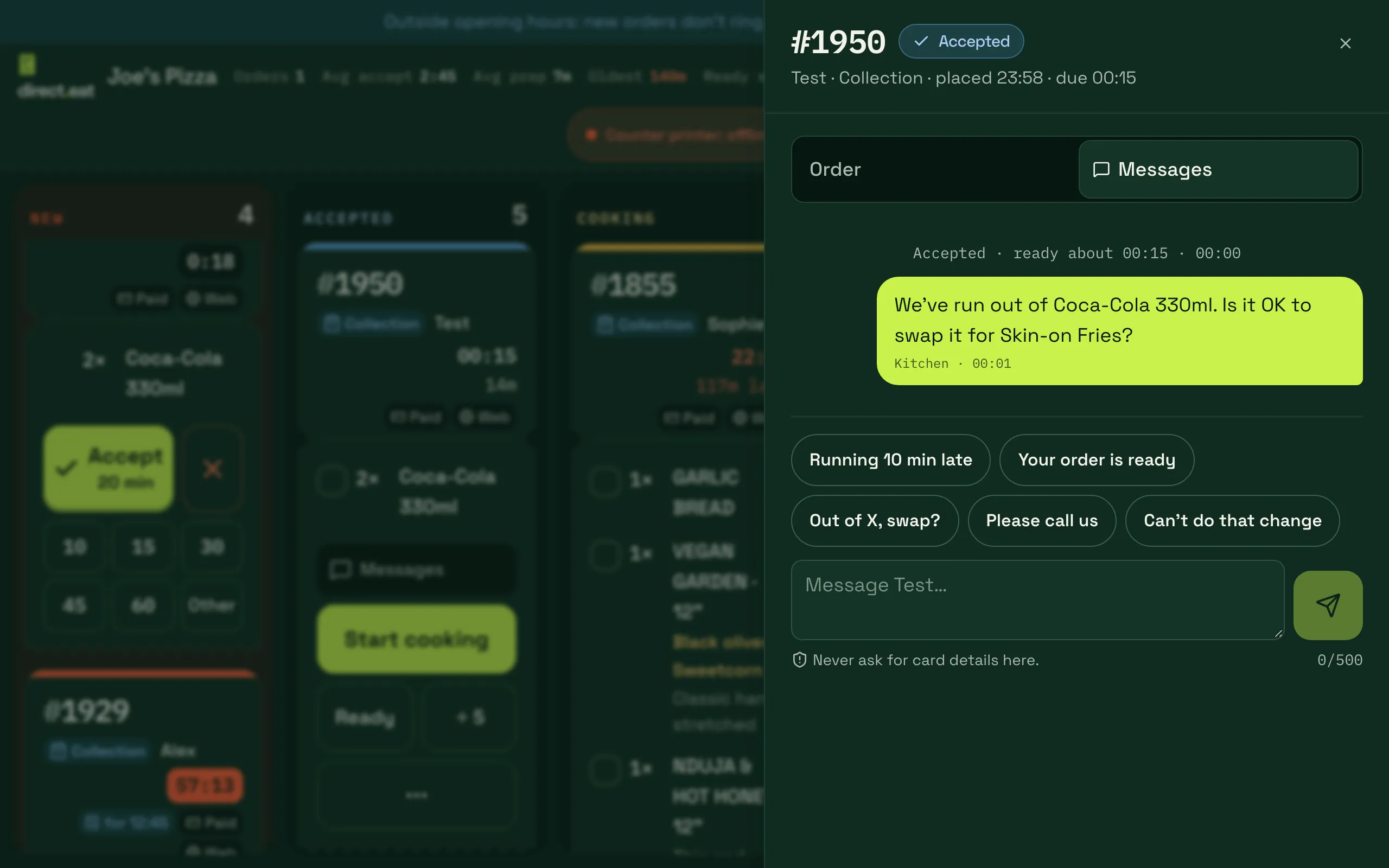
Swaps that change the order
Section titled “Swaps that change the order”The quick reply only asks the question; you then change the order yourself. To have the order and the refund follow the customer’s answer, use Swap… on a line in Change order (or on the dashboard order page) and pick the replacement from your menu.
- The customer gets “Sorry, we’re out of X. Would you like Y instead?” in the thread and can reply YES, NO (remove it and refund it) or CALL ME. Their reply is read automatically, or staff can record it with They said yes, Remove it or Withdraw.
- If there’s no answer within the swap time (5 minutes by default; 2 to 10 minutes in Orders → Kitchen rules → Time to answer a swap), the item is removed and refunded.
- A cheaper swap refunds the difference. A dearer swap is at no extra cost to the customer, because we never charge a card again after the order.
- Tickets show “Swap asked … n min left”, or “Call Sam about …” if they asked for a call.
There’s no one-tap answer page for the customer yet: they answer in the message thread.
What the customer sees
Section titled “What the customer sees”On their tracking page the customer sees your messages, can answer with one tap and can write back. They also have their own quick replies: I’m running late, I’m here, Allergy question and Please call me.
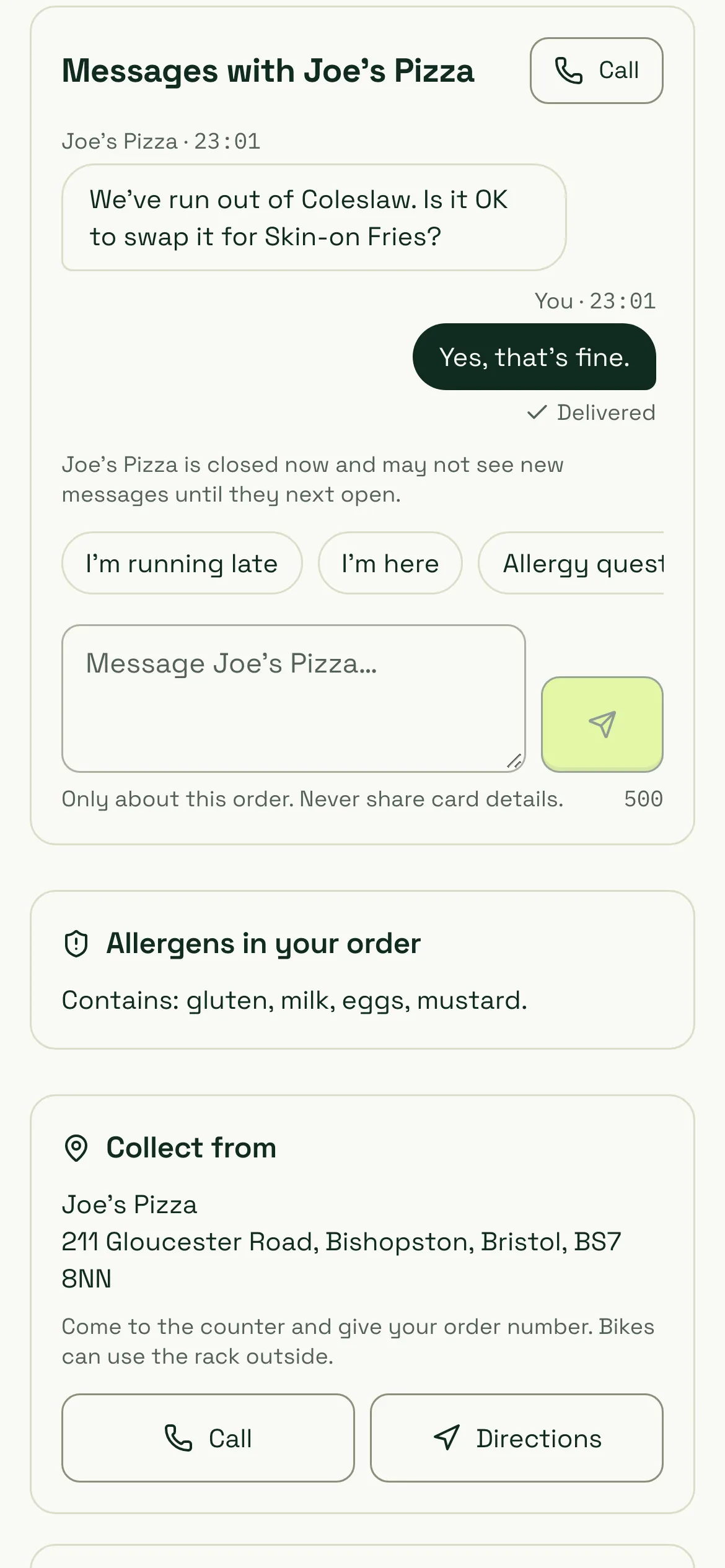
- When your shop is closed, the customer sees “Joe’s Pizza is closed now and may not see new messages until they next open.”
- Customers can send up to 10 messages in 10 minutes and 30 per order.
- The thread closes 24 hours after the order is finished.
- More on the customer’s side: tracking your order.
Reply from the dashboard
Section titled “Reply from the dashboard”The same thread is in the board’s side sheet and on the order page. Click a quick reply or type and press Ctrl + Enter (⌘ + Enter on a Mac) to send.
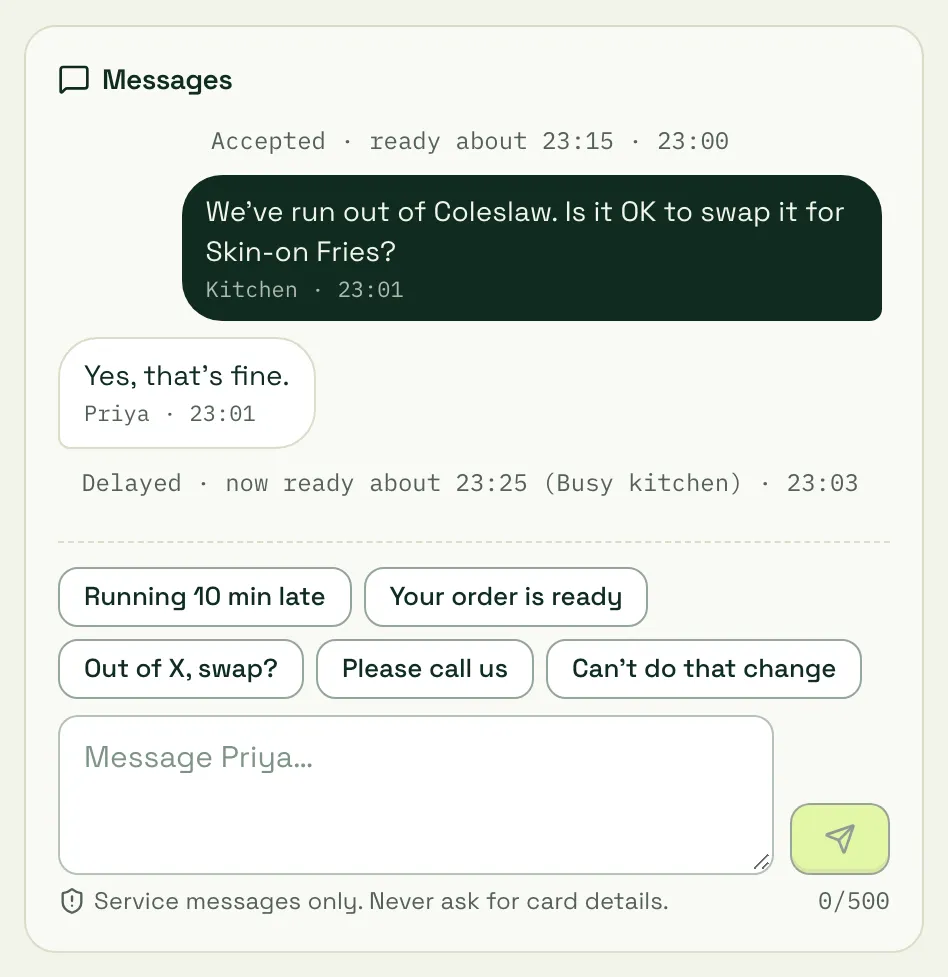
If someone else on your team replied in the last 2 minutes, you see “Someone on your team replied in the last 2 minutes.” so two people don’t answer at once. Your messages are labelled with who sent them (Kitchen for a tablet, or your name).
Notifications both ways
Section titled “Notifications both ways”When you send a message, the customer gets an email with the message and a link straight to the thread. If they’ve already read it on the tracking page, the email is skipped.
When the customer writes:
- the kitchen app shows a banner at the top (“#1042 Sam sent a message · tap to read”), plays a short chime and adds an unread badge to the ticket
- the dashboard board shows an unread badge on the card
- if nobody reads it within 3 minutes, owners and managers get an Unread message on #1042 notification in the notifications inbox. You can change the 3 minutes in alert settings (1 to 10 minutes).
Opening the thread on any screen marks the messages read everywhere.
Allergy messages
Section titled “Allergy messages”If a customer picks Allergy question or writes about an allergy, the message is flagged in red in the kitchen thread so it stands out. Answer it before you cook. Allergy notes on the order itself are always shown in full on tickets and on the order page. See allergens and dietary info.
Rules for messages
Section titled “Rules for messages”- Never ask for card details. Card numbers typed into the thread, by you or the customer, are hidden automatically.
- Keep it about the order. The thread isn’t for offers or marketing: use campaigns for that, with consent.
- The customer’s phone number isn’t shown in the thread. If you need to call, use Show contact details on the order page. Each reveal is logged on the order.
Related
Section titled “Related”Was this page helpful?