

Drivers and dispatch
Your drivers don’t need an app or an account. Each driver gets a private link that opens their deliveries on their phone. You assign orders on the Drivers page, they tap through each drop, and you cash up at the end of the shift.
Before you start
Section titled “Before you start”- Set up your delivery zones first: Delivery zones, fees and ETAs.
- To add drivers, send links and cash up you need the “manage drivers” permission (owners, admins and managers by default). Staff who can manage orders can assign drivers and mark deliveries. See Roles and permissions.
- Unlimited drivers on every plan.
The Drivers page
Section titled “The Drivers page”Open Drivers in the sidebar (shortcut g then d).
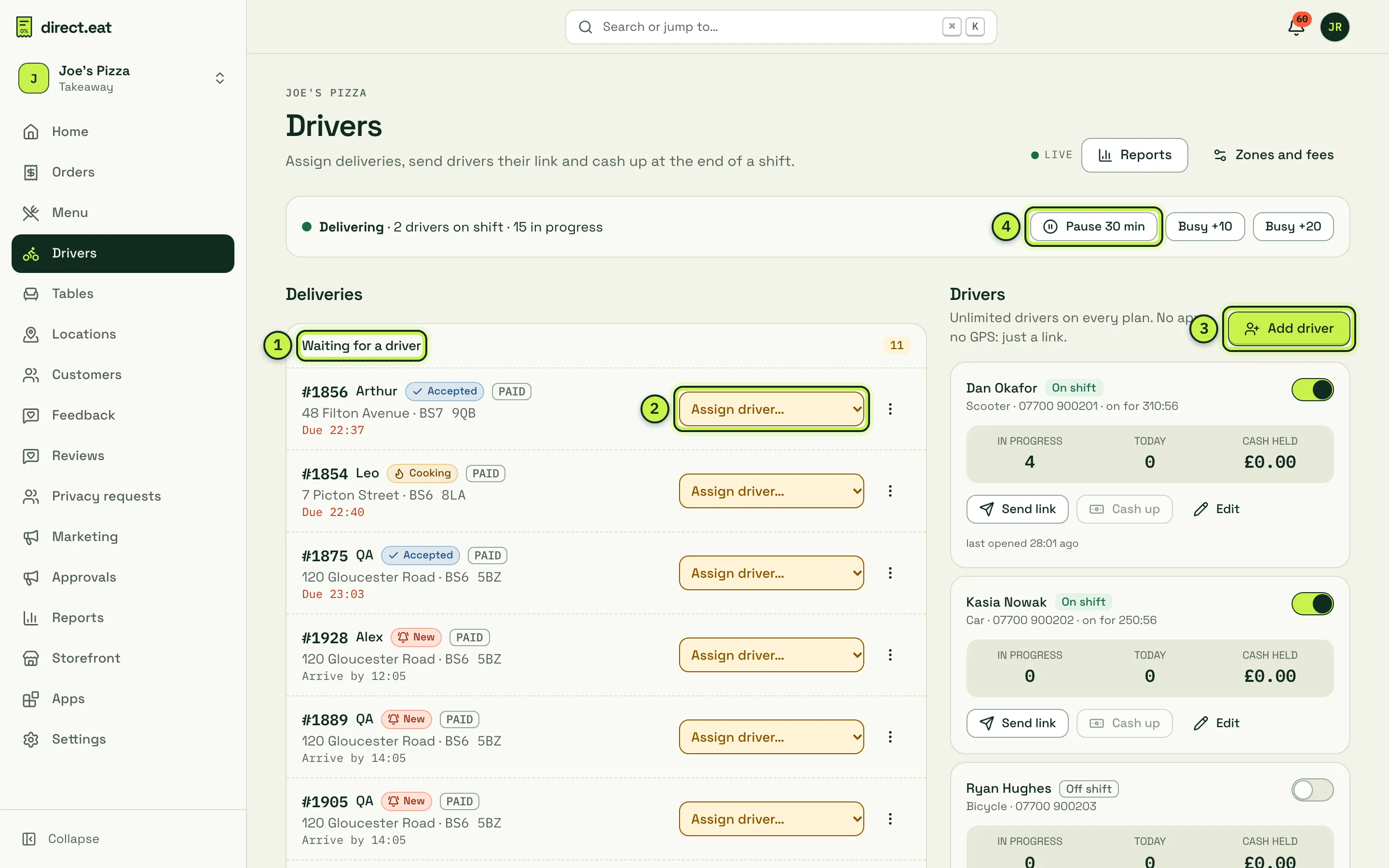
- Waiting for a driver: delivery orders with no driver yet, with the customer’s first name, status, payment (PAID or cash to collect), street and postcode, and the time it’s due.
- Assign driver: pick a driver for the order. The number next to each name is how many orders they already have. Drivers who are off shift are marked.
- Add driver.
- Pause 30 min, Busy +10 and Busy +20: pause delivery orders, or add minutes to every delivery ETA while you’re swamped.
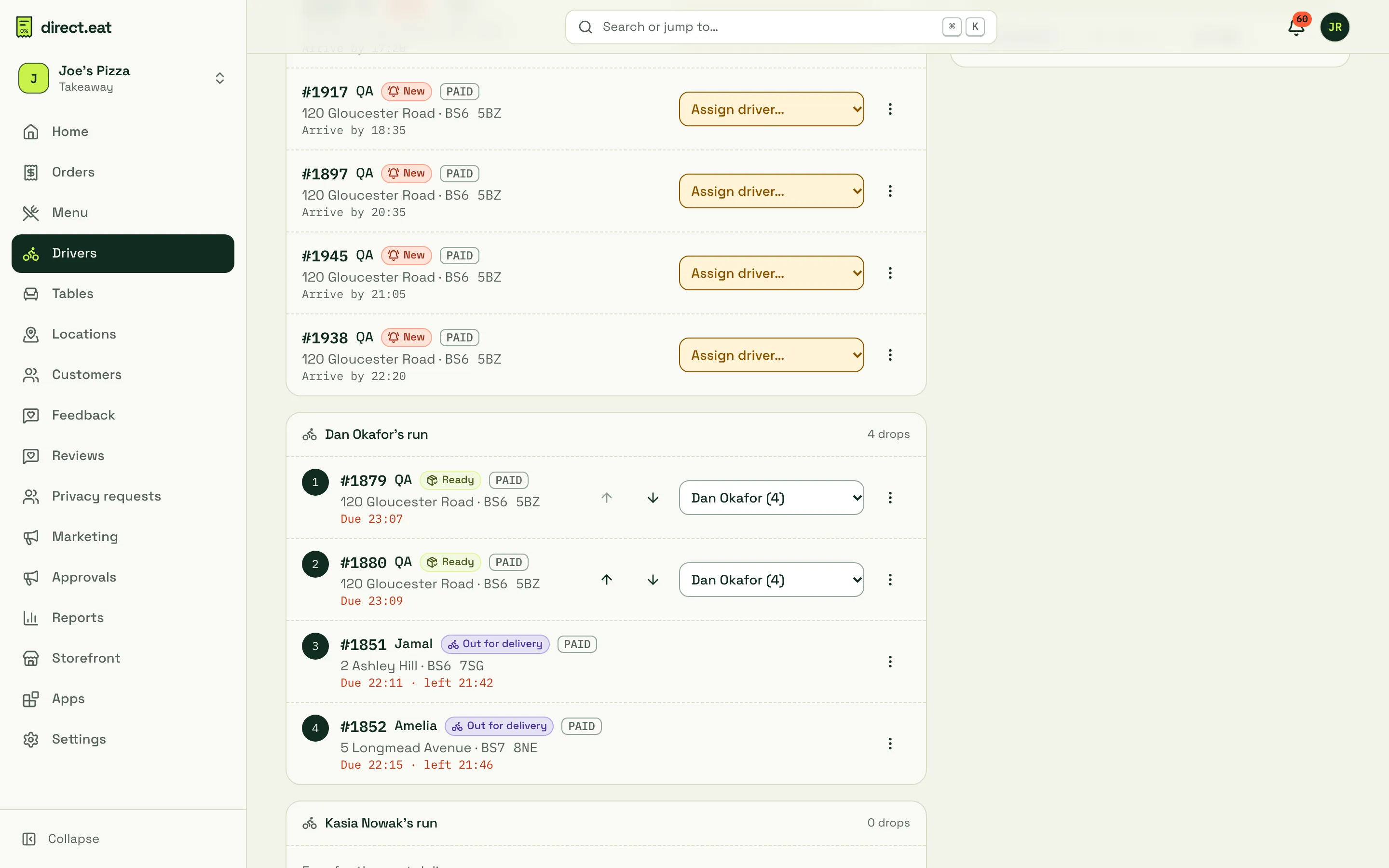
The page updates live. Under the waiting list, each driver’s run lists their drops in order with stop numbers. Use the arrows to move a drop earlier or later. Finished in the last 3 hours lists completed deliveries, and a warning appears if a driver who’s gone off shift still holds orders.
Add a driver
Section titled “Add a driver”- Click Add driver.
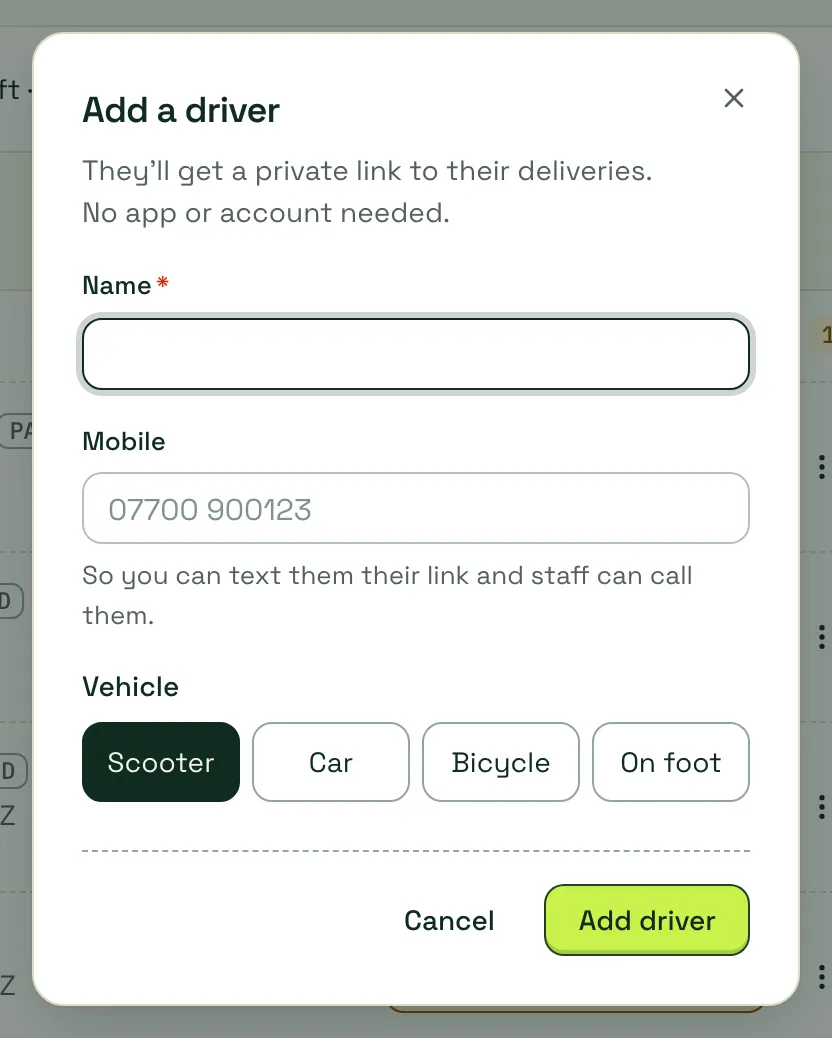
- Enter their Name, Mobile (so you can text them their link and staff can call them) and Vehicle: Scooter, Car, Bicycle or On foot.
- Click Add driver. Their private link appears straight away.
- Send it to them: Copy, Text (opens a text message on your phone) or WhatsApp, each with a ready-written message.
Each driver card shows whether they’re on shift (switch), orders in progress, deliveries today and Cash held, plus Send link, Cash up and Edit.
Assigning deliveries
Section titled “Assigning deliveries”When a delivery order comes in, it appears under Waiting for a driver. Pick a driver from Assign driver and it moves to their run. Choose Unassign to take it back. Staff can also do this from the order itself.
You can set things for a driver if they can’t: Handed to driver, Mark delivered (with cash and ID details) and Couldn’t deliver (with a reason, outcome and note). These are recorded as done by staff.
What the driver sees
Section titled “What the driver sees”The driver opens their link on their phone. There’s nothing to install and no login: the link is their key, so ask them not to share it.
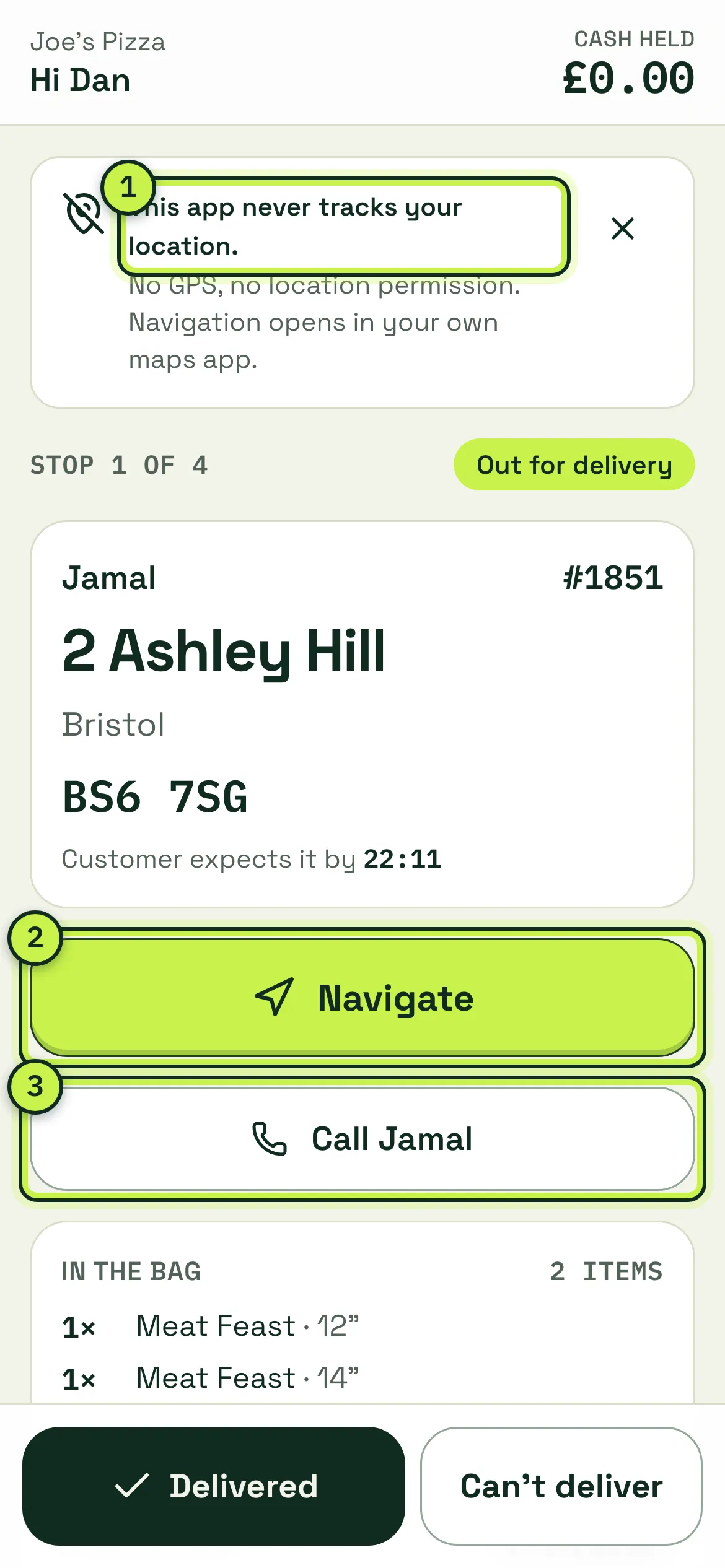
- No tracking notice: shown the first time, so drivers know their location isn’t used.
- Navigate: opens Google Maps, Apple Maps or Waze (the driver chooses under Navigate with) with the drop’s address.
- Call: phones the customer. Calls are logged on the order.
The next stop opens as a full card: the address in big type, the postcode, when the customer expects it, delivery notes, any allergy or Challenge 25 warning, what’s in the bag, and cash due in bold (or PAID). Below it is the driver’s whole run in order, what they’ve done today, and Cash held at the top.
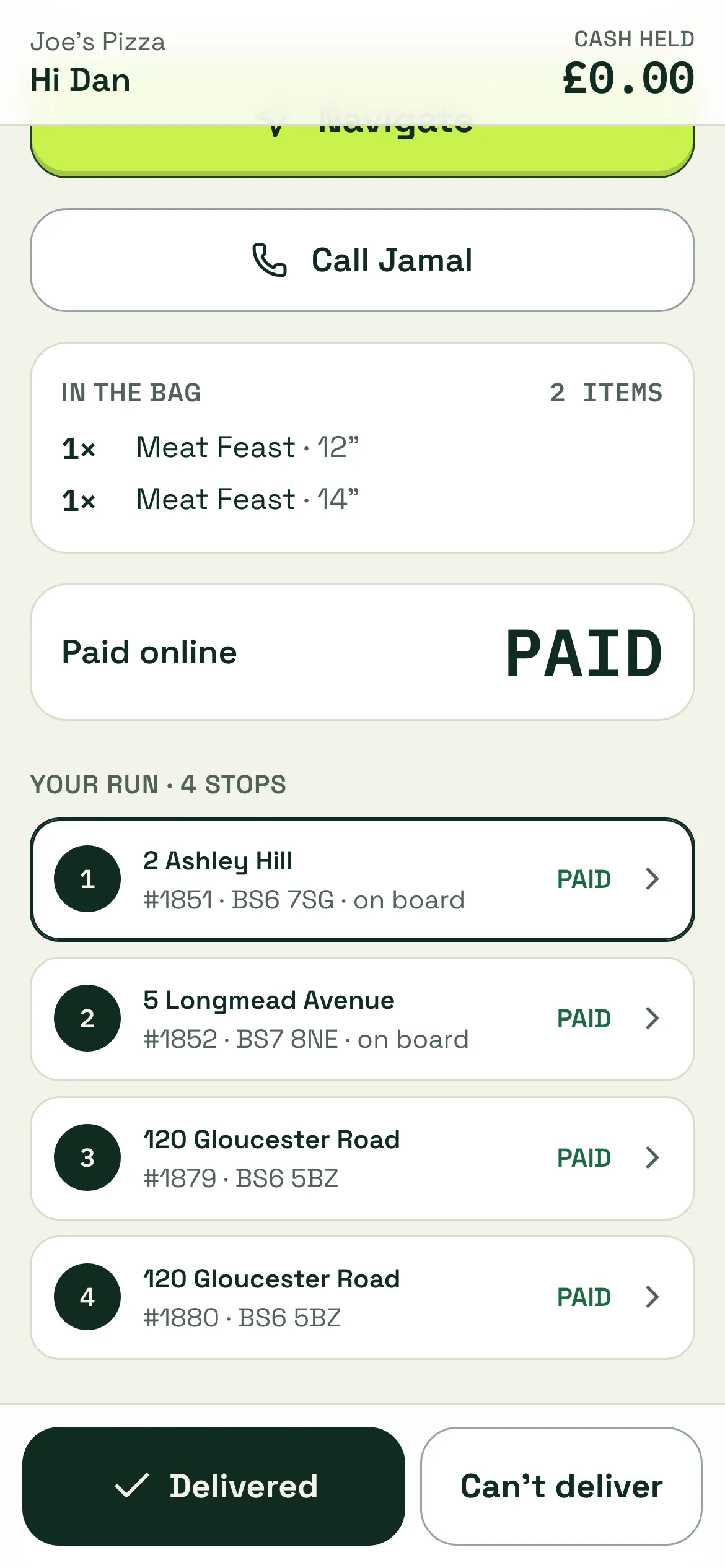
Picking up and delivering
Section titled “Picking up and delivering”- I’ve got it · Out for delivery: tapped when the driver leaves with the order. The diner’s tracking page changes to Out for delivery and, if you allow it, shows the driver’s first name.
- Delivered: tap once, then Tap again to confirm. For cash orders the driver enters the cash collected and sees the change due. For alcohol orders they must tick “ID checked, over 18”.
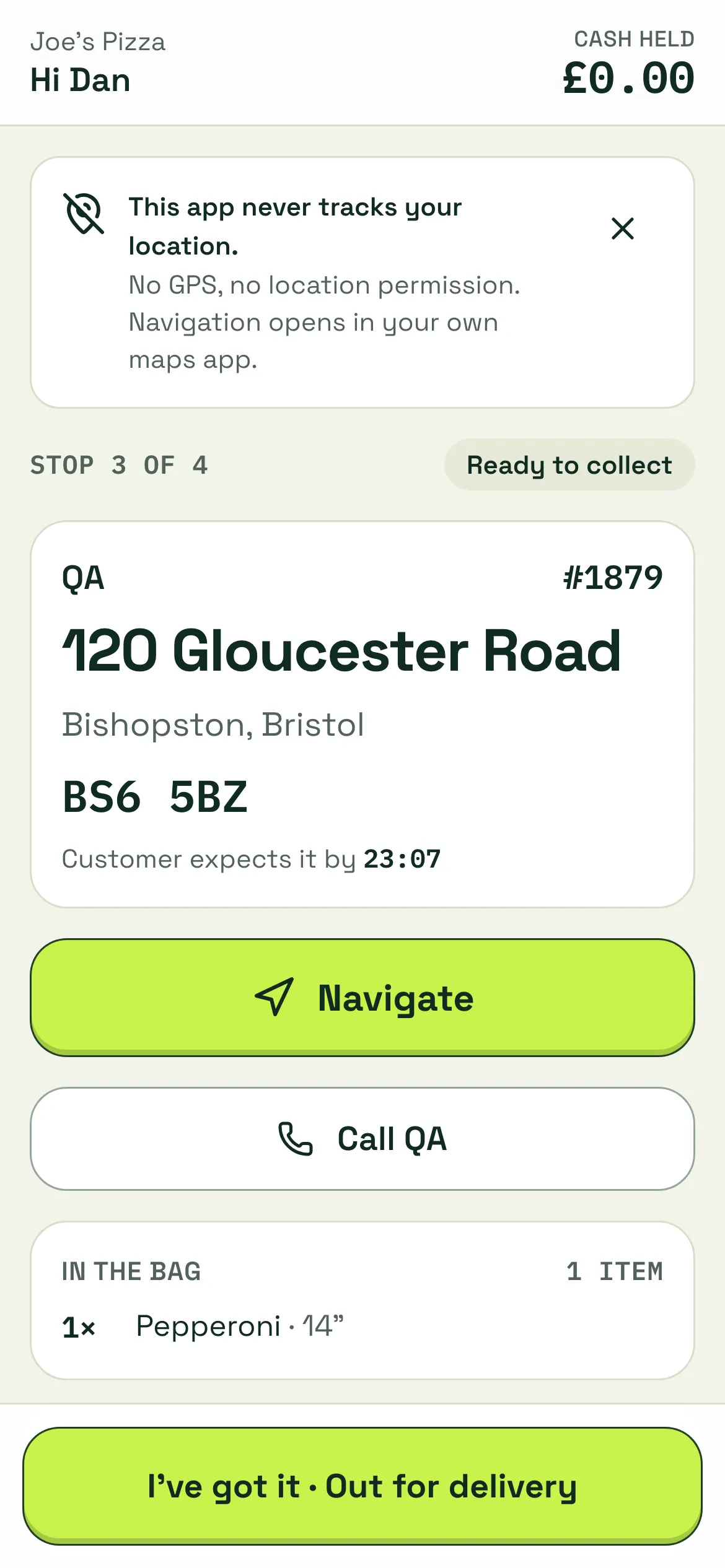
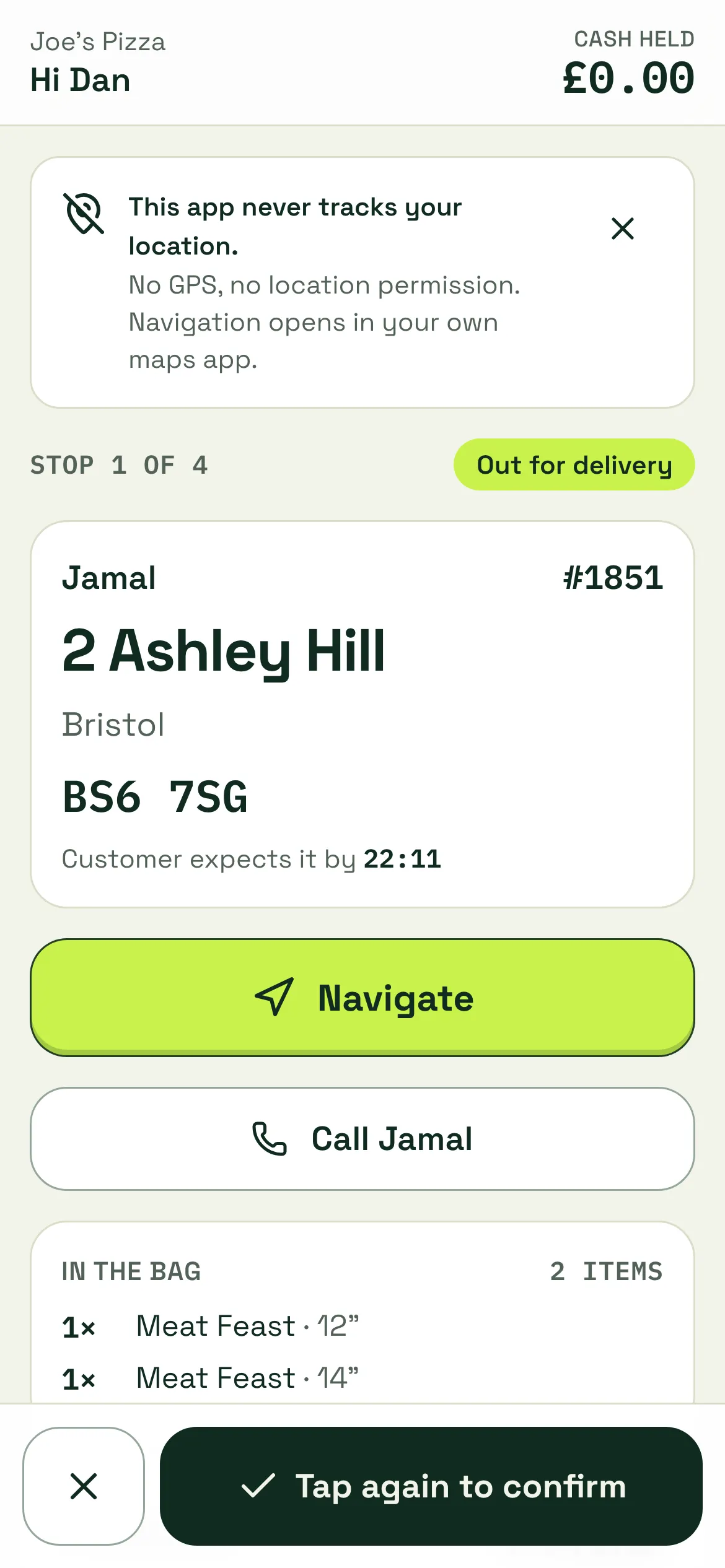
If the driver loses signal, their taps are saved on the phone and sent when the signal comes back (“Saved on your phone. It’ll send when you have signal.”).
When a delivery can’t be completed
Section titled “When a delivery can’t be completed”The driver taps Can’t deliver. They can Call the customer, or tap I’m outside, which starts a 5-minute timer and posts “Your driver is outside” in the diner’s order messages. If it still can’t be delivered, they choose what happened (for example Customer not in / no answer, Wrong or can’t find address, Customer refused the order, Unsafe to deliver, Vehicle problem) and what now (Bringing it back to the shop or Will try again shortly, and a safe place only if the diner opted in and the order has no alcohol or allergy flag).
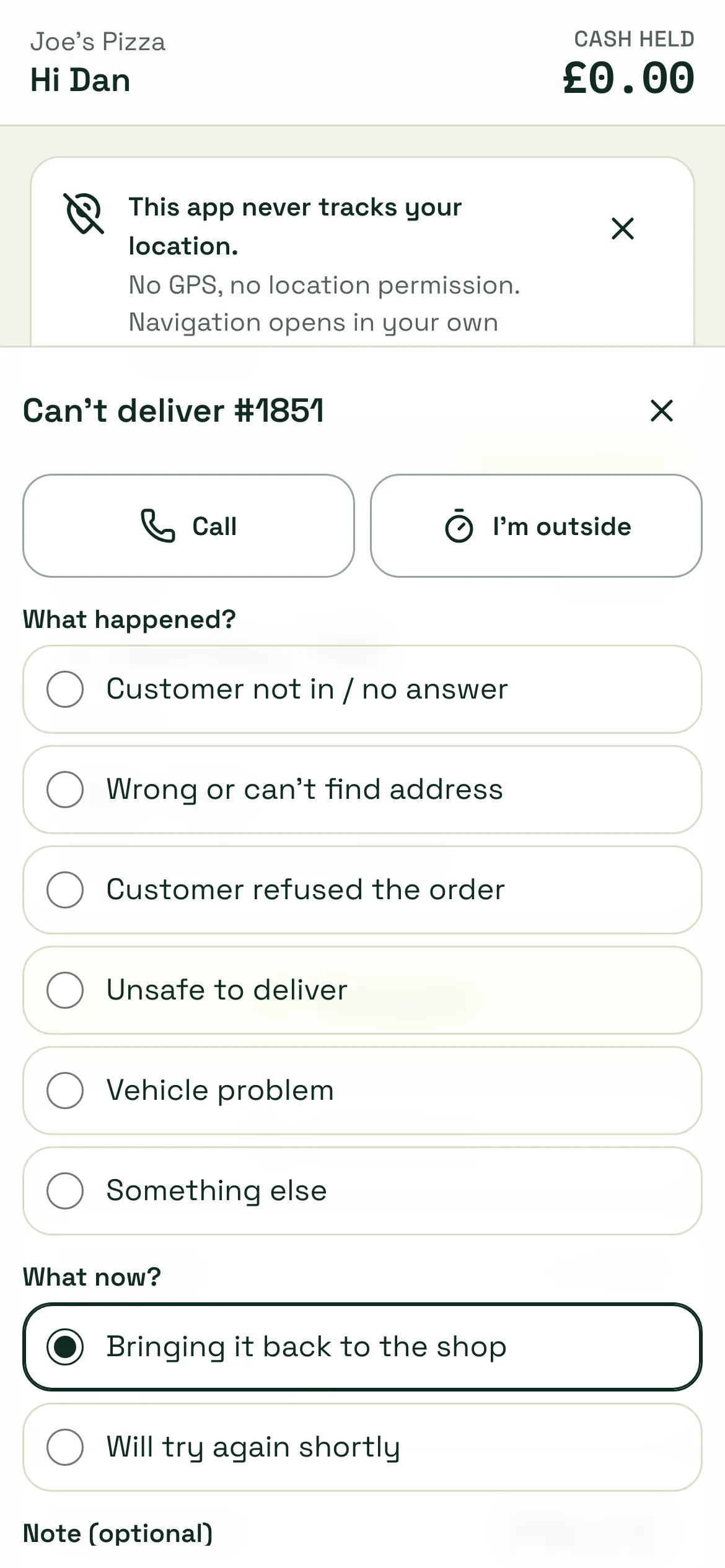
The shop is told, an issue is opened with the timeline as evidence, and the diner’s tracking page says We couldn’t deliver your order with the reason and next steps. Nothing is refunded automatically: you decide in Delays and refunds.
Privacy for diners
Section titled “Privacy for diners”Customer names, addresses and phone numbers disappear from the driver’s screen 2 hours after each drop. After that the driver only sees the order number and postcode district.
Cash and cashing up
Section titled “Cash and cashing up”Cash orders show cash due on the driver’s card and add to their Cash held when delivered. At the end of a shift, click Cash up on the driver’s card, enter what they handed in, and compare it with what was expected. Any difference (short or over) needs a note. Variances are never taken from tips.
Delivery reports
Section titled “Delivery reports”Click Reports on the Drivers page. Pick Today, 7 days, 30 days or 90 days.
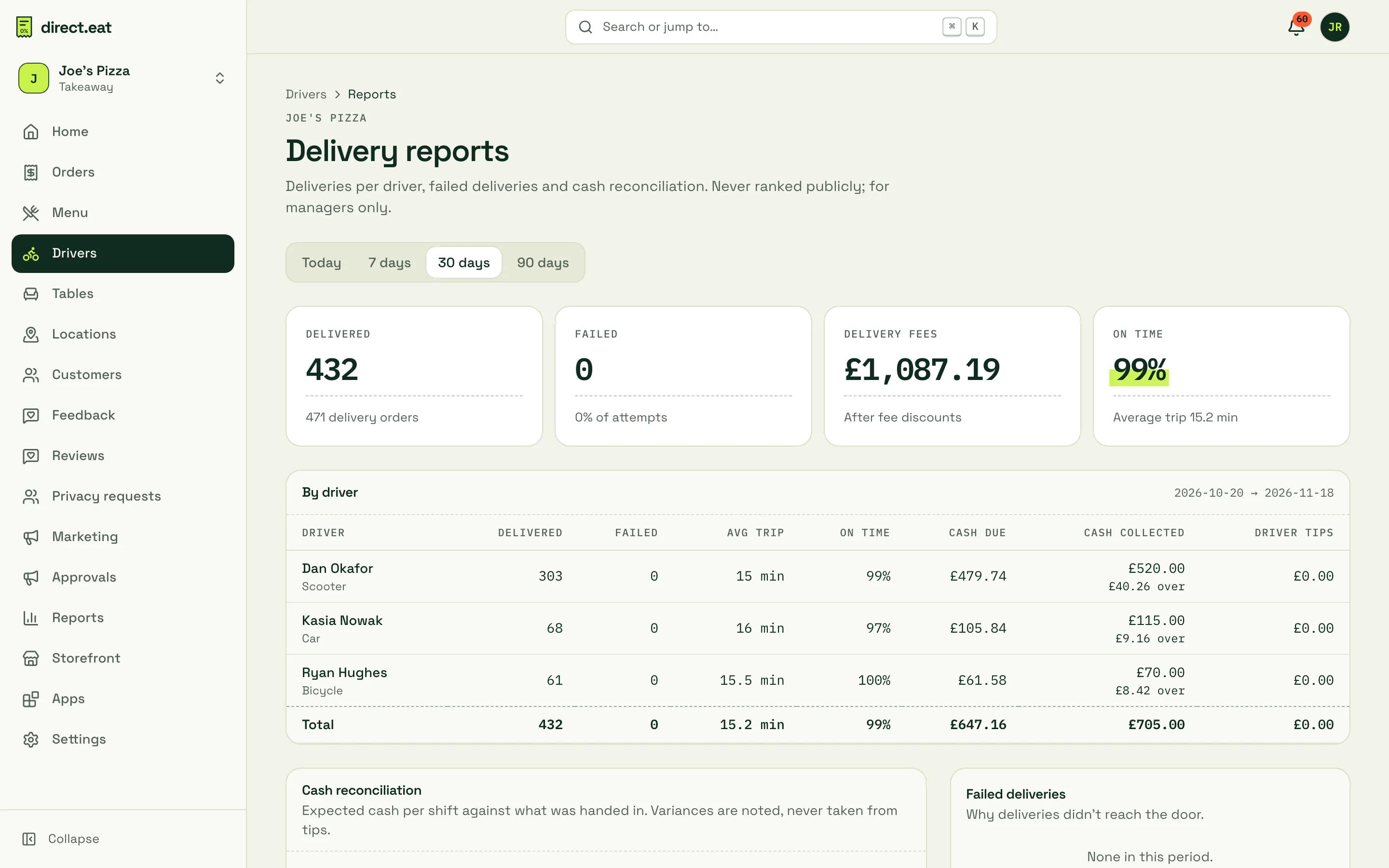
- Totals: delivered, failed, delivery fee income and on-time rate with average trip time.
- By driver: deliveries, failed, average trip, on time, cash due against cash collected, and driver tips.
- Cash reconciliation: expected cash per shift against what was handed in, marked balanced, short or over, with notes.
- Failed deliveries: why deliveries didn’t reach the door.
Reports are for managers only and are never shown to drivers as a ranking.
Related
Section titled “Related”Was this page helpful?