

Exports
Reports → Exports gives you raw data for your accountant or your own spreadsheets, scheduled report emails, and the settings that shape every report. Files use UK dates and money as numbers, and open straight in Excel.
Before you start
Section titled “Before you start”- Owners, admins and managers can export orders, order lines and refunds. Only owners and admins can export customers.
- Every export is recorded in the activity log and in Recent exports at the bottom of the page.
Download raw data
Section titled “Download raw data”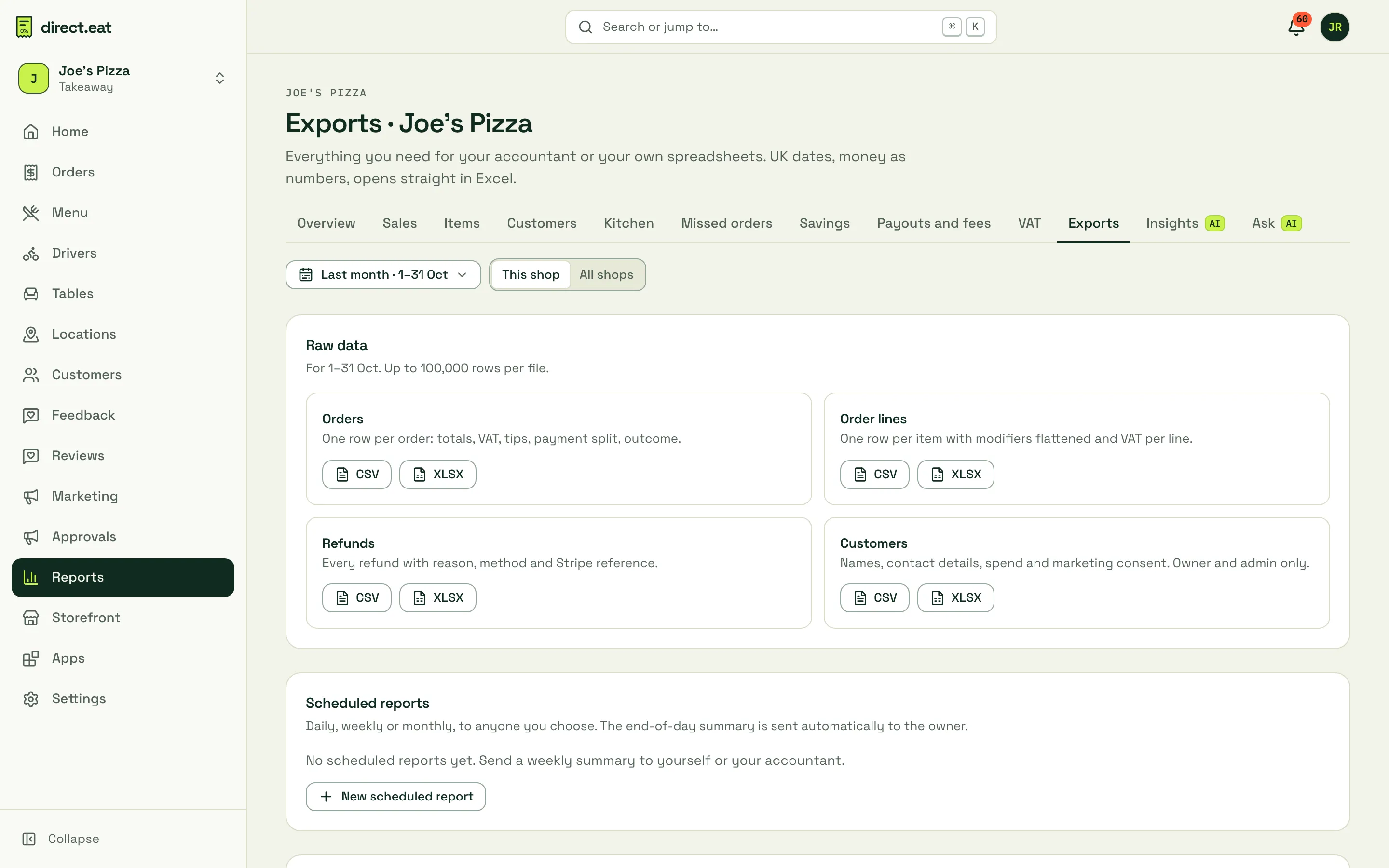
- Pick the period (for example Last month) and This shop or All shops.
- Click CSV or XLSX on the file you want.
| File | What’s in it |
|---|---|
| Orders | One row per order: totals, VAT, tips, payment split and outcome |
| Order lines | One row per item, with modifiers flattened and VAT per line |
| Refunds | Every refund with reason, method and Stripe reference |
| Customers | Names, contact details, spend and marketing consent (owners and admins only) |
Each file holds up to 100,000 rows. For a longer history, export a shorter period at a time.
Most tables inside the reports also have their own Export button that downloads exactly what’s on screen.
Scheduled reports
Section titled “Scheduled reports”Send a report by email every day, week or month, to yourself, a manager or your accountant.
- Under Scheduled reports, click New scheduled report.
- Give it a Name, choose How often (for example Weekly (Monday)) and Send at.
- Add Recipients: any email address, separated by commas.
- Tick what to Include: Sales, Items, Kitchen, VAT, Payouts and fees, Savings vs marketplaces.
- Choose a Format (for example XLSX attachment), leave Active on and click Save schedule.
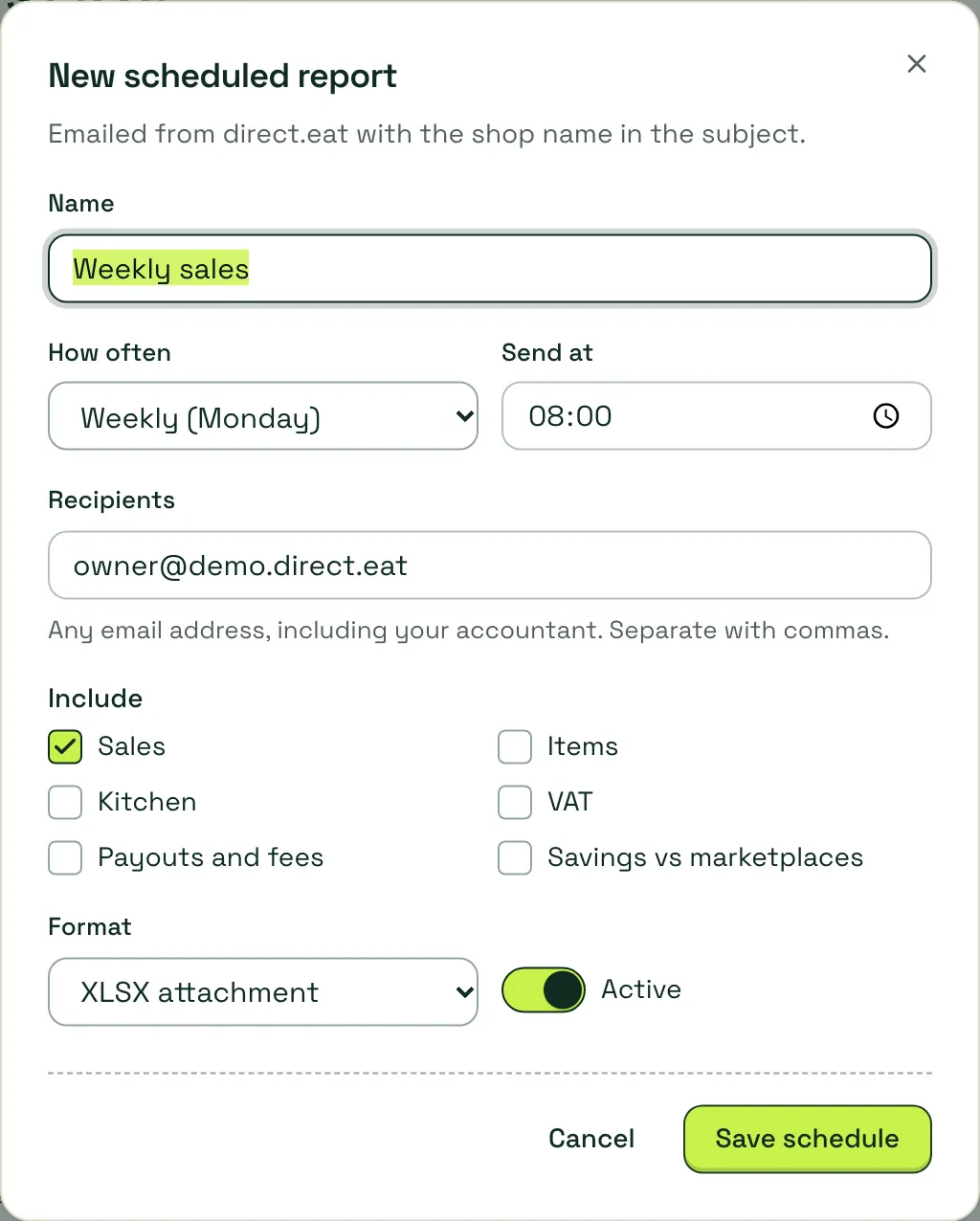
Scheduled reports are emailed from direct.eat with your shop’s name in the subject. Switch Active off to pause one without deleting it. The end-of-day summary is sent to the owner automatically and doesn’t need a schedule.
Report settings
Section titled “Report settings”Further down the page, under Report settings:
- Trading day ends at: orders before this time count towards the previous day. The default is 04:00, which suits most takeaways open past midnight.
- VAT quarters: Mar, Jun, Sep, Dec, Apr, Jul, Oct, Jan, May, Aug, Nov, Feb or Monthly returns. This sets the quarter buttons on the VAT report.
- Flat Rate Scheme %: leave blank if you’re not on the FRS.
- End-of-day email to the owner (30 minutes after closing): on or off.
Click Save report settings. Changing the trading day recalculates your reports.
Other exports
Section titled “Other exports”- Your whole account (menu, customers with consent, orders, VAT by month) can be downloaded as a pack from billing: see Data export and cancelling.
- The customer list has its own CSV and JSON export: see Customers and segments.
- Accounting software links are covered in Integrations.
Related
Section titled “Related”- Reports
- Savings report
- Developers (pull data with the API)
Was this page helpful?