

Invite your staff
Everyone who uses the dashboard should have their own login. You can see who did what, and when someone leaves you remove them in one click instead of changing your password.
Time: about 2 minutes per person.
Before you start
Section titled “Before you start”- Who can invite whom: only the owner can invite admins, owners and admins can invite managers, and managers can invite staff and set up PIN profiles.
- Starter includes 3 staff logins; Growth and Pro are unlimited. PIN profiles for shared tablets are unlimited on every plan.
- Have each person’s email address. Invitations go by email and last 7 days.
The roles
Section titled “The roles”| Role | Who it’s for | What they can do |
|---|---|---|
| Owner | You | Everything, including billing, the Stripe account, going live and closing the account. There’s always exactly one owner. |
| Admin | A business partner or ops manager | Full access to every shop, except owner-only actions. |
| Manager | Whoever runs a shift | Runs a shop day to day: menu, hours, orders, and refunds up to £75. Can’t see billing. |
| Staff | Counter and phone staff | Takes orders, 86s items and sees today’s numbers. No settings, customers or billing. |
| Kitchen device | A paired tablet, not a person | The order board only. Created when you pair a screen in step 9. |
The full list of who can do what is in Roles and permissions, and in the dashboard under Settings → Team → Roles and permissions.
Invite someone
Section titled “Invite someone”-
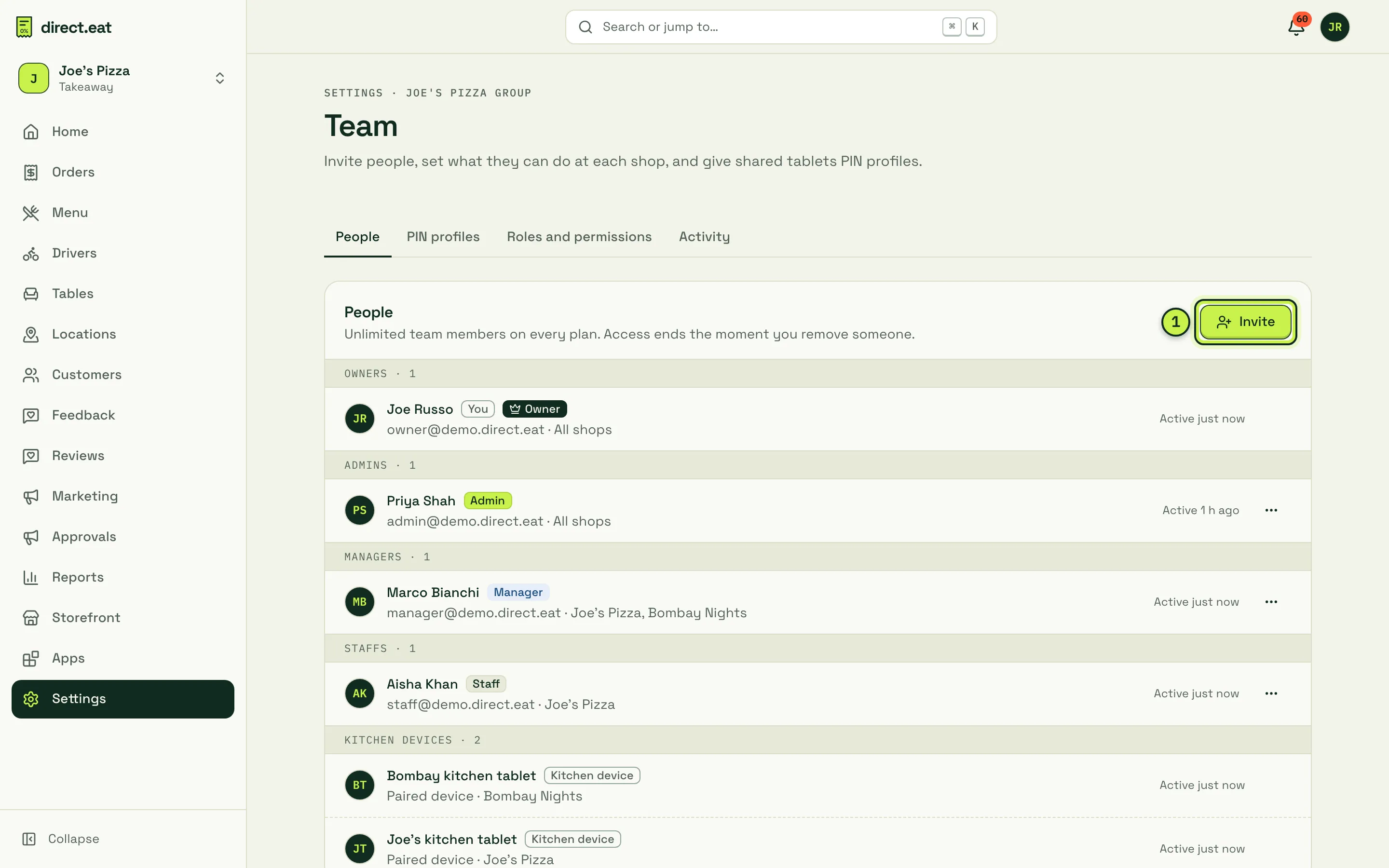
Go to Settings → Team. The People tab lists everyone grouped by role, including paired kitchen devices.
-
Click Invite (1).
-
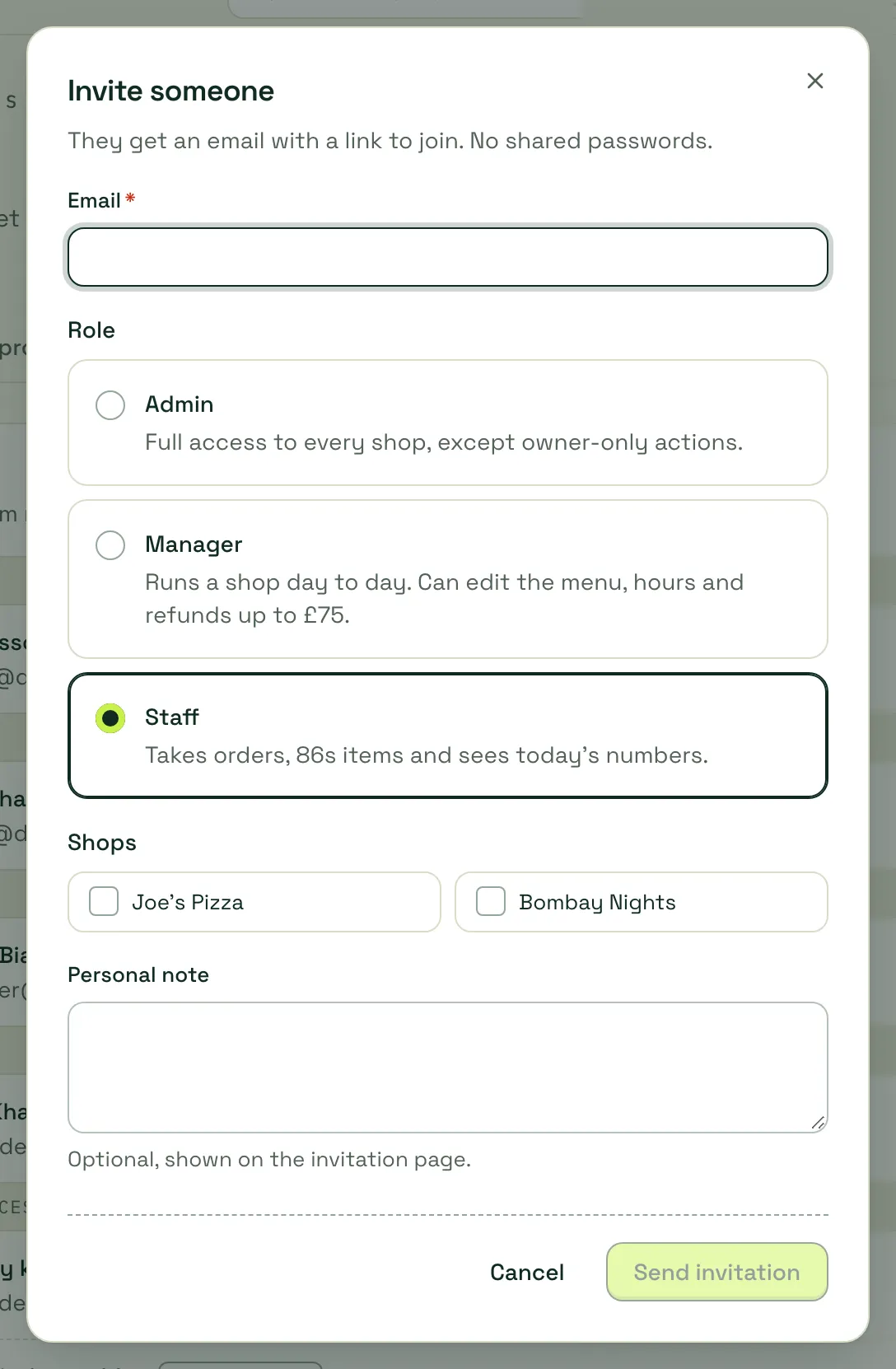
Type their Email, pick a Role and tick the Shops they work at. Add a Personal note if you like: it’s shown on the invitation page.
-
Click send. They get an email with a link to join and set their own password.
Pending invitations show on the People tab, where you can resend or cancel them. If an email doesn’t arrive, the dialog also gives you a link you can send yourself.
Change or remove someone
Section titled “Change or remove someone”On the People tab, use the menu next to a person to change their role or shops, or remove them. Access ends the moment you remove someone. Only the owner can hand over ownership, and it asks for your password first.
Shared tablets: PIN profiles
Section titled “Shared tablets: PIN profiles”If several people use the same kitchen tablet, you don’t need a login for each. On the PIN profiles tab, give each person a 4-digit PIN. The kitchen app can then ask for a PIN before sensitive actions (rejecting an order, 86ing an item until further notice, opening printer settings), so you know who did it. A PIN is remembered for 15 minutes, and 5 wrong tries lock it for 5 minutes.
Check what each role can do
Section titled “Check what each role can do”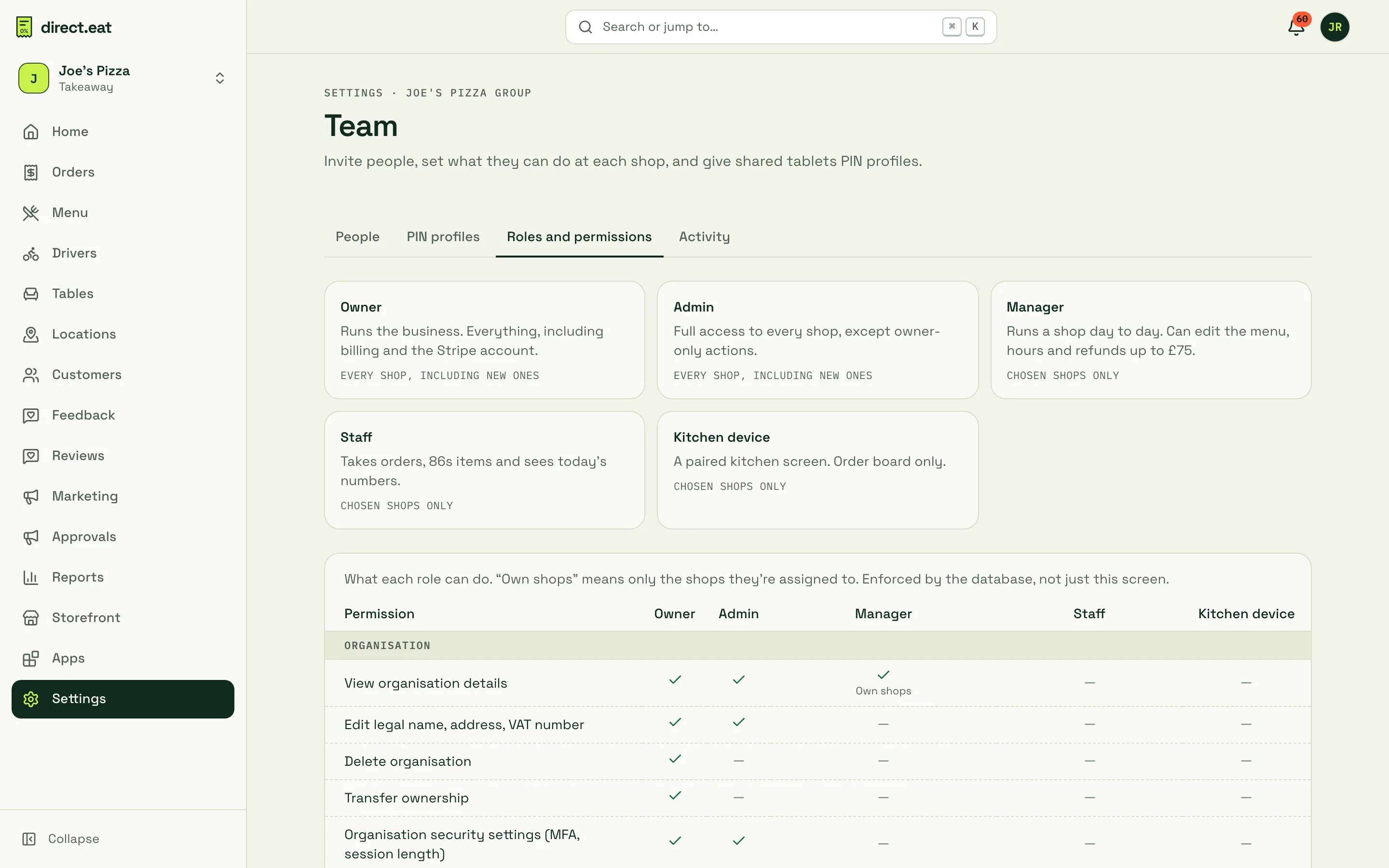
The Roles and permissions tab shows a card per role and a full table of permissions. It’s generated from the same rules the system enforces, so it’s always up to date.
Next step
Section titled “Next step”11. Place a test order: try the whole thing end to end before real diners do.
Related
Section titled “Related”Was this page helpful?