

Team and permissions
Give everyone their own login, with only the access they need. Starter includes 3 staff logins; Growth and Pro are unlimited. PIN profiles for shared tablets are unlimited on every plan. Access ends the moment you remove someone.
Before you start
Section titled “Before you start”- Owners and admins can invite managers, staff and (owner only) admins to any shop.
- Managers can invite and remove staff at their own shops, and manage PIN profiles there.
- Staff and kitchen devices can’t see the Team page.
Go to Settings → Team. There are four tabs: People, PIN profiles, Roles and permissions and Activity.
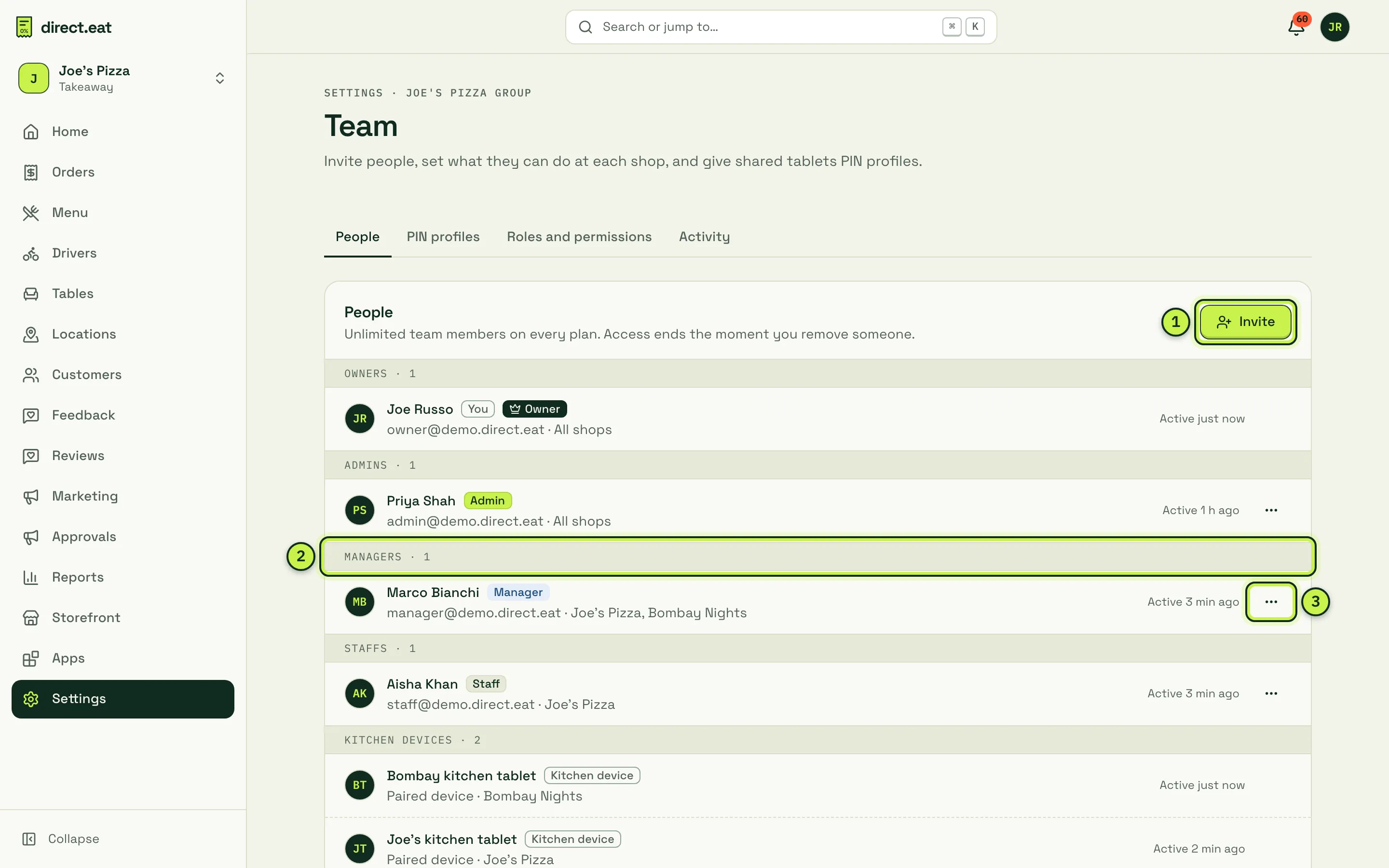
- Invite: add someone new.
- Role groups: people are grouped by role, with their email, the shops they can use and when they were last active.
- Actions menu (•••): change someone’s role or shops, or remove them.
Paired kitchen tablets appear here too, as Kitchen devices. You add those by pairing a device, not by inviting. See Devices and printers.
Pick the right role
Section titled “Pick the right role”| Role | Good for | Shops |
|---|---|---|
| Admin | A business partner or ops manager. Everything except owner-only actions. | Every shop, including new ones |
| Manager | Whoever runs a shop day to day. Menu, hours, refunds up to £75 each (£300 a day), devices, today’s and past reports. | Only the shops you tick |
| Staff | Counter and kitchen staff. Take orders, 86 items, today’s numbers. No customer list, no reports beyond today. | Only the shops you tick |
Owner-only actions: cancelling the subscription, connecting or changing Stripe, inviting or removing admins, transferring ownership and deleting the organisation. The full list is in Roles and permissions.
Invite someone
Section titled “Invite someone”-
On the People tab, click Invite.
-
Enter their Email.
-
Choose a Role. You only see the roles you’re allowed to give.
-
Tick the Shops they work at. (Admins get every shop, so there’s no shop list for them.)
-
Optionally add a Personal note. It’s shown on the invitation page.
-
Click Send invitation.
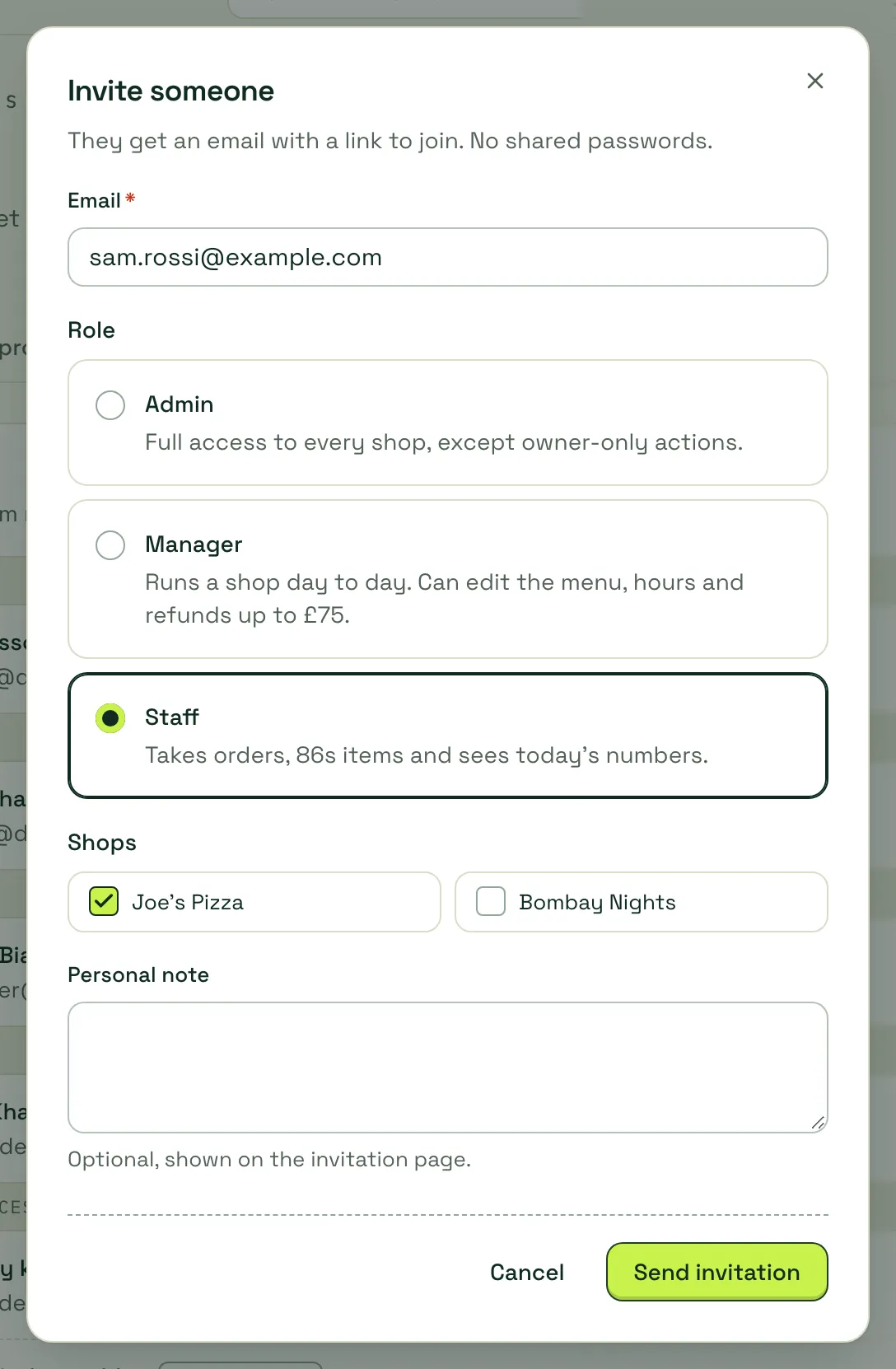
They get an email with a link to join. There are no shared passwords.
What the invitation does
Section titled “What the invitation does”- The link works once and expires after 7 days.
- It’s tied to the email address you entered. If they open it while signed in as someone else, they’re asked to switch account.
- If they don’t have a direct.eat login yet, they create one on the invitation page. If they do, they sign in and the new role is added to their account. One login can belong to several organisations.
- Pending invitations are listed under Pending invitations on the People tab, where you can resend or cancel them.
- If the email can’t be sent straight away, the dashboard shows the invitation link so you can share it yourself.
Change someone’s role or shops
Section titled “Change someone’s role or shops”-
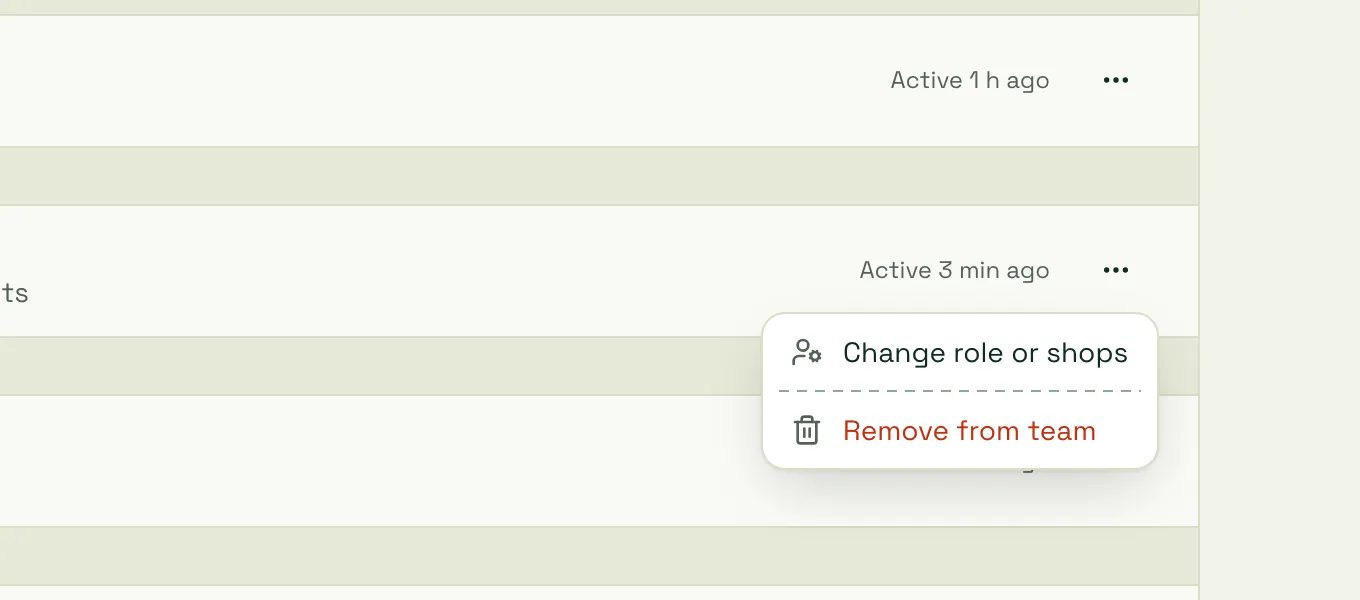
Click ••• next to their name.
-
Choose Change role or shops.
-
Pick the new role and tick their shops, then click Save.
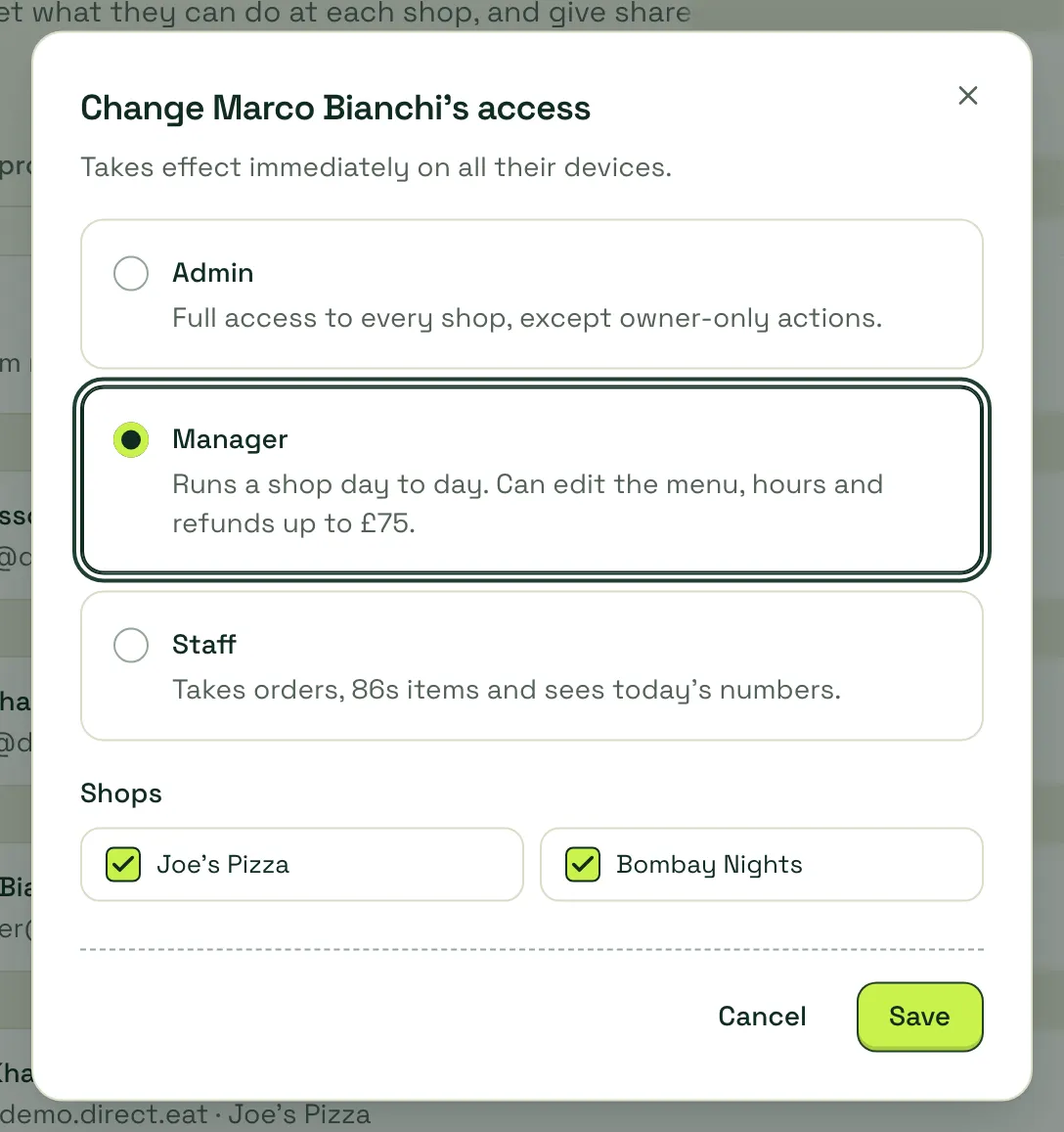
Changes take effect immediately on all their devices. Making someone an admin asks for your password first.
Remove someone
Section titled “Remove someone”Click ••• → Remove from team → Remove. They lose access to your shops straight away. Their past actions stay in the activity log.
You can’t remove yourself or change your own role, and an organisation always keeps exactly one owner.
Transfer ownership
Section titled “Transfer ownership”Only the owner can do this, and only to an existing admin.
-
Click ••• next to the admin and choose Make owner.
-
Enter Your password.
-
Click Transfer ownership.
They take over billing, the Stripe account and cancelling. You become an admin. Only the new owner can reverse it.
PIN profiles for shared tablets
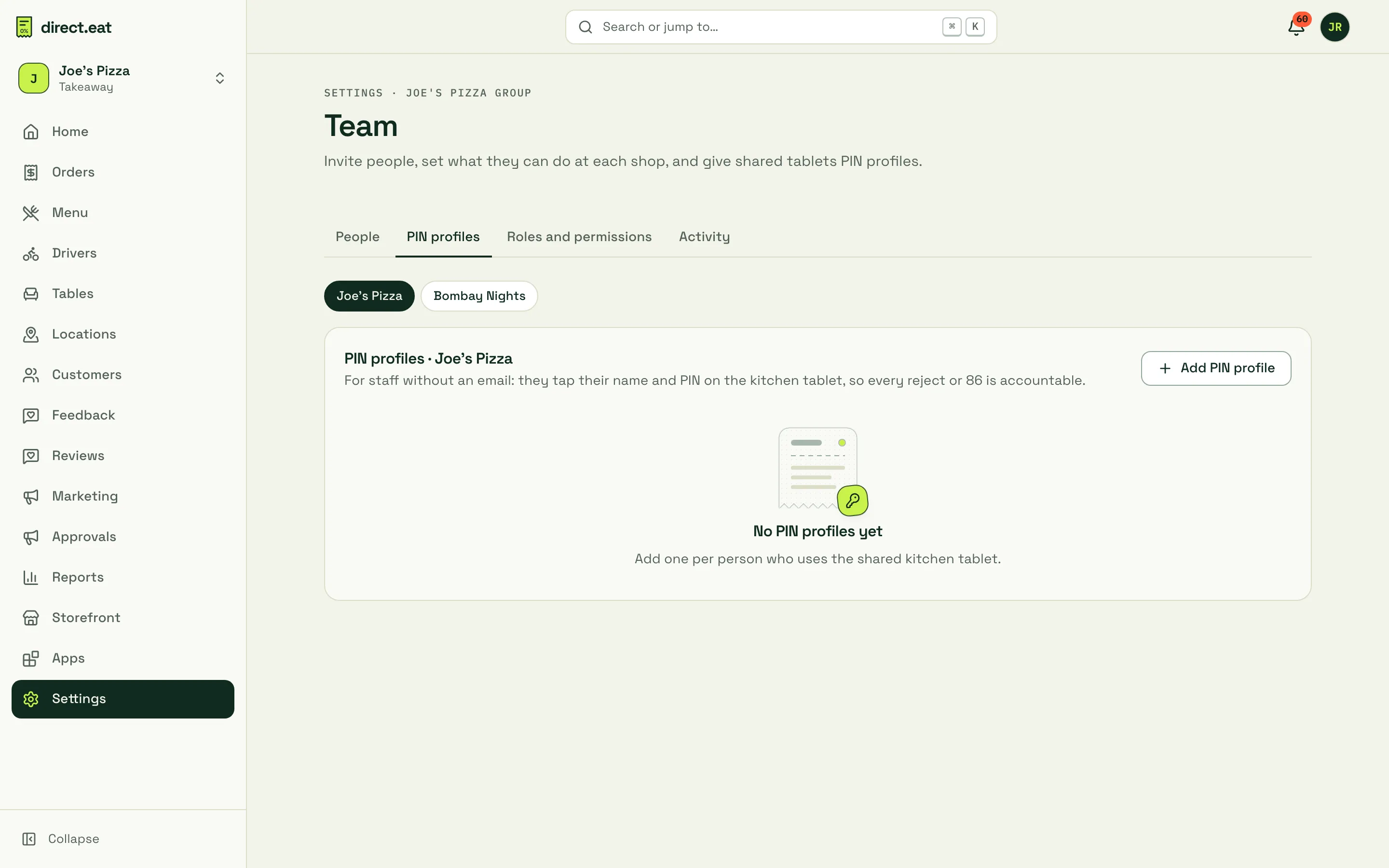
Section titled “PIN profiles for shared tablets”PIN profiles are for staff without their own email or login. On the kitchen tablet they tap their name and enter their PIN before sensitive actions.
-
Open the PIN profiles tab and pick the shop.
-
Click Add PIN profile.
-
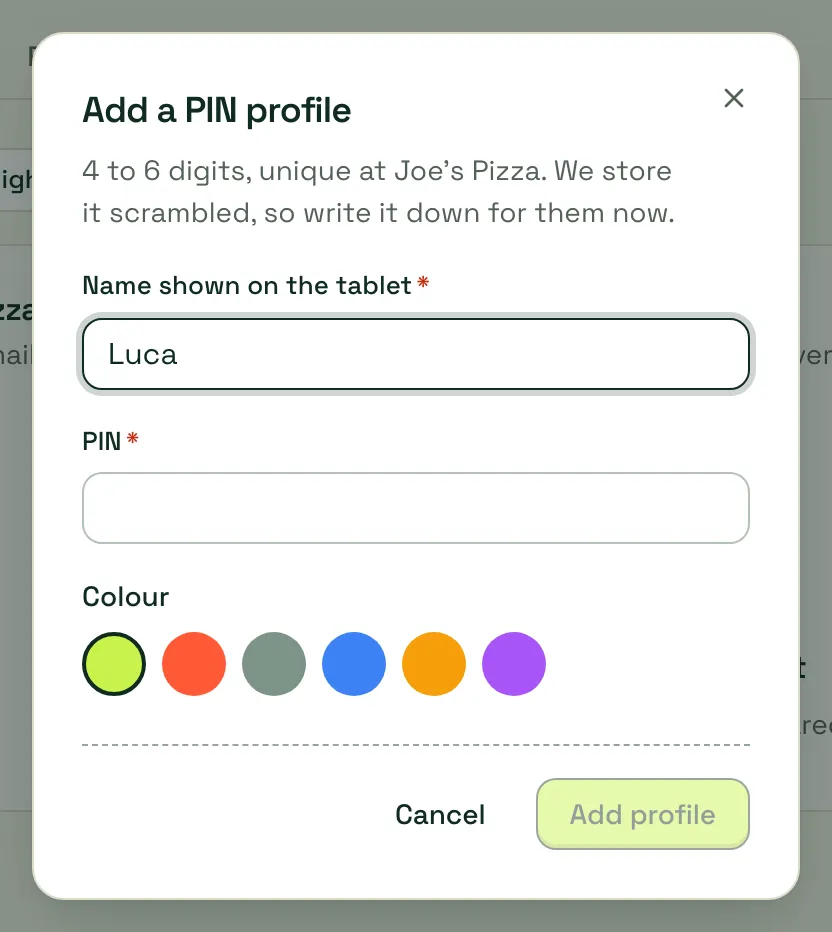
Enter the Name shown on the tablet, a PIN of 4 to 6 digits and a colour.
-
Save, and tell them their PIN. We store it scrambled, so nobody can look it up later.
Rules:
- PINs are unique per shop. Easy guesses like
1234or0000are refused. - After 5 wrong PINs the profile is locked for 5 minutes.
- On the kitchen tablet, the PIN is asked before rejecting an order, 86ing an item until you turn it back on, and opening printer settings. Changing an order (removing items, swaps, on the house) always asks for a PIN, so every change has a named person. A correct PIN is remembered for 15 minutes.
- The PIN prompt is set per tablet in the kitchen app’s settings. It’s on by default when a shop has more than 3 PIN profiles.
- To change a PIN, use New PIN on the profile. To stop someone using it, remove the profile.
What each role sees
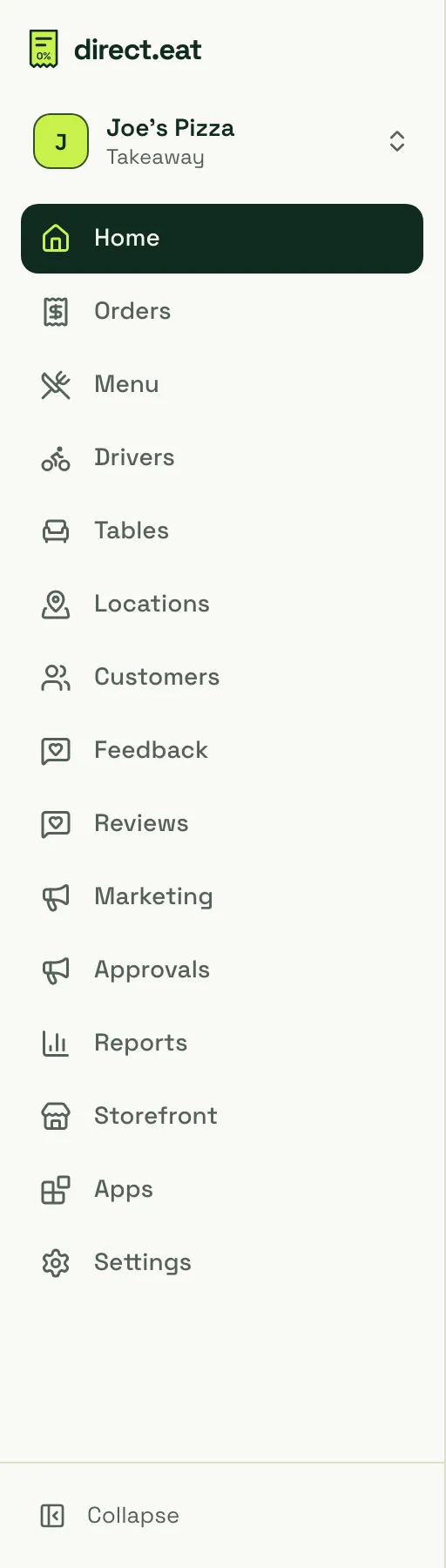
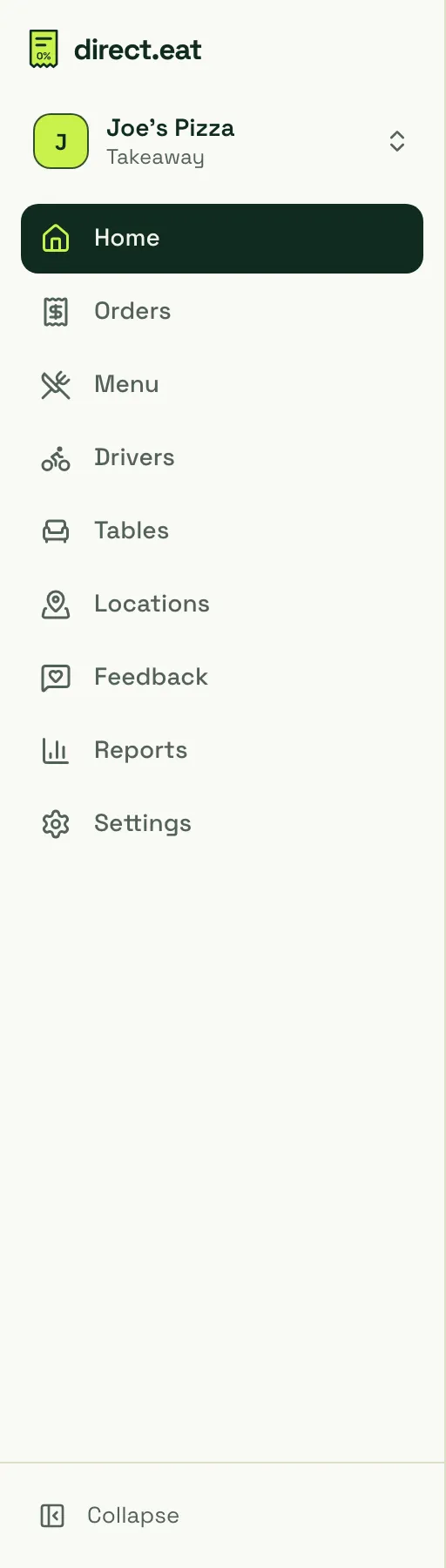
Section titled “What each role sees”Navigation hides anything a role can’t use. Here’s the sidebar for an owner, a manager and a staff member at the same shop.
Settings shows the same filtering. A staff member sees only Devices and printers, Alerts, Modes and business type and Notifications:
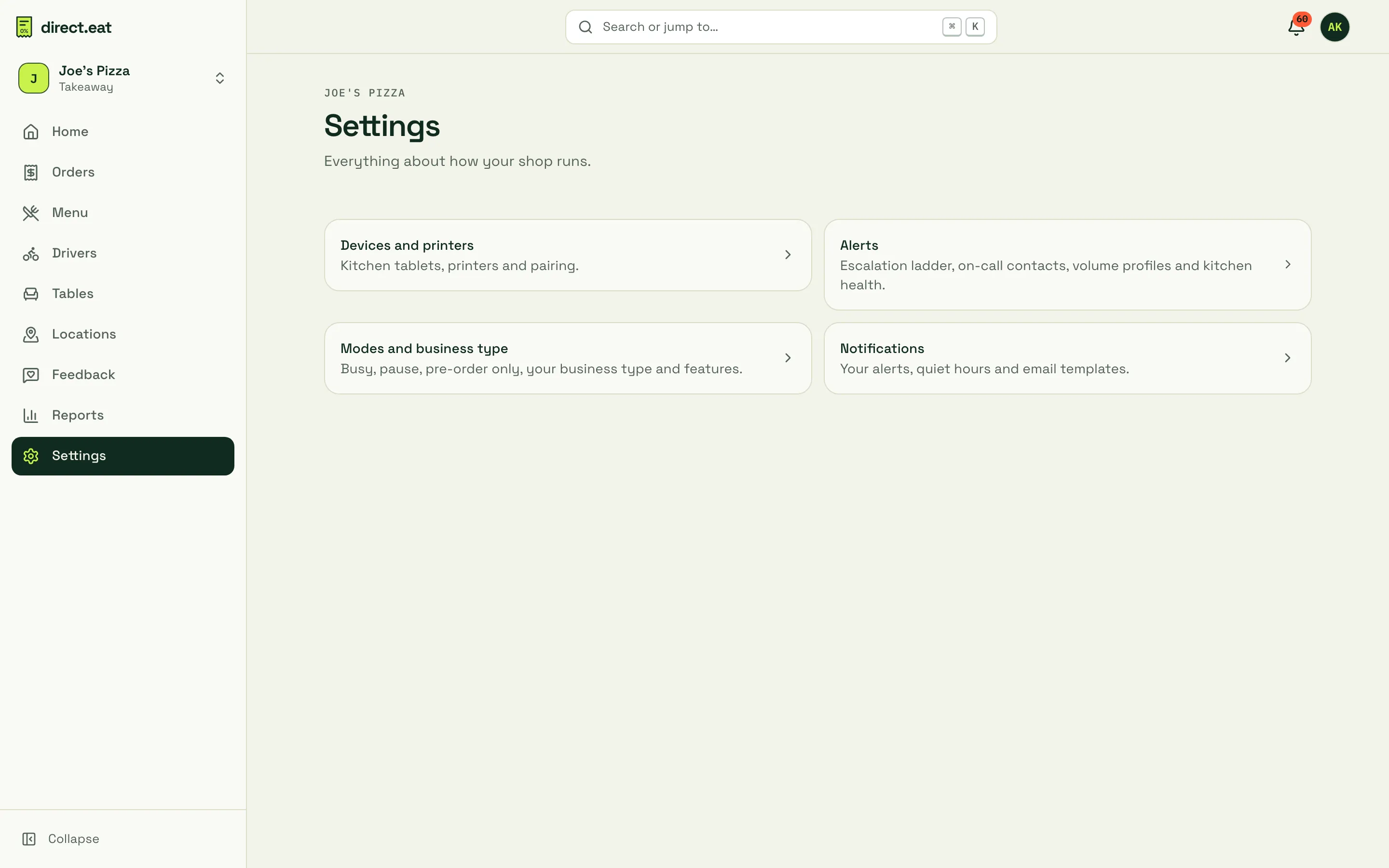
Managers see most settings. They don’t see Plan and billing, Payments or API and webhooks, and they can look at Integrations and Apps but not connect or install anything.
Activity
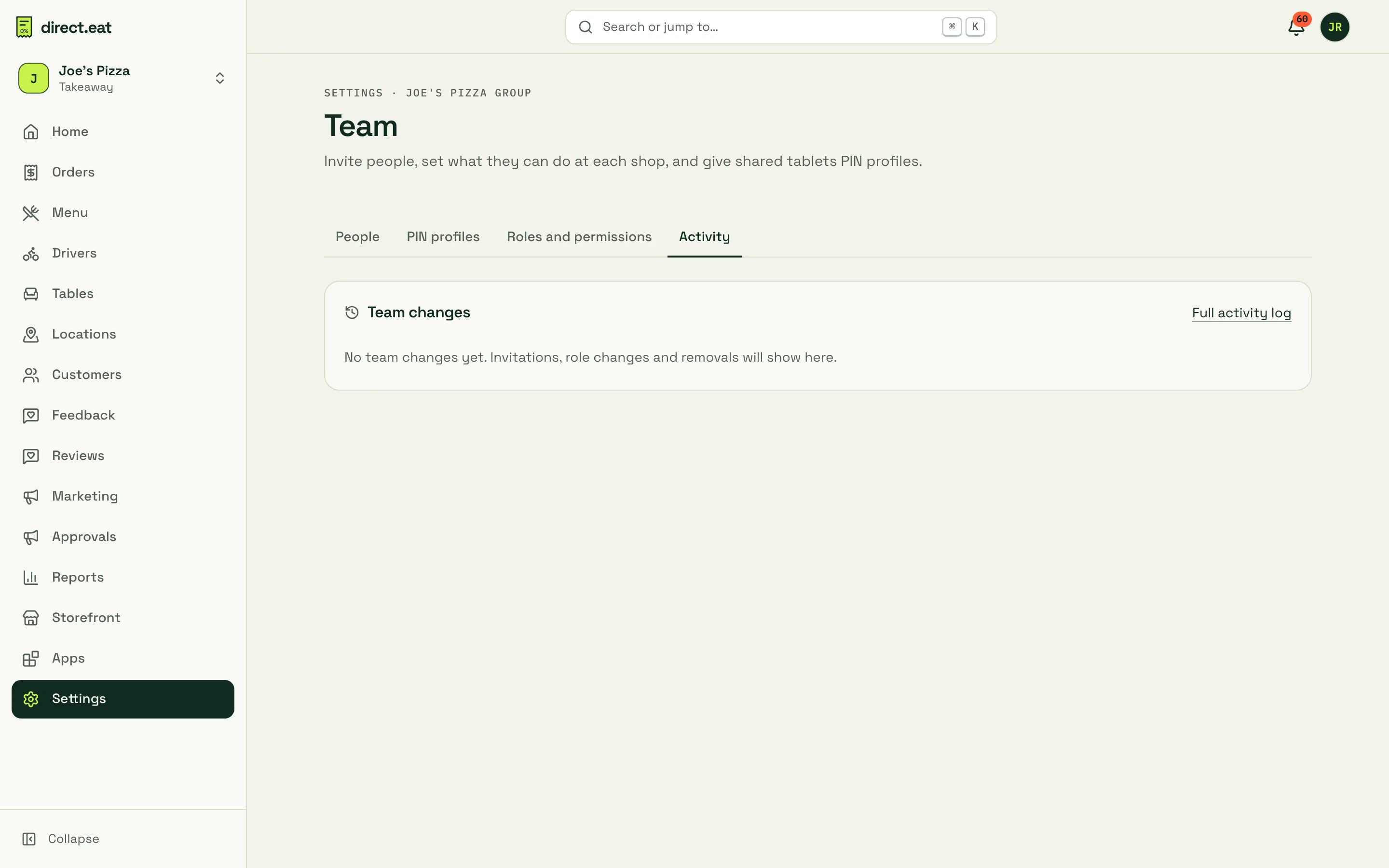
Section titled “Activity”The Activity tab lists team changes: invitations, role changes, removals and ownership transfers, with who did it and when.
- Give every person their own login. Shared logins make the activity log useless.
- Use staff with a PIN profile rather than a manager login on the kitchen tablet.
- When someone leaves, remove them the same day. It takes effect instantly.
Related
Section titled “Related”- Roles and permissions: the full matrix.
- Staff and roles in Get started
- Approvals
- Multi-location
Was this page helpful?