

Busy mode, pausing and capacity
When the kitchen is slammed you have two levers. Busy mode keeps orders coming but adds minutes to the ready time customers are quoted. Pause stops new ASAP orders for a while. Both end on their own when the time is up, and both are one tap from the kitchen tablet.
For the longer term, set realistic prep times and slot capacity so busy nights don’t need firefighting.
Before you start
Section titled “Before you start”- Busy mode and pause need the Busy mode and pause ordering permission. Owners, admins, managers, staff and kitchen tablets all have it.
- Prep times and capacity are in Settings → Ordering and collection (owner, admin or manager).
- Only the owner can turn off auto-pause.
Busy mode or pause from the kitchen tablet
Section titled “Busy mode or pause from the kitchen tablet”Tap the shop-state button in the header. It shows Open, Busy +10, Paused or Closed.
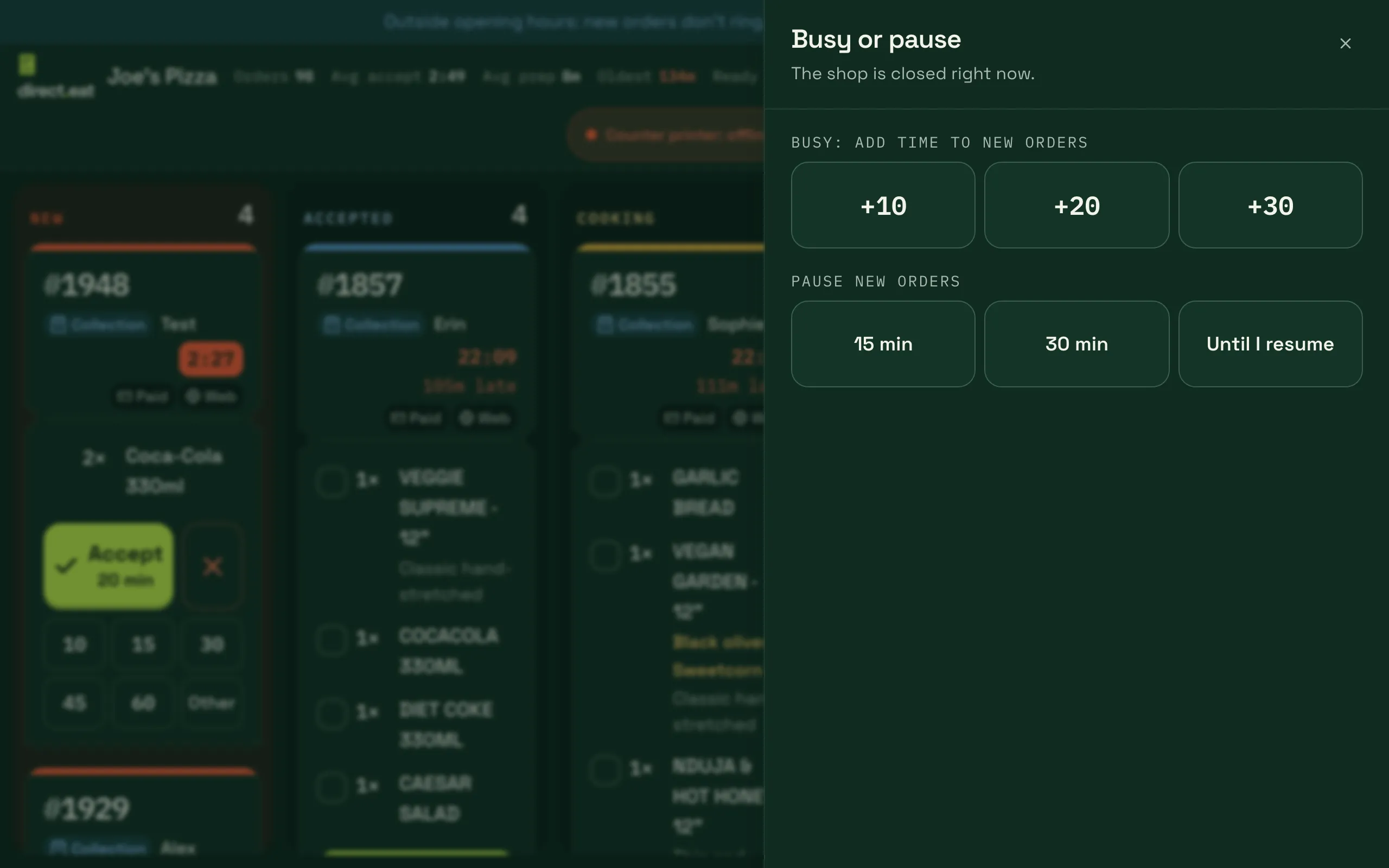
- Busy: add time to new orders: +10, +20 or +30 minutes.
- Pause new orders: 15 min, 30 min or Until I resume.
- Back to normal appears while busy or paused. Tap it to end either.
Busy mode and pause from the dashboard
Section titled “Busy mode and pause from the dashboard”Go to Settings → Modes and business type. The Right now bar shows your current state and exactly what diners see, for example “Diners see: Closed · opens 12:00 tomorrow”.
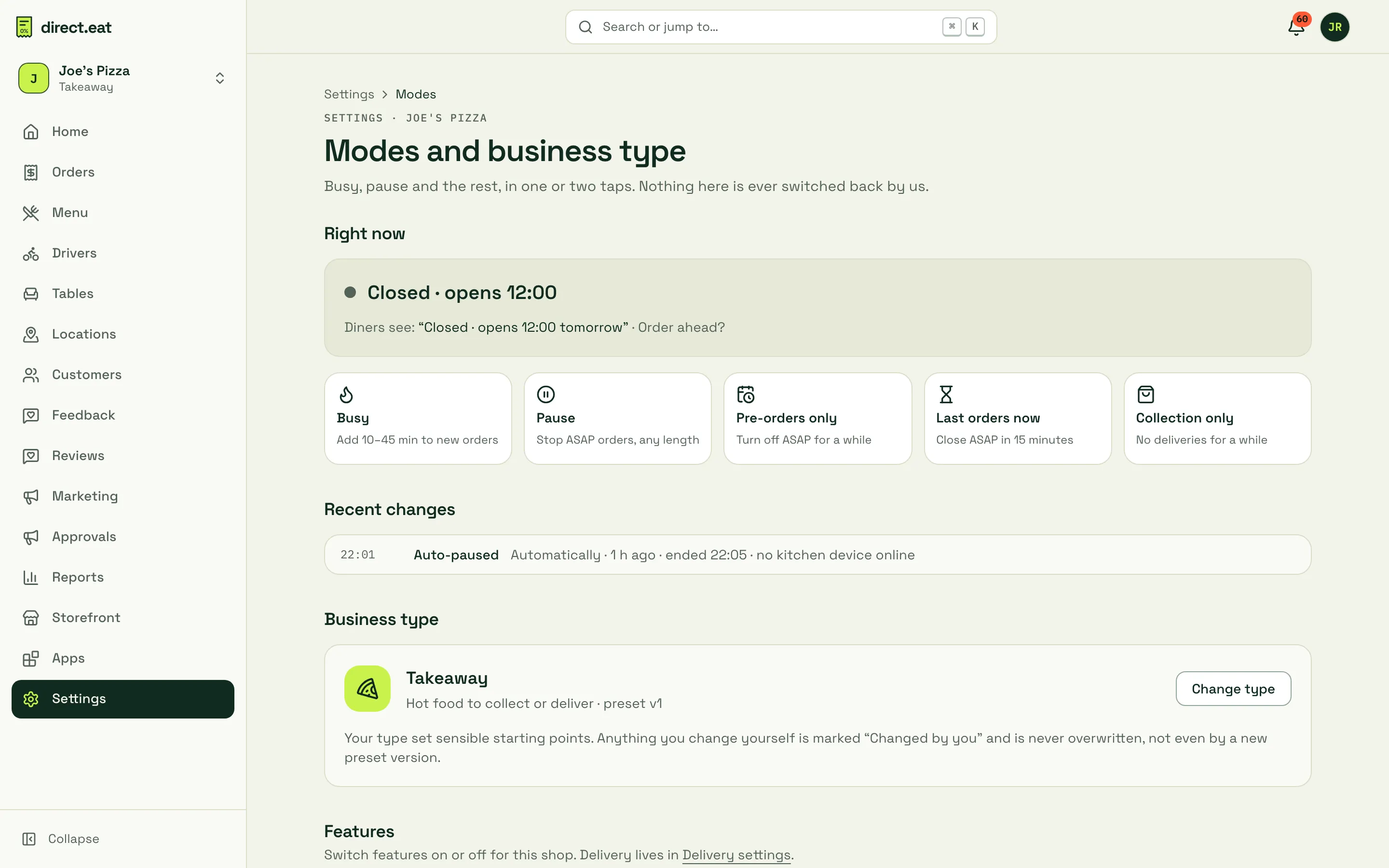
| Button | What it does | Options |
|---|---|---|
| Busy | Adds minutes to the ready time of new orders. Orders already accepted keep their times. | +10, +15, +20, +30 or +45 min, or a custom amount up to 120. For 30 min, 1 hour, 2 hours, Rest of today or Until I turn it off. Tick Also halve slot capacity while busy to take fewer pre-orders too. |
| Pause | Stops ASAP orders. | 15 min, 30 min, 1 hour, 2 hours, Rest of today or Until I resume. Add a Message for diners, such as “Back soon: fryer being fixed”. Tick Keep taking pre-orders for after the pause if you still want orders for later. |
| Pre-orders only | Turns off ASAP for a while. Diners can still book a slot. | Same durations as pause. |
| Last orders now | Closes ASAP orders in 15 minutes. | |
| Collection only | Hides delivery on your storefront. Delivery orders already placed are flagged to staff. | Only shows when you deliver. |
Active modes are listed in the Right now bar with their end time and an End button. Recent changes shows who or what changed the mode and when, including automatic pauses.
Nothing on this page is switched back by direct.eat on its own, apart from the durations you choose and the automatic kitchen-offline pause below.
What diners see
Section titled “What diners see”- Busy: the storefront quotes the longer time (“Collection in 30–35 min”) and accepted orders are timed with the extra minutes. Your default accept button in the kitchen app also adds the busy minutes (Accept · 30 min).
- Paused: the storefront says ordering is paused, with your message, and when it’s back. Diners can’t place ASAP orders.
- Busy and pause can run together. If the pause ends while busy mode is still on, you go back to busy.
Automatic pause when the kitchen goes dark
Section titled “Automatic pause when the kitchen goes dark”If every kitchen tablet and printer goes offline while you’re open, direct.eat pauses online ordering for you so orders can’t pile up unseen. The default is 5 minutes after the kitchen goes dark (you can set 3 to 15). Before that you get a push at 90 seconds and a text at 3 minutes. It resumes on its own once a device has been back online for a minute.
The full sequence, and how to change it, is in alerts and escalation. If you press Resume yourself, direct.eat leaves the shop alone for an hour.
Prep times and capacity
Section titled “Prep times and capacity”Settings → Ordering and collection sets how long orders take and how many you can handle. There are tabs for collection and delivery.
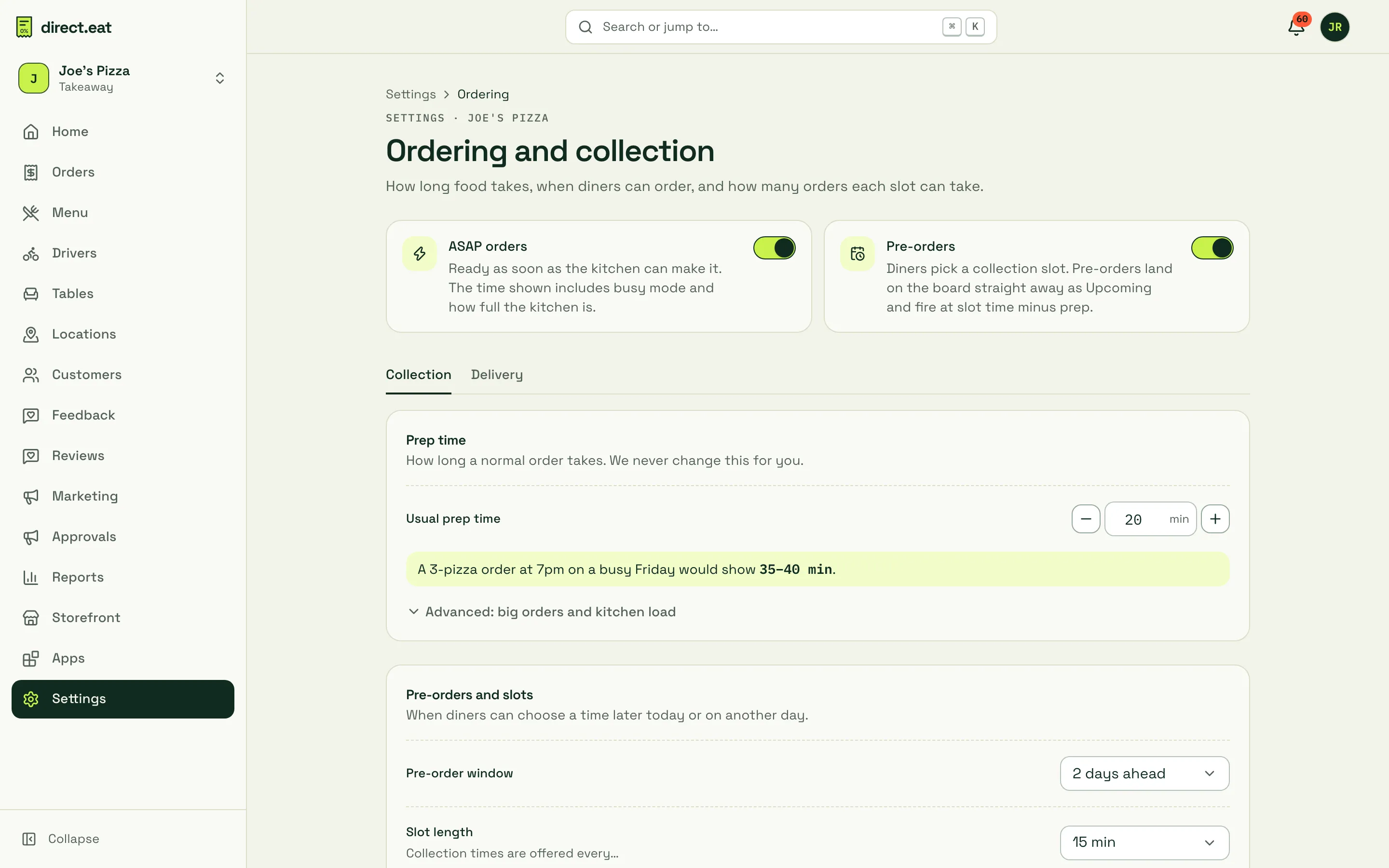
- Prep time: the default ready time for new orders. A live example shows what a diner would be quoted, for example “A 3-pizza order at 7pm on a busy Friday would show 35–40 min”. Advanced settings let the estimate grow with kitchen load and basket size.
- Pre-orders: the window (how many days ahead), slot length, minimum notice, next-day cut-off and the minimum order.
- Capacity per slot: the most orders (or items) you’ll take in each slot. Full slots show as Full to diners.
- ASAP throttle: limits how many ASAP orders you take at once.
- Today’s slot board: what’s booked in each slot against its capacity. Block a slot to stop more orders in it.
Settings that came from your business type are marked From preset. Anything you change is marked Changed by you and is never overwritten.
Opening hours, holidays and Close for today are in Settings → Opening hours. See hours and slots.
- Turn busy mode on before you’re drowning, not after. It’s better to quote 45 minutes up front than to quote 20 and make people wait 45.
- If you’re rejecting orders because you’re swamped, pause for 15 minutes instead. A rejected order has already been paid for and has to be refunded. A pause just stops new ones.
- Running late on orders you’ve already accepted? Busy mode doesn’t change those. Add time to each one instead.
Related
Section titled “Related”Was this page helpful?