

Setup wizard
The setup wizard walks you through everything a shop needs before it can take orders. This page covers its first two steps, Business type and Shop details. They’re the only two you can’t skip, because everything else builds on them.
Rough time: 3 to 5 minutes. Who can do this: the owner, or an admin or manager with permission to change shop settings.
Find your way around the wizard
Section titled “Find your way around the wizard”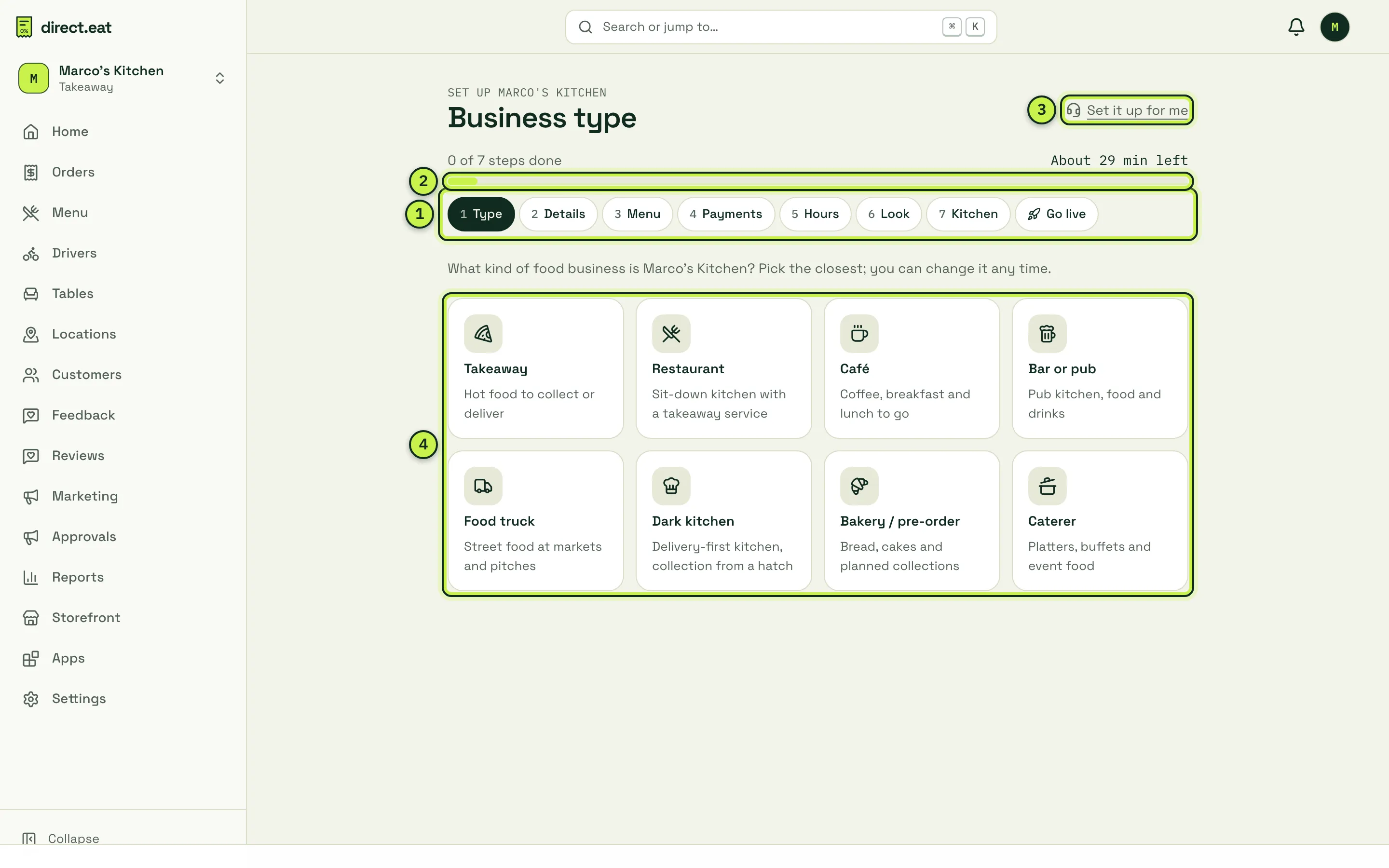
- Step pills: Type, Details, Menu, Payments, Hours, Look, Kitchen and Go live. Click any pill to jump to it. Done steps get a tick.
- Progress bar: “0 of 7 steps done” on the left and the minutes left on the right. It’s the wizard’s own estimate of your remaining time, and it goes down as you finish steps.
- Set it up for me: emails our team if you’d rather we did it. Free on every plan.
- Business type tiles: the eight types of food business.
At the bottom of most steps there’s a bar with Back, Skip for now and Done, next step. Skipped steps stay on your go-live checklist, so nothing gets forgotten. You can leave and come back any time: until you go live, Home shows a Finish setting up card with a Continue setup button that takes you back to the step you were on.
Step 1: business type
Section titled “Step 1: business type”-
Pick the tile closest to what you do: Takeaway, Restaurant, Café, Bar or pub, Food truck, Dark kitchen, Bakery / pre-order or Caterer.
-
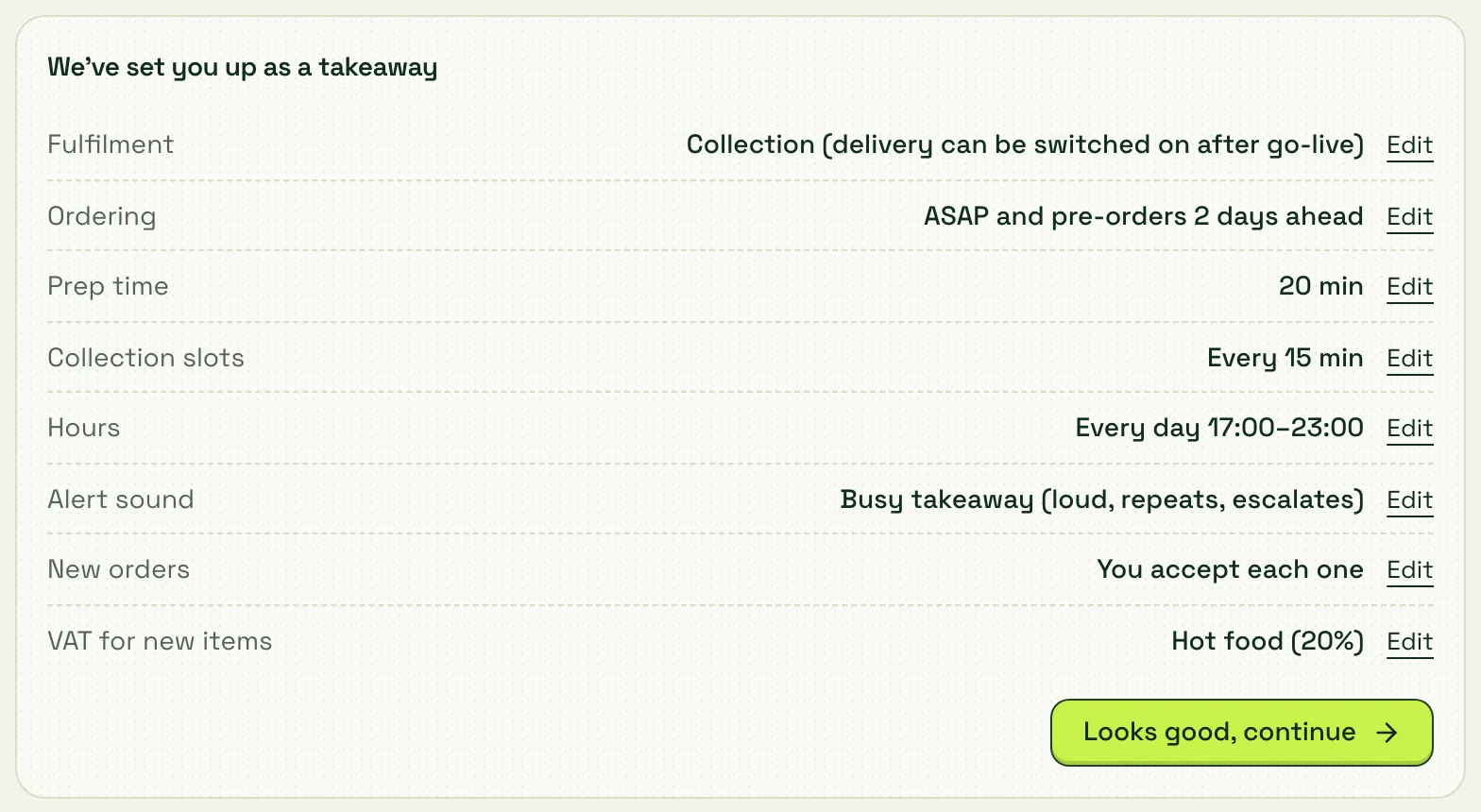
We fill in sensible starting settings for that kind of business and show them in a summary. Check each line. Click Edit next to any of them to change it now, or change it later in Settings.
-
Press Looks good, continue.
For a takeaway, the preset is:
| Setting | Takeaway preset | Change it in |
|---|---|---|
| Fulfilment | Collection (delivery can be switched on after go-live) | Delivery |
| Ordering | ASAP and pre-orders 2 days ahead | Settings → Ordering and collection |
| Prep time | 20 min | Settings → Ordering and collection |
| Collection slots | Every 15 min | Settings → Ordering and collection |
| Hours | Every day 17:00 to 23:00 | Settings → Opening hours |
| Alert sound | Busy takeaway (loud, repeats, escalates) | Settings → Modes and business type |
| New orders | You accept each one | Settings → Ordering and collection |
| VAT for new items | Hot food (20%) | Settings → Modes and business type |
A bakery gets pre-orders with a next-day cut-off, a caterer gets a minimum order and longer notice, and so on.
Step 2: shop details
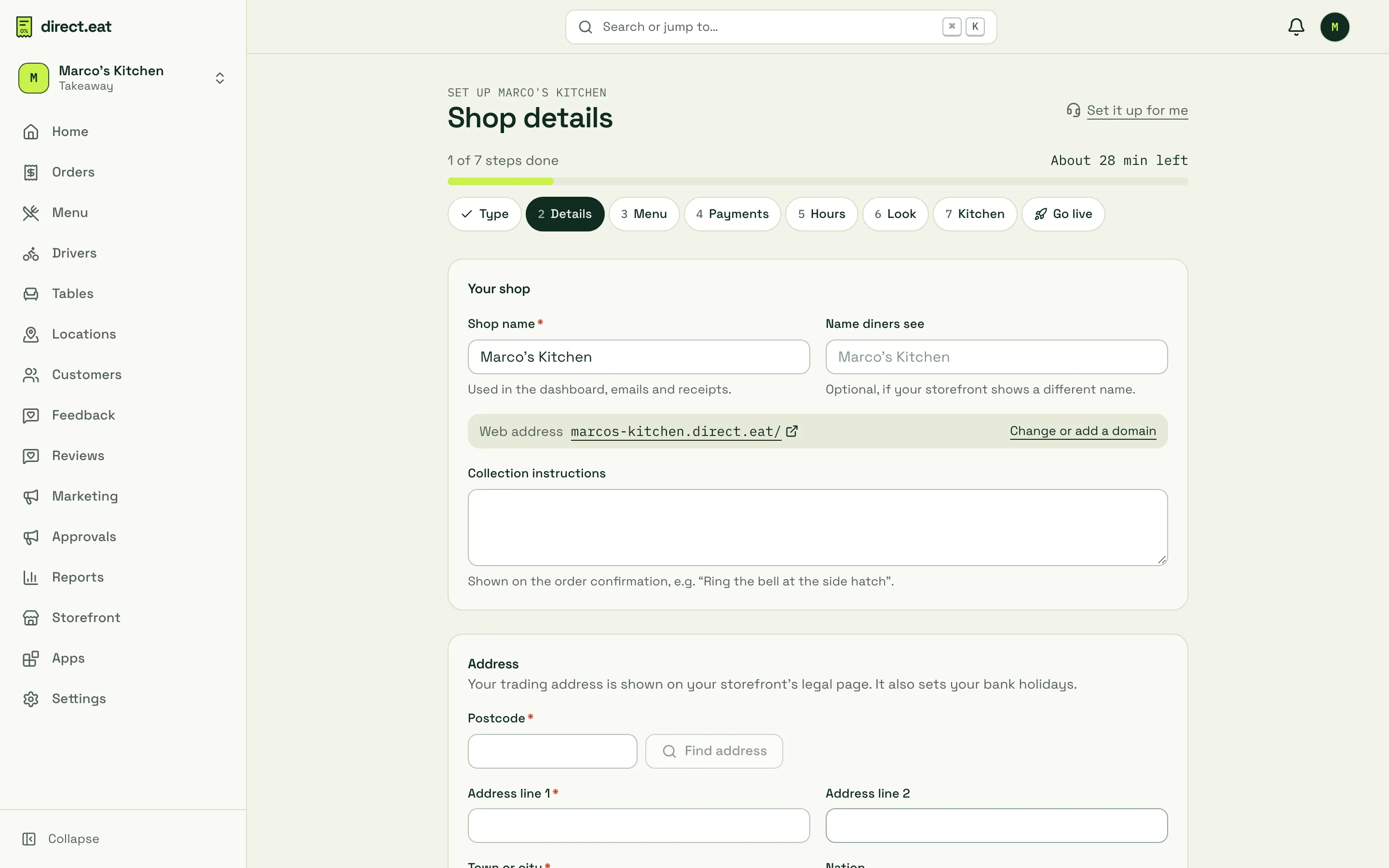
Section titled “Step 2: shop details”This is the information diners and the law need: where you are, how to reach you, and who they’re buying from.
-
Your shop. Shop name is used in the dashboard, emails and receipts. Fill in Name diners see only if your storefront should show something different. Your web address is shown underneath, with a link to change it or add your own domain.
-
Collection instructions (optional). Shown on the order confirmation, for example “Collect from the counter. Ring the bell if we’re out the back.”
-
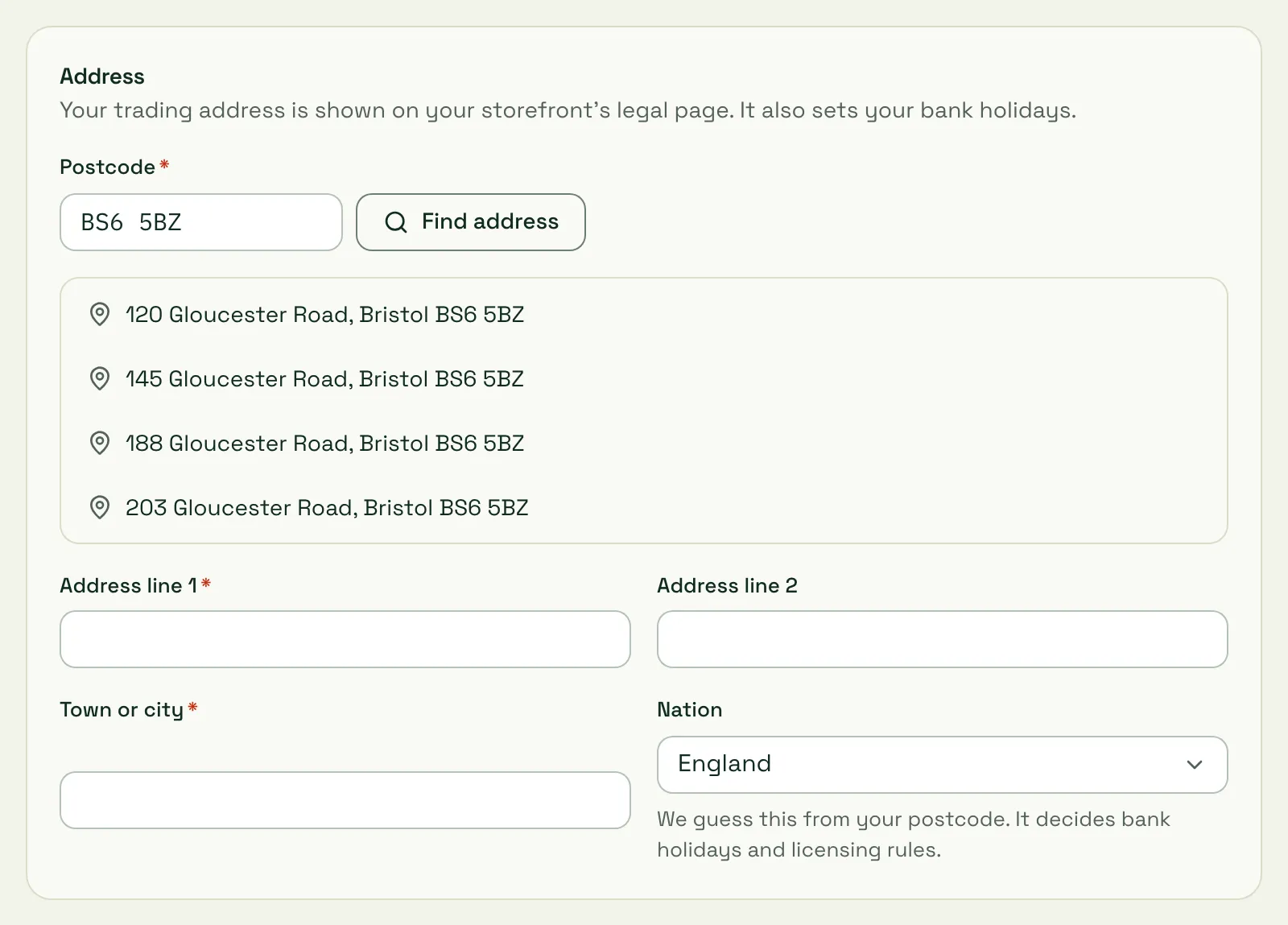
Address. Type your Postcode, press Find address and pick your address from the list. Line 1, line 2 and town fill in for you, and Nation is guessed from the postcode. It matters: it decides your bank holidays and the late-night licensing rules we check against.
-
Contact. Shop phone is the number diners call if something goes wrong with an order. Public email is for diner questions and complaints and is shown on your legal page.
-
Trader details for this shop. Enter your Legal trading name, for example “Marco’s Kitchen Ltd” or “Marco Rossi trading as Marco’s Kitchen”. Add a VAT number for this shop only if it differs from your business’s.
-
Press Save and continue.
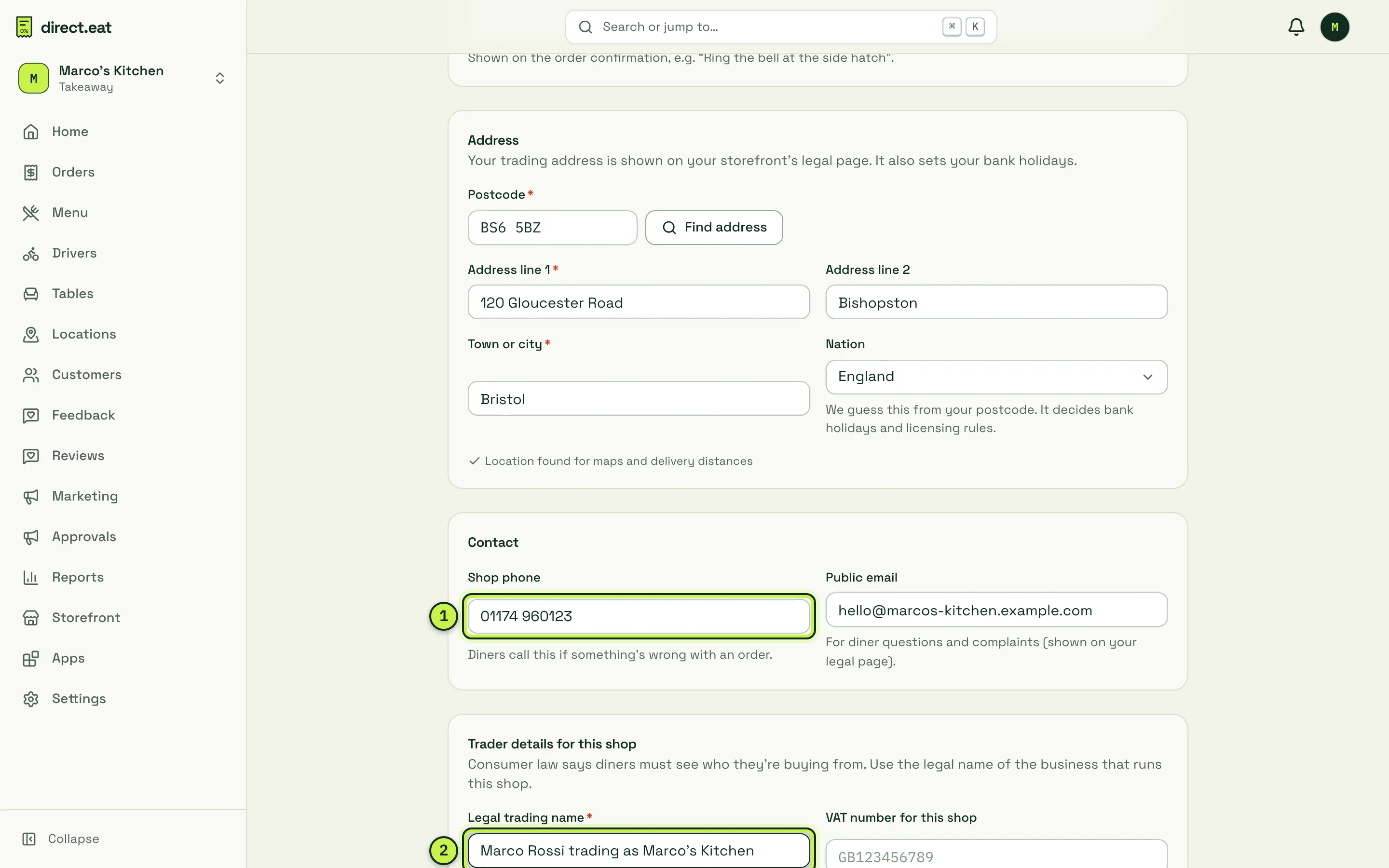
- Shop phone: diners see this on their order tracking page.
- Legal trading name: shown on your storefront’s legal and contact pages and on receipts. “Legal name and shop address” is a must-do item before you can go live.
You can change all of this later in Settings → Shop details, along with your business’s legal details, Companies House number, VAT registration and licences (late-night refreshment and alcohol).
What the go-live checklist looks like
Section titled “What the go-live checklist looks like”The last pill, Go live, opens your checklist. After the steps on this page and the next five, Marco’s Kitchen looked like this: everything green except the kitchen device, which is step 9.
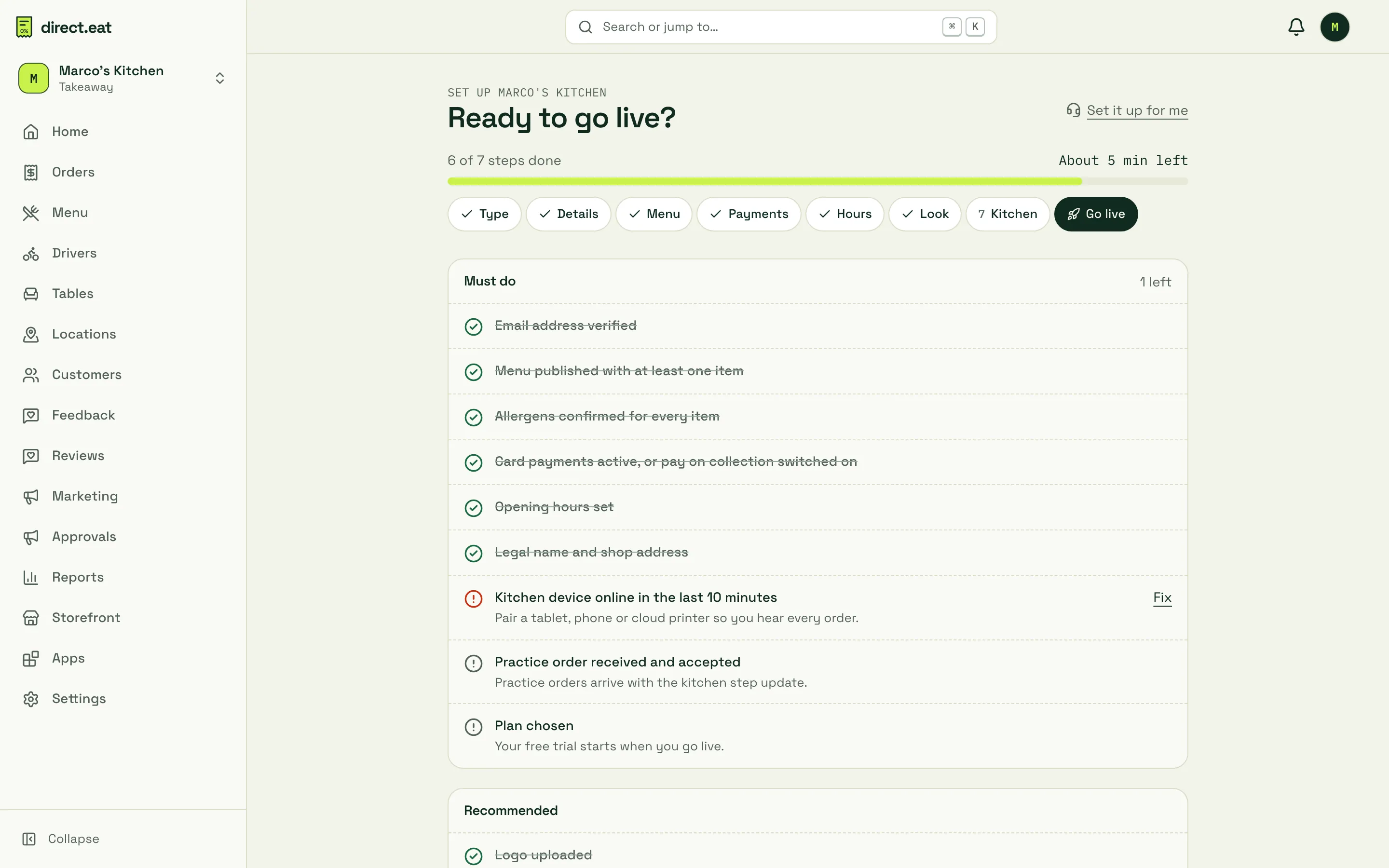
Each red item has a Fix link that takes you to the right step. Only the owner can press Go live. That’s step 12.
Next step
Section titled “Next step”3. Import your menu: the wizard’s Menu step.
Was this page helpful?