

Table ordering and QR codes
Guests scan a QR code on their table, order and pay on their phone. No app, no account and no fees for them. Each order goes to your kitchen like any other order, marked with the table. You see every table on one live floor screen, with waiter calls, tabs and bills. Guests can always just ask a member of staff instead.
Before you start
Section titled “Before you start”- Table ordering is on the Growth and Pro plans. On Starter, guests who scan a code are asked to order with staff, and the setting can’t be switched on.
- Setting up tables needs the “change shop settings” permission (owners, admins and managers). Running the floor (calls, bills, payments) is for anyone who can manage orders. See Roles and permissions.
- Table orders are only taken while your shop is open and not paused. Outside those times, guests can browse the menu and are told to order with a member of staff.
- Your menu needs eat-in prices if they differ from takeaway. VAT on eat-in food is worked out at the eat-in rate.
1. Choose how table ordering works
Section titled “1. Choose how table ordering works”Go to Tables → Set up tables.
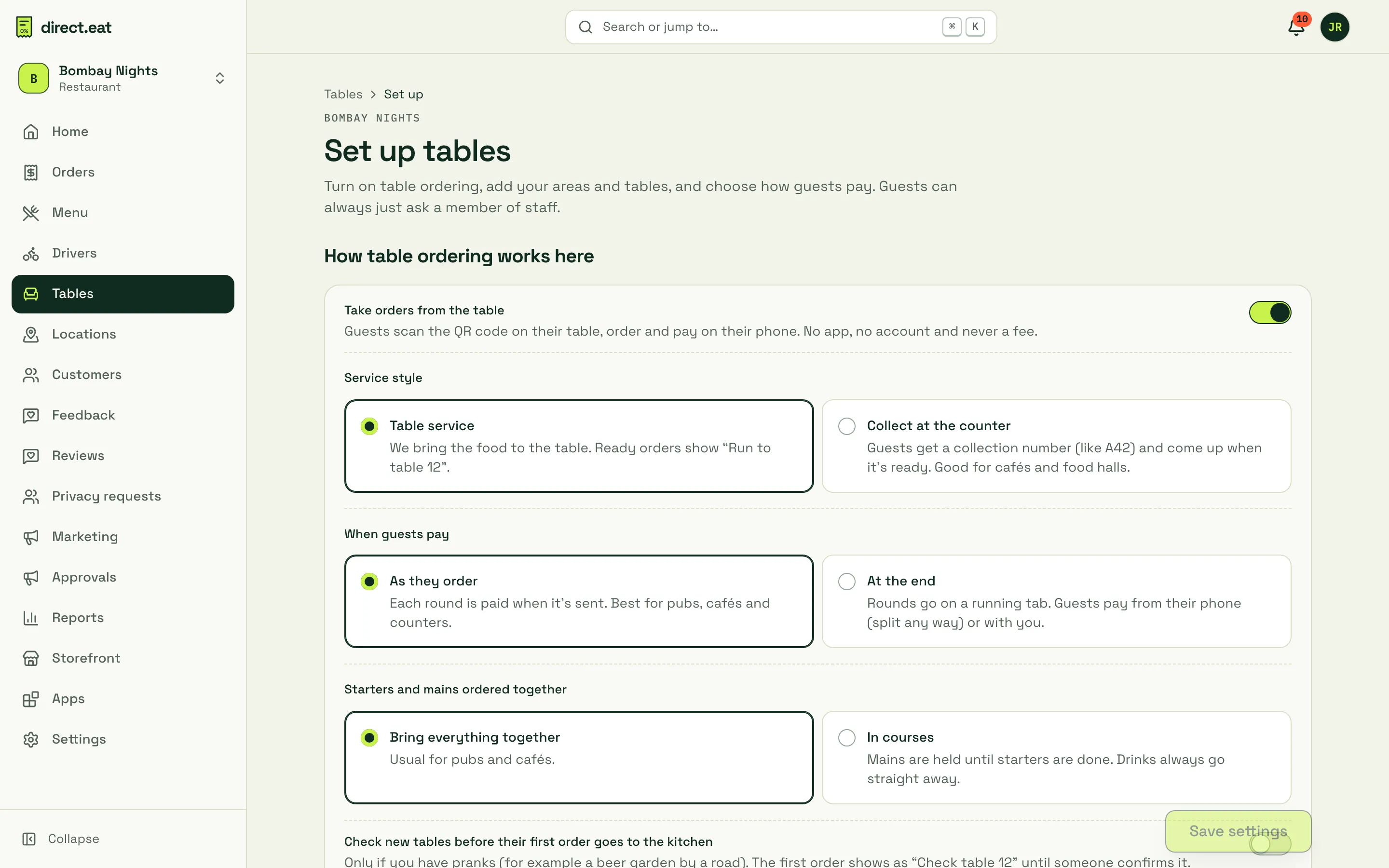
| Setting | Choices |
|---|---|
| Take orders from the table | On or off for the whole shop. |
| Service style | Table service: you bring the food; ready orders show “Run to table 12”. Collect at the counter: guests get a collection number (like A42) and come up when it’s ready. |
| When guests pay | As they order: each round is paid when it’s sent (pubs, cafés, counters). At the end: rounds go on a running tab; guests pay from their phone, split any way, or with you. You confirm a box saying staff check unpaid tabs before choosing this. |
| Starters and mains ordered together | Bring everything together, or In courses: mains are held until starters are done; drinks always go straight away. |
| Check new tables before their first order goes to the kitchen | Only if you get pranks (for example a beer garden by a road). The first order shows as “Check table 12” until someone confirms it. |
| Offer an optional tip | Once per guest, never pre-selected, “No tip” first. Never shown when a service charge applies. |
| Offer an unticked “send me offers” box on the receipt | Off by default. Never on the ordering screens and never pre-ticked. |
| Amber after / Red after | Minutes before an unpaid tab with no new orders turns amber, and with no activity turns red, on the floor. |
| Close paid tables after | Minutes after a fully paid, quiet table is closed automatically. |
Click Save settings.
2. Add areas and tables
Section titled “2. Add areas and tables”Further down the same page, under Areas and tables:
- Add an area (for example “Main room”, “Window”, “Garden”). Each area can override the shop’s service style, payment timing and first-order check.
- Click Add tables to create several tables at once, with their number of seats.
- Each table gets its own unguessable 7-character QR link, such as
bombay-nights.direct.eat/t/HU9RAP2, shown in the table list with a copy button. - Use Edit to rename a table, change seats, archive it, or regenerate its code.
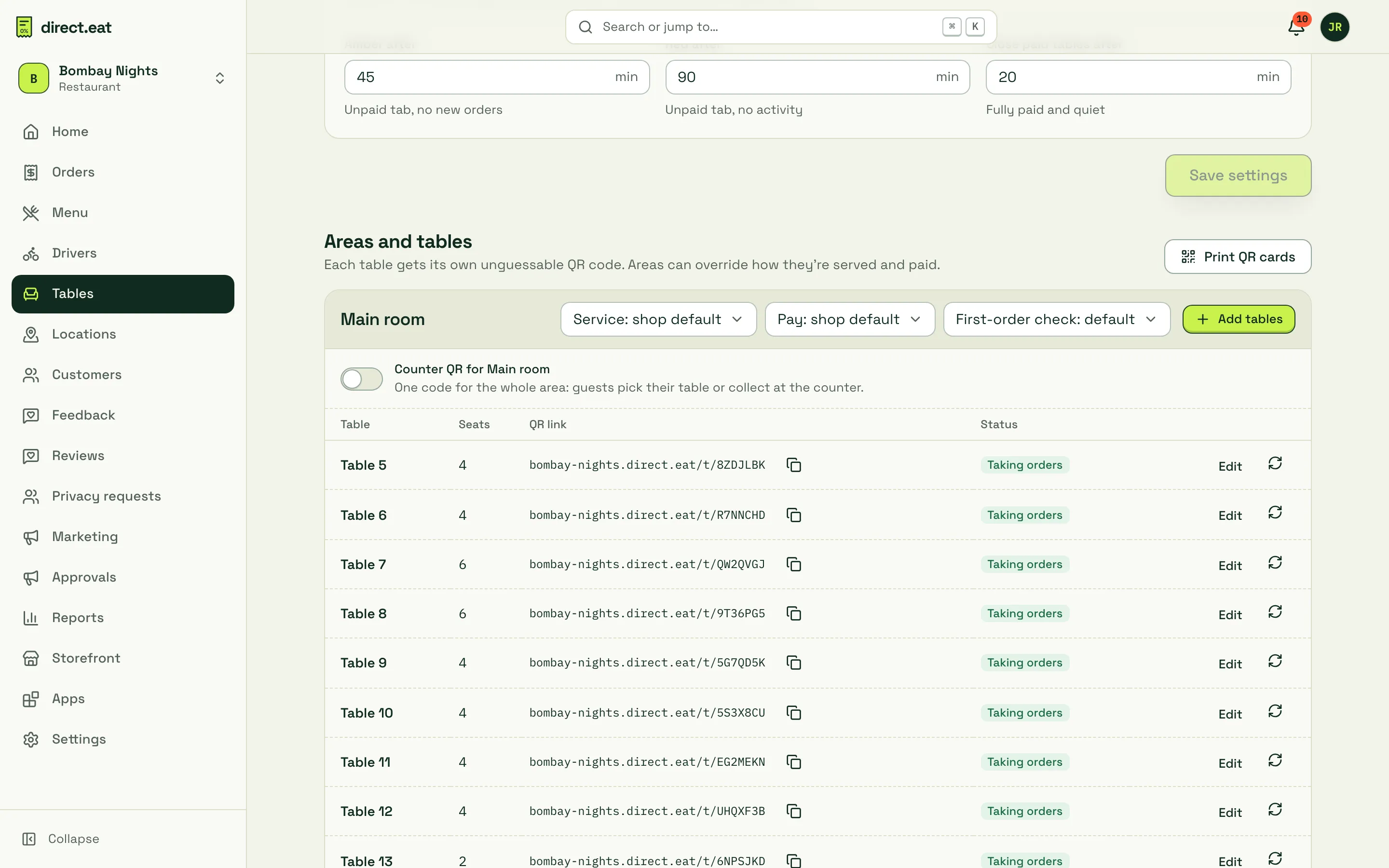
Regenerating a code kills the old one straight away: anyone scanning an old card sees that it’s out of date. Do this if a card is stolen or a code is being misused, then print a new card.
Each area also has a counter QR: one code for the whole area, for walls, counters and windows. Guests who scan it pick their table, or order and collect at the counter.
You can also put the table link on an NFC tag; the setup page has instructions.
3. Print QR table cards
Section titled “3. Print QR table cards”Go to Tables → QR cards.
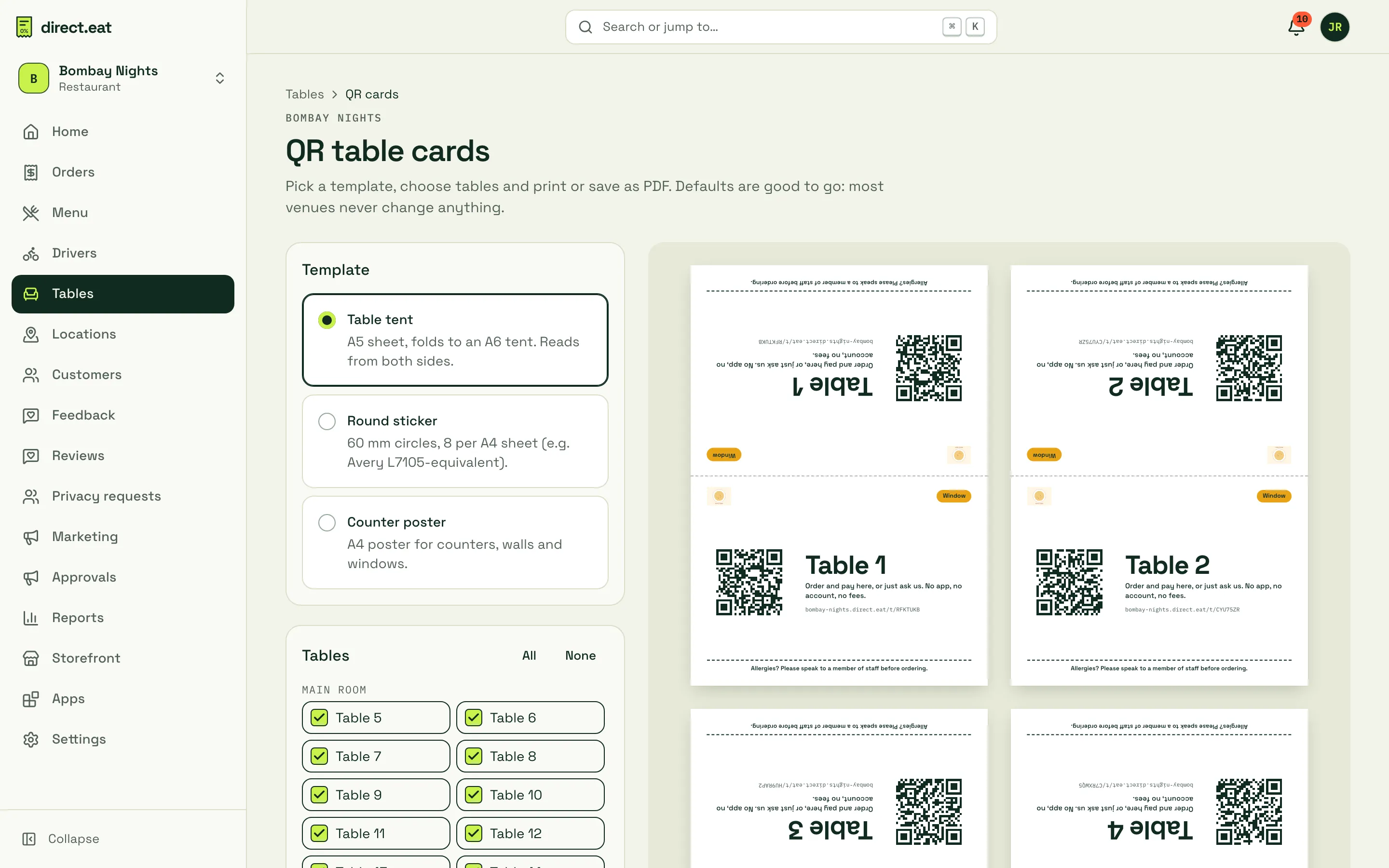
- Table tent: A5 sheet that folds to an A6 tent and reads from both sides.
- Round sticker: 60 mm circles, 8 per A4 sheet.
- Counter poster: A4 for counters, walls and windows.
Tick the tables you want, then Print or save as PDF. In the print dialog choose “Save as PDF” for a print-ready file, the paper size shown, margins none, scale 100%. Cards use your published brand colour (darkened automatically if it’s too light to read on white card), a vector QR code at least 25 mm across, the short web address as a fallback, “Order and pay here, or just ask us. No app, no account, no fees.” and an allergy line asking guests to speak to staff.
4. Run the floor
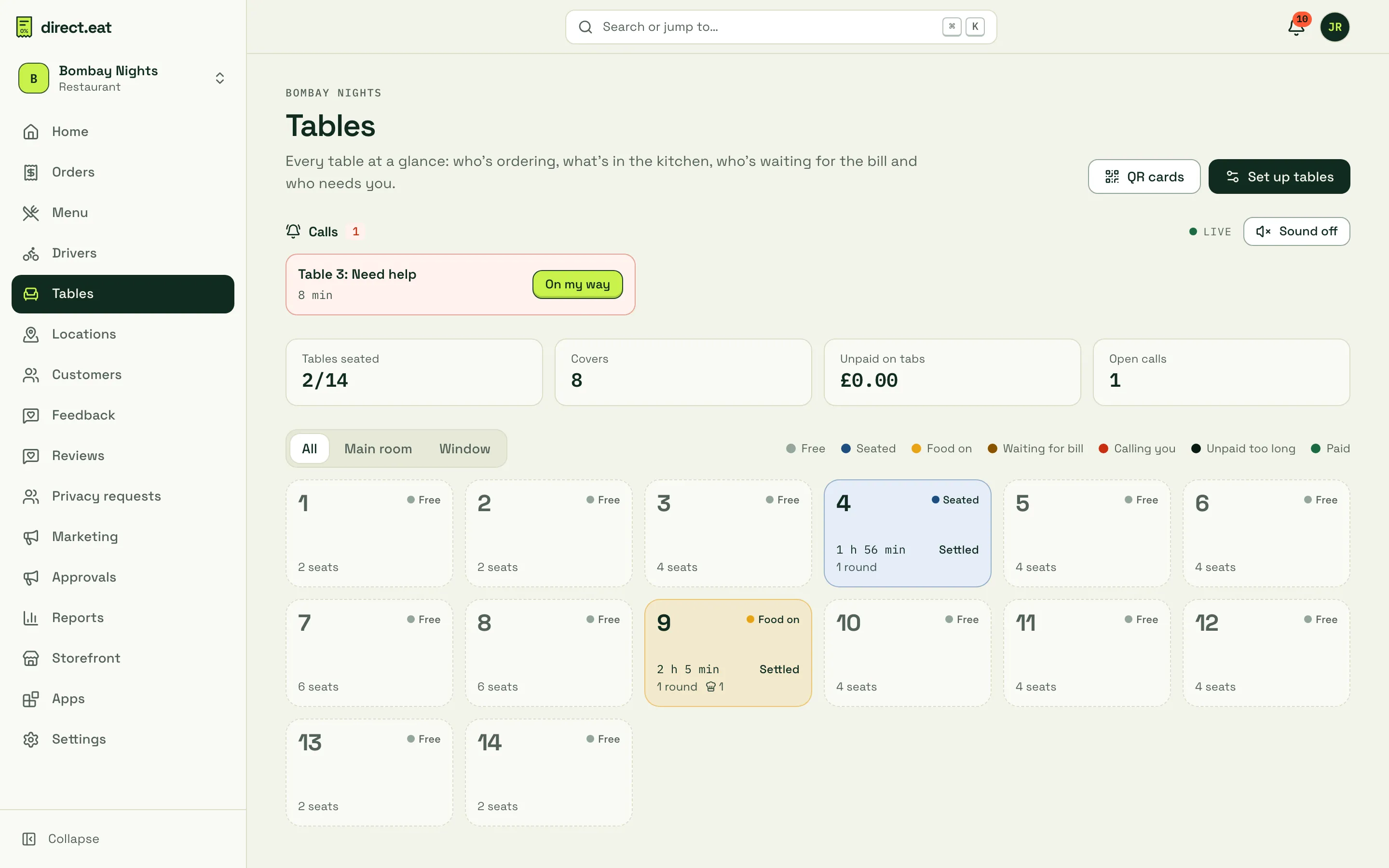
Section titled “4. Run the floor”Go to Tables. Every table is a tile, coloured by state, and the page updates live.
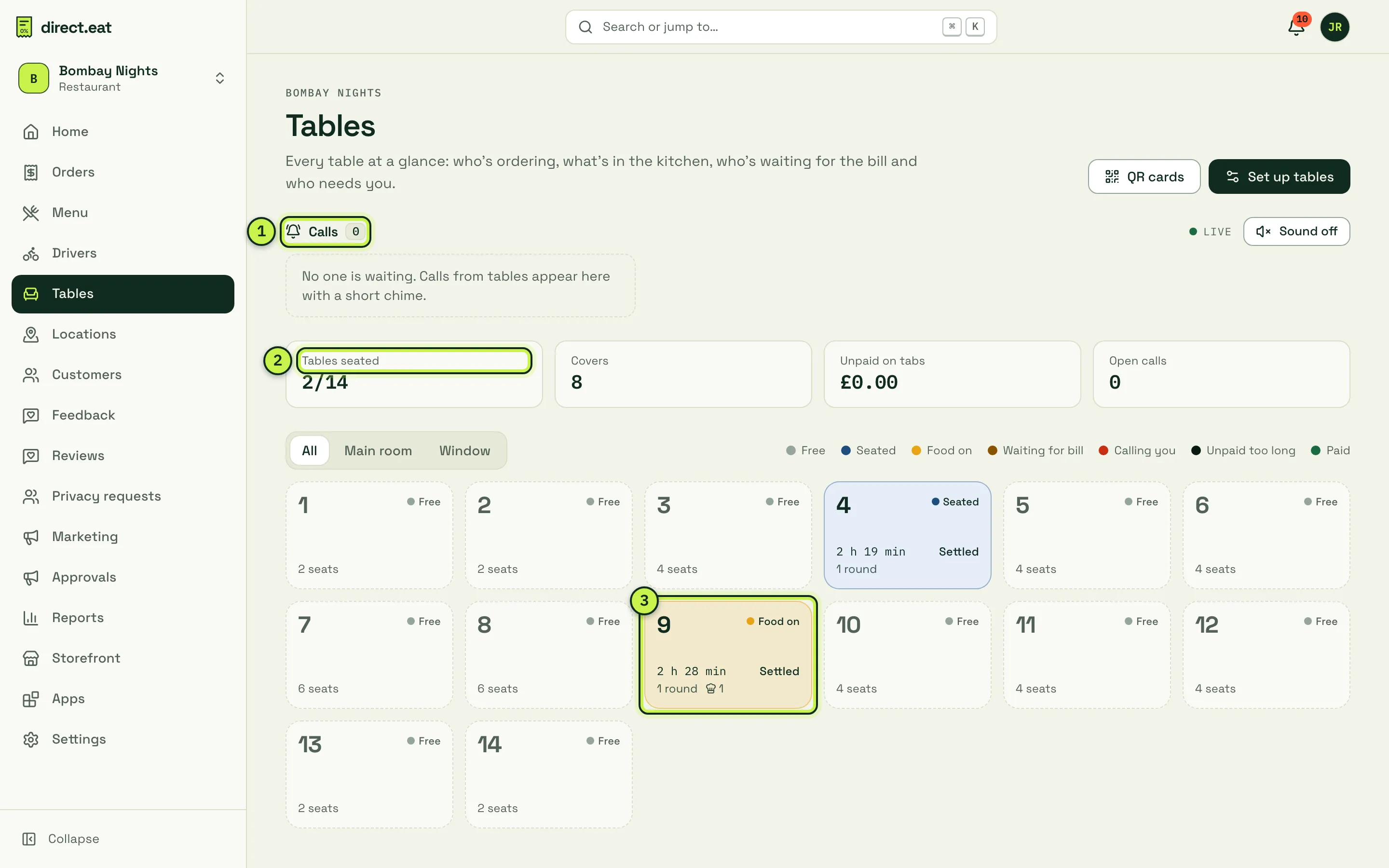
- Calls: waiter calls from guests, newest and allergy first.
- Figures: tables seated, covers, unpaid on tabs and open calls.
- Table tiles: Free, Seated, Food on, Waiting for bill, Calling you, Unpaid too long or Paid, with how long the table has been open and its rounds.
Waiter calls
Section titled “Waiter calls”When a guest taps Call staff, the call appears under Calls with a short chime (turn it off with Sound off). Reasons are Allergy question, Ready to order, Bill please, Need help and Water / cutlery. Allergy calls show first, in the allergen colour.
Tap On my way (the guest sees “Someone is on their way”), then Done when it’s handled. A call that’s still open after 3 minutes chimes once more. Only one call per reason per table can be open, so repeated taps don’t stack up.
A table’s tab
Section titled “A table’s tab”Click a tile to open the table.
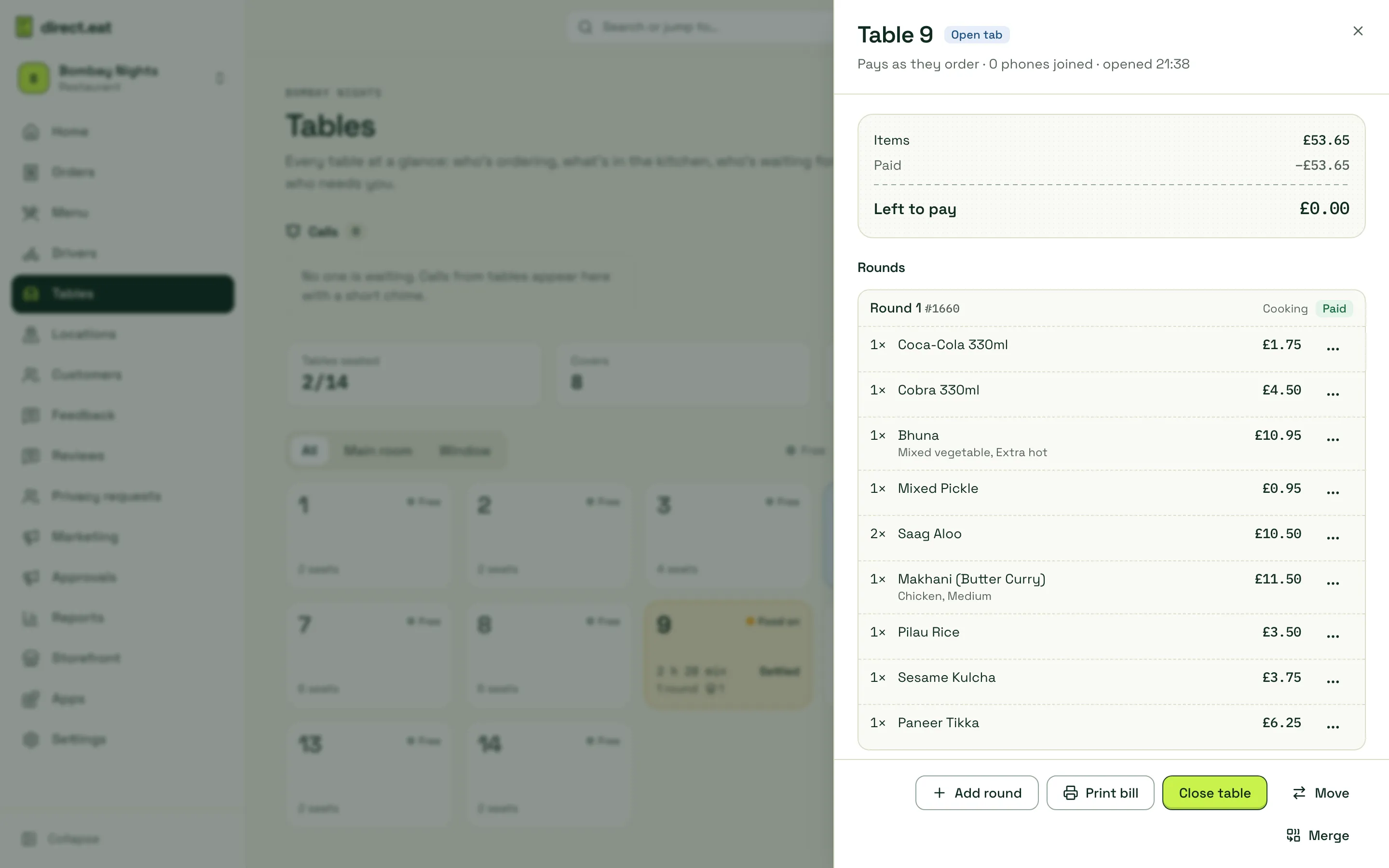
From here you can:
- see each round and its status (for example “Ready: run to table”),
- Comp item or Void item (with a reason such as “Ordered by mistake” or “Long wait”),
- Take payment by Card terminal or Cash for anything paid at the till,
- switch the Service charge on or off (pay-at-the-end tabs only),
- Add round in waiter mode, Print bill, Move the tab to another table, Merge two tables, Close table,
- Mark walkout if a table leaves without paying. It’s recorded and reported; guests’ details are never chased.
New tables with a first-order check show their first round as Waiting for staff check: choose Send to kitchen or Decline after you’ve checked the table.
Waiter mode
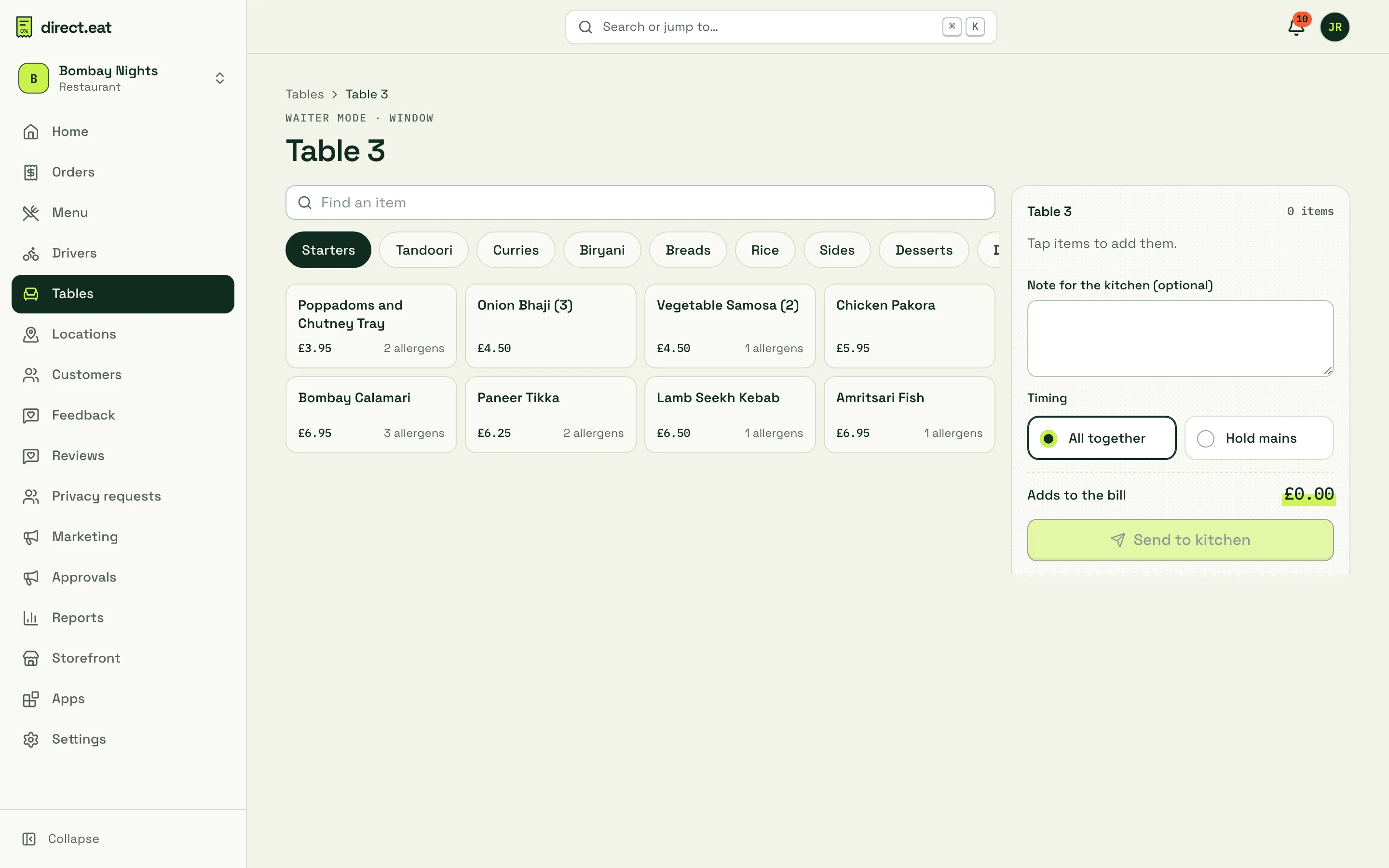
Section titled “Waiter mode”To take an order for a table yourself, open the table and click Add round (or Take an order on a free table). Waiter mode has a fast item grid with search, sizes and options, a note for the kitchen, and All together or Hold mains. Click Send to kitchen to add it to the table’s tab.
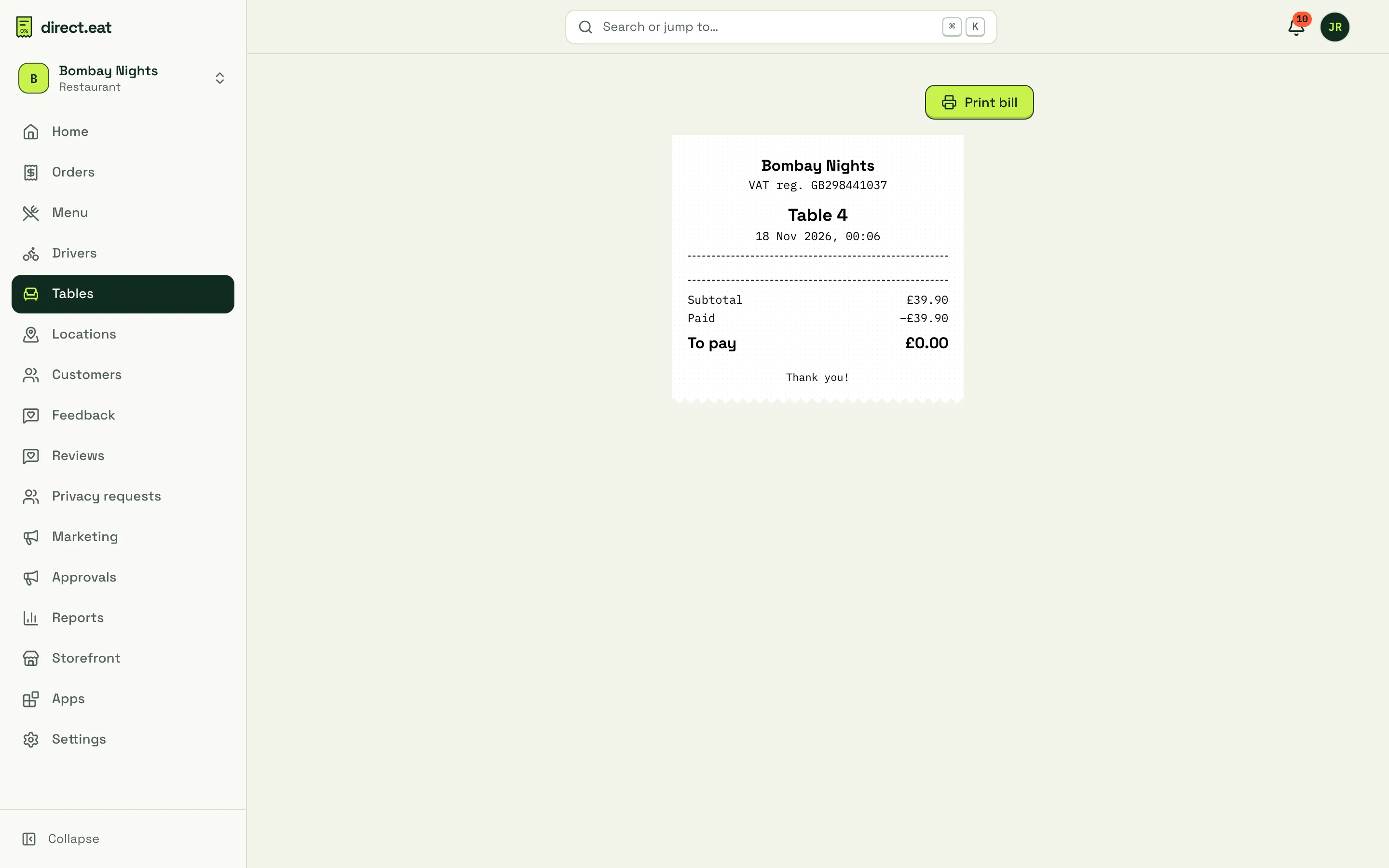
Print bill opens an 80 mm bill with the items, VAT breakdown, what’s been paid, what’s left, and a “Pay at the table” QR code so guests can pay from their phone.
What guests see
Section titled “What guests see”Guests see the menu for their table, a Call staff button and, on pay-at-the-end tabs, a live bill they can pay in full, split evenly, pay for their own items or pay an amount. Nobody can overpay. Service charges are optional and removable, and tips follow the rules above. See Order and pay at your table for the guest’s side, step by step.
Table rounds are ordinary orders on your order board and kitchen screens, marked with the table, for example “Table 12 · Round 2”.
Tips and gotchas
Section titled “Tips and gotchas”- Put the counter QR somewhere guests see before they sit down, and table cards on every table.
- If you change table names, the QR codes don’t change. Only regenerate changes a code.
- Splitting one table’s tab across two tables isn’t available yet. Use Move for the whole tab.
Related
Section titled “Related”Was this page helpful?