

Bulk edit, history and preview
Three tools for working on the whole menu: Bulk edit for changing lots of items at once, History for undoing anything, and Preview for checking what a customer will see.
Before you start: you need permission to edit the menu (owner, admin or manager).
Bulk edit
Section titled “Bulk edit”Menu → Bulk edit shows every item as a spreadsheet: category, price (and each size), collection, delivery and dine-in prices, VAT category, allergen status, 86 and show.
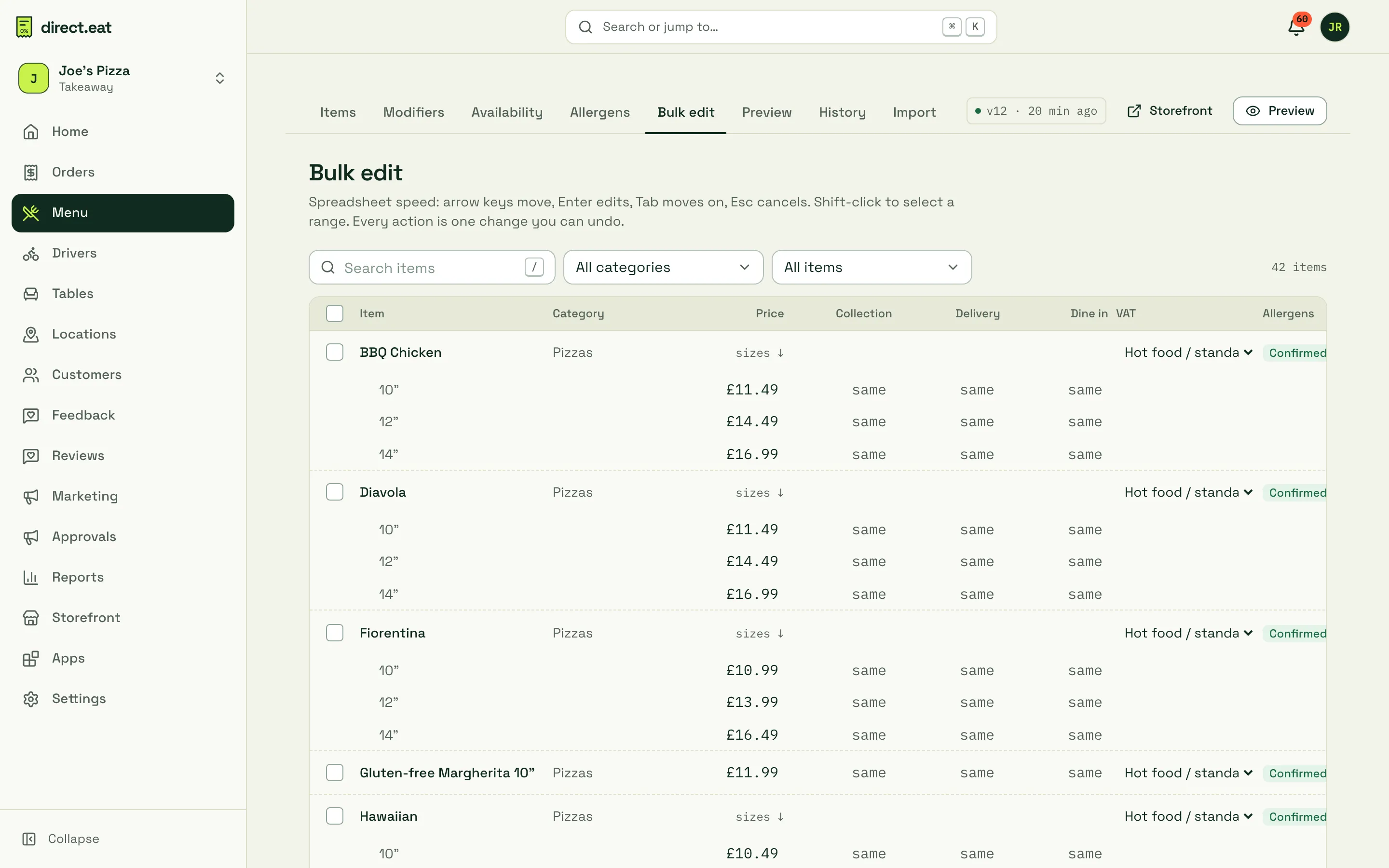
It works like a spreadsheet: arrow keys move, Enter edits, Tab moves on, Esc cancels. Filter by category or by Allergens not confirmed, No price, Hidden or Sold out.
Prices by order type
Section titled “Prices by order type”The Collection, Delivery and Dine in columns say “same” until you set a different price. For example, charge £1 more on delivery to cover packaging. Click the cell and type the price.
Change many items at once
Section titled “Change many items at once”- Tick the items. Shift-click to select a range, or tick the header box to Select all shown (filter first).
- A bar appears with the actions: Change prices, Move / copy, VAT, Dietary, Hide, Show, 86 today, Back on and Delete.
- Pick an action. Every action is one change you can undo.
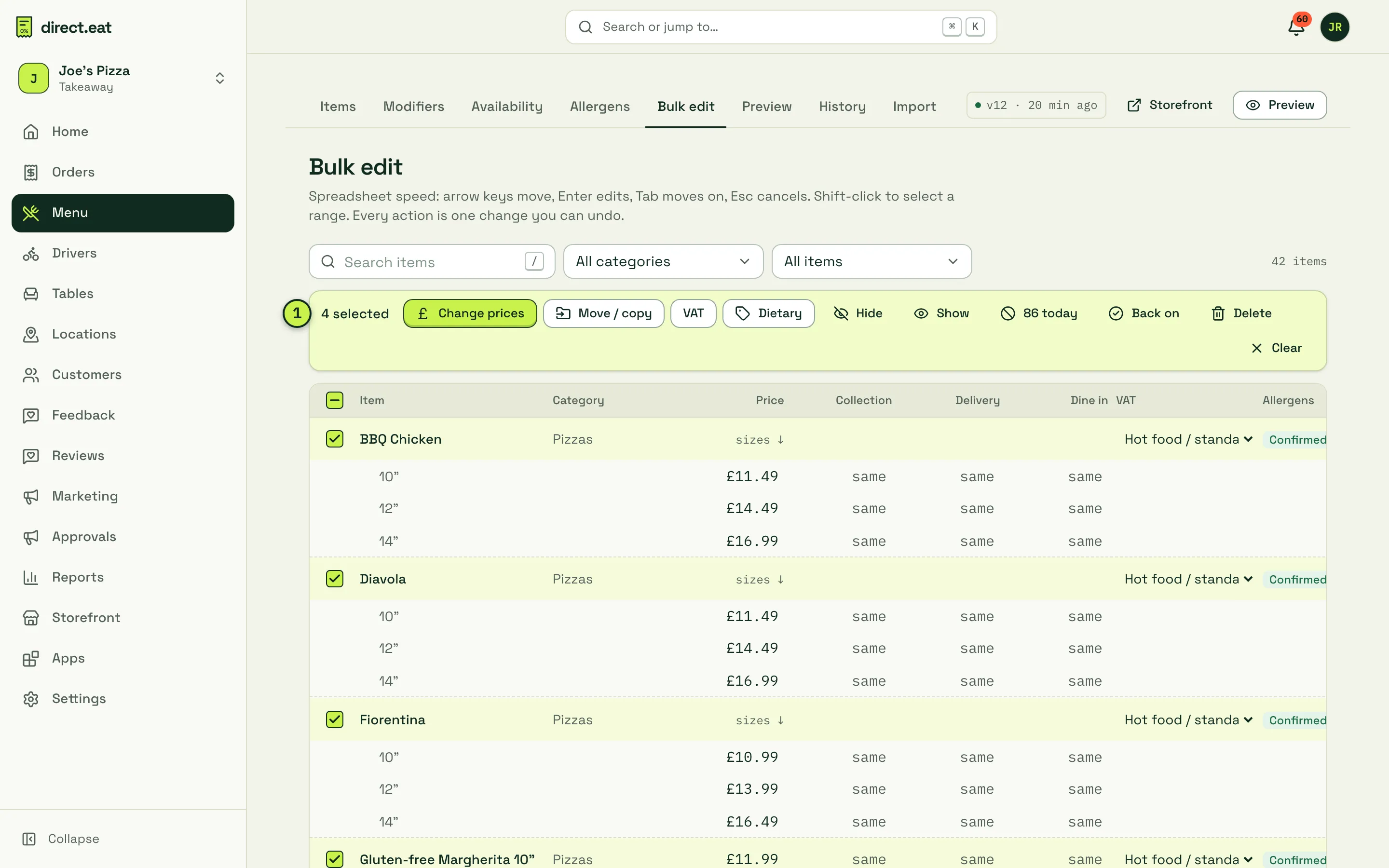
- Selected items and actions: the count and every bulk action.
Put prices up (or down)
Section titled “Put prices up (or down)”Change prices opens a before-and-after list. Nothing changes until you press Apply.
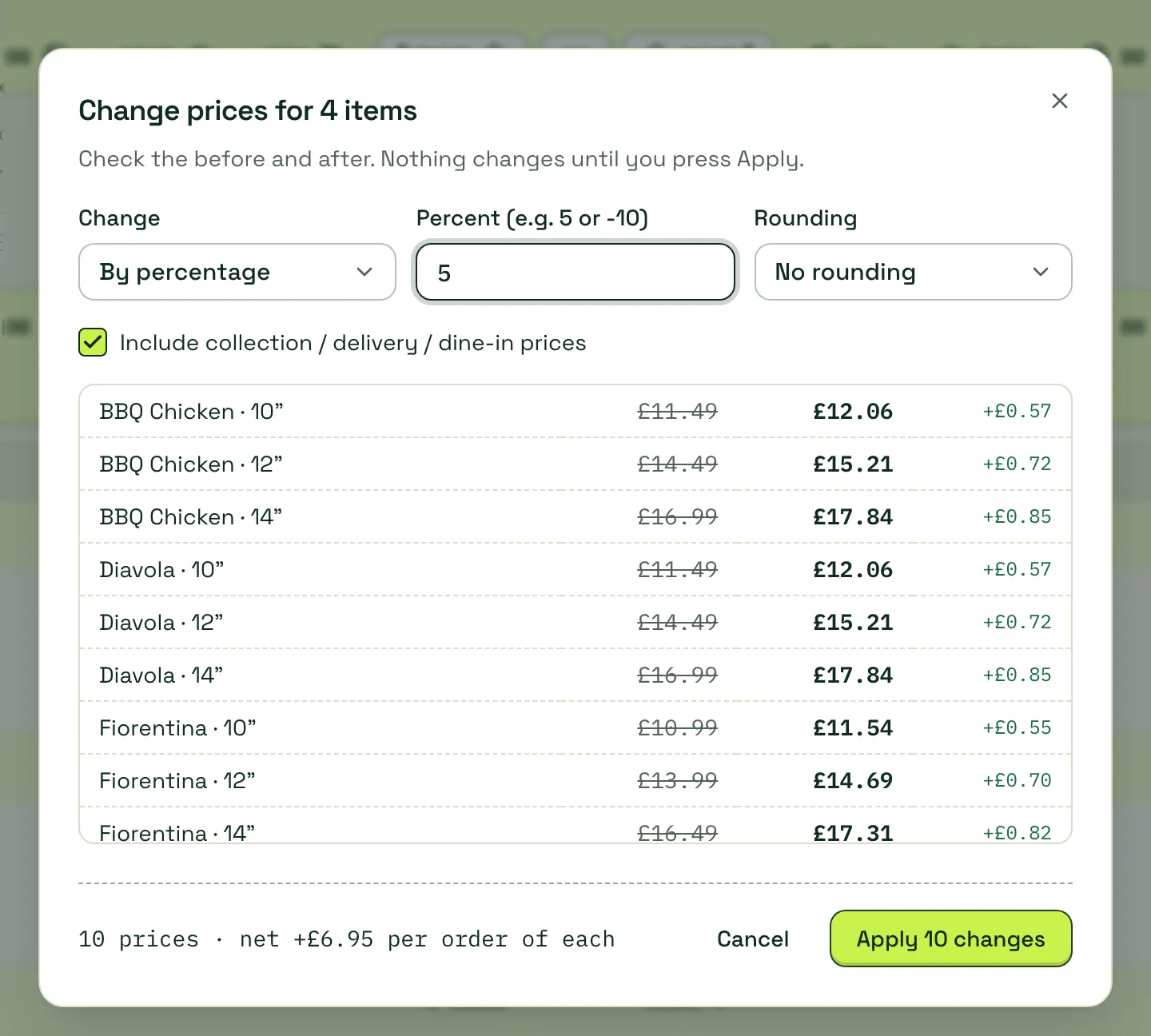
- By percentage (5 or −10) or By an amount (£) (0.50 or −0.25).
- Rounding: No rounding, Nearest 5p, Nearest 10p, Nearest .49 or .99 or Up to .99.
- Include collection / delivery / dine-in prices: also changes any order-type prices you’ve set.
- The footer shows how many prices change and the net difference, then Apply n changes.
Move or copy
Section titled “Move or copy”Move / copy puts the selected items in another category. Move (remove from others) takes them out of their current category. Copy (also show here) adds the same item to a second category: it isn’t duplicated, so edits apply everywhere.
History and versions
Section titled “History and versions”Menu → History lists every change to your menu, who made it and when, newest first. Changes made together (a bulk price rise, an import) are one entry.
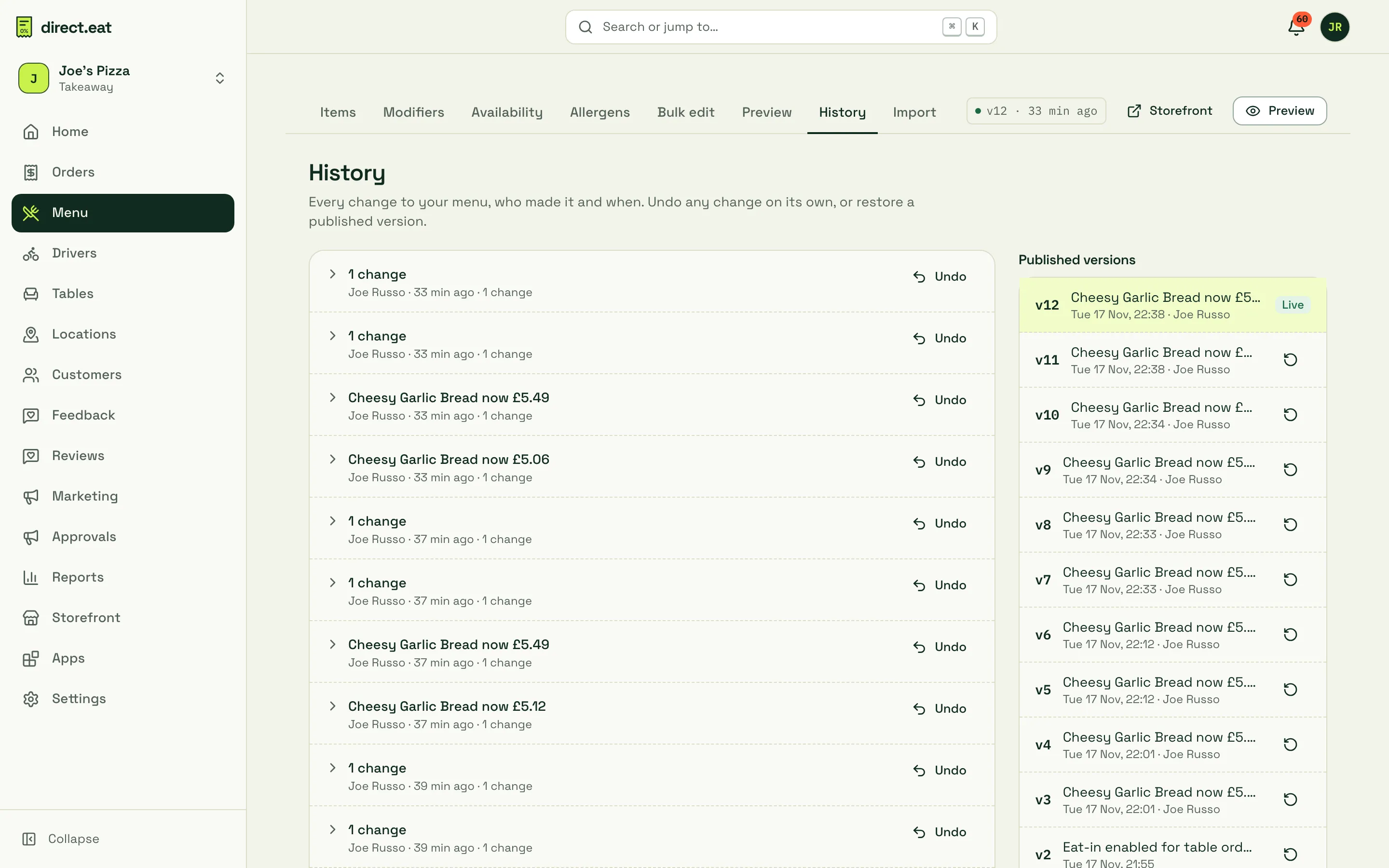
- Undo on any entry reverses just that change, even if other changes came after it. The undo is itself a new entry, so you can undo the undo.
- Click an entry to see exactly what changed, before and after.
- Changes made from the kitchen app, by automatic jobs or by our support team are labelled, so you can tell them apart from your own.
Restore a published version
Section titled “Restore a published version”Published versions on the right lists every version that went live. Click the restore icon next to a version. You see what restoring would change before anything happens, then confirm. Restoring is also undoable.
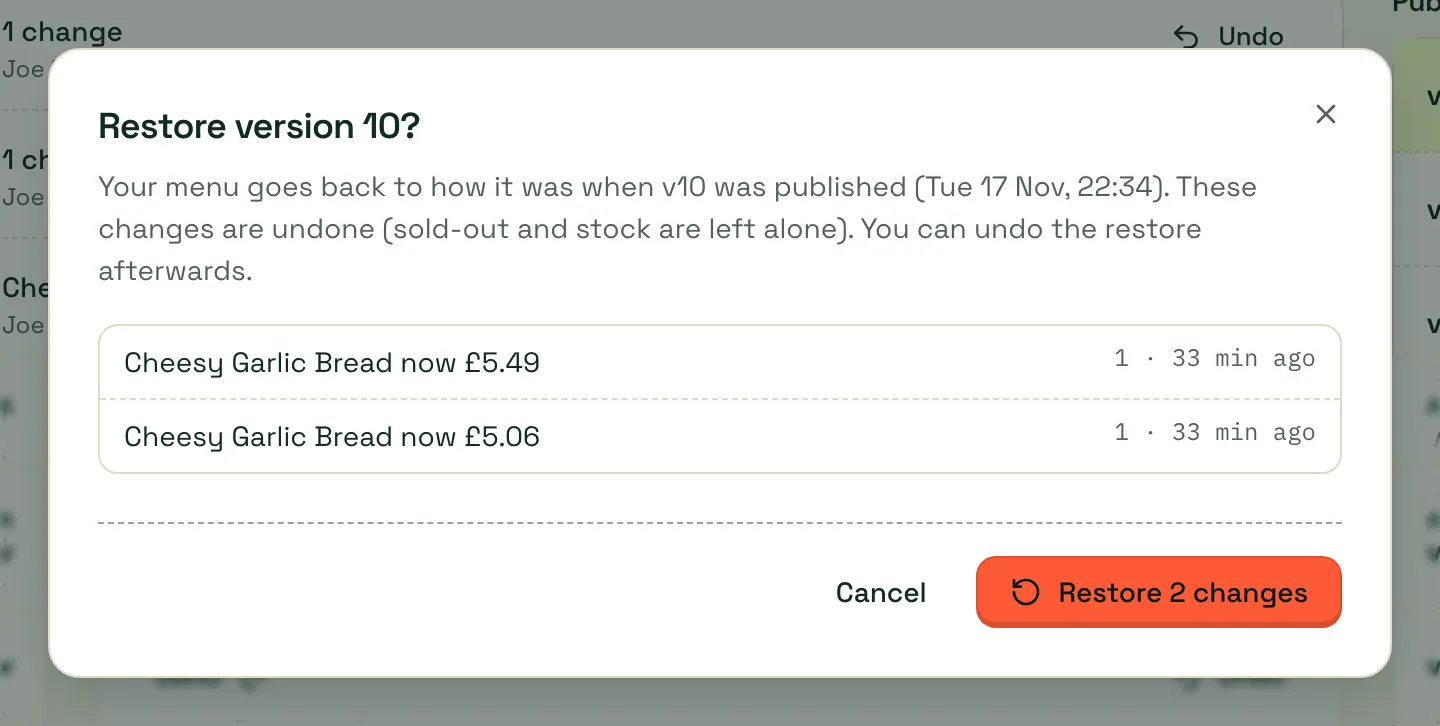
Versions are kept for 2 years.
Preview as a customer
Section titled “Preview as a customer”Menu → Preview shows your menu exactly as a diner sees it at any date and time, for Collection, Delivery or Dine in. It includes edits that aren’t published yet (in draft mode).
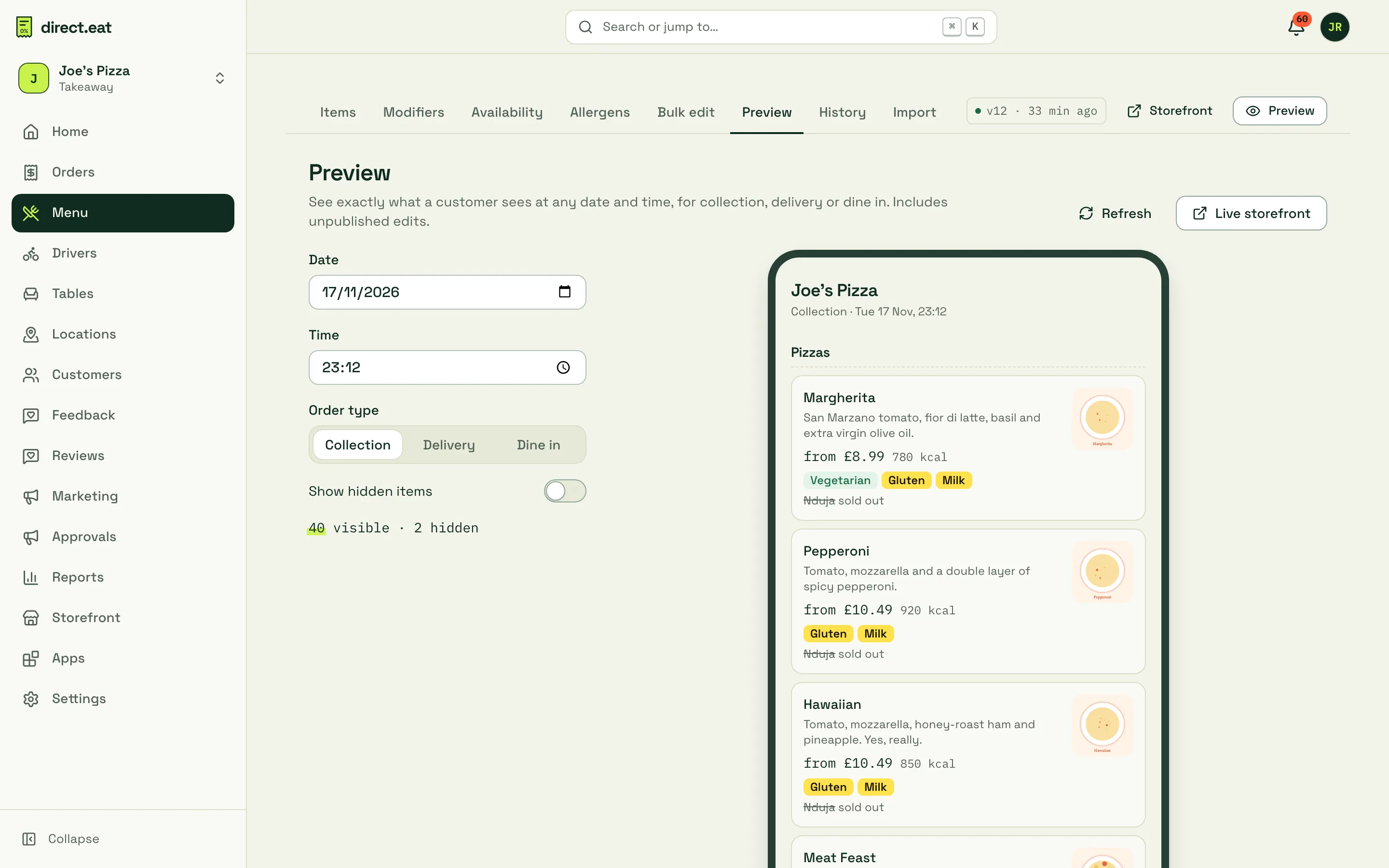
Use it to check:
- A lunch menu disappears at 15:00 and the evening menu takes over.
- Delivery-only prices and items.
- Items with Order ahead only show for slots far enough ahead.
Switch on Show hidden items to see what’s hidden and why. Live storefront opens your real storefront in a new tab.
Export your menu
Section titled “Export your menu”You can download your whole menu as Excel (.xlsx), CSV, a separate modifiers CSV or JSON. The files use the same format as the spreadsheet import, so you can edit in Excel and import back.
There’s no Export button in the menu editor yet. While you’re signed in, open one of these addresses, replacing your-shop with your shop’s web address name:
https://app.direct.eat/s/your-shop/menu/export/xlsxhttps://app.direct.eat/s/your-shop/menu/export/csvhttps://app.direct.eat/s/your-shop/menu/export/modifiers-csvhttps://app.direct.eat/s/your-shop/menu/export/json
Related
Section titled “Related”Was this page helpful?