

Place a test order end to end
Before a real diner orders, be your own first customer. One test order checks everything at once: your menu and prices, checkout, the kitchen alarm, the printer, the diner’s tracking page and the emails they get. It’s the best few minutes you’ll spend on setup.
You need two things side by side: your phone (as the diner) and the kitchen tablet you paired in step 9. Use a real email address you can check, so you see exactly what diners see.
Time: about 10 minutes.
1. Order on your storefront
Section titled “1. Order on your storefront”-
On your phone, open your storefront at
https://{your-slug}.direct.eat. This is the link you’ll share with diners.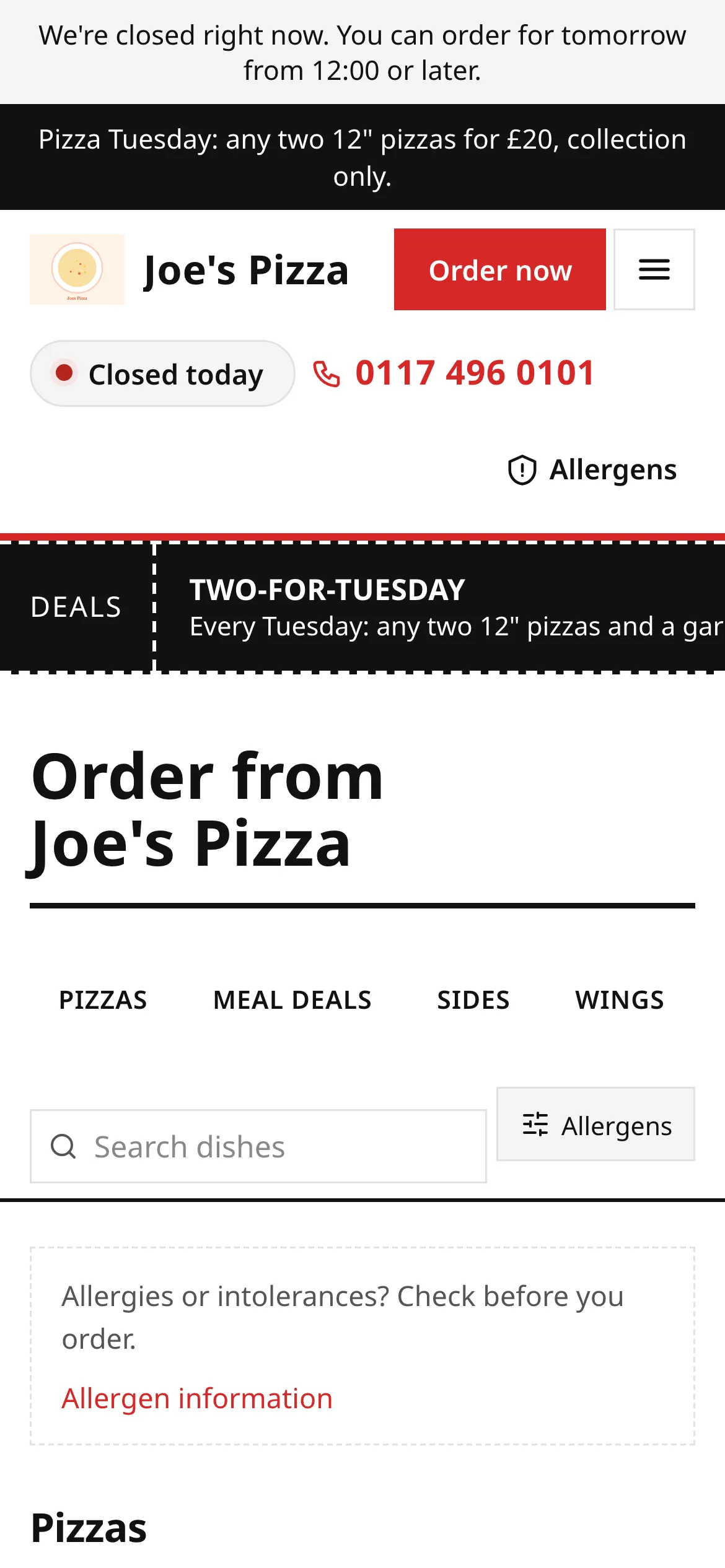
joes-pizza.direct.eat -
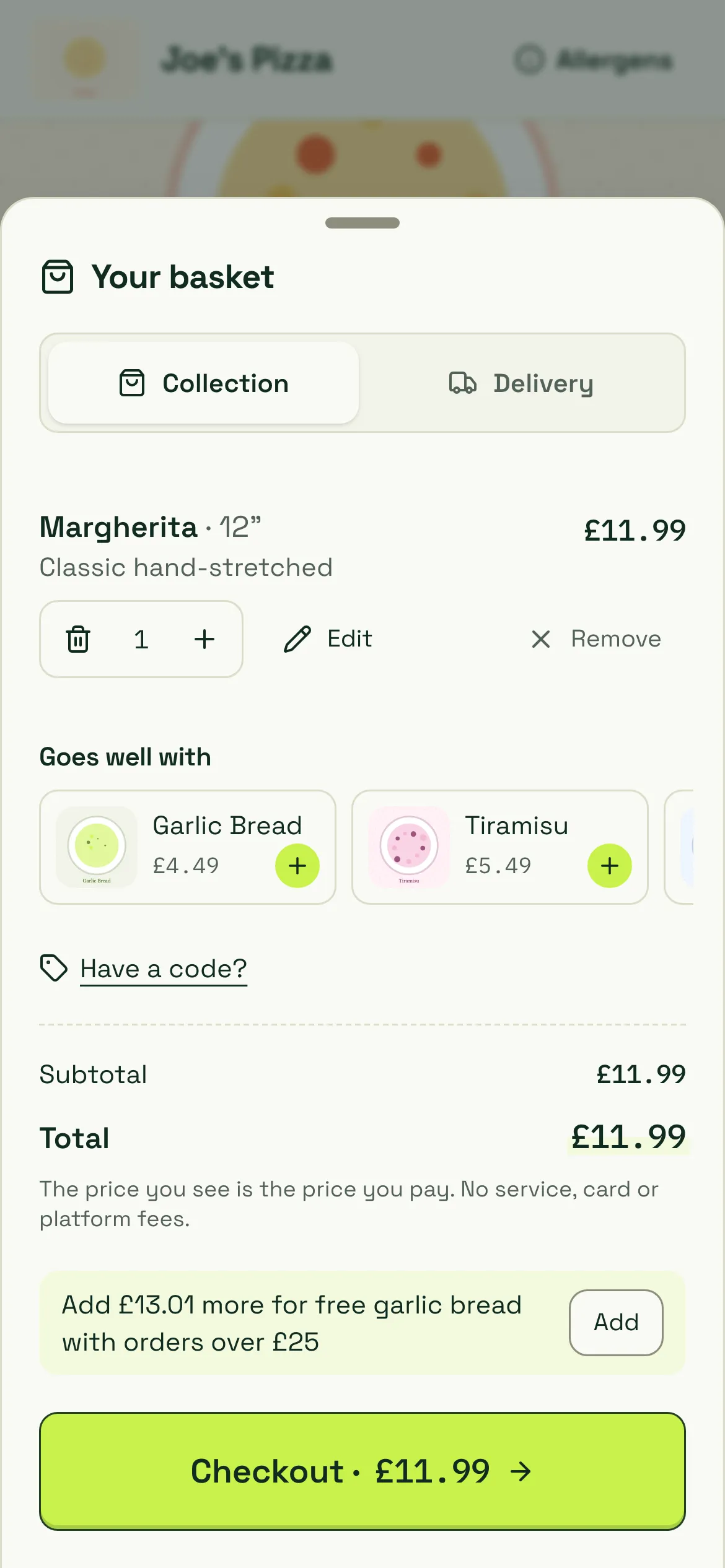
Tap an item, pick any options and tap Add. Then tap View basket and Checkout.
joes-pizza.direct.eat -
At checkout, choose Collection (or Delivery if you set it up), fill in your name, mobile number and email, and answer the allergy question.
-
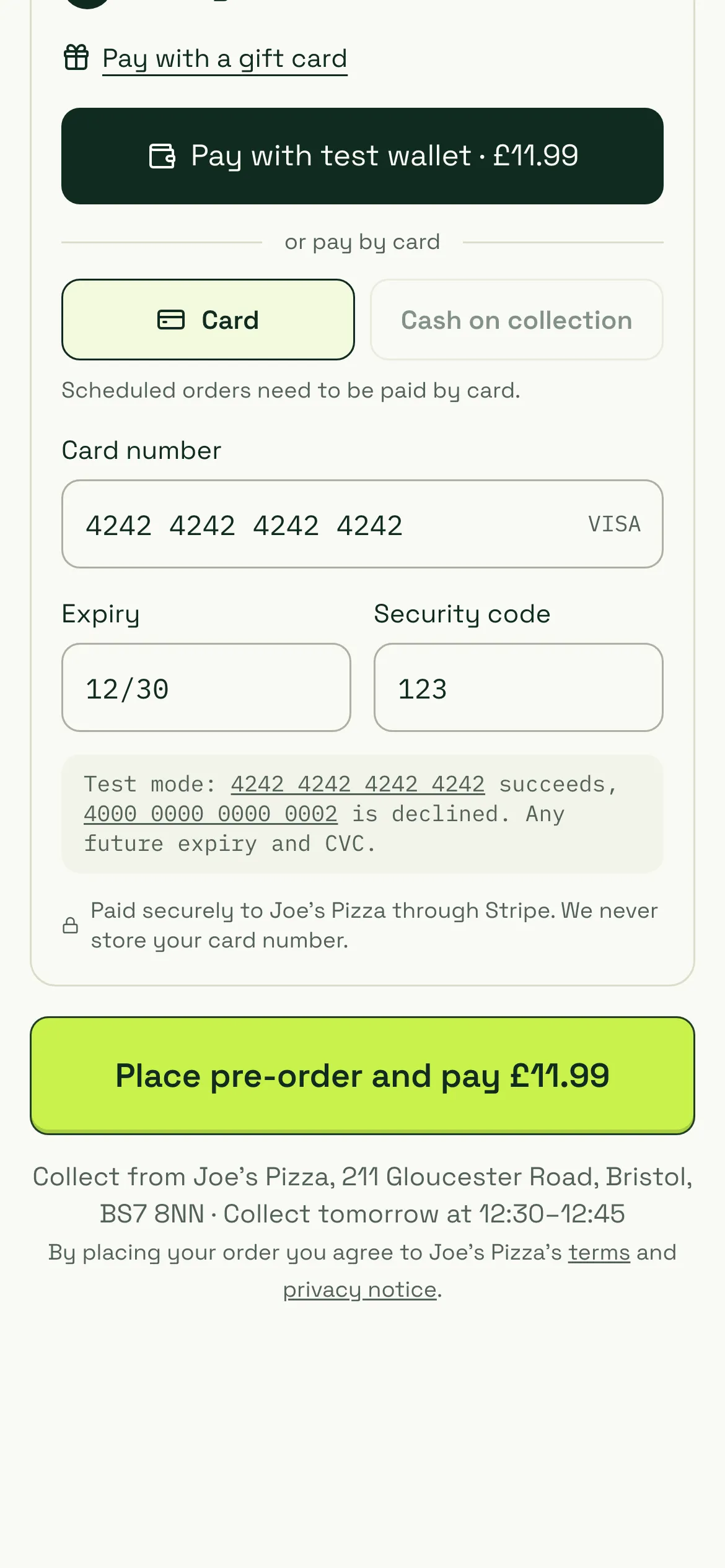
Under Payment, choose Card and pay with the test card 4242 4242 4242 4242, any future expiry date and any 3-digit security code.
joes-pizza.direct.eat/checkout -
Tap Place order and pay. You land on the order tracking page.
2. The diner’s tracking page
Section titled “2. The diner’s tracking page”Straight after paying, your phone shows the tracking page: the order number, its status, a timeline and a message box to the restaurant. Diners keep this page open, or come back to it from their emails.
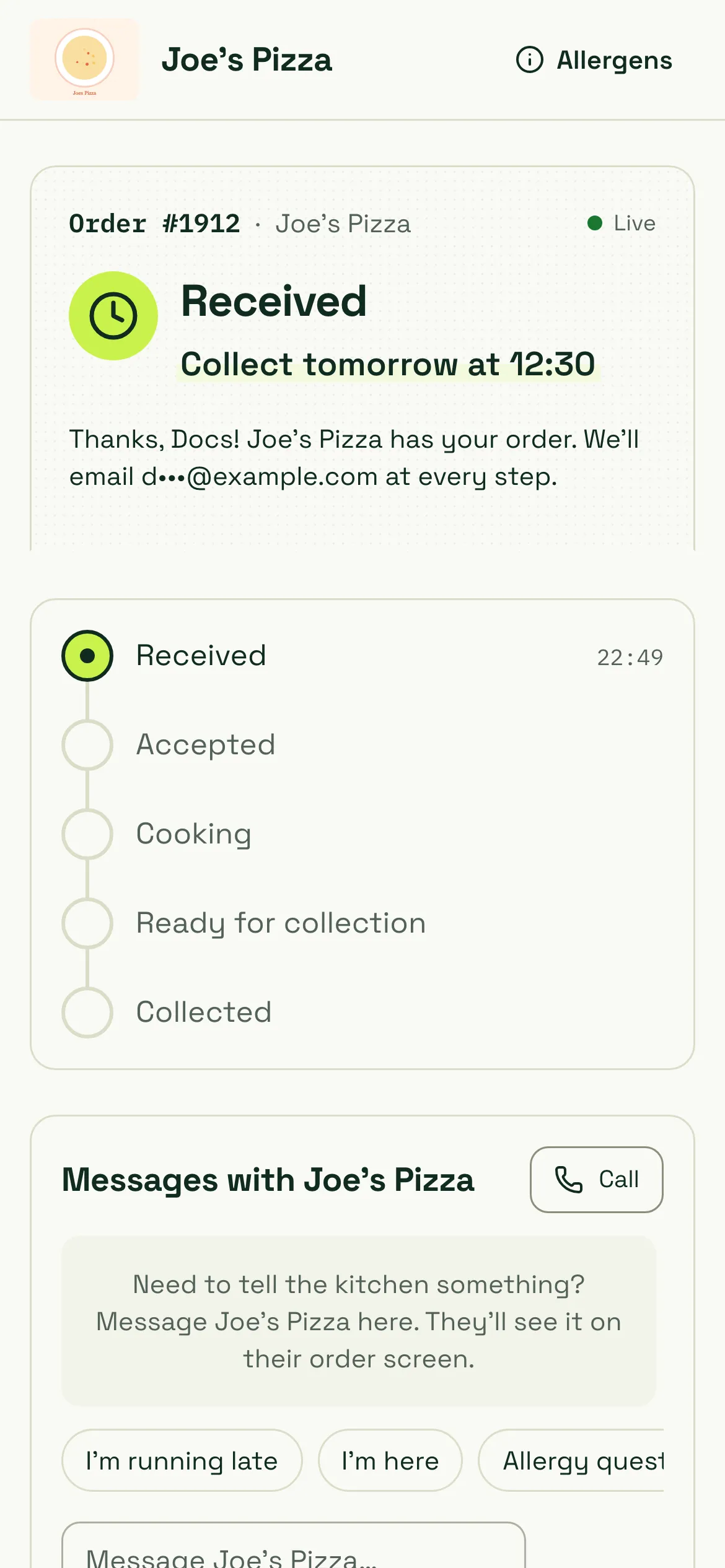
The diner also gets an order received email straight away.
3. Hear it ring in the kitchen
Section titled “3. Hear it ring in the kitchen”The kitchen tablet takes over the screen with NEW ORDER and the alarm sounds (if you tapped Tap to turn on sound).
Kitchen app screenshot being updated
The kitchen app's full-screen NEW ORDER alert for order 1912 with a big Accept · 20 min button and Other time, Seen, 60 s and Reject buttons, marked 1 to 5
- Accept · 20 min: accepts with your default prep time and stops the alarm on every device.
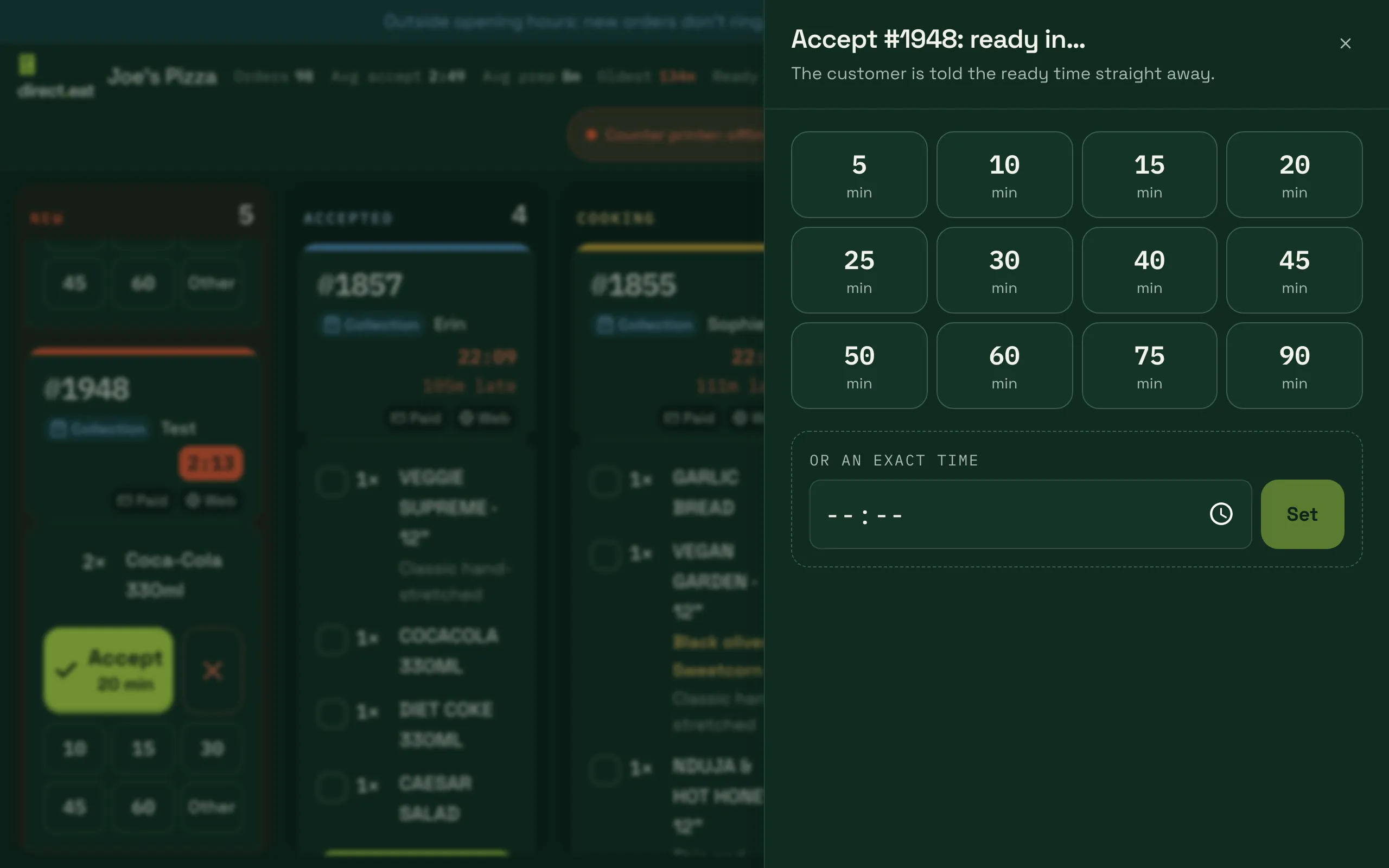
- Other time: accept with a different time (5 to 90 minutes, or an exact time).
- Seen: pauses the alarm and the escalation for 3 minutes, once per order, when your hands are full.
- 60 s: silences this screen for 60 seconds.
- Reject: asks for a reason and shows you what the diner will be told.
If nothing rings, stop here and fix it before you go live. Check the tablet’s volume, that it says Live, and see Orders not arriving.
If you have a printer, it prints a kitchen ticket when you accept.
4. Accept it with a time
Section titled “4. Accept it with a time”Tap Other time to see the choices, then pick one. The time you choose is the ready time the diner sees.
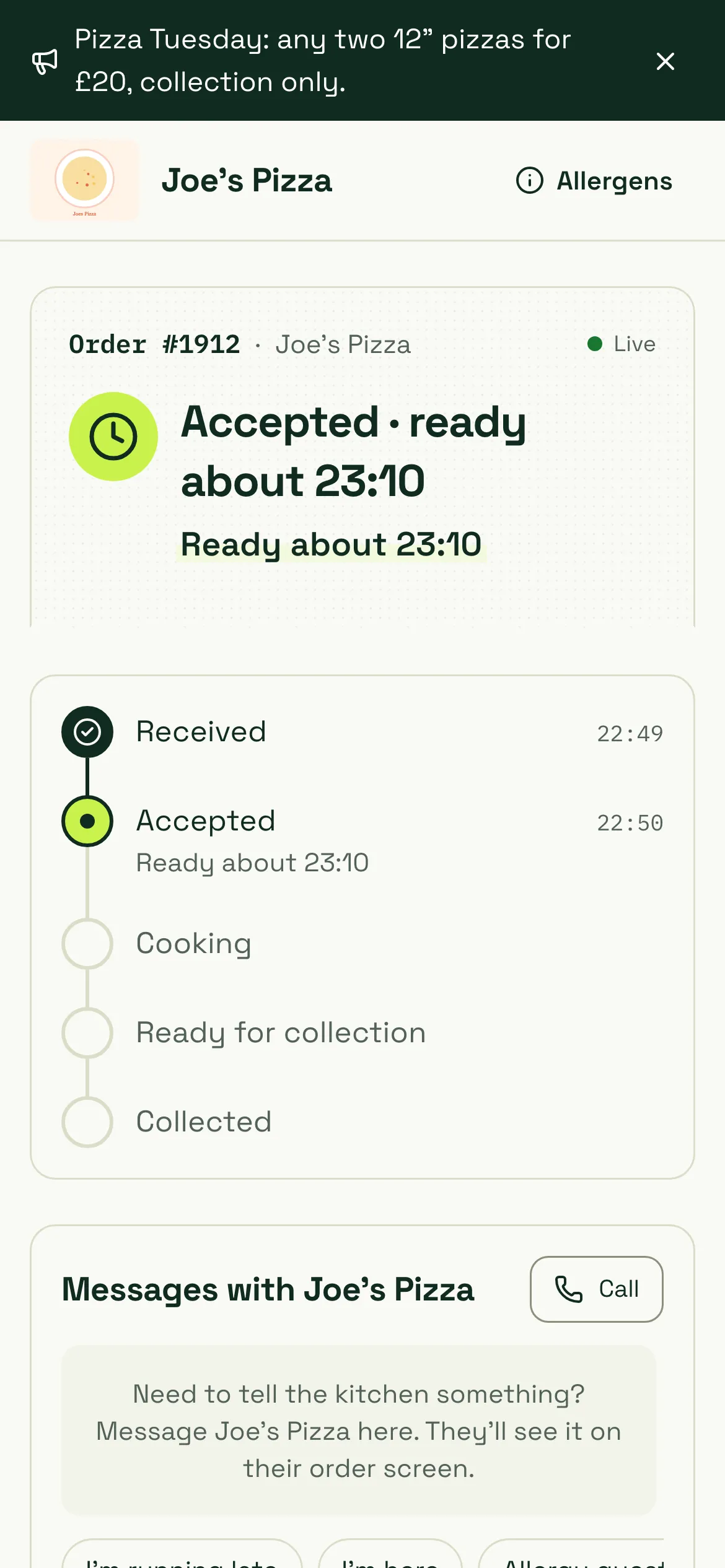
The order moves to the Accepted column and the diner’s tracking page changes to Accepted with the ready time. They also get an “accepted” email.
5. Send the diner a message
Section titled “5. Send the diner a message”Tap the order on the board to open it, then the Messages tab. Use a quick reply such as Running 10 min late, or type your own message.
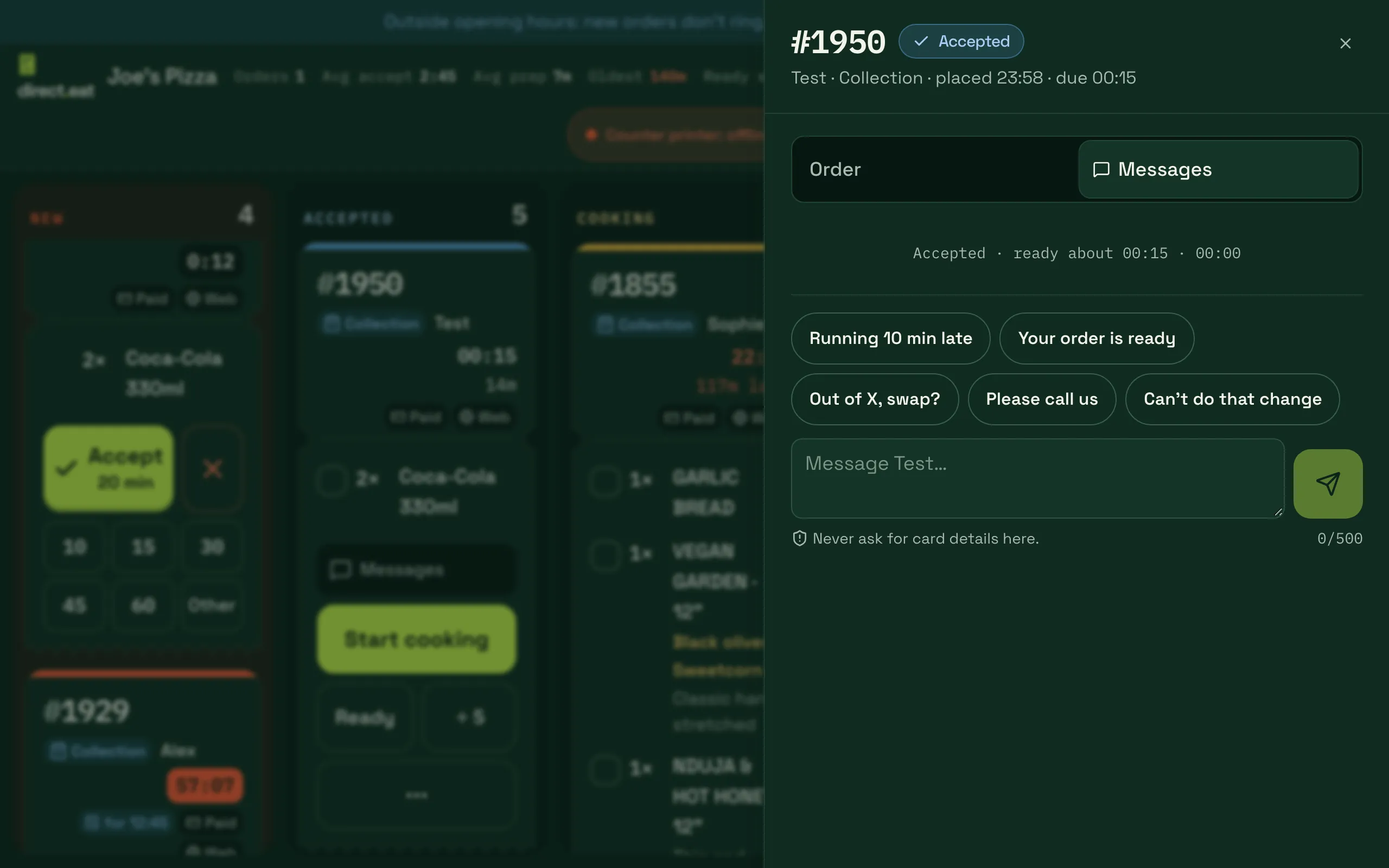
- Quick replies: one tap, worded for you. “Out of X, swap?” lets you pick the item that’s run out.
- Your own message: up to 500 characters. Never ask for card details here.
The message appears on the diner’s tracking page under Messages with your shop name, and they can reply from there. Replies show on the board with a badge and a chime.
6. Cooking, ready, collected
Section titled “6. Cooking, ready, collected”Use the big button on the order to move it on: Start cooking, then Ready, then Collected (for delivery: Packed · ready, then the driver takes over).
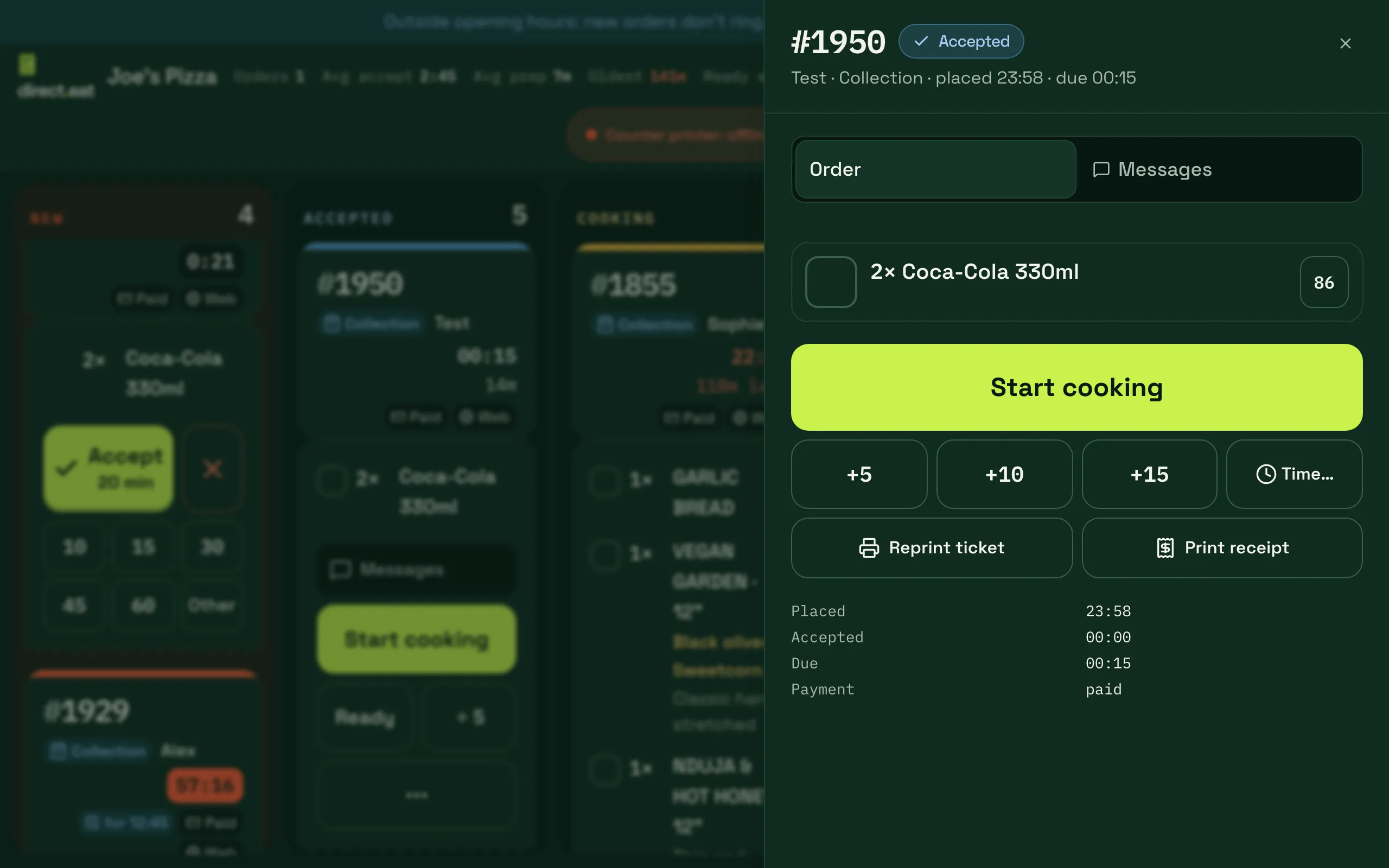
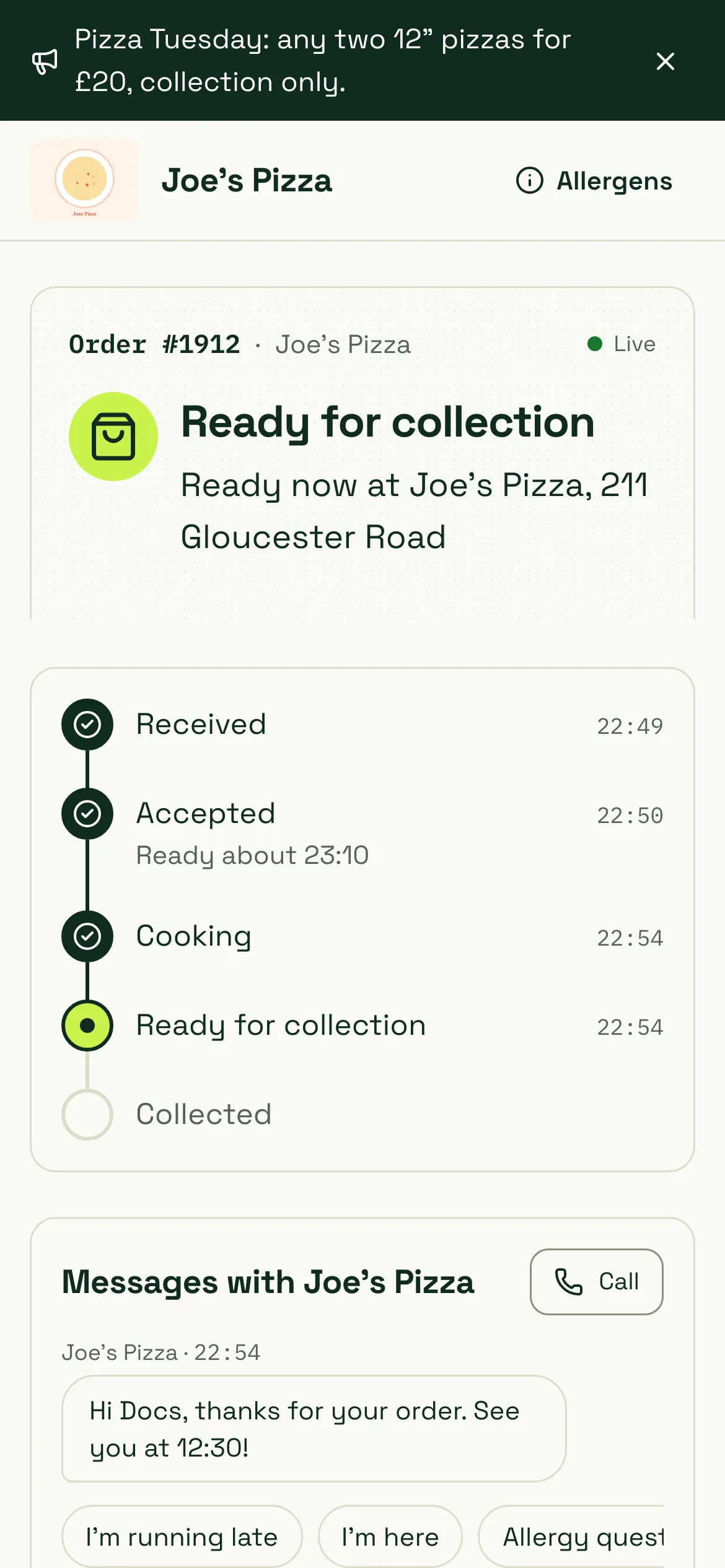
Watch your phone as you go. When you tap Ready, the diner sees Ready for collection with your address:
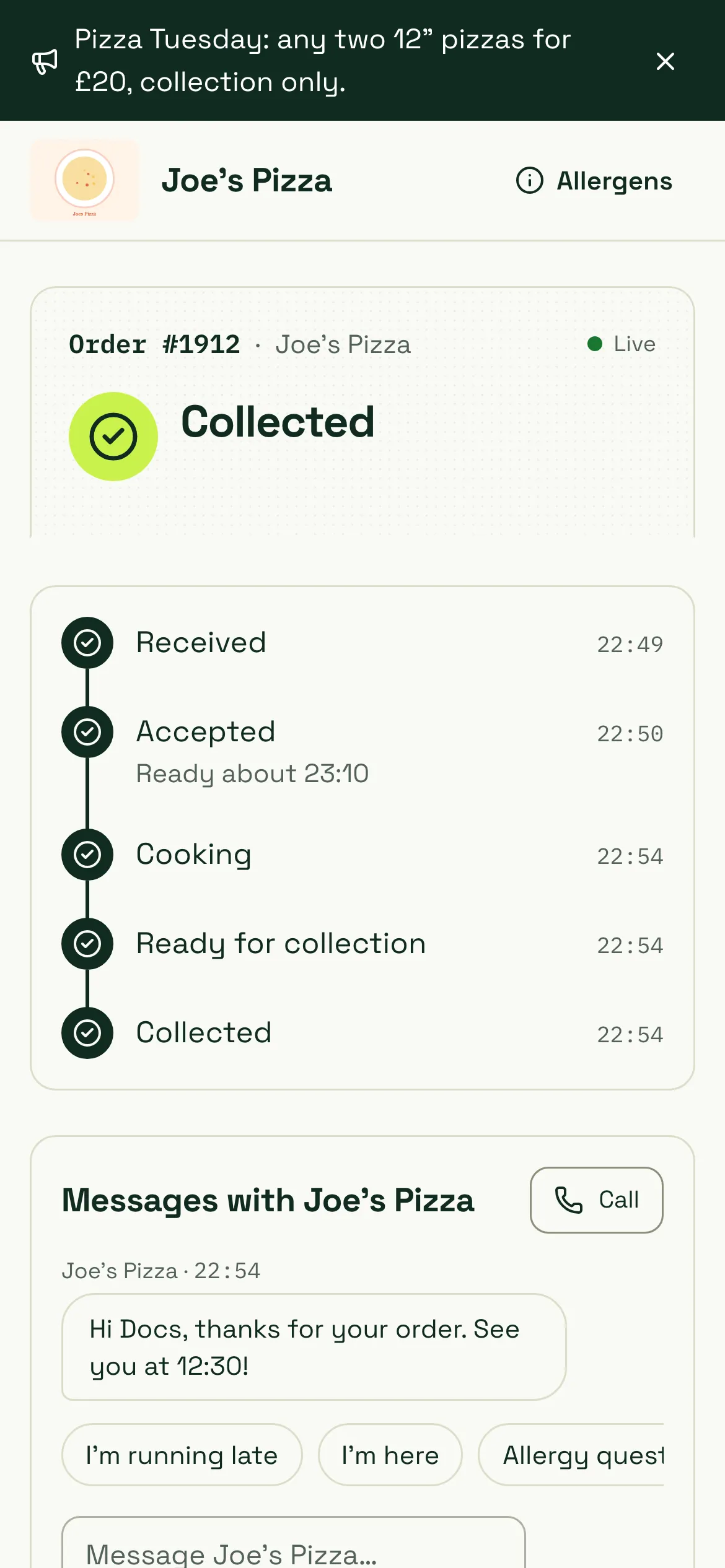
After Collected, every step is ticked with the time it happened:
7. Check the emails
Section titled “7. Check the emails”Open the inbox for the email you used. A collection order sends:
| When | |
|---|---|
| Order placed | Order received (or Pre-order confirmed), with the items, total, VAT and allergens |
| Accepted | Accepted, with the collection time |
| Ready | Ready to collect, with the order number to show at the counter |
“Cooking” and “Collected” update the tracking page but don’t send an email. A message from the kitchen is emailed only if the diner hasn’t already read it on the tracking page.
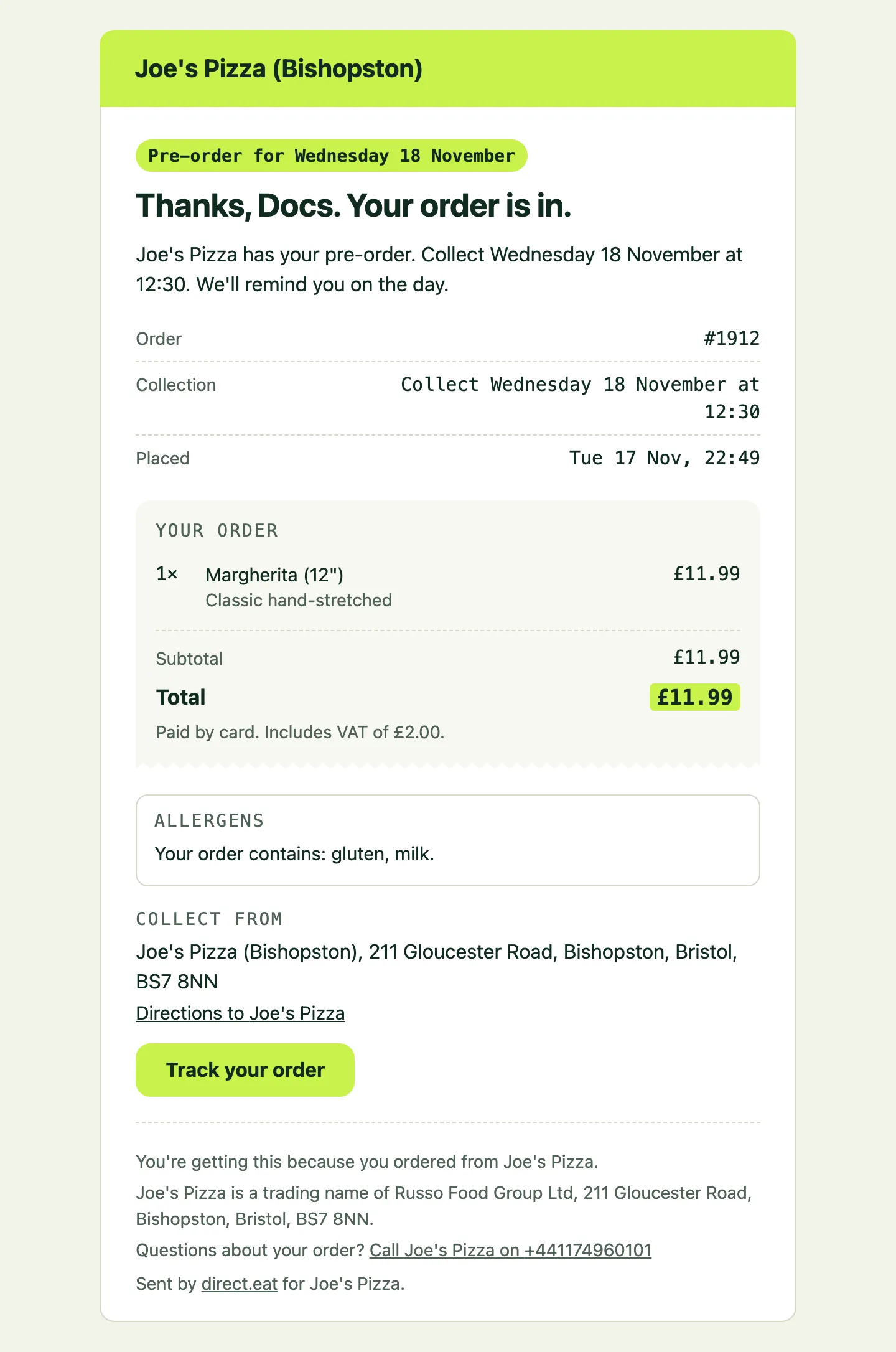
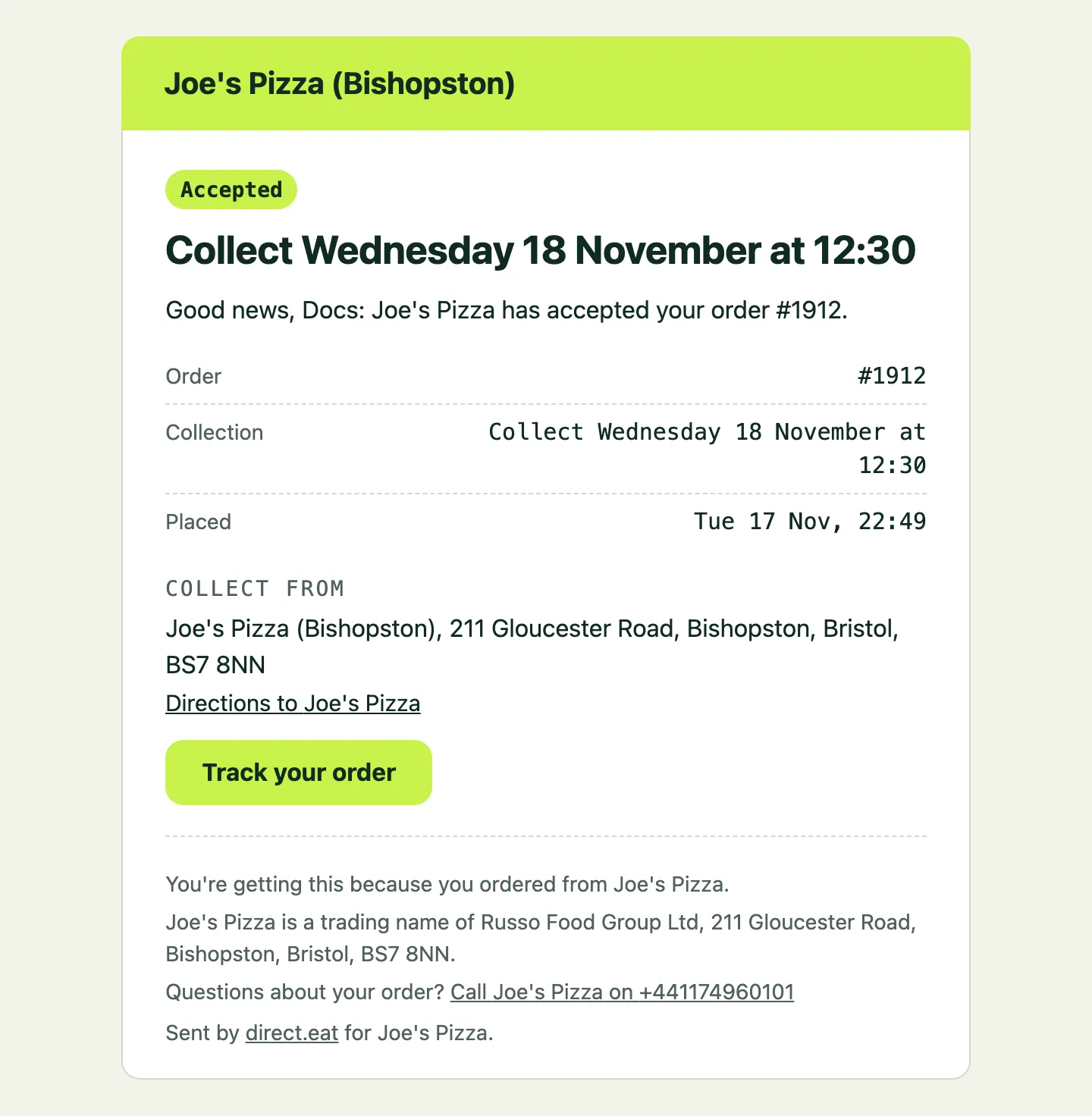
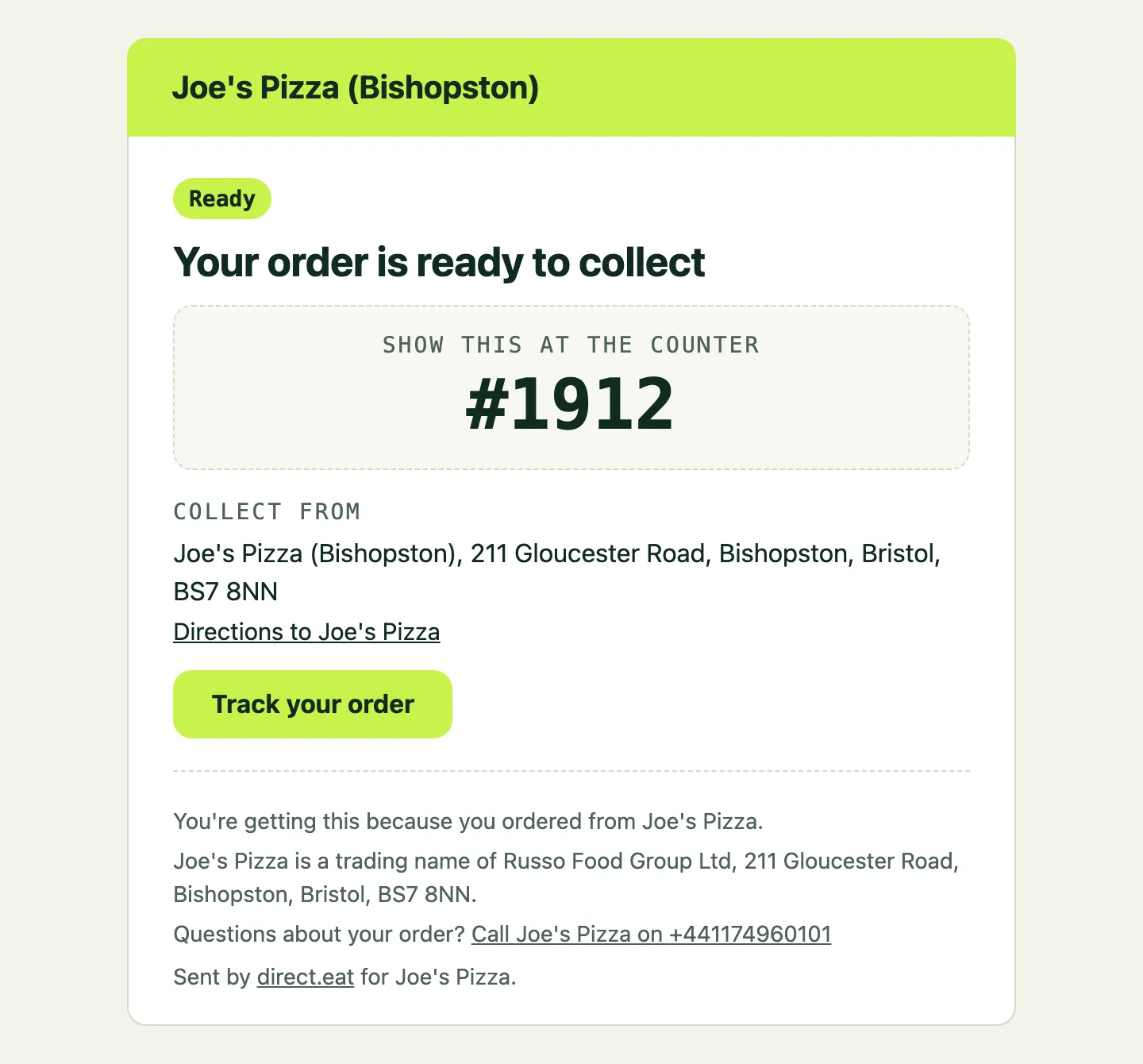
Emails come from your shop’s name, in your colours, with a Track your order button. Check the shop name, address and phone number look right. If an email is missing, check spam and see Email deliverability.
What to check off
Section titled “What to check off”- The order rang loud enough to hear over the kitchen.
- The printer printed (if you have one).
- Prices, options and allergens looked right at checkout.
- The tracking page moved through every step.
- The emails arrived, with the right shop details.
- Your message reached the tracking page.
Test orders show in your order history and reports like any other order. Try a delivery order too if you deliver, using an address inside your zone.
Next step
Section titled “Next step”12. Go live and share your link.
Related
Section titled “Related”Was this page helpful?