

Devices and printers
Orders reach your kitchen in two ways: a kitchen screen (a tablet or phone running the kitchen app, with the loud alarm) and a printer. You want at least one of each, so that if one goes down the other still gets the order through. Everything is managed in Settings → Devices and printers.
Screens and printers are unlimited on every plan.
Before you start
Section titled “Before you start”- Pairing and removing devices needs the Pair and remove devices permission: owners, admins and managers. Staff can see device health and test print. Kitchen tablets can see health and manage their own printers.
- For hardware that works, see supported hardware.
- First time? The kitchen tablet and printer setup step walks through the basics.
The devices page
Section titled “The devices page”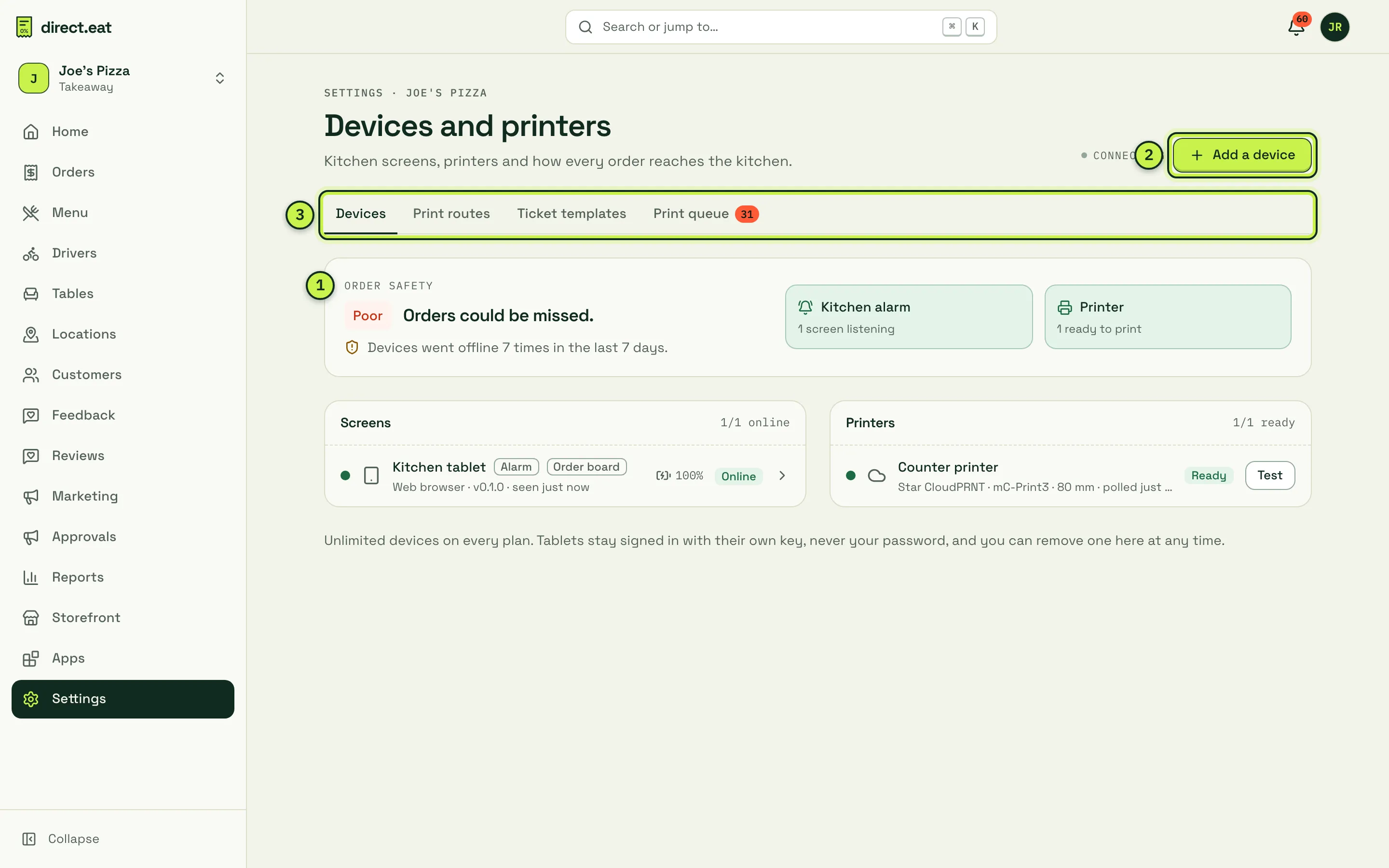
- Order safety: Good, Fair or Poor, with what’s missing. Good means “Every order has two ways in”: a kitchen alarm screen and a printer, both online. Fair is “One way in. Add a backup.” Poor: “Orders could be missed.” The rating looks at the last 7 days too, so a setup where devices keep dropping out (“Devices went offline 7 times in the last 7 days”) can be rated Poor even while everything is online right now. Fix the cause (usually a tablet going to sleep or weak Wi-Fi) and the rating recovers.
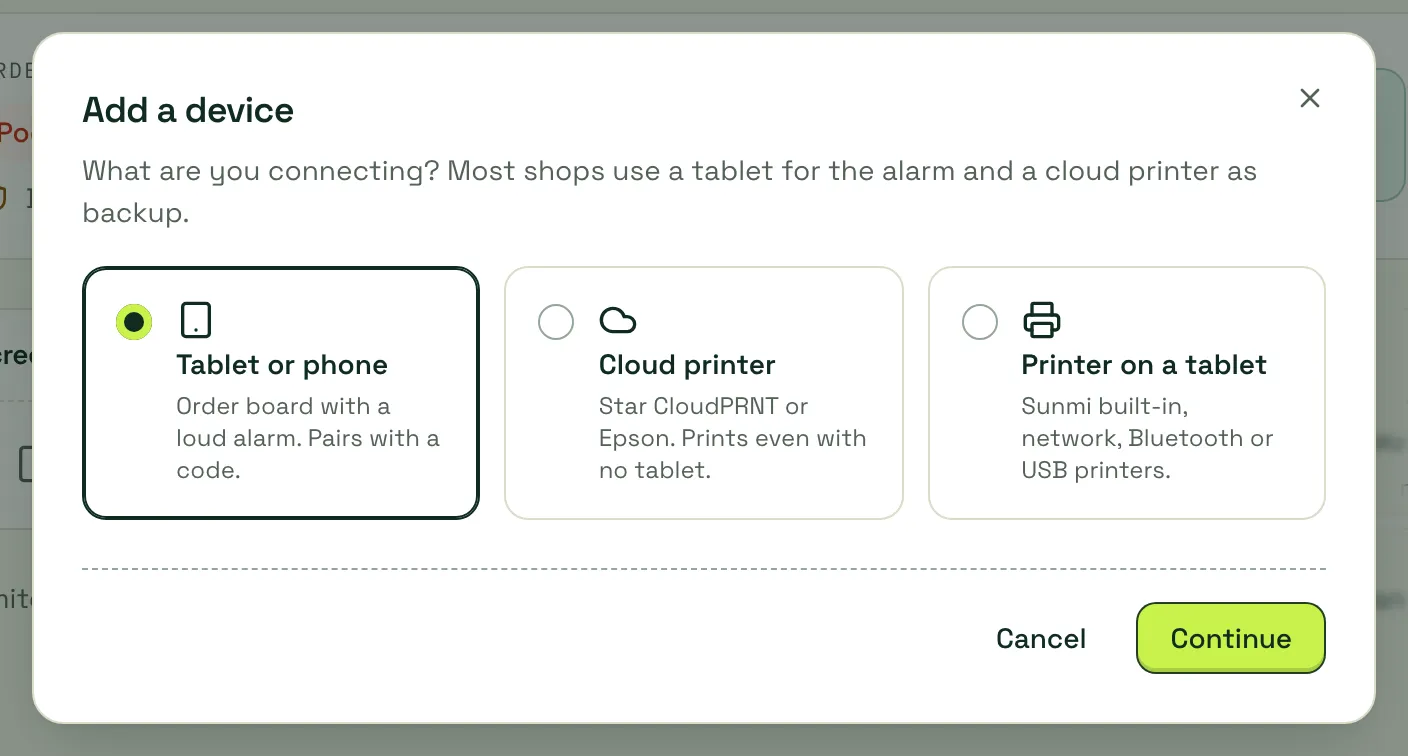
- Add a device: pair a tablet, a cloud printer or a printer on a tablet.
- Tabs: Devices, Print routes, Ticket templates and Print queue. See print routing and templates.
Under Screens and Printers each device shows a coloured dot and status (Online, Not responding, Offline, Ready), when it was last seen, battery and charging, app version, and whether its sound is off. If something’s wrong, a banner at the top says what and how to fix it, for example “Counter printer: offline. Check the printer is on and its network cable or Wi-Fi is connected. It should poll every 5 seconds.”
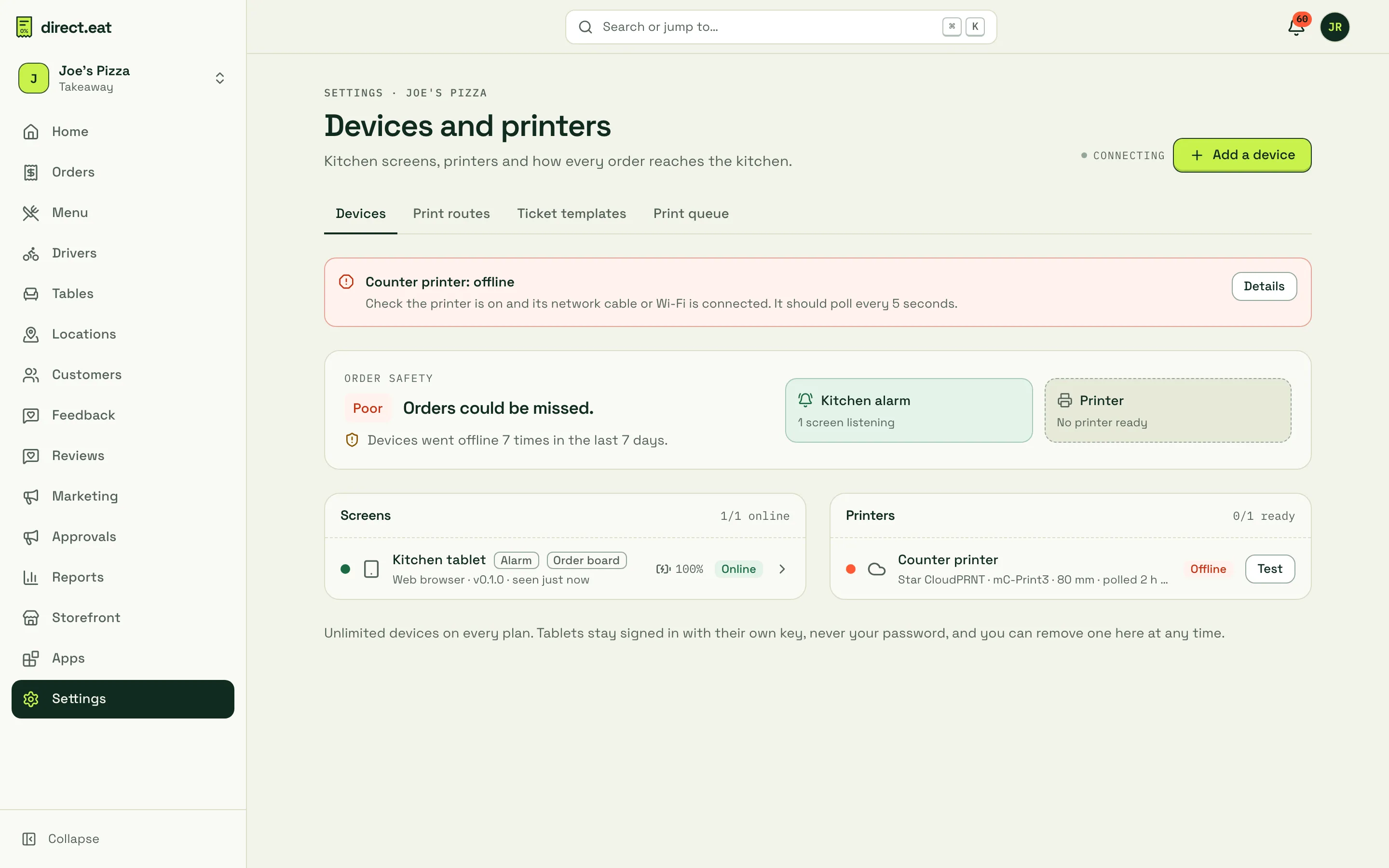
The page updates live. A screen counts as online while it checks in (every 30 seconds while the app is open). A cloud printer counts as online while it keeps polling (every 5 seconds).
Pair a kitchen tablet or phone
Section titled “Pair a kitchen tablet or phone”-
On the tablet, open https://kitchen.direct.eat in Chrome (Android) or Safari (iPad). On an iPad, tap Share → Add to Home Screen and open it from there.
-
In the dashboard, go to Settings → Devices and printers → Add a device → Tablet or phone.
-
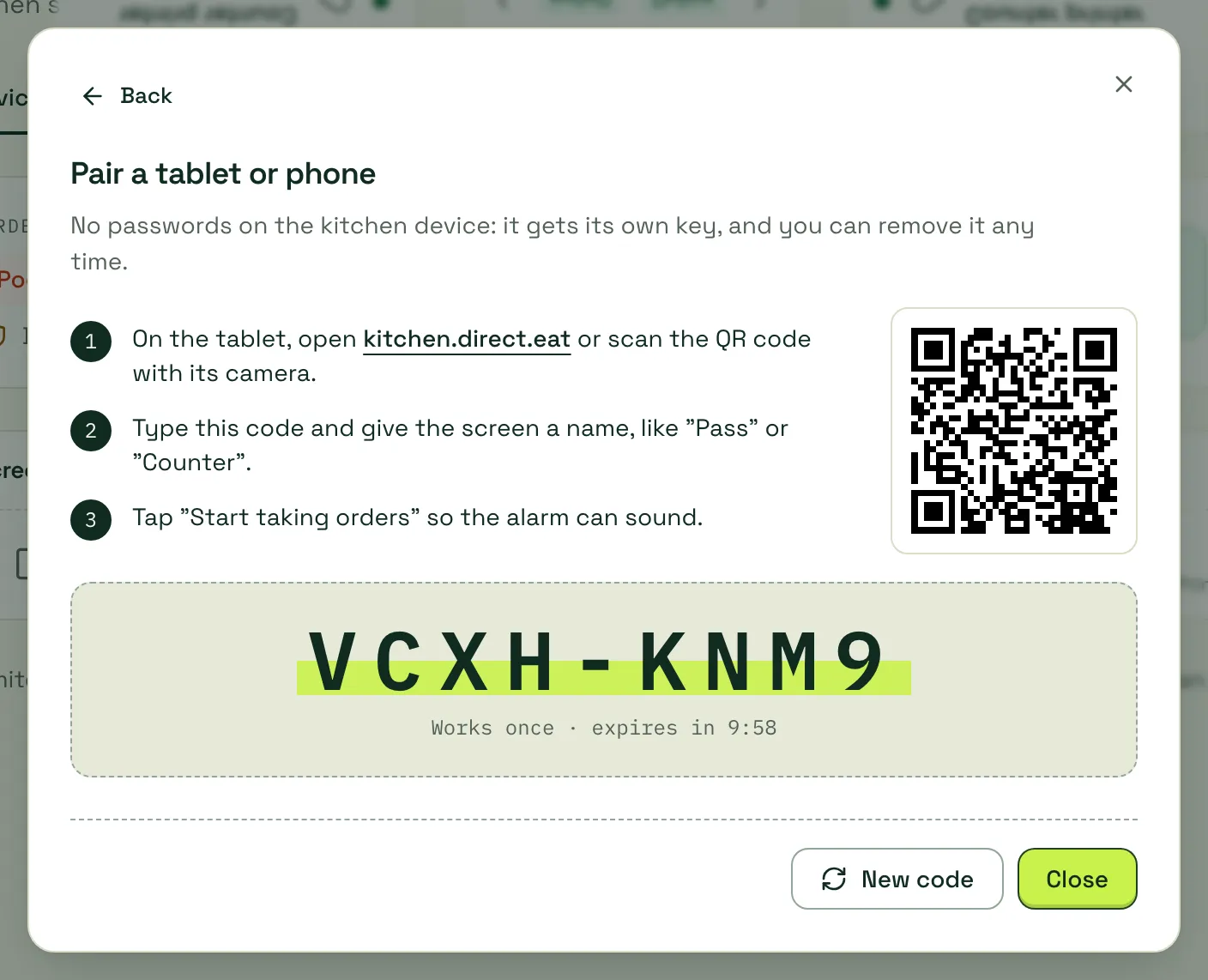
You get a pairing code (like
K7QM-4XPD) and a QR code. The code works once and expires after 10 minutes; the dialog counts down. -
On the tablet, type the code under Pairing code and give the screen a name, like “Pass” or “Counter”. Or scan the QR code with the tablet’s camera.
-
The dialog says Screen paired. On the tablet, tap the screen once so the alarm can sound. (The dashboard calls this “Start taking orders”; on the tablet the header says Tap to turn on sound.)
The tablet gets its own key. Nobody types your password into it, and you can remove it at any time. If you’d rather sign the tablet in as a device user, the kitchen app also has a Sign in tab for a device email and password.
Connect a cloud printer
Section titled “Connect a cloud printer”A cloud printer plugs into your router and fetches tickets from direct.eat over the internet. It prints even when no tablet is on, which makes it the best backup you can have.
Supported: Star CloudPRNT (mC-Print3, TSP143IV, TSP100IV, SP700) and Epson Server Direct Print (TM-m30III, TM-T88VII).
-
Plug the printer into your router with a network cable and turn it on.
-
In the dashboard: Add a device → Cloud printer → Star CloudPRNT. Copy the server URL shown.
-
Open the printer’s settings page (type its IP address into a browser on the same network; it prints the address when you hold the feed button at power-on). Turn on CloudPRNT, set the poll interval to 5 seconds and paste the server URL.
-
The printer prints a slip with a 6-digit code. Type it into Code on the slip, give the printer a Name and Paper width, and click Pair printer.
-
You see Printer paired. “It will print kitchen tickets for every order when you accept it. Change that in Print routes.”
-
Plug the printer into your router and turn it on.
-
In the dashboard: Add a device → Cloud printer → Epson. Copy the URL shown.
-
In Epson’s settings page (EpsonNet Config), turn on Server Direct Print, set the interval to 5 seconds and the URL to the one you copied.
-
The printer prints a slip with a 6-digit code. Type it into Code on the slip, name it and click Pair printer.
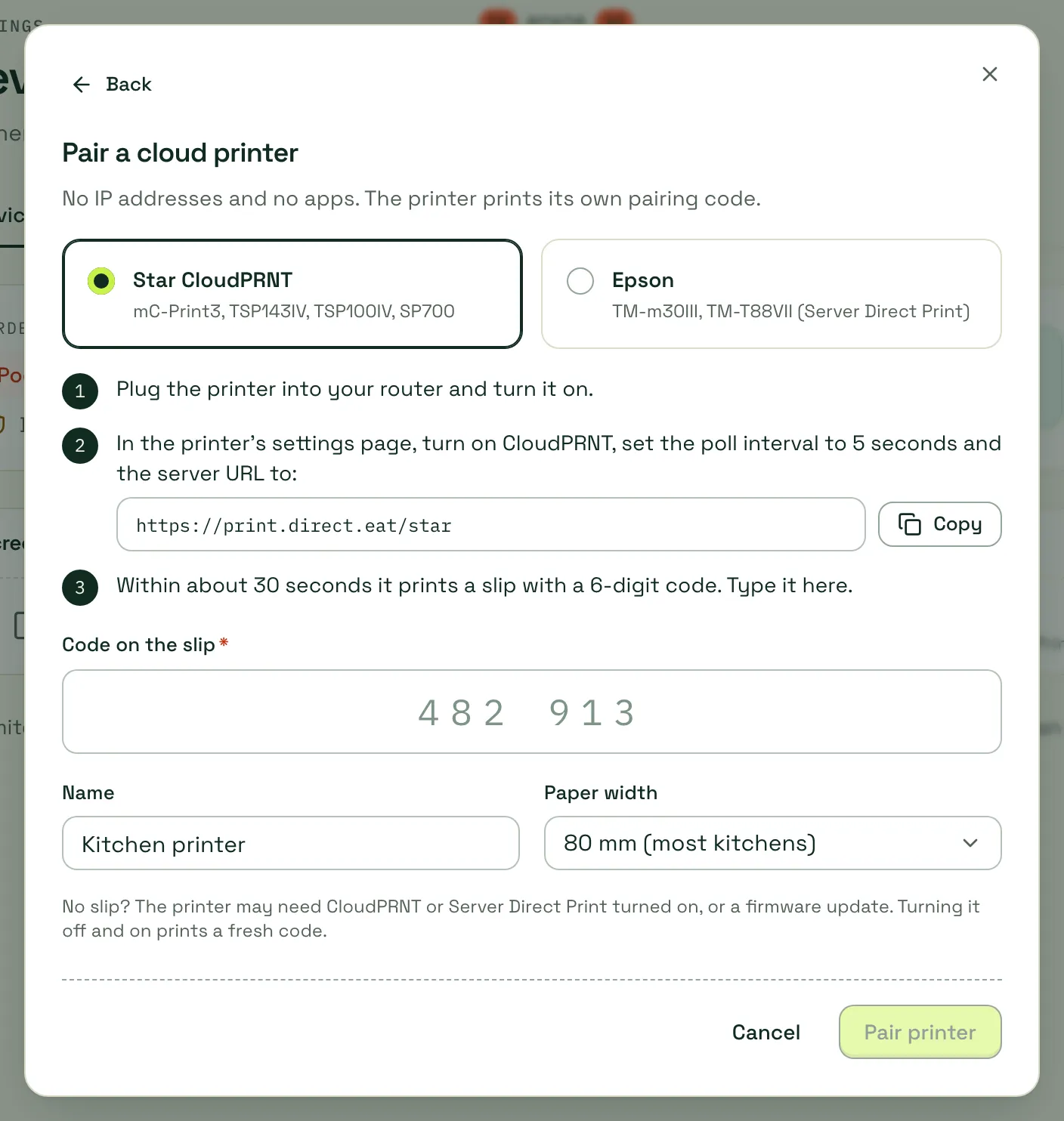
Private server URL (optional, more secure): you can switch the printer to its own private URL. It’s shown once. Set it as the printer’s server URL and it will only accept jobs from that address. You can make one later from the printer’s page too.
Add a printer on a tablet
Section titled “Add a printer on a tablet”A printer attached to a kitchen tablet prints through that tablet. Pair the tablet first, then Add a device → Printer on a tablet, choose the tablet it’s Connected to, the printer type, a Name and Paper width, and click Add printer. For USB and Bluetooth, finish on the tablet: This screen → Printers → Connect.
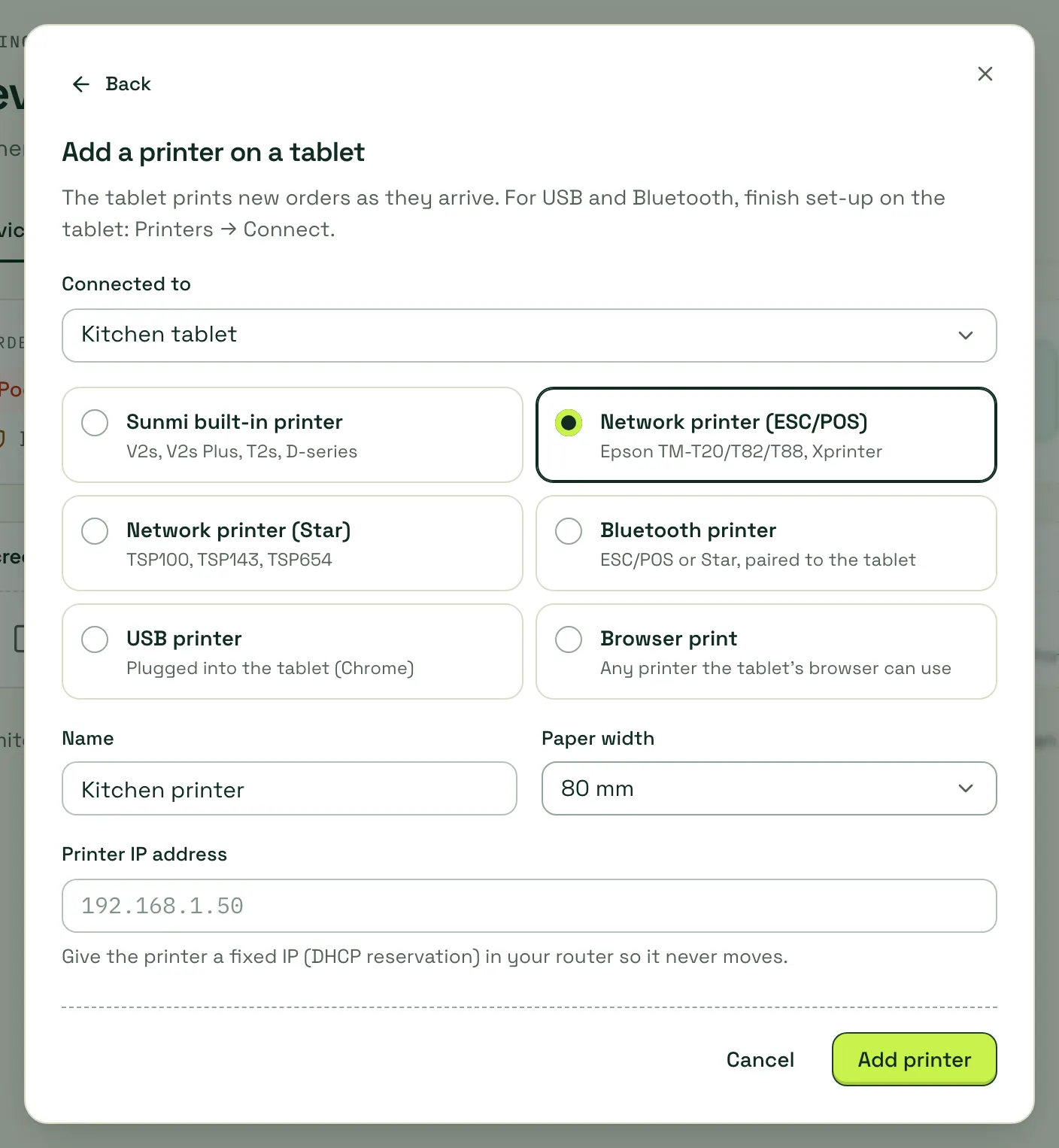
| Printer type | Works in a browser today? |
|---|---|
| USB printer: plugged into the tablet | Yes, in Chrome or Edge on Android, Windows, Mac or ChromeOS |
| Bluetooth printer (Bluetooth Low Energy) | Yes, in Chrome on Android |
| Browser print: any printer the tablet’s browser can use | Yes. It opens the print dialog with an 80 mm receipt. |
| Network printer (ESC/POS) / Network printer (Star) by IP address | Needs the direct.eat Android app |
| Sunmi built-in printer | Needs the direct.eat Android app |
| Classic (non-LE) Bluetooth printers | Needs the direct.eat Android app |
On the tablet, the printer status button in the kitchen app header opens Devices and printers for that screen, with Printers on this screen to connect and test.
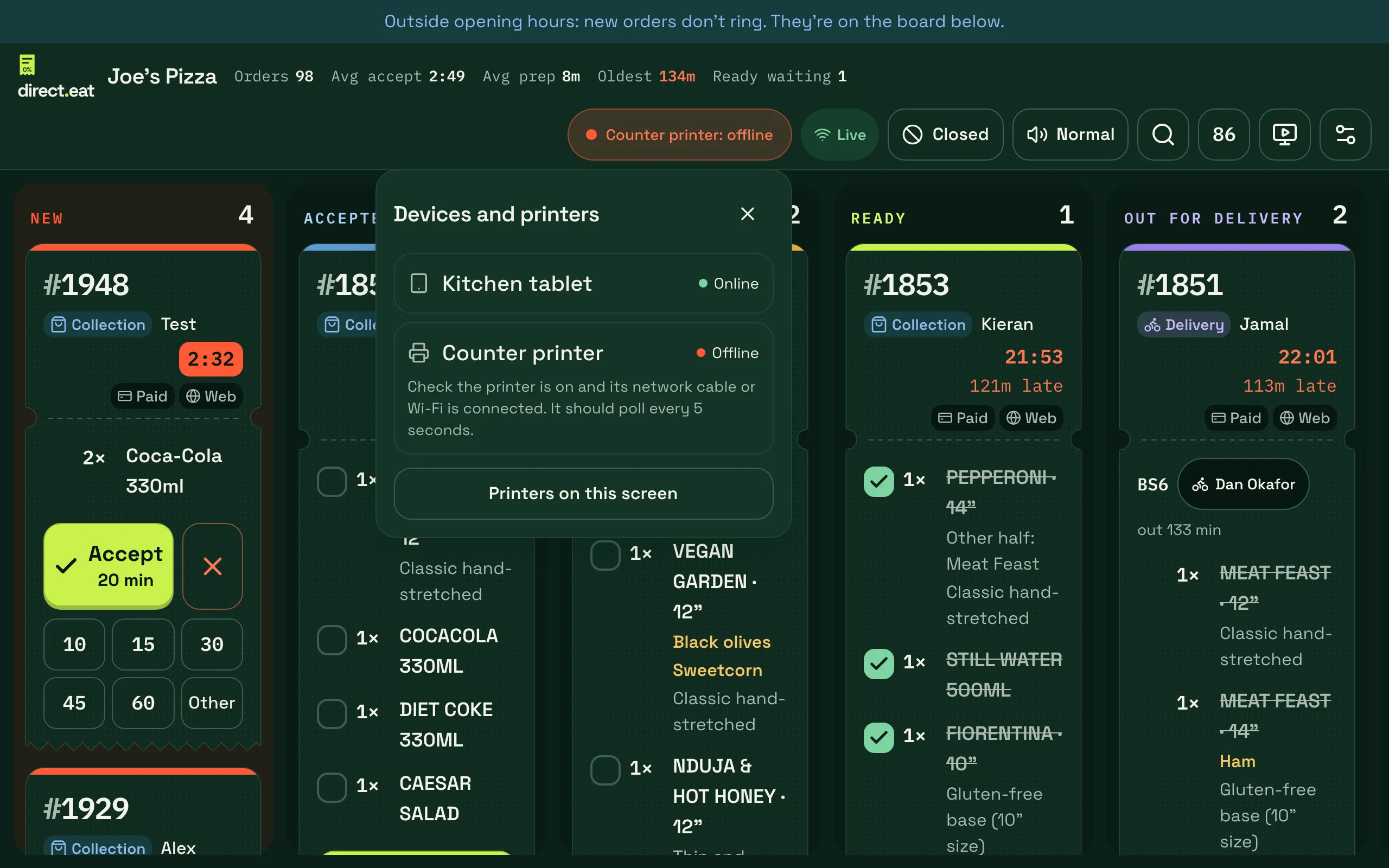
Set the Paper width (80 mm or 58 mm). You can also add and test these printers from the tablet: This screen → Printers.
Device details
Section titled “Device details”Click a device to open its page.
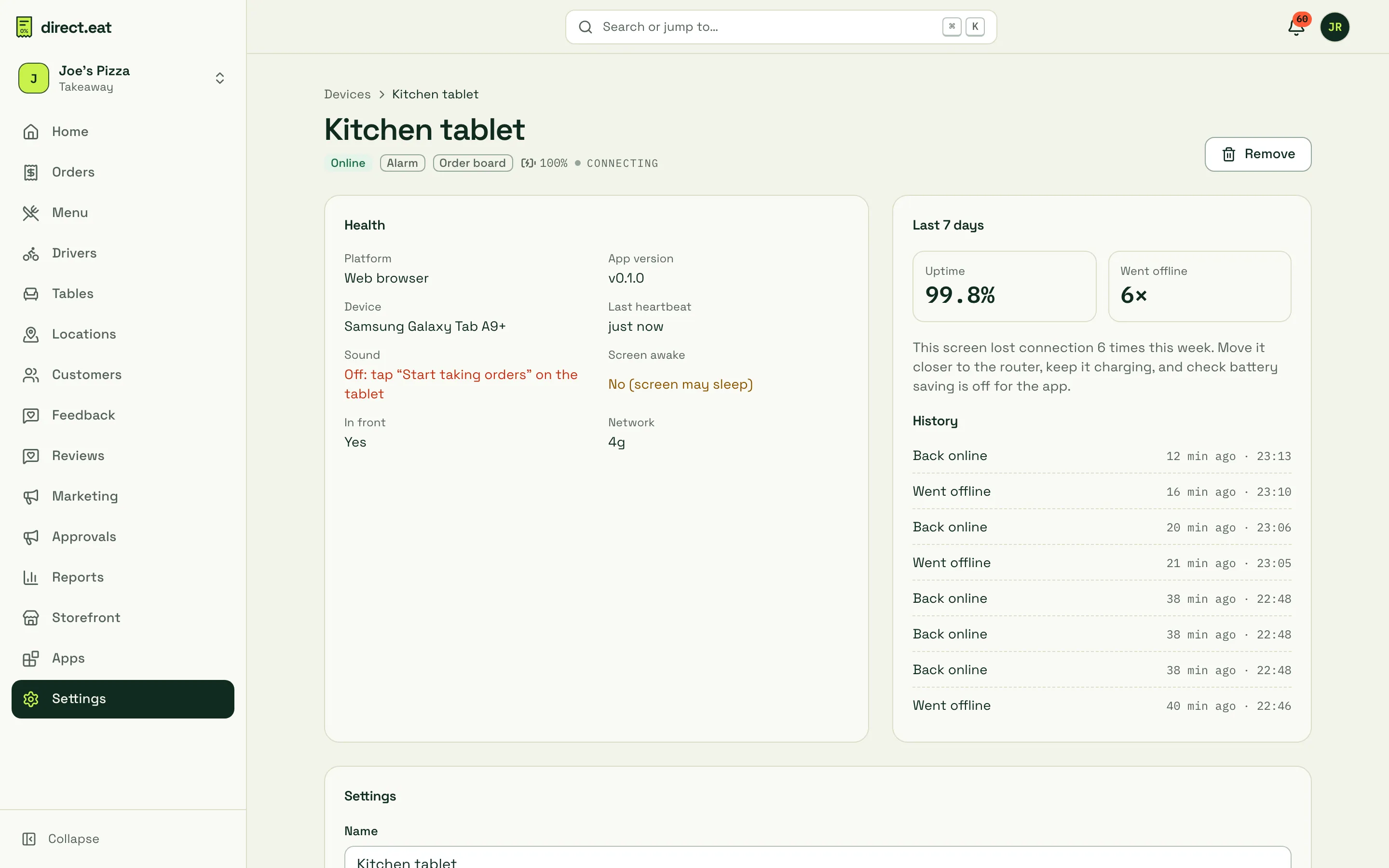
- Health: last seen, battery and charging, network, app version, whether the sound is on (“Off: tap Start taking orders on the tablet” means nobody has tapped the screen yet) and whether the screen is kept awake.
- 7-day uptime and how many times it went offline, with a plain-English recommendation, plus the status history.
- Settings: name, What this screen does (kitchen alarm, order board, printing), paper width, Character set (leave it on Windows-1252 (recommended) unless £ signs print wrong) and Print new orders automatically.
- For printers: Test print, Health slip (prints its status), the private server URL and recent jobs.
- Remove.
Remove a lost or old device
Section titled “Remove a lost or old device”Click Remove on the device page. Removing a tablet signs it out straight away, deletes its key, clears its saved data when it next connects and cancels any jobs waiting for it. Removing a printer rotates its private URL so it can’t fetch tickets any more. A removed tablet shows This device was removed and needs a new pairing code to be used again.
Related
Section titled “Related”Was this page helpful?