

Storefront settings
The design is in Themes and the storefront editor. This page covers the settings behind the storefront: when and how people can order, the legal details diners must see, business modes and features, and search and sharing.
| What | Where |
|---|---|
| Prep time, pre-orders, slots, capacity, minimum order | Settings → Ordering |
| Shop name, address, contact, trader and VAT details, licences | Settings → Shop details |
| Busy, pause, business type, features | Settings → Modes |
| Google title and description, share image, food hygiene rating | Settings → Storefront design → Search and hygiene rating |
| Privacy notice, terms, accessibility, allergens and contact pages | Settings → Storefront design → Pages and menus |
| Web address and your own domain | Settings → Web address and domains (guide) |
Ordering and collection
Section titled “Ordering and collection”Settings → Ordering controls how long food takes, when diners can order, and how many orders each slot can take. There are separate Collection and Delivery tabs. Owners, admins and managers can change it.
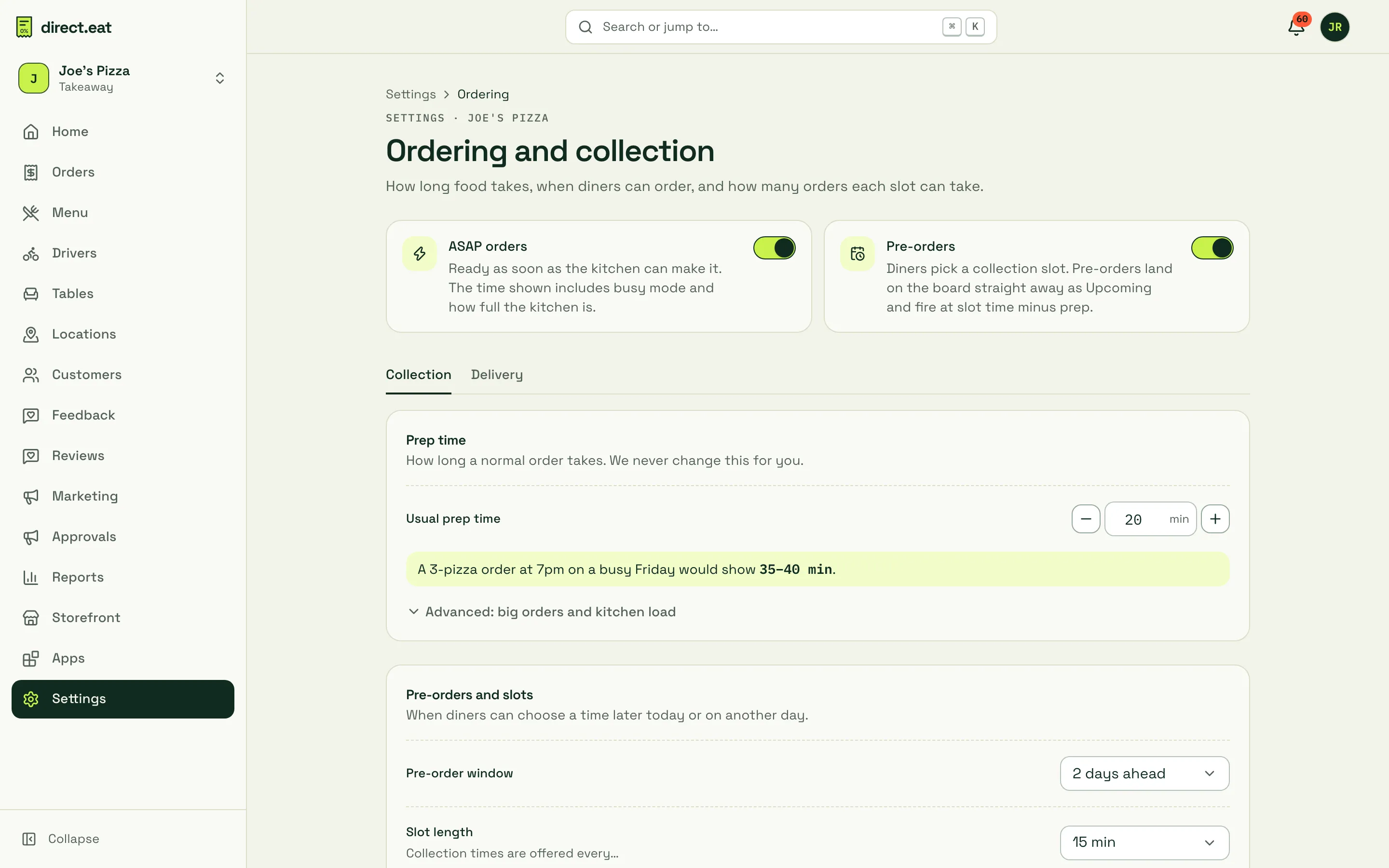
- ASAP orders: ready as soon as the kitchen can make it. The time shown includes busy mode and how full the kitchen is.
- Pre-orders: diners pick a collection slot. Pre-orders land on the board straight away as Upcoming and are sent to the kitchen at slot time minus prep time.
- Usual prep time: how long a normal order takes. We never change this for you. The example underneath shows what a diner would see (“A 3-pizza order at 7pm on a busy Friday would show 35–40 min”). Advanced: big orders and kitchen load adds time for large orders and a busy kitchen.
- Pre-orders and slots: Pre-order window (how many days ahead), Slot length (15 min, for example), Minimum notice for pre-orders, Close tomorrow’s orders at (for bakeries: “Order by 20:00 for tomorrow’s collection”), No pre-orders while closed, and Minimum order in £.
- Capacity: Orders per slot, Items per slot (a pizza counts 1, a dip 0) and ASAP orders per window. When the ASAP limit is reached, the ASAP time moves later instead of turning orders away. Leave blank for no limit.
- Kitchen safety: Auto-pause when the kitchen is offline (after a set number of minutes with no tablet or printer online during opening hours), Auto-resume when a device reconnects, Auto-accept orders, and a Reminder before pre-order collection. Only the owner can turn auto-pause off.
- Today’s slots: booked against capacity, with Block for a slot you can’t take (a big catering order, say).
Settings that came from your business type are marked From preset; anything you change is marked Changed by you. Click Save changes at the bottom.
Opening hours, special hours and bank holidays are in Settings → Hours: see Opening hours and slots.
Shop details and legal information
Section titled “Shop details and legal information”Settings → Shop details holds the information diners and the law need. The old Legal and Shop settings pages open this page.
- Your shop: Shop name (used in the dashboard, emails and receipts), Name diners see if different, your web address, and Collection instructions shown on the order confirmation (“Ring the bell at the side hatch”).
- Address: find it by postcode. It’s shown on your storefront’s legal page and sets the Nation (England, Wales, Scotland or Northern Ireland), which decides bank holidays and licensing rules.
- Contact: Shop phone (diners call this if something’s wrong) and Public email (for diner questions and complaints, shown on your legal page).
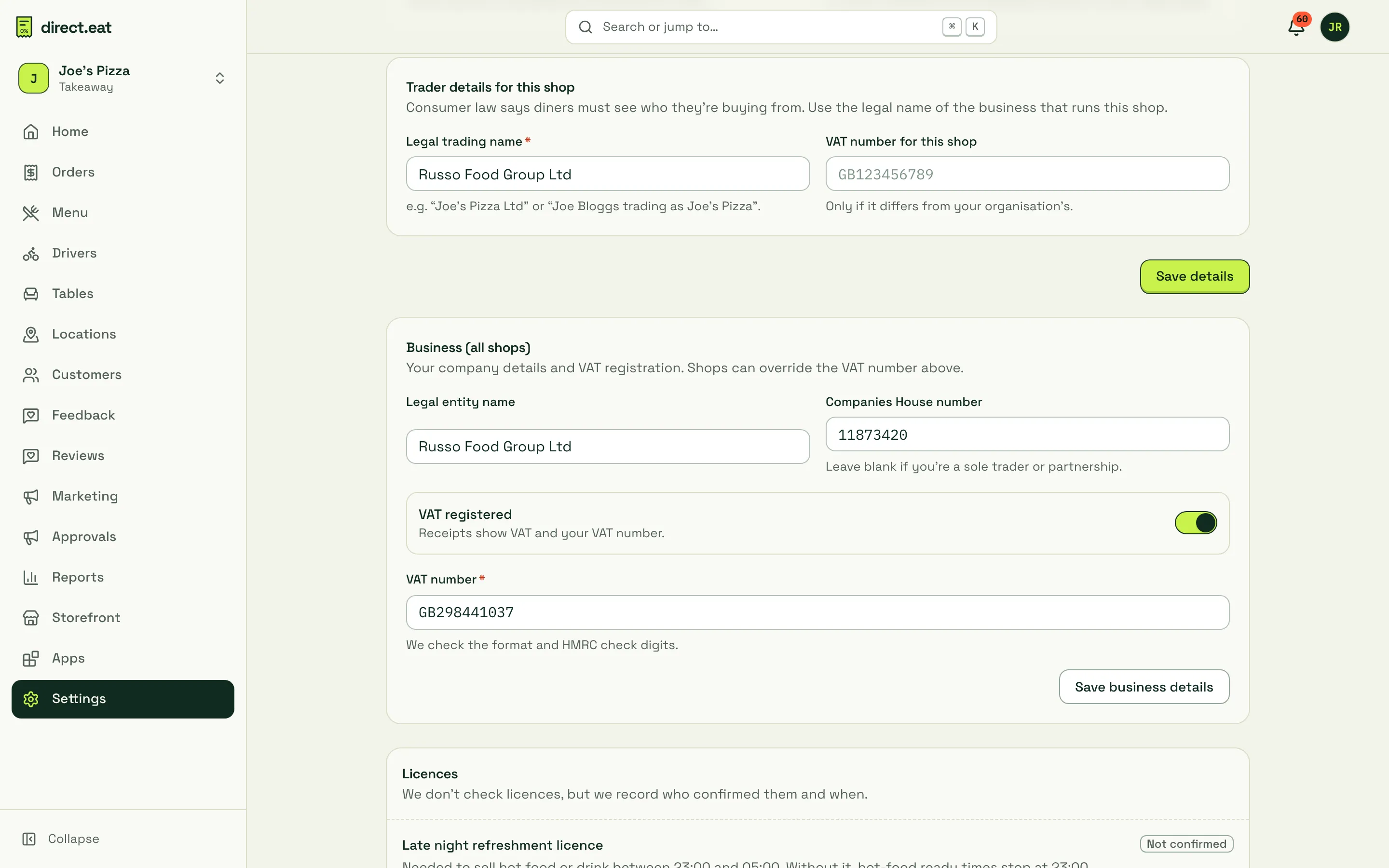
- Trader details for this shop: consumer law says diners must see who they’re buying from. Enter the Legal trading name, for example “Joe’s Pizza Ltd” or “Joe Bloggs trading as Joe’s Pizza”, and a VAT number for this shop only if it differs from your organisation’s.
- Business (all shops): legal entity name, Companies House number (leave blank for sole traders and partnerships) and VAT registered with your VAT number. We check the format and HMRC check digits. Receipts then show VAT and your VAT number.
- Licences: confirm your Late night refreshment licence (needed to sell hot food or drink between 23:00 and 05:00; without it, hot-food ready times stop at 23:00) and your Off-sales premises licence (needed before alcohol can be sold for collection; diners see “Challenge 25: ID checked at collection”). We don’t check licences, but we record who confirmed them and when.
Legal pages on your storefront
Section titled “Legal pages on your storefront”Your storefront always has Privacy notice, Terms and Accessibility pages, plus Allergens and Contact. They’re filled in with standard text and your trader details, and you can add your own text (for example your refund policy) in Storefront design → Pages and menus → Add text. The privacy notice always states that direct.eat processes order data on your behalf.
- Privacy notice: follows our diner privacy template. Its table of how long data is kept is generated from the same retention schedule our deletion jobs use (for example order personal details 2 years, financial records 7 years, allergy notes 3 years), so it can’t drift from what actually happens. It names the Information Commission as the regulator and links diners to Your data and privacy (
/privacy-request) and, when signed in,/account/privacy. - Cookies: storefronts set no non-essential cookies and no third-party trackers. Which flyer or link brought a diner to you is kept in that browser tab’s temporary storage and saved only with their order. The footer link Don’t count my visit stops the cookie-free visit count for that browser; browsers sending Global Privacy Control or Do Not Track aren’t counted either.
- Terms: say “Prices include VAT” only if you’ve entered a VAT number; otherwise they say the price you see is the price you pay. Checkout follows the same rule.
- Footer: every theme’s footer always links Privacy, Terms, Allergens, Accessibility, Don’t count my visit and Your data and privacy.
Modes and business type
Section titled “Modes and business type”Settings → Modes is where you change how the shop is trading right now. Staff can use it as well as managers.
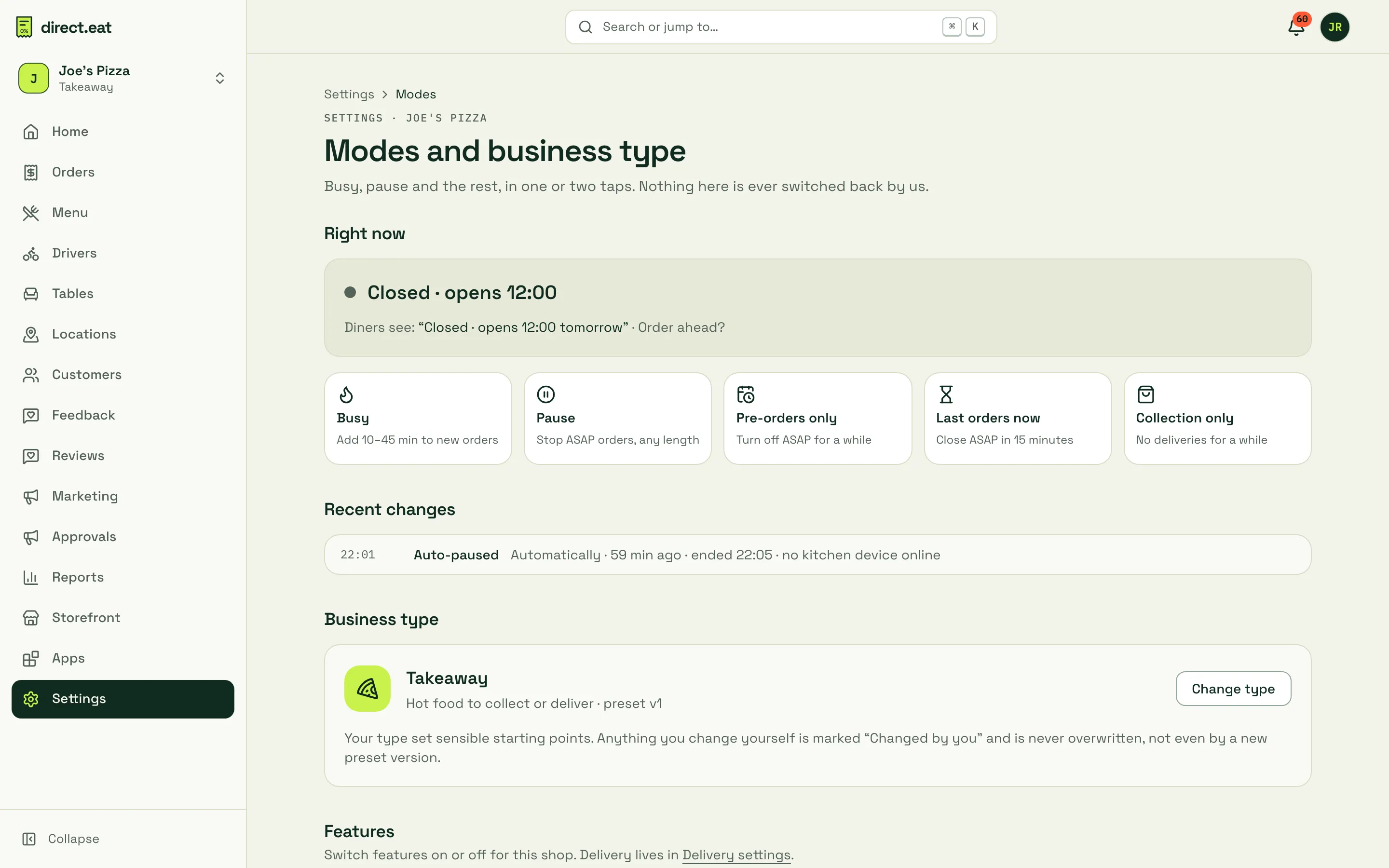
- Right now: the state diners see, every active mode with its end time, and End buttons.
- Busy (add 10 to 45 minutes to new orders), Pause (stop ASAP orders for any length, with a message), Pre-orders only, Last orders now (close ASAP in 15 minutes) and Collection only (when delivery is on).
- Recent changes: who or what changed the mode, and when. Automatic pauses say why (“no kitchen device online”).
Nothing here is ever switched back by us. The full guide is Busy mode and pausing.
Business type
Section titled “Business type”Your business type (takeaway, café, bakery and so on) set sensible starting points for prep time, slots, hours and more. Change type shows every setting the new type would change, with a checkbox each. Anything you’ve changed yourself is marked Changed by you and is never overwritten.
Features
Section titled “Features”Switch features on or off for this shop, grouped Ordering, Kitchen and Legal: ASAP orders, pre-orders, item lead times, collection windows, per-person items, Stock counts (86 and stock), order-ready screen, kitchen display, pitches (food trucks) and Alcohol sales (needs your off-sales licence confirmed first). Delivery is switched on in delivery settings: see Zones and fees.
Search and sharing
Section titled “Search and sharing”Settings → Storefront design → Search and hygiene rating controls how your shop looks on Google and when someone shares your link.
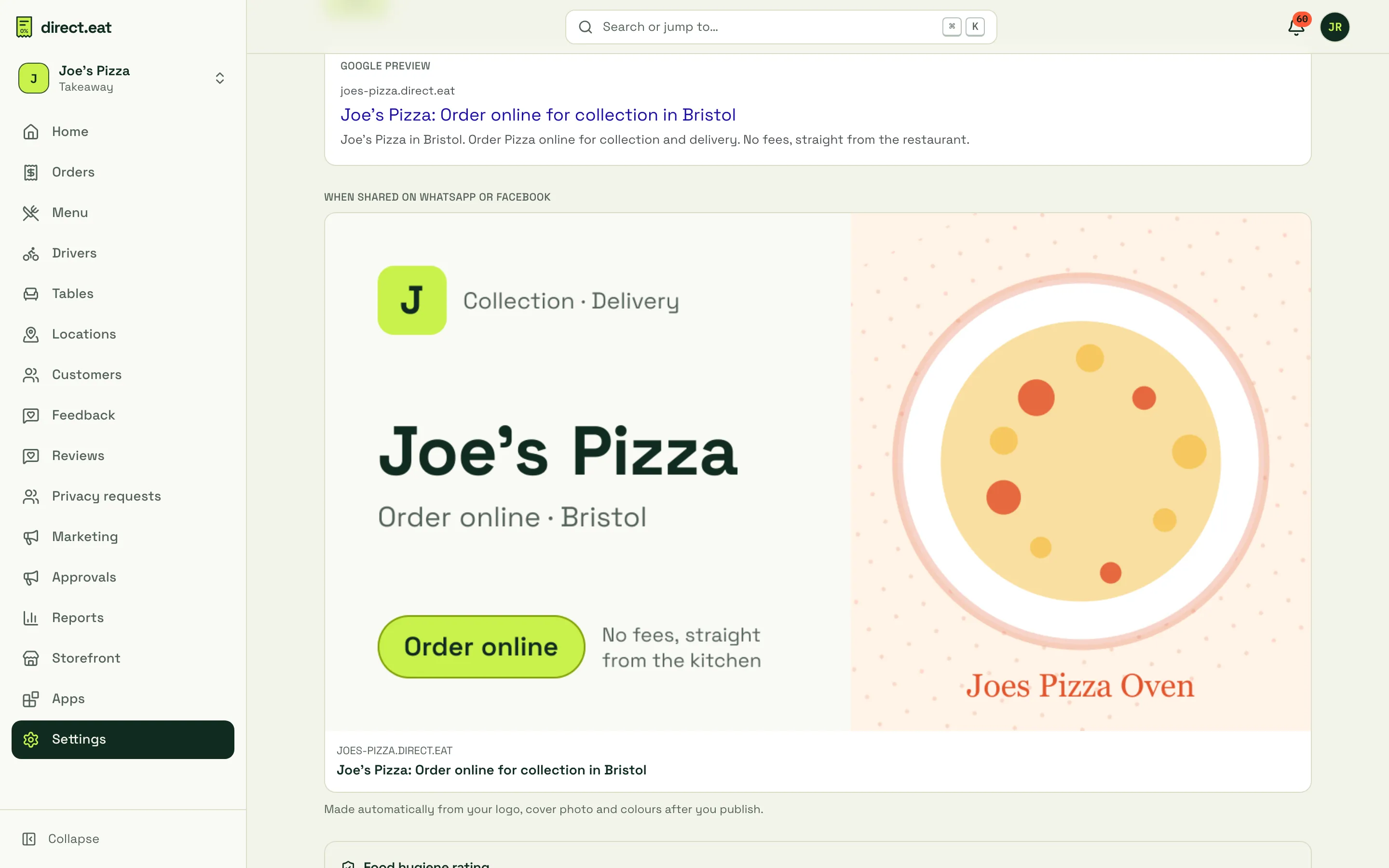
- Title (up to 60 characters) and Description (up to 160). Leave them blank to use the automatic ones, such as “Joe’s Pizza: Order online for collection in Bristol”. The Google preview shows how the result will look.
- Cuisine: separate with commas (“Pizza, Italian”). Used in Google’s restaurant details.
- Let search engines show my shop: turn off only while you’re setting up.
- Share preview: the image shown on WhatsApp, Facebook and other apps. It’s made automatically from your logo, cover photo and colours after you publish. Each menu item gets its own share image too.
- Food hygiene rating: find your rating on the Food Standards Agency register by business name and postcode and confirm This is us, or Enter my rating by hand. Turn on Show on my shop to show it in your footer and on your contact page, linked to the official record. We never hide a rating you chose to show. In Wales and Northern Ireland we recommend showing it, because displaying your rating at your premises is the law there.
Click Save to keep search settings. They don’t need publishing.
What we do for search automatically
Section titled “What we do for search automatically”- Your menu, prices, allergen links and hours are in the page itself, so Google can read them.
- Your shop and menu are described to Google as a restaurant with a menu and an “Order” action, with dietary labels only where you’ve set them. We don’t add star ratings from our own reviews to this data, because Google treats that as self-serving.
- Every item has its own page (for example
/menu/pizzas/margherita) that Google can list. - A sitemap and robots file are published for your main address, and checkout, basket, order tracking and account pages are kept out of search.
- Links with tracking codes (
?ref=,?utm_) all count as one page.
Related
Section titled “Related”Was this page helpful?