

Allergens
Every item on your menu needs its allergens confirmed by you before diners can order it. We never guess on your behalf: an imported menu can suggest allergens, but an item stays off your storefront until someone at your shop has checked it and signed it off.
Rough time: 5 to 15 minutes for a 40-item menu, if you have your recipes and supplier information to hand. Who can do this: the owner, admins and managers. Staff can edit allergens but not confirm them.
Why this step can’t be skipped
Section titled “Why this step can’t be skipped”In the UK, if you sell food online you must give diners the allergen information for the 14 regulated allergens before they buy and again when the food is handed over. That duty is yours as the food business, not ours as your software. direct.eat makes it easy to meet:
- Your storefront has an Allergens page with a matrix of every dish against the 14 allergens, one click from the menu, every item and checkout.
- Each item shows its allergen summary before it goes in the basket.
- Checkout asks diners about allergies and links to your allergen information.
- The order tracking page repeats the diner’s allergy note.
For the diner side, see Allergens for diners. If you sell prepacked food you make in advance (prepacked for direct sale, under Natasha’s Law), you also need full ingredient labels; see Allergens and dietary.
The 14 allergens are celery, cereals containing gluten, crustaceans, eggs, fish, lupin, milk, molluscs, mustard, tree nuts, peanuts, sesame, soya, and sulphites.
What the import gives you
Section titled “What the import gives you”When you import a menu, each item comes with allergen suggestions of two kinds:
- Stated on menu (blue): your menu said so, for example a “(1,2)” allergen key or “contains mustard”.
- Possibly (grey): dishes like this usually contain it, for example milk in a korma. A prompt, never a fact.
Nothing is ever marked “free from”. Every imported item starts as Needs confirming.
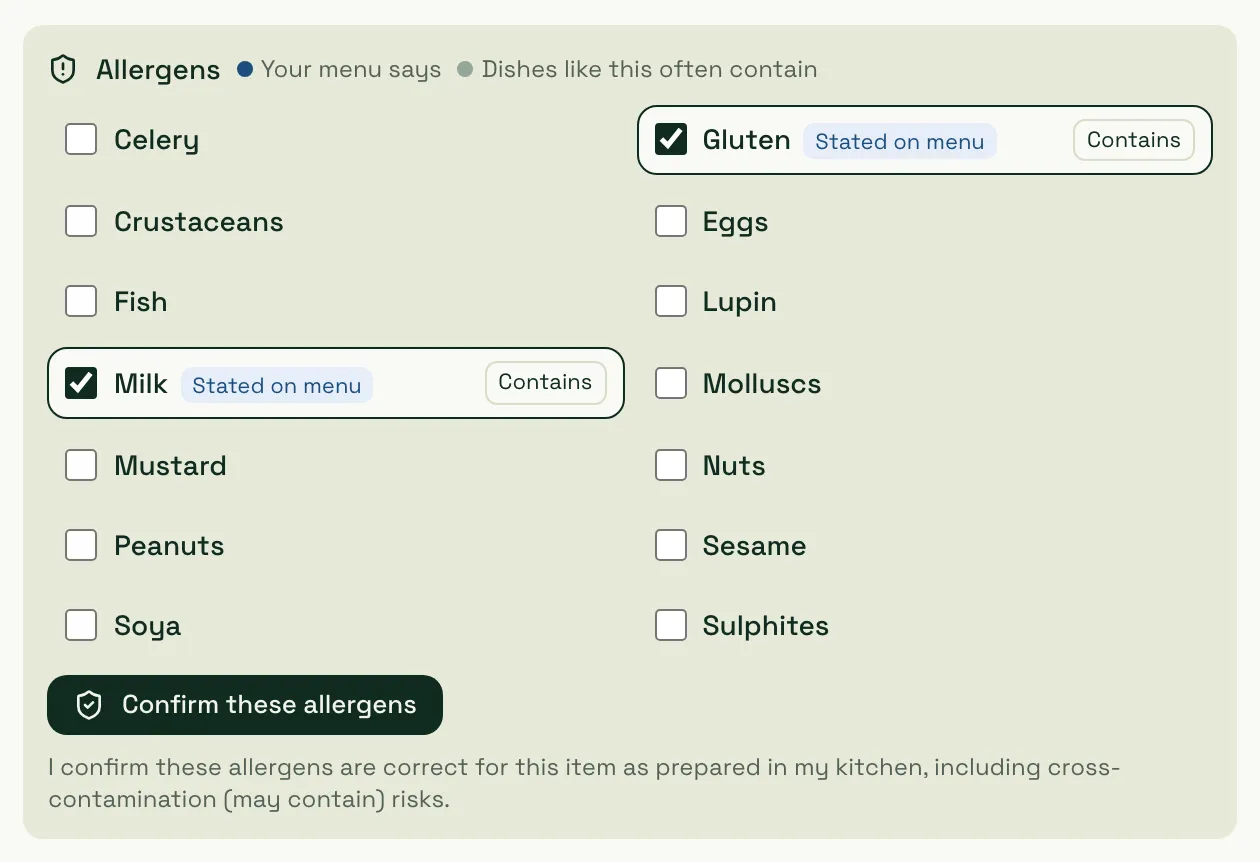
Tick or untick each allergen, switch Contains to May contain where there’s a cross-contamination risk, then press Confirm these allergens. If an item genuinely contains none of the 14, the button reads Confirm none of the 14.
Confirm a whole category at once
Section titled “Confirm a whole category at once”You can confirm while you check the import, or afterwards in Menu → Allergens. Either way, you can do one item or a whole category.
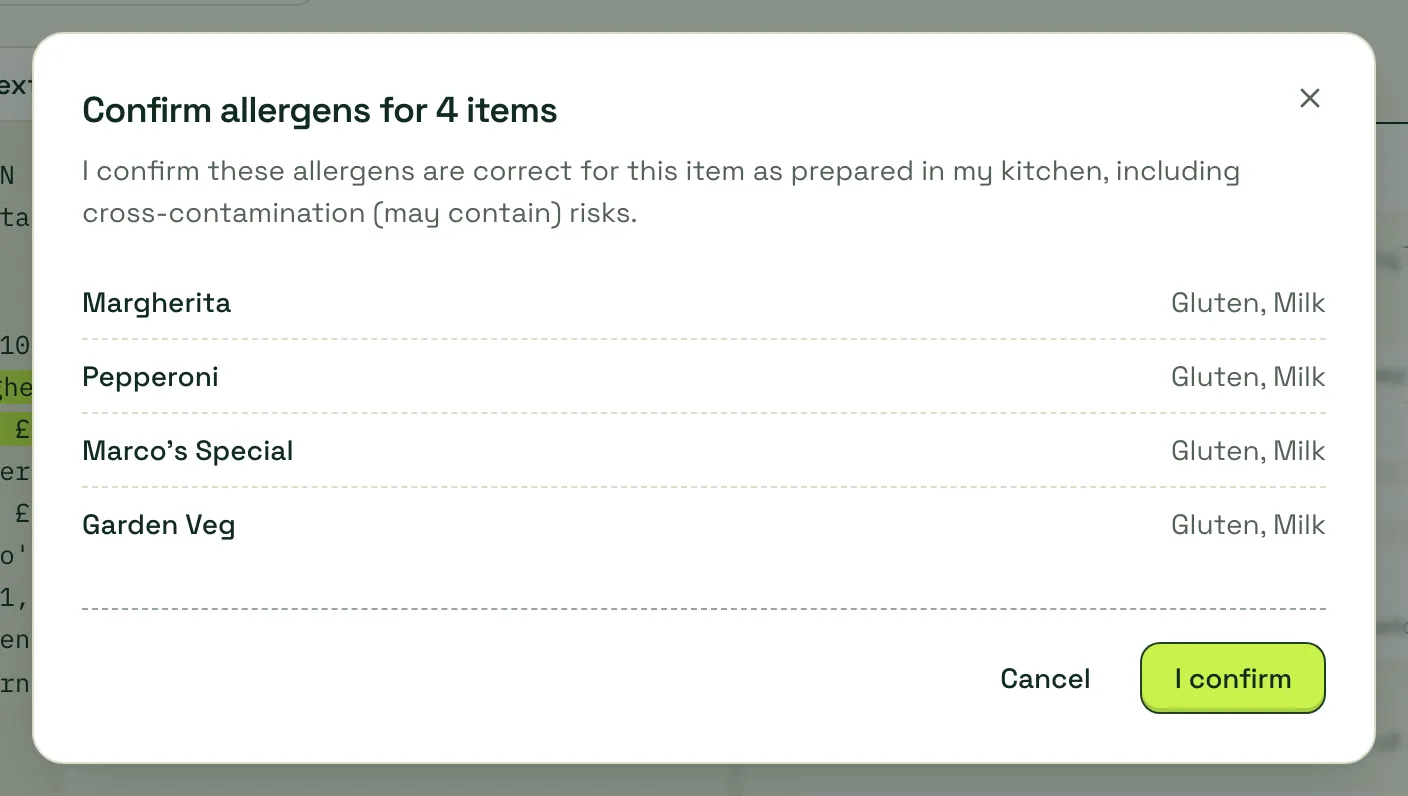
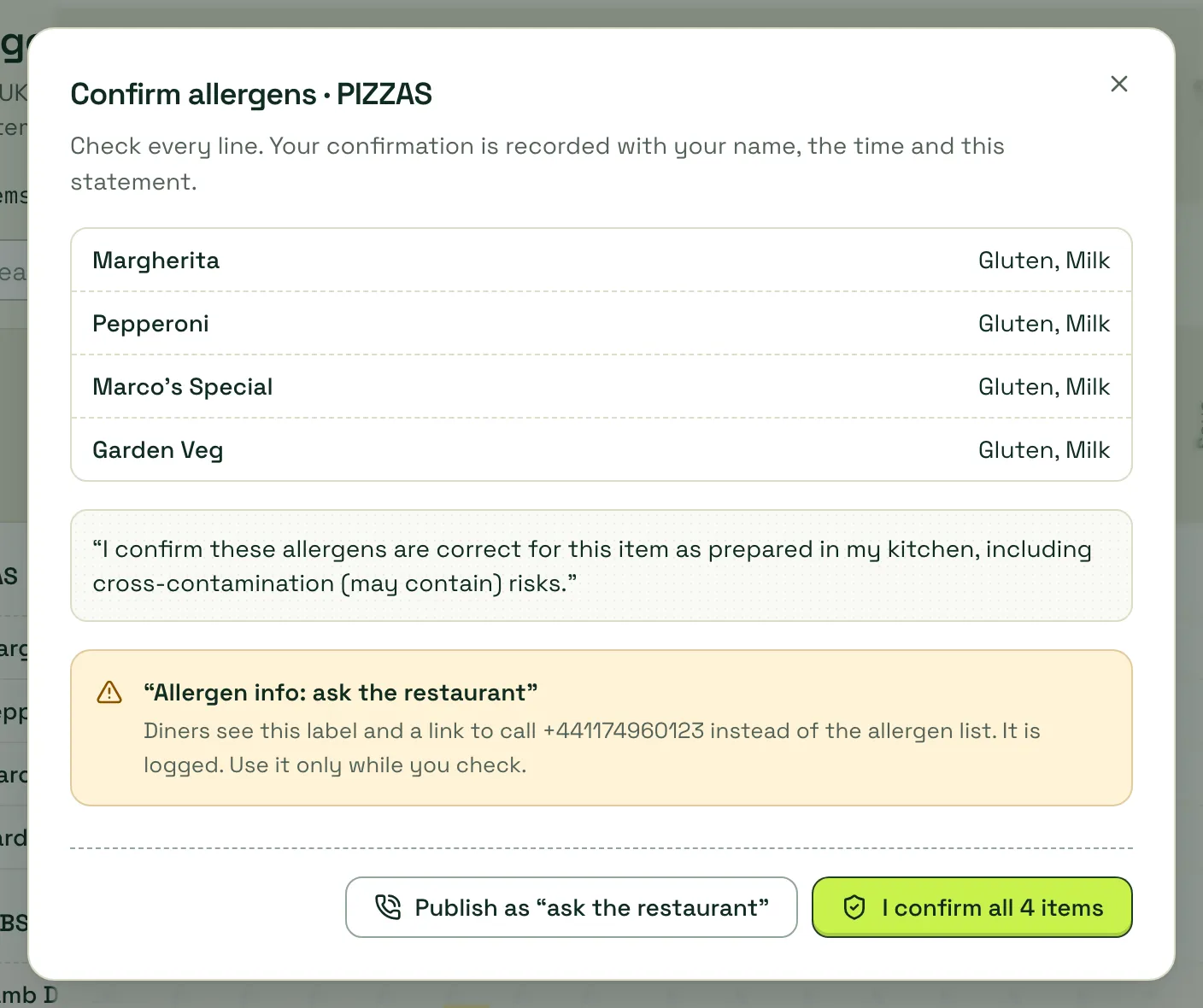
In the import review, press Confirm allergens for these 4 next to a category heading. You see every item in the category with its allergens, and the statement you’re signing:
Menu → Allergens
Section titled “Menu → Allergens”This is where you’ll come back whenever a recipe or supplier changes.
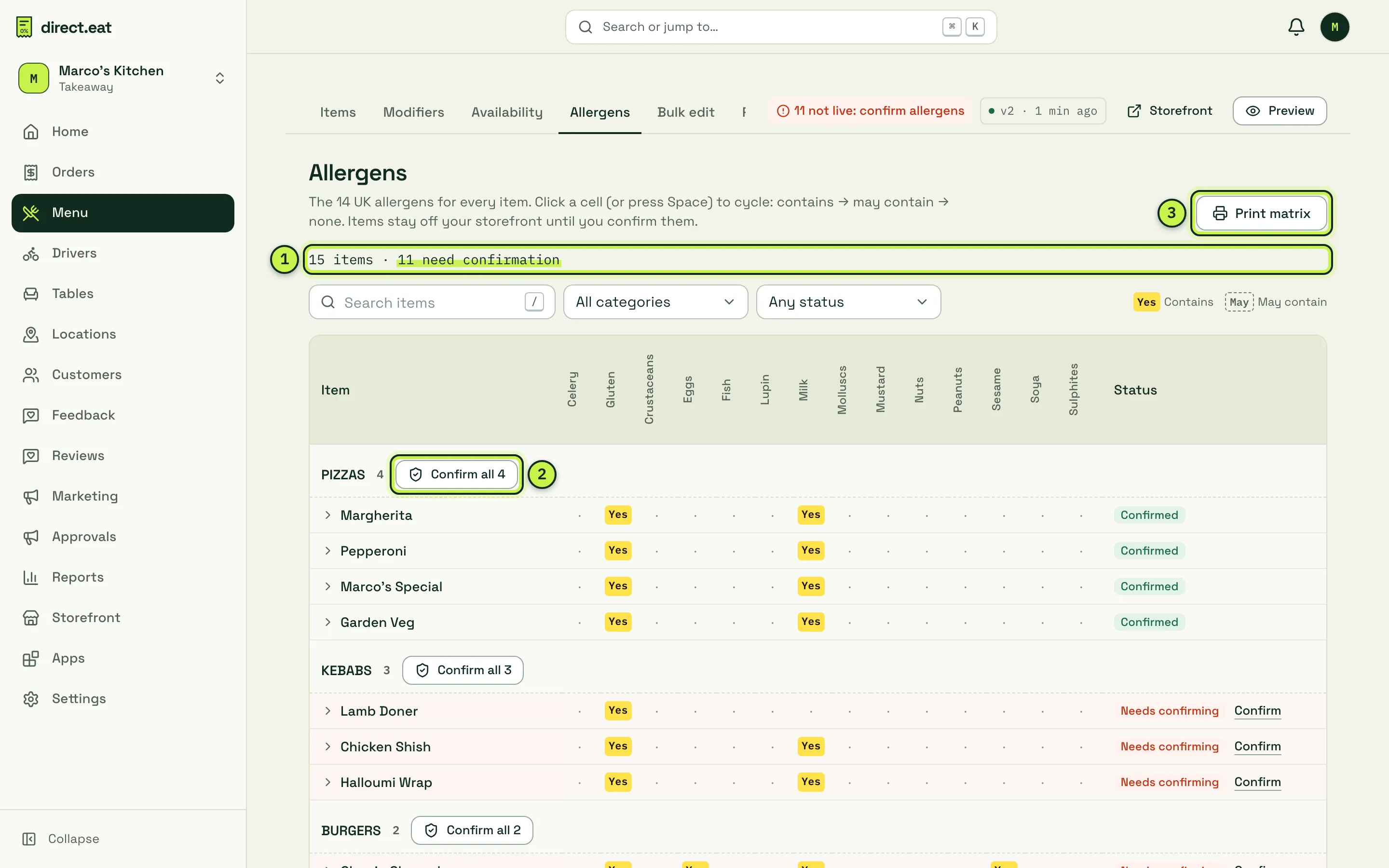
- Count: how many items still need confirmation. Items that need it are not on sale.
- Confirm all: confirms every item in that category in one go.
- Print matrix: prints an FSA-style allergen matrix for your counter or kitchen wall.
-
Open Menu → Allergens.
-
Check each row. Click a cell (or press Space) to cycle it: contains, may contain, none. Use the search box and the Category and status filters (Needs confirmation, Confirmed) on a big menu. Open a row with the arrow to say which cereal (wheat, barley, oats…) or which nut.
-
Press Confirm all for a category, or Confirm on a single row.
-
Read the list in the dialog line by line, then press I confirm all 3 items (or I confirm these allergens for one item).
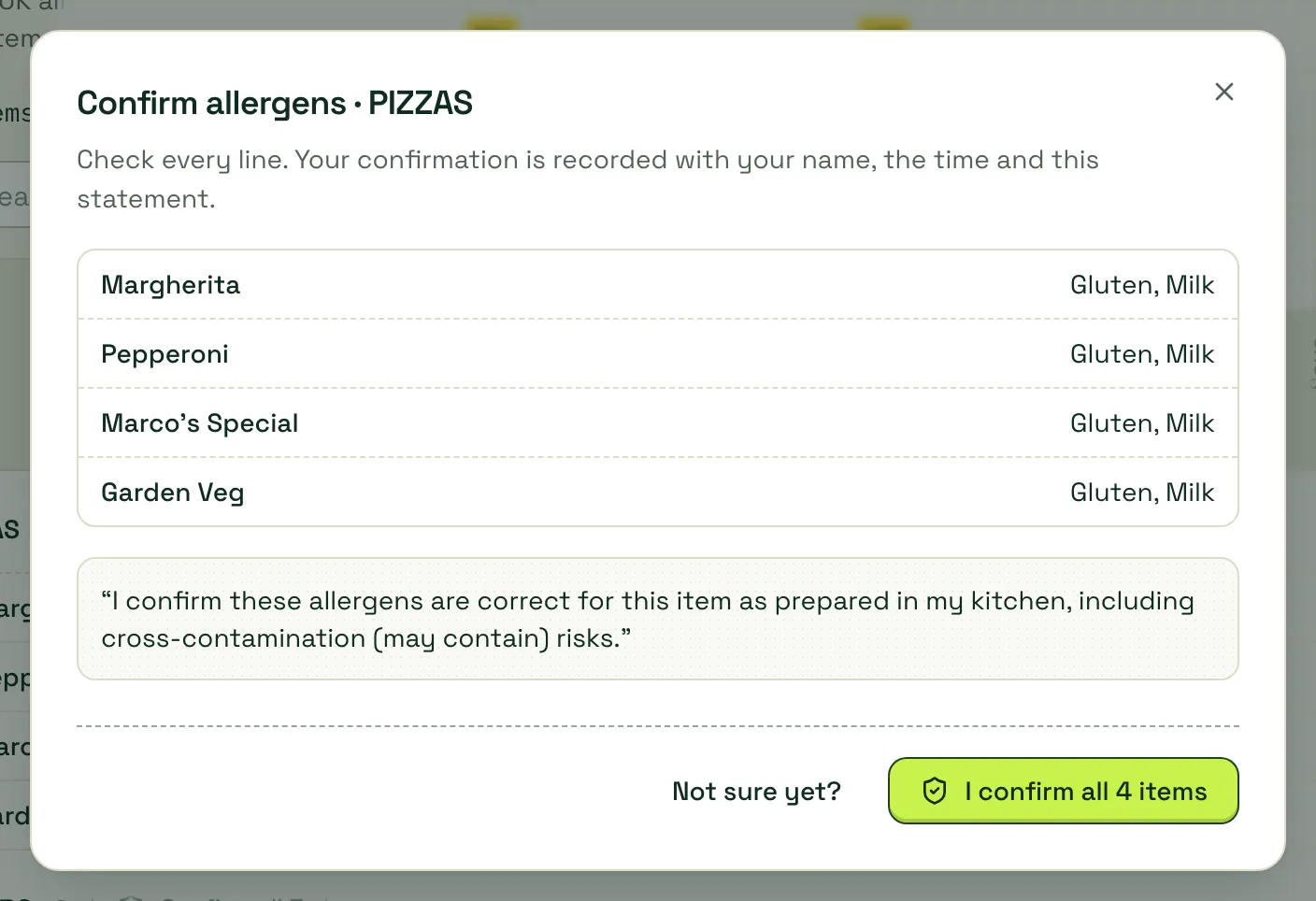
Your confirmation is recorded with your name, the time and this exact statement:
I confirm these allergens are correct for this item as prepared in my kitchen, including cross-contamination (may contain) risks.
When every item is done, the count reads all confirmed and every row says Confirmed (or None of the 14):
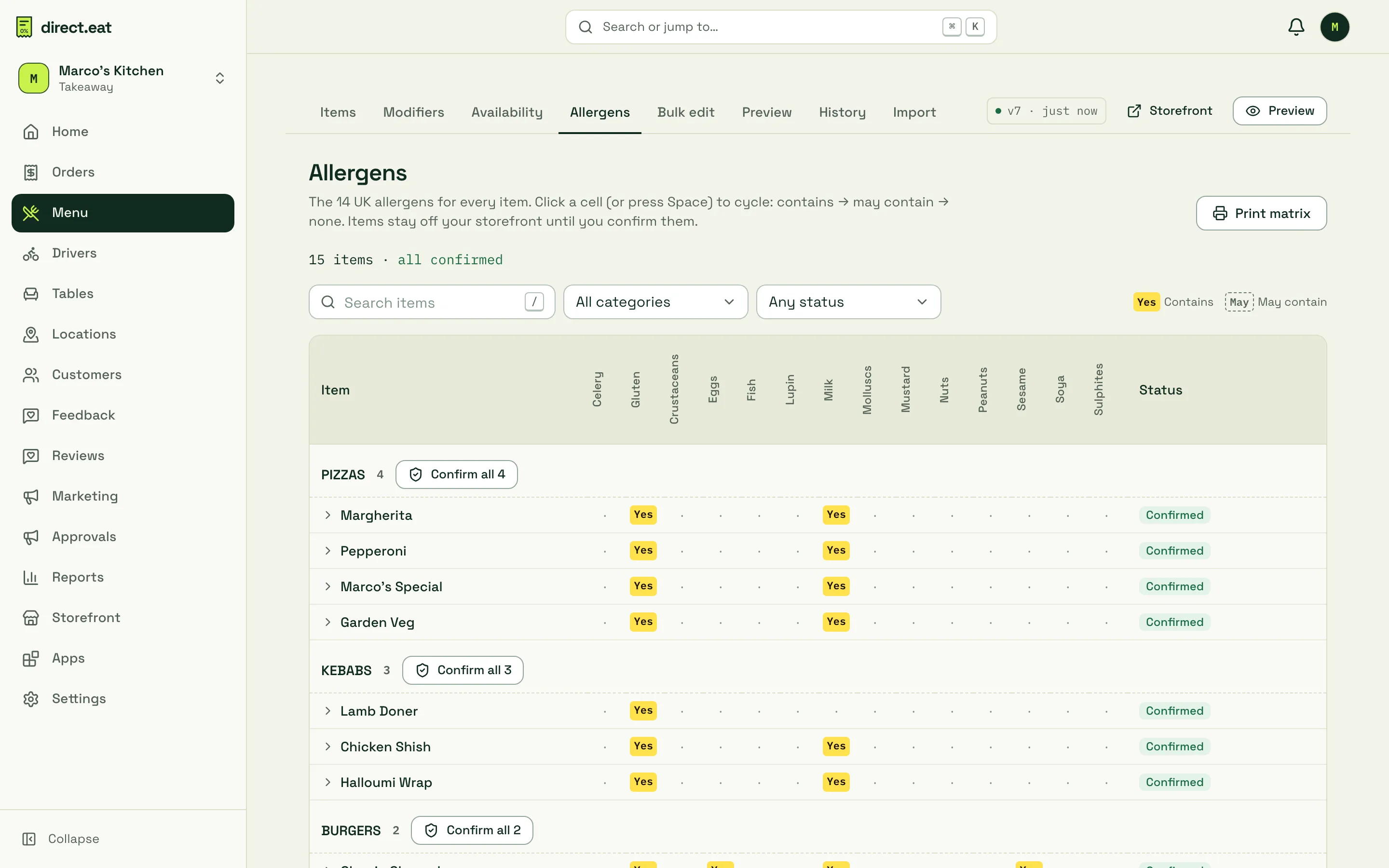
Confirmed items go live straight away: menu changes publish on their own. The menu bar at the top shows the live version, and a red note such as “11 not live: confirm allergens” while anything is still waiting.
Not sure yet?
Section titled “Not sure yet?”If you need to check with a supplier, press Not sure yet? in the confirm dialog. You can then Publish as “ask the restaurant”. Diners see “Allergen info: ask the restaurant” and a link to call your shop, instead of an allergen list. Use it only while you check: it is logged, and if a diner filters the menu by allergen, these items are flagged as having no confirmed information.
When you change a recipe
Section titled “When you change a recipe”If you edit an item’s allergens later, it goes back to Needs confirming and comes off sale until it’s confirmed again. If you change an item’s recipe or description, the editor asks “Have the allergens changed?” so you don’t forget. A staff member can make the edit; an owner, admin or manager confirms it.
Related
Section titled “Related”- Allergens and dietary: dietary tags, gluten-free claims, calories and PPDS labels
- Editing your menu
- Allergens for diners
Next step
Section titled “Next step”5. Branding: make your storefront look like your shop.
Was this page helpful?