

Your first Friday night
Your first properly busy service is where a new system earns its keep or doesn’t. This page is the playbook: what to check before you open, what to press when it gets hectic, and what to do when something breaks. Print it and stick it by the pass if you like.
Before service (15 minutes before you open)
Section titled “Before service (15 minutes before you open)”- Tablet plugged in and charged, screen on, kitchen app in front.
- Sound on: tap Tap to turn on sound in the kitchen app header. The button should show your alarm profile instead (for example Normal).
- Tablet volume at full, Do Not Disturb off.
- The header says Live, not Offline.
- Printer has paper and a spare roll is within reach. Press Test next to the printer in Settings → Devices and printers.
- Order safety on the same page isn’t Poor.
- Today’s hours are right in Settings → Opening hours (the card at the top shows what diners see right now).
- Drivers on shift (if you deliver): switch their shift on in Drivers and check they have their link.
- Quick test order if anything changed since your last service. See step 11.
When it gets busy
Section titled “When it gets busy”Add time, don’t let orders go late
Section titled “Add time, don’t let orders go late”If the kitchen is behind, add time to new orders so diners get an honest ready time. In the kitchen app, tap the shop status button in the header (it shows Open, Busy or Paused) to open Busy or pause:
- Busy: +10, +20 or +30 minutes on new orders. The storefront shows the longer wait.
- Pause new orders: 15 min, 30 min or Until I resume. Diners can’t order until it ends.
- Back to normal ends busy or pause.
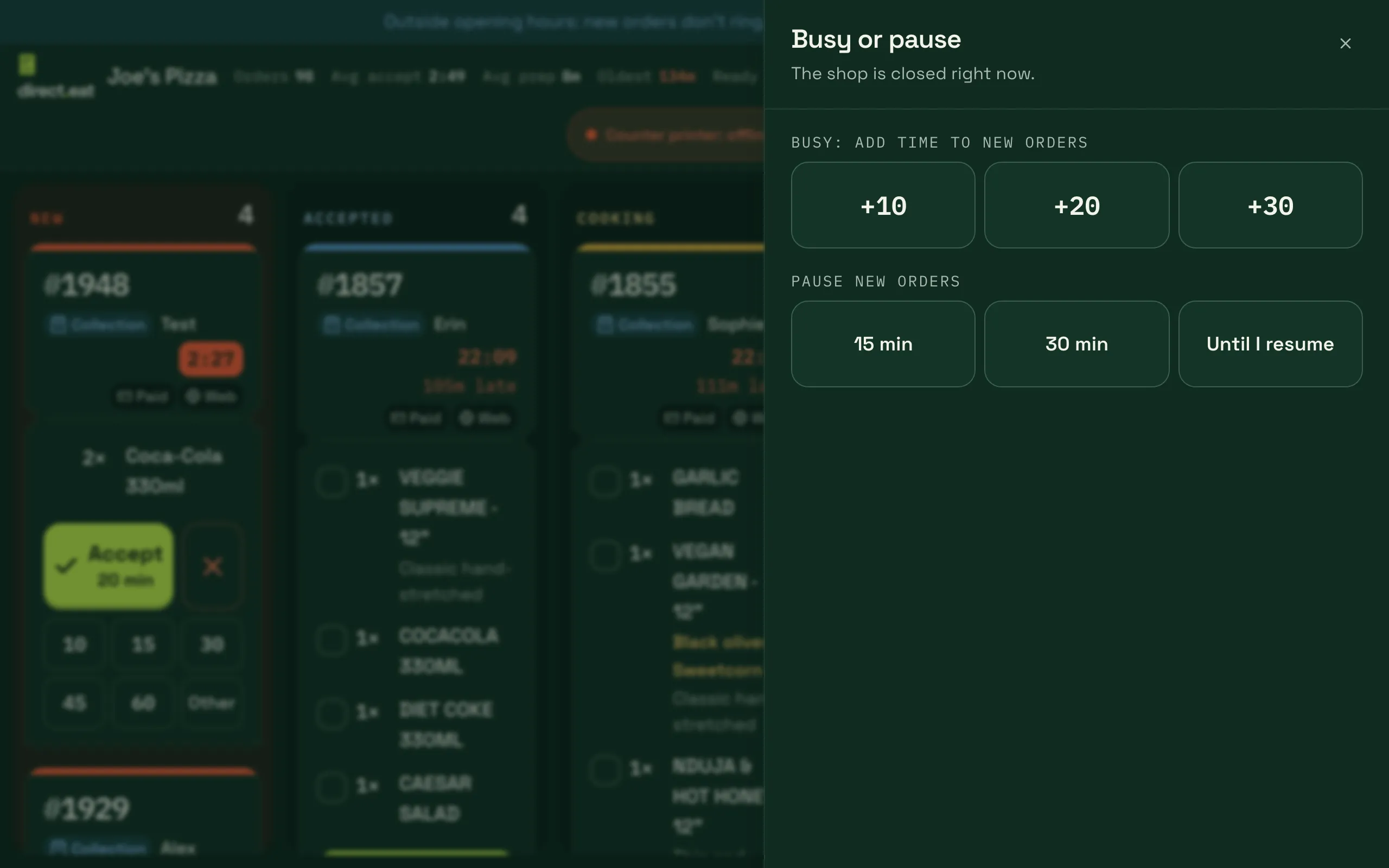
The dashboard has the same controls, with more options, in Settings → Modes and business type:
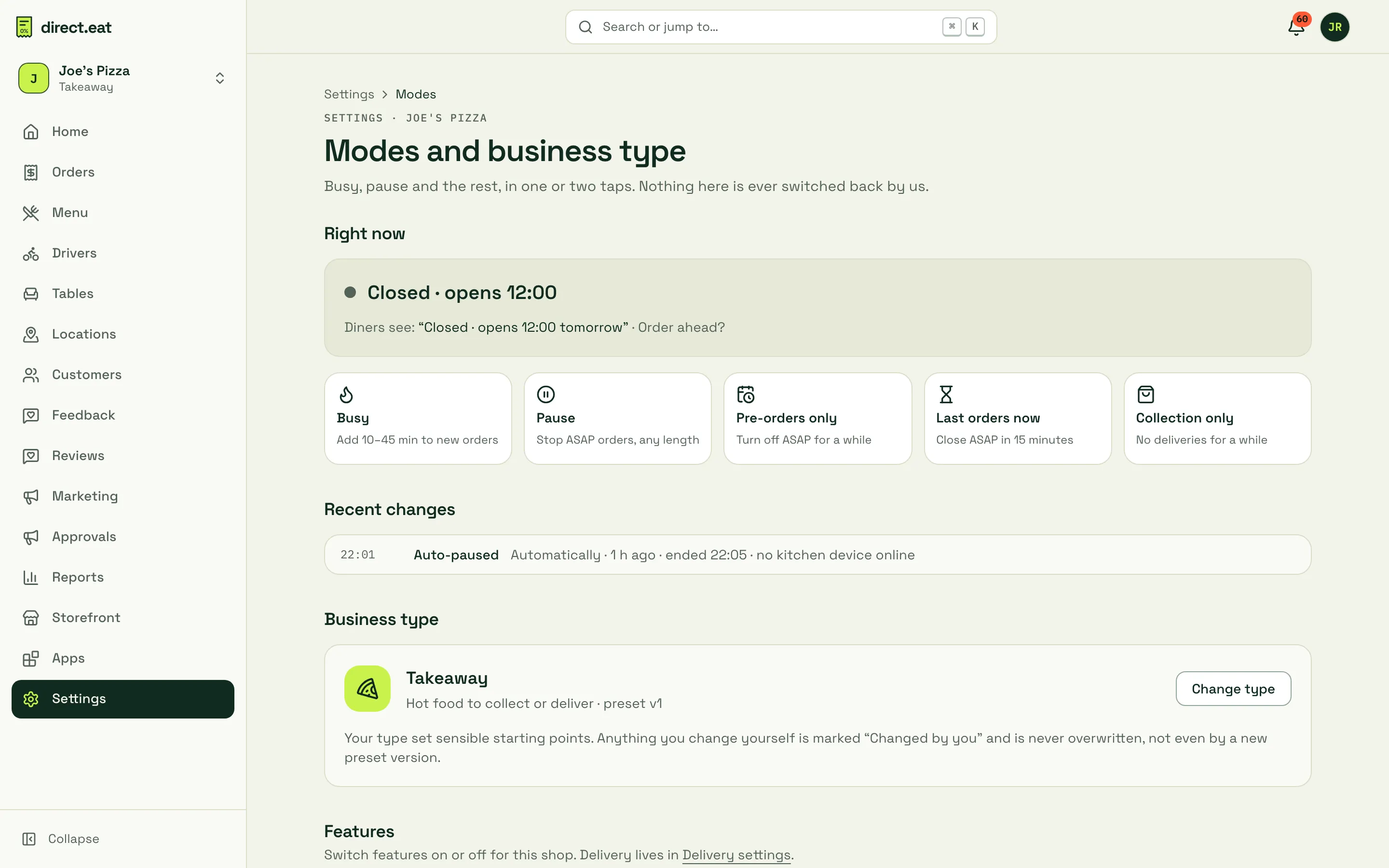
- Busy: add 10 to 45 minutes, for a set time.
- Pause: stop ASAP orders for any length, with a message for diners.
- Pre-orders only: turn off ASAP for a while but keep taking orders for later.
- Last orders now: close ASAP orders in 15 minutes.
- Collection only: no deliveries for a while (for example a driver hasn’t turned up). On the Drivers page you can also Pause 30 min or add Busy +10 / +20 to delivery only.
Nothing here is switched back by us: busy and pause end at the time you chose, or when you press the button.
Change the time on one order
Section titled “Change the time on one order”Open an order and use +5, +10, +15 or Time… to push its ready time. If it moves by 5 minutes or more, the diner’s tracking page shows Delayed with the new time, and they’re told (up to 3 times per order).
Tell the diner
Section titled “Tell the diner”Use the Messages tab on the order. One tap on Running 10 min late is quicker than a phone call, and the diner sees it on their tracking page. If you’ve run out of something, Out of X, swap? lets you pick the item and suggest a swap. See Messaging customers.
Run out of something? 86 it
Section titled “Run out of something? 86 it”Tap 86 in the kitchen app header to mark an item or an option sold out for today. Diners see it as sold out on your storefront. See 86 and stock.
If nobody accepts an order: the escalation ladder
Section titled “If nobody accepts an order: the escalation ladder”direct.eat never lets an order sit silently. If nobody accepts, it tries louder channels in turn. These are the default timings, which you can change in Settings → Alerts:
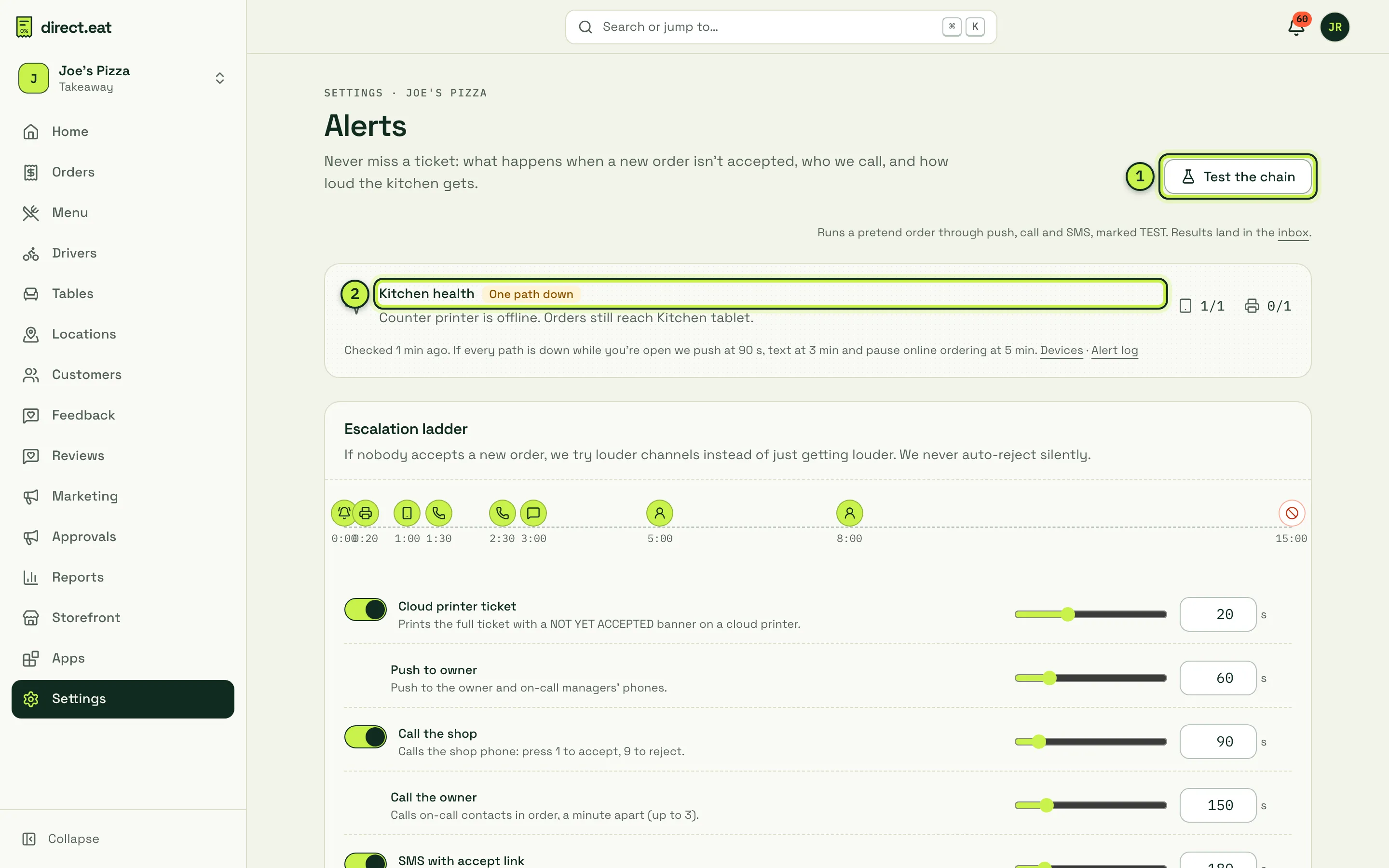
- Test the chain: runs a pretend order through the alerts, marked TEST, so you can check who gets what.
- Kitchen health: shows whether your tablets and printers are online right now.
| After | What happens |
|---|---|
| 0:00 | Alarm on kitchen devices |
| 0:20 | “NOT YET ACCEPTED” ticket on the cloud printer |
| 1:00 | Push to the owner and on-call managers |
| 1:30 | Voice call to the shop phone: press 1 to accept, 9 to reject |
| 2:30 | Voice call to on-call contact 1 (then the next, a minute apart) |
| 3:00 | Text with a one-tap accept link |
| 5:00 | Tell the customer we’re calling the shop |
| 8:00 | Offer the customer a cancellation |
| 15:00 | Auto-cancel with a full refund, logged as a missed order |
Accepting anywhere (tablet, dashboard, the call or the text link) stops the ladder at once. Seen on the kitchen alert pauses it for 3 minutes, once per order.
More detail: Alerts and escalation.
When something breaks
Section titled “When something breaks”The tablet dies or freezes
Section titled “The tablet dies or freezes”- Take orders on anything else. Open the order board in the dashboard (Orders) on a phone or laptop, or open the kitchen app on another device. Every screen shows the same orders and an order accepted on one disappears from the others.
- If every kitchen screen and printer goes dark while you’re open, direct.eat pushes you at 90 seconds, texts at 3 minutes and pauses online ordering at 5 minutes so diners aren’t left waiting. It resumes when a device reconnects (you can turn that off in Settings → Alerts).
- Restart the tablet, reopen the kitchen app and tap the sound button again. See Tablet keeps sleeping.
The printer stops
Section titled “The printer stops”- The tablet keeps working. Orders still ring and can be accepted.
- Tickets that didn’t print are held, not lost. When the printer comes back the kitchen app shows a bar to print them, and paper-out tickets print automatically once you’ve changed the roll.
- To print one order again, open it and tap Reprint ticket.
- See Printer offline.
The Wi-Fi drops
Section titled “The Wi-Fi drops”The kitchen app shows Offline and queues your taps, then sends them when it reconnects. Diners can’t reach a kitchen with no internet, though, so switch the tablet to mobile data or a phone hotspot if it lasts more than a minute or two.
End of the night
Section titled “End of the night”-
Clear the board. Mark everything Collected or Delivered so nothing is left open.
-
Cash up drivers (if you deliver): on Drivers, press Cash up on each driver and enter what they hand in. Any difference needs a short note.
-
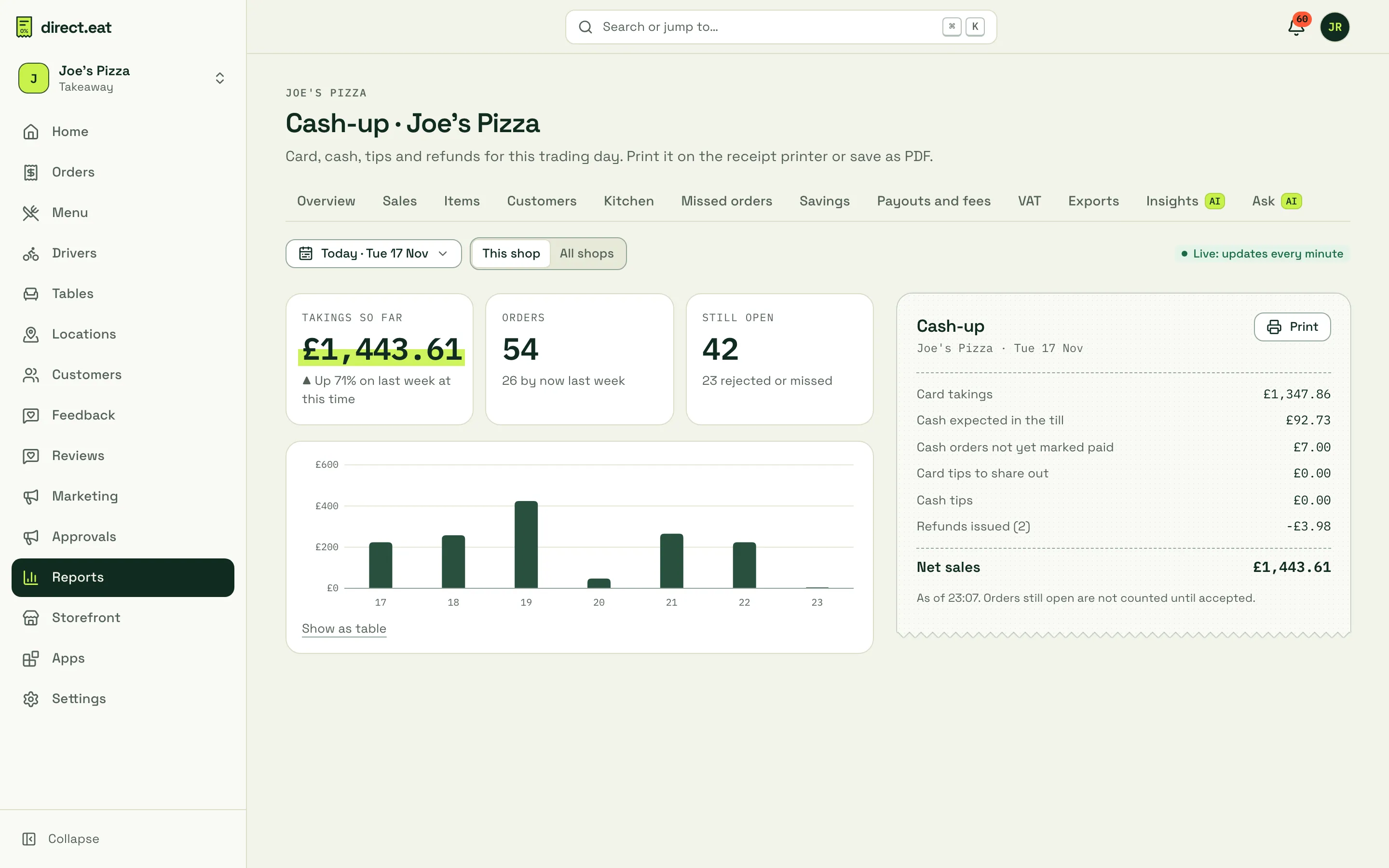
Check the till: open Reports → Cash-up for card takings, cash expected in the till, tips and refunds for the day. Press Print to print it on the receipt printer or save it as a PDF.
-
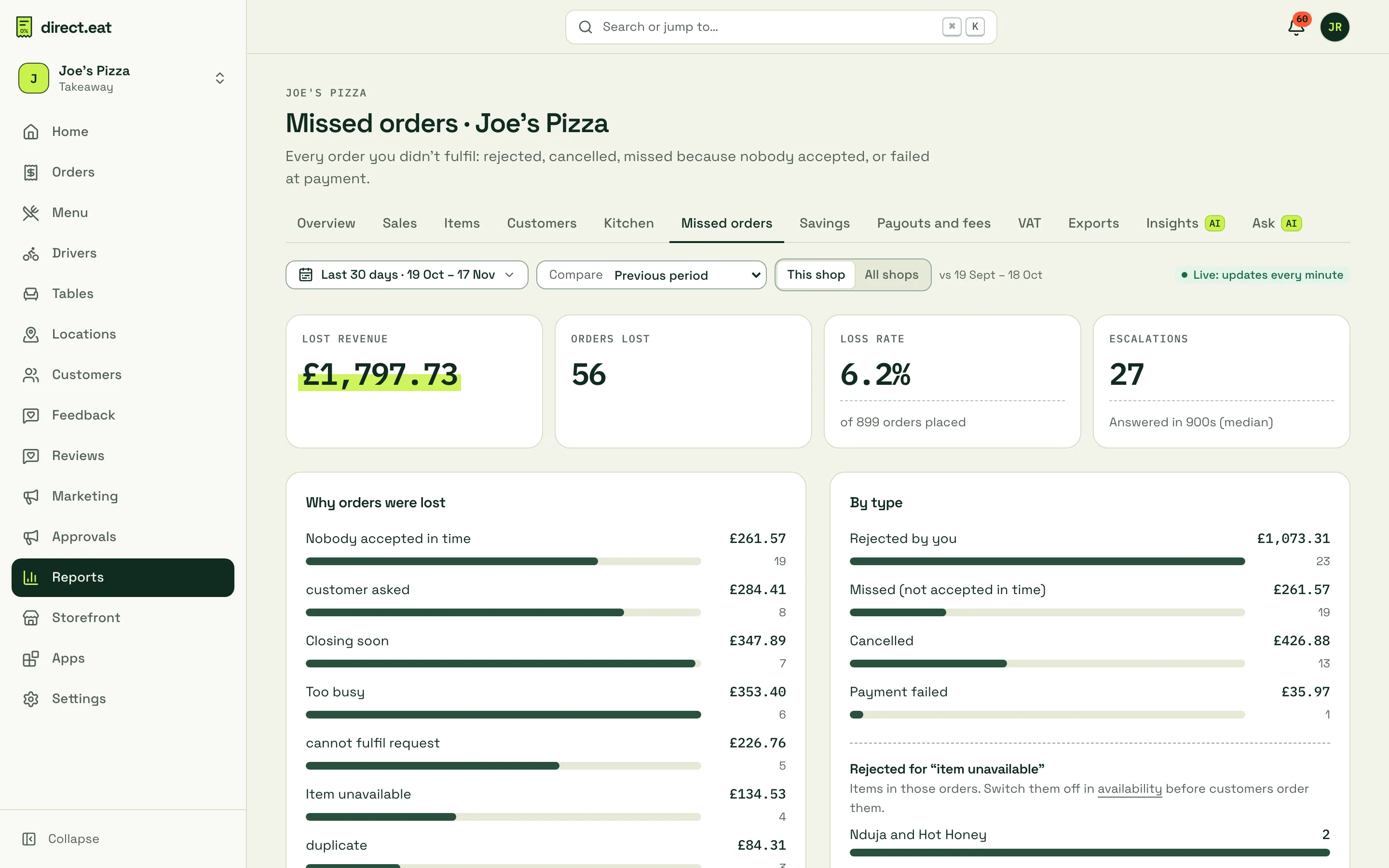
Look at missed orders: Reports → Missed orders lists every order you rejected, cancelled or didn’t accept in time, and why. Two or three “too busy” rejections on a Friday is a sign to use busy mode earlier next time.
-
Pause or close if you finish early: Settings → Opening hours has Close for today.
After you close, the owner gets the end-of-day summary email with the day’s numbers. See step 14.
Related
Section titled “Related”Was this page helpful?