

The live order board
The order board is the office view of service. It shows every live order in columns, from New to Out for delivery, and updates on its own as orders arrive and move. The kitchen tablets show the same orders: accept on one and it moves everywhere.
Use the board on the laptop by the till or in the office. In the kitchen, use the kitchen app on a tablet instead: it has bigger buttons and the loud new-order alarm.
Before you start
Section titled “Before you start”- Anyone on your team with access to orders can see the board: owner, admin, manager and staff.
- Accepting, rejecting and moving orders on needs the Accept, reject, mark preparing/ready/collected permission. Owners, admins, managers and staff have it by default.
- Cancelling a paid order is for owners, admins and managers. Staff can’t cancel from the board.
- Takings in the strip at the top only show for people who can see today’s reports.
See roles and permissions for the full list.
Open the board
Section titled “Open the board”Go to Orders in the left menu, or press g then o from anywhere in the dashboard. The page is called Live orders.
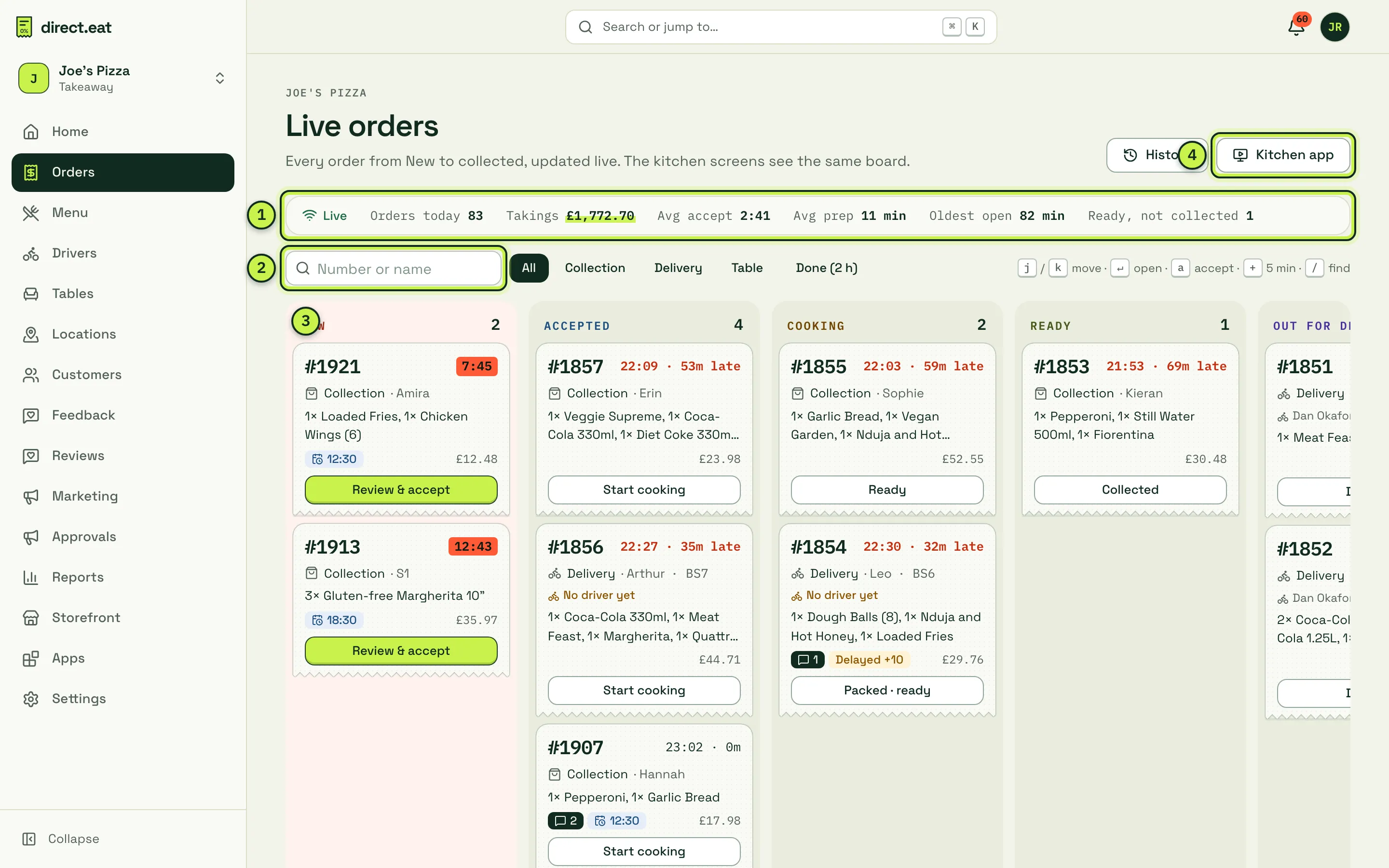
- Tonight strip: Live (the board is connected and updating), Orders today, Takings, Avg accept (how long orders wait before someone accepts them), Avg prep, Oldest open and Ready, not collected. If it says Connecting instead of Live, the board has lost its connection and is retrying. It also refreshes on its own every 20 seconds as a safety net.
- Filter: type an order number or a name to narrow the board. Next to it, All, Collection, Delivery and Table filter by fulfilment, and Done (2 h) adds a column of orders finished in the last two hours.
- Columns: New, Accepted, Cooking, Ready and Out for delivery (only when you have delivery orders). The New column turns red while anything is waiting.
- History and Kitchen app: jump to order history or open the kitchen app in a new tab.
The browser tab title shows how many new orders are waiting, for example (2) Orders, so you can spot them from another tab.
Read an order card
Section titled “Read an order card”Each card shows:
- the order number, big, and either a waiting clock (New orders, counting up in red) or the due time and how late it is (“22:09 · 53m late”)
- Collection, Delivery or the table, and the customer’s first name
- for delivery: the postcode district and the driver, or No driver yet in amber
- the items, the total and a calendar chip with the slot time for scheduled orders
- badges: unread messages (a speech bubble with a count), Delayed +10 when you’ve added time, Cash for cash orders
- one button for the next step: Review & accept, Start cooking, Ready (or Packed · ready for delivery), Collected, Handed to driver or Delivered
Click the button to move the order on. The card moves straight away and the change reaches every other screen. If someone else got there first, you see a message such as “Order #1042 was already accepted by Kitchen tablet” and nothing is done twice.
The order side sheet
Section titled “The order side sheet”Click a card (or press Enter on a selected card) to open its side sheet.
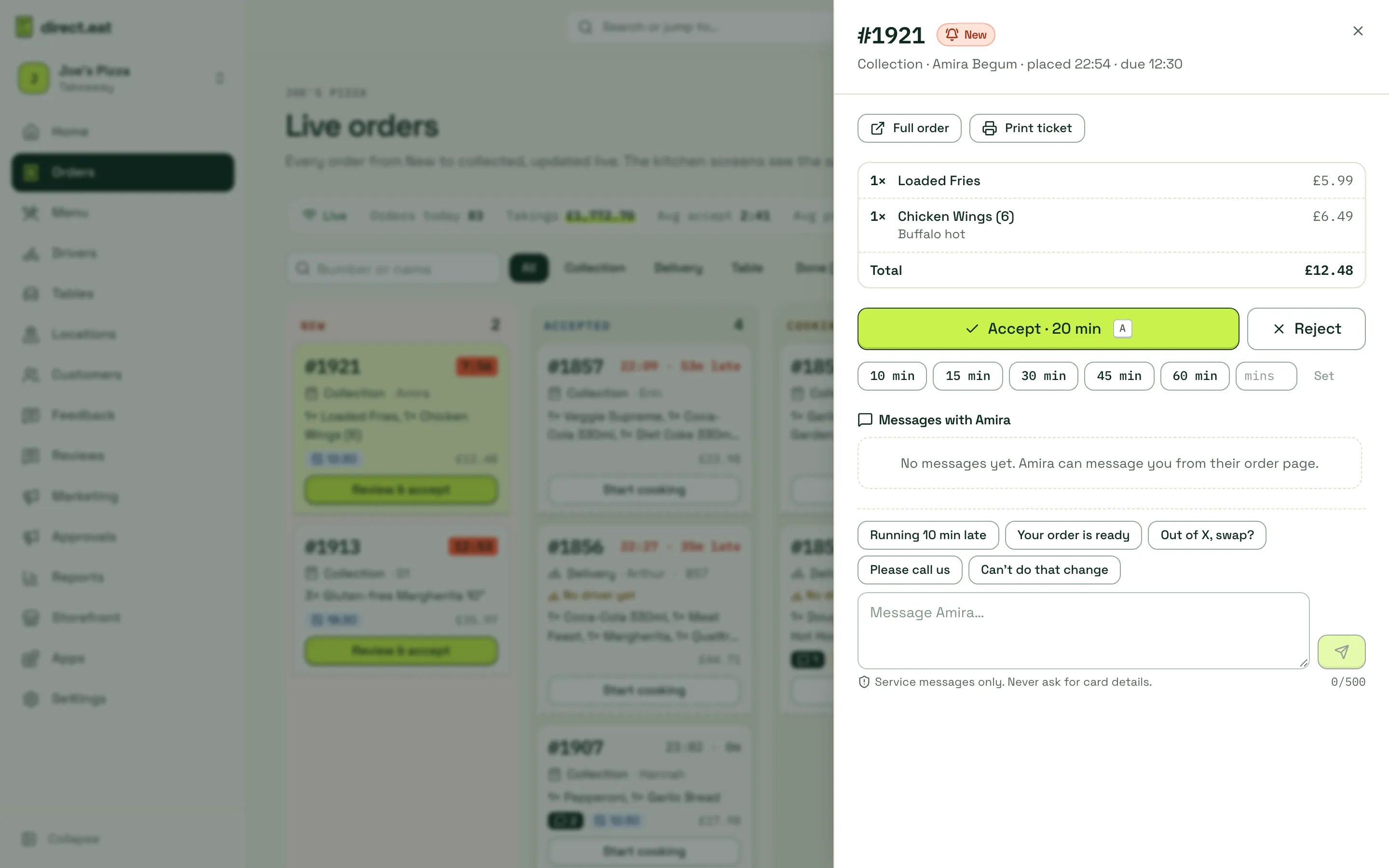
From the sheet you can:
- open the Full order page (timeline, payments, refunds) or Print ticket
- Accept with the default prep time, or pick another time with the chips (10 min, 15 min, 30 min, 45 min, 60 min) or type minutes and press Set. See accept and reject orders.
- Reject with a reason
- move an accepted order on, add time with a reason, or cancel it. See delays, cancellations and refunds.
- read and send messages to the customer. See messaging customers.
- for delivery orders, assign a driver, mark it handed over or delivered. See drivers.
Keyboard shortcuts
Section titled “Keyboard shortcuts”The board has shortcuts for a laptop by the pass. They’re shown on the right above the columns.
| Key | What it does |
|---|---|
| j / k | Select the next or previous order |
| Enter | Open the selected order |
| a | Accept the selected new order with the default prep time. With nothing selected, it accepts the oldest waiting order (newest orders are at the top of New) |
| + | Add 5 minutes to the selected order |
| / | Jump to the filter box |
Shortcuts don’t fire while you’re typing in a box or a dialog is open. All the shortcuts across direct.eat are in the keyboard shortcuts reference.
Tables and drivers on the board
Section titled “Tables and drivers on the board”If you take table orders, cards show the table and round in place of a name, for example “Table 12 · Round 2”. A notice above the columns tells you when tables are calling for staff or when table rounds are waiting for a staff check, with an Open tables link.
Delivery orders show the driver on the card. Open the side sheet to assign or change the driver.
- Leave the board open on one screen all night. It never needs a refresh.
- The board doesn’t make the loud alarm sound. Keep at least one kitchen tablet running, and set up the missed-order alerts so a new order can’t sit unseen.
- Late times are measured against the ready time you promised. If you’re running behind, add time so the customer is told. See delays.
Related
Section titled “Related”Was this page helpful?