

Customers and segments
Everyone who orders from your storefront ends up in Customers. The list is yours: you can export it any time, on any plan, and nobody else markets to it. This page covers the list, a customer’s profile, marketing permission (consent) and segments.
Before you start
Section titled “Before you start”- Owners and admins see every customer in the organisation. Managers see customers who ordered from the shops they work at. Staff don’t see Customers or Marketing.
- Only owners and admins can export the list or erase a customer’s data.
The customer list
Section titled “The customer list”Go to Customers in the sidebar.
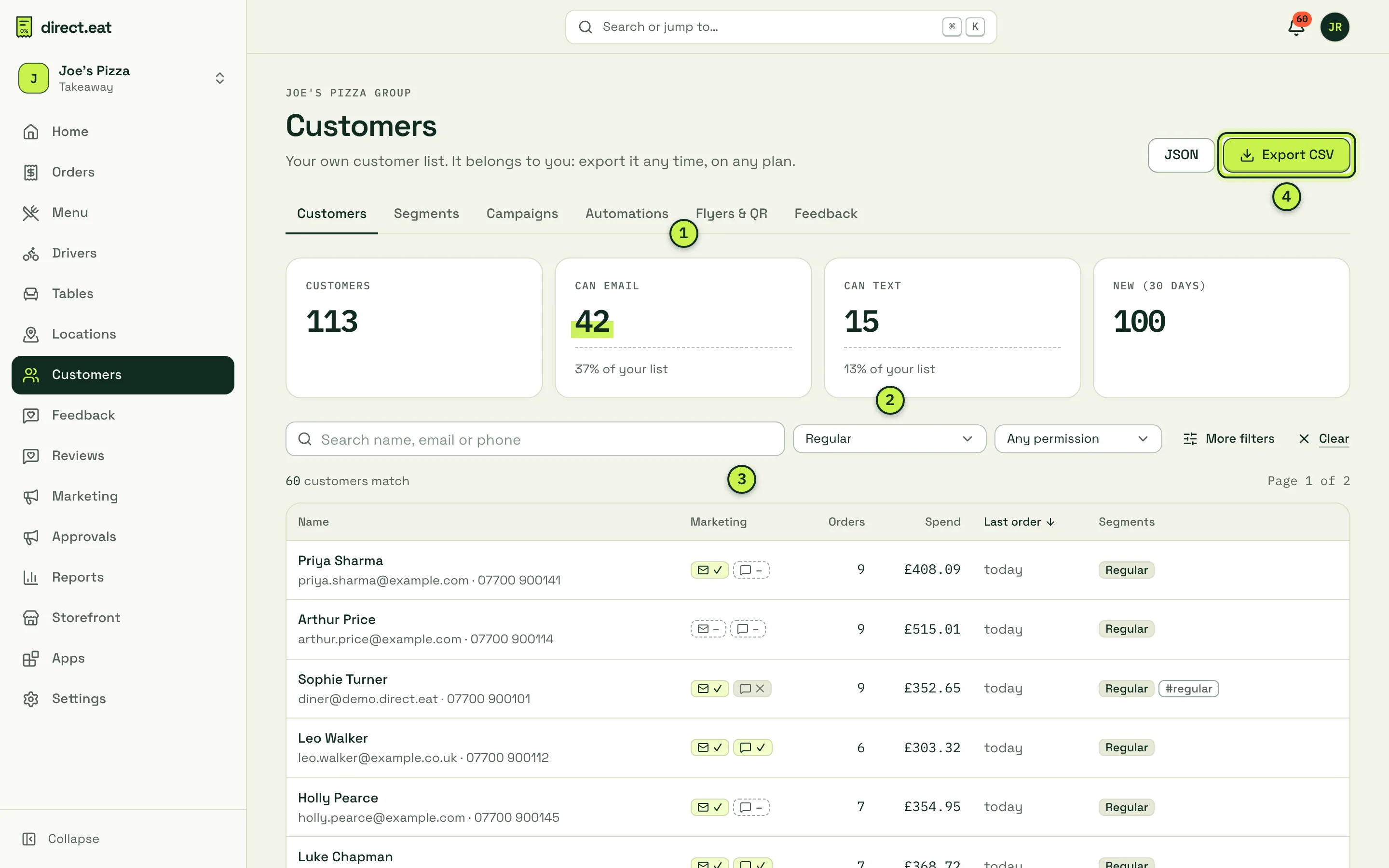
- Counts: how many customers you have, how many you’re allowed to email and text, and how many are new in the last 30 days. “Can email” means the customer has given permission and has a working address. It’s usually well below the total, and that’s normal.
- Filters: search by name, email or phone as you type, pick a segment, filter by permission (Can be marketed to, Email subscribed, SMS subscribed, Not subscribed) or open More filters for minimum orders, spend, recency, shop, source and tags.
- Marketing: an envelope and a speech bubble for each customer. A tick means subscribed, a cross means unsubscribed, a dash means never asked.
- Export CSV (or JSON): downloads the whole list with consent status. Every export is recorded in the activity log.
Click any column heading to sort. Click a name to open the profile.
A customer’s profile
Section titled “A customer’s profile”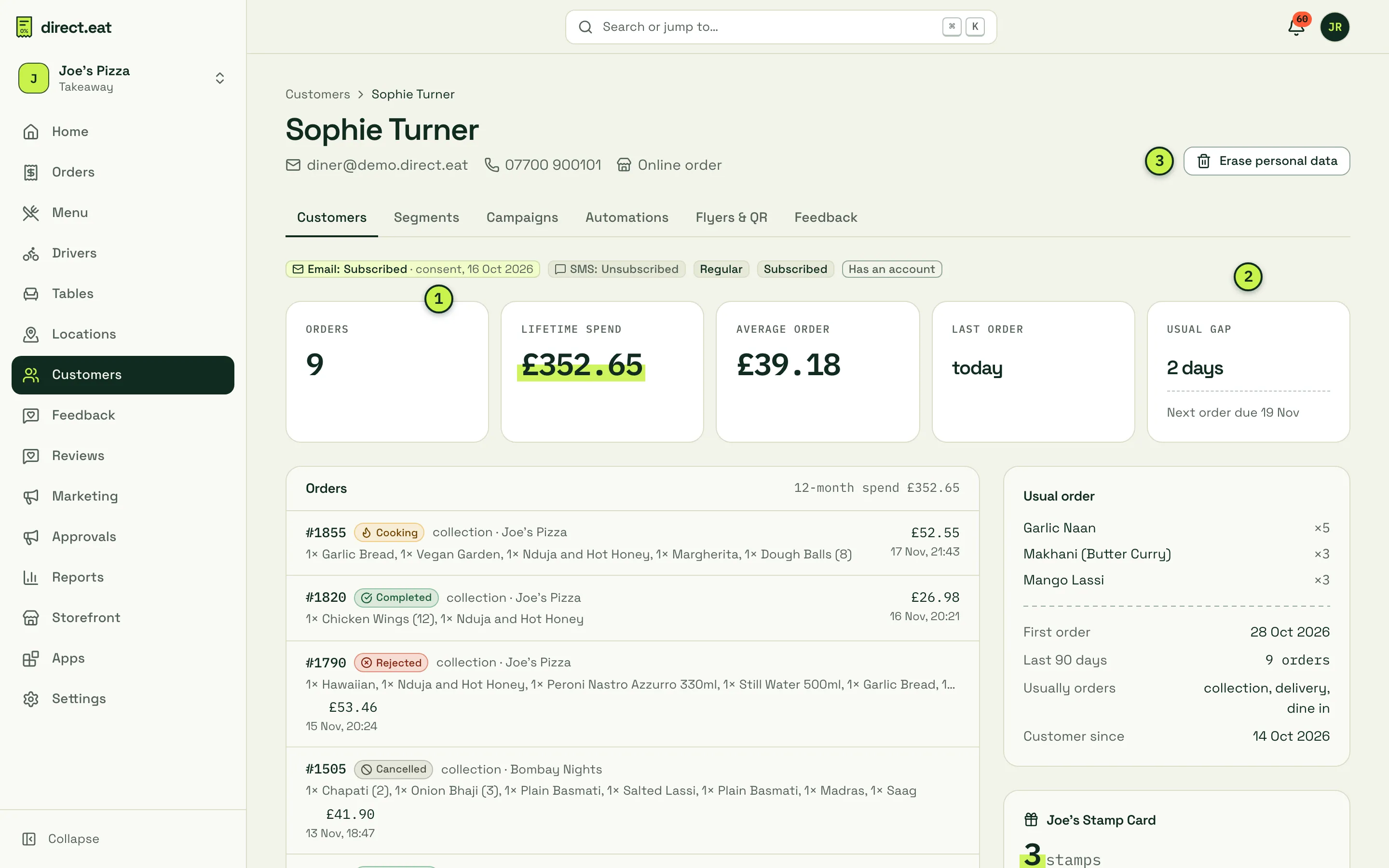
- Permission pills: email and SMS status, with the basis (for example “consent”) and the date it was given.
- Stats: orders, lifetime spend, average order, last order and Usual gap, the typical number of days between this customer’s orders, with the date their next order is due.
- Erase personal data: anonymises the customer when they ask you to delete their data. Their orders and payments stay for your accounts, and their opt-out is kept (in a form that can’t be read back) so they are never marketed to by mistake.
Further down the profile you’ll find their full order history, their usual order, loyalty balance, feedback and issues, marketing messages sent, and tags and notes.
Marketing permission
Section titled “Marketing permission”The Marketing permission section shows where each permission came from: the exact wording the customer agreed to, when, and on which order.
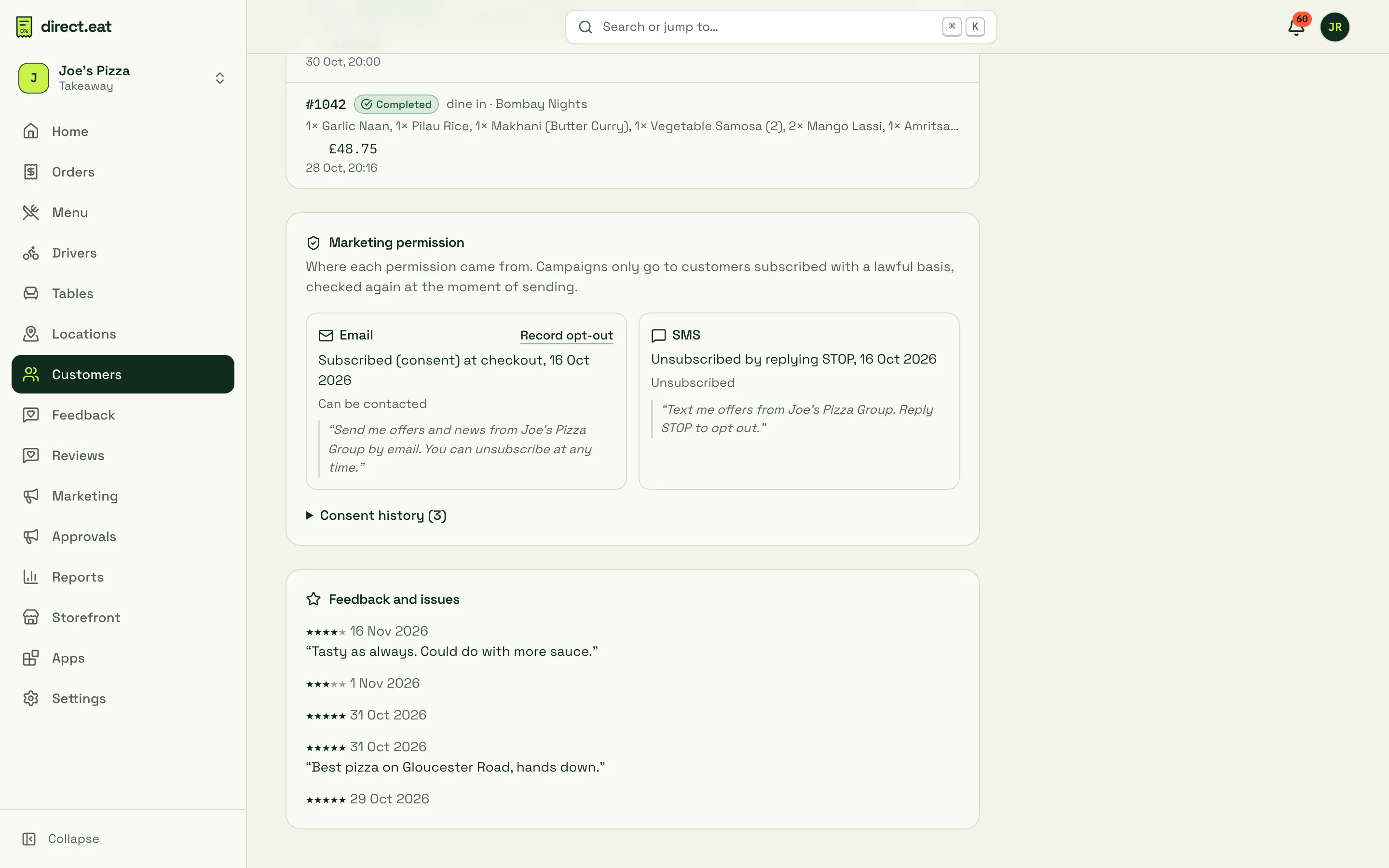
How permission works:
- At checkout the diner sees two unticked boxes: “Send me offers from [your shop] by email (unsubscribe any time)” and the same for texts. Only a ticked box creates permission. Nothing is pre-ticked.
- Customers can change it any time from the unsubscribe link in every marketing email, or from their preferences page.
- You can record an opt-out (for example, a customer asks on the phone). Click Record opt-out. You can never opt someone in on their behalf: only the customer can say yes.
- Imported customers (for example from GloriaFood) can only be marketed to if the import came with evidence of their permission. Without it they’re excluded as “No lawful basis”.
- Soft opt-in: where a customer bought from you and was offered an opt-out they didn’t take, UK law (PECR) lets you market your own similar products to them. That permission lapses after 24 months without an order, and the customer is then excluded automatically.
Permission is checked again at the moment each campaign or automation sends, not just when you build it. See Campaigns and consent for the full rules.
Segments
Section titled “Segments”A segment is a group of customers you can look at or message. Go to Customers → Segments.
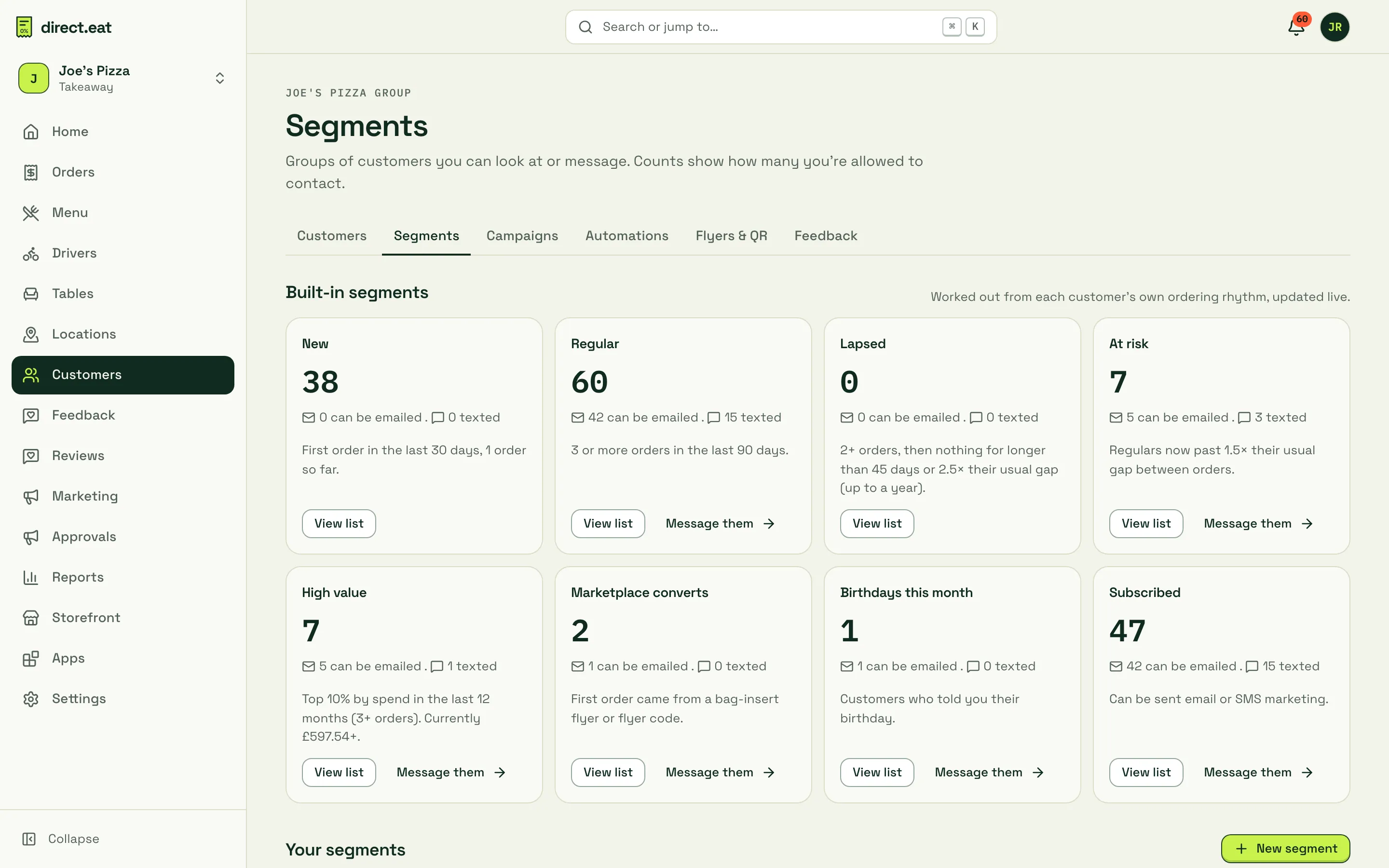
The eight built-in segments are worked out from each customer’s own ordering rhythm and update live:
| Segment | Who’s in it |
|---|---|
| New | First order in the last 30 days, 1 order so far |
| Regular | 3 or more orders in the last 90 days |
| Lapsed | 2+ orders, then nothing for longer than 45 days or 2.5× their usual gap (up to a year) |
| At risk | Regulars now past 1.5× their usual gap between orders |
| High value | Top 10% by spend in the last 12 months (3+ orders). The card shows the current threshold |
| Marketplace converts | First order came from a bag-insert flyer or flyer code |
| Birthdays this month | Customers who told you their birthday |
| Subscribed | Can be sent email or SMS marketing |
Each card shows how many customers are in it and how many of them you can actually email or text. View list opens the customer list filtered to that segment. Message them starts a new campaign with that audience.
Build your own segment
Section titled “Build your own segment”- On Segments, click New segment (or Build a segment).
- Give it a name, for example “Friday pizza regulars”.
- Choose whether customers must match all or any of your rules, then add rules such as Orders (lifetime) at least 3, Days since last order at least 30. Click Add rule for more.
- Watch In this segment on the right: the count, plus how many can be emailed and texted, updates as you change the rules.
- Click Save segment.
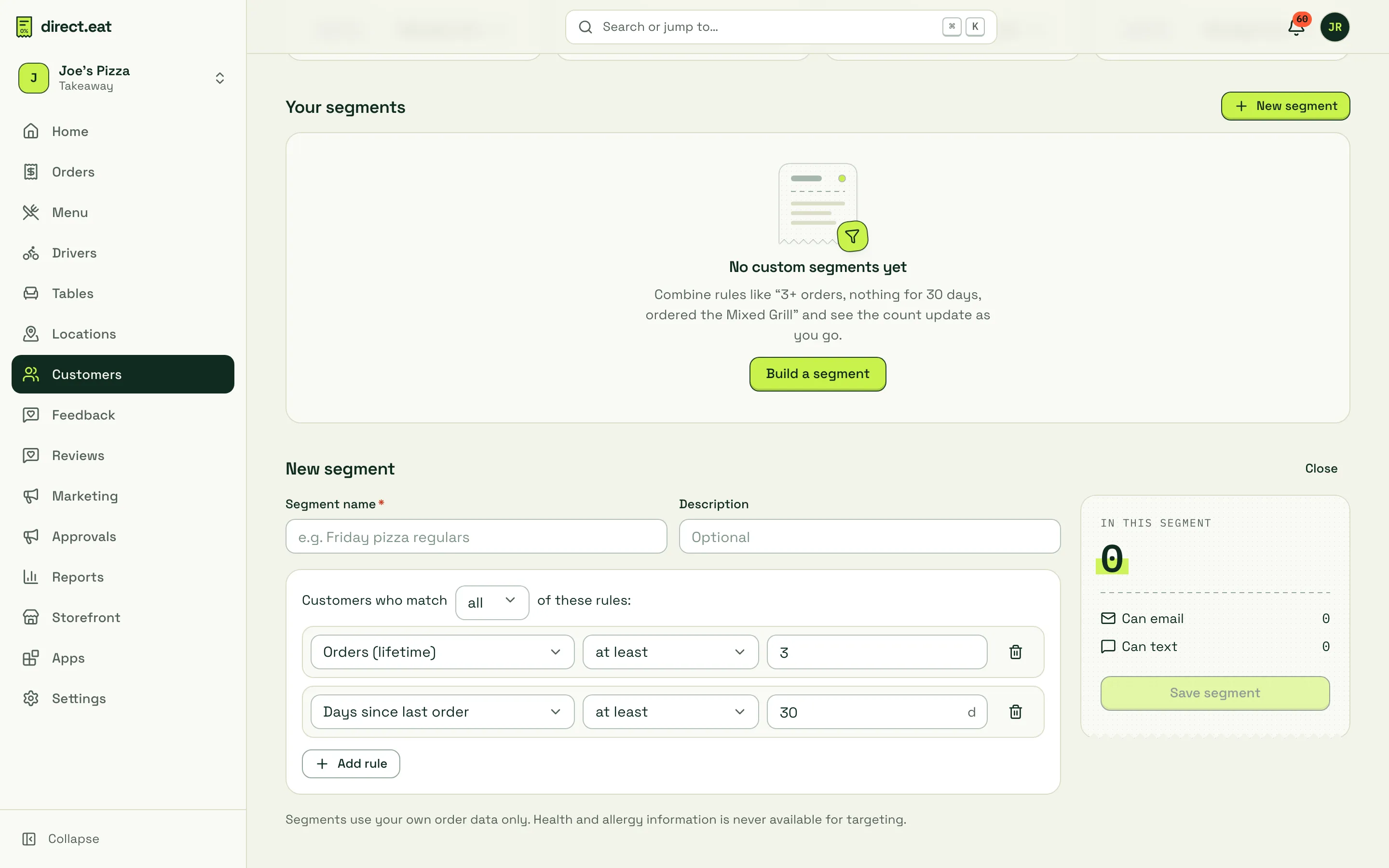
Segments use your own order data only. Health and allergy information is never available for targeting.
- Check Can email before planning a campaign. If it’s low, ask for permission at the counter and on flyers rather than buying lists. You can’t legally email people who haven’t agreed.
- At risk is the segment to watch: these are regulars who have gone quiet compared with their own habit, not a fixed number of days.
- Exports include personal data. Store them somewhere safe and delete old copies.
Related
Section titled “Related”Was this page helpful?