

Import your menu
Typing a menu in by hand is slow. Bring the menu you already have and spend your time checking it instead. Whatever route you take, you always land on the same Check your menu screen, and nothing reaches your storefront until you’ve added it to your menu and confirmed its allergens.
Rough time: 5 to 15 minutes for a 40-item menu (an estimate; it depends on your menu). Who can do this: the owner, admins and managers with menu permissions. Plan: every plan, including the free trial.
Which route?
Section titled “Which route?”| You have | Use | What comes across |
|---|---|---|
| A GloriaFood account | Import from GloriaFood | Categories, items, sizes, option groups with min and max, dietary tags, kitchen names, calories, allergens to confirm |
| A printed menu or PDF | Snap or upload your menu | Items, prices, sizes, options, allergens printed on the menu plus suggestions |
| A website or online ordering page | Paste a link | The same as a photo, read from the page |
| The menu in Word, an email or WhatsApp | Paste text on the import page | The same as a photo |
| A Deliveroo, Just Eat or Uber Eats listing | Marketplace screenshots | Your menu, with an option to lower marketplace prices for direct orders |
| A spreadsheet or till export (Flipdish, Foodhub, Square CSV) | Upload a spreadsheet | Any column layout you can match: sizes, options, allergens, VAT, per-channel prices |
| Nothing written down | Build by hand in the menu editor | Whatever you type |
You can mix sources in one AI import: for example, three photos of a printed menu plus a pasted list of drinks.
Start from the wizard
Section titled “Start from the wizard”In the setup wizard, the Menu step lists your options. If you told us at sign-up that you’re moving from GloriaFood, Import from GloriaFood is first.
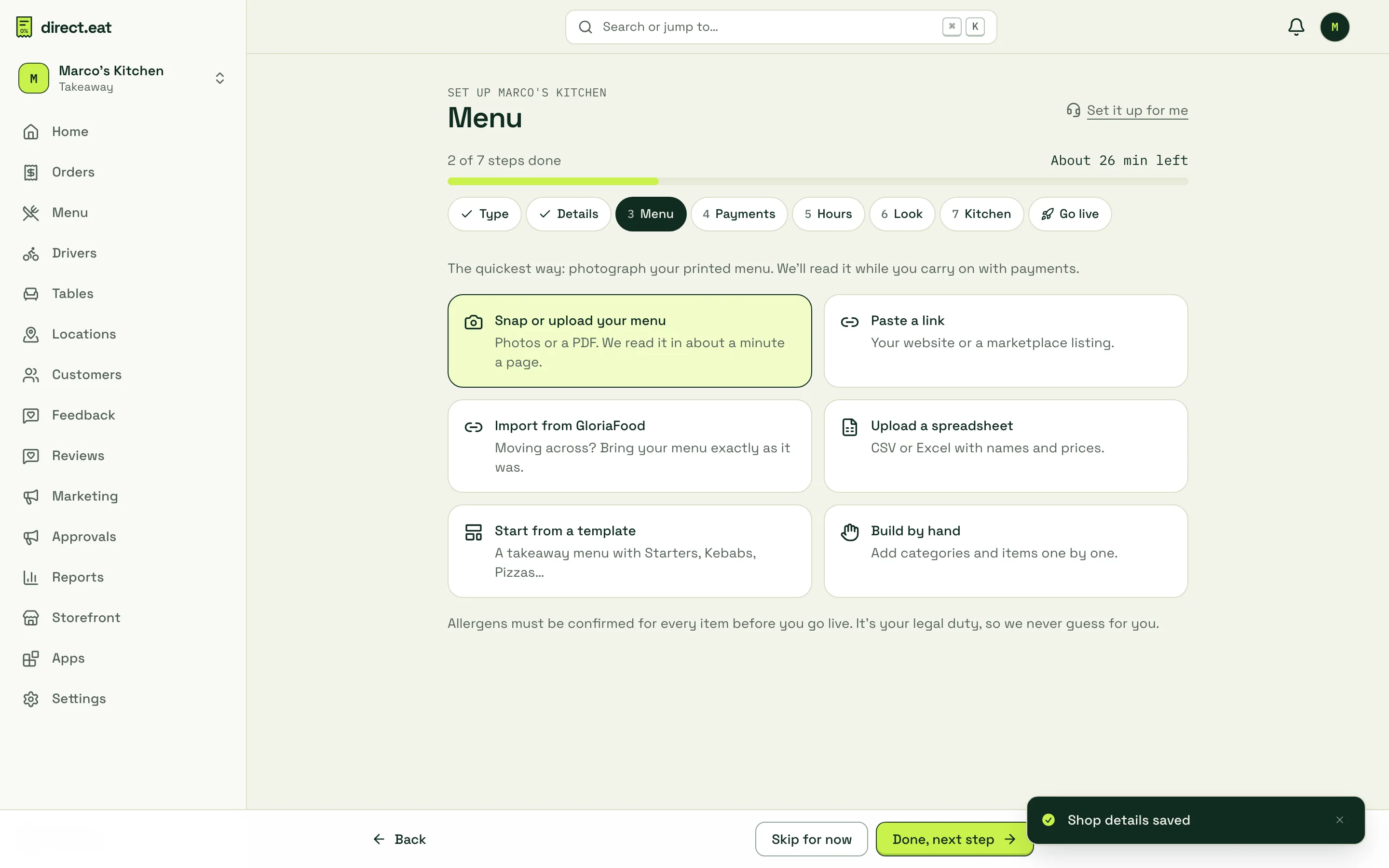
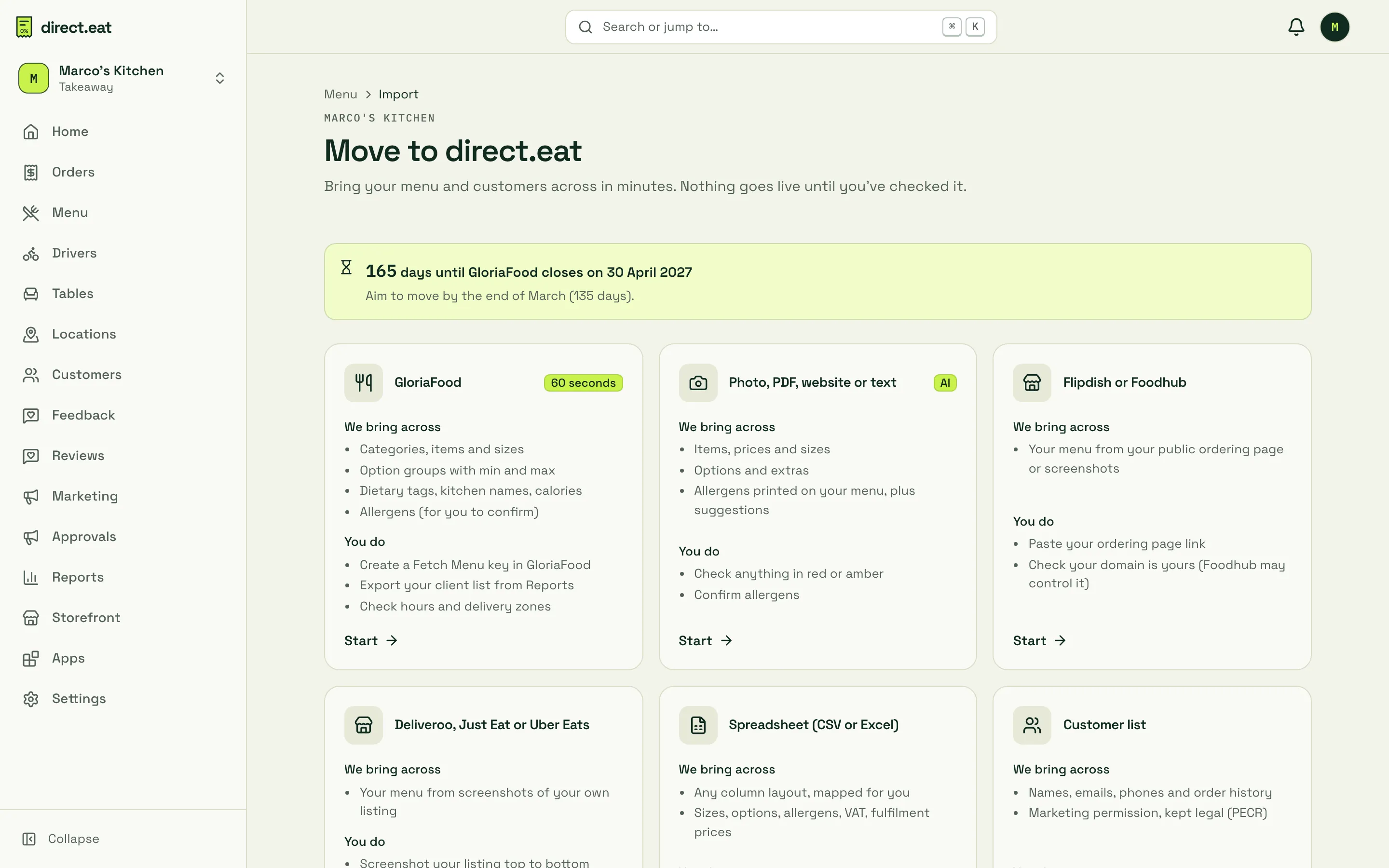
Everything is also under Menu → Import in the sidebar, at any time. That page, Move to direct.eat, shows a tile for each platform with “We bring across” and “You do” lists, so you know exactly what’s left for you.
Photo, PDF, link or text
Section titled “Photo, PDF, link or text”-
Choose Snap or upload your menu (or Menu → Import → Photo, PDF, website or text). Then pick what you have: Take photos, Upload PDF or images, Paste a link, Paste text or Marketplace screenshots.
-
Add your files. You can add up to 20 photos or files per import, and PDFs up to 32 MB. Each photo gets a quality check before it uploads: you’ll see Looks good, or a warning such as “Too dark”, “Looks blurry” or “Low resolution”. Retake any that are flagged, or carry on: we flag anything we can’t read.
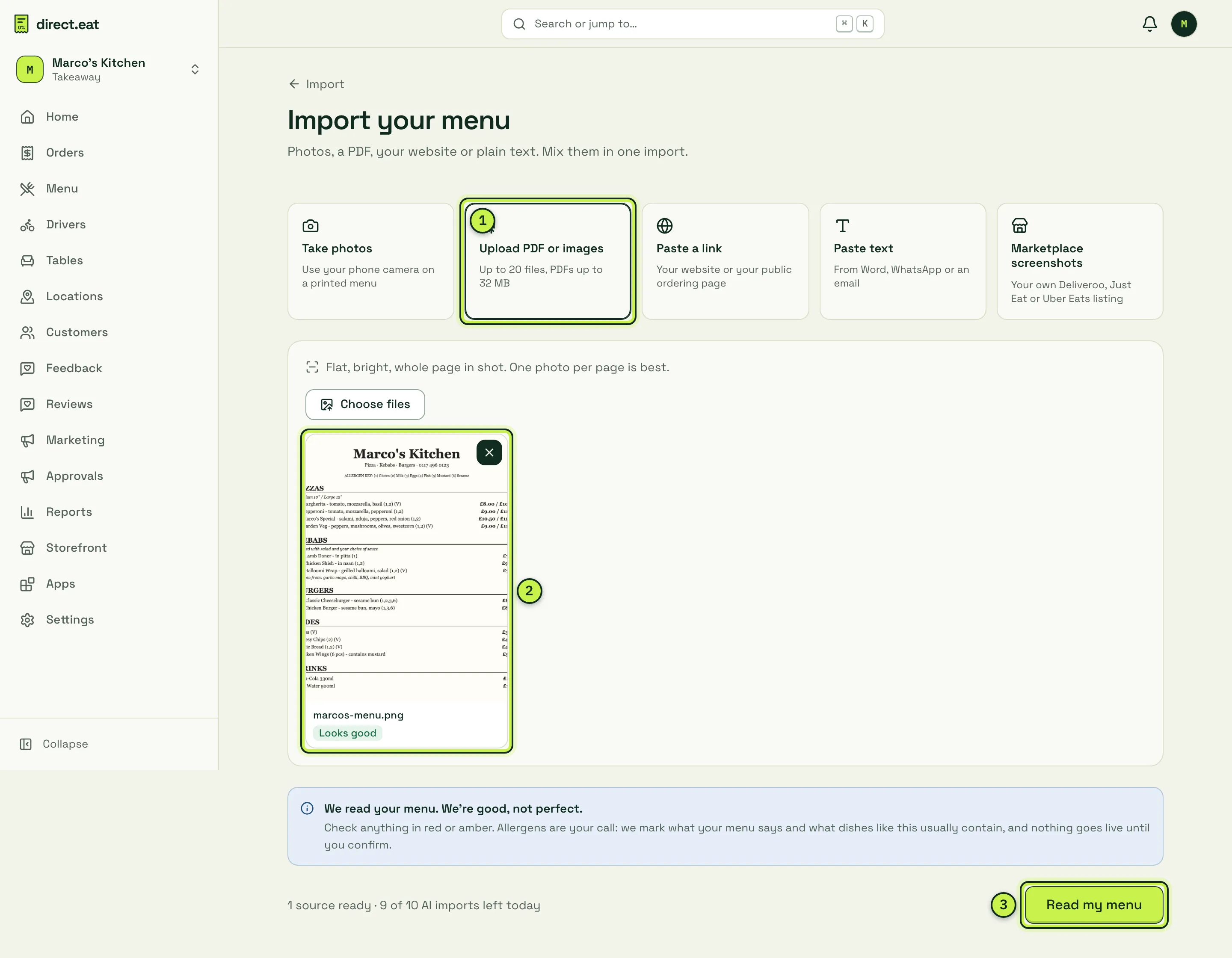
- What you have: the five kinds of source.
- Quality check: one card per page. Remove a page with the cross.
- Read my menu: starts reading. The line beside it shows how many AI imports you have left today (10 a day).
-
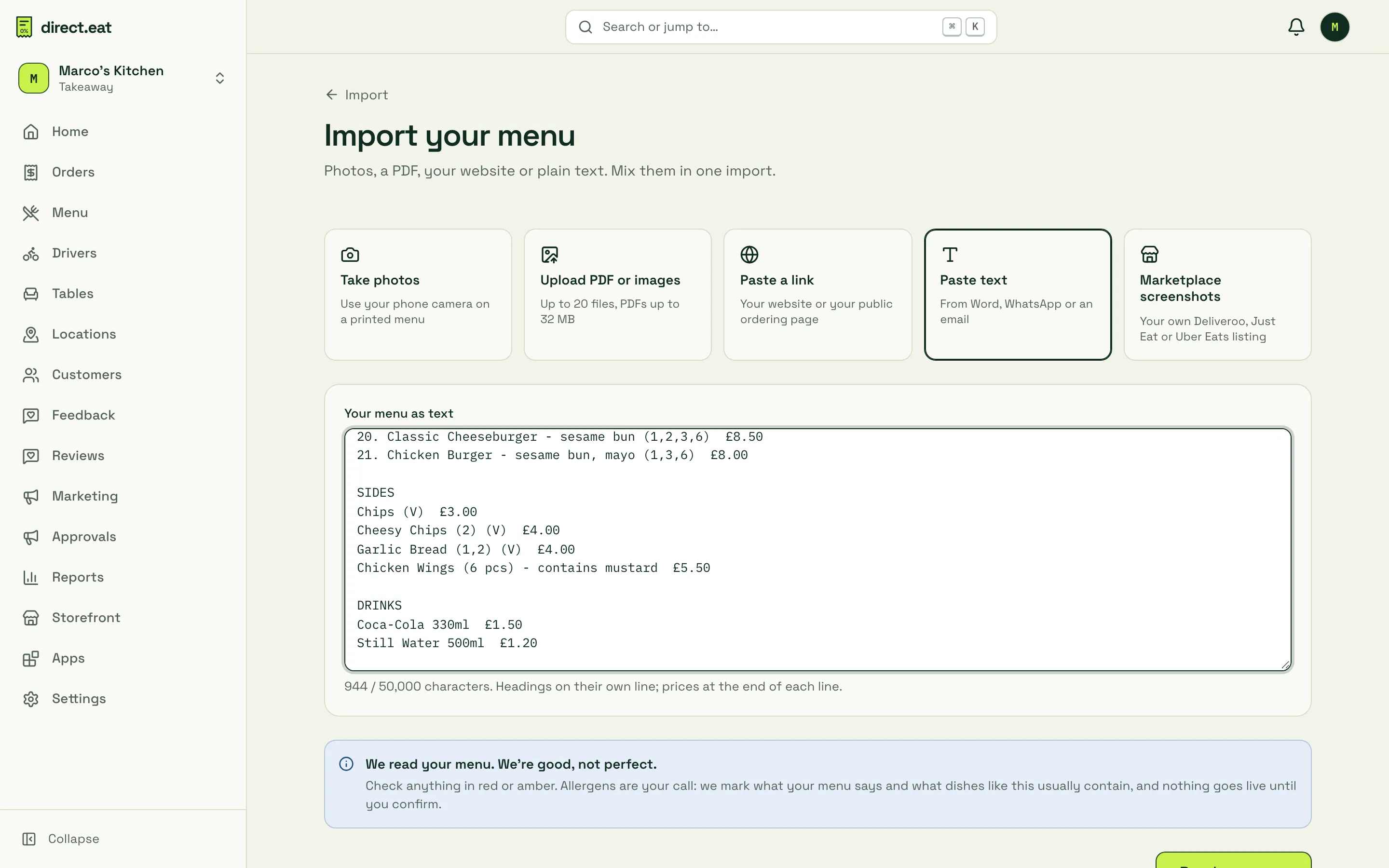
For a link, paste your website or ordering page address. We read the page once, plus up to three linked menu pages or a menu PDF, and we respect the site’s robots.txt. For text, paste it with headings on their own line and prices at the end of each line.
-
Press Read my menu. Reading happens in the background, so you can carry on with other steps, such as payments, while it works.
Check your menu
Section titled “Check your menu”Every import ends on the Check your menu screen. Your source (the photo, page or text) is on the left; what we read is on the right, grouped by category.
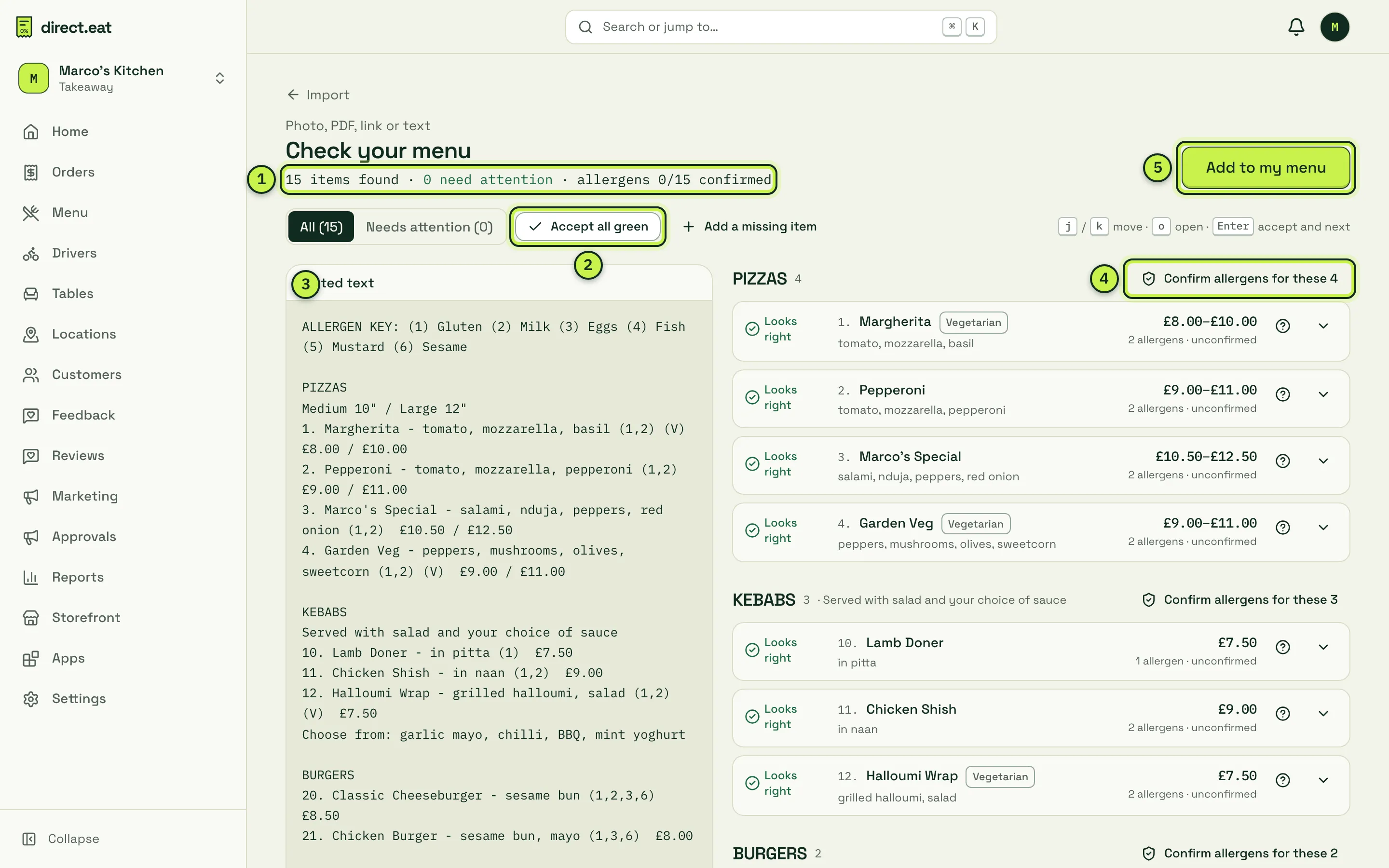
- Summary: items found, how many need attention, and how many have confirmed allergens.
- Accept all green: accepts every item marked Looks right in one go. Red items are never accepted in bulk.
- Your source: the original, so you can compare line by line. Click the ? on any item to see exactly what we read it from.
- Confirm allergens for these 4: confirm a whole category’s allergens at once. See Allergens.
- Add to my menu: puts the checked items into your menu.
Each item is marked Looks right (green), amber (check this) or red (must fix, for example a missing price). Use the Needs attention filter to see only the amber and red ones. Open any item with the arrow to fix its name, category, description, sizes and prices, dietary tags and allergens. You can also merge two lines into one item with sizes, remove an item, or press Add a missing item.
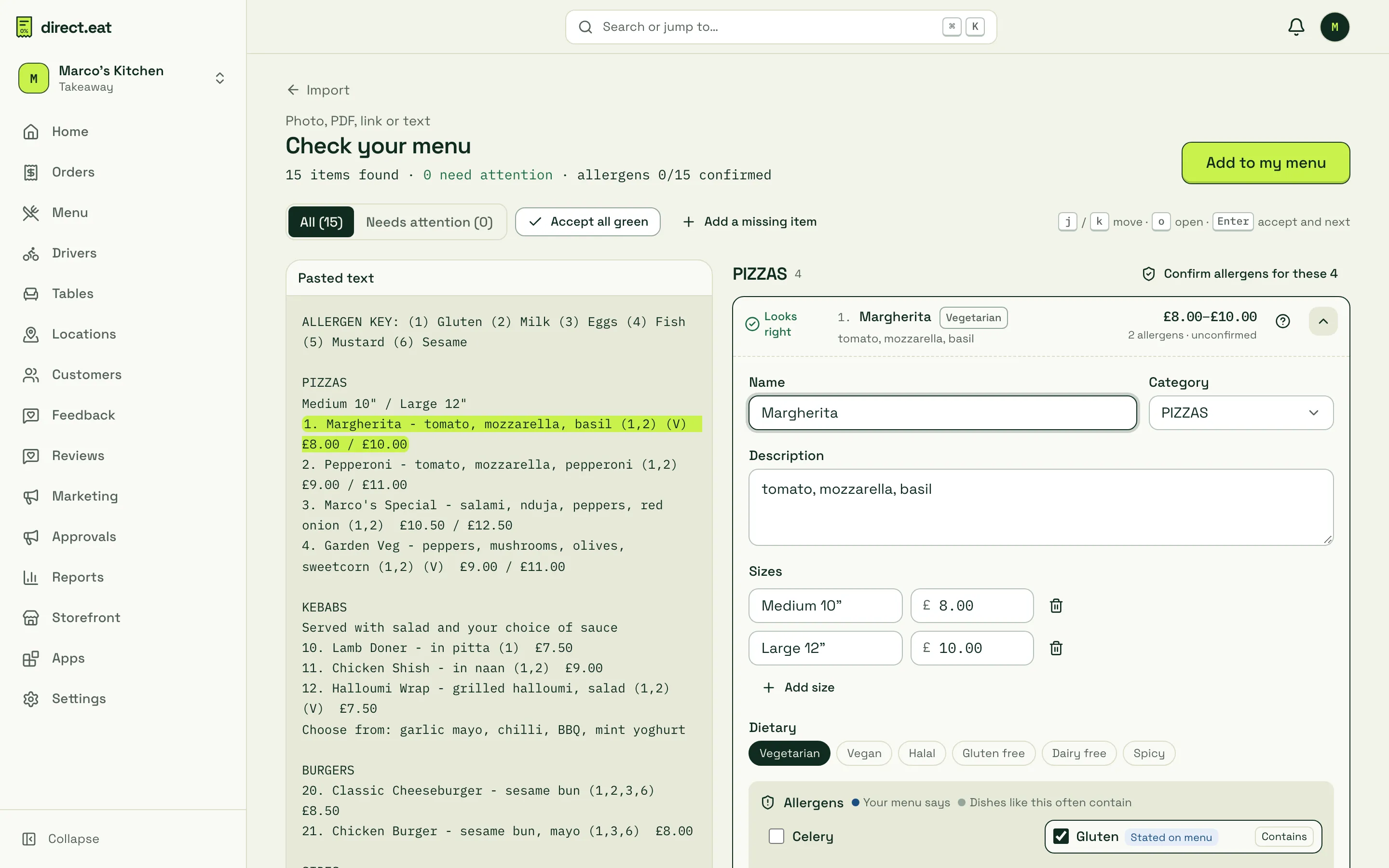
Sizes printed across a line (“Medium 10” / Large 12”“) become sizes on one item, and sauce choices such as “Choose from: garlic mayo, chilli, BBQ, mint yoghurt” become an option group. Keyboard users can press j and k to move, o to open, and Enter to accept and go to the next item.
Add it to your menu
Section titled “Add it to your menu”-
Press Add to my menu.
-
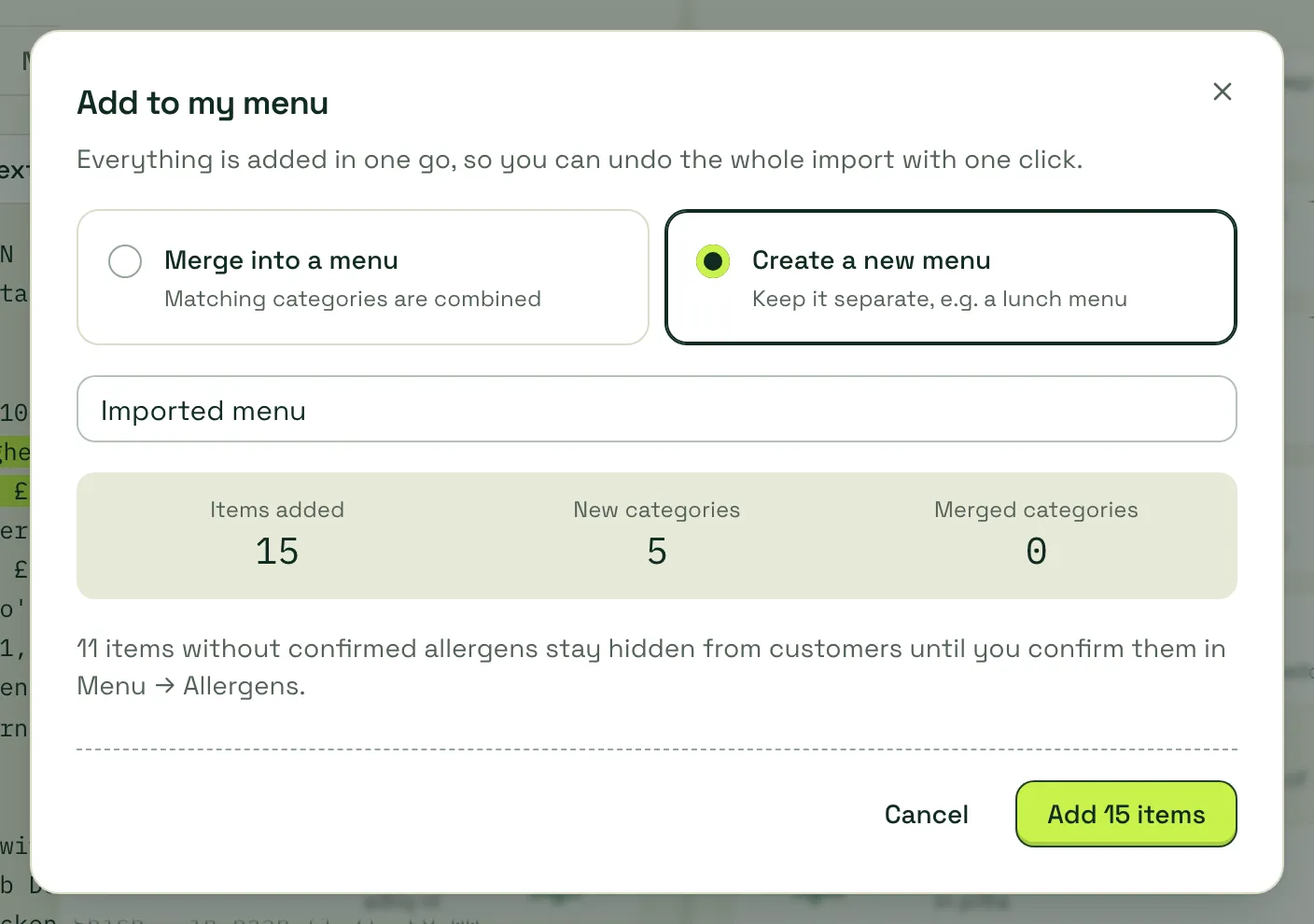
Choose Merge into a menu (matching categories are combined) or Create a new menu (for example a separate lunch menu), and check the counts.
-
Press Add 15 items (the number is yours).
Everything goes in as one change, so Undo whole import puts your menu back exactly as it was. Items whose allergens you haven’t confirmed yet are added but stay hidden from customers.
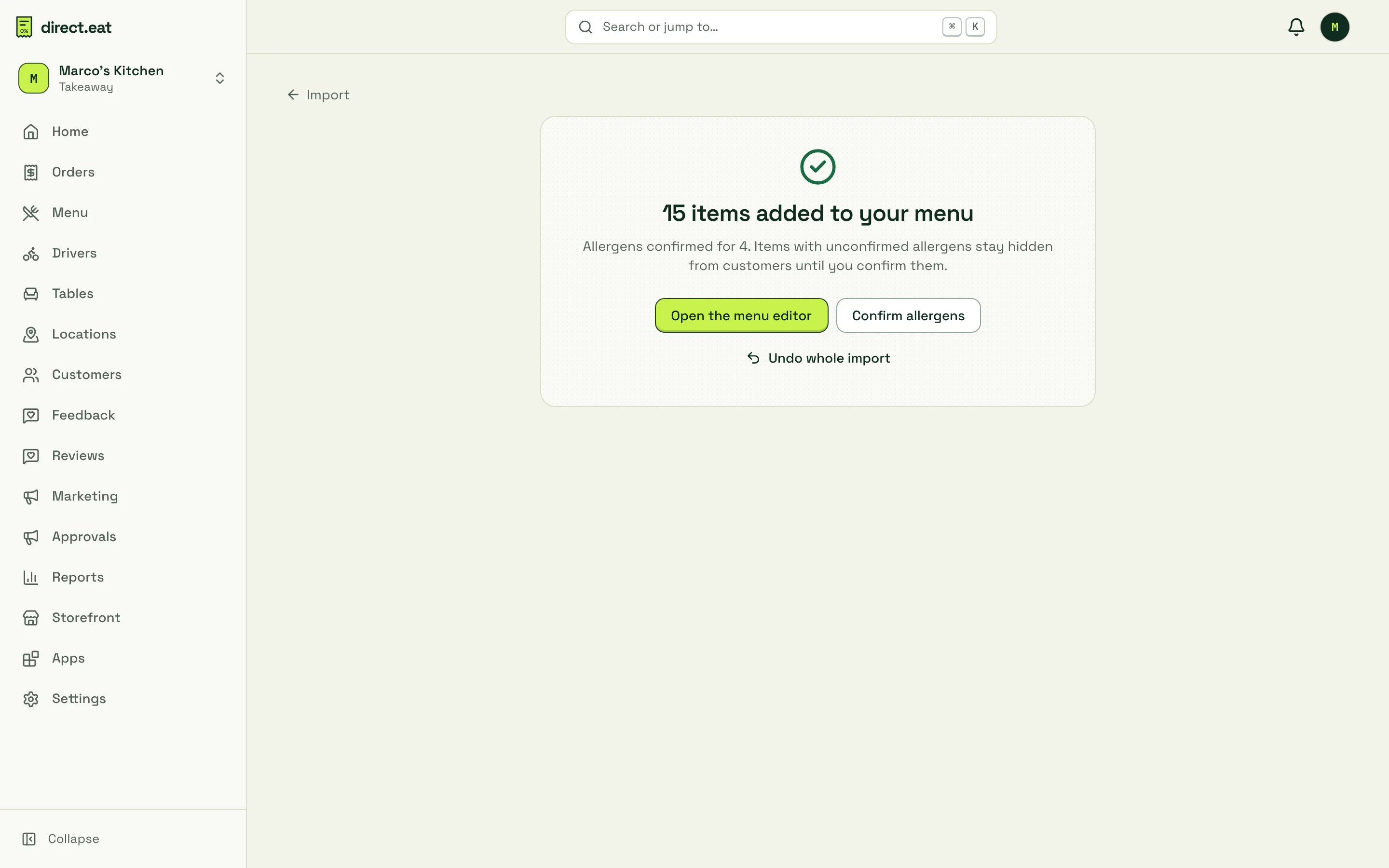
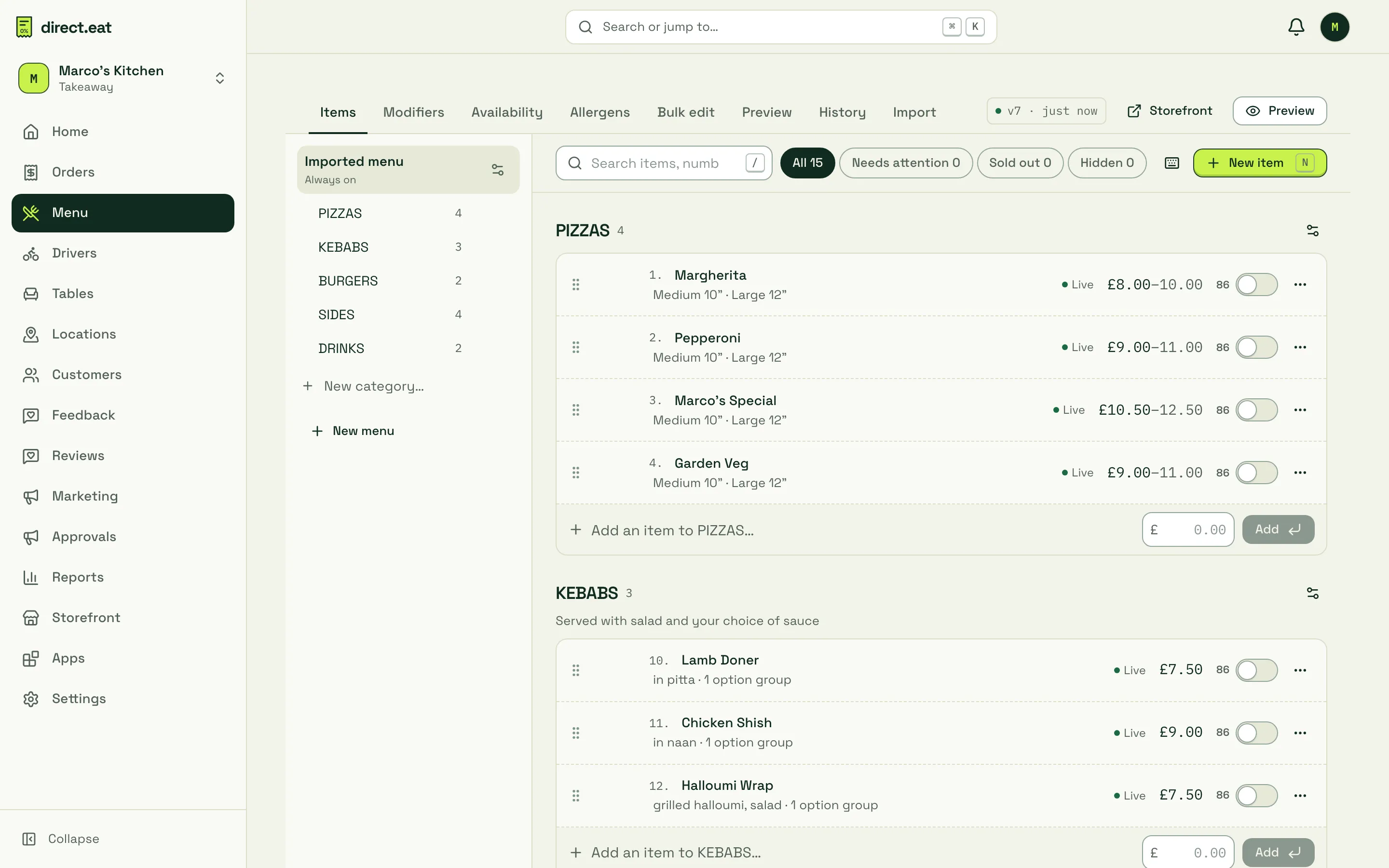
Your menu now appears in Menu → Items, where every change saves and publishes on its own:
Moving from GloriaFood
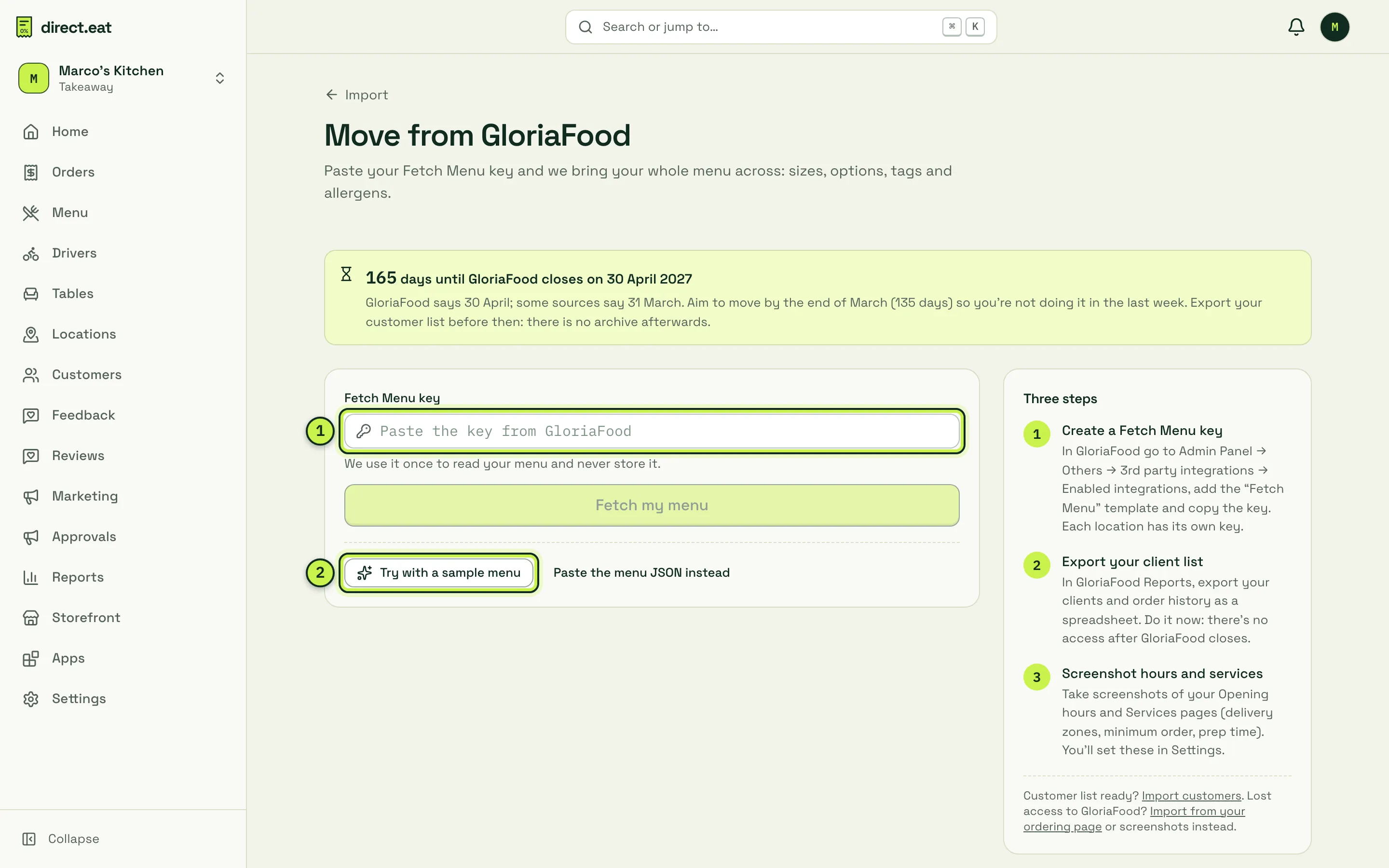
Section titled “Moving from GloriaFood”GloriaFood closes on 30 April 2027, and there’s no archive afterwards. Some sources say 31 March, so aim to move by the end of March. The import page shows a countdown.
-
In GloriaFood, go to Admin Panel → Others → 3rd party integrations → Enabled integrations, add the Fetch Menu template and copy the key. Each location has its own key.
-
In direct.eat, open Menu → Import → GloriaFood and paste the key into Fetch Menu key (1). We use it once to read your menu and never store it.
-
Press Fetch my menu. Your categories, items, sizes, option groups, tags, calories and allergens arrive on the Check your menu screen.
-
Before GloriaFood closes, also export your client list from GloriaFood Reports and screenshot your opening hours and services pages. You import the customers separately and set hours and delivery in Settings.
Want to see what it looks like first? Try with a sample menu (2) loads a sample GloriaFood menu into the review screen without touching yours. If you have the menu JSON from a developer or reseller, use Paste the menu JSON instead.
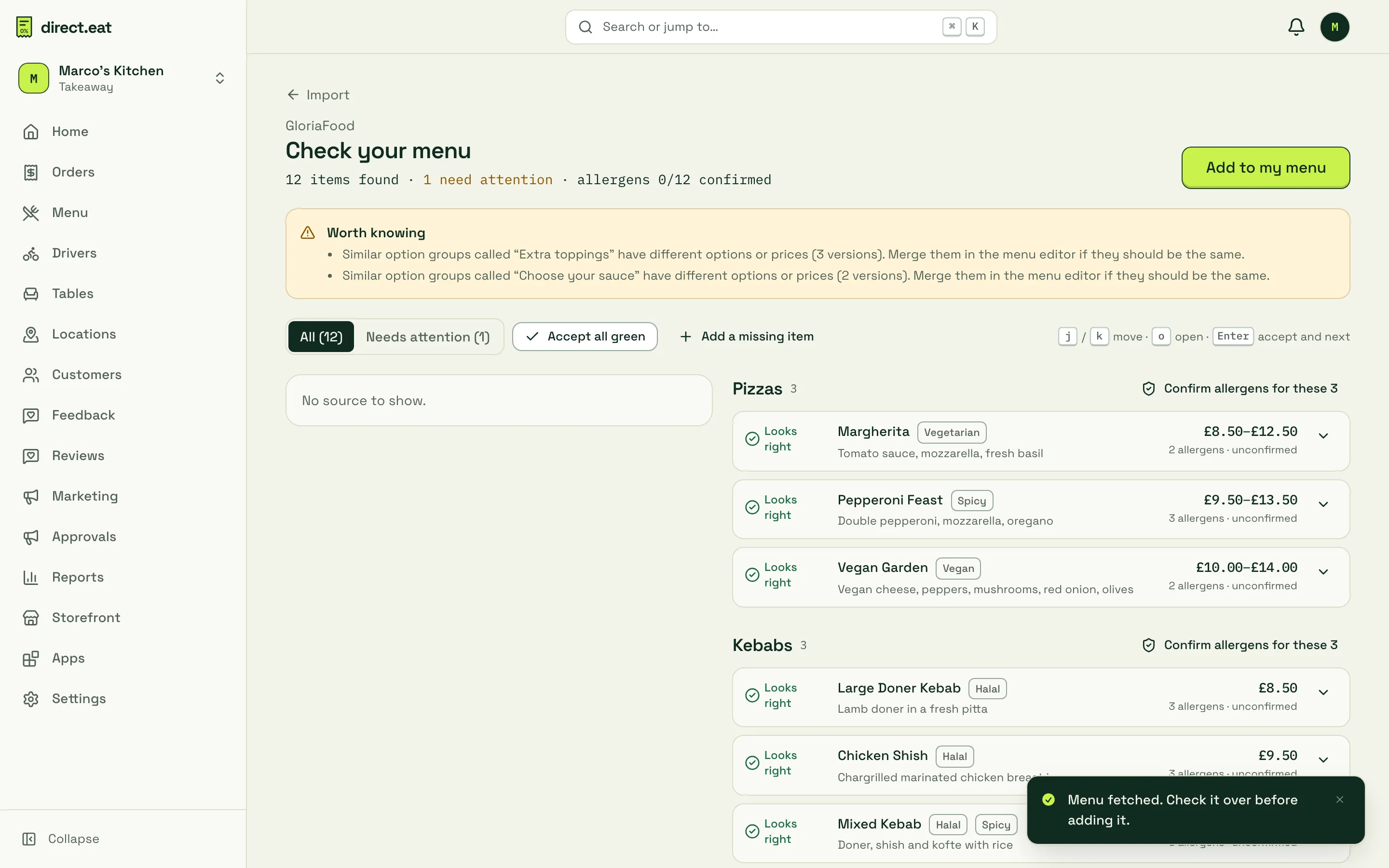
Allergens from GloriaFood still arrive unconfirmed. You confirm them in step 4, because the legal duty is yours.
Upload a spreadsheet
Section titled “Upload a spreadsheet”Use this for a till export, a Flipdish or Foodhub export, or a menu you keep in Excel.
-
Open Upload a spreadsheet (or Menu → Import → Spreadsheet (CSV or Excel)).
-
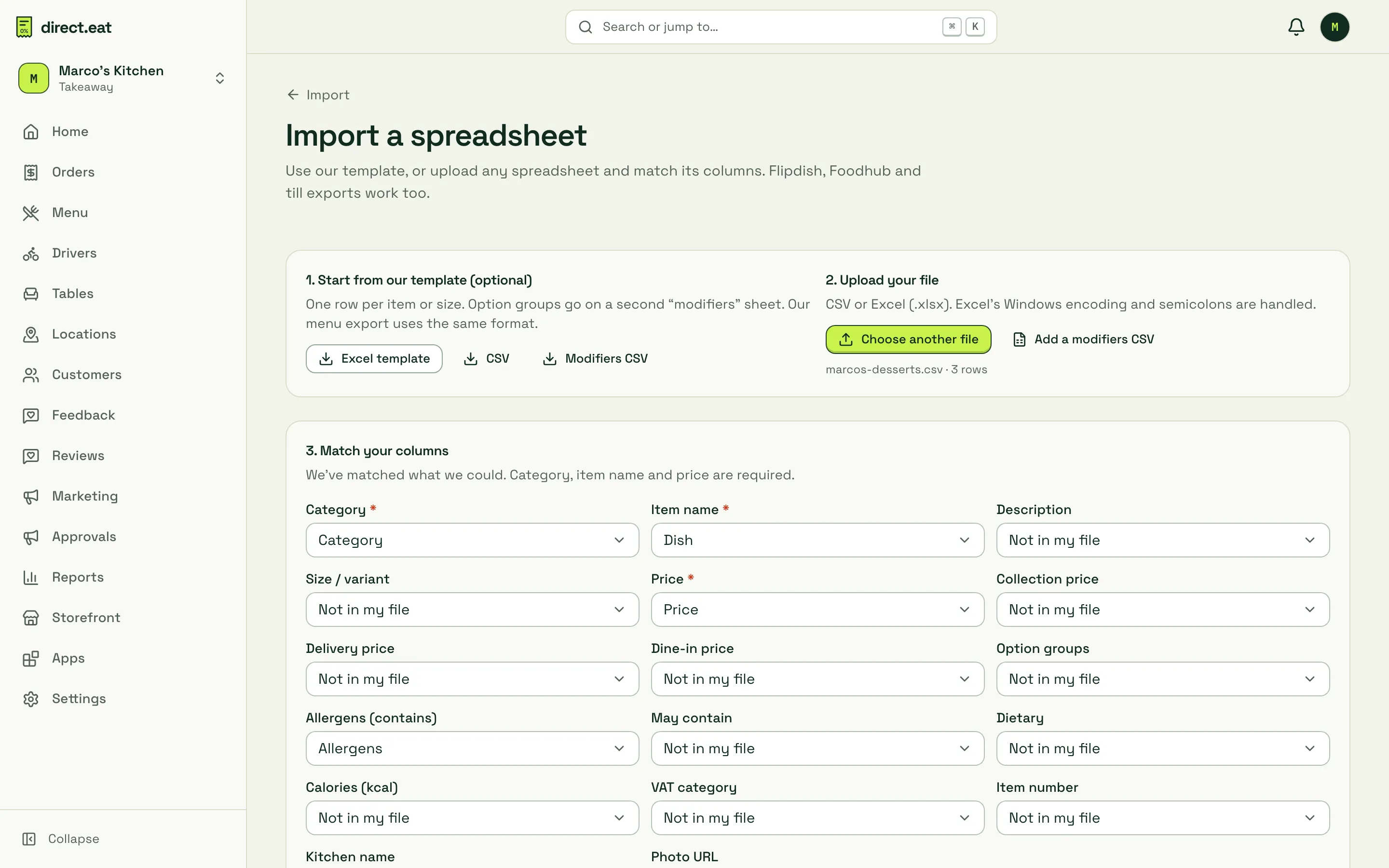
Optional: download our Excel template, CSV or Modifiers CSV and fill it in. One row per item or per size. Our menu export uses the same format, so a menu you export can be imported again.
-
Press Choose file and pick your CSV or Excel (.xlsx) file. Windows Excel encodings and semicolon-separated files are handled.
-
Match your columns. We match what we can. Category, Item name and Price are required; set anything else you don’t have to Not in my file.
-
Check the Preview (the first 20 rows) and any row errors, then press Check and add to go to the same Check your menu screen.
- Photograph flat, bright and whole. One photo per page, the whole page in shot, near a window or under a good light.
- Check prices first, descriptions later. A wrong price costs money; a clumsy description doesn’t. You can polish wording in the menu editor any time.
- Rename “Imported menu”. If you created a new menu, rename it in the menu editor’s menu settings.
- Marketplace prices. If your Deliveroo or Just Eat prices are higher than your counter prices, the review screen offers to lower them all by a percentage.
- Customers too. Moving platforms? Import your customer list with marketing consent from Menu → Import → Customer list. See Importing.
Related
Section titled “Related”- Importing in depth: every route, Flipdish and Foodhub, marketplaces and customer lists
- Editing your menu
- Modifiers and meal deals
Next step
Section titled “Next step”4. Allergens: confirm the 14 allergens for every item.
Was this page helpful?