

AI insights and assistant
direct.eat uses AI in three places in Reports: a short daily summary of how yesterday went, alerts and suggestions when something looks unusual, and Ask, an assistant that answers questions about your shop from your own data. The AI can read your numbers. It can never change anything: no prices, no menu, no messages sent. Anything it writes for you waits for your approval.
Before you start
Section titled “Before you start”- Owners, admins and managers can read Insights and use Ask. Only owners and admins can change AI settings. Managers can request drafts but not approve them.
- Ask only uses figures the person asking is allowed to see. A manager’s question about payouts gets “you don’t have access”, not the numbers.
- Each plan includes a monthly allowance for Ask, shown in AI settings as Assistant allowance this month. Summaries and alerts never count towards it. See Plan limits.
Daily summary
Section titled “Daily summary”Go to Reports → Insights. The daily summary is also on the Reports overview, your Home page and the end-of-day email.
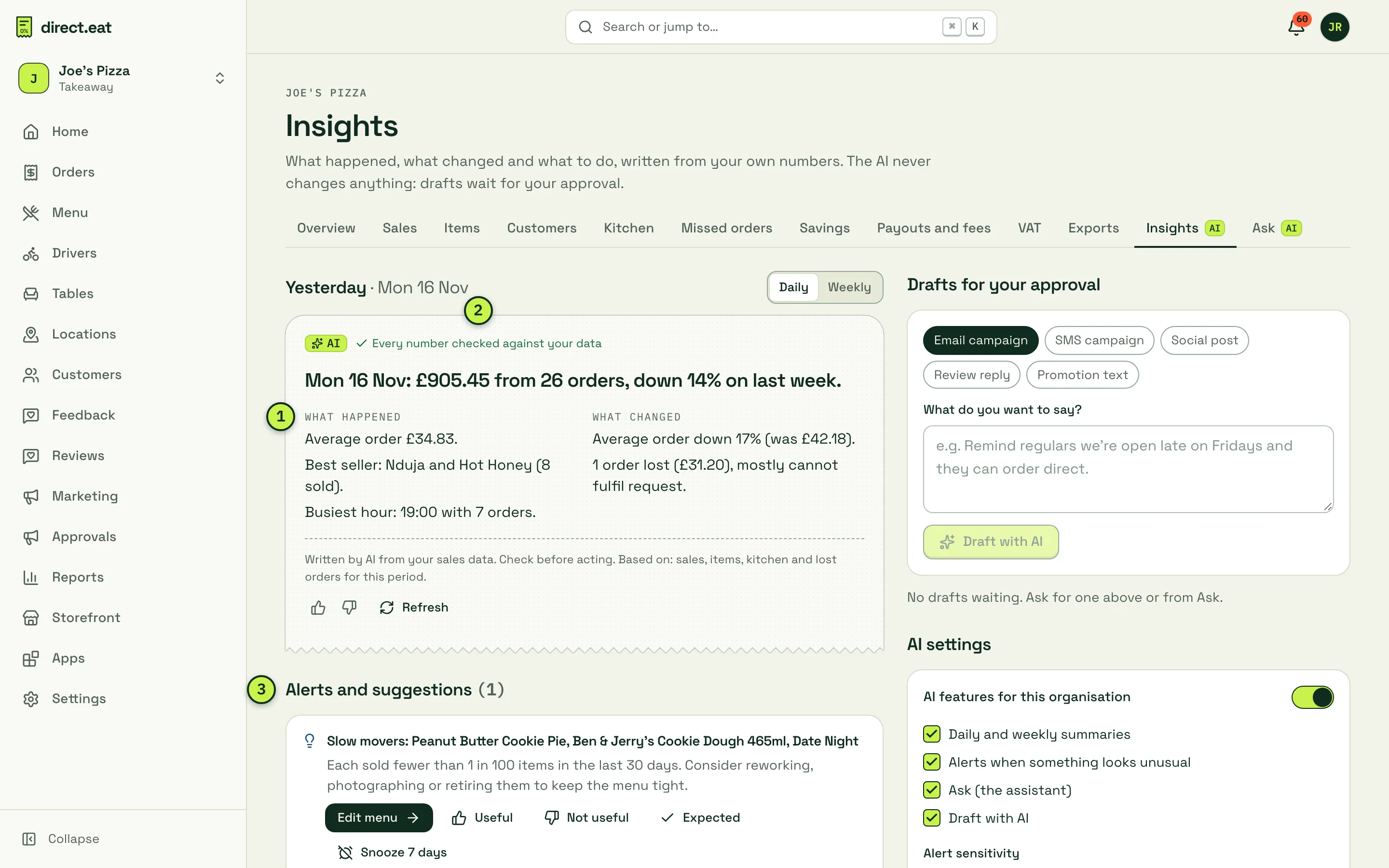
- What happened and What changed, under a one-line headline such as “Mon 16 Nov: £905.45 from 26 orders, down 14% on last week.” When there’s something worth doing, a What to do section adds up to three actions, each a link to the right page.
- Every number checked against your data: every figure in the summary is checked against the numbers we calculated. If one doesn’t match, the summary is rewritten; if it still doesn’t match, you get a plain template summary instead. On days with fewer than 5 orders you always get the plain version.
- Alerts and suggestions: see below.
Use the thumbs to say whether a summary was useful, and Refresh to rewrite it. Switch between Daily and Weekly at the top. A weekly summary appears once a full week has been summarised.
The summary is written from a sheet of figures we work out first (sales, items, kitchen times, lost orders). The AI never sees individual orders or customer names.
Alerts and suggestions
Section titled “Alerts and suggestions”Unusual things are spotted by statistics in our code, not by the AI guessing. The AI only explains a pattern once the numbers have confirmed it. Checks include:
- sales well below or above normal for that day and time
- no orders when you’d normally have some
- a spike in rejected orders or refunds
- an item that’s stopped selling (often one left switched off)
- prep times creeping up
- average order value shifting
- slow movers on your menu
Each alert has a link to fix it (for example Edit menu) and buttons: Useful, Not useful, Expected (for a quiet bank holiday, say) and Snooze 7 days. Your answers tune what you’re told. Warnings also go to the bell in the dashboard, with no more than 3 non-urgent ones a day.
Go to Reports → Ask. Type a question, or pick a suggested one.
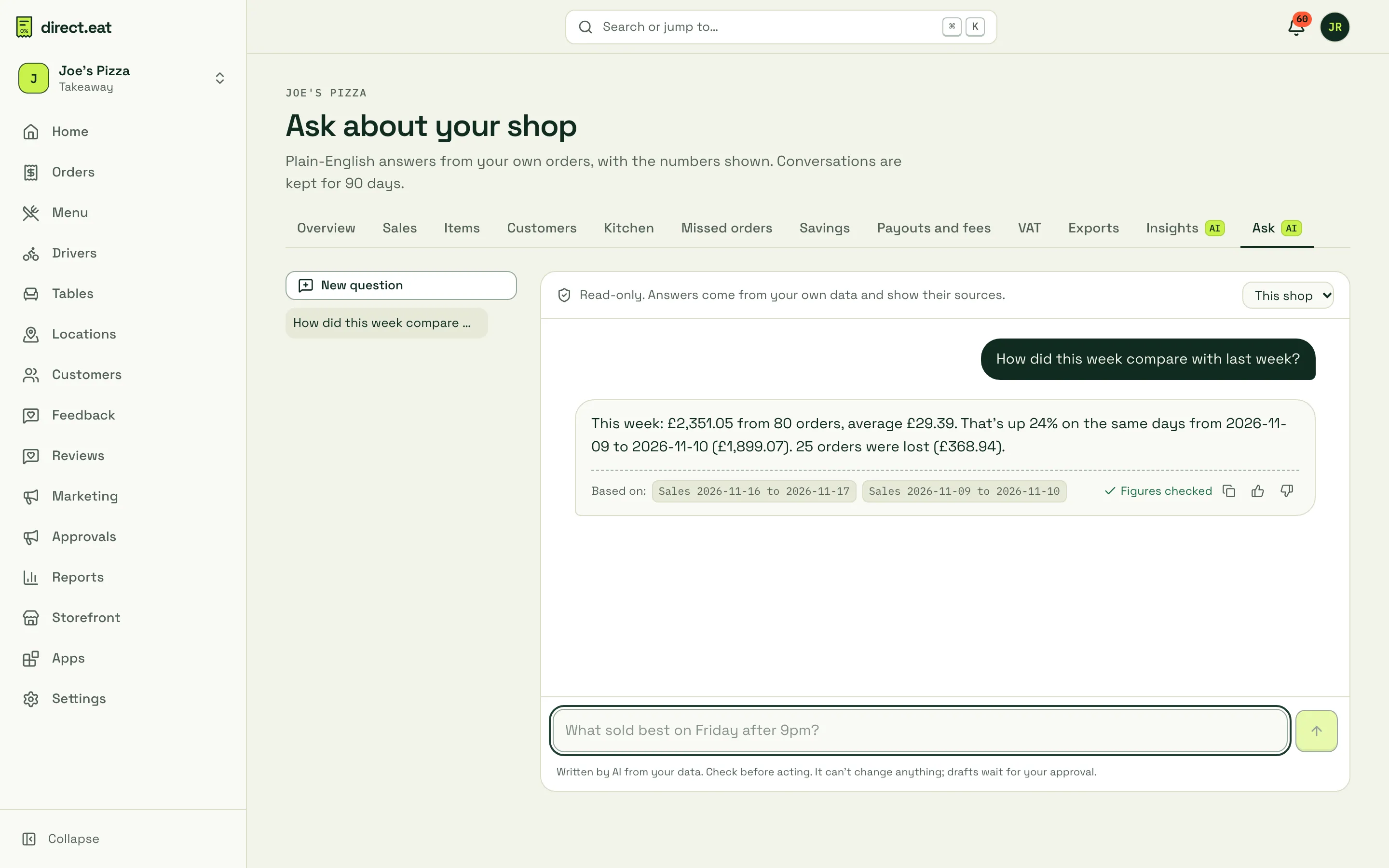
Good questions to try:
- “What sold best on Friday after 9pm?”
- “How did this week compare with last week?”
- “Why did we lose orders last week?”
- “How much did we save vs Deliveroo last month?”
Each answer shows Based on chips naming the data it used, and Figures checked when every number matched. Where it helps, you also get a chart or table you can export as CSV. If the data can’t answer the question, it says so rather than guessing.
Ask is read-only. If you ask it to do something (“Put the margherita price up 50p”), it gives you a link to the right page to do it yourself. Choose This shop or All shops at the top. Conversations are kept for 90 days, and you can delete them from the list on the left.
Draft with AI
Section titled “Draft with AI”In Drafts for your approval on the Insights page, pick Email campaign, SMS campaign, Social post, Review reply or Promotion text, say what you want (“Remind regulars we’re open late on Fridays”) and click Draft with AI.
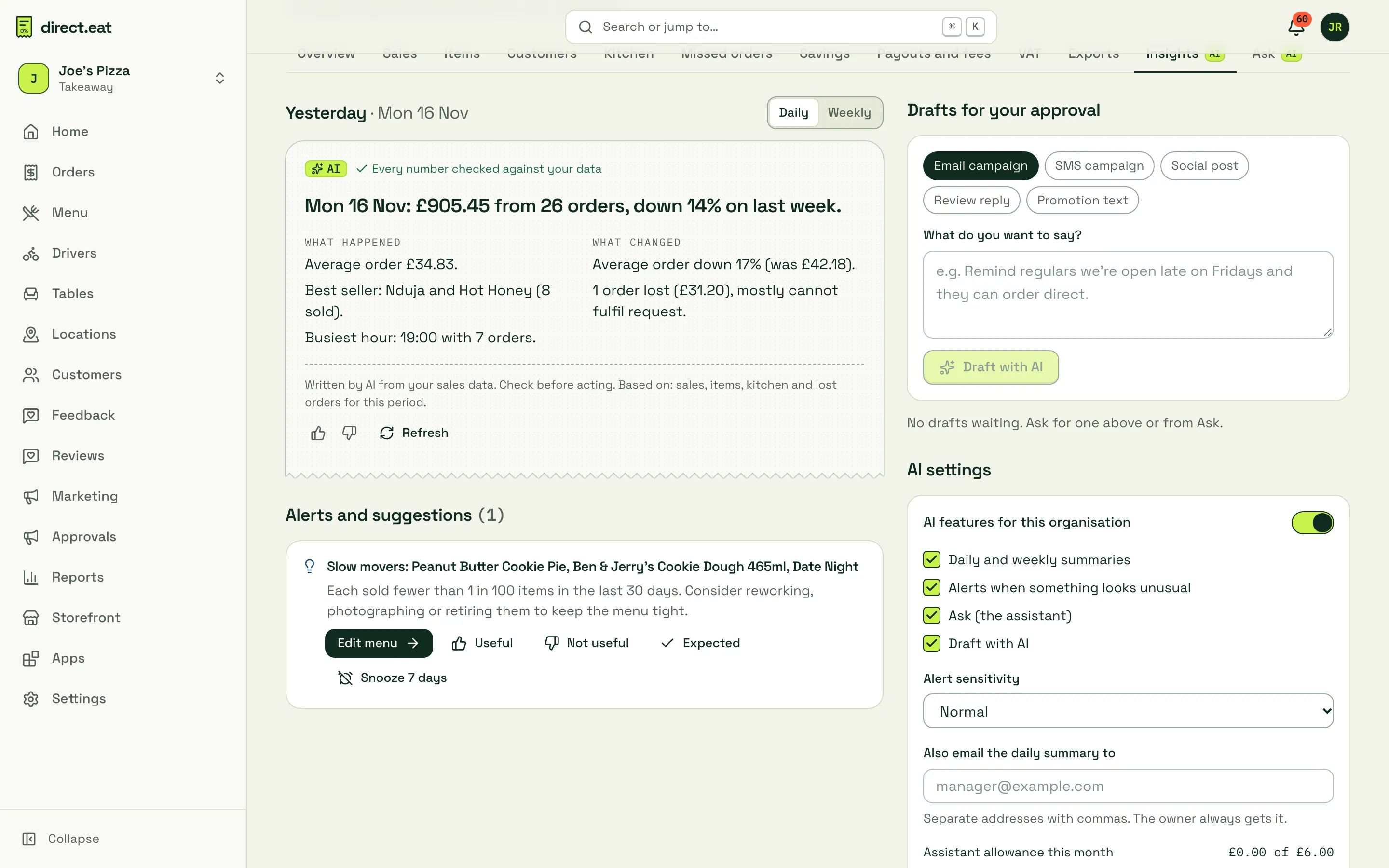
Drafts are checked before you see them: prices and offers that don’t match your menu or live offers are flagged, as are allergen or health claims. Marketing drafts get the legal unsubscribe footer automatically, and SMS drafts are kept to one text (160 characters). Nothing is used until an owner or admin approves it, and the approval records what the AI wrote and what you changed.
AI settings
Section titled “AI settings”At the bottom of Insights (owners and admins):
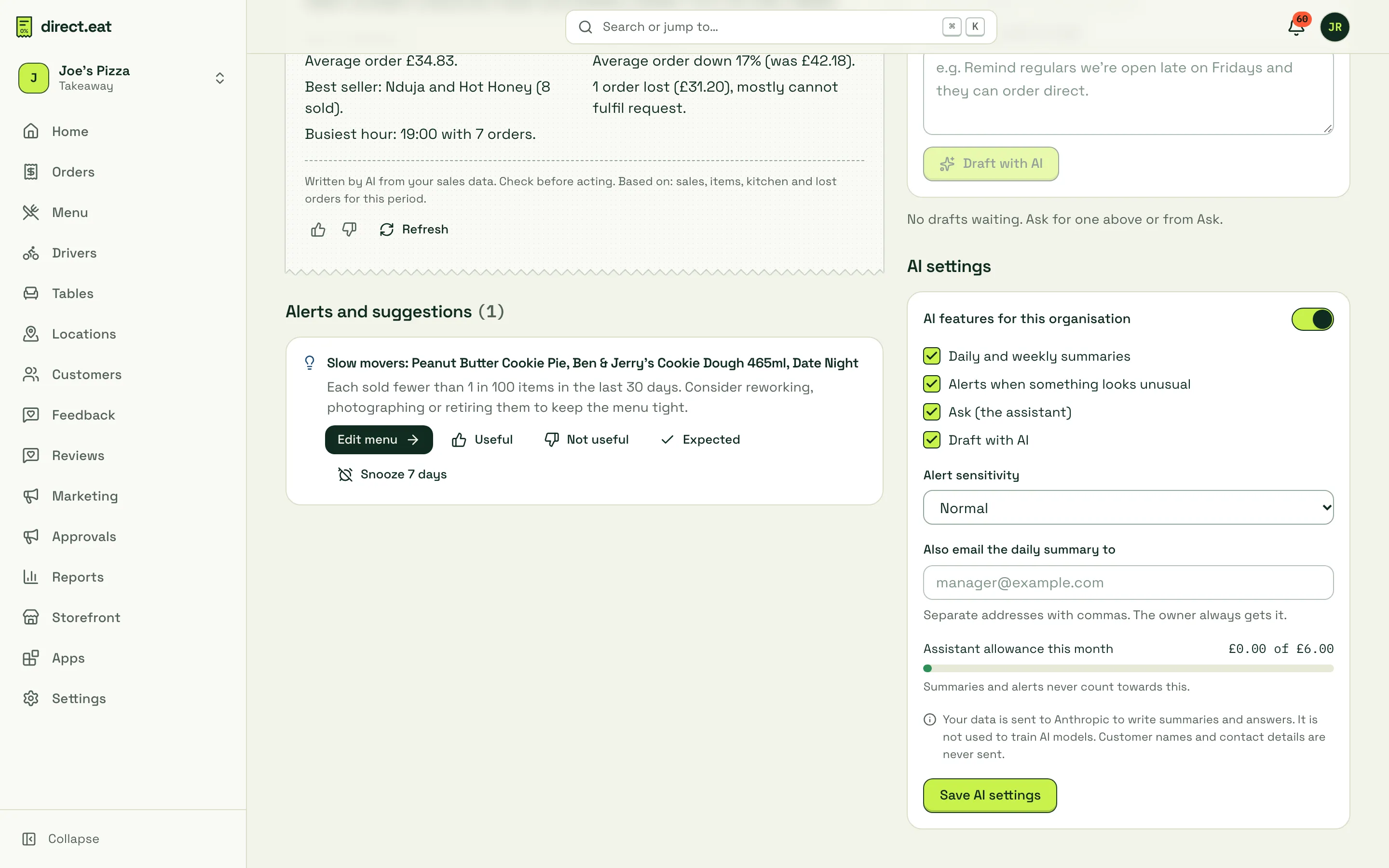
- AI features for this organisation: one switch for everything, plus separate switches for Daily and weekly summaries, Alerts when something looks unusual, Ask (the assistant) and Draft with AI.
- Alert sensitivity: Low: only big changes, Normal, or High: tell me more.
- Also email the daily summary to: extra addresses, separated by commas. The owner always gets it.
- Assistant allowance this month: how much of your Ask allowance you’ve used. When it’s used up, Ask pauses until next month; summaries and alerts carry on.
Click Save AI settings.
Related
Section titled “Related”Was this page helpful?