

Alerts and the missed-order ladder
A missed order is the worst thing that can happen to a takeaway: the customer has paid, nobody’s cooking and they’re about to walk in. direct.eat doesn’t rely on one tablet beeping in a noisy kitchen. If a new order isn’t accepted, it tries louder channels one after another: a printed ticket, a push to your phone, a phone call, a text, and finally it tells the customer and refunds them. You set the timings in Settings → Alerts.
Before you start
Section titled “Before you start”- Everyone on the team can see alert settings and the alert log. Changing them needs Configure alert escalation: owners, admins and managers.
- Put your real opening hours in first. The alarm only rings during opening hours, plus a grace window either side (15 minutes by default). See hours and slots.
- Pair at least one kitchen tablet, ideally with a cloud printer as backup.
The kitchen alarm
Section titled “The kitchen alarm”Every new order rings on every kitchen screen with a full-screen card (see the kitchen app). Accepting on any screen, or on the dashboard, stops it everywhere.
- Seen pauses the alarm and the escalation for 3 minutes, once per order.
- 60 s silences the alarm for a minute.
- After a minute with no answer, the alarm gets louder.
- Outside opening hours (plus the grace window) it never loops. Closed days are silent.
Volume profiles
Section titled “Volume profiles”Settings → Alerts → Volume profiles sets how loud the kitchen gets.
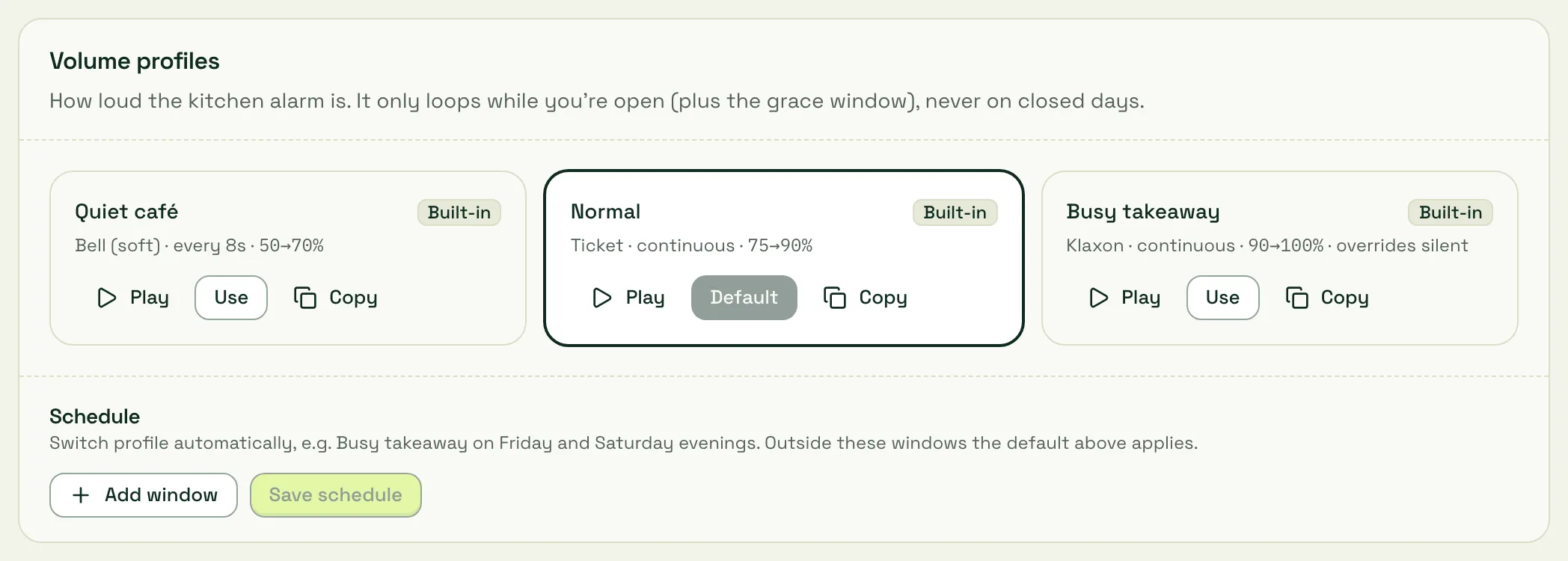
| Profile | Sound | Rings | Volume |
|---|---|---|---|
| Quiet café | Bell (soft) | every 8 seconds | 50%, rising to 70% |
| Normal | Ticket | continuously | 75%, rising to 90% |
| Busy takeaway | Klaxon | continuously | 90%, rising to 100%, overrides silent |
- Play previews it on your computer. Use makes it the shop’s default.
- Copy makes an editable version: choose the Sound (Bell (soft), Ticket, Klaxon, Chime), Loop (continuous or every few seconds), Start volume, how loud it gets After 1 minute, Flash the screen, Vibrate and Override silent mode.
- Schedule: Add window to switch profile automatically, for example Busy takeaway on Friday and Saturday evenings. Outside the windows the default applies.
Each tablet can also pick its own profile in This screen settings, for example a quieter one in the front of house.
The missed-order ladder
Section titled “The missed-order ladder”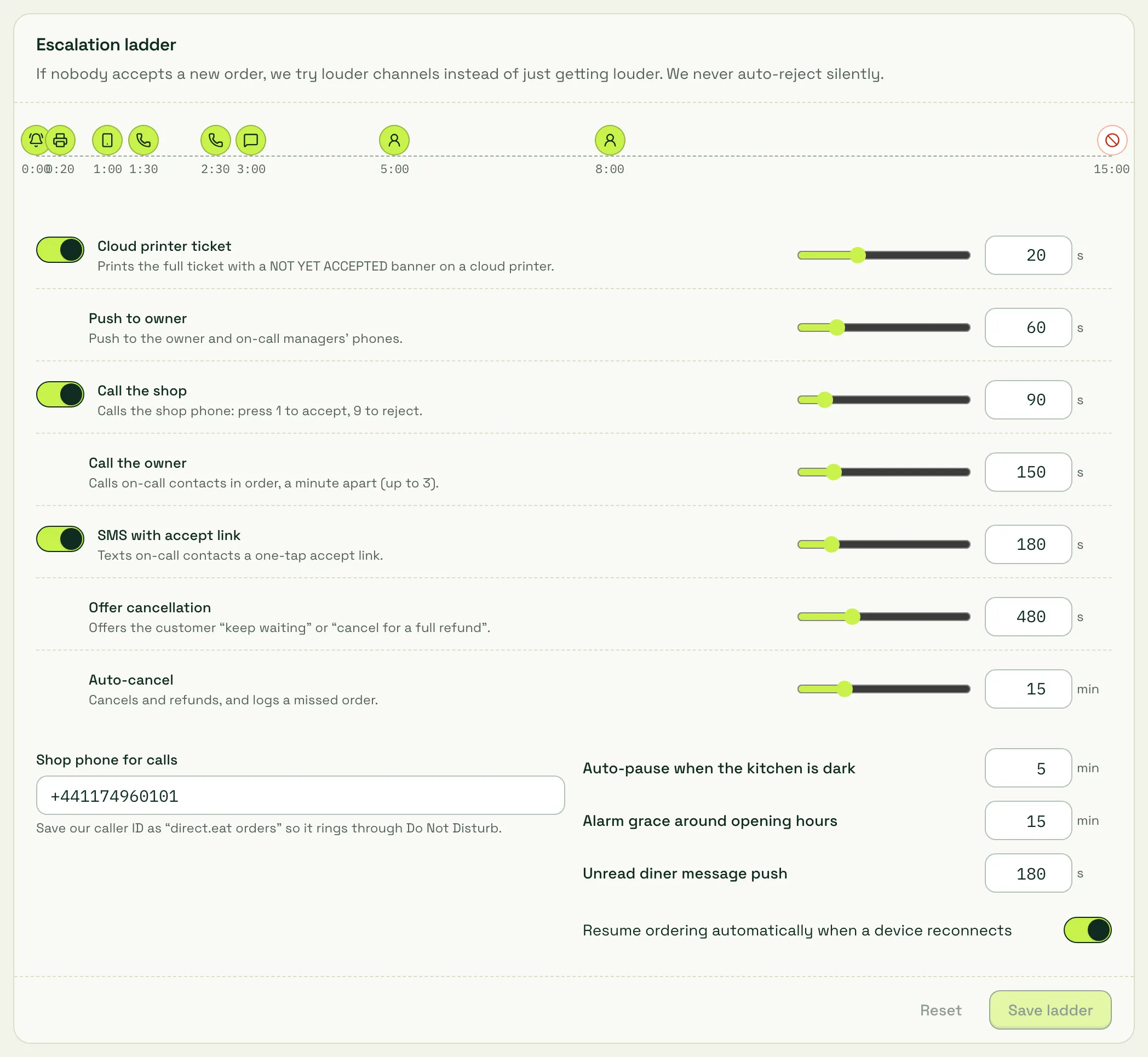
If nobody accepts a new order, these steps run in order. The times are from when the order arrives (or, for a pre-order, from when it’s due to be accepted). The defaults:
| Time | Step | Can change |
|---|---|---|
| 0:00 | Alarm on kitchen devices | |
| 0:15 | Check a kitchen device has received the order | |
| 0:20 | Cloud printer ticket: the full ticket with a NOT YET ACCEPTED banner and a QR code to accept it | 0 to 60 s, or off |
| 1:00 | Push to owner and on-call managers | 30 s to 3 min |
| 1:30 | Call the shop: “Press 1 to accept, 9 to reject.” | 1 to 5 min |
| 2:30 | Call the owner: your on-call contacts in order, a minute apart, up to 3 | 1:30 to 7 min |
| 3:00 | SMS with accept link to on-call contacts | 2 to 8 min |
| 5:00 | Tell the customer you’re being called and the order isn’t confirmed yet | fixed |
| 8:00 | Offer cancellation: the customer can keep waiting or cancel for a full refund | 5 to 15 min |
| 15:00 | Auto-cancel: the order is cancelled, refunded in full and logged as a missed order | 10 to 30 min |
The ladder stops the moment anyone accepts or rejects, anywhere: a tablet, the dashboard, pressing 1 on the call or the link in the text. Steps that haven’t happened yet never run. direct.eat never rejects an order silently.
Fast path: if no kitchen device is online when the order arrives, or none confirms it got the order within 15 seconds, the ladder skips ahead: the printer ticket and owner push go straight away, the shop call 30 seconds later, and the contact call and text at one minute.
Change a timing with the slider or type it in, then Save ladder. Reset goes back to the defaults. You can’t turn off the shop call or the text unless you confirm you have another way to hear about orders.
The phone call
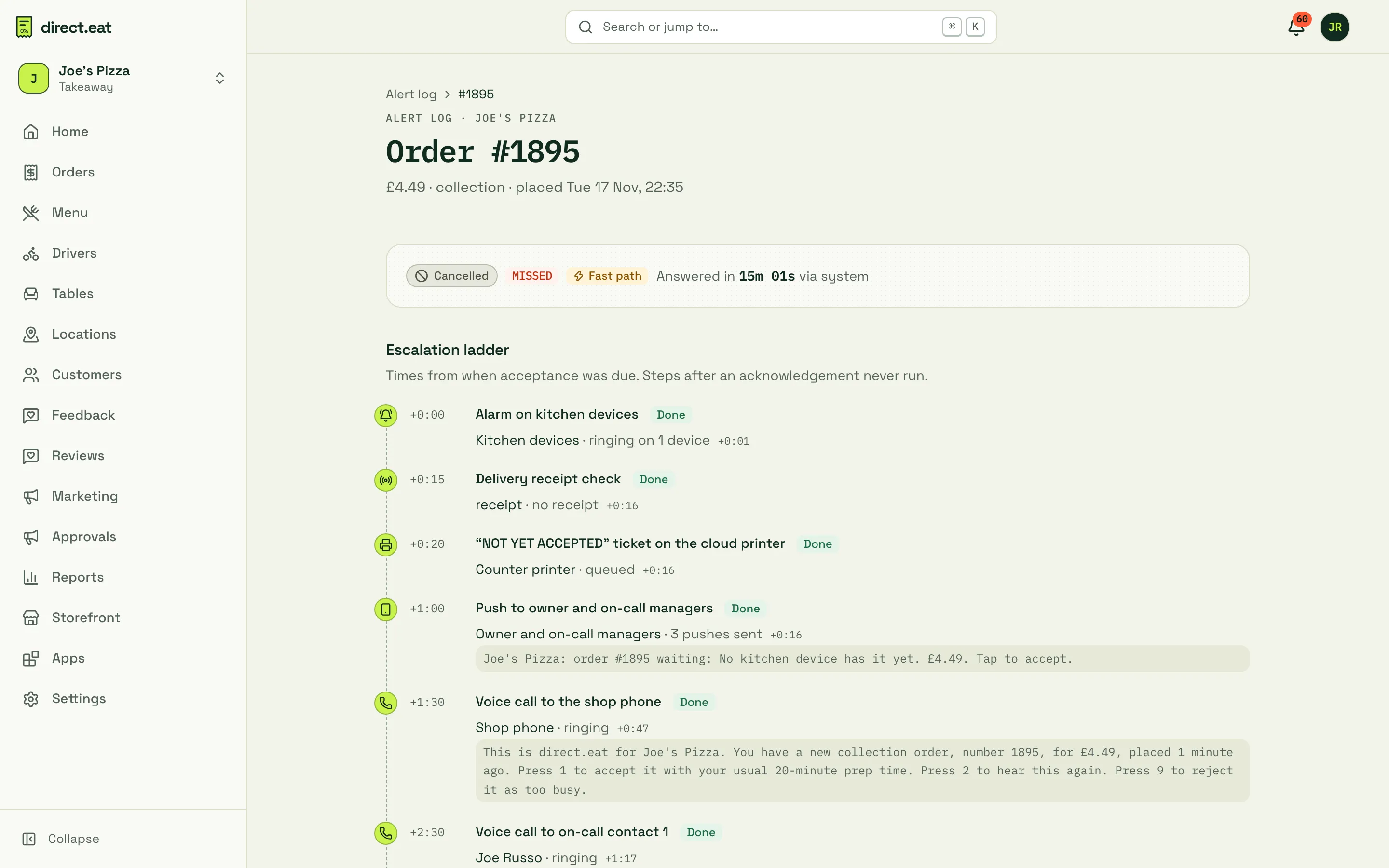
Section titled “The phone call”The call says, for example: “This is direct.eat for Joe’s Pizza. You have a new collection order, number 1895, for £4.49, placed 1 minute ago. Press 1 to accept it with your usual 20-minute prep time. Press 2 to hear this again. Press 9 to reject it as too busy.”
Set the number under Shop phone for calls, and save the caller ID as “direct.eat orders” in your phone so it rings through Do Not Disturb.
The text
Section titled “The text”The text is one short message with the order number, value, how long it has waited and a one-tap accept link, for example: “direct.eat: Order #1042 (£23.50, collect 19:45) at Joe’s Pizza has waited 3 min. Accept: …”. The link works once and lasts 30 minutes. It opens a page in the dashboard where you choose the ready time and accept. You need to be signed in to the dashboard on that phone.
What the customer sees
Section titled “What the customer sees”At 5 minutes the customer’s tracking page says the order isn’t confirmed yet and that you’re being called. At 8 minutes they’re offered keep waiting or cancel for a full refund, on the tracking page and by email. If they cancel, the order is cancelled and refunded, and you see it in the inbox.
Auto-cancel
Section titled “Auto-cancel”If nobody has answered at 15 minutes, the order is cancelled and refunded in full, and logged as a missed order. The owner is told in the inbox and by email (and by push and text once those are live). Missed orders show in the alert log and in reports.
On-call contacts
Section titled “On-call contacts”
Up to 5 people, called and texted in order.
-
Click Add contact.
-
Enter the Name and Mobile, and link a Team member (for push) if they’re on your team.
-
Choose Reach them by: push, call, SMS.
-
Optional: add On call windows. Leave them empty for always. Windows can cross midnight.
-
Save, then click Verify. We text a 6-digit code that lasts 15 minutes. Type it into Enter the code we texted.
Calls and texts carry only the order number, value, shop and time. No customer details. Without any contacts, the ladder stops at the shop call.
Test the chain
Section titled “Test the chain”Click Test the chain at the top of Settings → Alerts. It runs a pretend order through push, call and SMS, marked TEST. The results land in your notifications inbox. Do this once after setting up, and again whenever you change phones or contacts.
Kitchen offline and auto-pause
Section titled “Kitchen offline and auto-pause”direct.eat checks every 10 seconds whether at least one kitchen device or printer can hear new orders. The Kitchen health card at the top of Settings → Alerts shows the result and how many devices and printers are online.
If every path goes down while you’re open:
| After | What happens |
|---|---|
| 90 seconds | Push to the owner and managers, and a banner in the dashboard: “No kitchen device online. Online ordering pauses in 3 min.” |
| 3 minutes | Text to on-call contacts |
| 5 minutes (3 to 15) | Online ordering is paused automatically, so no more orders come in that nobody can see |
When a device comes back and stays online for a minute, ordering resumes on its own (turn off Resume ordering automatically when a device reconnects if you’d rather resume by hand). The pause shows in Settings → Modes under Recent changes as “Auto-paused · no kitchen device online”.
If one path drops but another still works (say the printer is off but the tablet is fine), you get a push after 2 minutes. If you open for the day with no device online, you’re told too.
Auto-pause only starts once your shop has had a working kitchen device. Only the owner can turn it off, in Settings → Ordering and collection. See busy mode and pausing.
The alert log
Section titled “The alert log”Notifications → Alert log shows every order that had to wait.
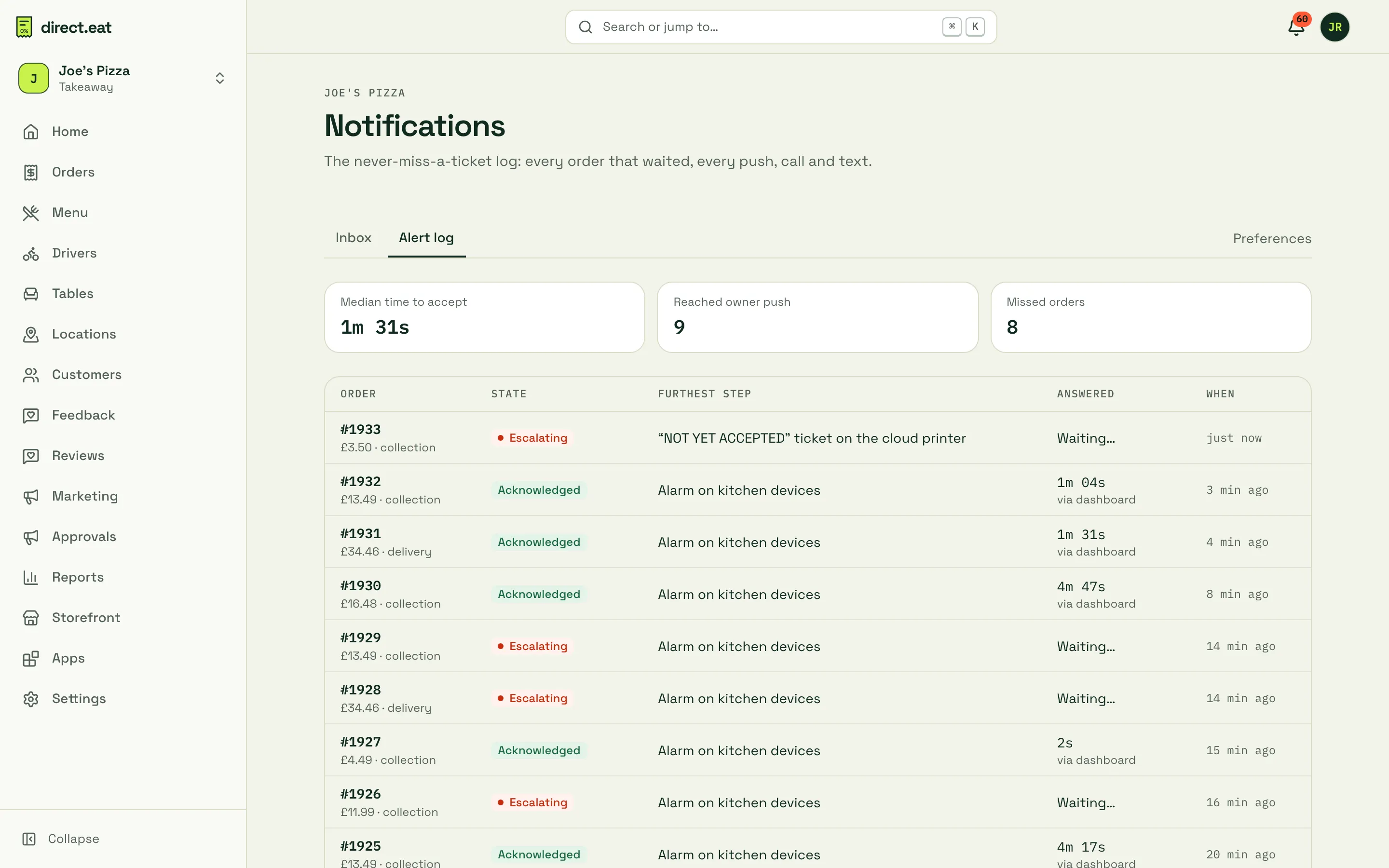
At the top: Median time to accept, how many orders Reached owner push, and Missed orders. Then each order with its state (Acknowledged, Escalating, missed), the furthest step it reached and how it was answered (a kitchen device, the dashboard, the phone call, the text link, the customer or automatically).
Click an order to see its ladder step by step: what was planned, what actually ran and when, the text of every push and call, and the emails sent.
Related
Section titled “Related”Was this page helpful?